How to hide frames in Miro

Hiding frames in Miro helps you organize your workspace by temporarily removing unnecessary visual elements from view. This feature is particularly useful when working with complex boards that contain multiple frames, allowing you to focus on specific areas without deleting important content.
Quick summary
In this tutorial, you'll learn how to hide frames in Miro using a straightforward process. By following these steps, you'll be able to quickly manage your board's visibility and improve your workspace organization.
Why this matters
Hiding frames is essential for maintaining a clean, focused workspace when collaborating on large Miro boards. This workflow helps teams reduce visual clutter, minimize distractions, and concentrate on the frames that matter most for the current task or presentation.
Step-by-step guide
- 1
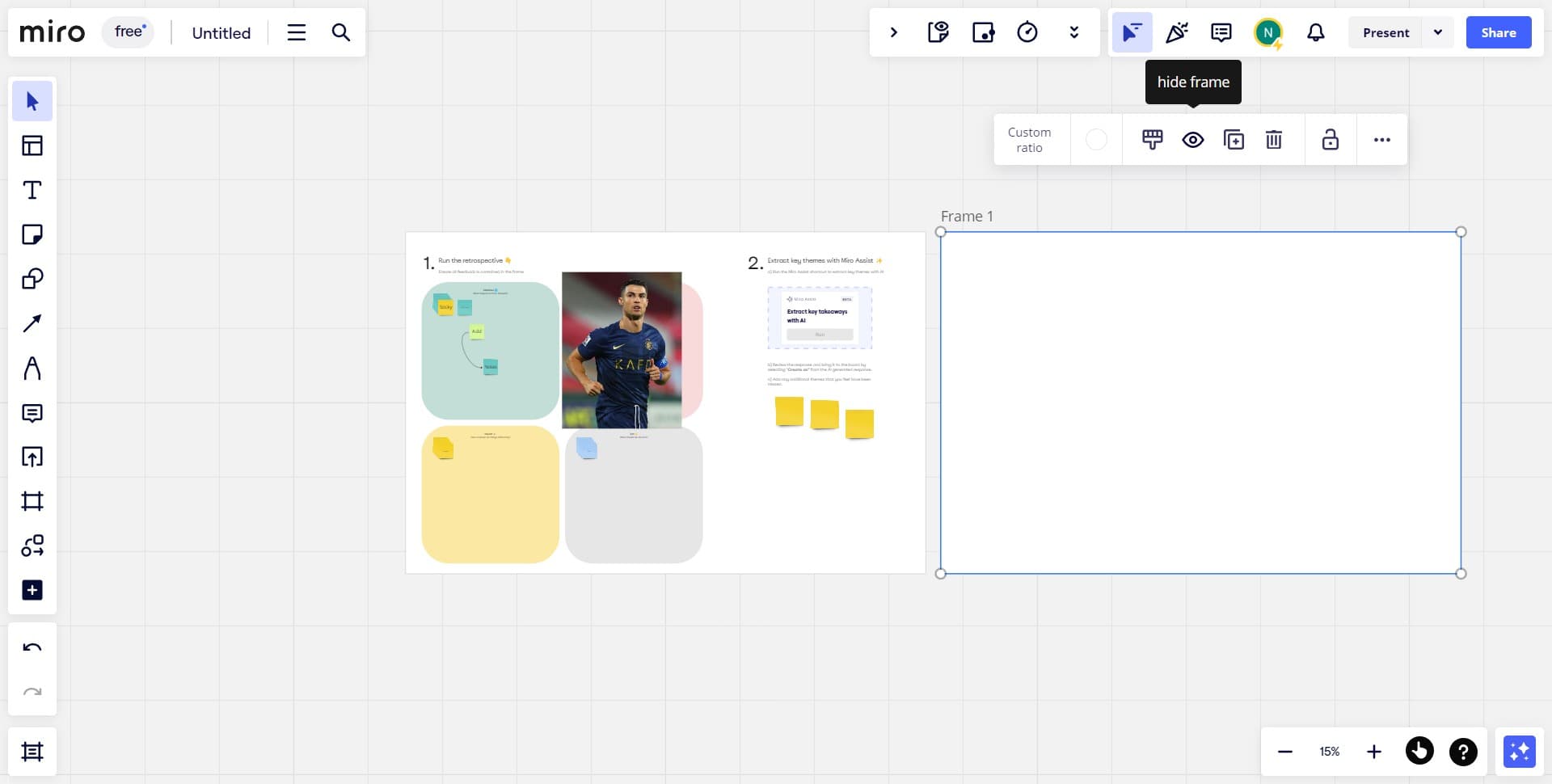
Click the frame selection area
Locate and click on the frame you want to hide within your Miro board. You'll see the frame become highlighted with a selection border, indicating it's now active.
- 2
Access the upload or options menu
Navigate to the upload menu or options panel for your selected frame. This menu contains additional controls and settings specific to the frame you've chosen.
- 3
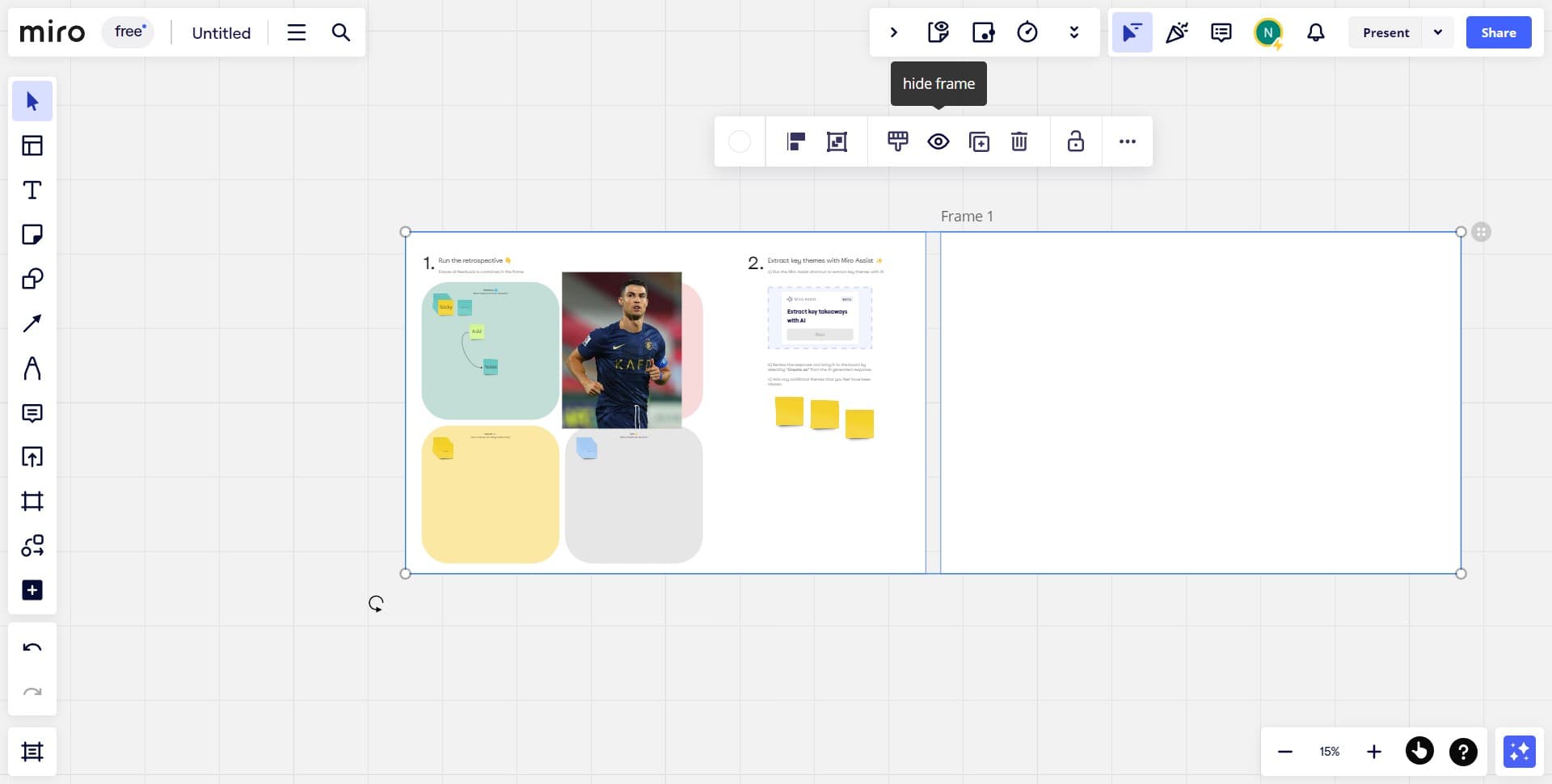
Select the hide option
Click on the designated hide option to conceal the selected frame from your board view. The frame will be temporarily hidden but remains part of your project.
- 4
Confirm the upload or action
Complete the action by confirming the upload or finalization of your hide request. Your frame will now be removed from the visible workspace.
Frequently asked questions
Common questions about how to hide frames in miro.
No, hiding a frame does not delete or remove its content. The frame remains saved in your Miro project and can be unhidden at any time by accessing the same menu and selecting the show or unhide option.
You can hide frames individually by selecting each one and using the hide option. Some Miro versions may offer batch operations, so check your current version's features for simultaneous multi-frame hiding capabilities.
To unhide frames, access the same menu where you hid them and look for an unhide or show option. You may also need to navigate to a layers panel or visibility settings to manage hidden frames in your workspace.
Hidden frames typically remain hidden for other collaborators viewing your board. However, permissions and visibility settings can vary, so verify your sharing settings to ensure frames are hidden as intended for your intended audience.
Yes, hiding frames before or during a presentation can help you create a focused viewing experience for your audience. Use the hide feature to remove distracting elements and present only the frames relevant to your presentation topic.