How to import draw diagrams in Miro

Importing draw diagrams into Miro allows you to bring external designs and visual content directly into your collaborative workspace. This capability streamlines your workflow by eliminating the need to recreate diagrams from scratch, saving time and maintaining design consistency across your projects.
Quick summary
In this tutorial, you'll learn how to import draw diagrams into Miro by accessing the shapes library and selecting the appropriate import options. You'll discover how to navigate the interface to locate and add pre-made diagrams to your canvas efficiently.
Why this matters
Importing diagrams into Miro enables teams to work with existing visual assets without manual recreation, accelerating collaboration and project timelines. This workflow is particularly valuable when consolidating designs from multiple sources or building upon previously created diagrams, ensuring your team stays focused on strategy rather than repetitive design work.
Step-by-step guide
- 1
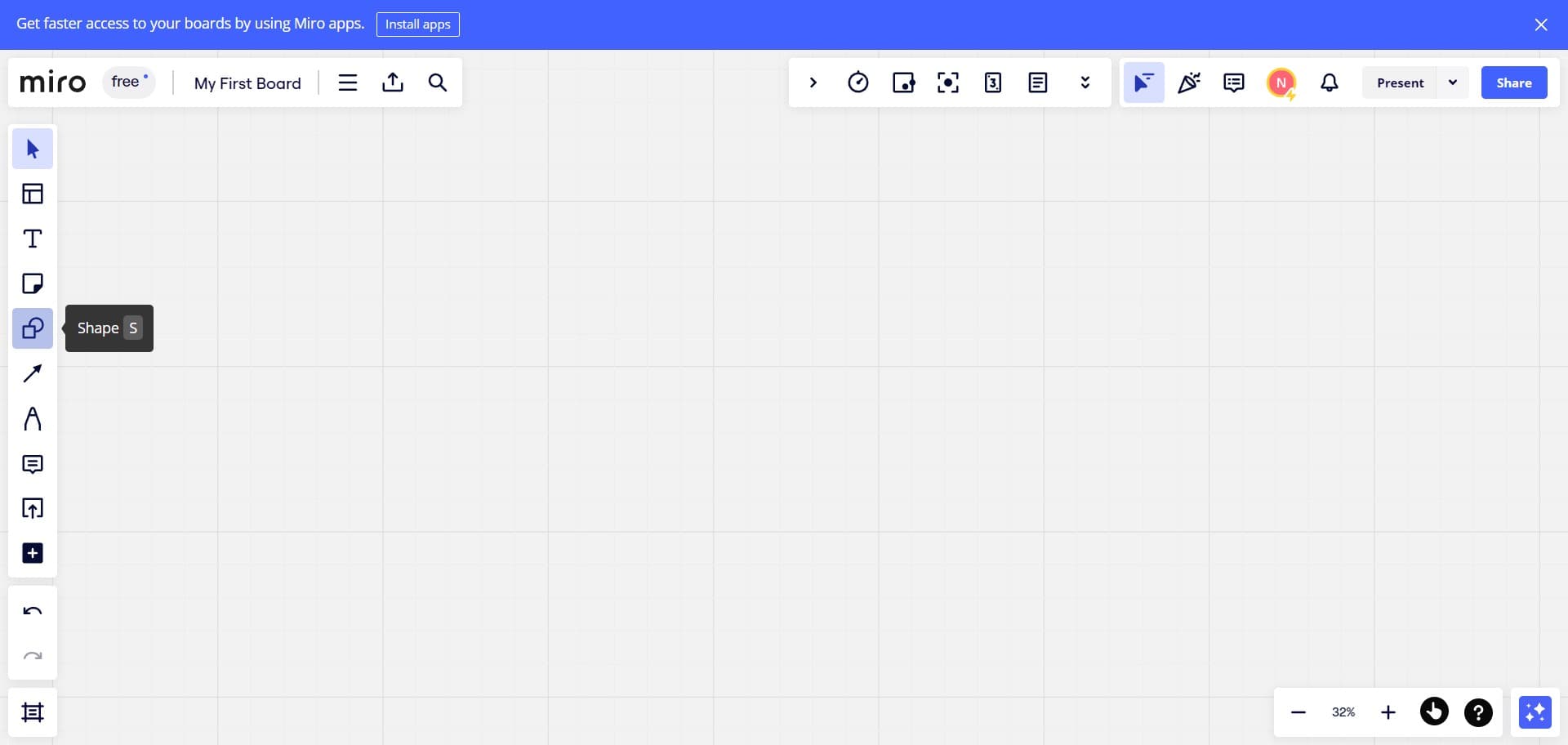
Access the import menu
Begin by locating and clicking the designated import option in your Miro interface. This action opens the initial dialog or menu where you can browse available content to add to your workspace.
- 2
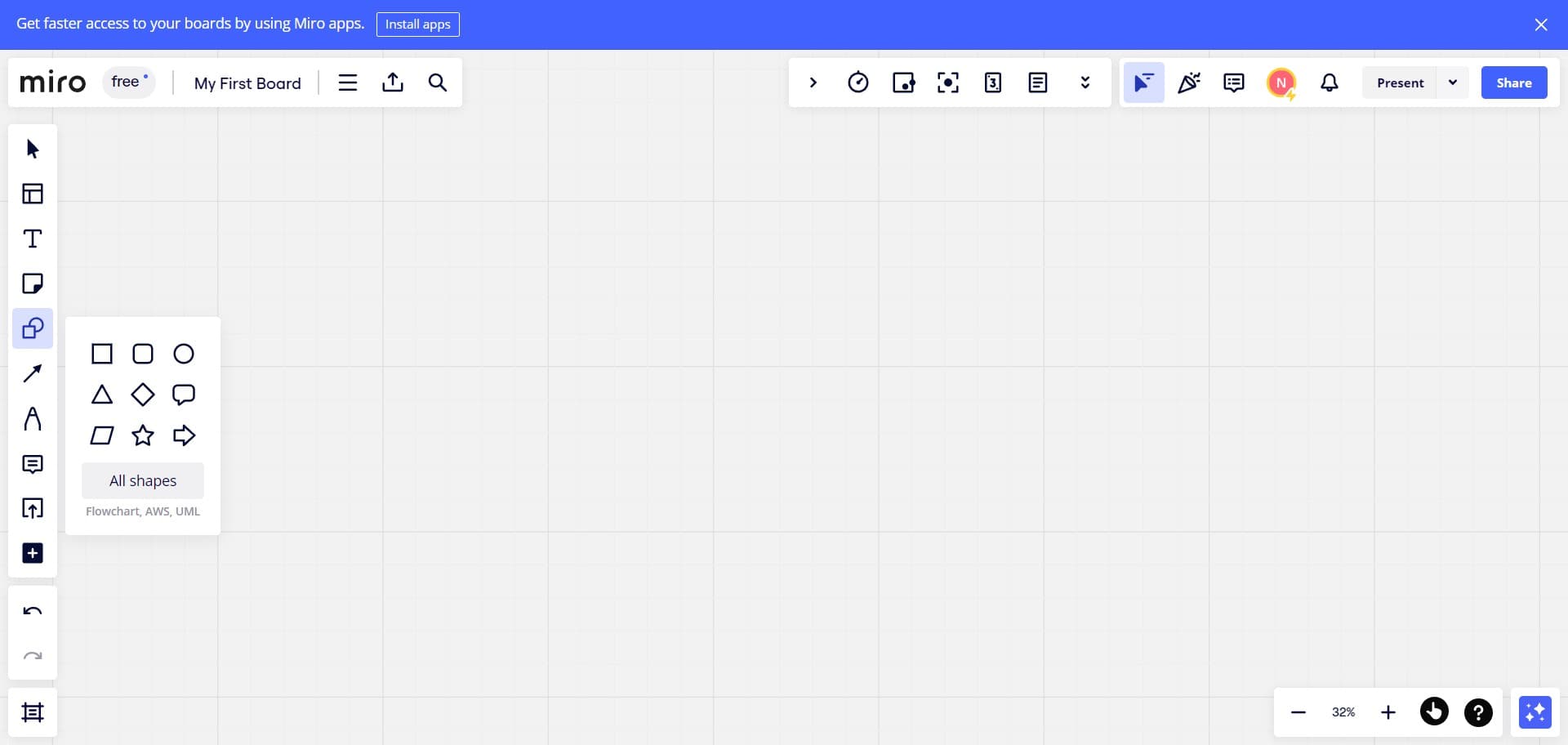
Click on All shapes
Select the 'All shapes' option to view the complete library of available shapes and diagram elements. This expands your options to include pre-built diagrams and visual components ready for use in your project.
- 3
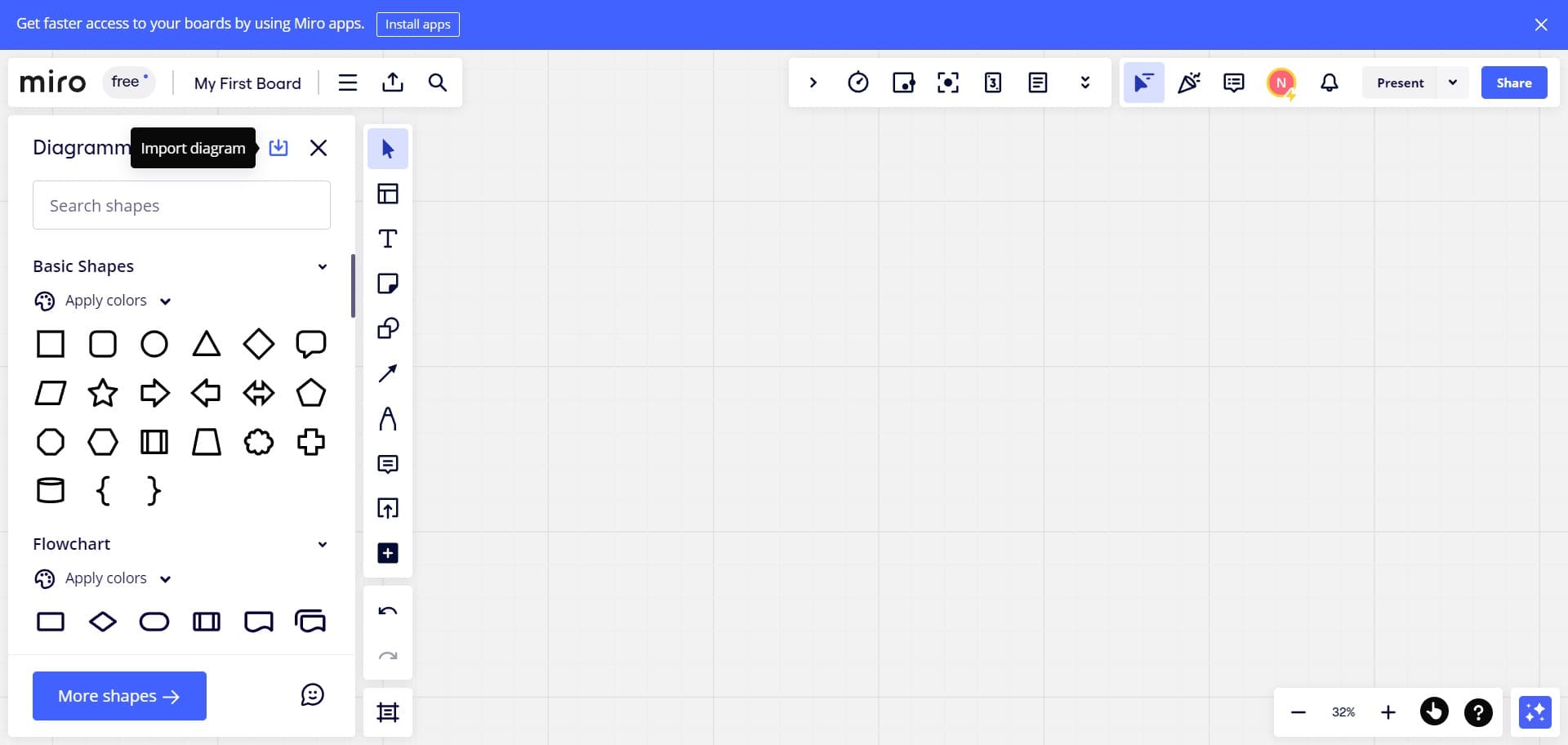
Select your diagram
Navigate through the shapes library and click on the diagram you want to import. This action highlights or selects the specific diagram for the next step in the import process.
- 4
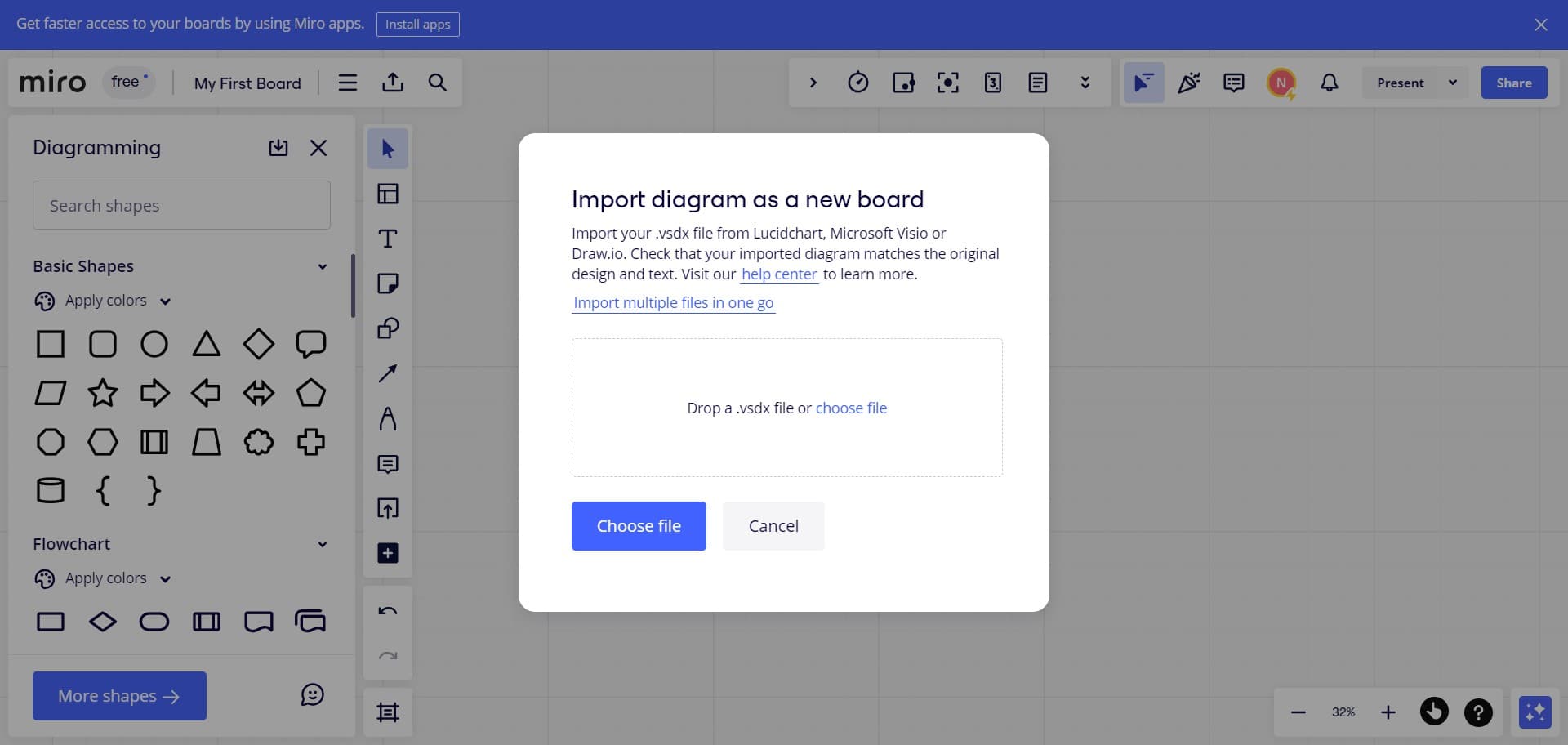
Confirm and add to canvas
Click the final confirmation button to import your selected diagram into your Miro canvas. The diagram will now appear on your workspace, ready for editing and collaboration with your team.
Frequently asked questions
Common questions about how to import draw diagrams in miro.
Yes, once imported, diagrams are fully editable within Miro. You can modify shapes, colors, text, and positioning to match your project requirements. All editing tools in Miro are available for customizing imported content.
Miro supports various diagram formats through its shapes library and import functions. The shapes library provides pre-designed diagrams, while you can also import images and other visual content using Miro's standard upload options.
Miro handles diagrams of various sizes, though extremely large or complex diagrams may require optimization for smooth collaboration. Most standard business diagrams import without issues and can be resized on the canvas as needed.
Yes, Miro's real-time collaboration features allow multiple team members to work on the canvas at the same time, including importing diagrams. Changes are synchronized instantly across all connected users.
After importing, you can arrange diagrams using Miro's alignment and grouping tools. Use frames to organize related diagrams, or leverage Miro's layout features to keep your board structured and easy to navigate.