How to Log in to Your Miro Account

Logging into your Miro account is the first step to accessing the AI-powered visual workspace for collaborative design and ideation. This guide walks you through the login process with clear, step-by-step instructions to get you started quickly.
Quick summary
In this tutorial, you'll learn how to navigate to Miro's login page and authenticate your account. By following these straightforward steps, you'll gain access to your workspace and be ready to start creating.
Why this matters
Securing quick and reliable access to your Miro account ensures you can jump into collaborative projects without delays. Whether you're working on wireframes, user flows, or brainstorming sessions with your team, proper login procedures protect your account and get you to your work faster.
Step-by-step guide
- 1
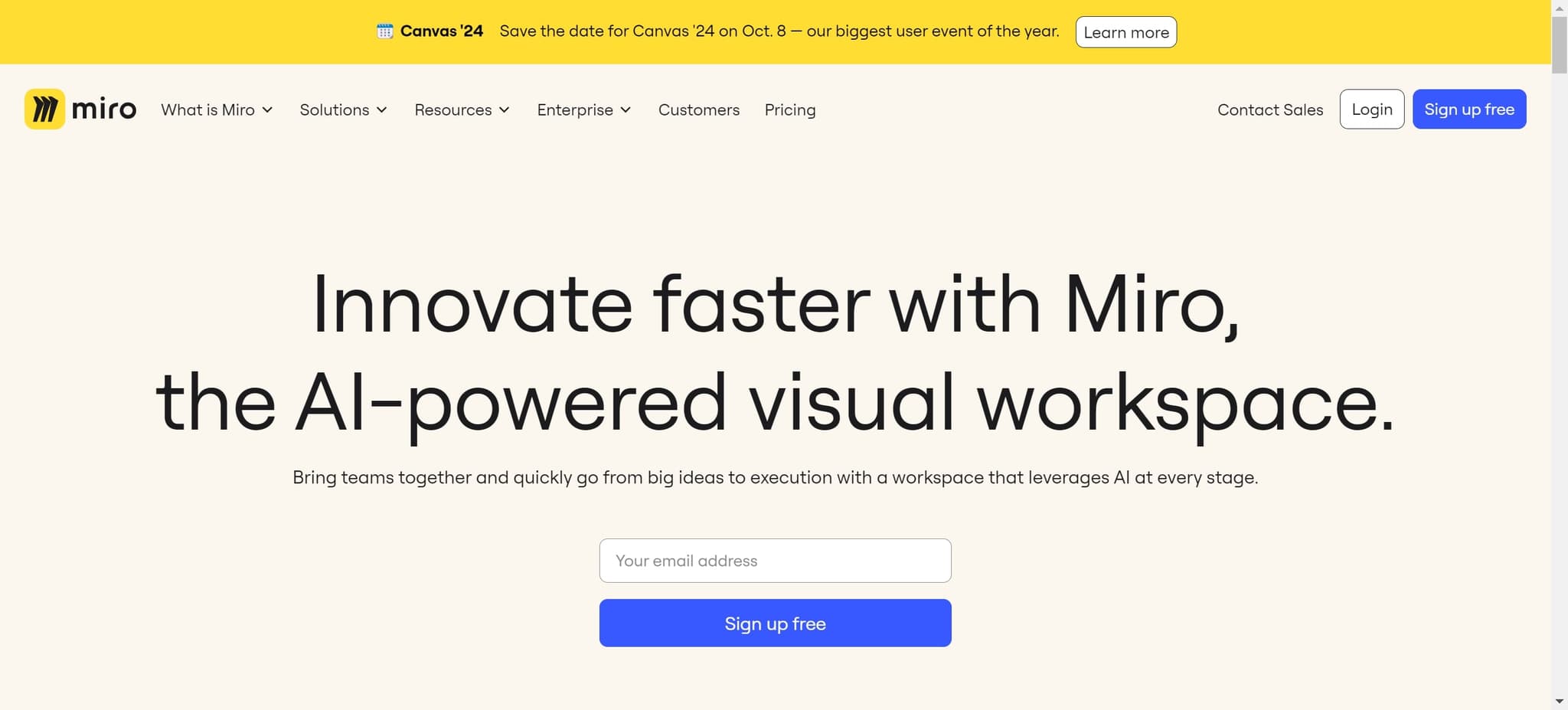
Visit the Miro homepage
Navigate to the Miro website by clicking on 'Innovate faster with Miro, the AI-powered visual workspace.' This takes you to Miro's main landing page where you can access login options.
- 2
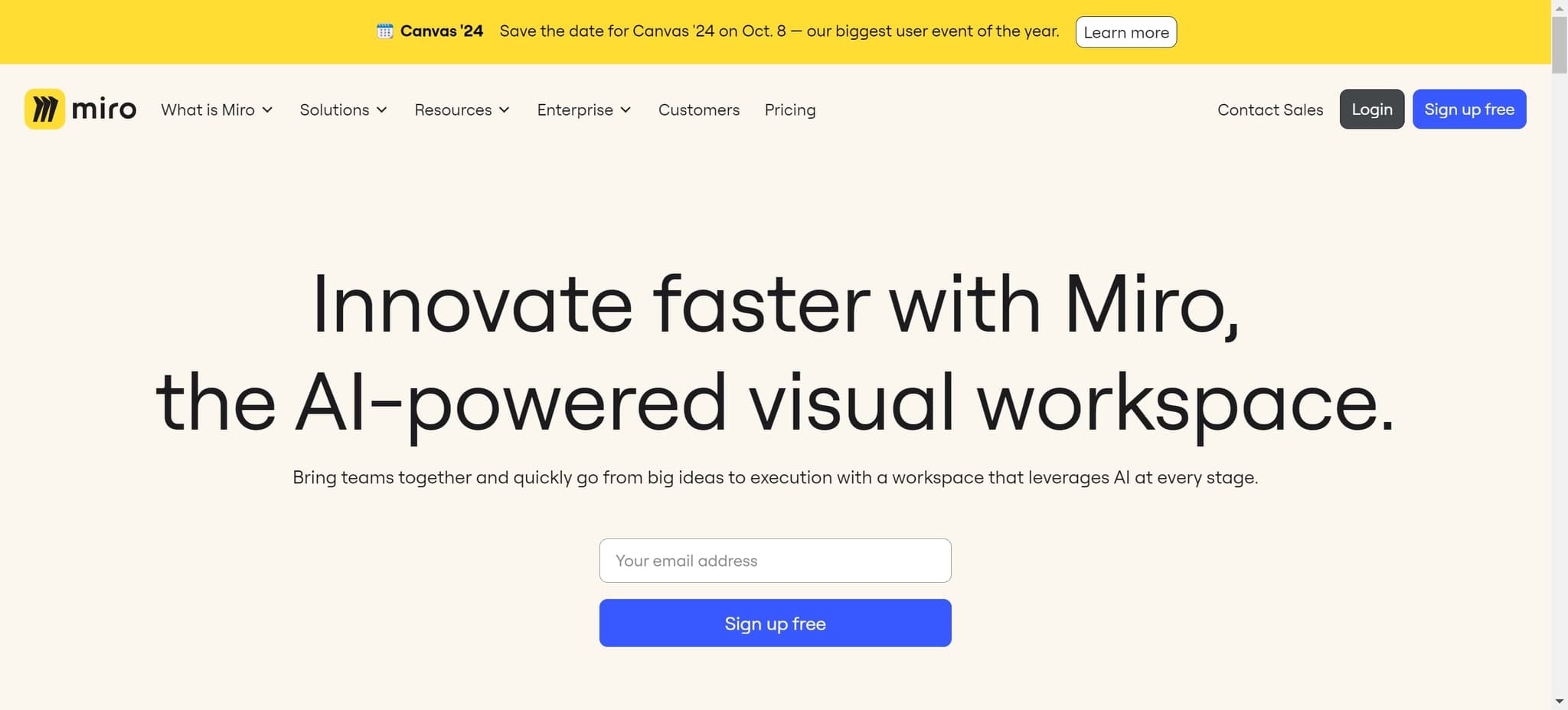
Click the Login button
On the Miro homepage, locate and click the 'Login' button. This directs you to the account authentication page where you'll enter your credentials.
- 3
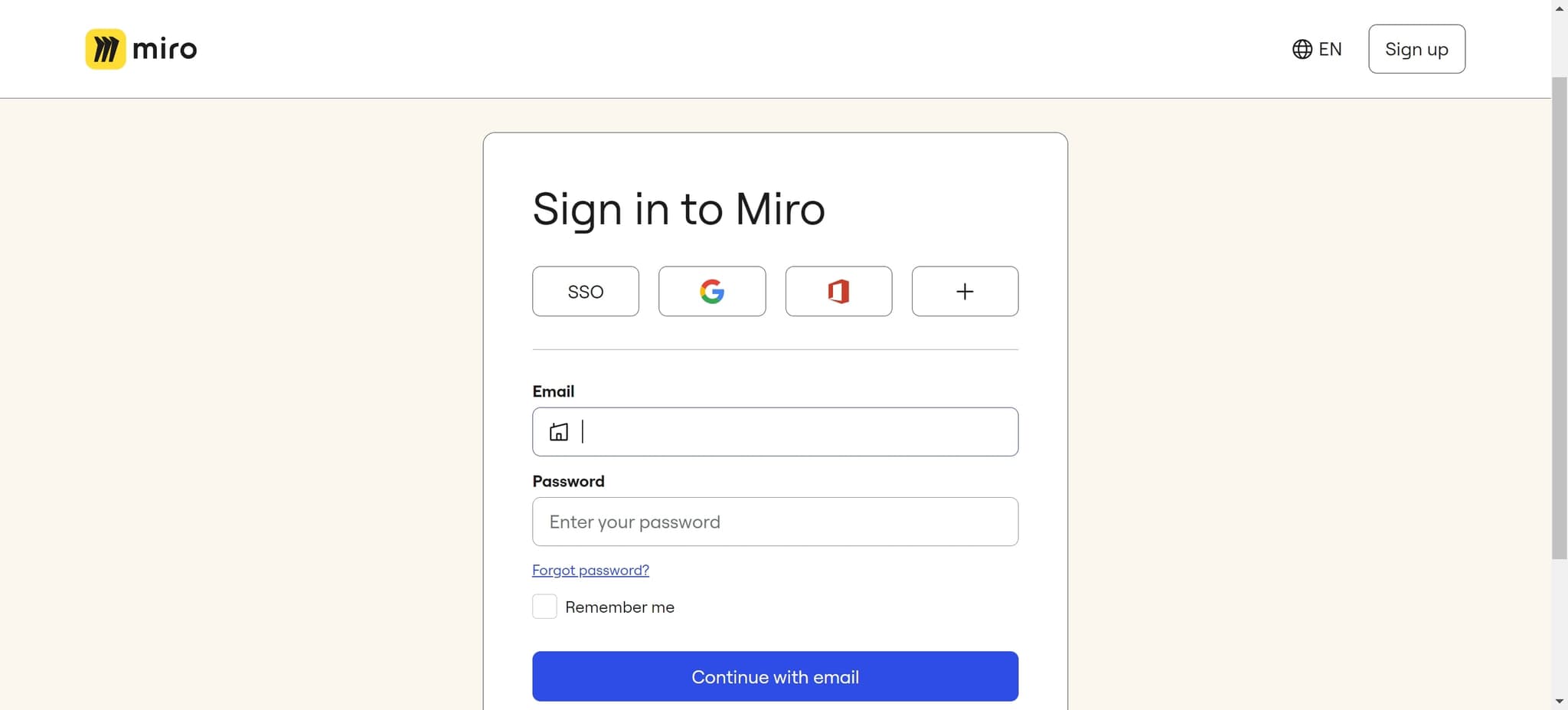
Enter your email address
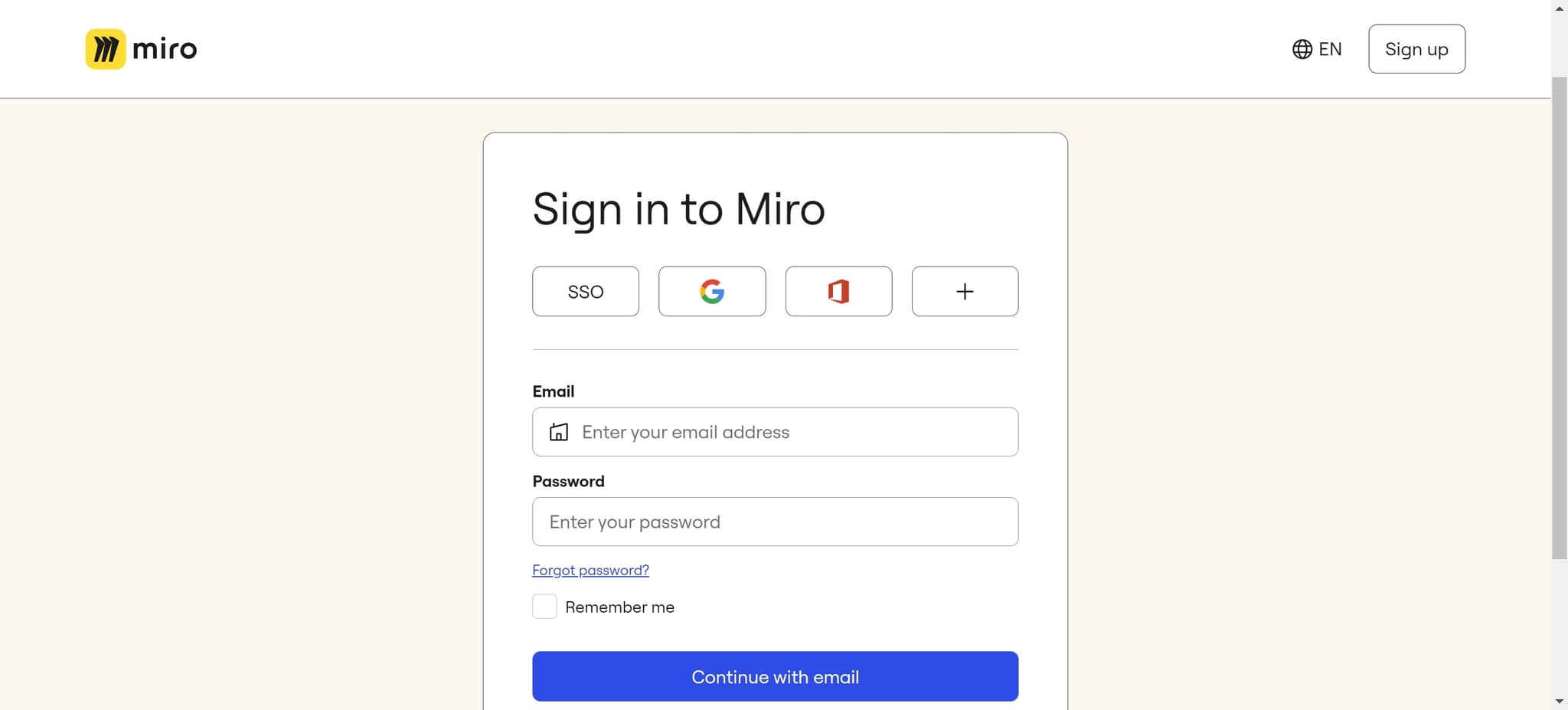
Click on the email field and type the email address associated with your Miro account. Make sure you enter the correct email to avoid authentication errors.
- 4
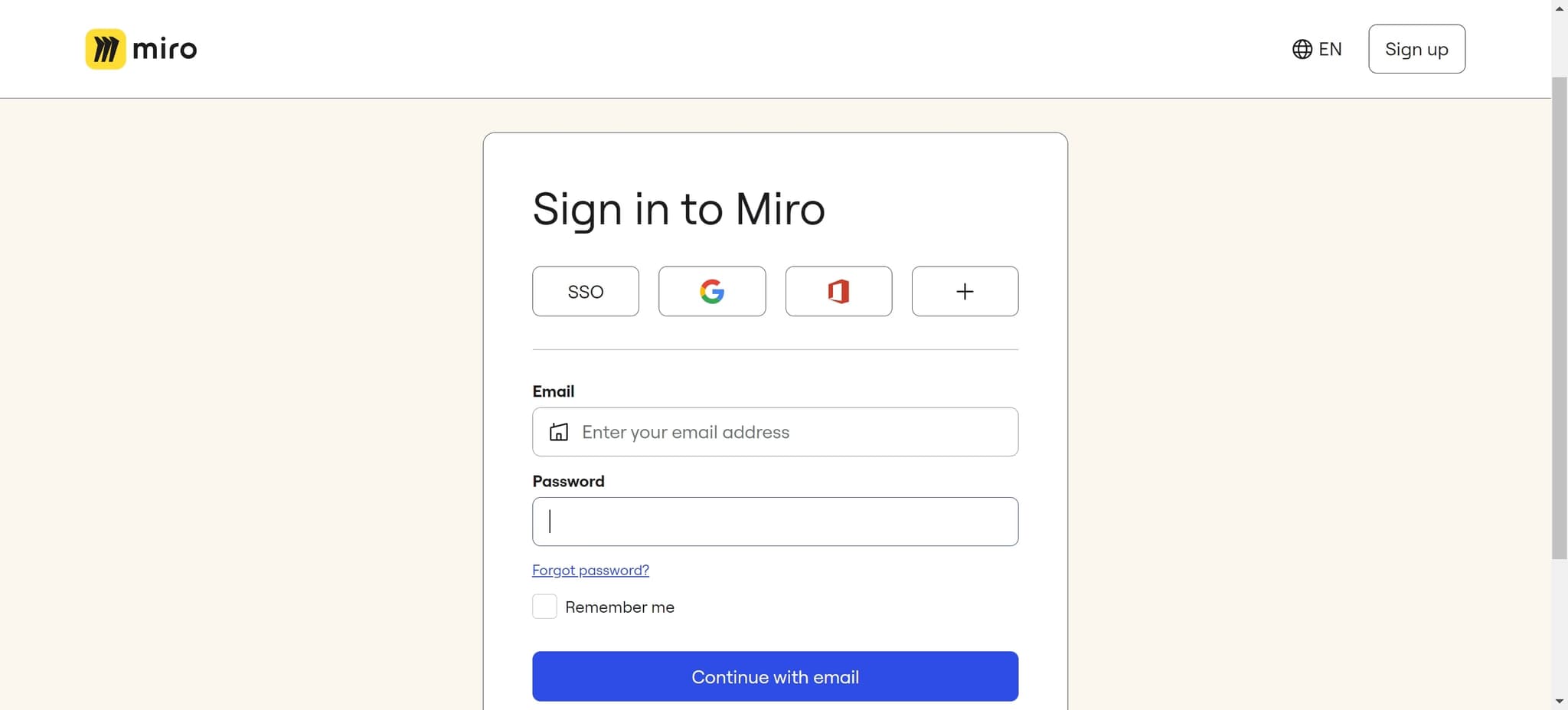
Proceed with account verification
Once you've entered your email, click the designated button to proceed. Miro will verify your account and prepare the next step of the login process.
- 5
Complete the sign-in process
Click on 'Sign in to Miro' to finalize your login. This action authenticates your credentials and grants you access to your workspace.
- 6
Access your workspace
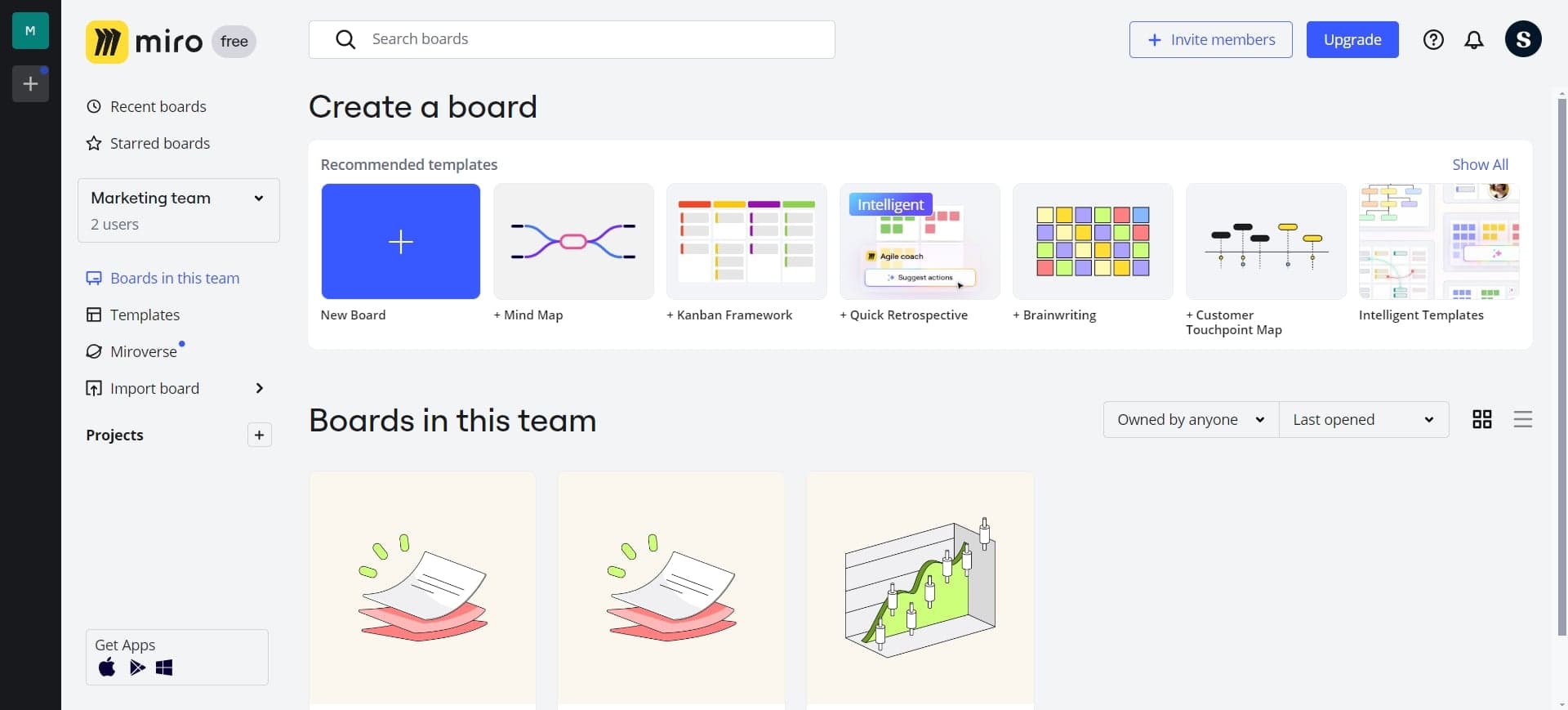
After clicking the final sign-in button, you'll be redirected to your Miro dashboard. You now have full access to your projects, boards, and team collaboration features.
Frequently asked questions
Common questions about how to log in to your miro account.
On the login page, look for a 'Forgot password?' link below the email field. Click it and follow Miro's password recovery process, which typically involves verifying your email and creating a new password. You'll receive instructions to reset your password securely.
Yes, Miro supports login through Google, Microsoft, and other social accounts. On the login page, you'll see options to sign in with these providers as an alternative to using your email and password.
Miro uses industry-standard encryption and security protocols to protect your account. Always log in through the official Miro website or app, never click login links from untrusted sources, and consider enabling two-factor authentication for added security.
If you're new to Miro, you'll need to sign up before logging in. On the Miro homepage, look for a 'Sign up' or 'Get started' button to create a free account with your email or social account.
Yes, you can log in to your Miro account on different devices simultaneously. Each device will have its own session, allowing you to work across desktop, tablet, or mobile platforms without logging out of other devices.