How to add an event in Mixpanel

Mixpanel is a powerful analytics platform that tracks user interactions and behaviors across your product. Adding events is fundamental to measuring what matters most in your application, allowing you to capture custom user actions and build data-driven insights.
Quick summary
In this tutorial, you'll learn how to add an event in Mixpanel. By the end, you'll be able to set up custom tracking that captures specific user behaviors and actions within your product.
Why this matters
Events are the foundation of product analytics. Without proper event tracking, you can't measure user engagement, conversion rates, or identify friction points in your product experience. Setting up events correctly ensures you're collecting the right data to make informed product decisions.
Step-by-step guide
- 1
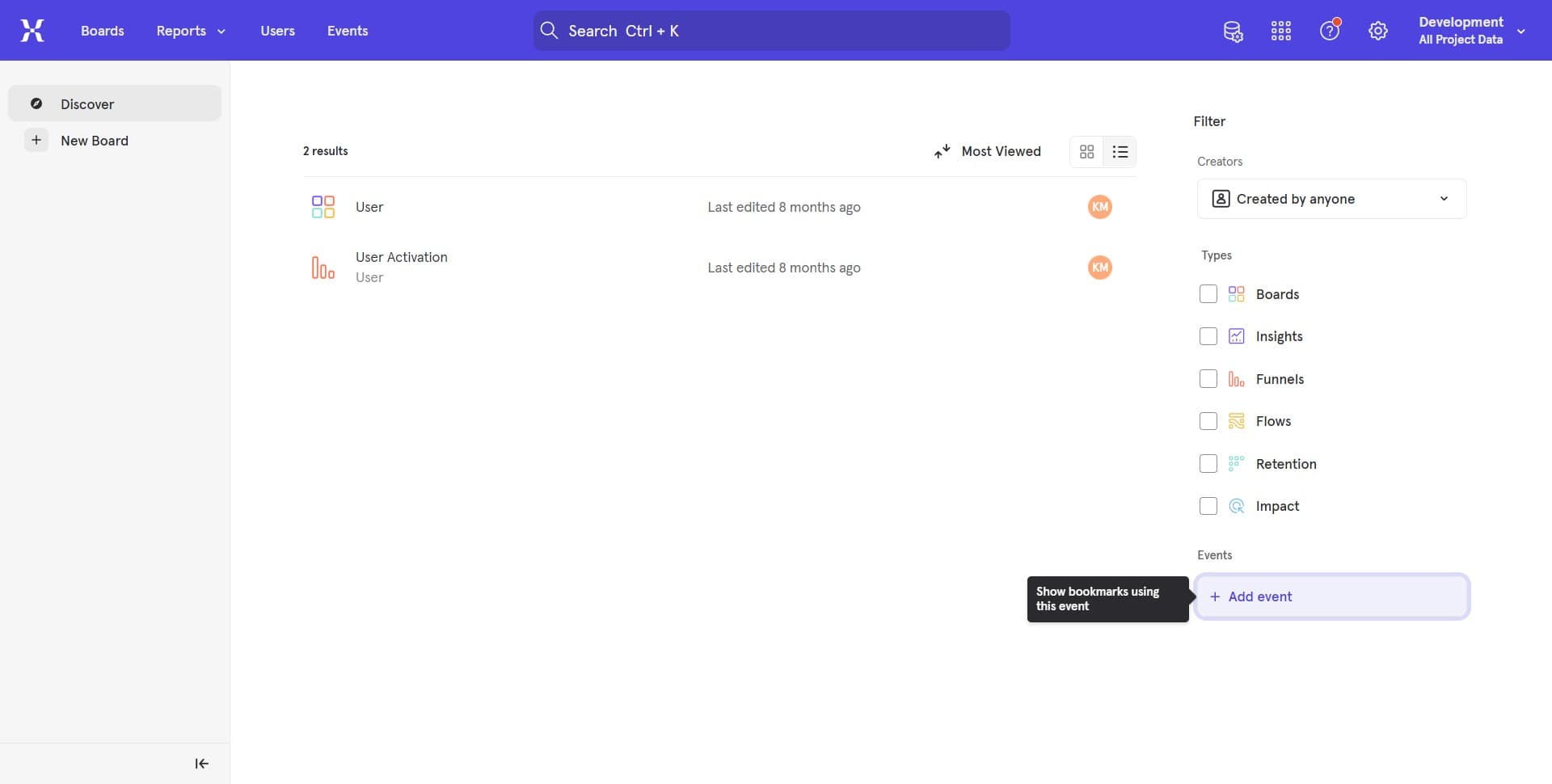
Click to access event creation
Begin by clicking the designated area to open the event creation interface. This will give you access to Mixpanel's event configuration panel where you can define new events to track.
- 2
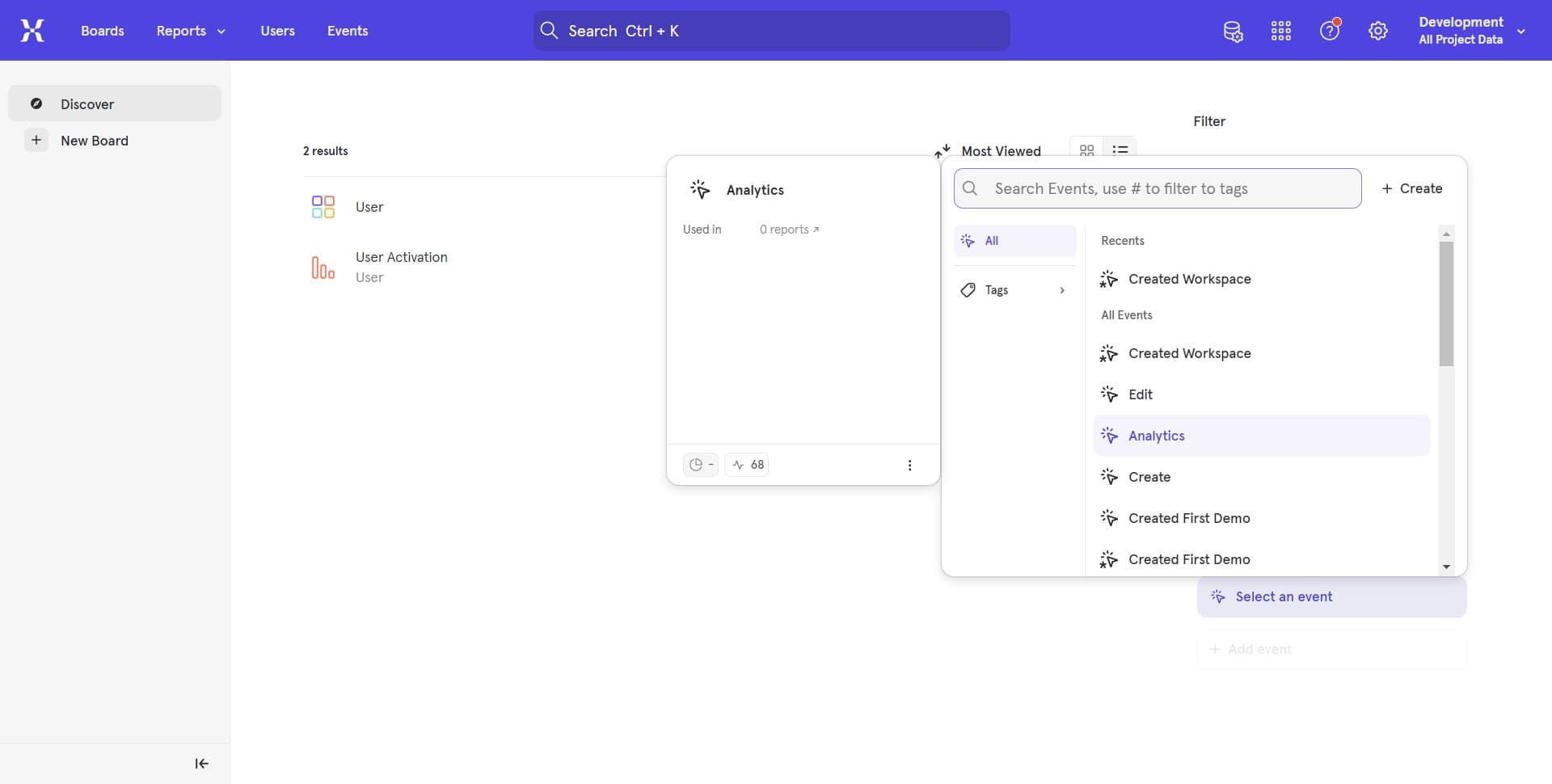
Click to configure event details
In the next step, click to proceed with configuring your event's specific details and settings. You'll be able to define the event name, properties, and other tracking parameters.
- 3
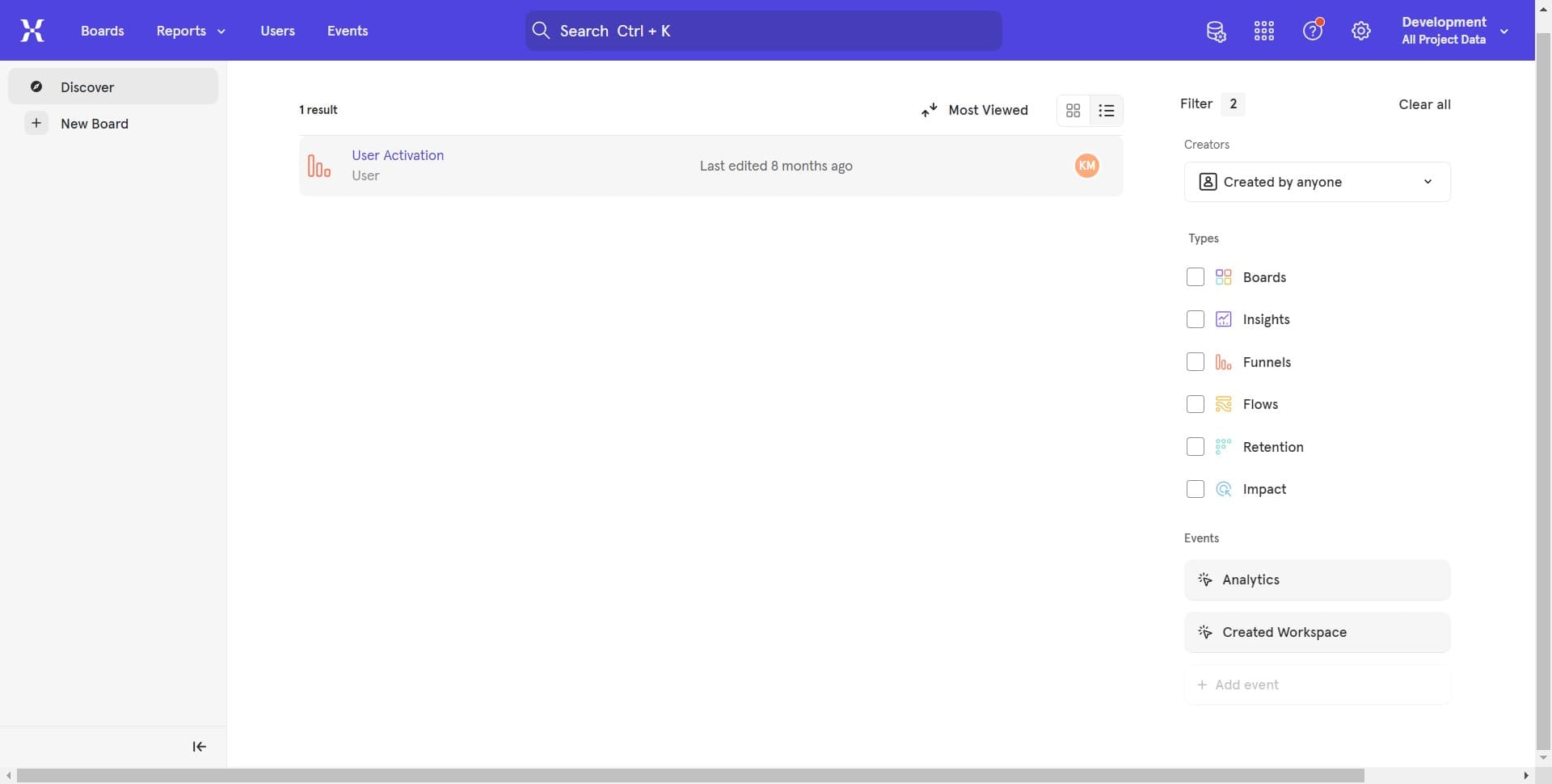
Click to finalize event setup
Complete the event creation process by clicking to save and activate your new event. Once finalized, Mixpanel will begin tracking this event across your product.
Frequently asked questions
Common questions about how to add an event in mixpanel.
Events are specific user actions you want to track, like a button click or form submission. Properties are additional data points attached to those events, such as the button name or form type. Together, they provide context and detail to your analytics data.
Yes, you can modify event properties and settings after creation in most cases. However, changing the event name itself may affect historical data consistency. It's best to verify your event configuration before activating it in production.
Events typically appear in Mixpanel reports within a few minutes of being triggered. However, there can be slight delays depending on data volume and processing load. Most real-time dashboards will reflect events within five to ten minutes.
Use clear, descriptive names that reflect the user action being tracked, such as 'Button Clicked' or 'Signup Completed.' Avoid generic names and maintain consistent naming conventions across your product. This makes it easier to analyze and reference events in reports.
No, focus on tracking events that align with your product goals and business metrics. Track key actions like sign-ups, purchases, feature usage, and user engagement milestones. Avoid over-tracking trivial interactions, as this can create noise in your analytics.