How to export board at Mixpanel

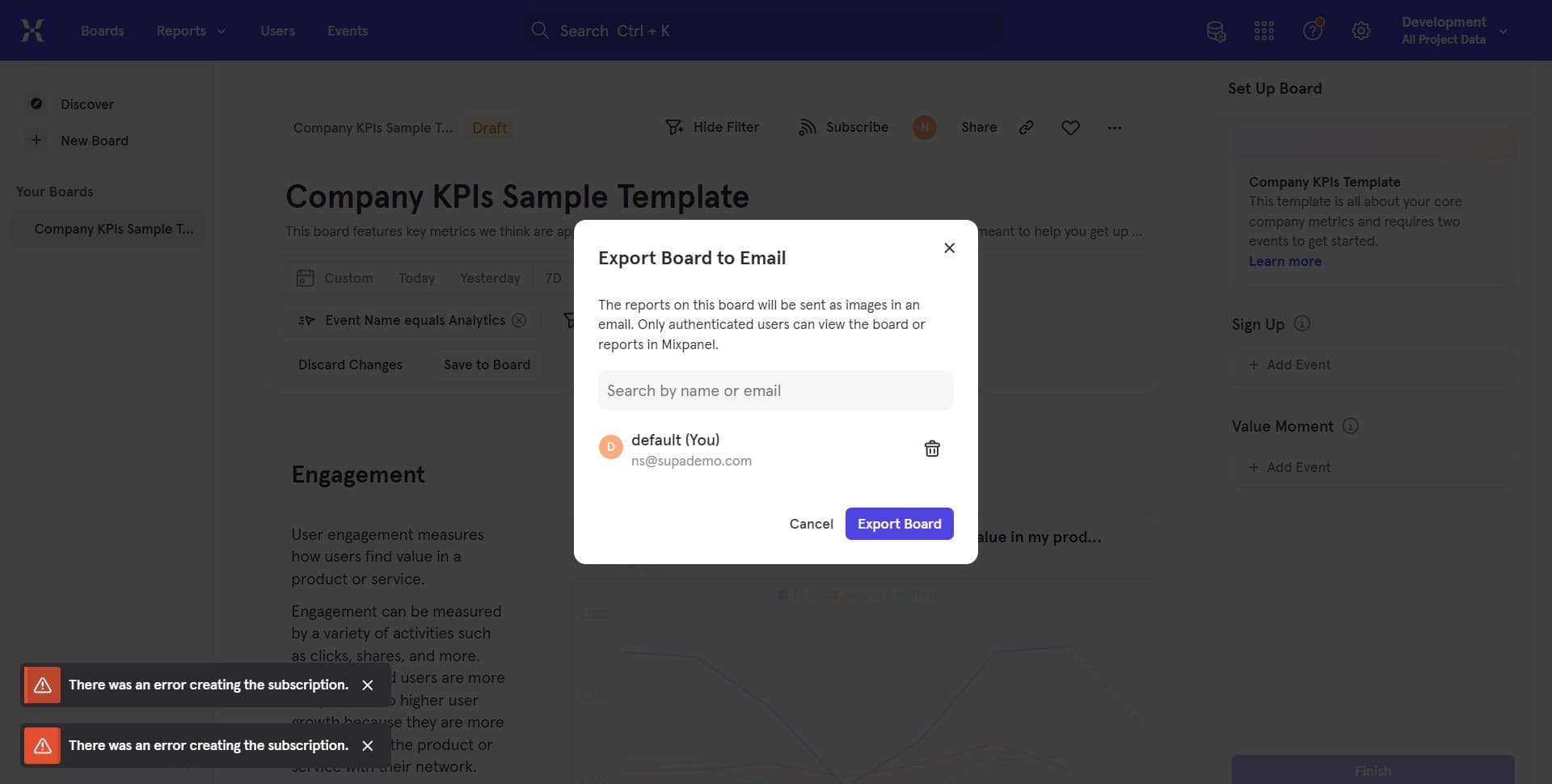
Exporting boards in Mixpanel allows you to save and share your analysis with team members or use visualizations outside the platform. This workflow guides you through the process of exporting a board, from initiating the save action to completing the upload.
Quick summary
In this tutorial, you'll learn how to export a board at Mixpanel by navigating through the save dialog, selecting your export preferences, and uploading your board data. You'll understand each step required to successfully preserve and share your analytical work.
Why this matters
Exporting boards is essential for maintaining backups of your analyses, sharing insights with non-Mixpanel users, and integrating your data visualizations into presentations or reports. This capability ensures your analytical work remains accessible and shareable across your organization.
Step-by-step guide
- 1
Initiate board save action
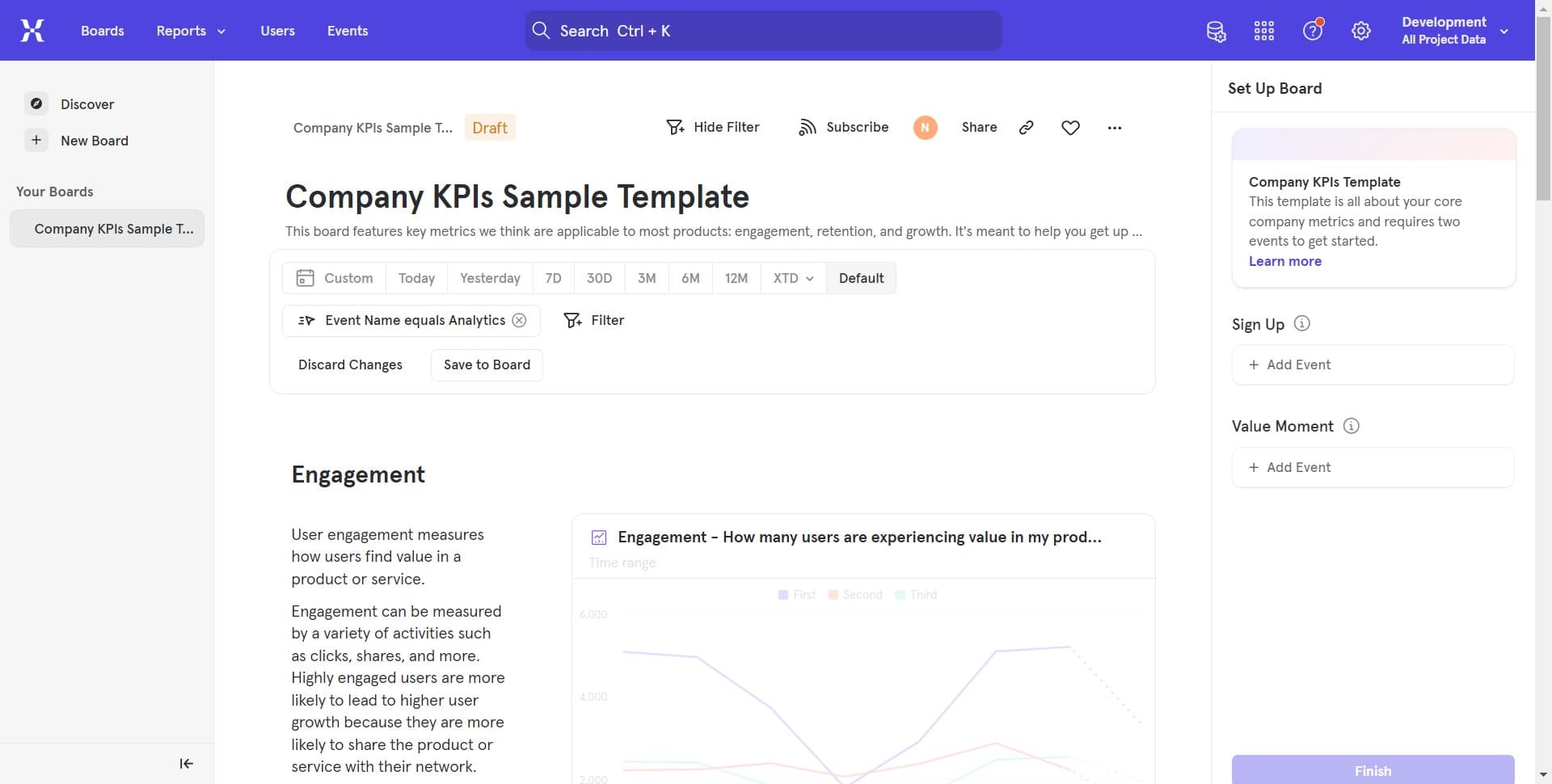
Begin by clicking on the 'Discard Changes' or 'Save to Board' option visible in your current view. This action opens the save dialog where you can proceed with exporting your board data.
- 2
Navigate to export options
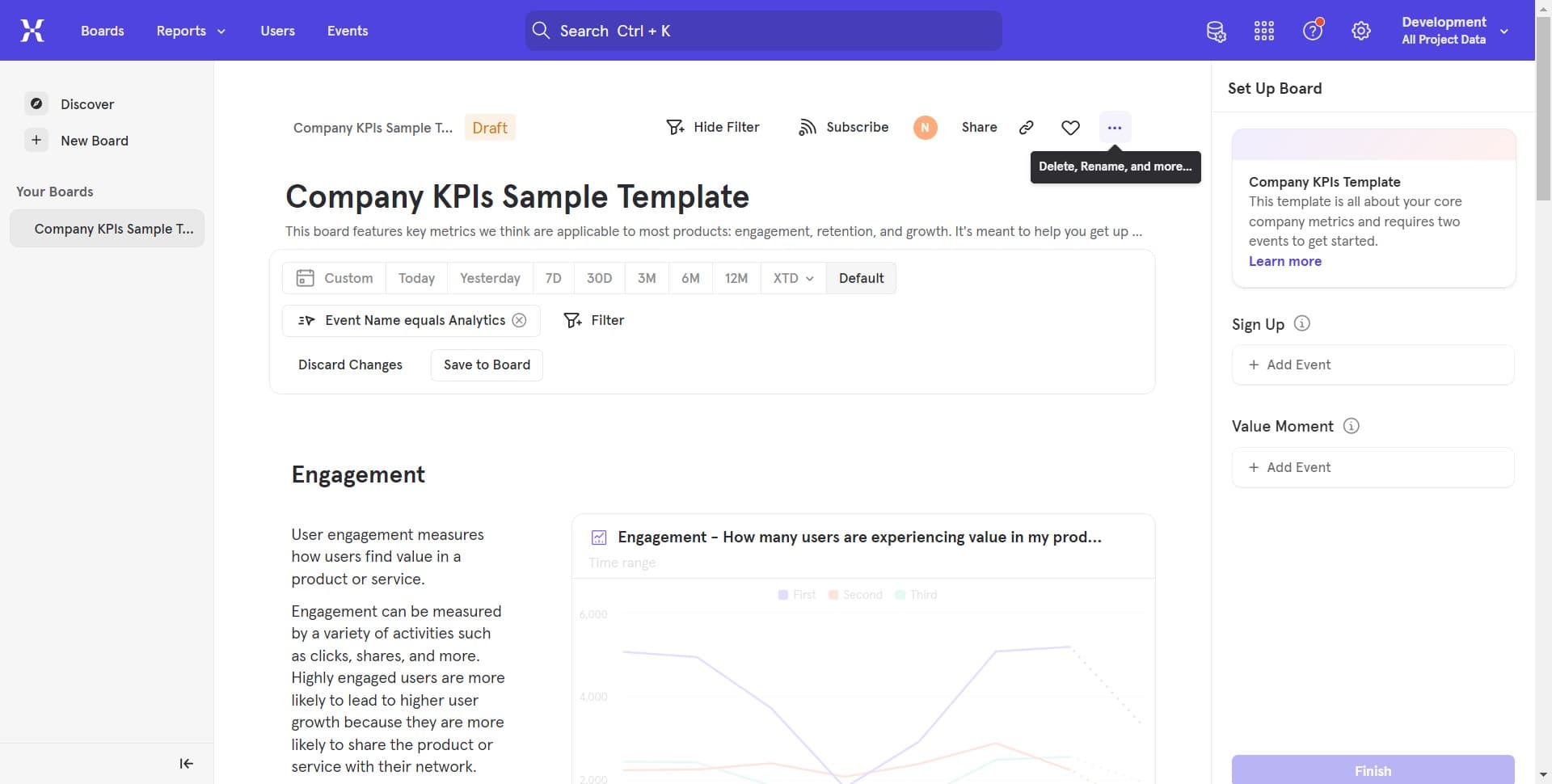
Click on the designated area to access the next stage of the export process. This step reveals additional configuration options for your export.
- 3
Configure export settings
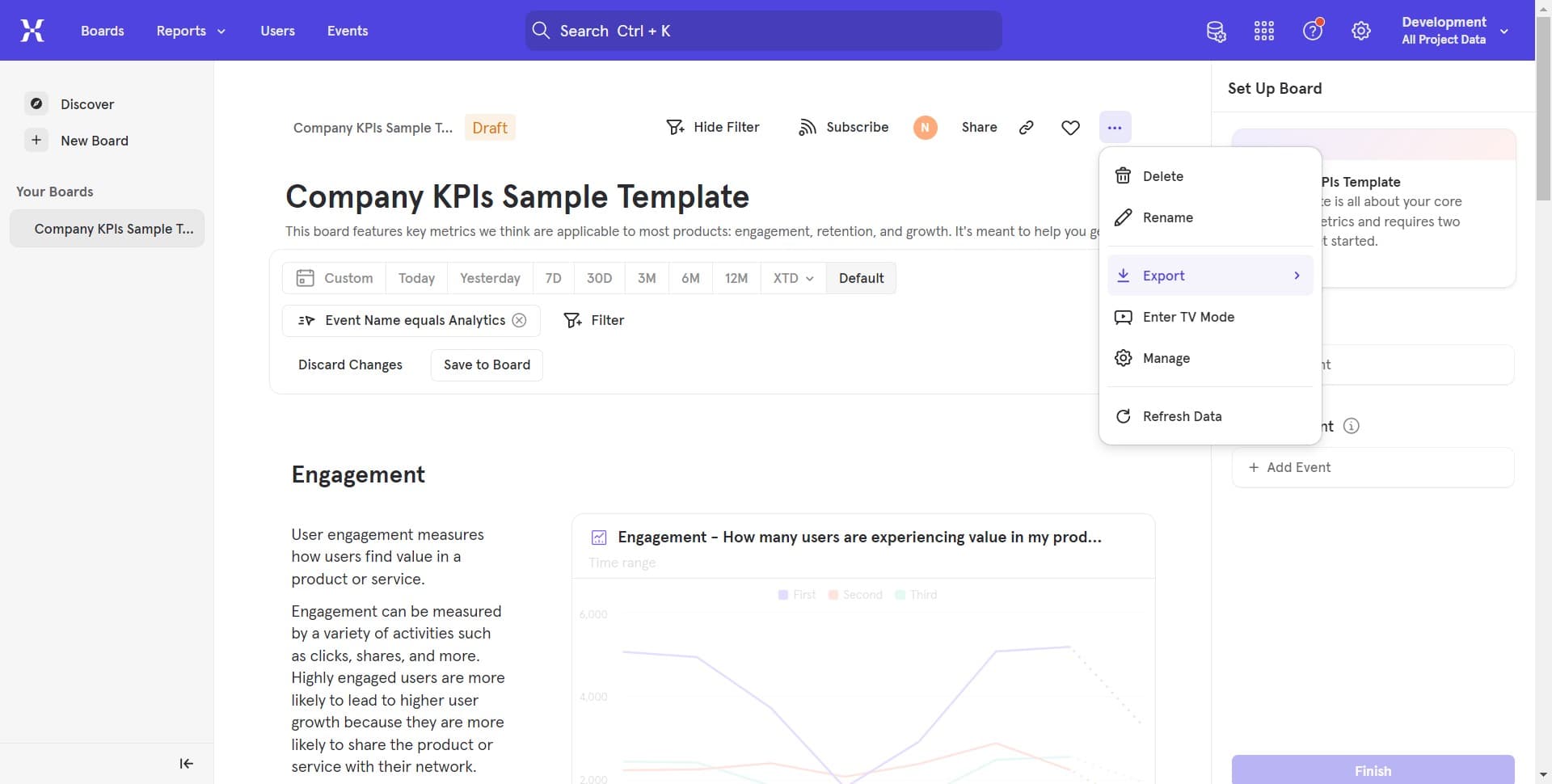
Click to select and customize your export preferences. You'll be able to specify details about how your board should be formatted and what elements to include.
- 4
Review export parameters
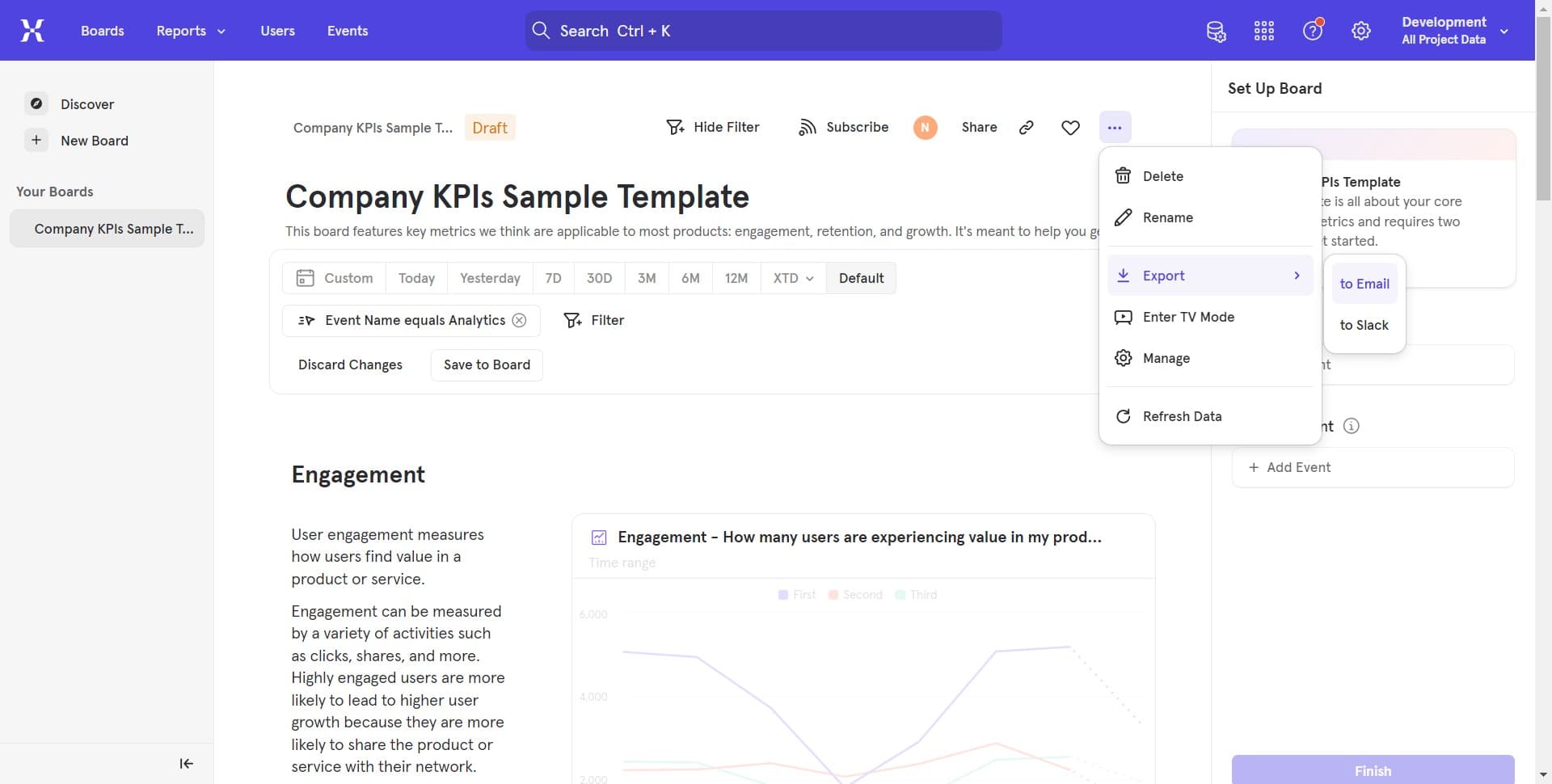
Click to confirm and review the parameters you've set for the export. This step ensures all your selections are correct before proceeding.
- 5
Finalize export configuration
Click to complete the configuration stage and prepare your board for upload. This moves you to the final step in the export process.

- 6
Upload exported board
Click the 'Upload' button to complete the export process. Your board will be processed and saved according to your selected specifications.
Frequently asked questions
Common questions about how to export board at mixpanel.
Mixpanel supports multiple export formats depending on your use case, including formats suitable for presentations, reports, and data analysis. The specific formats available may depend on your Mixpanel plan and the type of data visualization you're exporting.
Typically, boards are exported individually through the save workflow. If you need to export multiple boards, you'll need to repeat the export process for each board you want to save.
Mixpanel may have limits on board size based on the complexity of queries and data volume. If you encounter issues exporting a large board, consider breaking it into smaller sections or contacting Mixpanel support for assistance.
Automatic scheduling of board exports depends on your Mixpanel plan and available integrations. Check your account settings or contact Mixpanel support to learn about automation options for your subscription level.
An exported board is a snapshot of your analysis at the time of export. Changes made to the original board in Mixpanel will not automatically update the exported file, so you'll need to export again if you want the latest version.