How to filter views in board at Mixpanel

Filtering views in Mixpanel's board feature allows you to focus on the data that matters most to your analysis. Learn how to apply filters to customize your board views and streamline your analytics workflow.
Quick summary
In this tutorial, you'll learn how to filter views in your Mixpanel board step-by-step. You'll discover how to navigate the filtering interface, select relevant criteria, and apply filters to organize your data effectively.
Why this matters
Filtering board views is essential for isolating specific segments of your user data and reducing noise in your analytics. This capability enables faster insights by allowing you to focus on the metrics and cohorts most relevant to your business questions.
Step-by-step guide
- 1
Navigate to your board
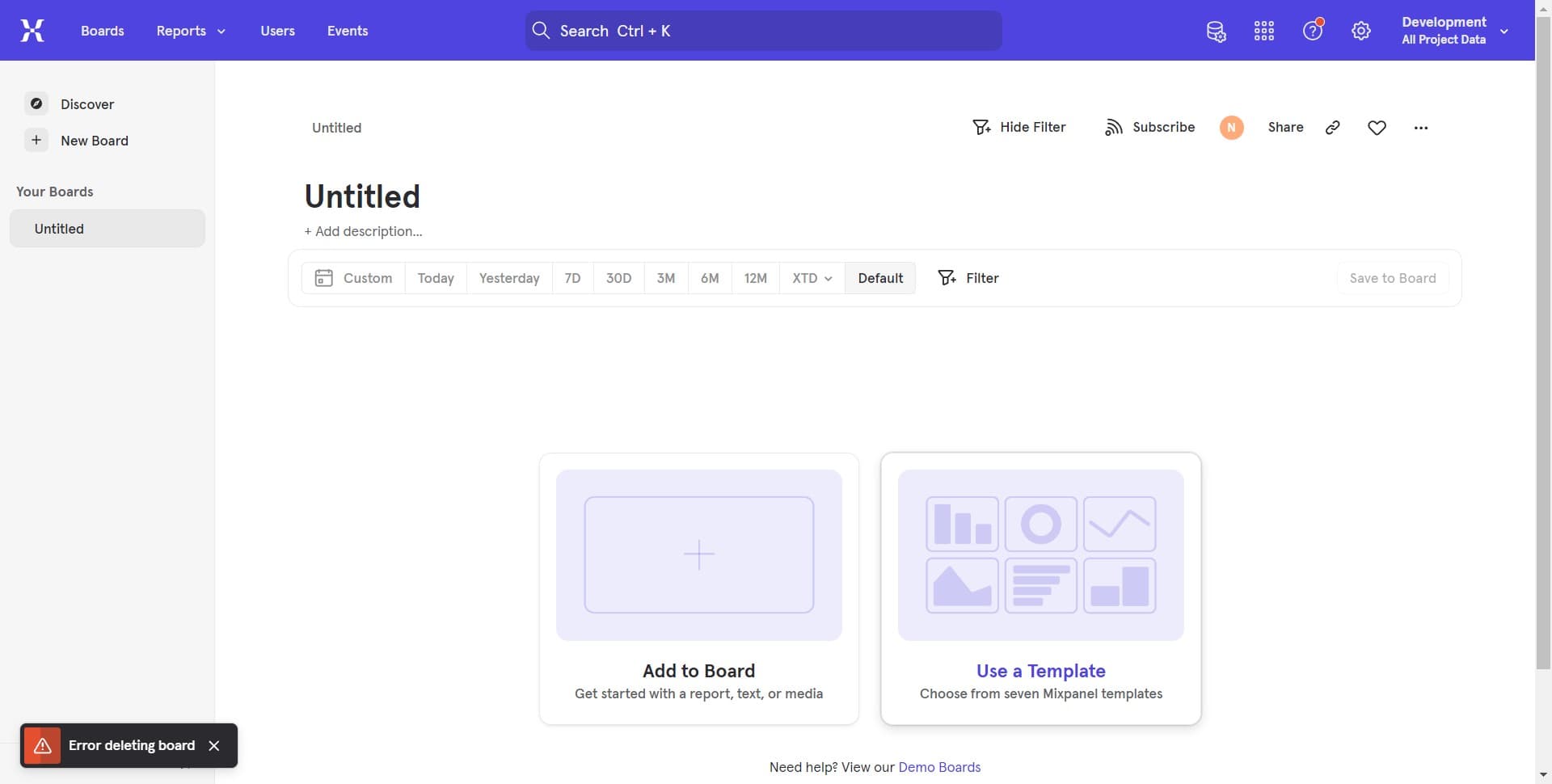
Open Mixpanel and access the board you want to filter. You'll see your current analytics dashboard with various charts and metrics displayed.
- 2
Locate the filter control
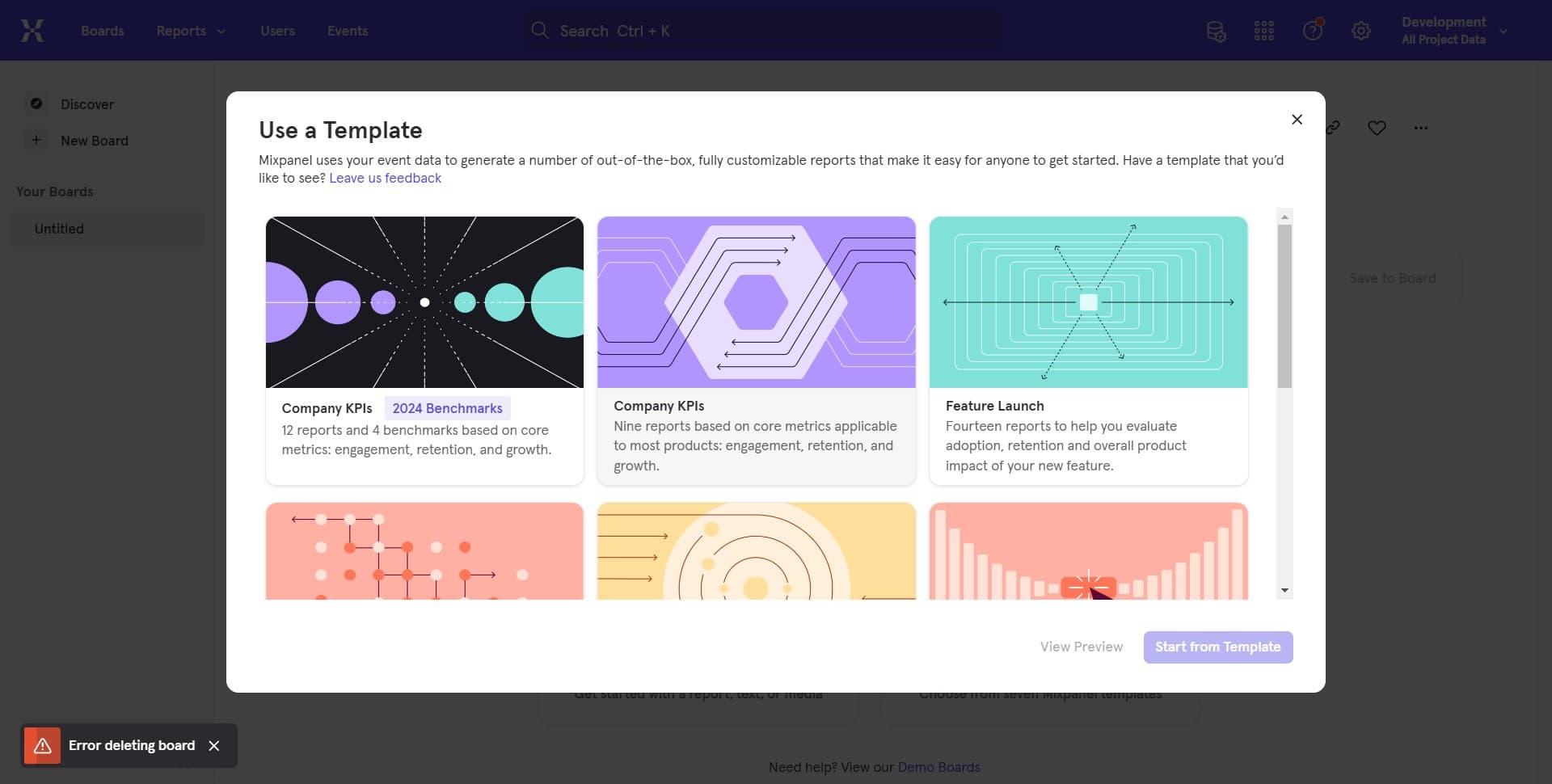
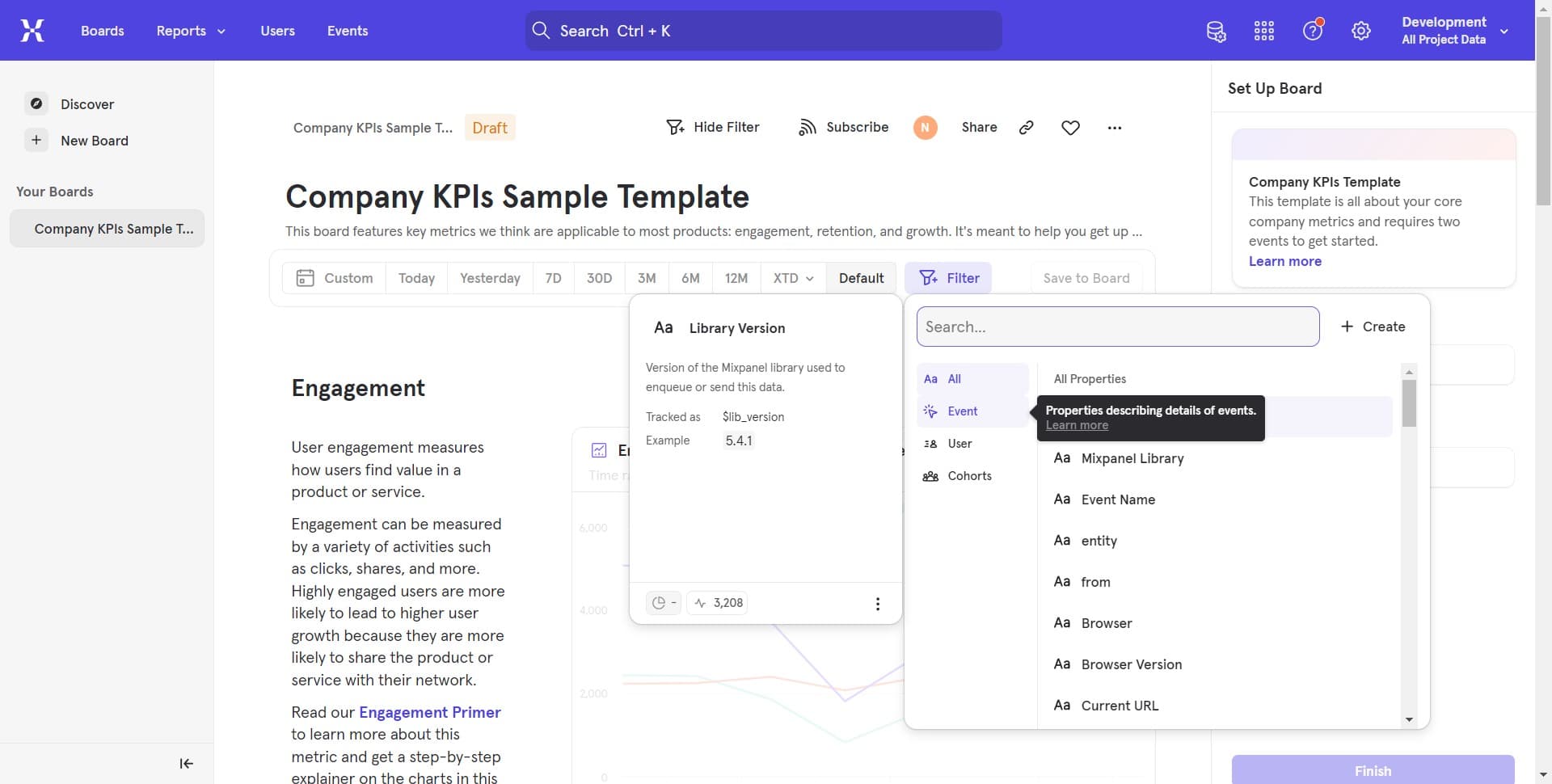
Click on the filter icon or option within your board interface. This will open the filtering panel where you can add and manage your filters.
- 3
Select filter criteria
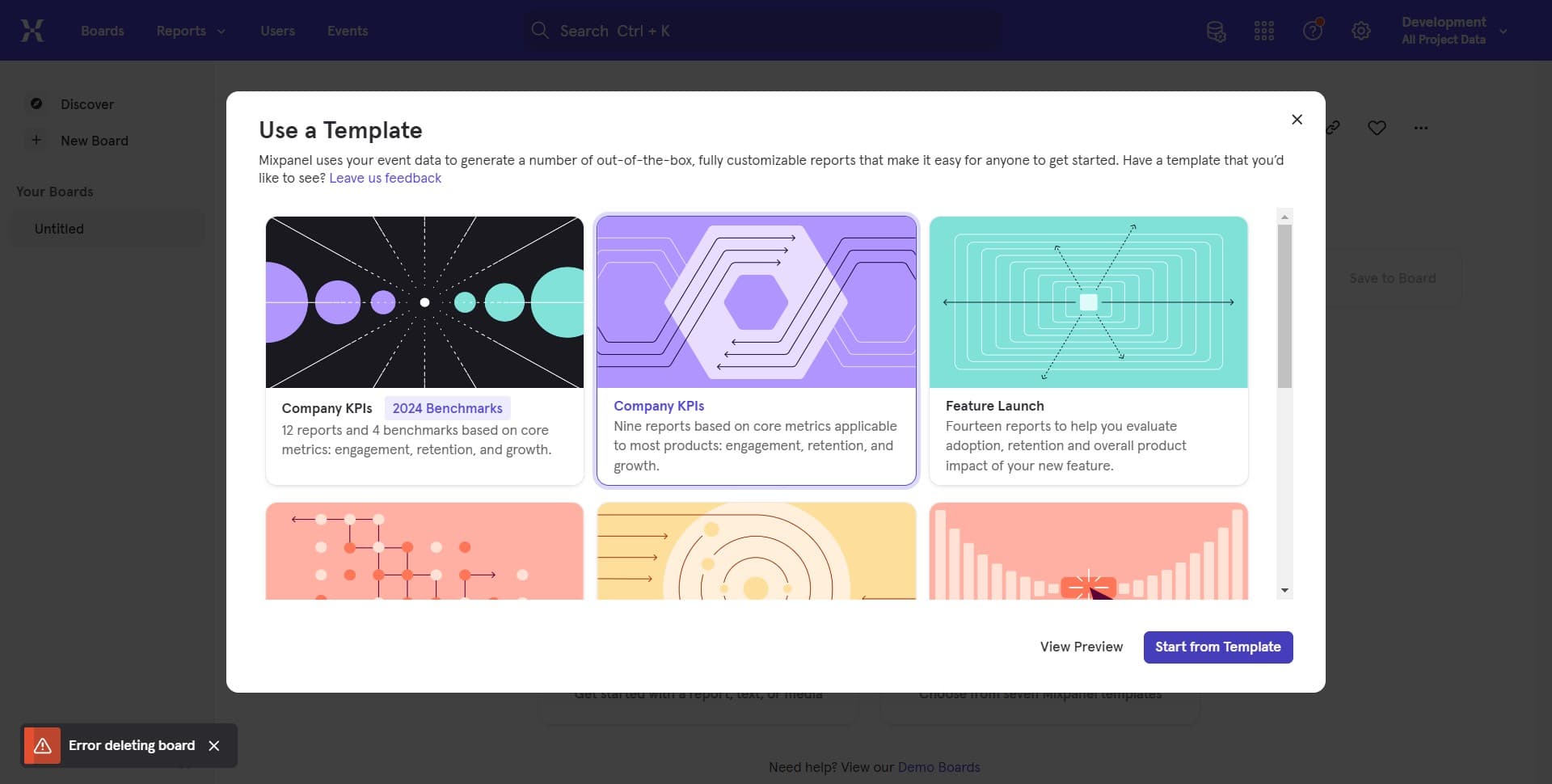
Click to choose the property or metric you want to filter by. Mixpanel will display available options based on your event data and user properties.
- 4
Define filter conditions
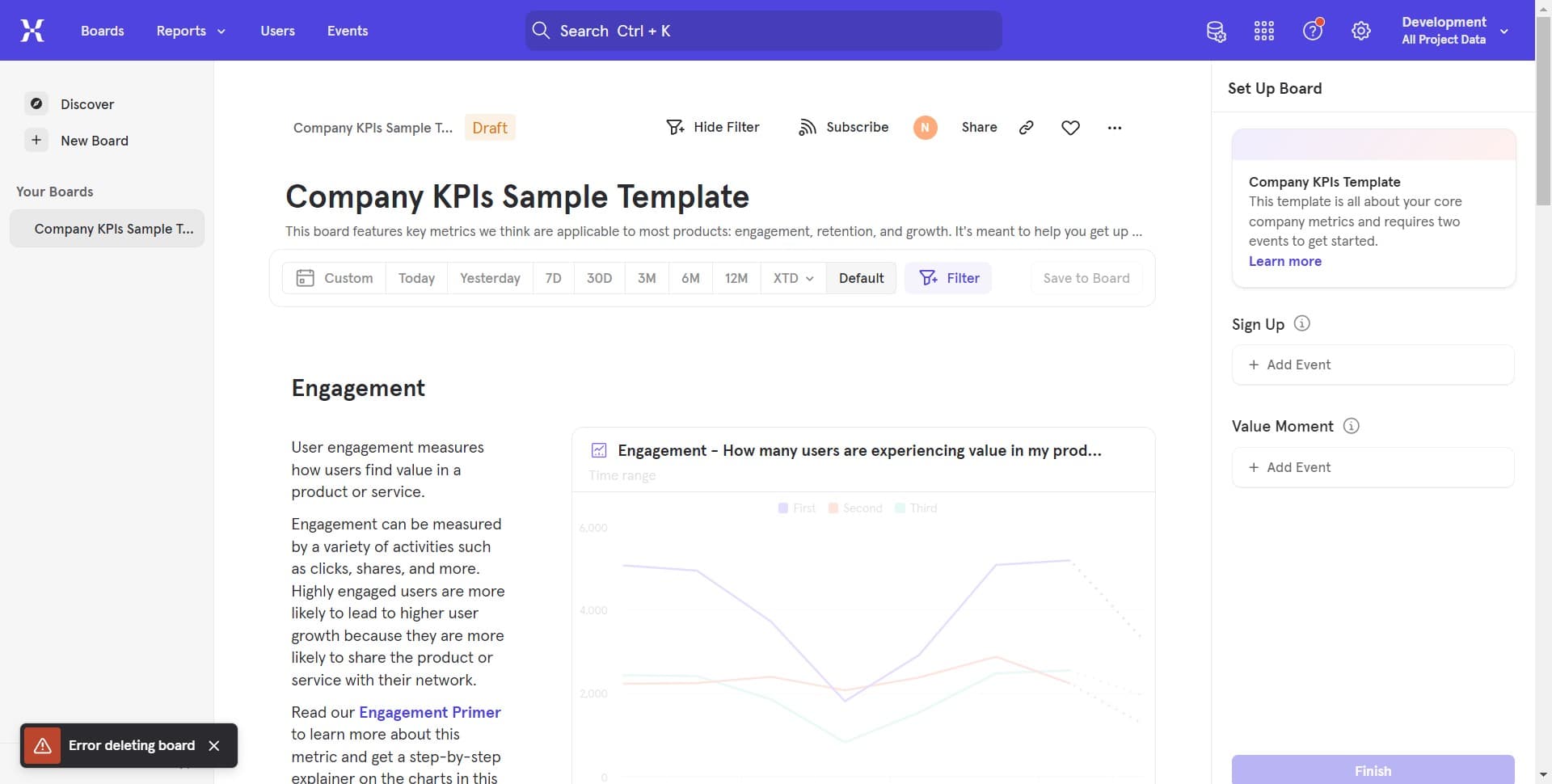
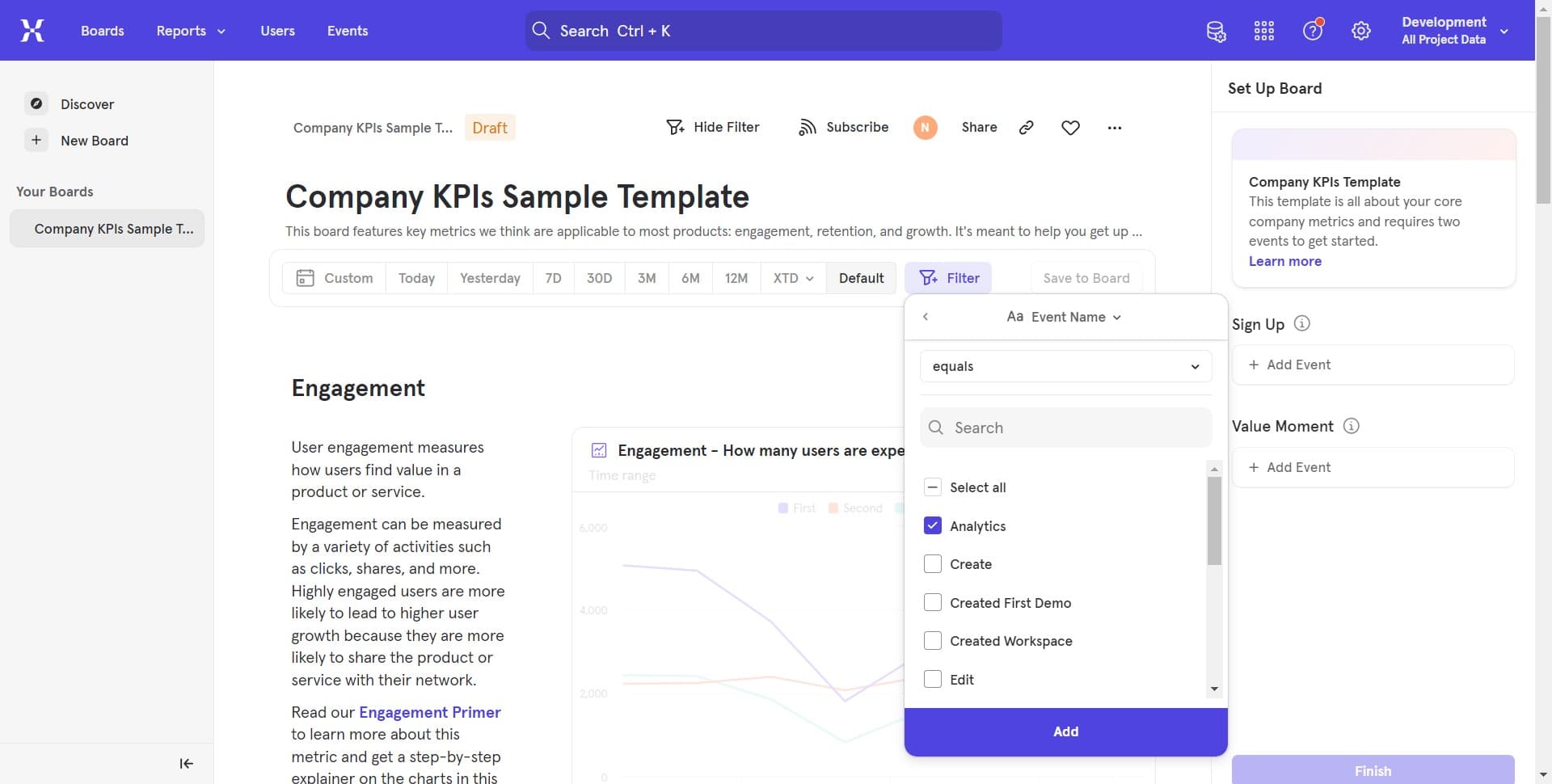
Click to set the specific values or conditions for your filter. You can choose operators like equals, contains, or is greater than depending on your filter type.
- 5
Upload custom data if needed
If you need to filter by custom lists or imported data, upload your file. This allows you to filter your board views based on external data sources like user lists or custom segments.
- 6
Apply additional filters
Click to add more filter conditions if you need multiple criteria. You can combine filters using AND/OR logic to create complex queries.
- 7
Confirm and view results
Click to apply your filters and update your board view. Your charts and metrics will now display data filtered according to your specified criteria.
Frequently asked questions
Common questions about how to filter views in board at mixpanel.
Yes, Mixpanel allows you to save filter configurations as part of your board setup. Once you've applied filters, you can save the board state so the same filters apply when you return to it later.
You can filter by any event properties, user properties, or custom properties you've implemented in Mixpanel. This includes demographic data, behavioral attributes, and any custom fields relevant to your product.
Yes, you can add multiple filters to a single board view and combine them using AND/OR logic. This allows you to create complex segments and focus on specific subsets of your data.
Click on the filter control again to access your active filters. You can edit any filter condition by clicking on it or remove filters by clicking the delete or remove option next to each filter.
Filtering only affects what you see in your board view and does not modify your underlying data in Mixpanel. Your raw data remains intact, and you can change or remove filters at any time to see different perspectives.