How to invite users to Mixpanel

Inviting users to Mixpanel is essential for enabling team collaboration and giving stakeholders access to your analytics data. This guide walks you through the process of adding users to your Mixpanel workspace so they can view reports and contribute to your analytics efforts.
Quick summary
In this tutorial, you'll learn how to navigate Mixpanel's user management interface and add team members to your account. By following these steps, you'll be able to grant appropriate access levels and ensure your team can effectively use Mixpanel's analytics features.
Why this matters
Managing team access in Mixpanel is critical for maintaining data security while enabling collaboration across your organization. Properly inviting users ensures the right stakeholders can monitor product performance and make data-driven decisions without compromising sensitive information.
Step-by-step guide
- 1
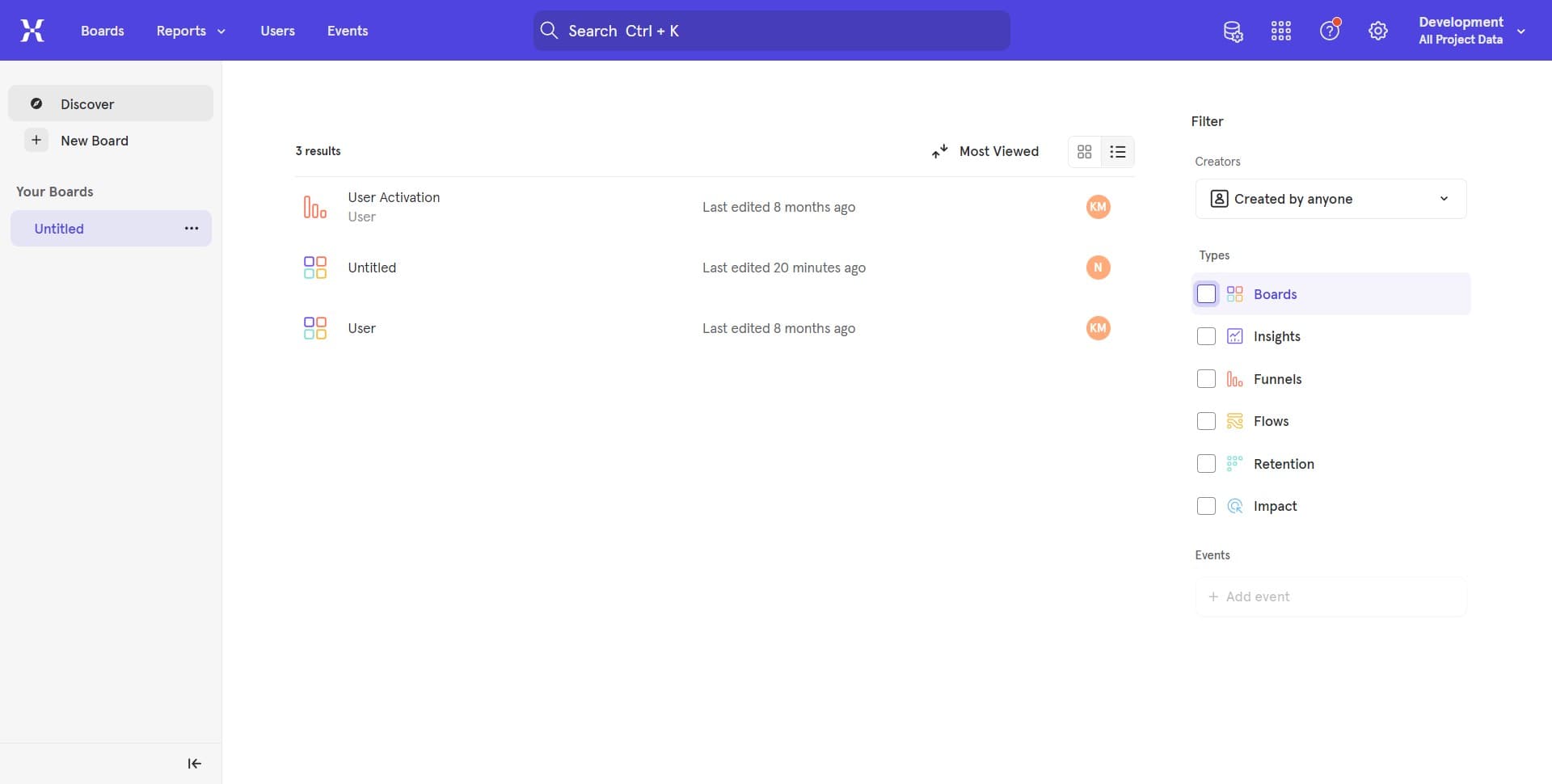
Access the settings menu
Start by clicking the settings or administration area in your Mixpanel interface. This will open the management panel where you can control workspace settings and user access.
- 2
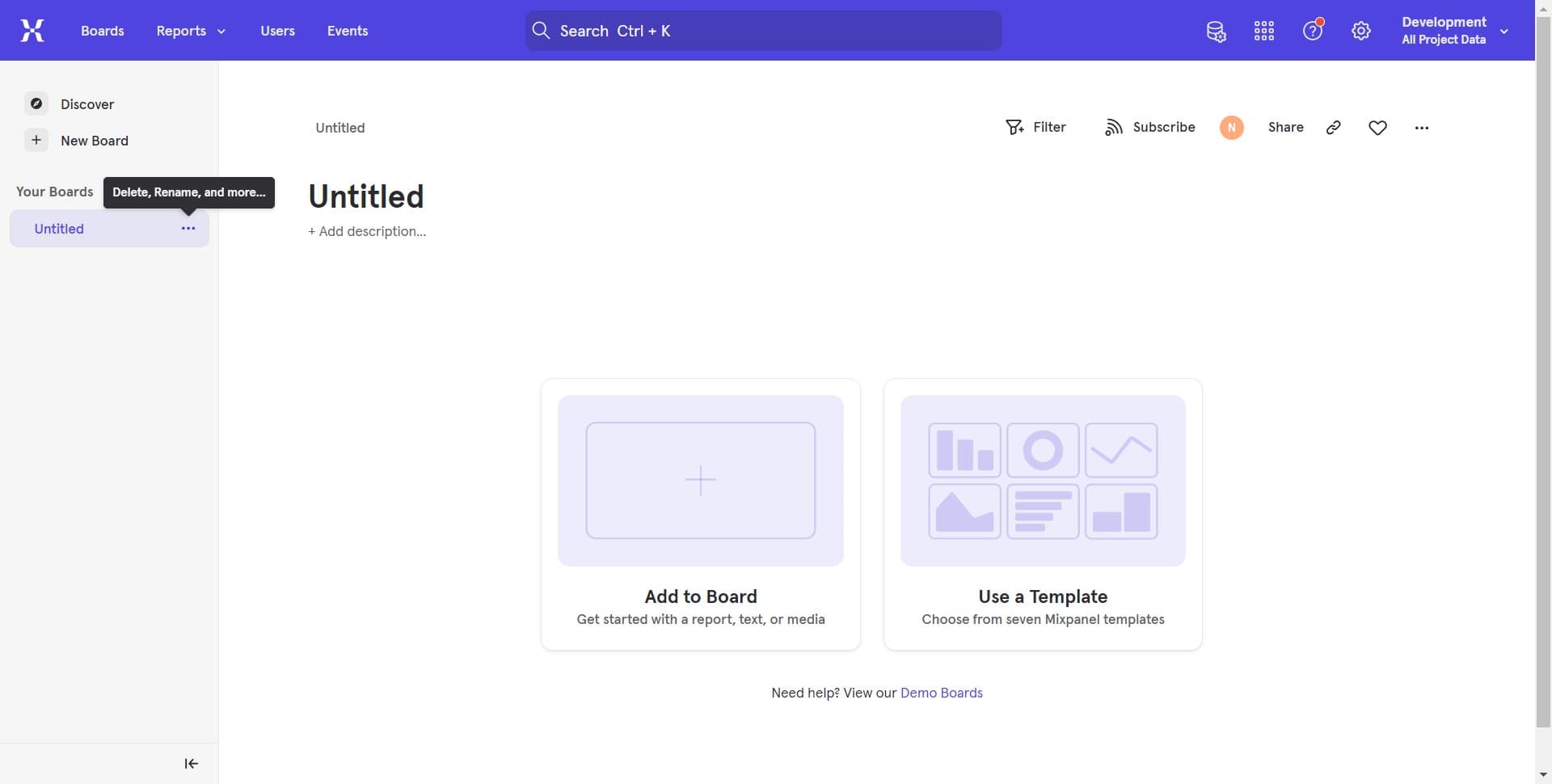
Select user management option
Click on 'Untitled + Add...' to access the user management section. This menu item allows you to view existing users and initiate new invitations.
- 3
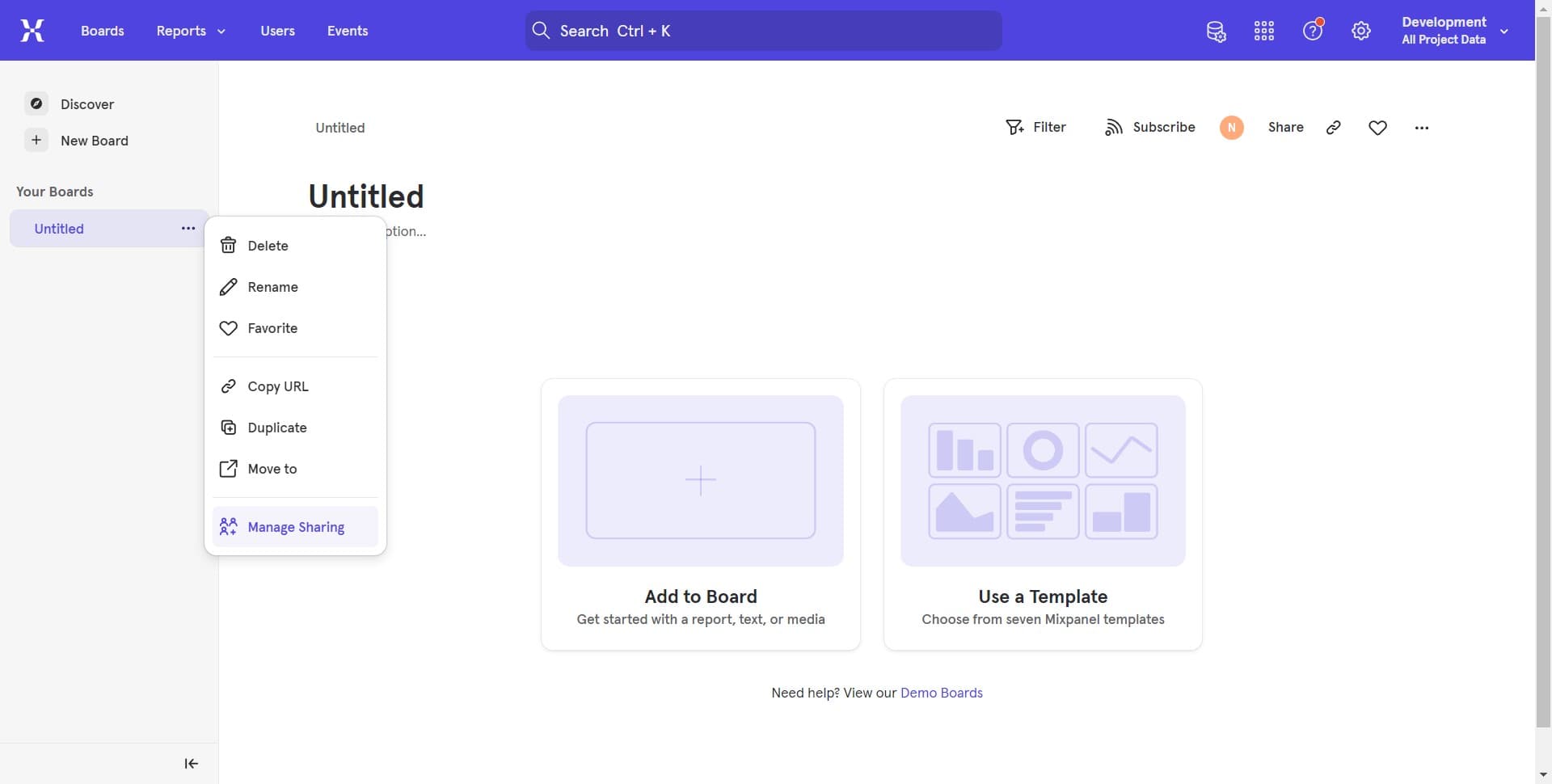
Initiate new user invitation
Click on 'Untitled + Add...' again to start the process of inviting a new user to your Mixpanel workspace. This will open a form or dialog for entering user details.
- 4
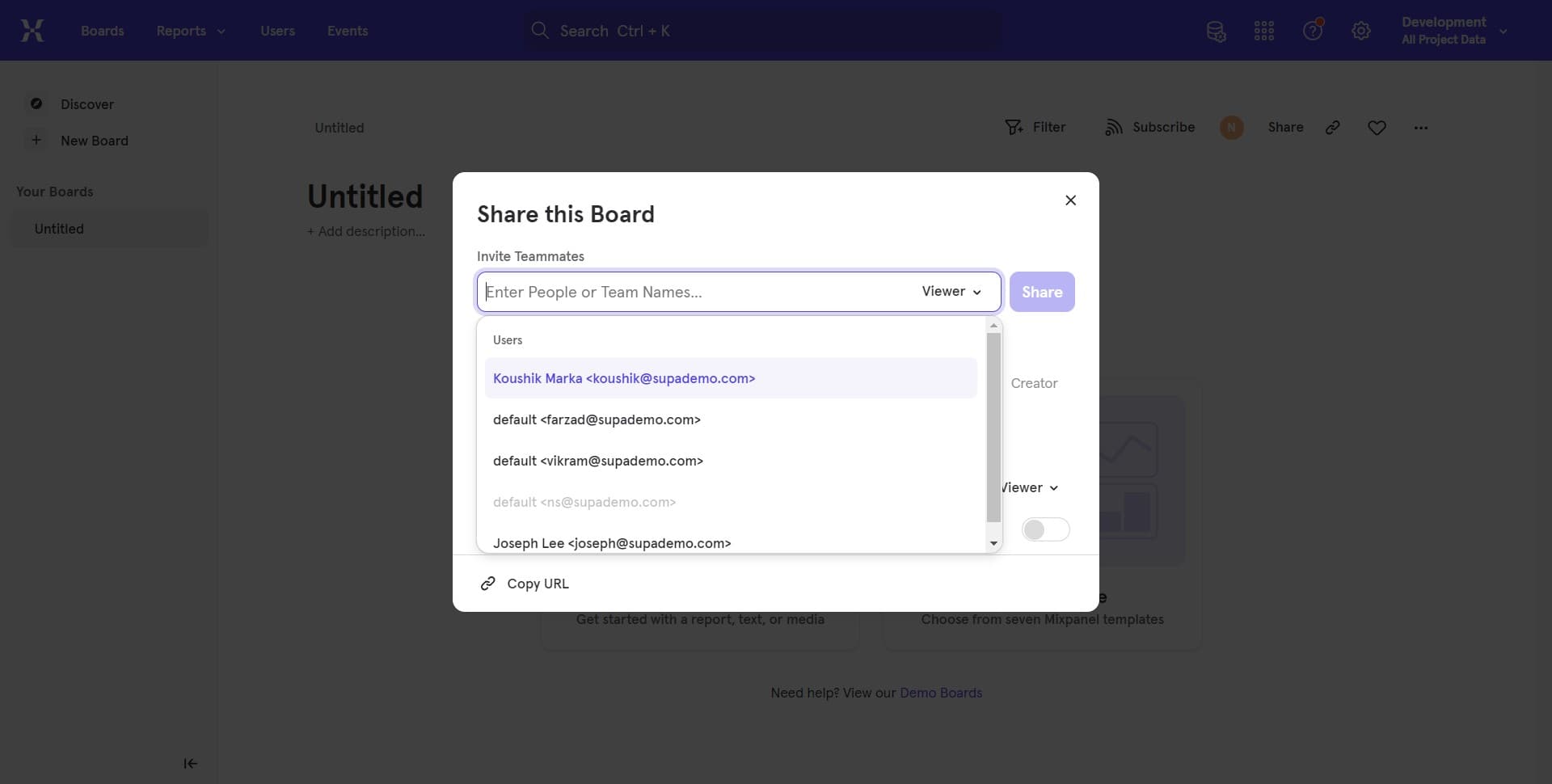
Enter user information
Click here to proceed with entering the email address and other required information for the user you want to invite. Make sure the email address is correct, as the invitation will be sent to this address.
- 5
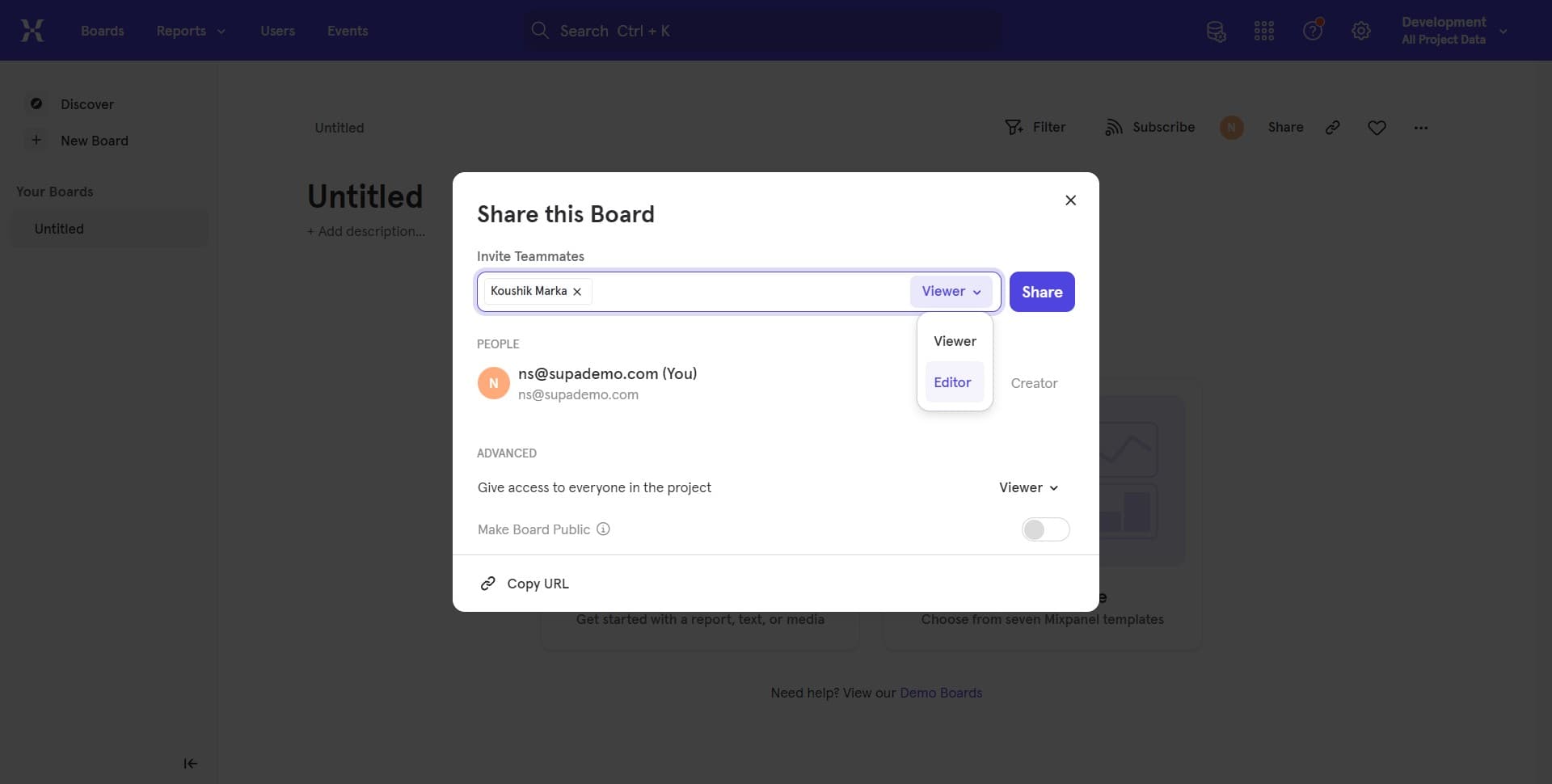
Set user permissions
Click here to configure the appropriate permission level for this user. You can typically choose from roles such as Admin, Analyst, or Viewer, depending on your Mixpanel plan and the user's responsibilities.
- 6
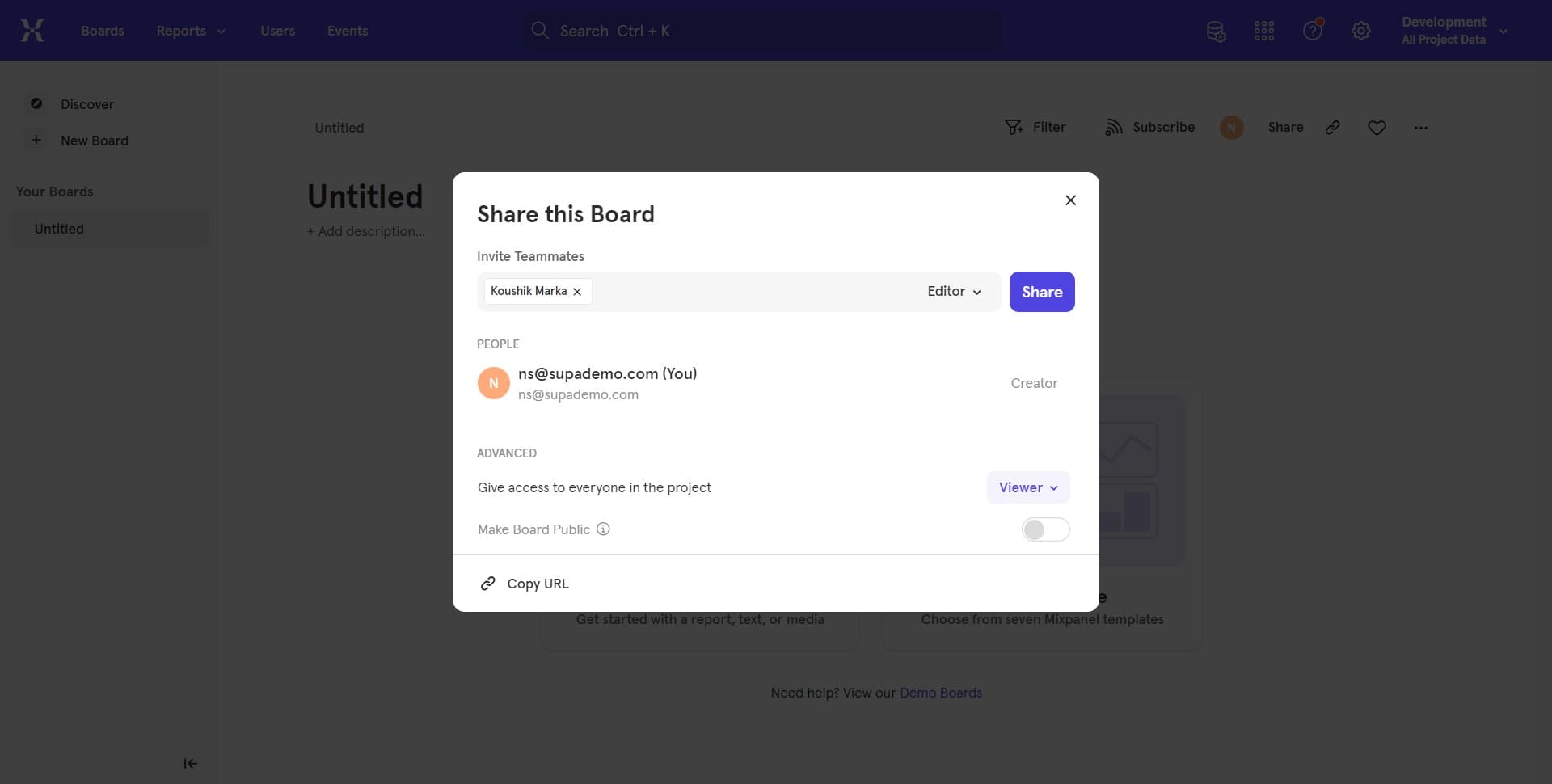
Confirm the invitation details
Click here to review all the information you've entered for the new user invitation. Verify that the email and permissions are correct before proceeding.
- 7
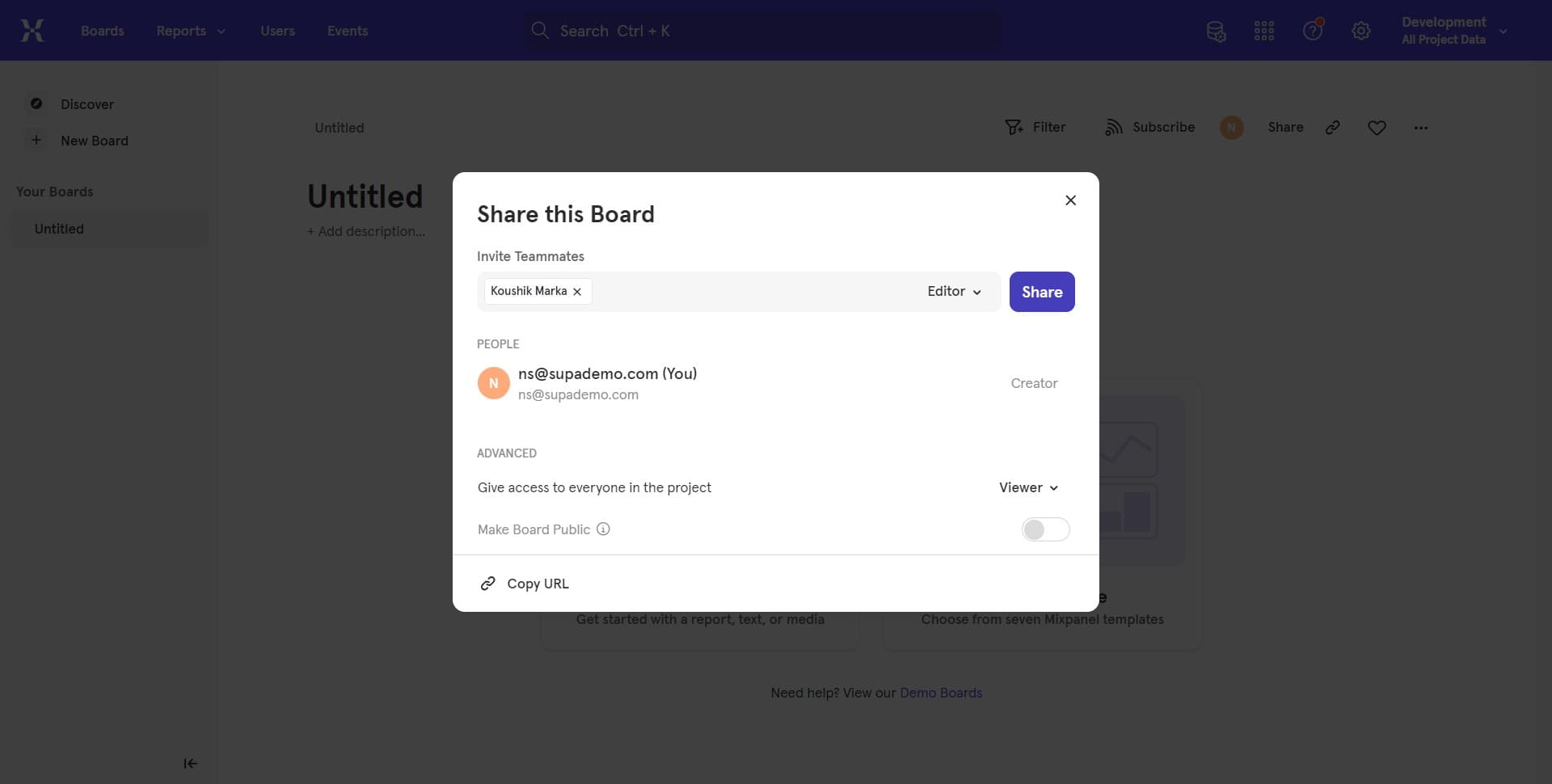
Send the invitation
Click here to send the invitation to the user's email address. They will receive a notification with instructions to join your Mixpanel workspace.
- 8
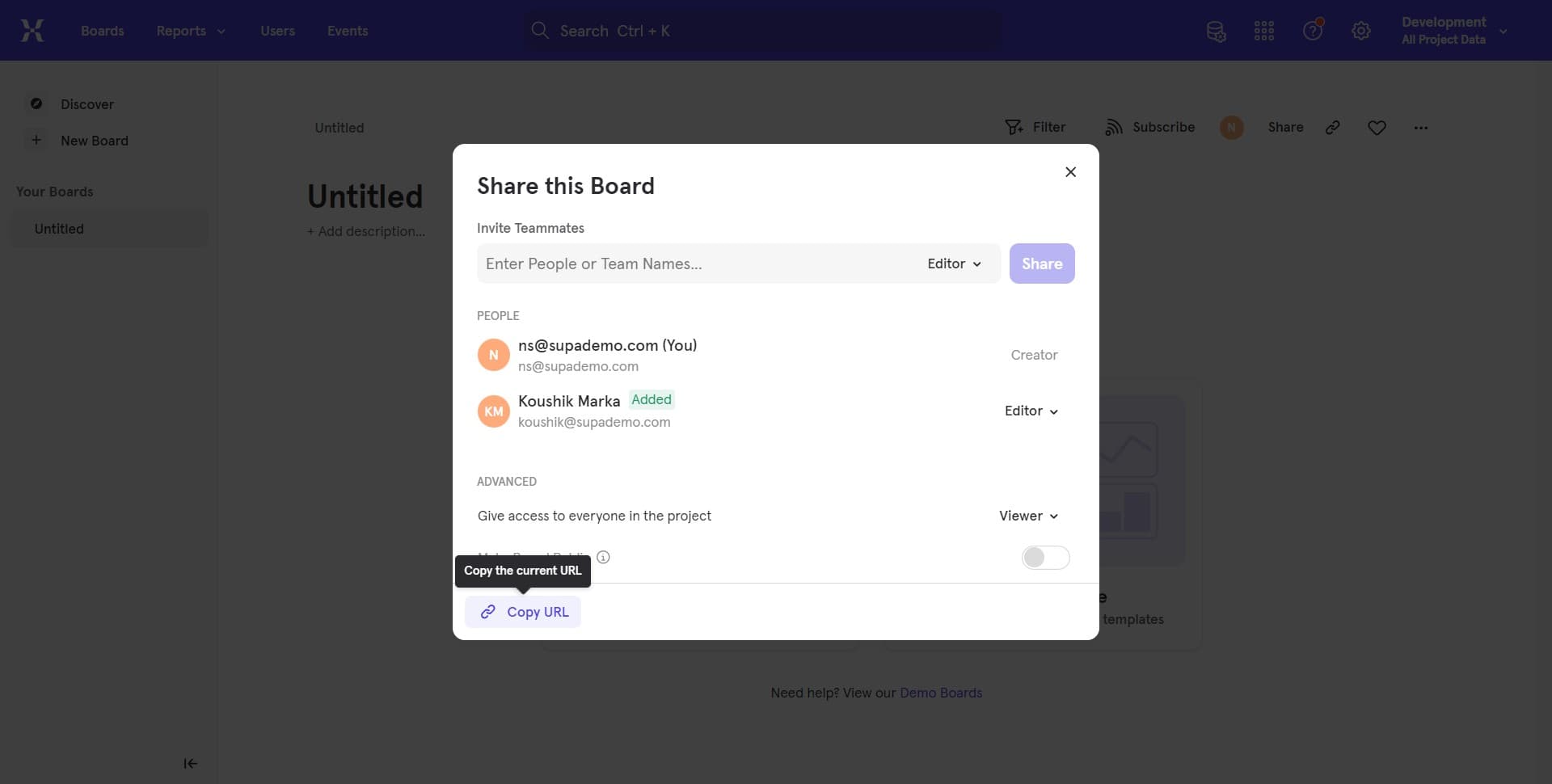
Verify the invitation status
Click here to confirm that the invitation was sent successfully. You may see the new user listed with a pending status until they accept the invitation and set up their account.
Frequently asked questions
Common questions about how to invite users to mixpanel.
Yes, you can modify user permissions at any time through the user management settings. Simply locate the user in your workspace list and update their role or permission level as needed. Changes take effect immediately.
If a user doesn't accept within a certain timeframe, you can resend the invitation from the user management panel. You may also want to verify that the email address is correct and check their spam folder.
Admin users have full control over workspace settings and can manage other users, Analysts can create reports and access most features, and Viewers have read-only access to reports and dashboards. Your Mixpanel plan may offer additional roles with different permission levels.
Depending on your Mixpanel plan, you may be able to invite multiple users through bulk import or by adding them one at a time through the interface. Check your workspace settings for bulk user management options.
User limits depend on your Mixpanel pricing plan. Enterprise plans typically offer higher user limits, while free or starter plans may have restrictions. Contact Mixpanel support or check your account settings to confirm your limit.