How to add images to a Notion page

Adding images to your Notion pages enhances visual appeal and makes your content more engaging. Whether you're building a portfolio, documenting a project, or creating a knowledge base, images help break up text and communicate ideas more effectively. This guide walks you through the process of inserting images into Notion using both uploads and external sources.
Quick summary
In this tutorial, you'll learn how to create a new Notion page and add images from multiple sources. You'll discover how to access Notion's image insertion tools and leverage services like Unsplash to find and embed free, high-quality images directly into your pages.
Why this matters
Visuals are crucial for creating professional, polished Notion pages that capture attention and improve information retention. By mastering image insertion, you can build richer, more dynamic documentation and personal knowledge management systems. This skill is especially valuable when designing team wikis, project portfolios, or client-facing documents.
Step-by-step guide
- 1
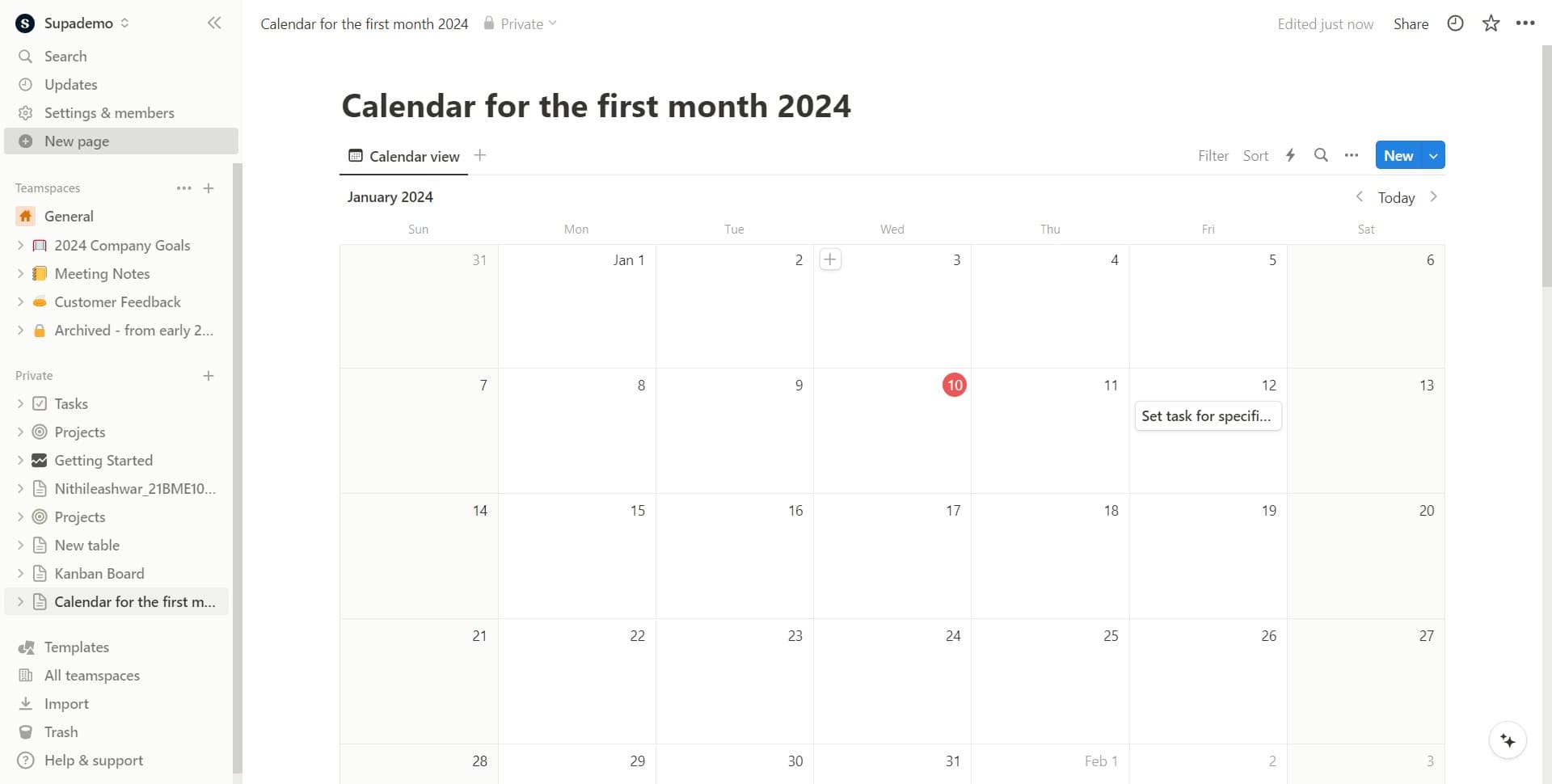
Click on New Page
Start by clicking the 'New page' button to create a fresh Notion page. This opens the page creation interface where you can begin adding content.
- 2
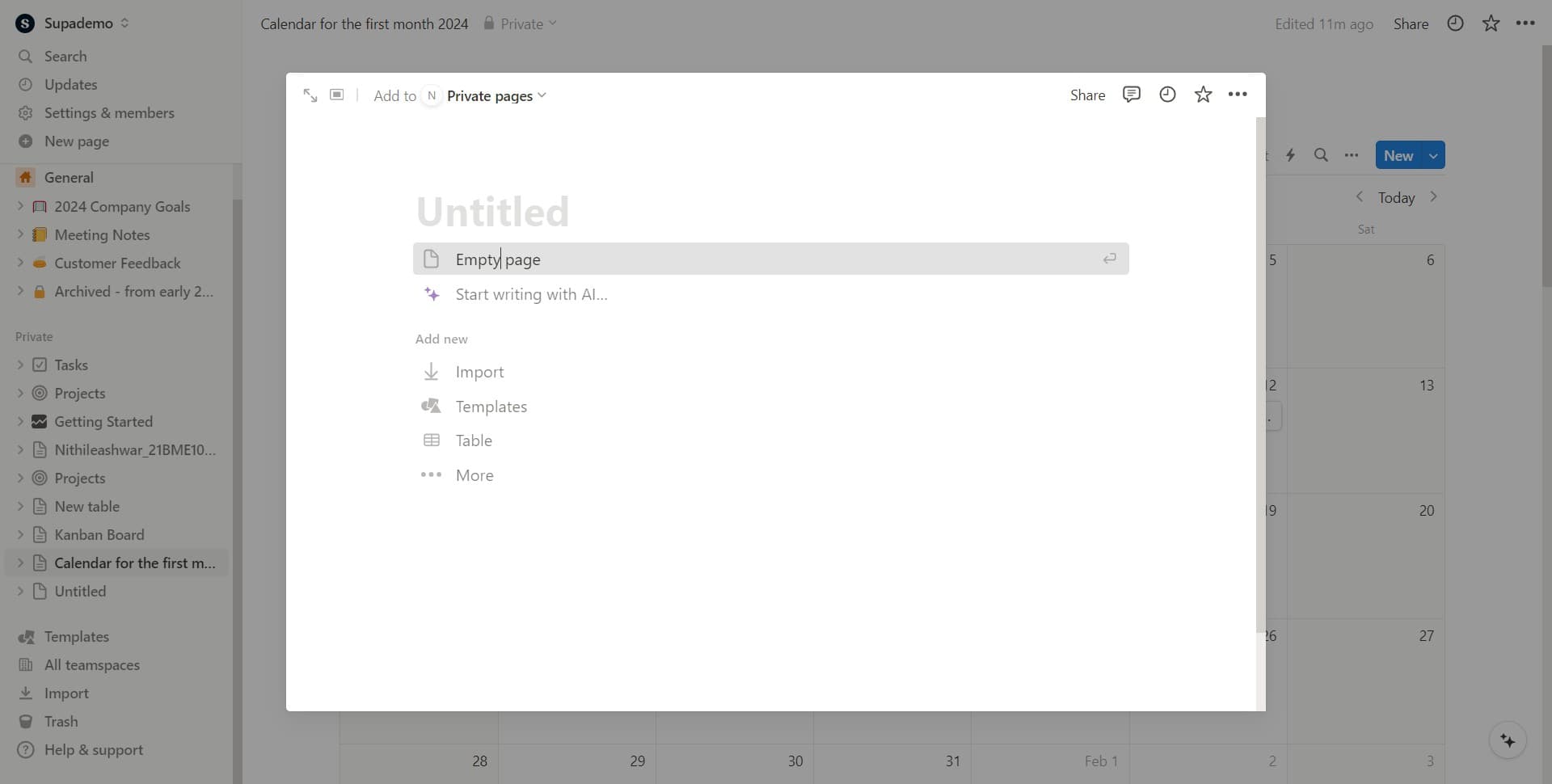
Select Empty Page
Choose 'Empty page' from the available templates to start with a blank canvas. This gives you a clean workspace to add images and other content without predefined layouts.
- 3
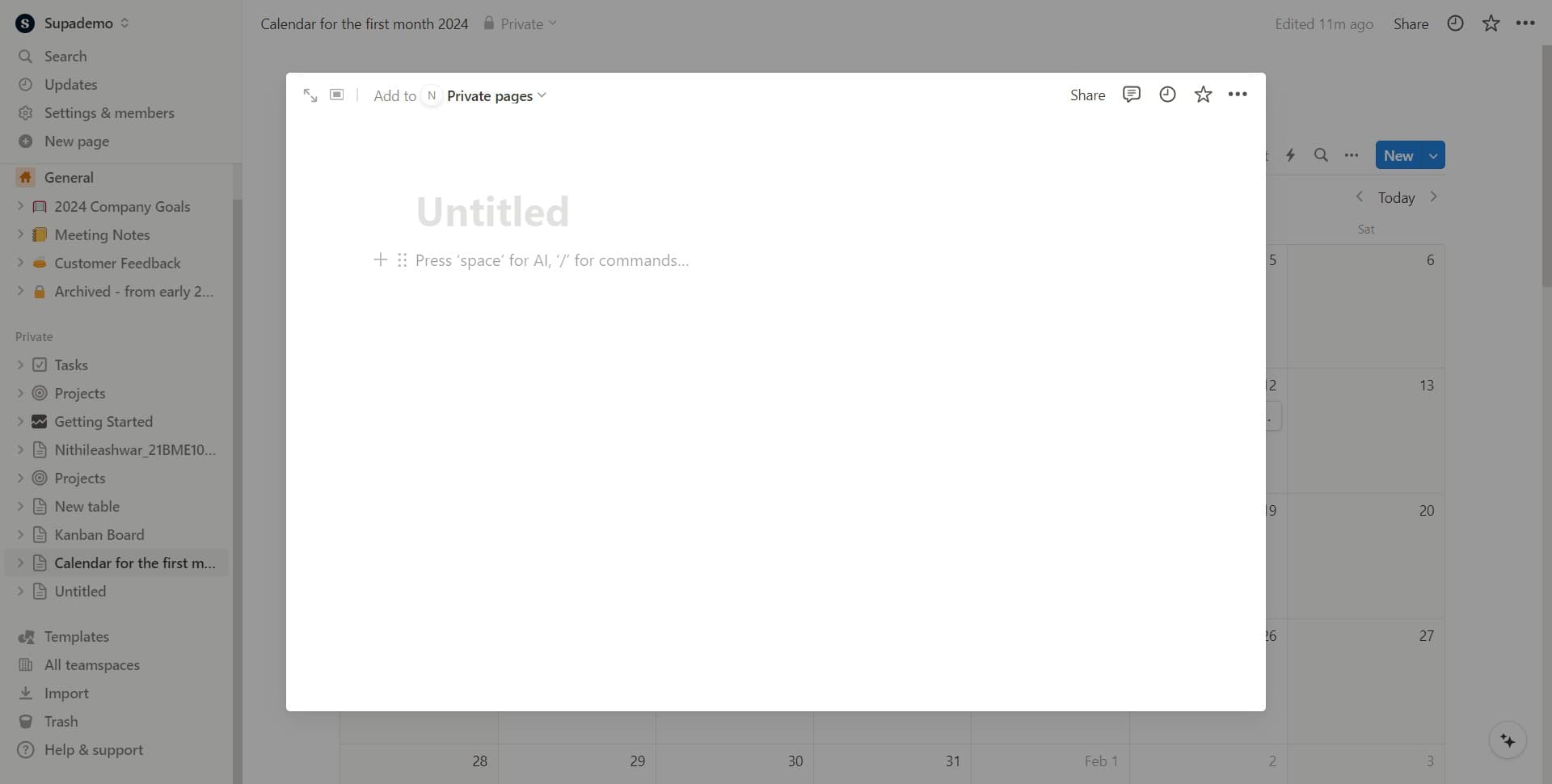
Activate the Content Block
Click in the main editing area to place your cursor where you want to insert an image. This prepares Notion to receive your image insertion command.
- 4
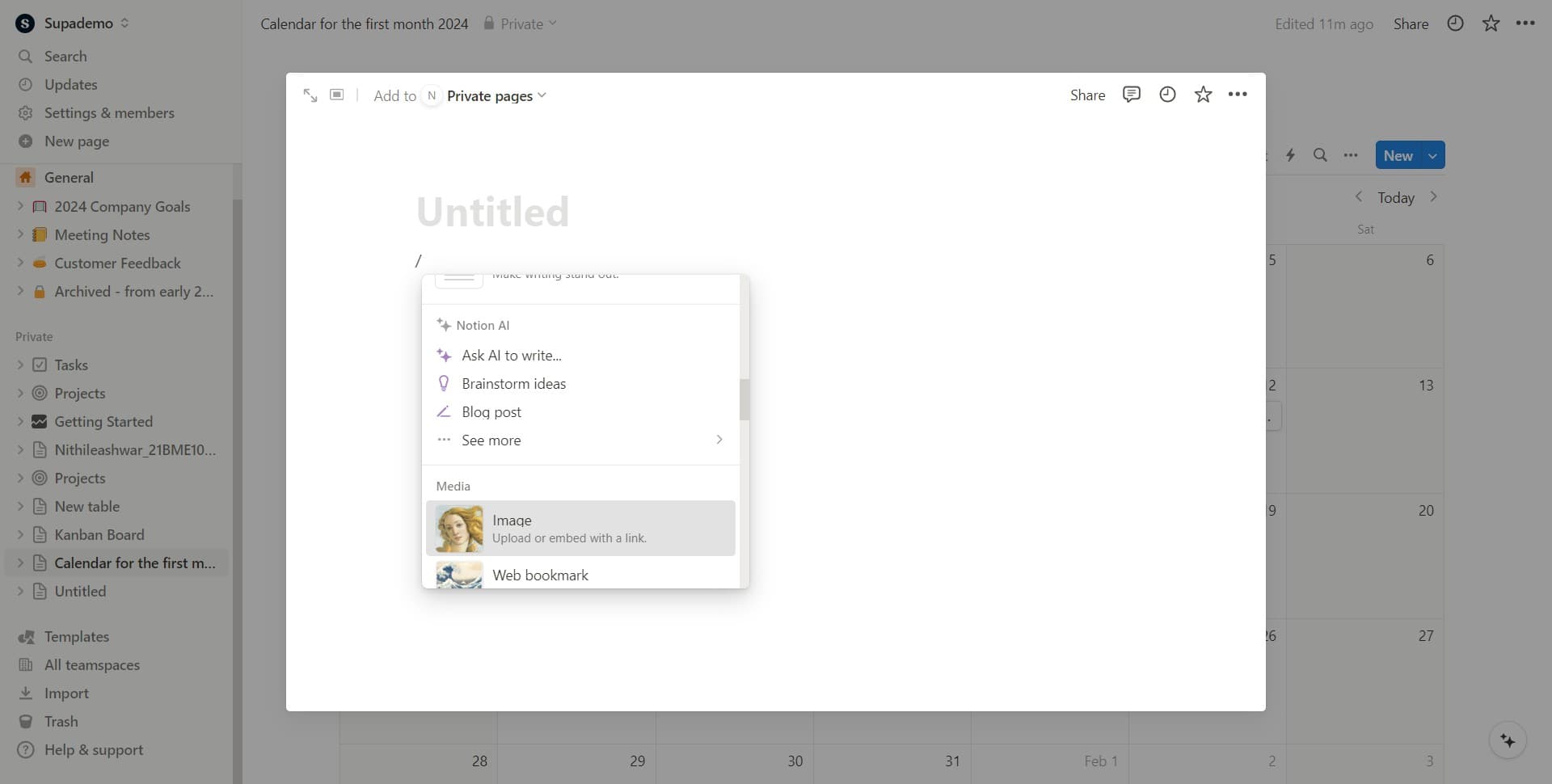
Open Image Upload Options
Select 'Upload or embed with a link' to access Notion's image insertion menu. This option lets you choose between uploading files from your device or embedding images from external sources.
- 5
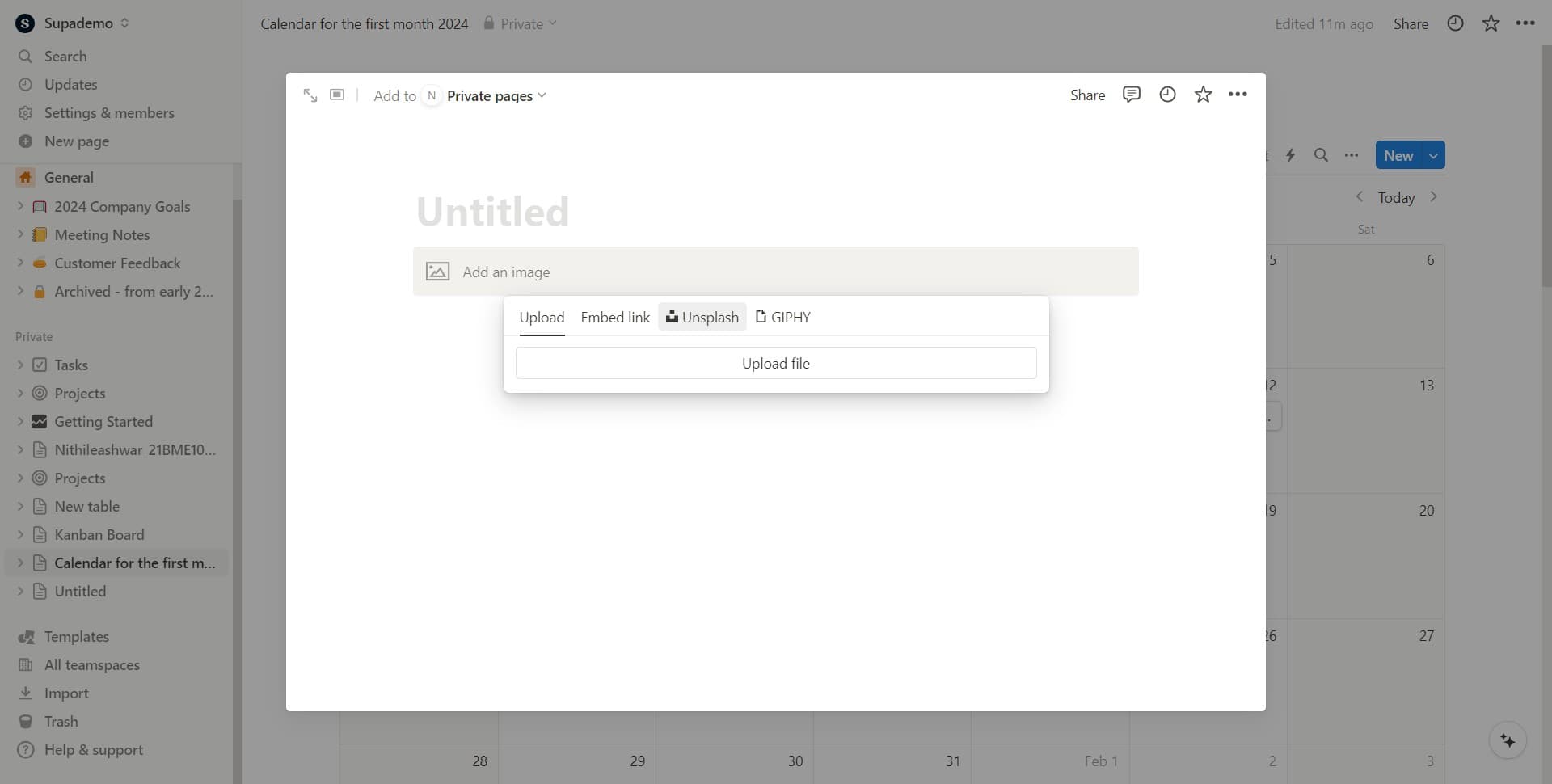
Browse Unsplash Library
Click on 'Unsplash' to access Notion's integrated library of free stock photos. This connects you to thousands of high-quality, royalty-free images you can use immediately.
- 6
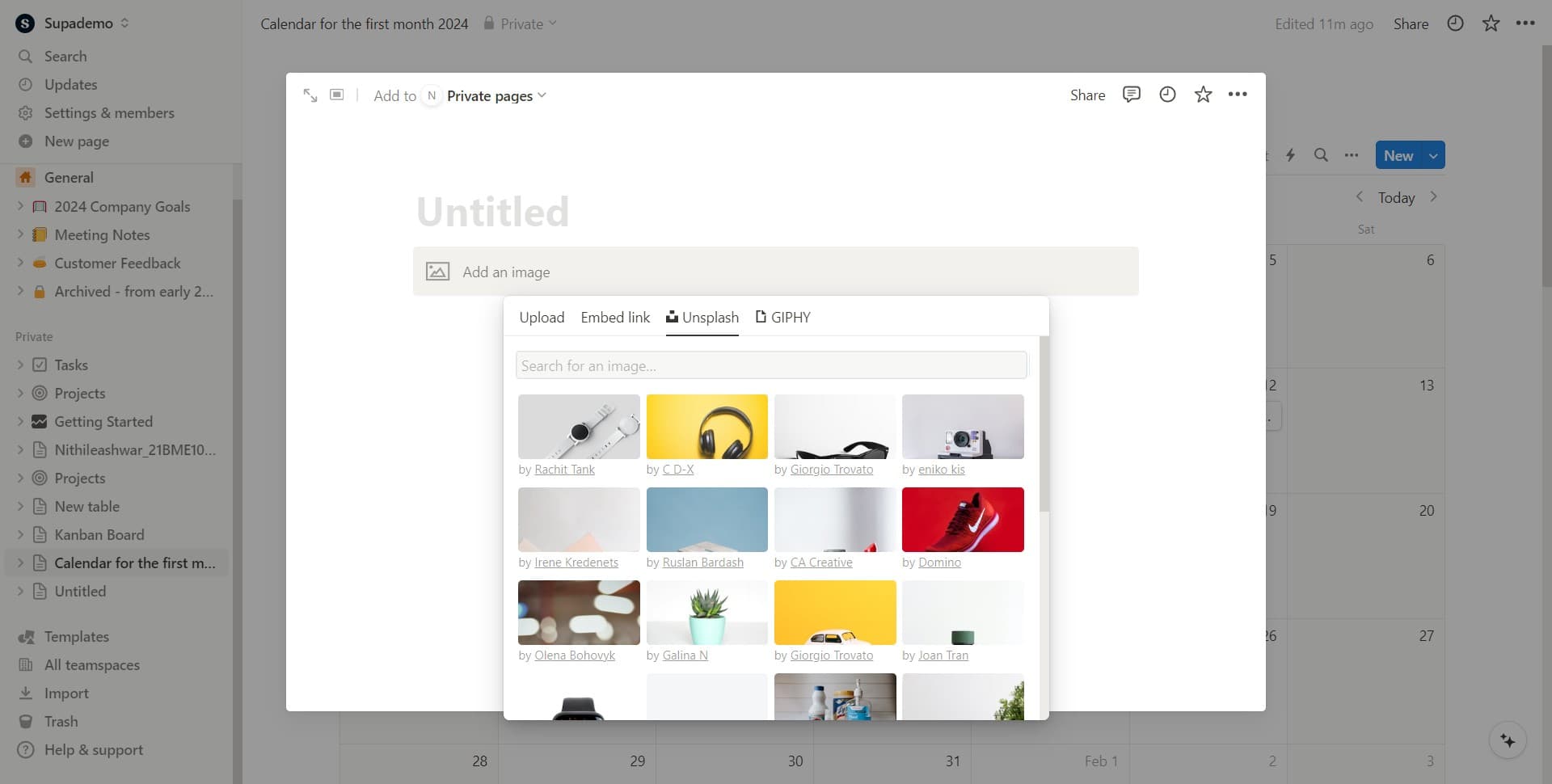
Select Image Category
Click on 'Image' to view and search through Unsplash's collection. You can browse by category, search for specific keywords, or explore curated selections.
- 7
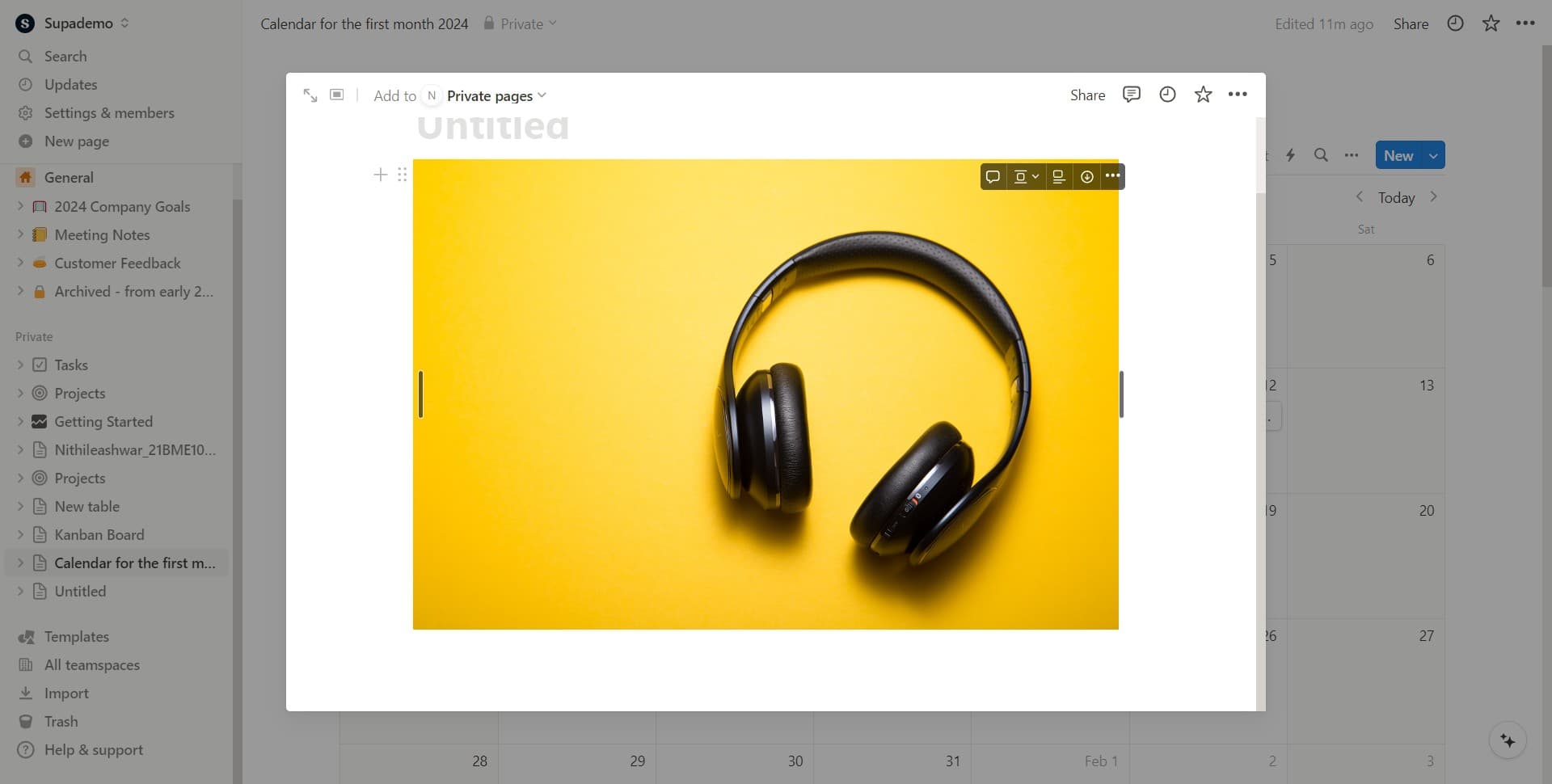
Confirm Image Selection
Click to select and insert your chosen image into the page. The image will be embedded directly into your Notion page and can be resized or repositioned as needed.
Frequently asked questions
Common questions about how to add images to a notion page.
Yes. In the 'Upload or embed with a link' menu, you can choose to upload images from your device. Notion supports common image formats including PNG, JPG, GIF, and WEBP. You can also drag and drop images directly onto your page.
Yes, all Unsplash images are free and can be used for personal and commercial projects without requiring attribution. However, attribution is always appreciated by photographers. Make sure to review Unsplash's license terms for any specific use cases.
After inserting an image, click on it to select it and you'll see resize handles around the edges. Drag these handles to adjust the image size, or drag the image itself to reposition it on the page. You can also click the image menu icon for additional formatting options.
Uploading transfers image files to Notion's servers, while embedding uses a link to display an image from another source. Uploaded images are stored in Notion and remain if the original source disappears. Embedded images are linked, so they depend on the external source remaining available.
Yes. Notion offers gallery blocks and database views that display images in a grid format. You can also use the image block alongside other content blocks to create custom layouts. Experiment with different block arrangements to find the layout that works best for your page.