How to switch to dark mode or light mode in Notion

Notion's dark mode and light mode options let you customize your workspace to match your environment and reduce eye strain. Whether you prefer working in bright daylight or late-night sessions, switching between these themes takes just a few clicks.
Quick summary
In this tutorial, you'll learn how to access Notion's appearance settings and switch between dark mode, light mode, and system-based theme preferences. By the end, you'll be able to set your ideal workspace appearance in seconds.
Why this matters
Choosing the right theme improves your productivity and comfort during extended work sessions. Dark mode reduces blue light exposure and works well in low-light environments, while light mode offers better readability in bright spaces, and system settings automatically adapt to your device's preferences.
Step-by-step guide
- 1
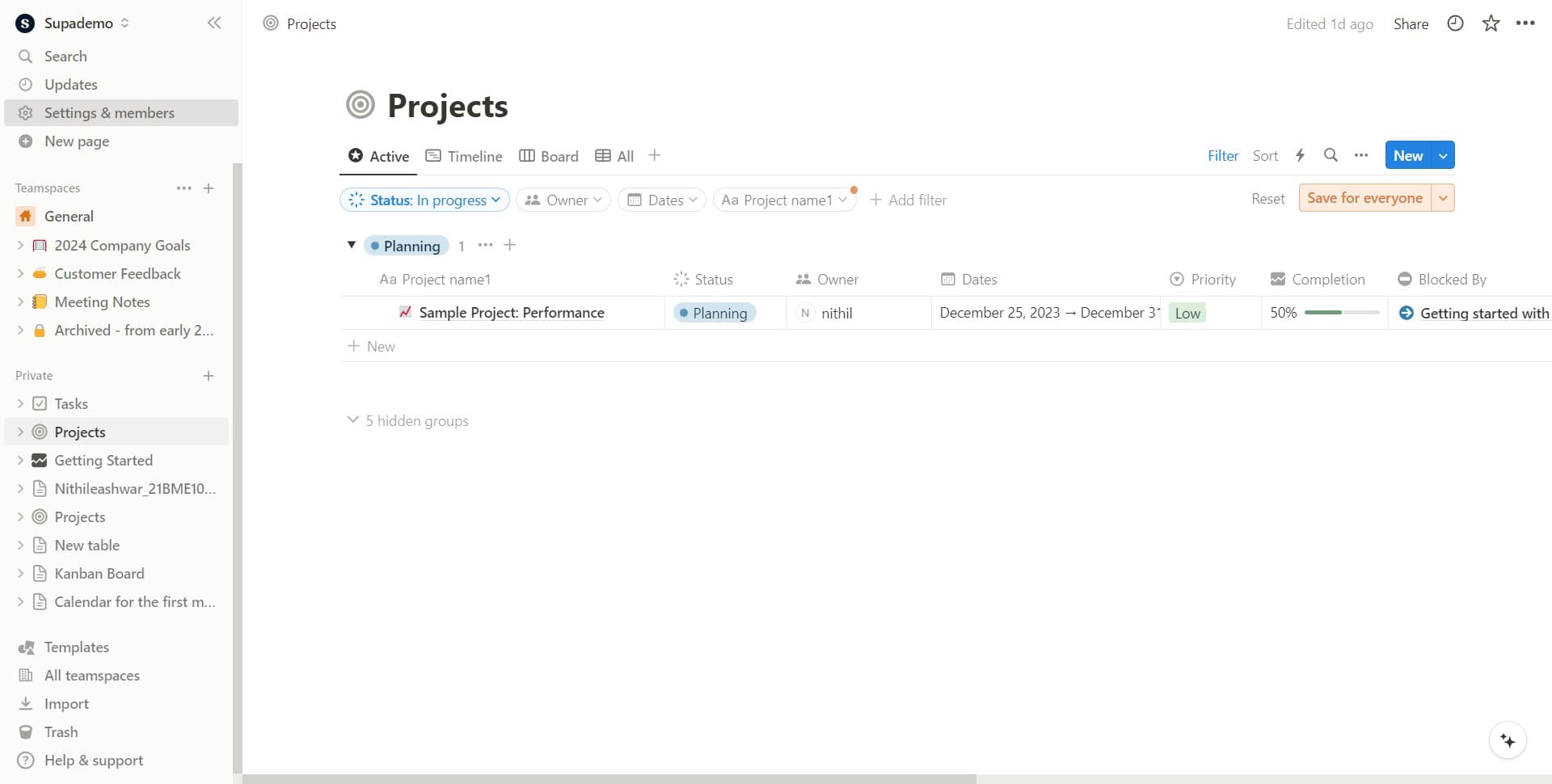
Open Settings & members
Click on the "Settings & members" option in your Notion sidebar. This is your gateway to all workspace and personal configuration options.
- 2
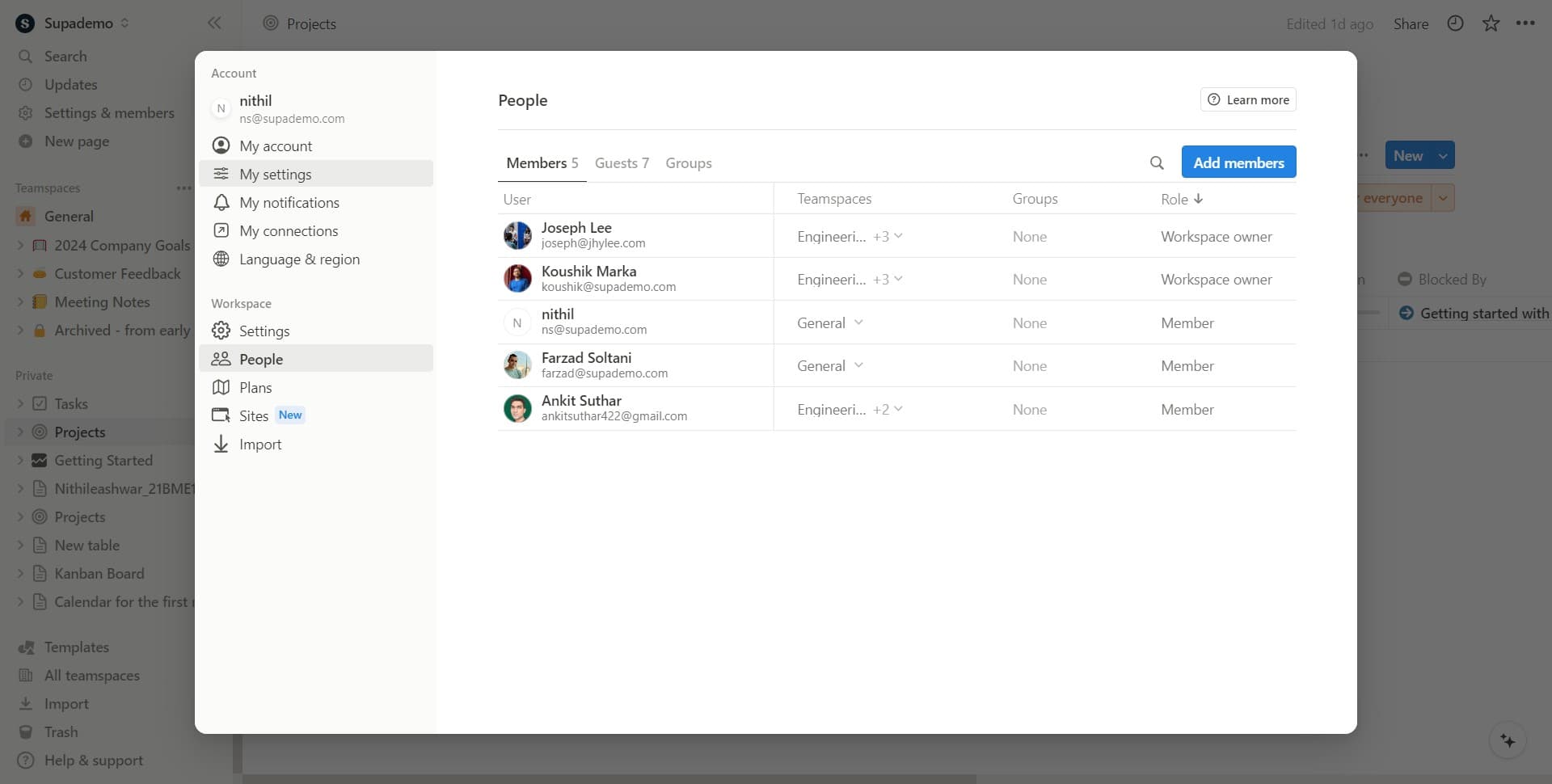
Navigate to My settings
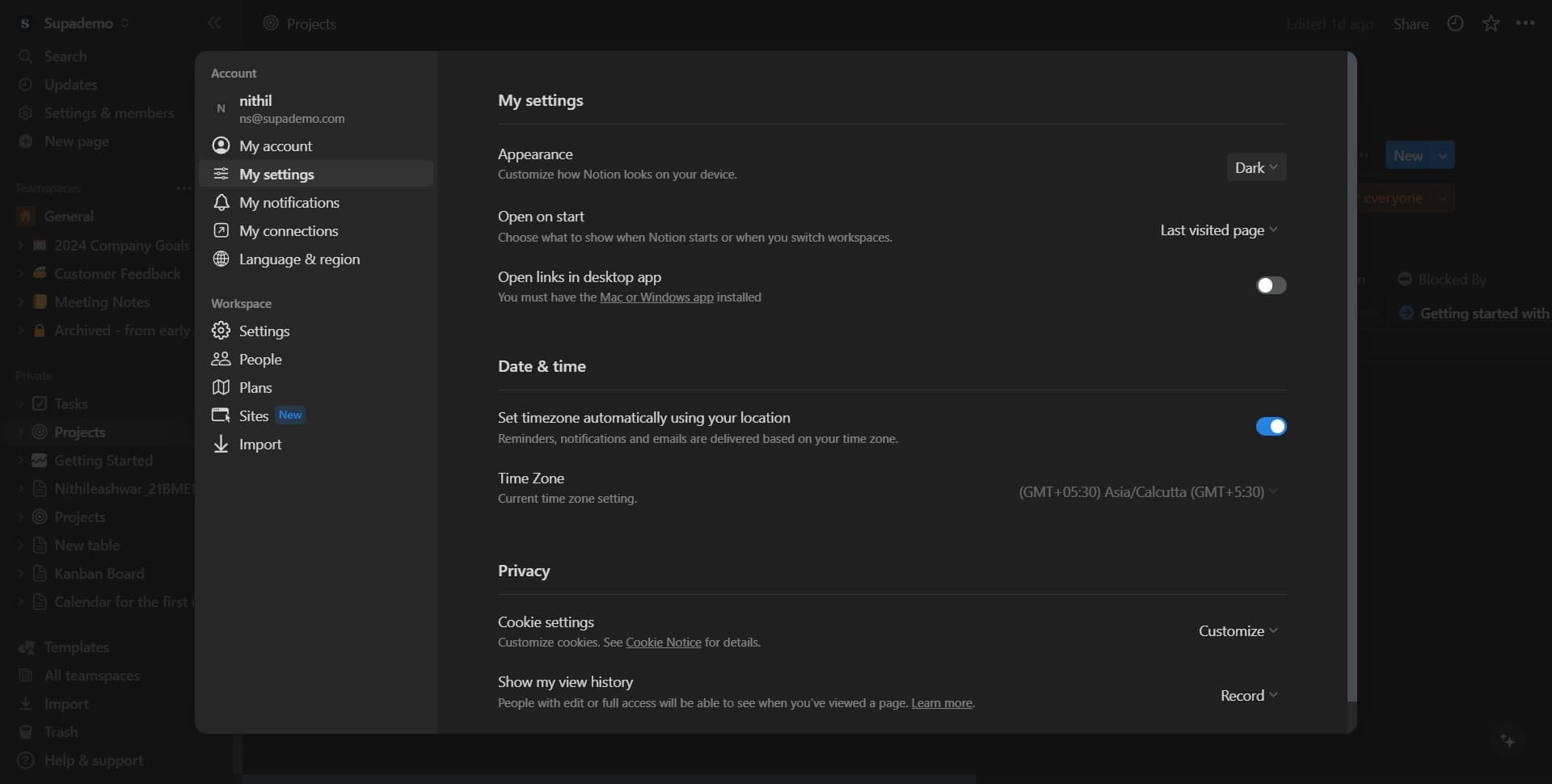
Select "My settings" from the menu that appears. This section contains your personal preferences, including appearance and theme options.
- 3
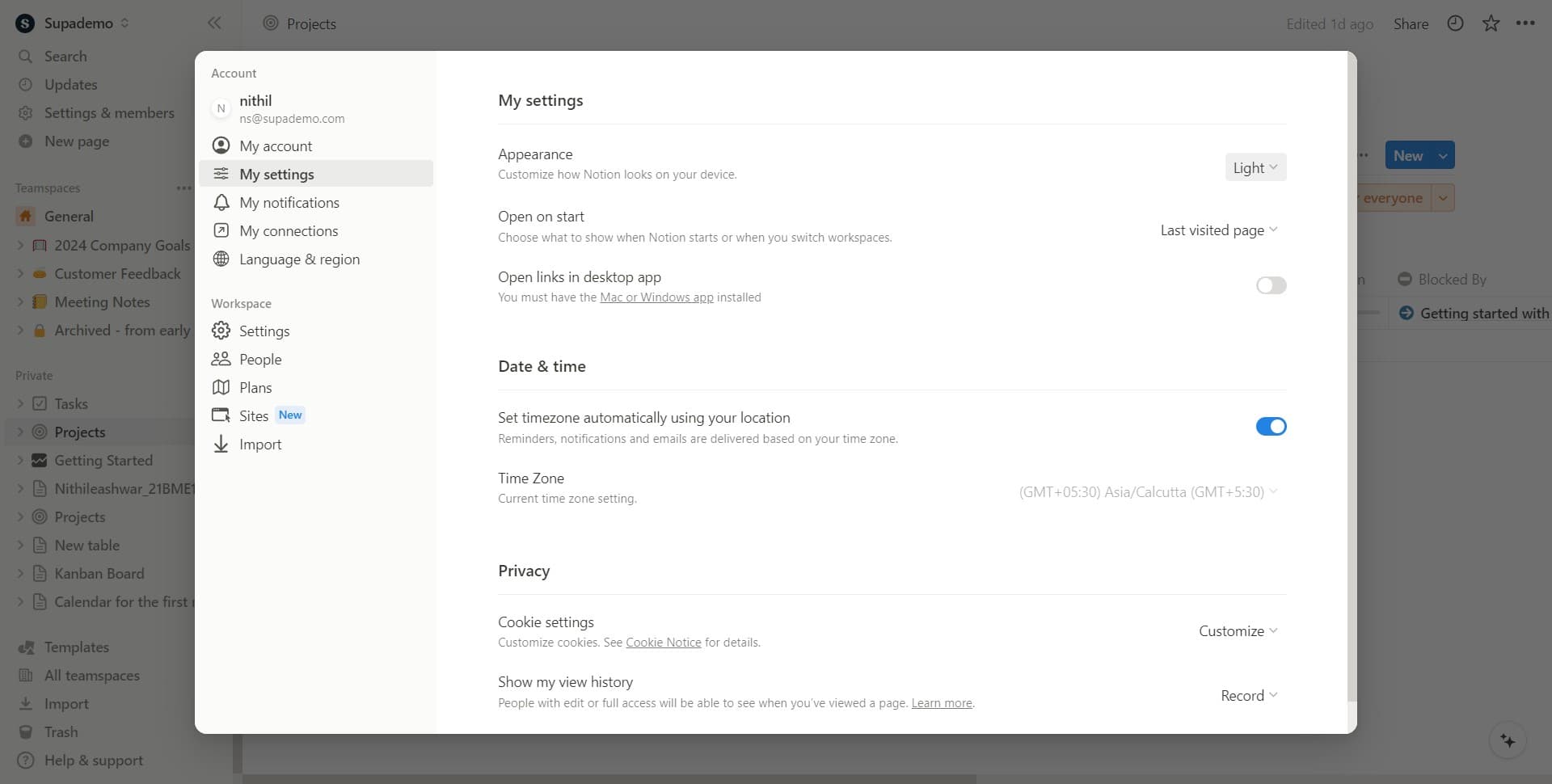
Access the appearance settings
Click on the appearance or theme option within My settings. This will display your available theme choices.
- 4
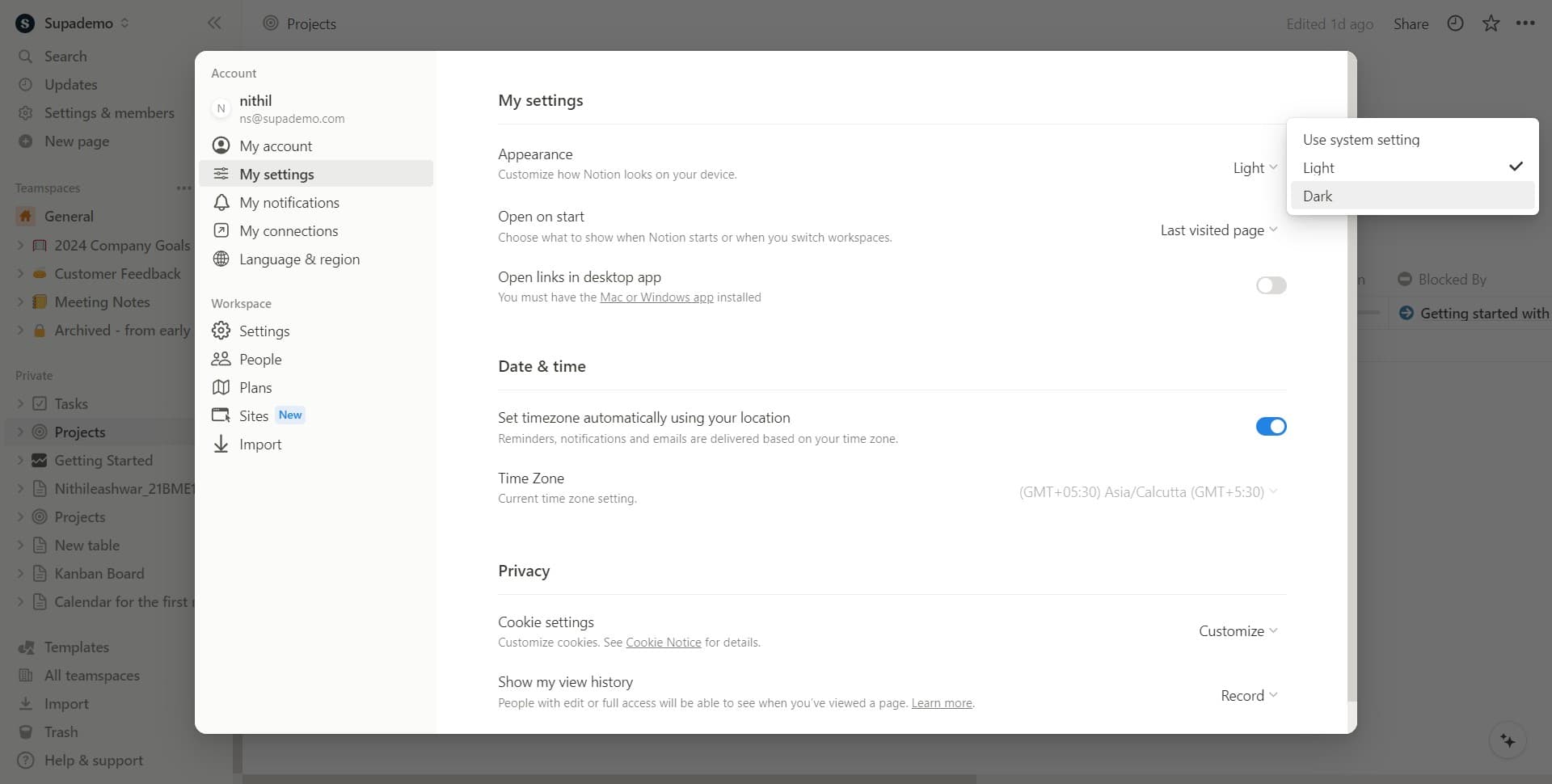
Select Dark mode
Click on "Dark" to enable dark mode for your Notion workspace. Your interface will immediately switch to a dark theme with light text and icons.
- 5
Confirm Dark mode selection
Click on "Dark" again if prompted to confirm your selection. This ensures your preference is saved.
- 6
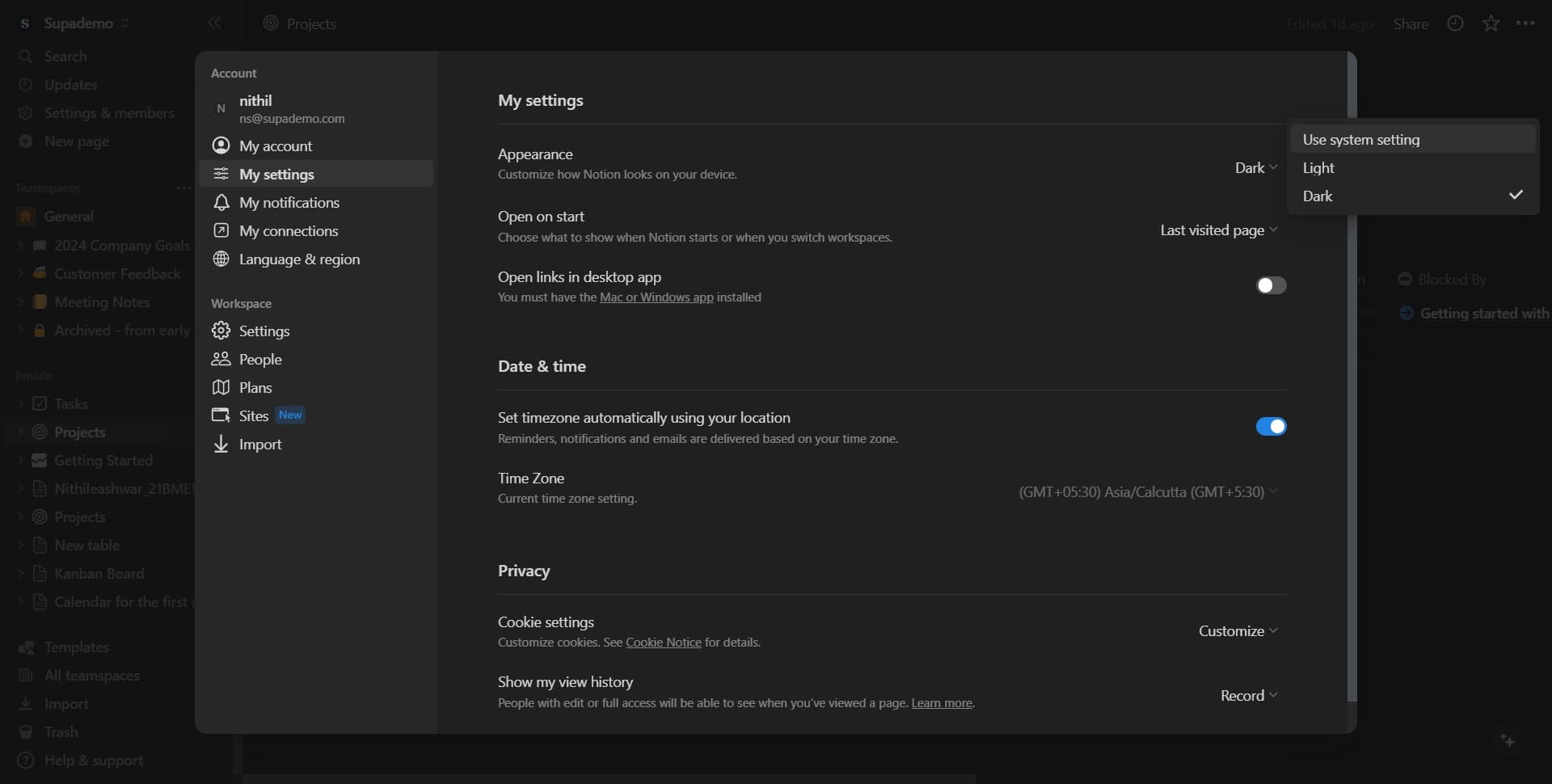
Choose Use system setting
Click on "Use system setting" to let Notion automatically match your device's theme preferences. This option syncs your Notion appearance with your operating system's dark or light mode settings.
Frequently asked questions
Common questions about how to switch to dark mode or light mode in notion.
Yes, the theme settings are available on Notion's mobile apps for both iOS and Android. Open your account settings through the app menu and follow the same steps to change your appearance preference.
This option automatically synchronizes Notion's theme with your device's operating system settings. If your device is in dark mode, Notion will display in dark mode, and vice versa. This is convenient if you switch your device theme based on time of day.
Yes, Notion syncs your appearance settings across all devices where you're logged in. If you change to dark mode on your computer, it will apply to your phone and tablet as well.
Dark mode primarily affects the Notion interface and editor background. Your database content, images, and custom page backgrounds may display differently, but all your data remains unchanged and fully functional.
Notion doesn't have a built-in scheduling feature for theme switching. However, if you use the "Use system setting" option and your device supports scheduled dark mode, Notion will automatically follow that schedule.