How to add templates in your Notion workspace

Adding templates to your Notion workspace streamlines your workflow by providing pre-built structures for databases, pages, and projects. Templates eliminate the need to recreate common layouts and formats, saving you time and ensuring consistency across your workspace. This guide walks you through the process of finding and uploading templates in Notion.
Quick summary
In this tutorial, you'll learn how to access Notion's template library, browse available templates, and add them to your workspace in just four simple steps. By the end, you'll have templates ready to use for databases, project management, note-taking, and more.
Why this matters
Templates accelerate your productivity by providing ready-made frameworks that match your workflow needs. Rather than building from scratch, you can start with a template and customize it to fit your specific requirements, allowing you to focus on content instead of structure. This is especially valuable when onboarding new team members or scaling your Notion system.
Step-by-step guide
- 1
Access the templates section
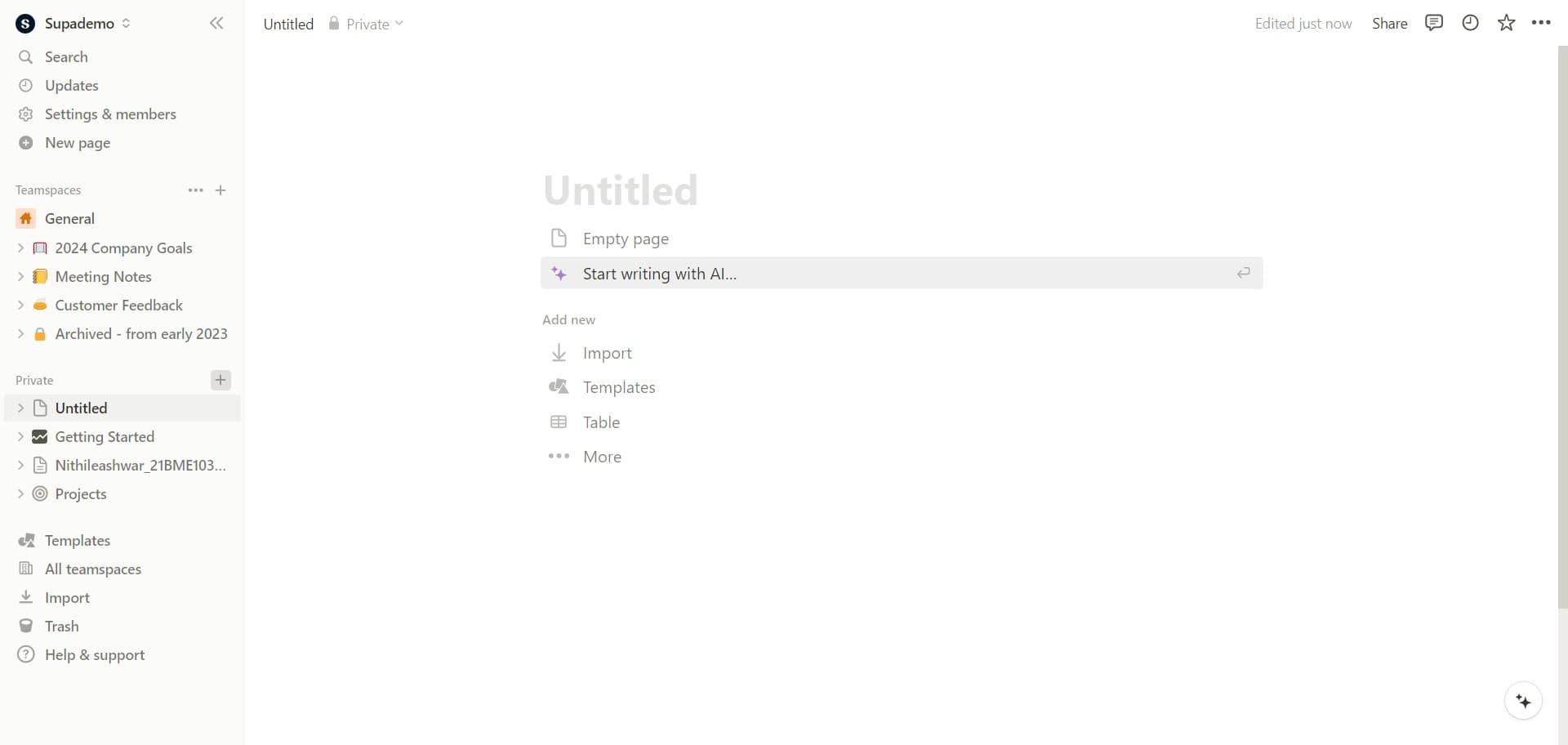
Begin by clicking on the designated area within your Notion workspace to access templates. This will open the templates menu where you can explore available options.
- 2
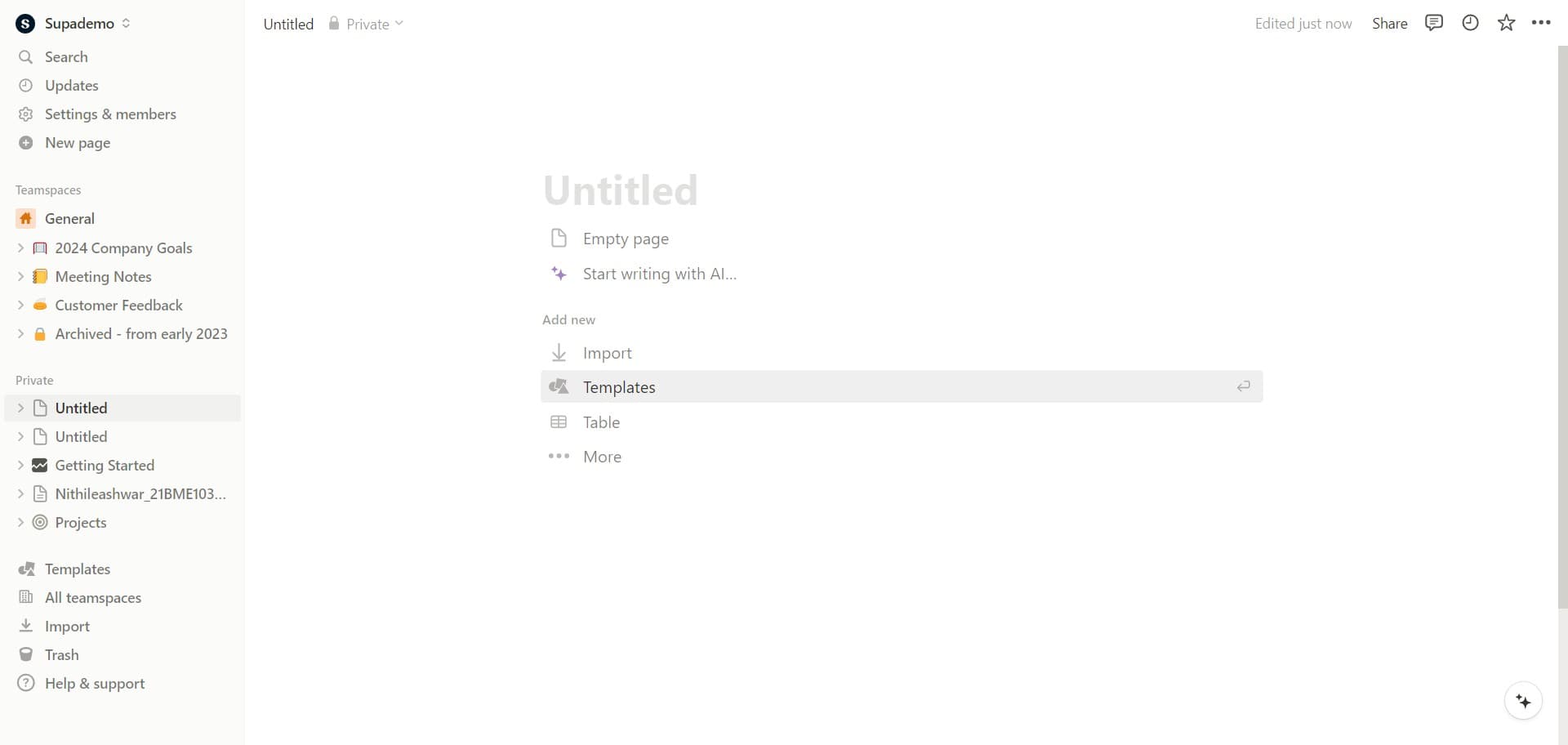
Click on Templates
In the menu that appears, select the Templates option to view the full library of available templates. You'll see a collection of pre-built templates organized by category and use case.
- 3
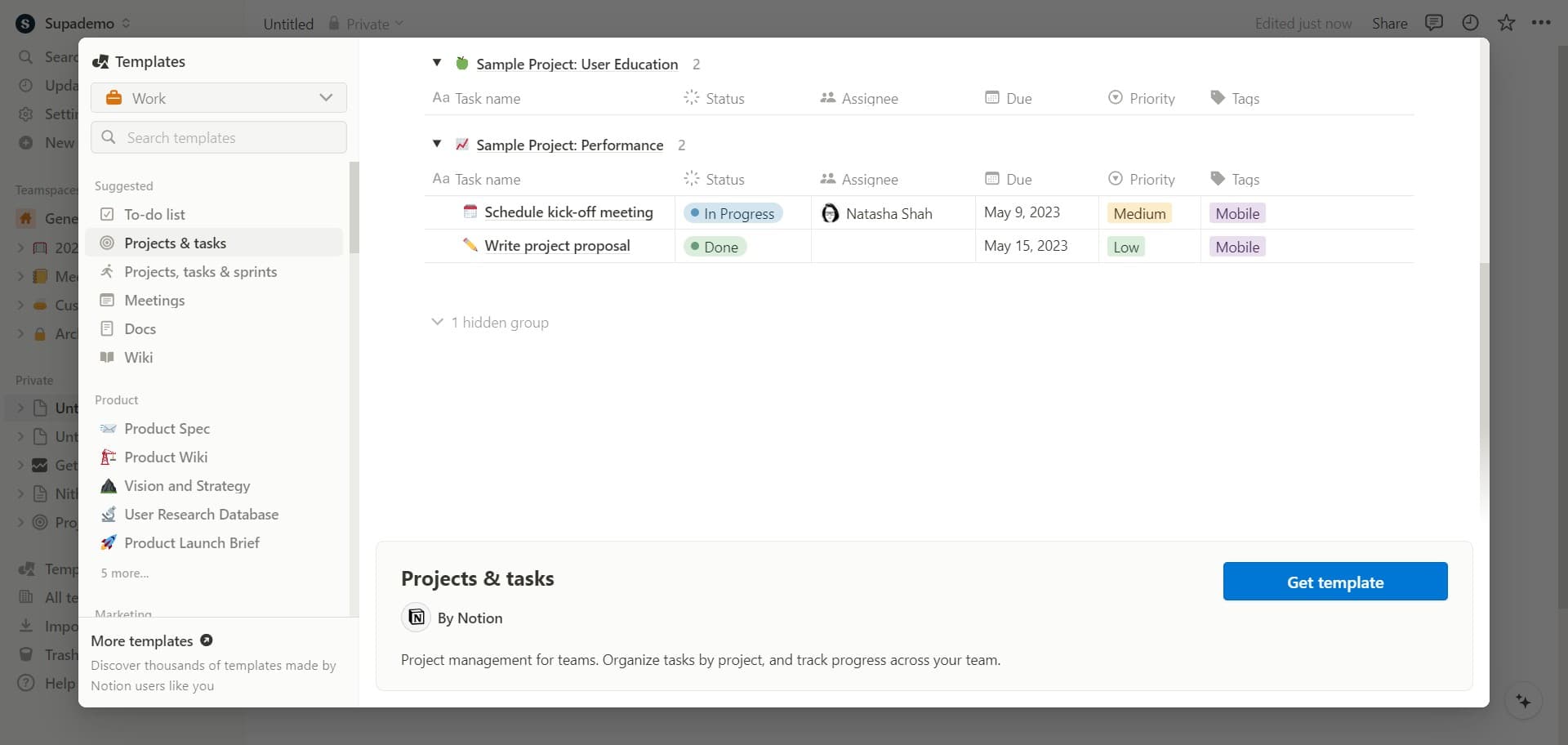
Click on Get template
Browse through the templates and locate one that suits your needs. Once you've found a template you want to use, click the Get template button to proceed with adding it to your workspace.
- 4
Upload the template
Complete the upload process by confirming your selection. The template will then be added to your workspace and ready for you to customize based on your specific requirements.
Frequently asked questions
Common questions about how to add templates in your notion workspace.
Yes, most templates available in Notion's template library are free to use. Many are created by Notion and the community. Some third-party templates may have associated costs, but the majority can be added to your workspace at no charge.
Absolutely. Once a template is added to your workspace, you can fully customize it to match your needs. You can modify fields, rename databases, adjust layouts, and delete any components you don't need.
Templates appear in your Notion workspace as new pages or databases, depending on the template type. They'll typically be added to your sidebar or main workspace view, and you can move them to the desired location in your workspace hierarchy.
Yes, you can create templates within your own Notion databases and pages. You can duplicate pages and save them as templates, or use the template button feature within databases to create reusable templates for frequently used layouts.
You can delete any template that doesn't work for you and try a different one from the library. Notion offers a wide variety of templates for different use cases, so you can explore multiple options until you find what suits your workflow best.