How to create a gallery in Notion

Notion gallery views provide a visual, card-based layout for organizing and displaying your database content. This tutorial walks you through creating a gallery database in Notion, transforming your data into an organized, easy-to-browse visual format.
Quick summary
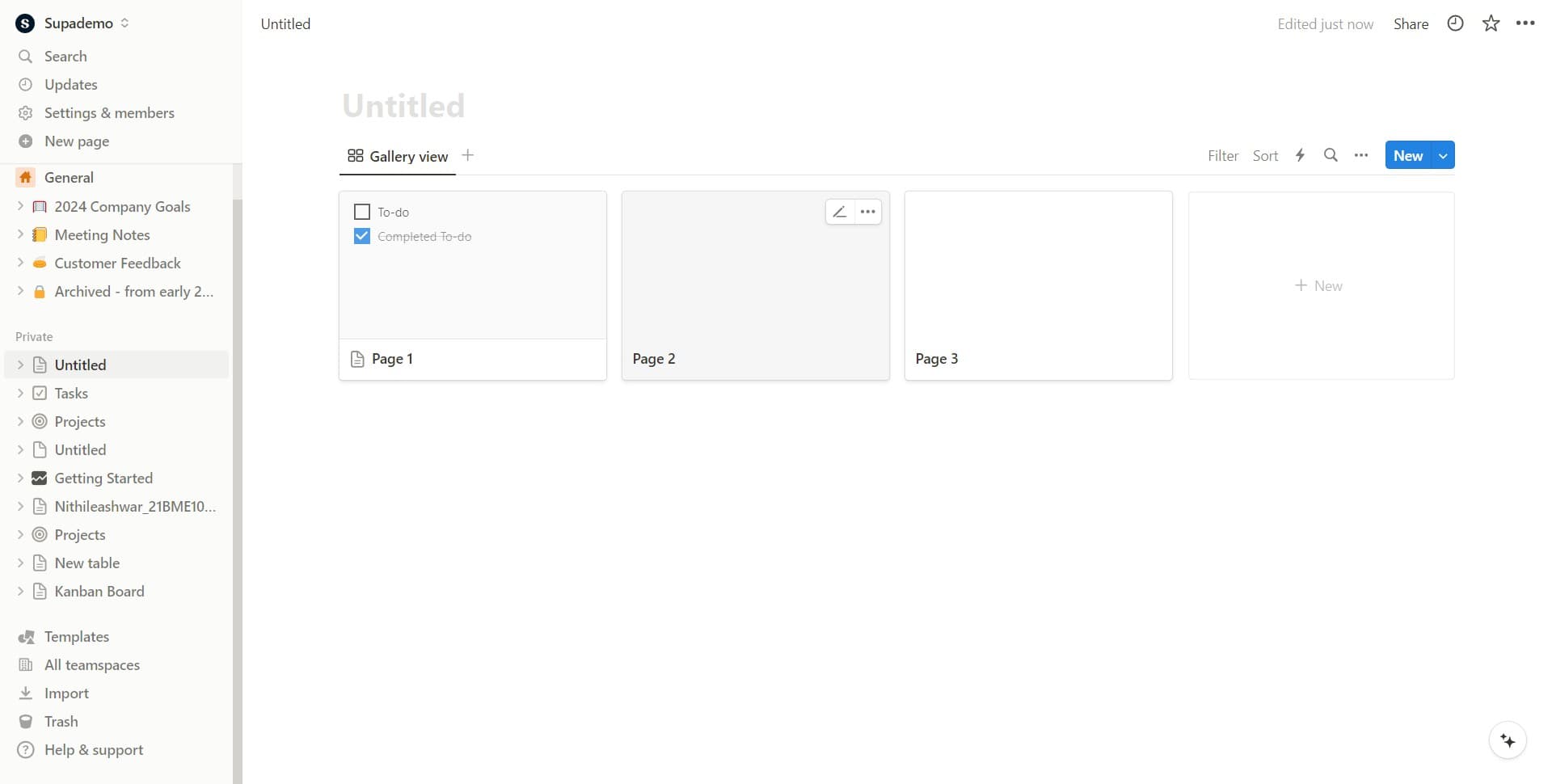
In this tutorial, you'll learn how to set up a gallery view in Notion by creating a new database and configuring it with a gallery layout. You'll discover how to quickly access gallery options and establish the foundation for a visually organized workspace.
Why this matters
Gallery views are ideal for managing visual projects, portfolios, product catalogs, or any content where seeing images and details at a glance matters. Using galleries makes it easier to browse, compare, and interact with information in a more intuitive, visual way than traditional table layouts.
Step-by-step guide
- 1
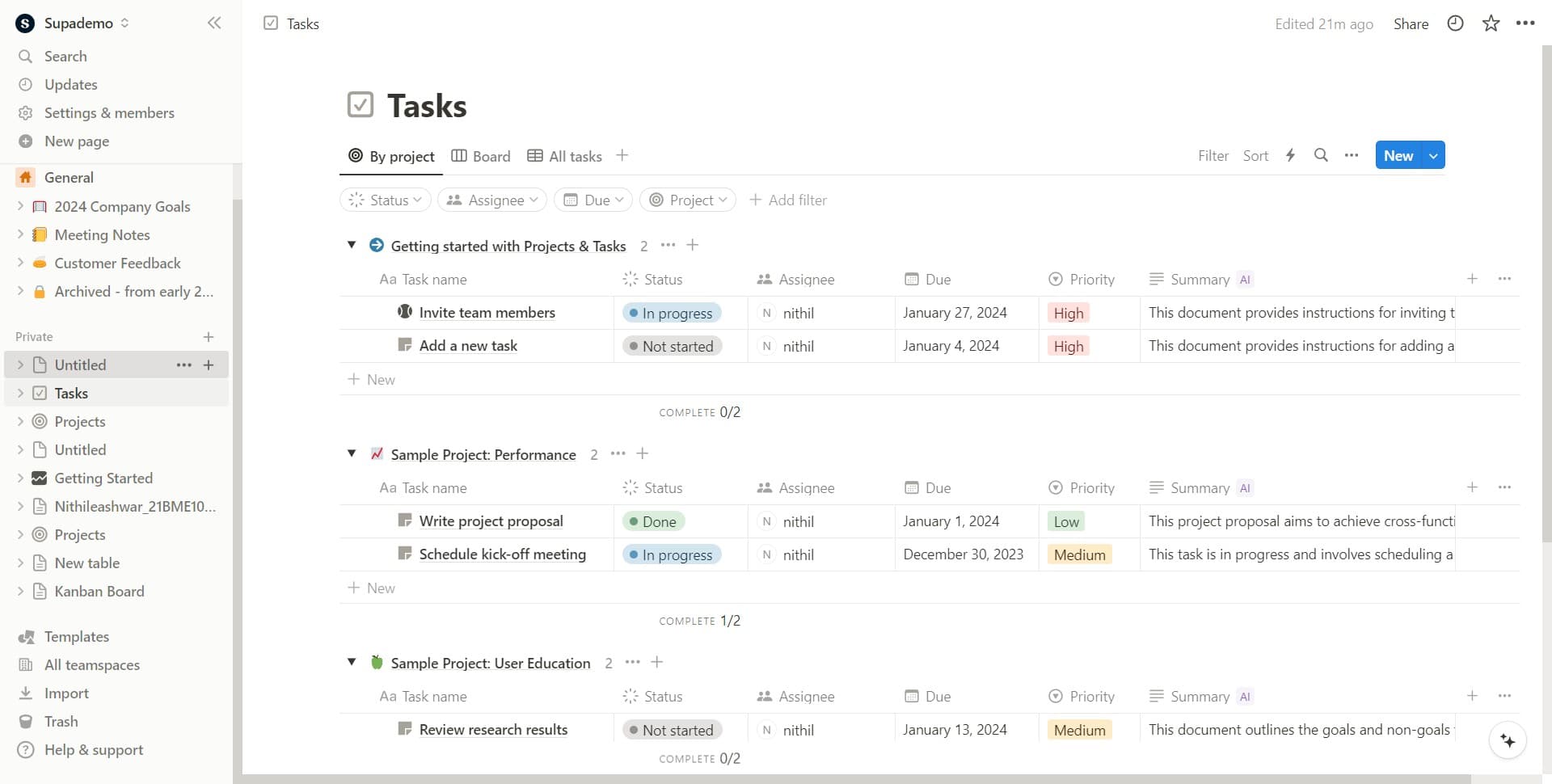
Click on the page title
Select the untitled page or your current page title at the top of your Notion workspace. This action prepares the page for configuration and allows you to access additional options.
- 2
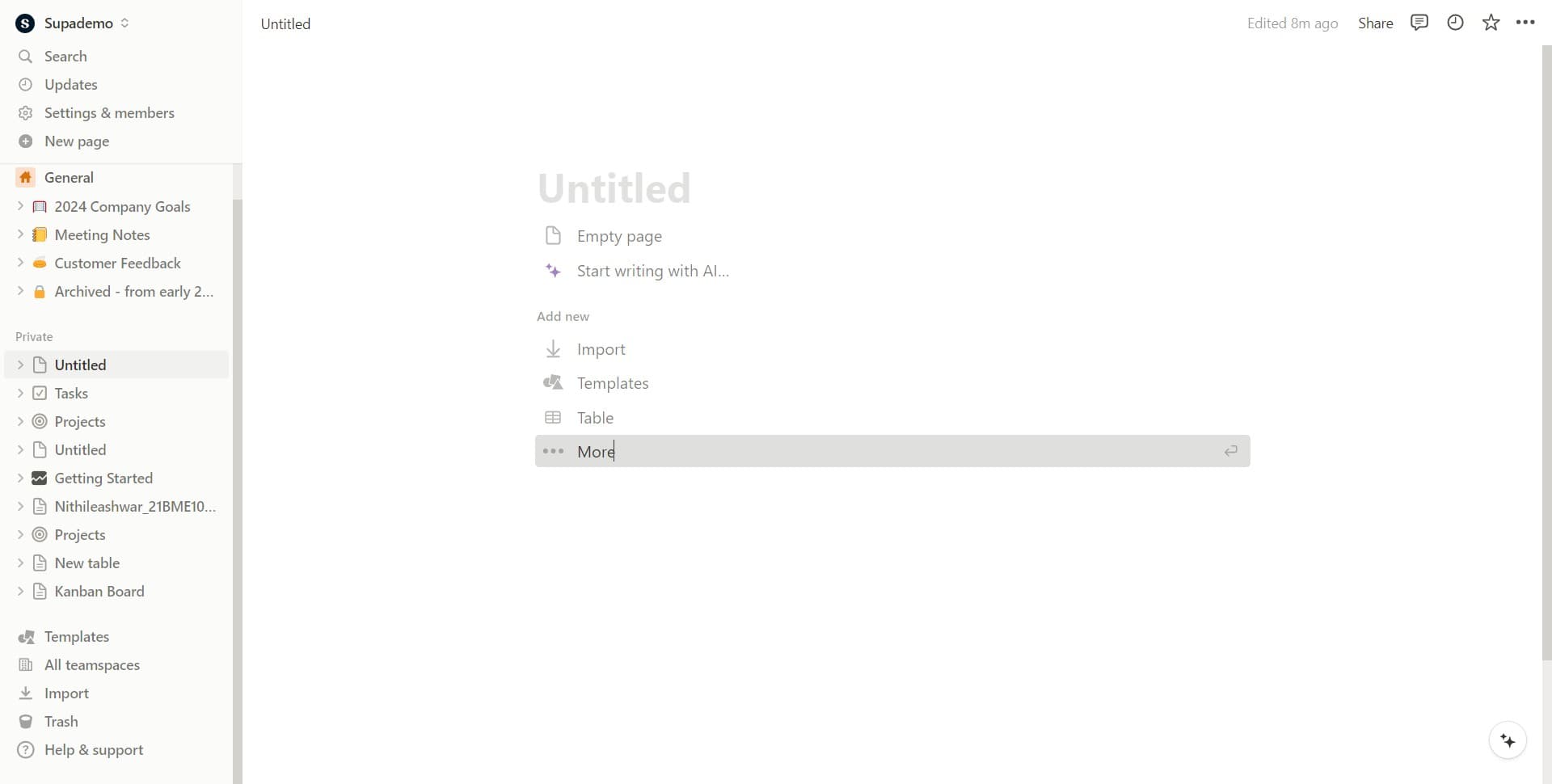
Open the more options menu
Click on the 'More' button to reveal additional actions and settings available for your page. This menu provides access to layout and database creation options.
- 3
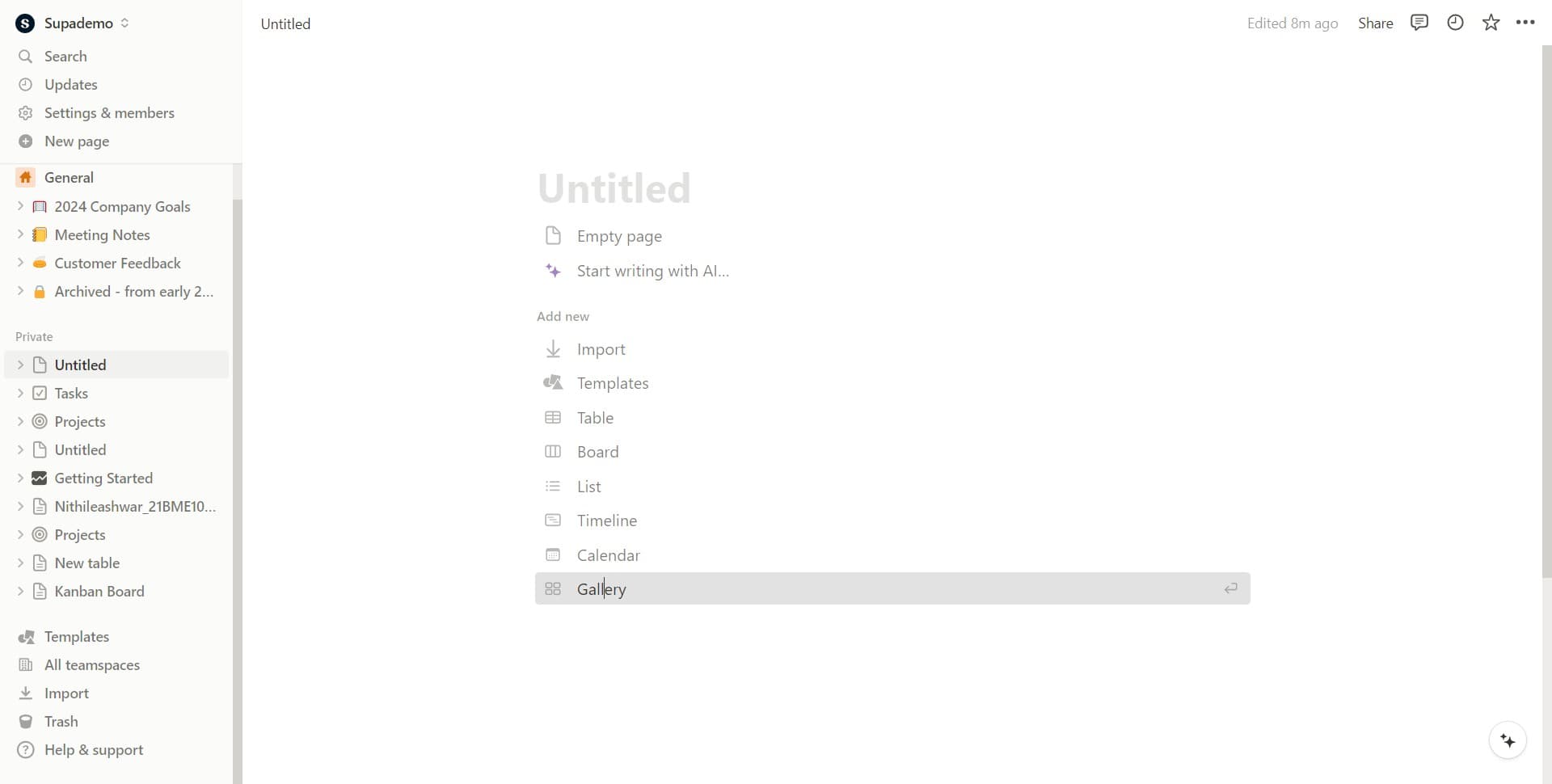
Select the gallery layout
Click on 'Gallery' from the available options to set your database view to gallery format. This immediately changes how your data will be displayed and organized.
- 4
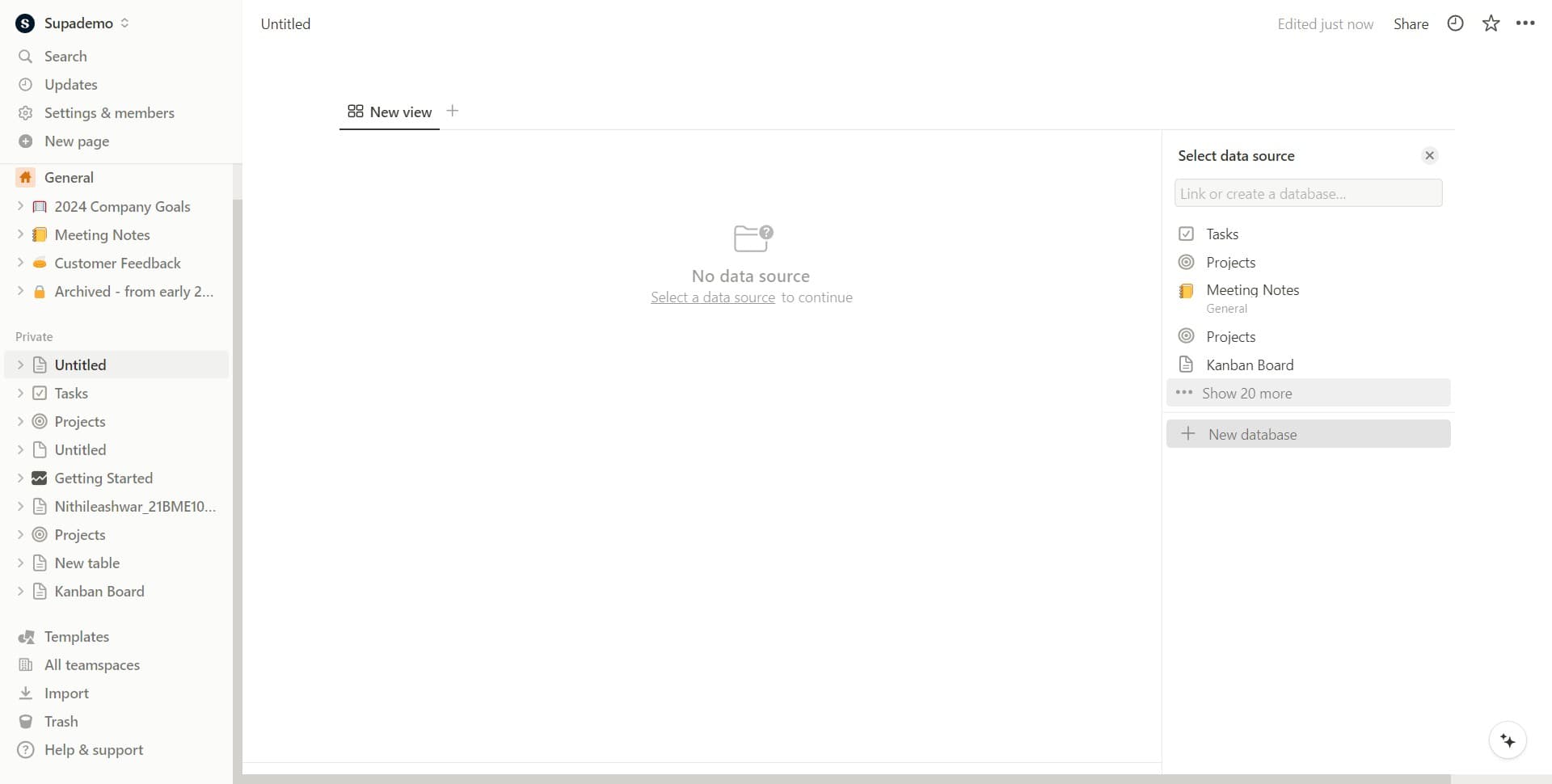
Create a new database
Click on 'New database' to establish the data structure that will populate your gallery. This step creates the foundation where you'll add your gallery items and properties.
- 5
Confirm and finalize setup
Click the confirmation button to complete the gallery database creation process. Your gallery view is now ready for you to add content and customize properties.
Frequently asked questions
Common questions about how to create a gallery in notion.
Yes, you can add a gallery view to any existing Notion database. Simply open your database, click the plus icon next to your current view tabs, select 'Gallery', and customize which property displays as your cover image. Your original data remains unchanged; you're just viewing it in a different format.
Image or file properties work best as cover images in gallery cards. Text, select, and multi-select properties are excellent for titles and tags. You can also include dates, checkboxes, and other property types in your gallery cards to show relevant information at a glance.
In your gallery view, click the settings icon (usually a gear or three dots) and look for card properties or layout options. From there, you can drag and drop properties to reorder them, remove unwanted fields, or add new ones to display on each card.
Yes, most gallery views support grouping. Access your gallery settings and find the grouping option, then select a property like status, category, or priority. Notion will automatically organize your cards into grouped sections based on that property's values.
Gallery views display items as visual cards, making them ideal for browsing and aesthetics. Table views are better for detailed data entry and comparison. Board views organize items in columns, and calendar views show items by date. Choose the view that best matches how you want to interact with your data.