How to create a kanban board in Notion

A kanban board in Notion provides a visual way to organize tasks and projects using a card-based interface. This tutorial walks you through creating your first kanban board, enabling you to track work progress across different stages with ease.
Quick summary
In this tutorial, you'll learn how to set up a kanban board in Notion by creating a new page and configuring a board database. By following these steps, you'll have a functional kanban board ready to manage your tasks and workflows.
Why this matters
Kanban boards are essential for visualizing workflow stages and maintaining project momentum. Using Notion's board view allows teams to collaborate efficiently, prevent bottlenecks, and keep everyone aligned on task status and priorities.
Step-by-step guide
- 1
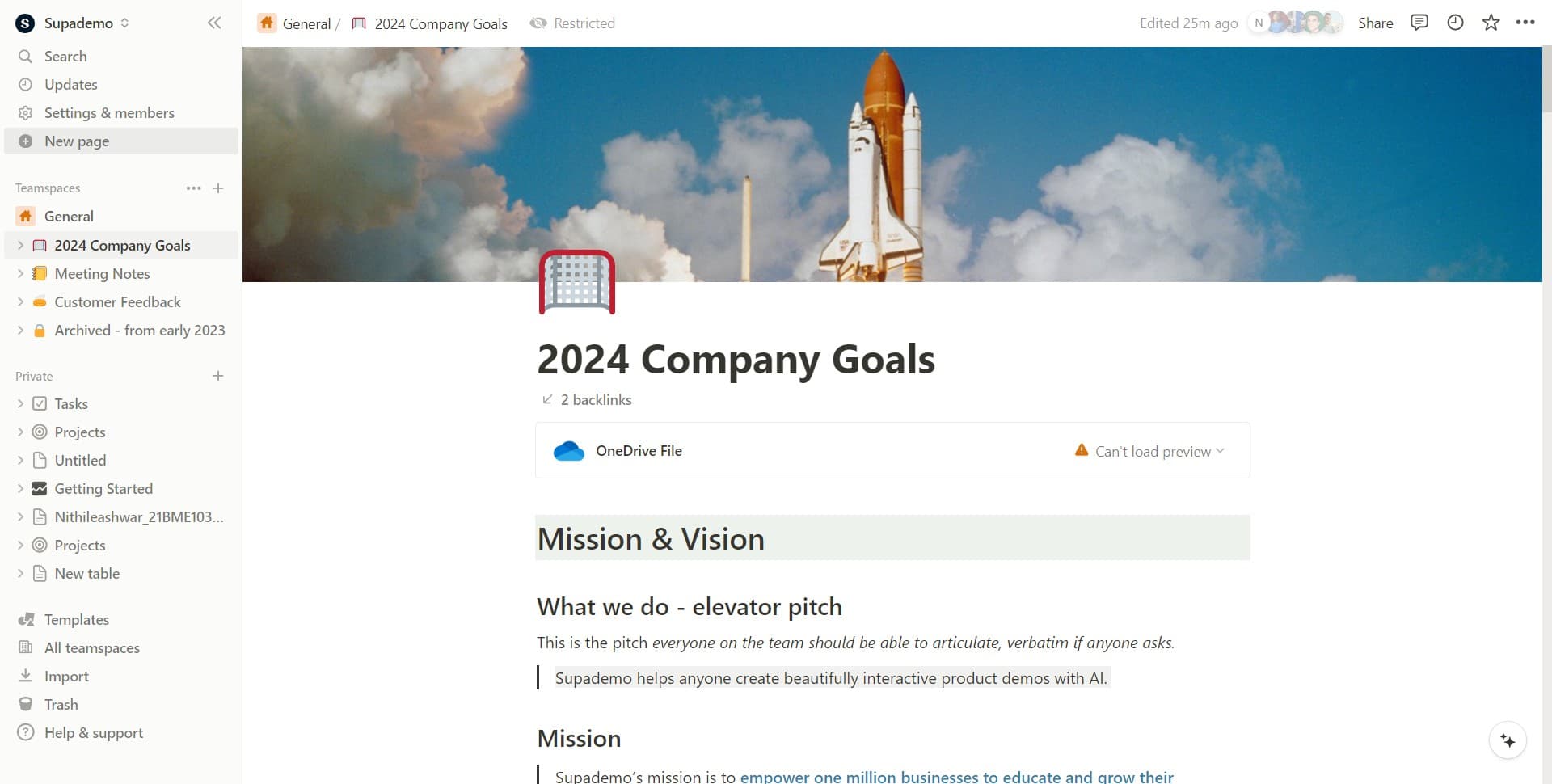
Click on New page
Start by clicking the 'New page' button in your Notion workspace. This creates a fresh page where you'll build your kanban board.
- 2
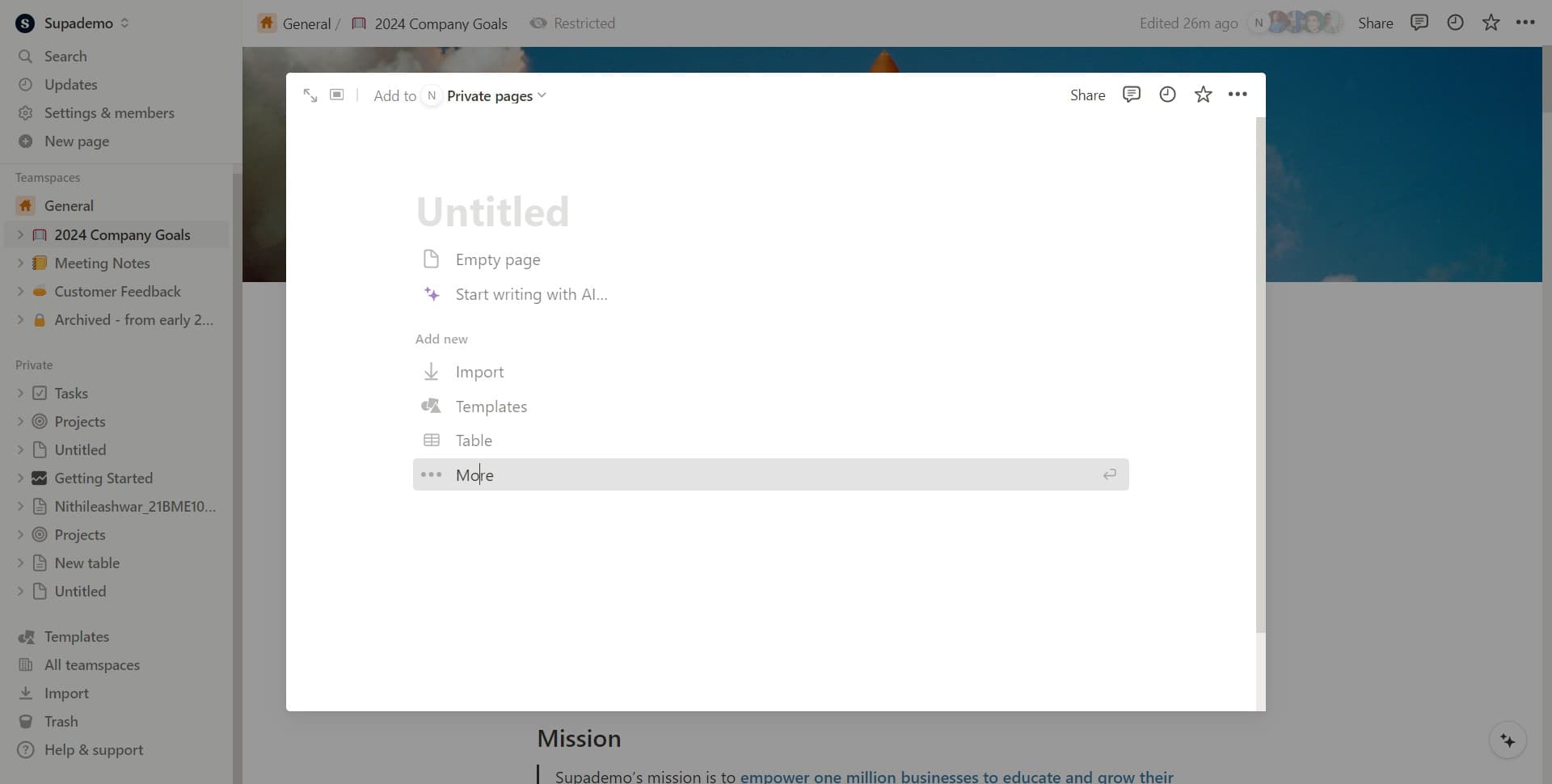
Click on More
After creating a new page, click the 'More' option to access additional page type and configuration options. This expands your choices beyond standard text pages.
- 3
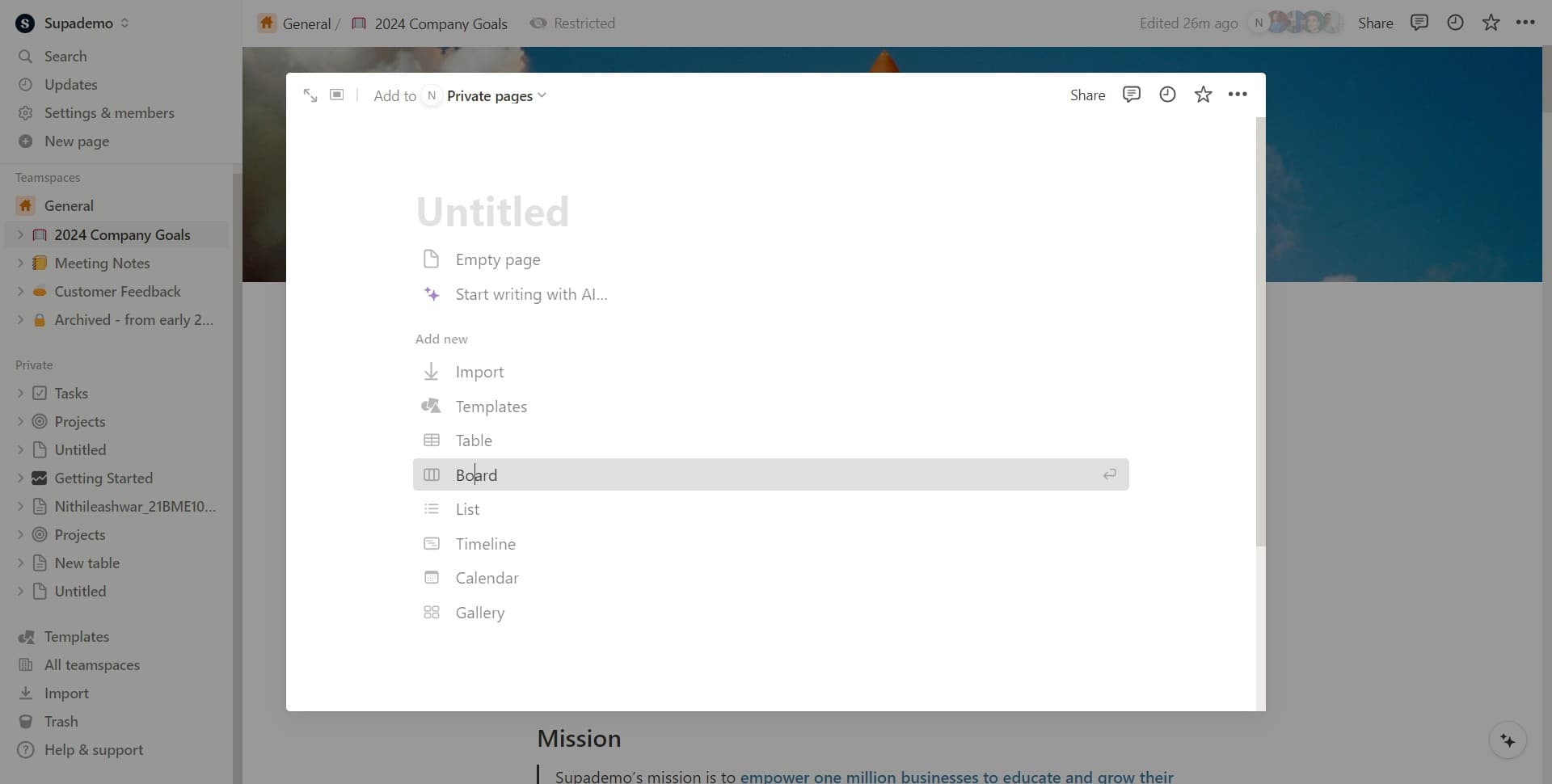
Click on Board
From the expanded menu, select 'Board' to indicate you want to create a board-style database. Notion will now prepare the board interface for your kanban setup.
- 4
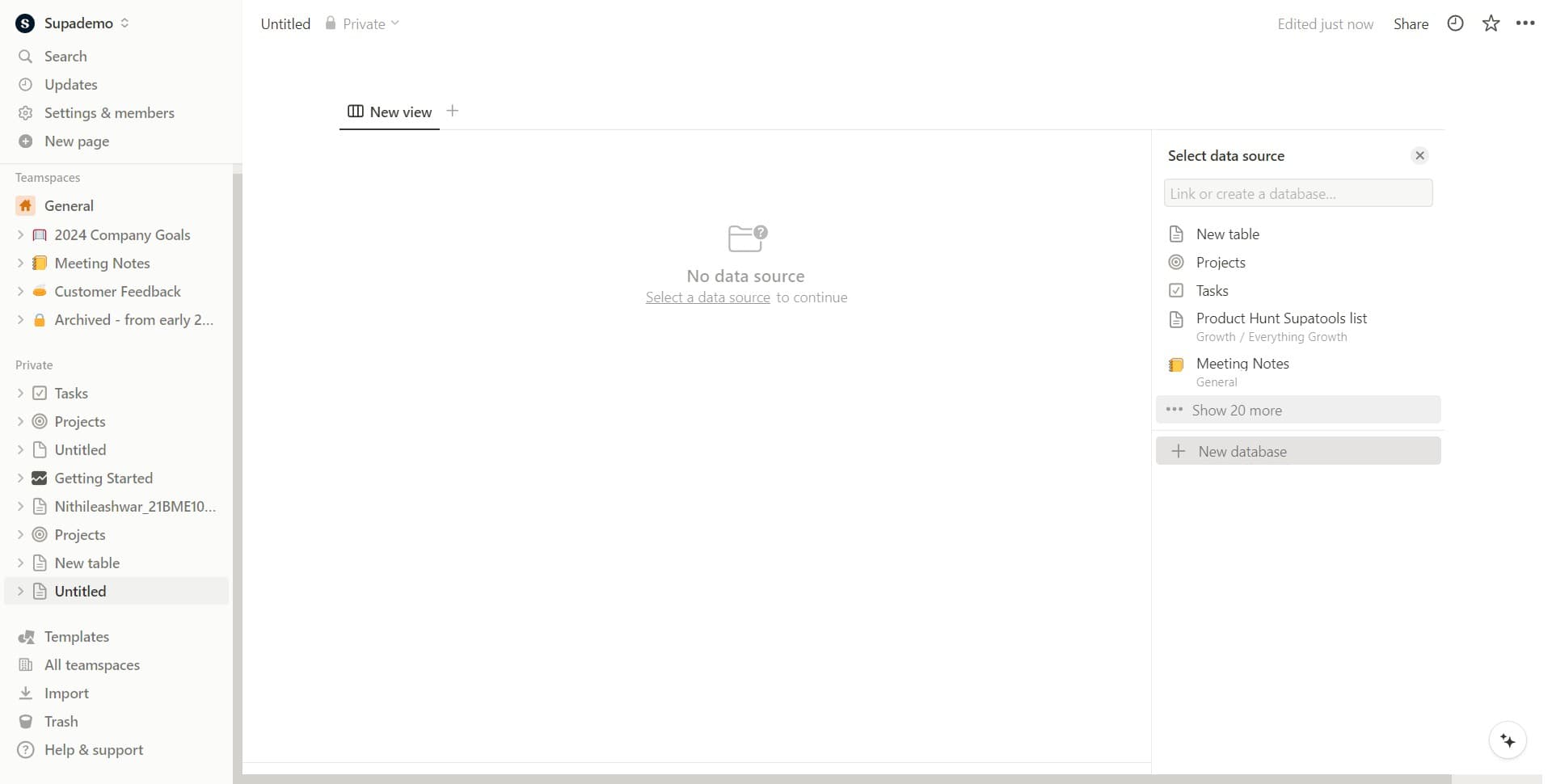
Click on New database
Finally, click 'New database' to initialize your kanban board database. This step completes the setup and gives you a blank board ready to configure with your task columns and properties.
Frequently asked questions
Common questions about how to create a kanban board in notion.
Yes, you can fully customize your kanban board columns to match your workflow. After creating the board, you can rename existing columns (like 'To Do', 'In Progress', 'Done') or add new ones by clicking the plus icon and setting custom status options.
You can add multiple properties to your kanban cards, including assignees, due dates, priority levels, tags, and custom fields. Click on the property button in your board settings to select which properties appear on each card for better task management.
Moving cards is simple—just click and drag any card from one column to another. This action updates the card's status property automatically, keeping your board and database in sync without any extra steps.
Absolutely. Notion allows you to apply filters and sorts to your kanban board to view only relevant cards. Click the filter or sort buttons in the board toolbar to narrow down tasks by assignee, due date, priority, or any other property you've created.
Yes, Notion databases support multiple views simultaneously. You can create a table view, calendar view, and gallery view alongside your kanban board—all connected to the same database so changes reflect everywhere.