How to export a Notion page

Exporting a Notion page allows you to save your content in multiple formats for external use, sharing, or archival purposes. Whether you need a PDF for printing, Markdown for blogging, or CSV for data analysis, Notion provides flexible export options to meet your needs.
Quick summary
In this tutorial, you'll learn how to export a Notion page by accessing the export menu and selecting your preferred file format. You'll discover the available export options—PDF, HTML, Markdown, and CSV—and complete the export process in just a few clicks.
Why this matters
Exporting Notion pages is essential for workflows that require content portability, compliance documentation, or integration with other tools. This capability ensures your data isn't locked into Notion and can be used across your entire productivity ecosystem.
Step-by-step guide
- 1
Open the page options menu
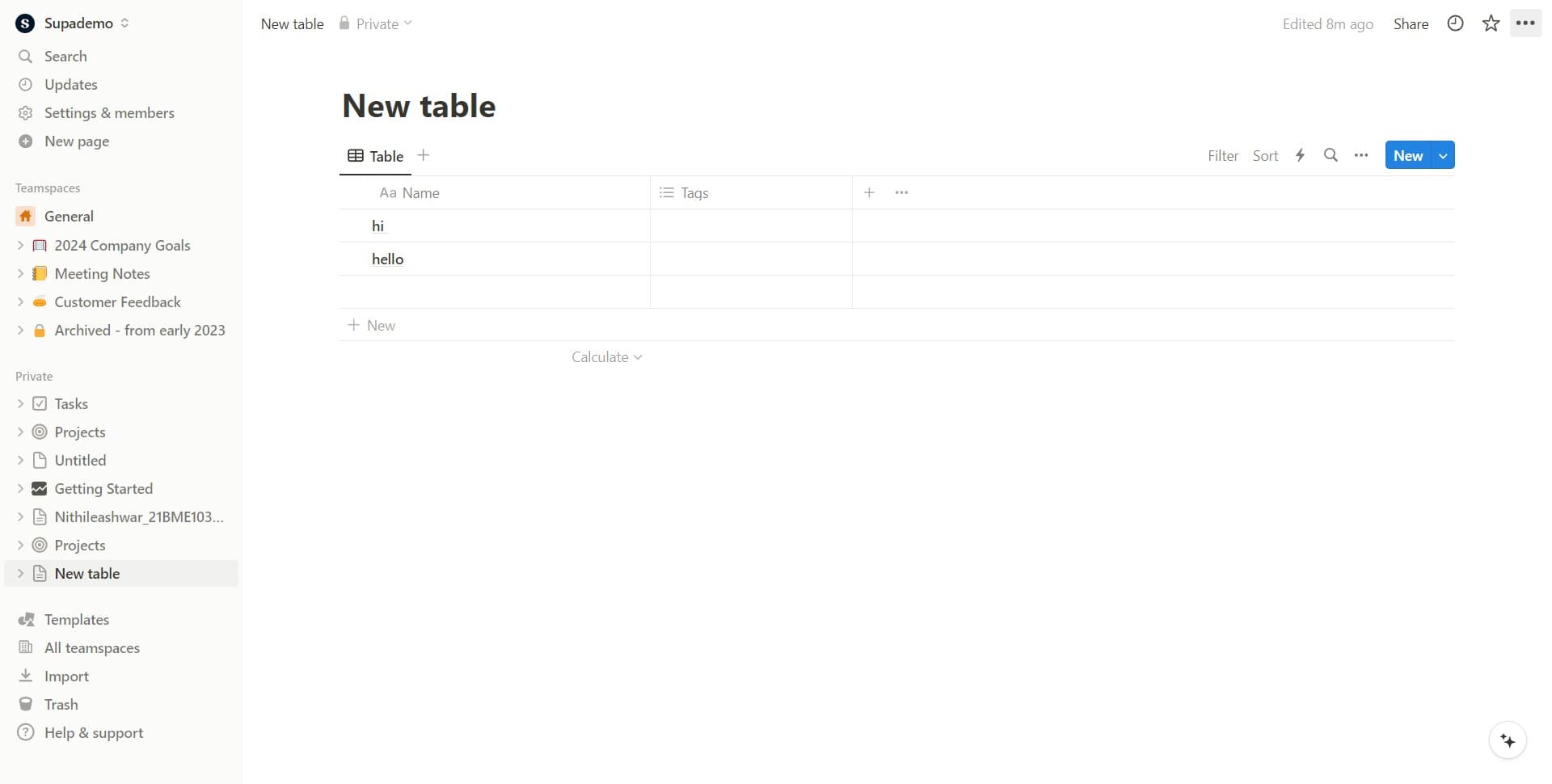
Locate and click the options button (typically represented by three dots) on your Notion page. This action opens a dropdown menu with various page-level actions and settings.
- 2
Select the export option
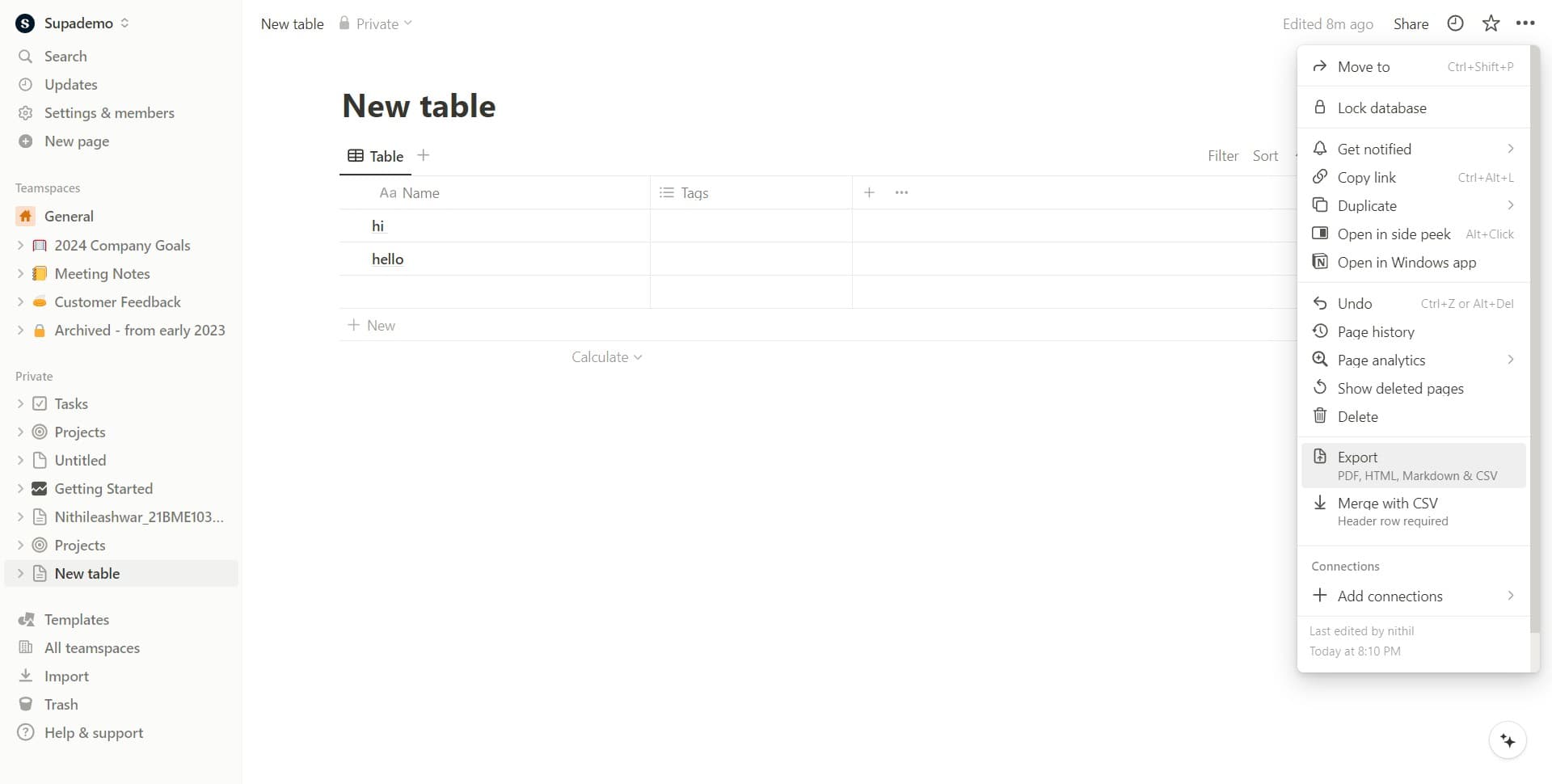
From the dropdown menu, click on 'Export PDF, HTML, Markdown & CSV' to reveal the available export format options. This opens a submenu showing all supported export formats.
- 3
Choose Markdown & CSV format
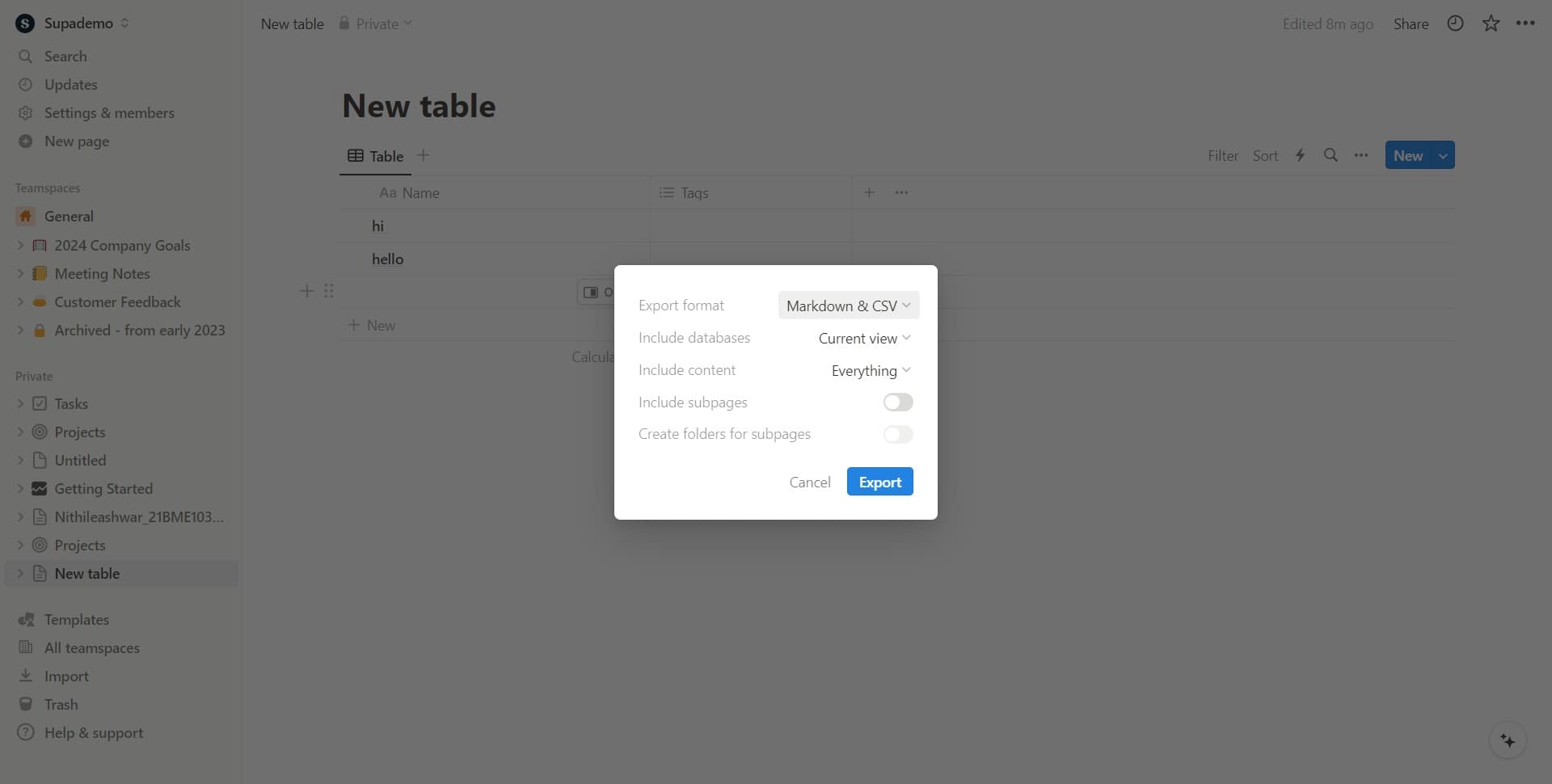
Click on 'Markdown & CSV' if you need your content in a lightweight, portable format suitable for text editors or data processing. This format preserves your page structure while enabling compatibility with various applications.
- 4
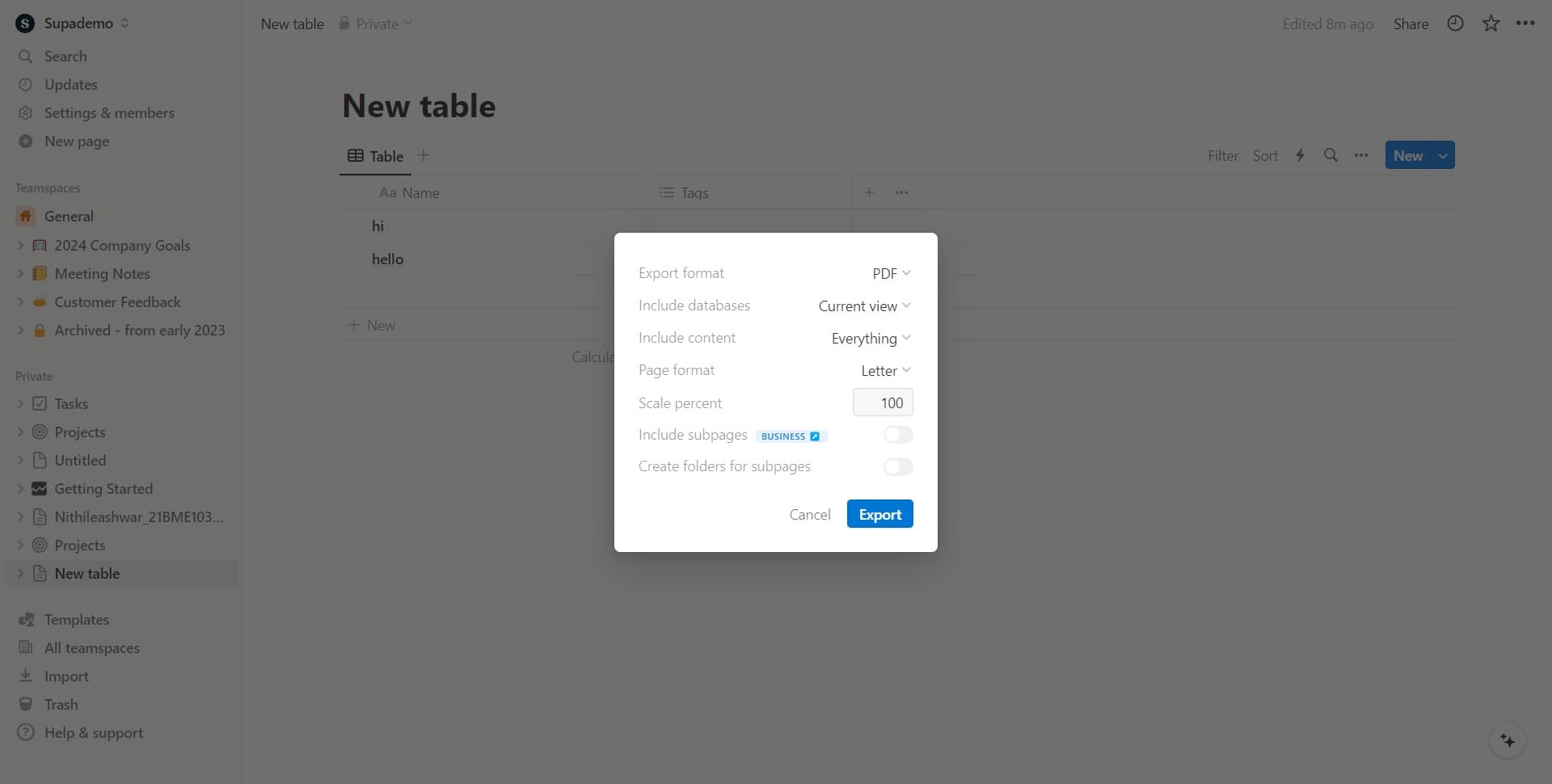
Select PDF format
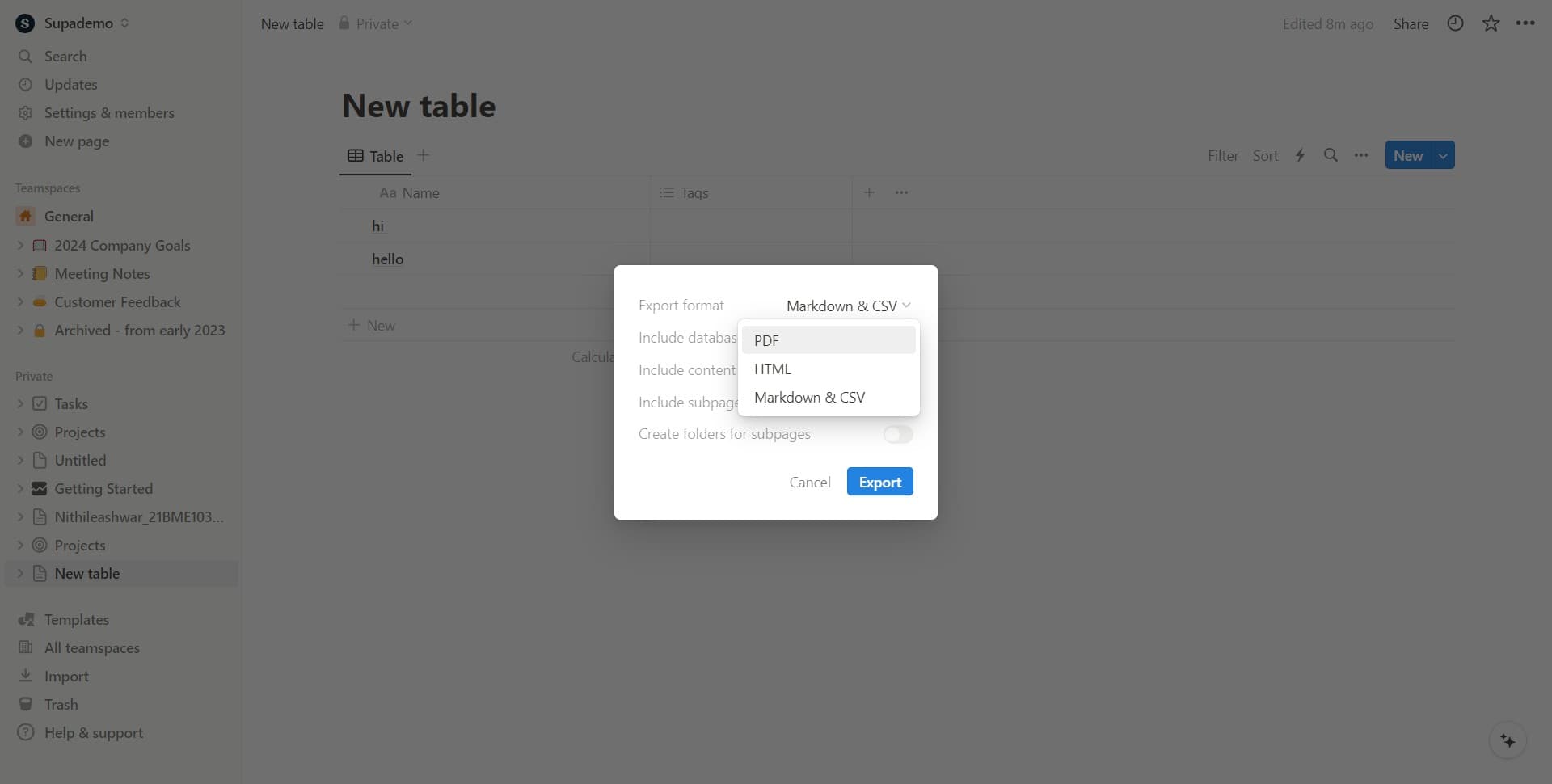
Click on 'PDF' to export your page as a formatted PDF document. This format is ideal for printing, sharing, or creating archival records that maintain visual styling.
- 5
Complete the export
Click the 'Export' button to finalize and download your Notion page in the selected format. Your browser will begin downloading the file automatically to your default downloads folder.
Frequently asked questions
Common questions about how to export a notion page.
Notion supports four export formats: PDF, HTML, Markdown, and CSV. PDF is best for printing and archiving, HTML preserves web formatting, Markdown is ideal for content management systems and blogs, and CSV works well for spreadsheet applications and data analysis.
Exporting a page includes the current page content and formatted text. However, database exports may require specific handling—you may need to export database views separately or use CSV format if your page contains table data.
The standard export function exports individual pages one at a time. To export multiple pages, you'll need to repeat this process for each page, or consider using Notion's API for bulk exports if you have advanced needs.
Exporting a page creates a copy in your selected format without affecting your original Notion content. Your page remains unchanged in Notion and continues to function normally after export.
Use PDF for printing and sharing polished documents, Markdown for publishing to blogs or wikis, HTML for web publishing, and CSV for data analysis or spreadsheets. Your choice depends on where and how you plan to use the exported content.