How to integrate tools in Notion

Notion's integration capabilities allow you to connect external tools and automate workflows directly within your workspace. This guide walks you through accessing Notion's connections panel and initiating tool integrations in just a few clicks.
Quick summary
In this tutorial, you'll learn how to navigate to Notion's integration settings and access the connections panel to begin connecting third-party tools to your workspace. By following these straightforward steps, you'll be able to browse available integrations and establish new connections.
Why this matters
Integrating tools into Notion streamlines your workflow by centralizing data and automating repetitive tasks across multiple platforms. Whether you're syncing calendar events, pulling in data from external databases, or automating notifications, tool integration reduces manual work and keeps your Notion workspace up to date.
Step-by-step guide
- 1
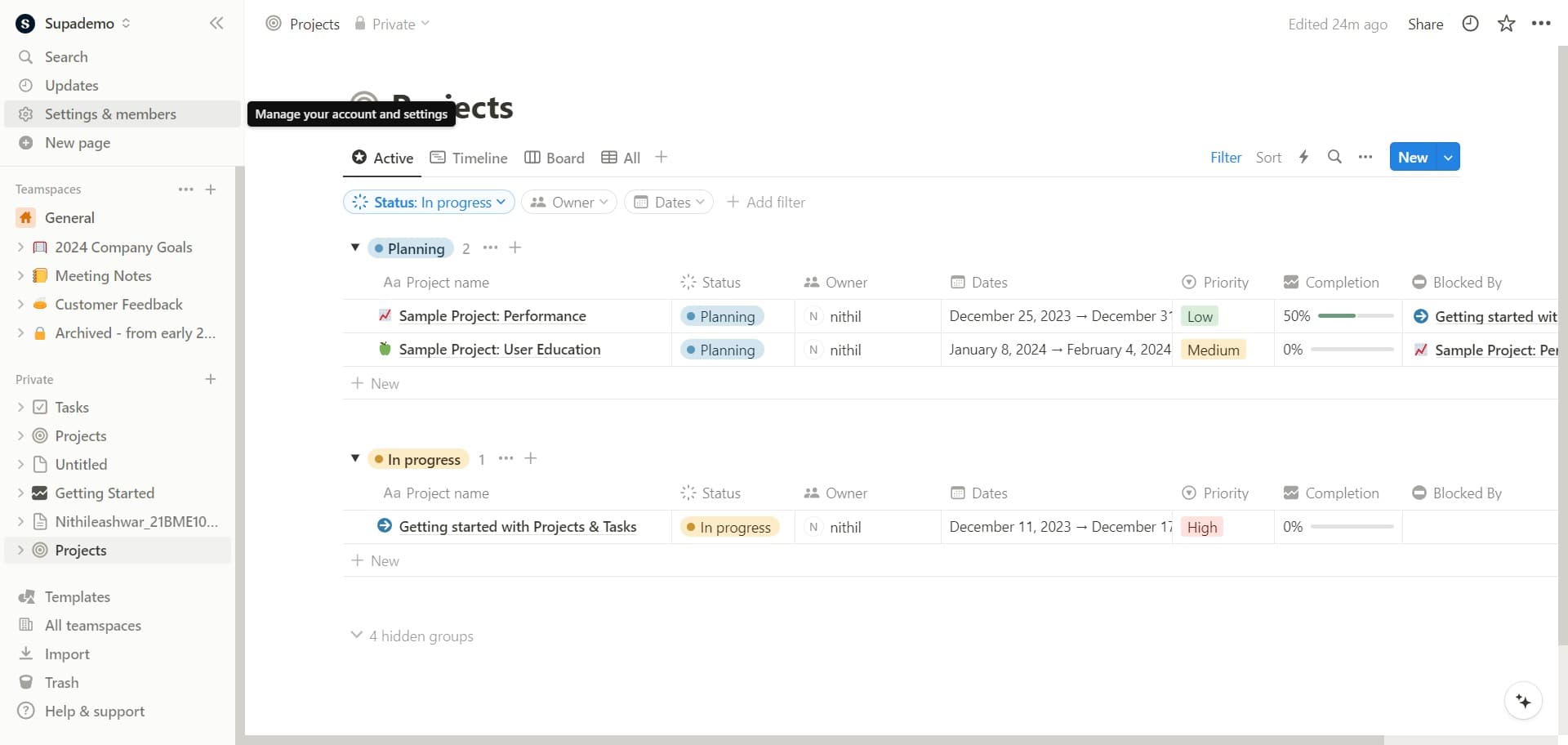
Open Settings & Members
Click on the 'Settings & members' option in your Notion workspace navigation. This opens the main settings panel where you can manage workspace preferences and integrations.
- 2
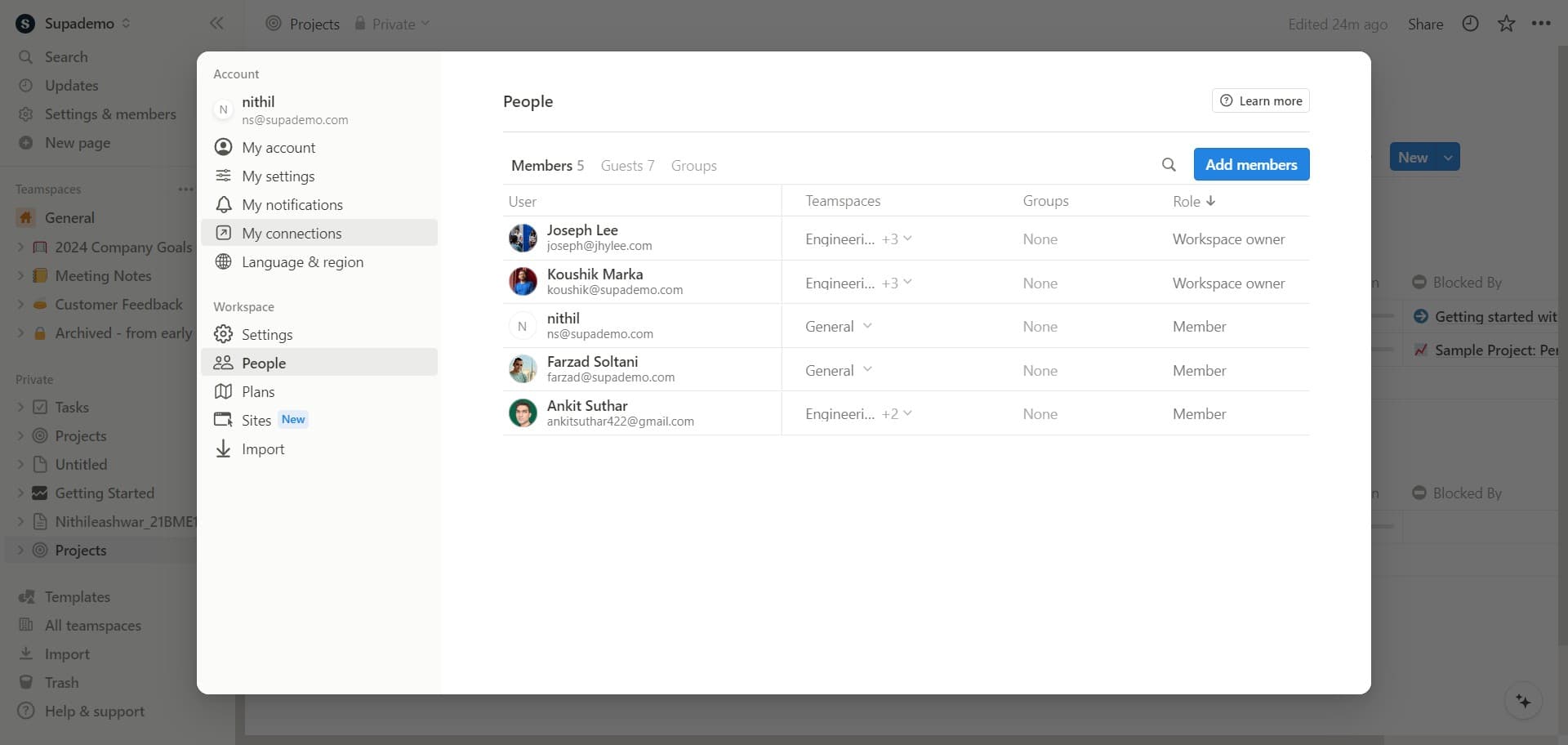
Navigate to My Connections
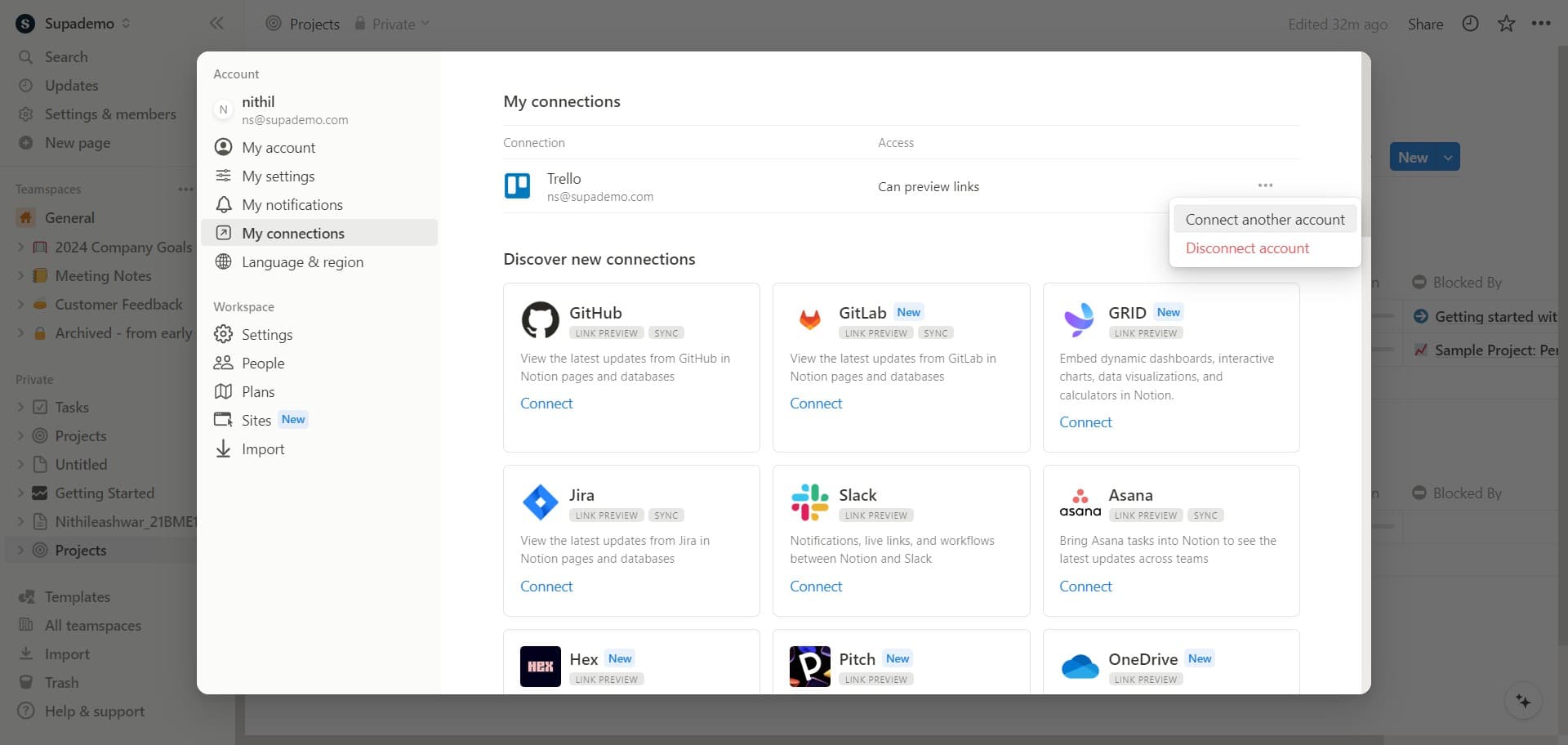
Select 'My connections' from the settings menu. This section displays all the integrations and connected tools associated with your Notion workspace.
- 3
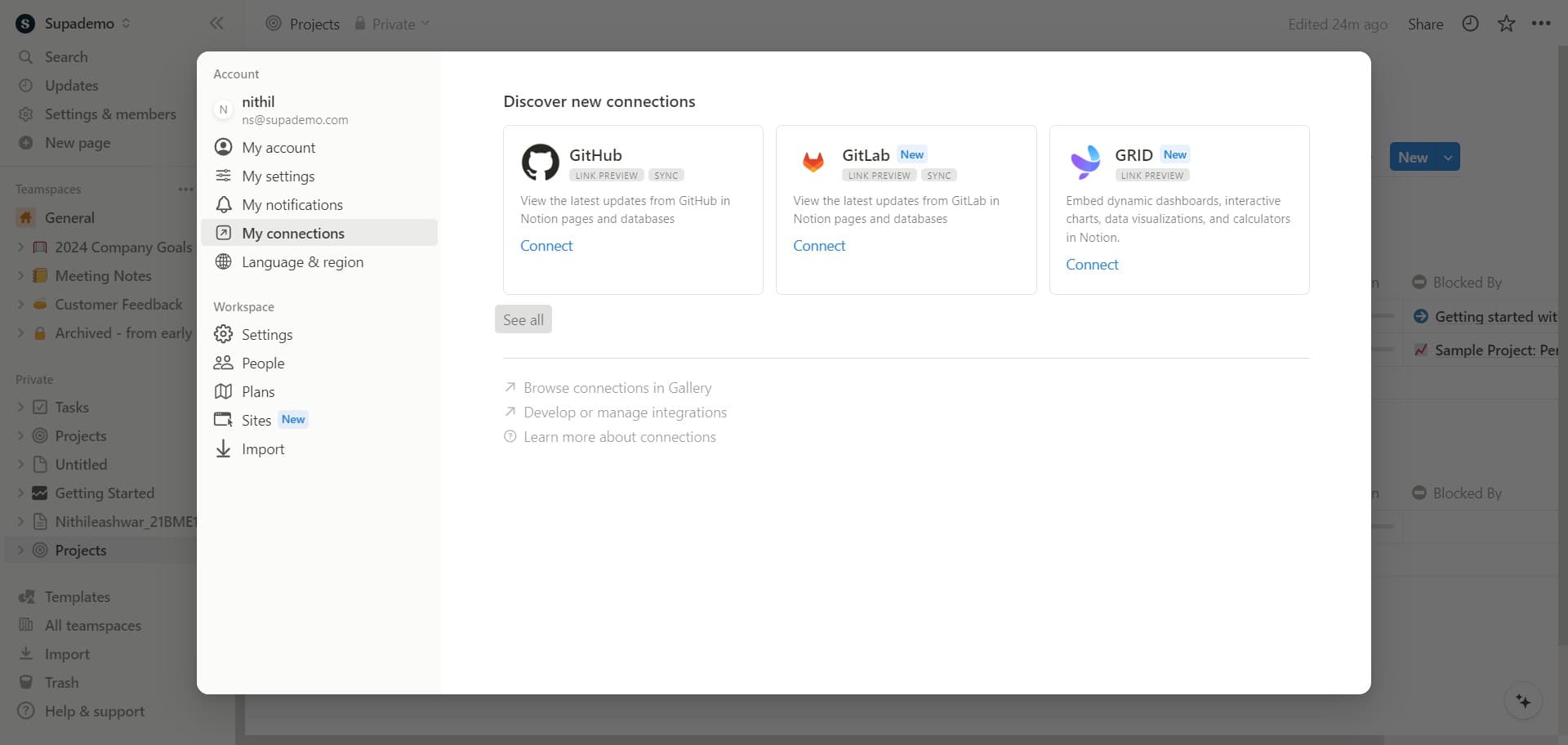
Click See All
Click the 'See all' button to view the complete list of available integrations. This expands your view to show all tools that can be connected to Notion.
- 4
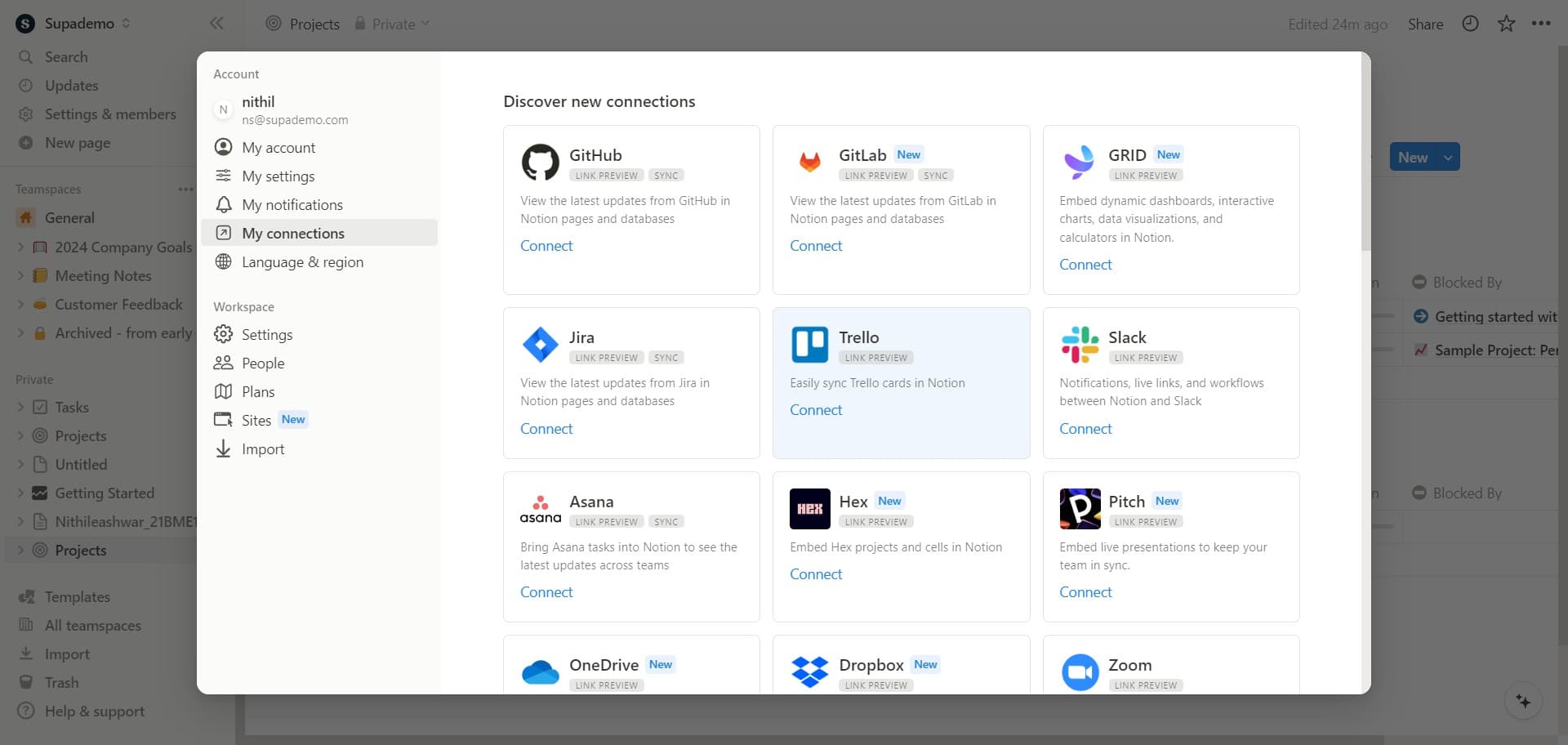
Select Connect
Click the 'Connect' button next to the tool you want to integrate. This initiates the connection process for that specific application.
- 5
Complete the Connection
Click the confirmation or authorization button to finalize the integration. Notion will then establish the connection with your chosen tool, and you can begin using it within your workspace.
Frequently asked questions
Common questions about how to integrate tools in notion.
Notion supports integrations with a wide variety of tools including calendar applications, project management platforms, communication tools, databases, and automation services. The specific integrations available depend on your Notion plan and which tools have official Notion integrations available.
You typically need workspace admin or owner access to manage integrations in the Settings & members section. Some integrations may also require authentication credentials or permissions from the external tool you're connecting.
Yes, you can remove any integration by returning to the 'My connections' section in Settings & members and selecting the disconnect or remove option for that tool. This will stop the integration but won't delete any existing data in your Notion workspace.
Notion generally allows you to integrate multiple tools simultaneously, though the exact number may vary based on your workspace plan. Check Notion's documentation or your plan details for specific limitations.
Notion typically maintains compatibility with integrated tools, but major API changes on the external tool's side may affect functionality. If an integration breaks, Notion will usually notify you and provide guidance on re-establishing the connection.