How to set reminders in Notion

Notion reminders help you stay on top of important tasks and deadlines by sending notifications at times you specify. Whether you need a daily alert or a heads-up before an event, Notion's reminder feature integrates seamlessly into your workflow. This guide walks you through setting up reminders for your database items and tasks.
Quick summary
In this tutorial, you'll learn how to create and configure reminders in Notion. You'll discover how to set default reminder times, customize when notifications appear, and adjust reminder preferences to match your productivity needs.
Why this matters
Reminders in Notion ensure you never miss critical deadlines or action items buried in your databases. By automating notifications, you can focus on deep work without manually checking your task lists. Properly configured reminders transform Notion from a passive information repository into an active task management system.
Step-by-step guide
- 1
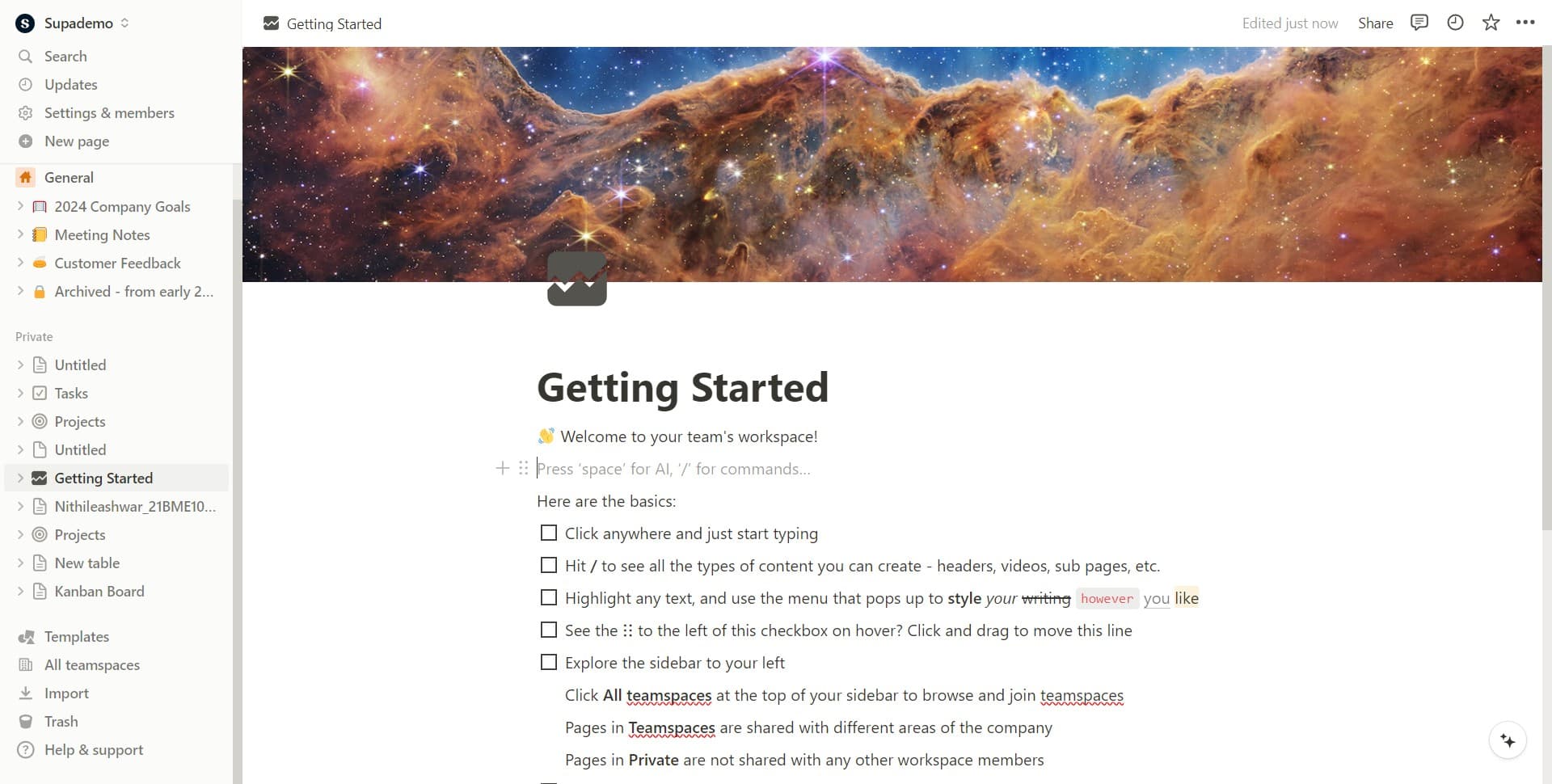
Open the date or reminder field
Locate and click on the date field within your Notion database entry or task. This opens the date picker interface where you can set or modify reminders.
- 2
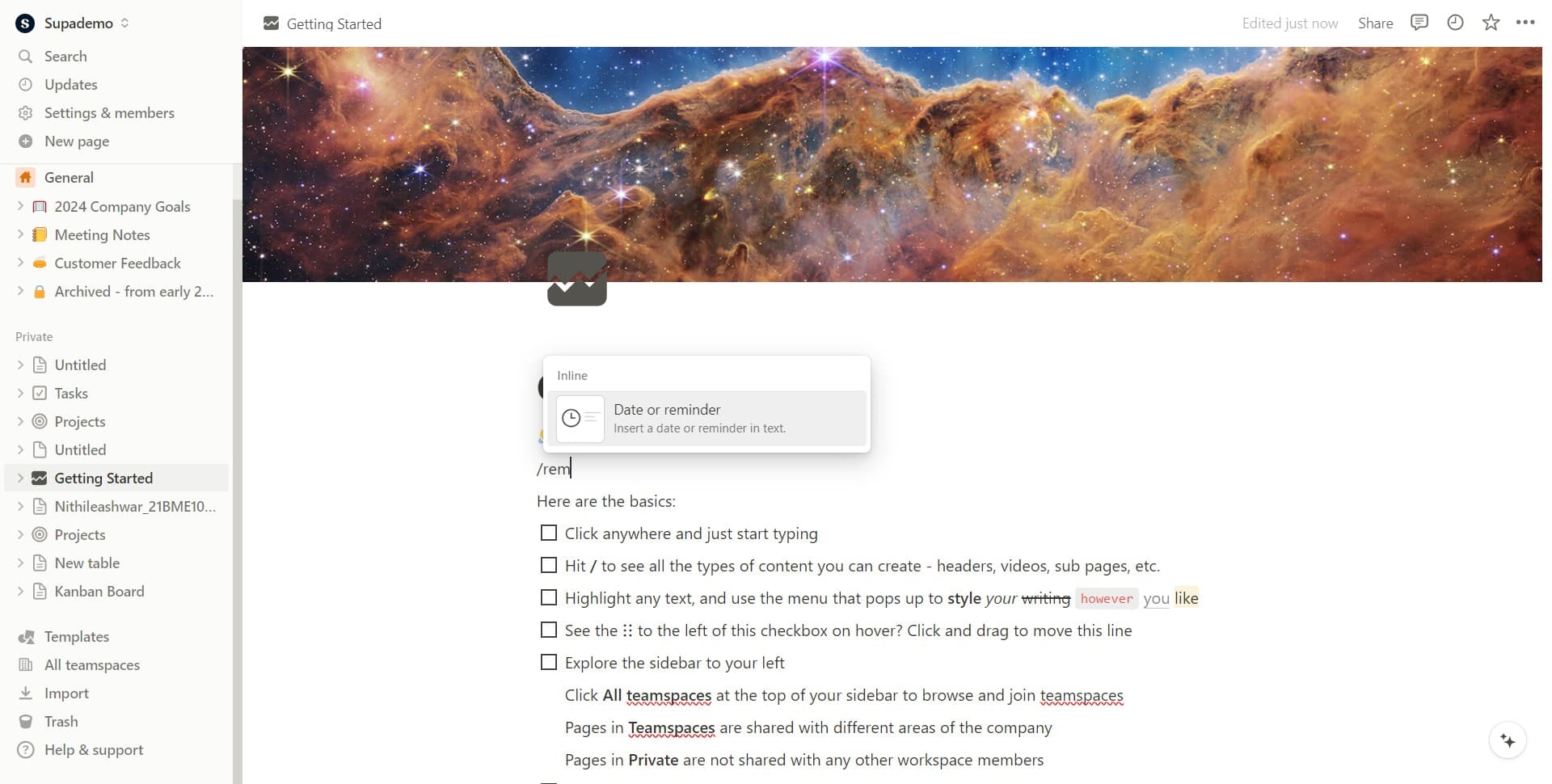
Select the date or reminder option
Click on 'Date or reminder' in the dropdown menu to access reminder configuration options. This enables you to choose when you want to be notified.
- 3
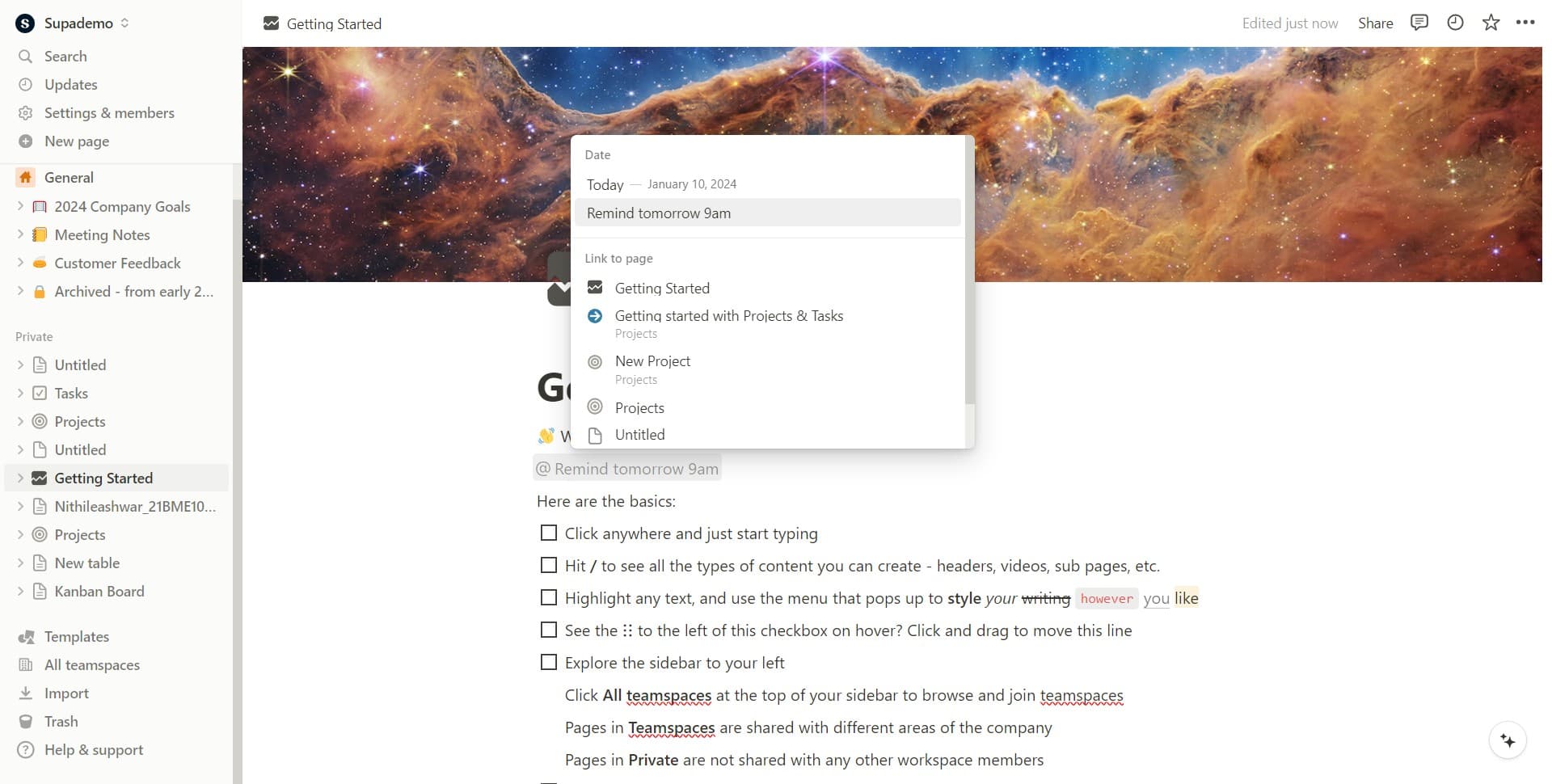
Choose a preset reminder time
Click on 'Remind tomorrow 9am' to quickly set a reminder for the next morning. Notion provides preset options for common reminder times to speed up setup.
- 4
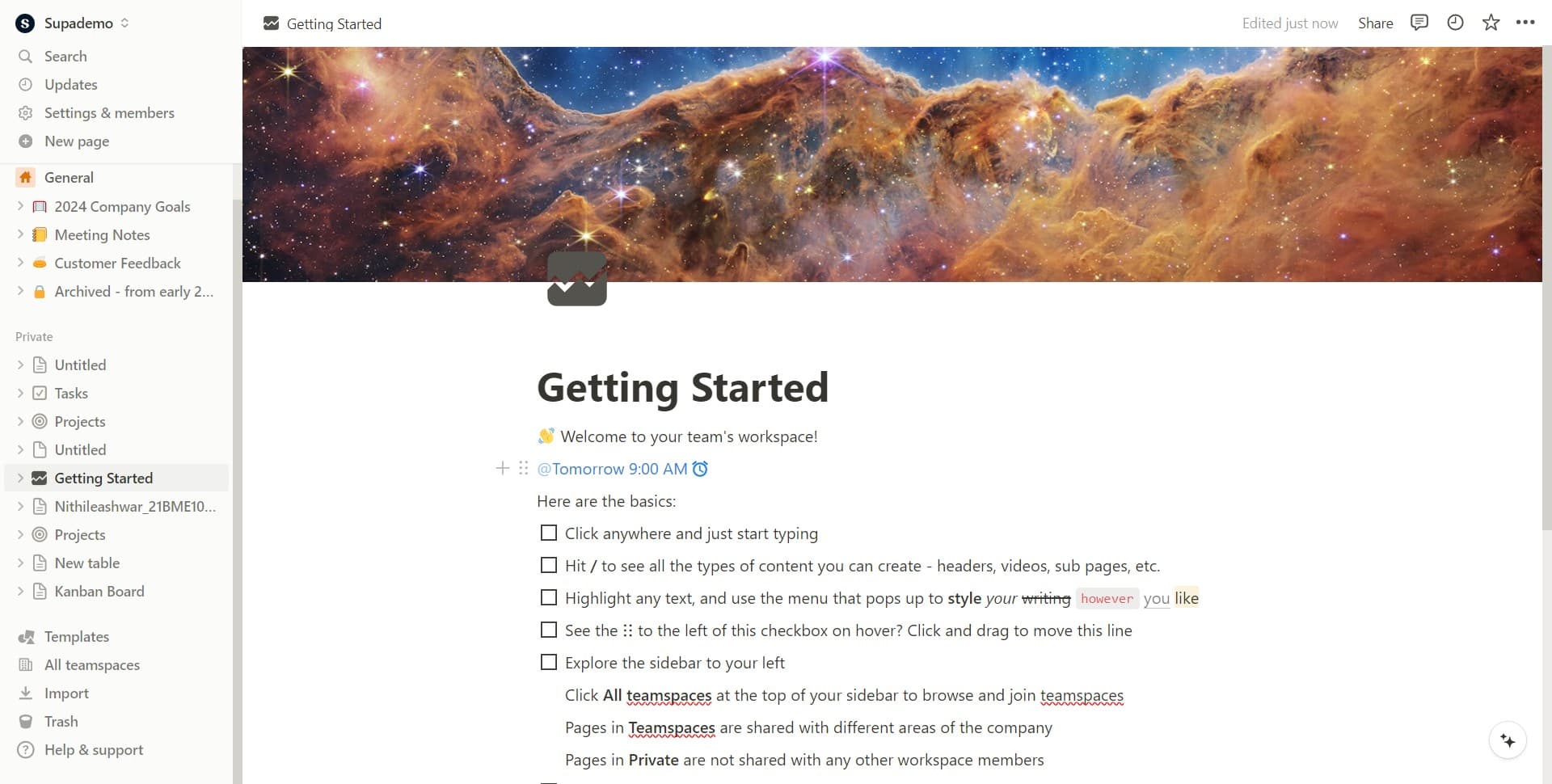
Confirm the reminder time
Click on 'Tomorrow 9:00 AM' to finalize your selection. This confirms the exact date and time for your reminder notification.
- 5
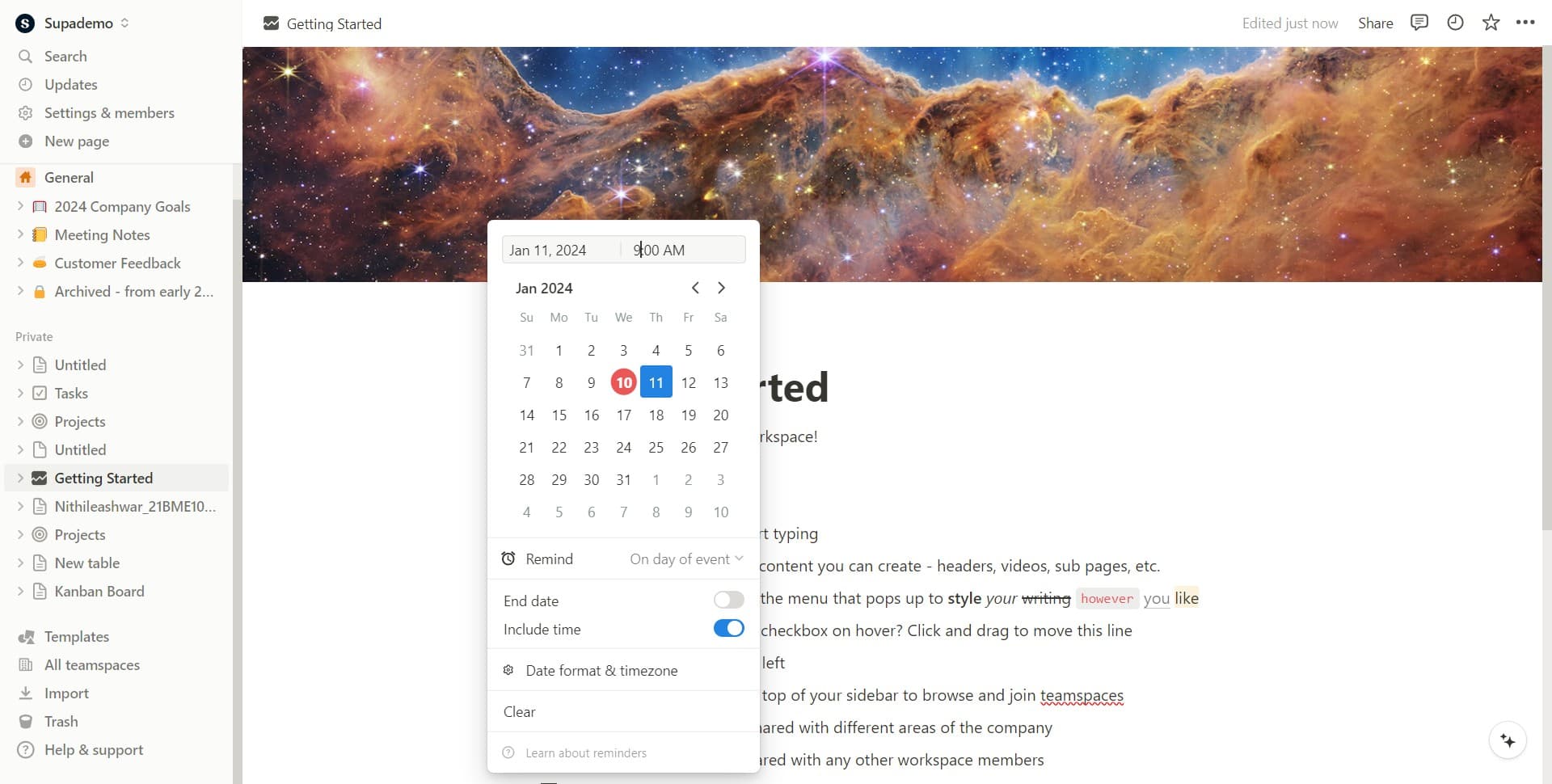
Access advanced reminder settings
Click to open the advanced reminder configuration panel. This allows you to fine-tune when and how you receive your notifications.
- 6
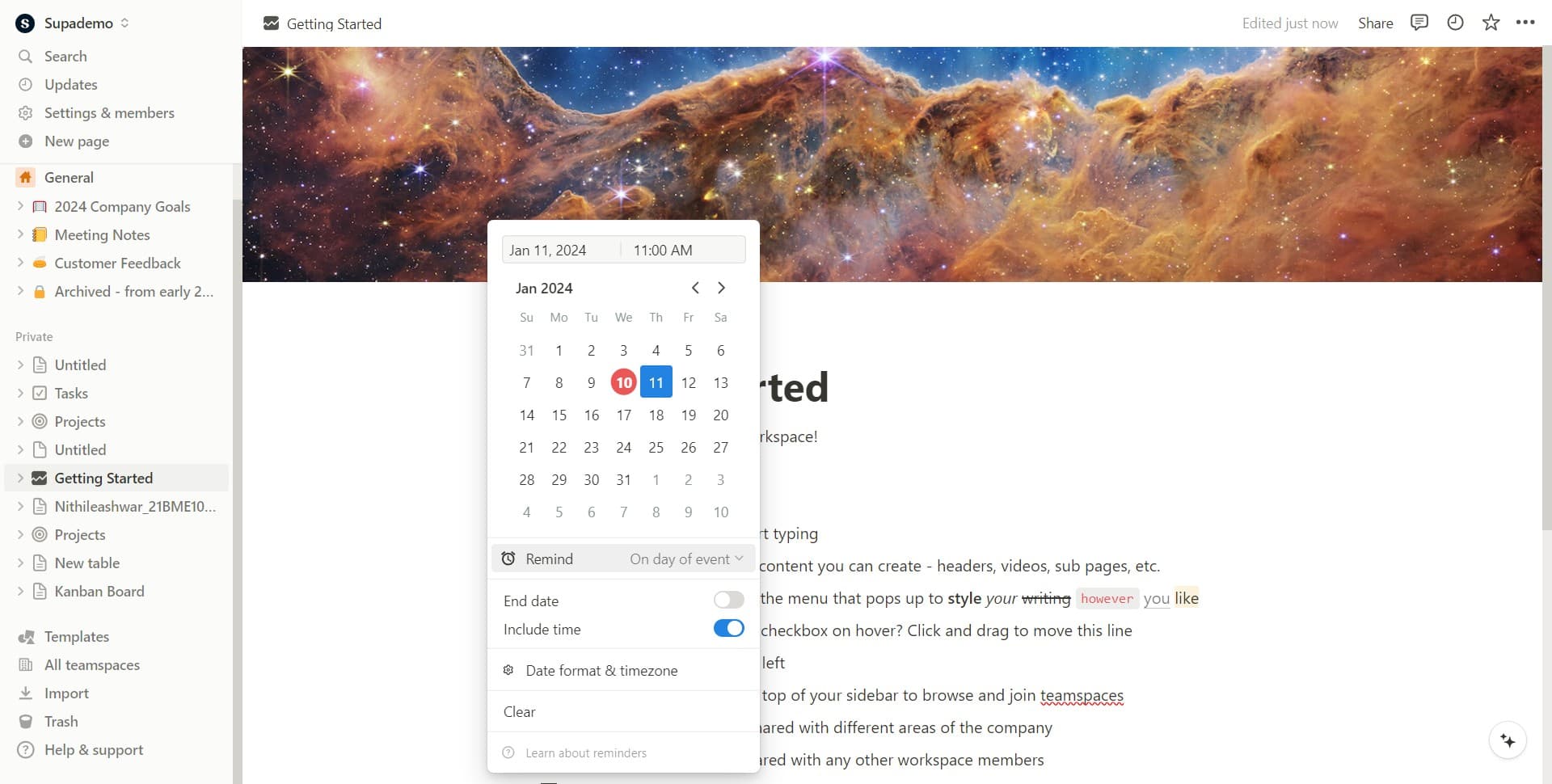
Set the reminder trigger type
Click on 'On day of event' to specify that you want to be reminded on the day the task or deadline occurs. This keeps reminders relevant to the actual event date.
- 7
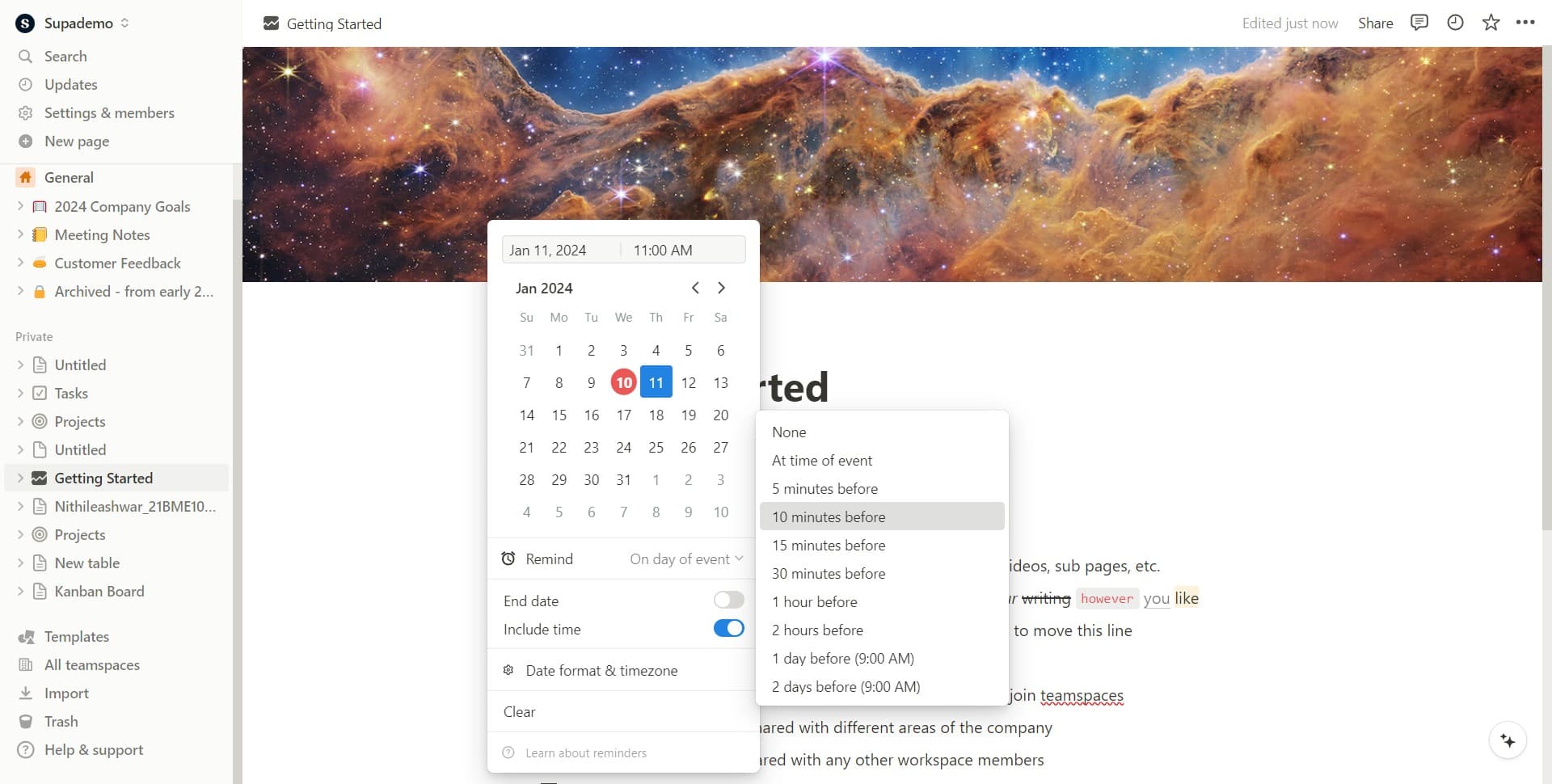
Adjust the notification timing
Click on '10 minutes before' to set how much advance notice you receive before the event. This gives you time to prepare without being notified too far in advance.
- 8
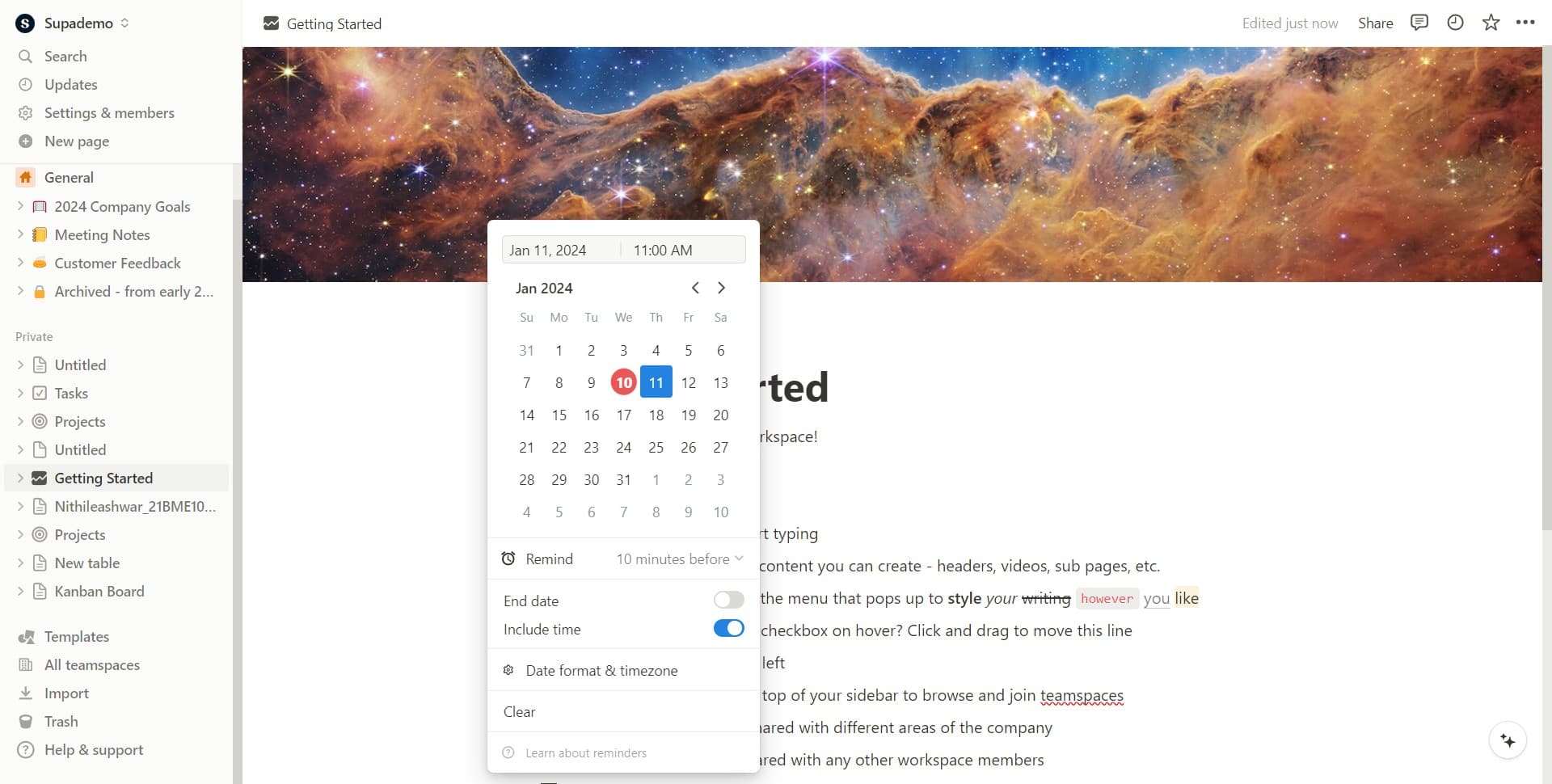
Save your reminder settings
Click to finalize and save all reminder configurations. Your reminder is now active and will trigger at the specified time.
Frequently asked questions
Common questions about how to set reminders in notion.
Yes, Notion allows you to create multiple reminders for a single task. You can set different notification times to receive alerts at various intervals before the deadline, such as one week before, one day before, and one hour before.
Notion reminders primarily notify you within the Notion app and dashboard. For notifications on your phone or email, you may need to enable additional notification settings in your Notion workspace preferences or integrate with external tools.
Absolutely. Click on the date field again to modify the reminder time, change the notification type, or adjust any other settings. Your changes will be saved automatically.
If you miss a reminder, you can still see the notification in your Notion dashboard or check your task directly. The task remains in your database until you mark it complete or delete it.
Notion's reminder feature works with individual database entries. For recurring tasks, you would need to either duplicate entries with new dates or use database templates with preset reminders that you apply to new instances.