How to toggle dark mode on Notion

Notion's dark mode is a useful feature that reduces eye strain during extended work sessions, especially in low-light environments. This guide walks you through the simple process of enabling or switching between light and dark themes in Notion.
Quick summary
In this tutorial, you'll learn how to access Notion's appearance settings and toggle between light and dark mode options. By the end, you'll be able to customize your Notion workspace theme to match your preferences and work environment.
Why this matters
Dark mode can significantly reduce eye fatigue during long work sessions and helps conserve battery life on devices with OLED screens. Personalizing your Notion interface ensures a comfortable user experience that supports your productivity and well-being.
Step-by-step guide
- 1
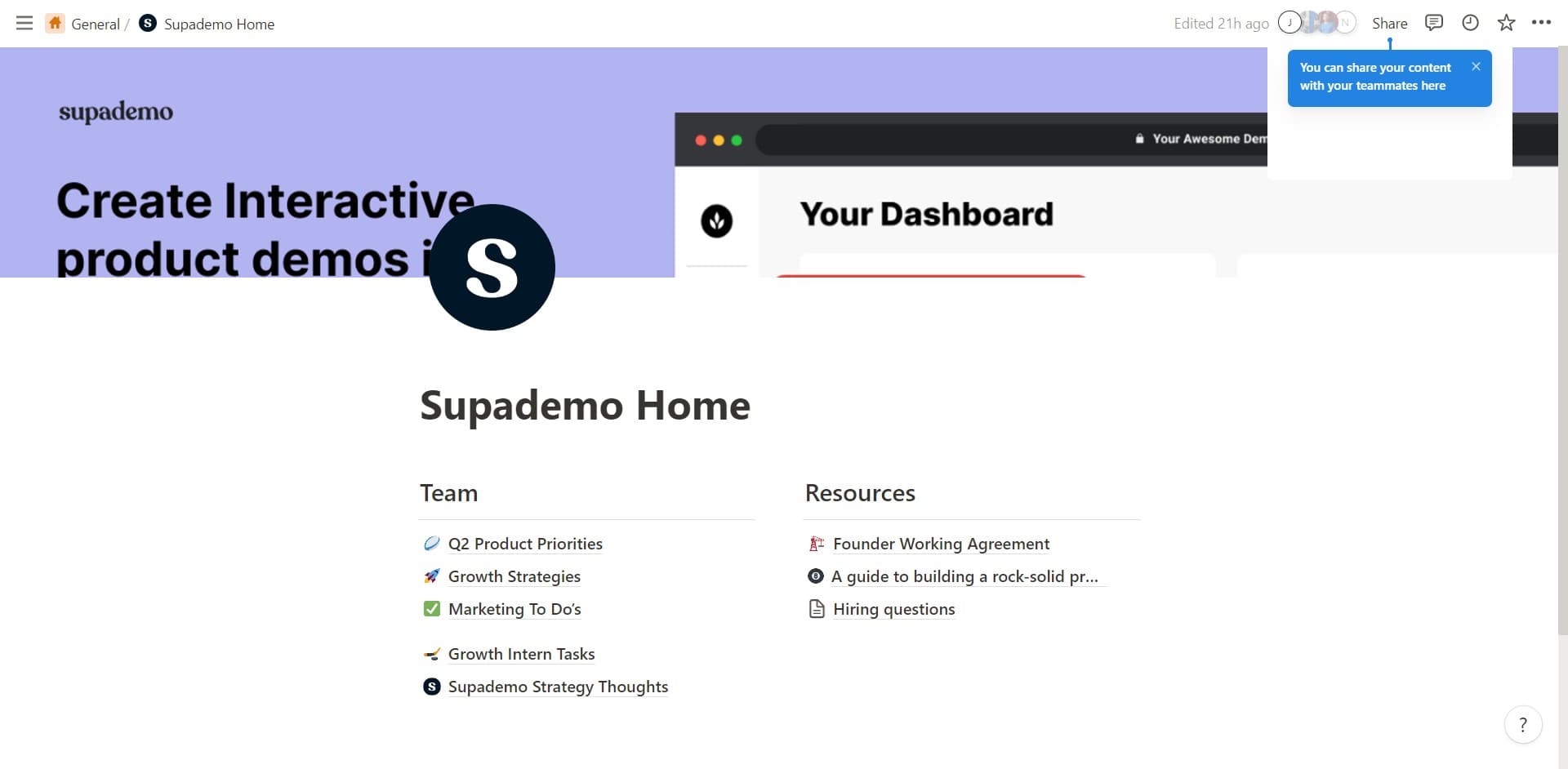
Click on the General menu
Start by clicking on the 'General' option, typically located in the left sidebar or account menu area. This will open the general settings section where appearance preferences are stored.
- 2
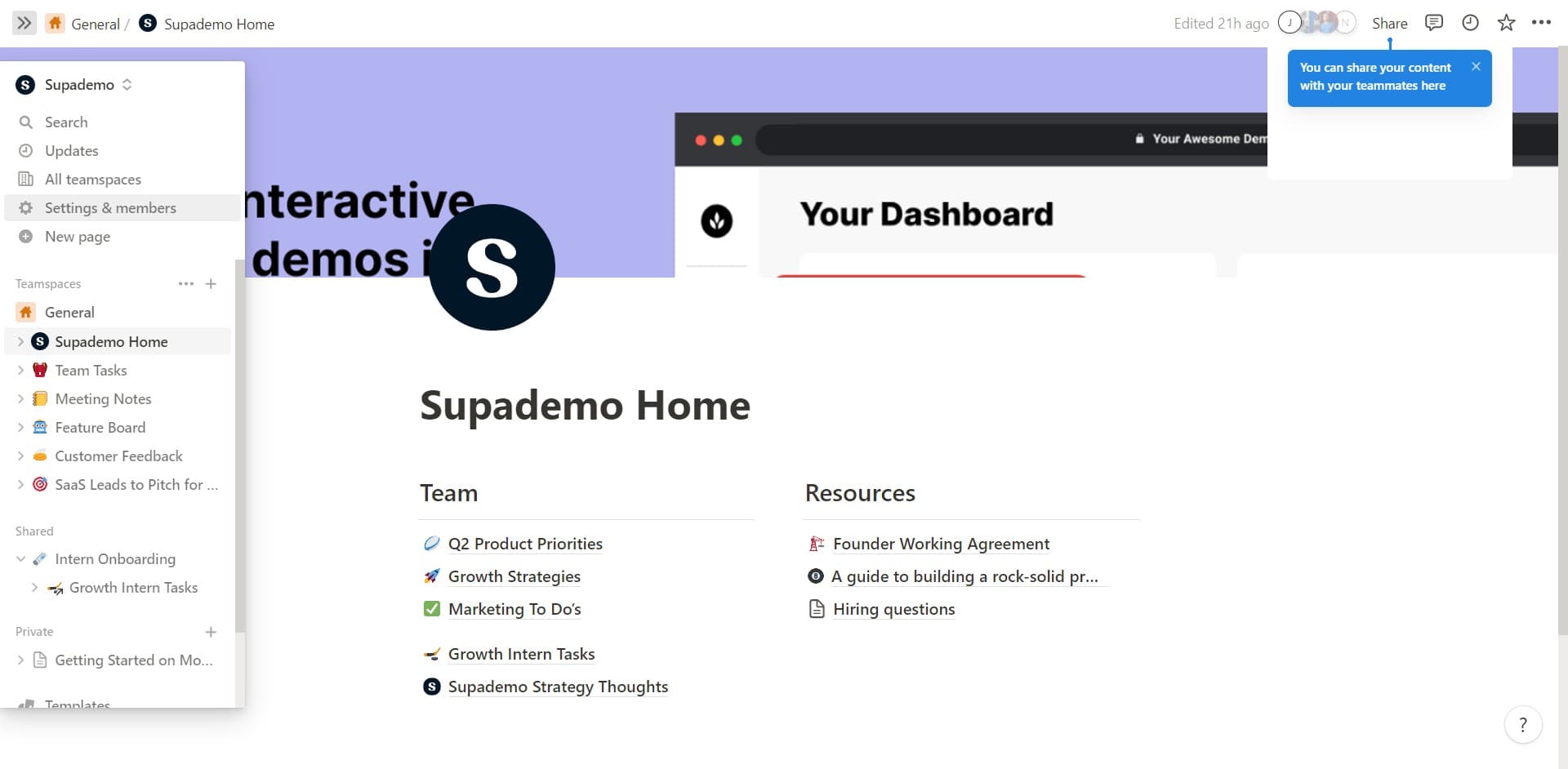
Navigate to the workspace menu
Click on the indicated area to proceed to your workspace options. This step grants you access to the broader settings and configuration panel for your Notion workspace.
- 3
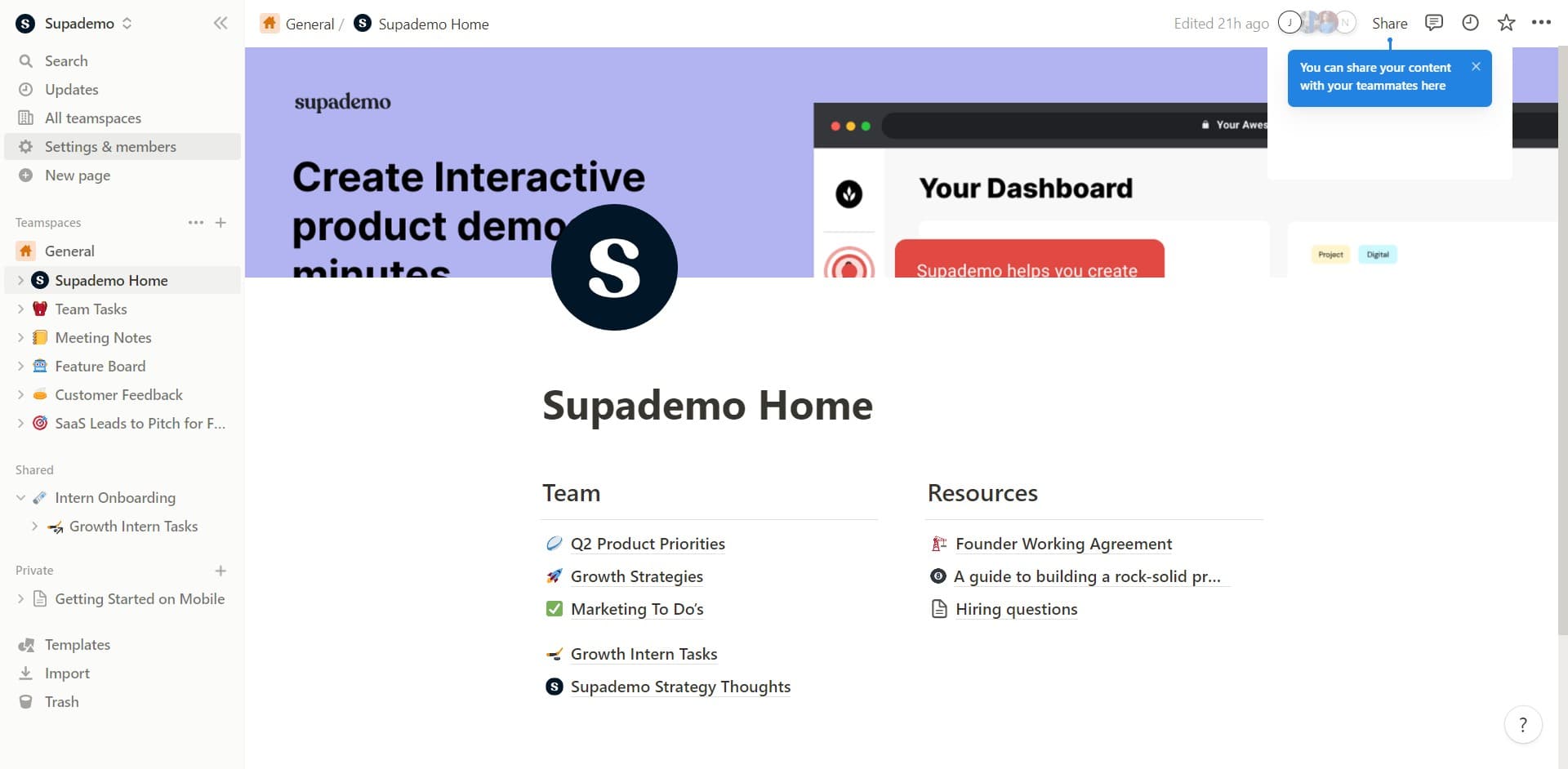
Select Settings & members
Click on 'Settings & members' to open the comprehensive settings interface. This section contains all workspace-level configurations, including appearance and theme settings.
- 4
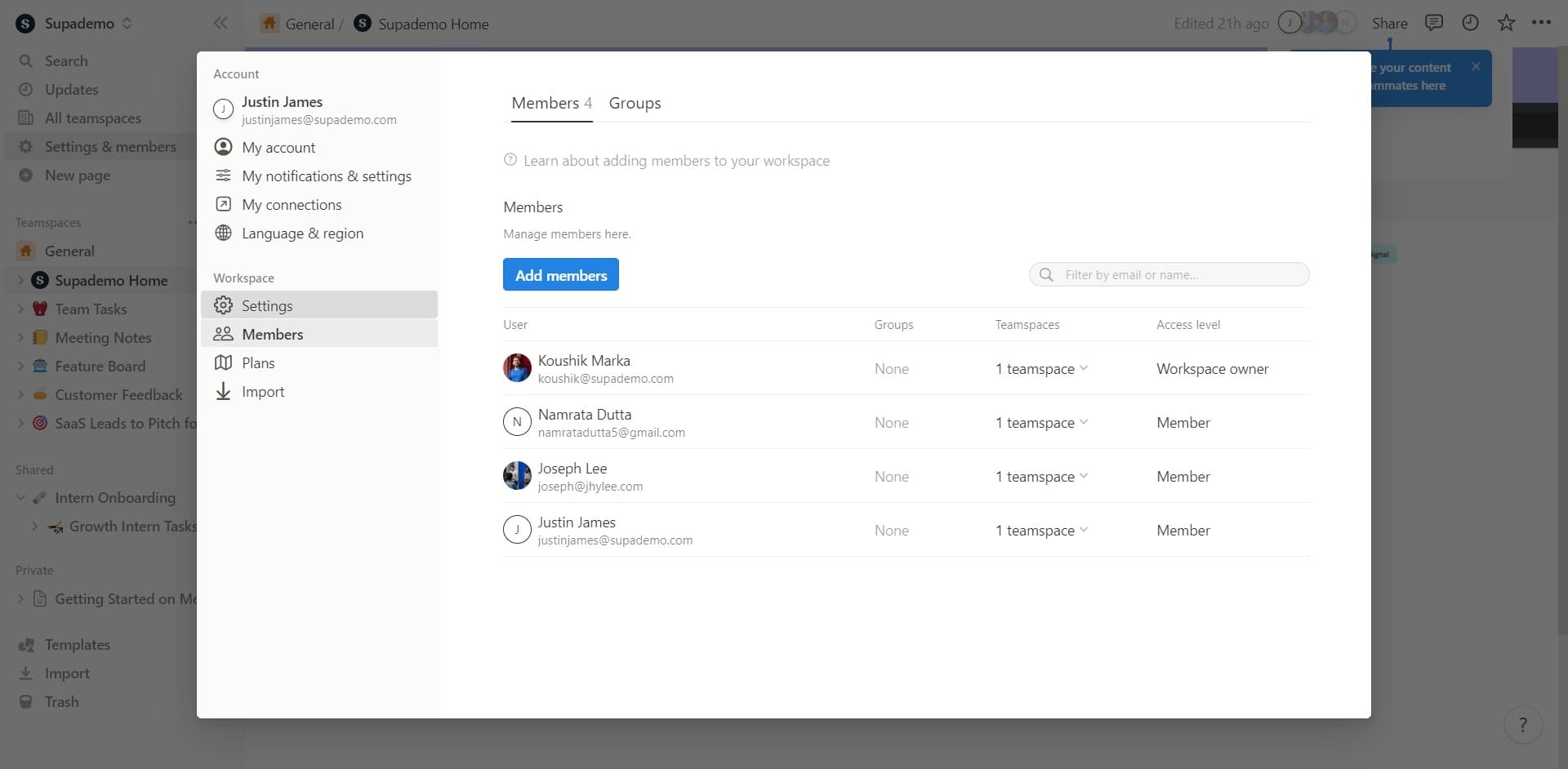
Click on Settings
Click the 'Settings' option to access the detailed preferences for your workspace. Here you'll find the appearance settings that control your theme.
- 5
Locate the theme preference section
In this step, you'll see the upload or theme configuration area. Look for the appearance or theme section where light and dark mode options are displayed.
- 6
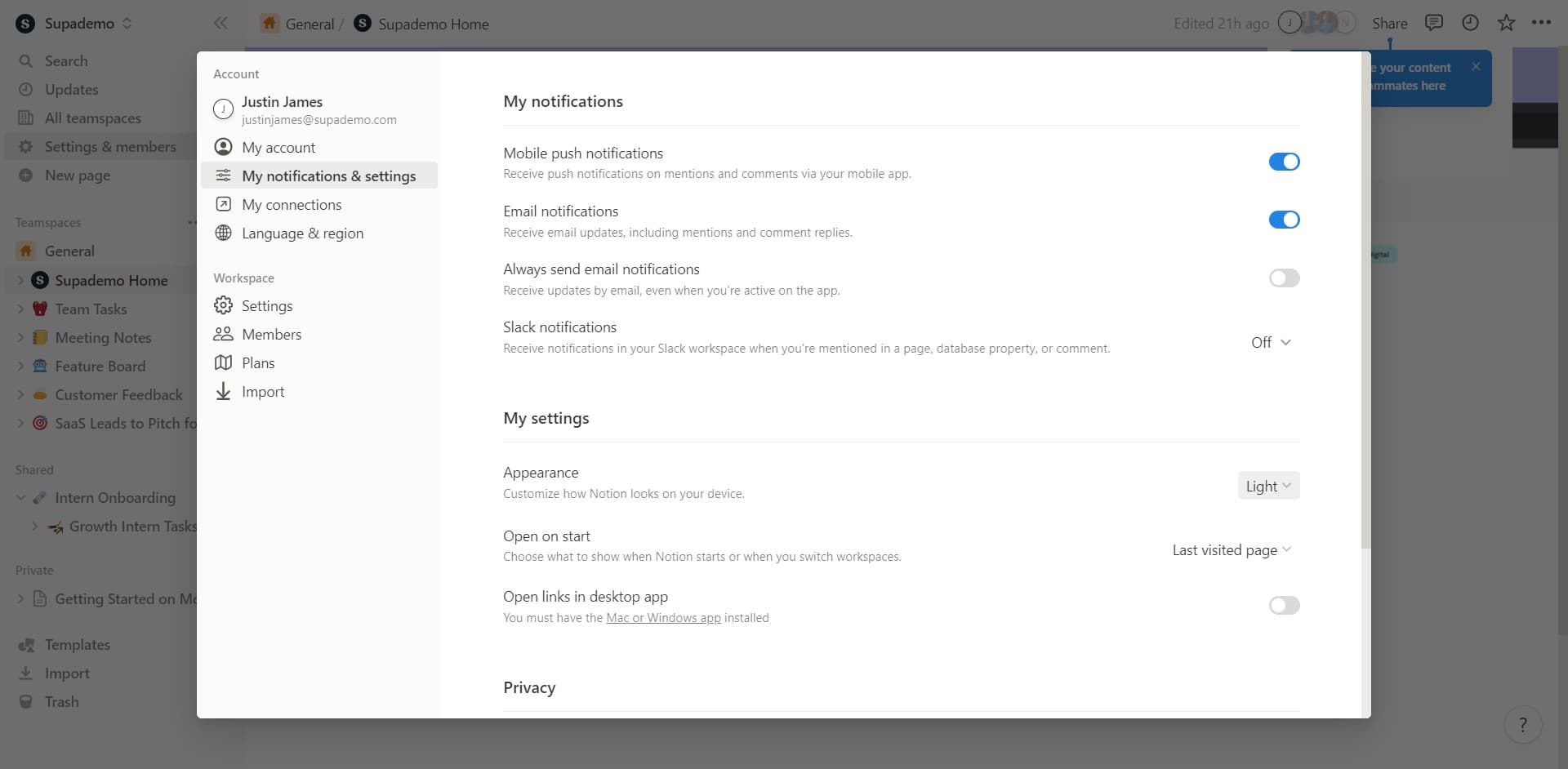
Click on Light mode
Click on the 'Light' option if you prefer the light theme with a bright background and dark text. This is the default theme for most Notion users.
- 7
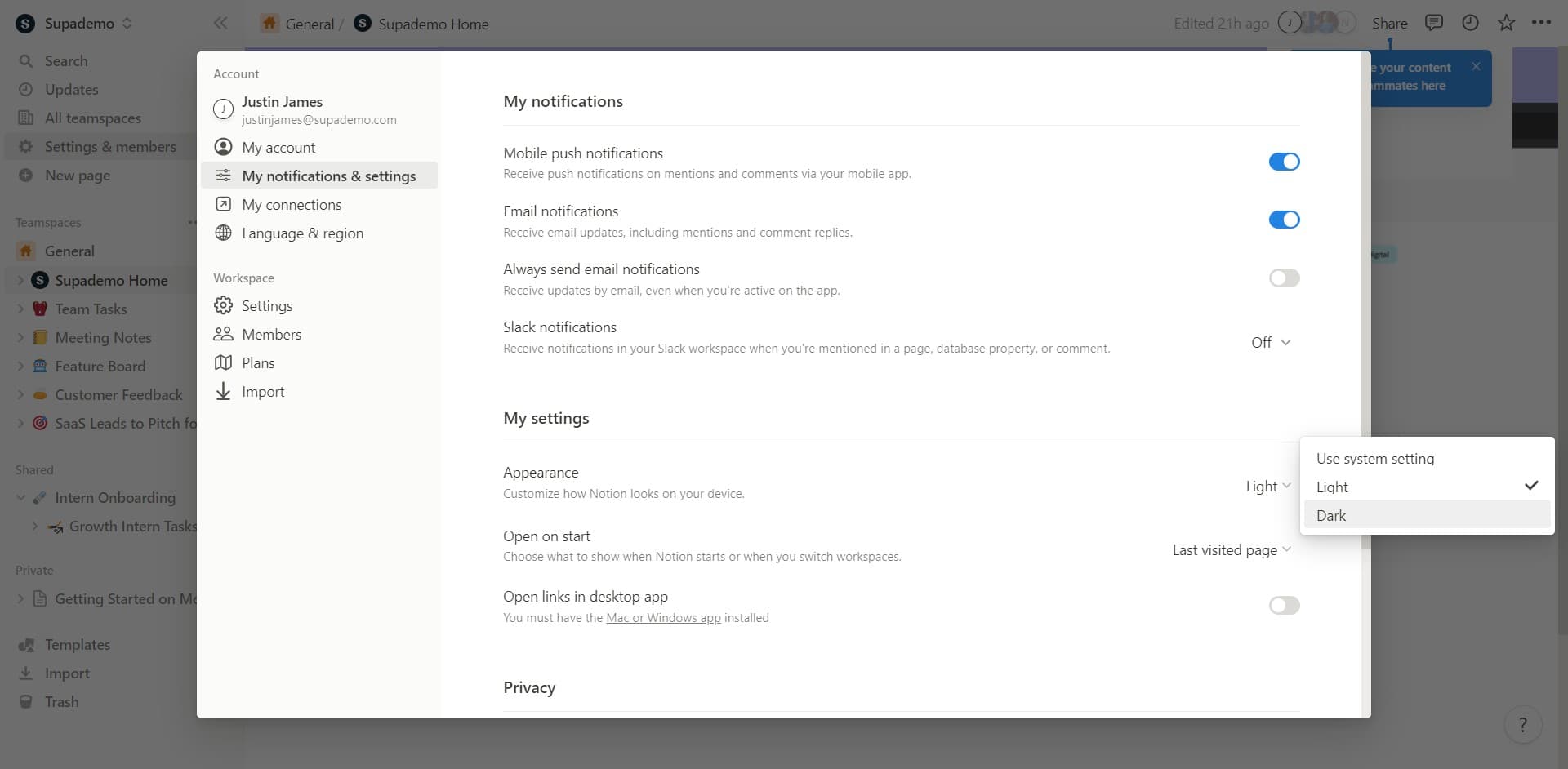
Click on Dark mode
Click on the 'Dark' option to enable dark mode with a dark background and light text. Your workspace will immediately switch to the selected theme.
- 8
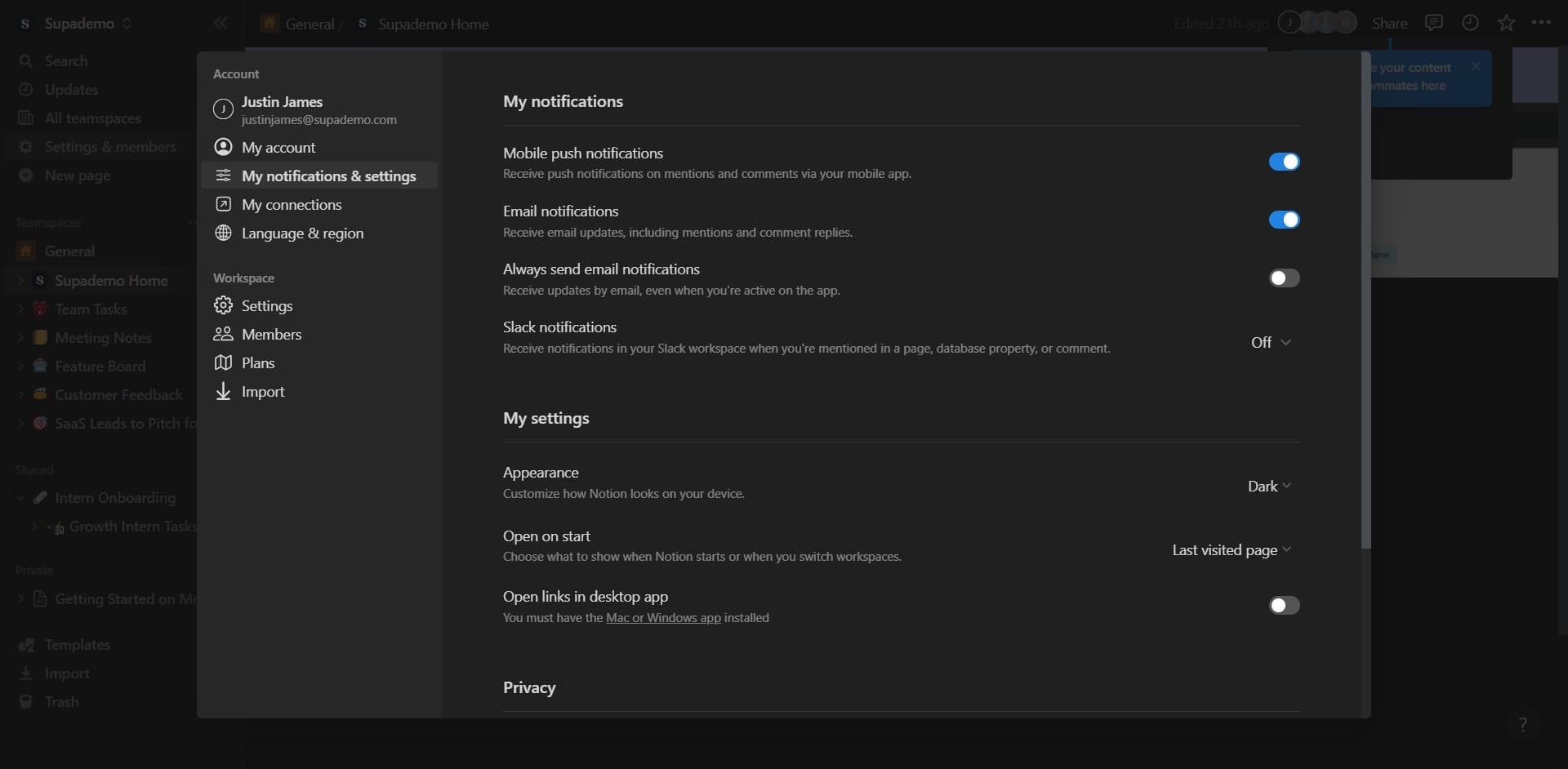
Review your notification settings
Click on 'My notification' or notification preferences to finalize your settings adjustments. Your theme preference will be saved automatically.
Frequently asked questions
Common questions about how to toggle dark mode on notion.
No, changing your theme is purely a visual preference and does not alter any of your workspace data, pages, or content. Your information remains exactly the same regardless of which theme you choose.
Notion respects your system-level appearance preferences on many devices. If your operating system is set to automatically switch themes based on time of day, Notion will typically follow that setting automatically.
Dark mode is available on Notion's web application and desktop apps. Mobile app availability may vary depending on your device and Notion version. Check your app's settings to confirm if the feature is available on your specific platform.
Yes, each Notion user can set their own personal theme preference independently. Your chosen theme is specific to your account and does not affect other members' workspace views.
Dark mode reduces eye strain during extended work sessions, particularly in dimly lit environments. It also consumes less battery power on devices with OLED or AMOLED screens, making it a practical choice for laptop and mobile users.