How to Create a Timeline in PowerPoint

Creating a timeline in PowerPoint is an effective way to visualize project milestones, historical events, or process flows in a clear, professional format. This guide walks you through the process of building a timeline using PowerPoint's SmartArt feature, which provides pre-designed layouts and formatting options.
Quick summary
In this tutorial, you'll learn how to insert and customize a timeline in PowerPoint using SmartArt graphics. You'll navigate the Insert menu, select an appropriate timeline layout, and add your own content and visual elements to create a polished presentation.
Why this matters
Timelines are powerful visual tools that help audiences quickly understand sequences and relationships between events or phases. Using PowerPoint's built-in SmartArt feature saves time and ensures your timeline looks professional without requiring advanced design skills.
Step-by-step guide
- 1
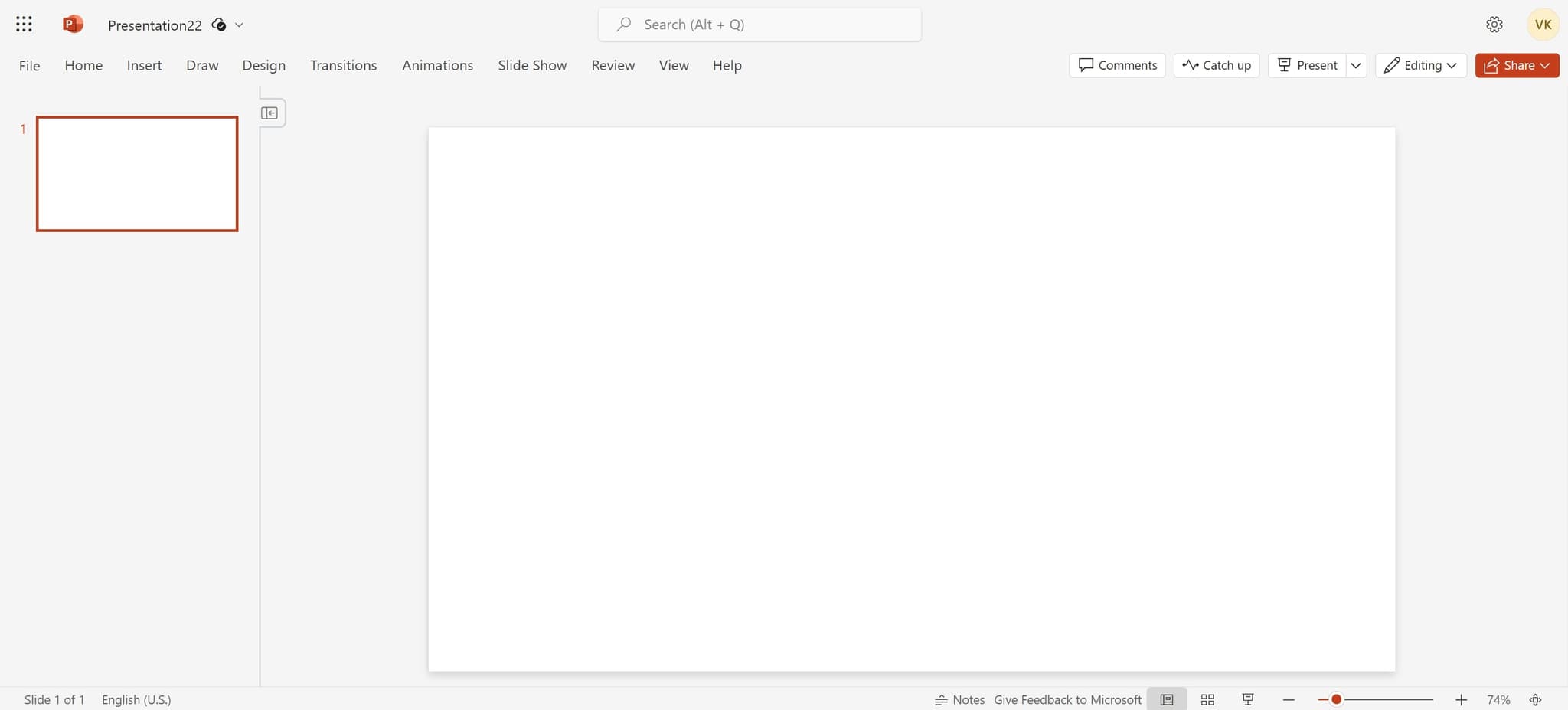
Open PowerPoint presentation
Start by opening Microsoft PowerPoint and either create a new presentation or open an existing one where you want to add your timeline. Ensure you're on the slide where you'd like the timeline to appear.
- 2
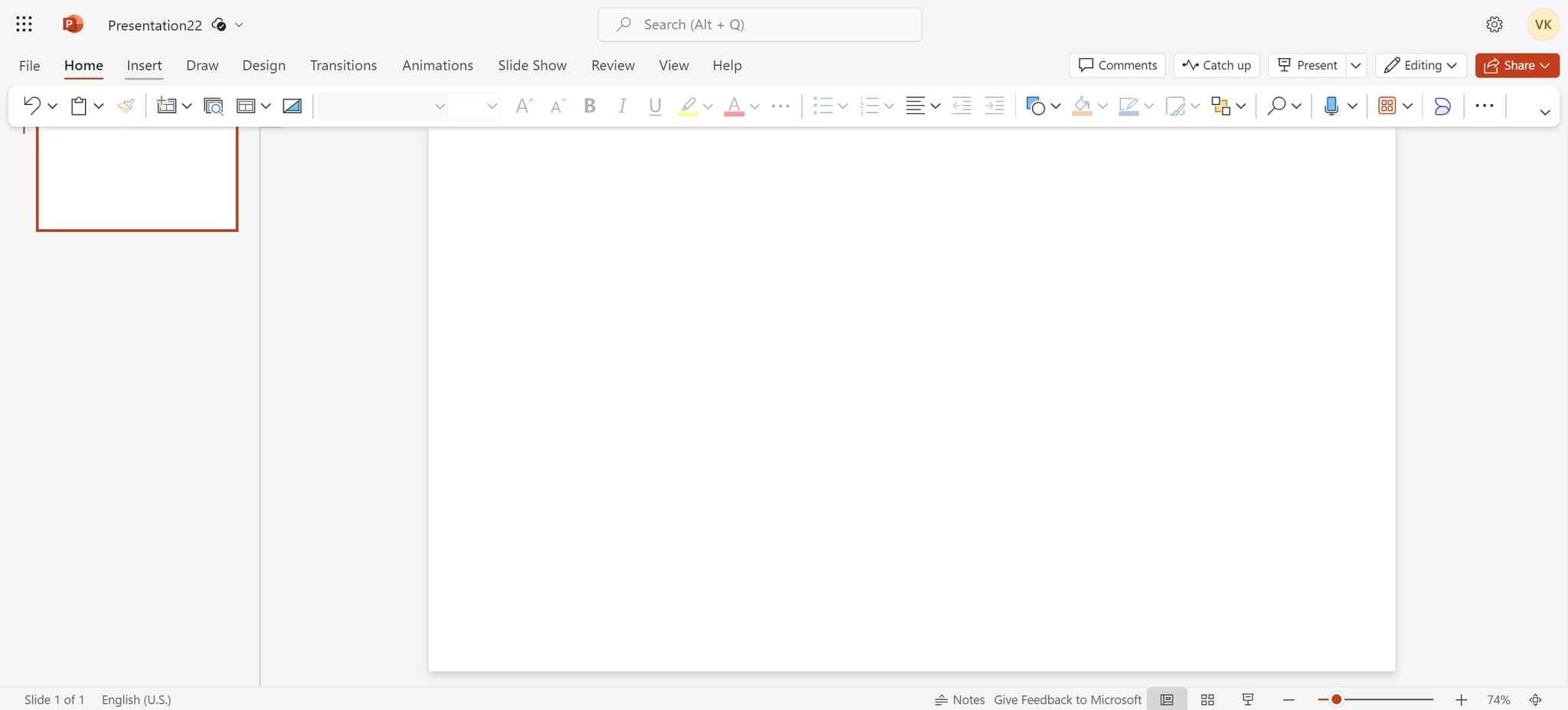
Click on Insert tab
Navigate to the Insert tab in the PowerPoint ribbon at the top of the screen. This tab contains all the tools you need to add new elements to your slide.
- 3
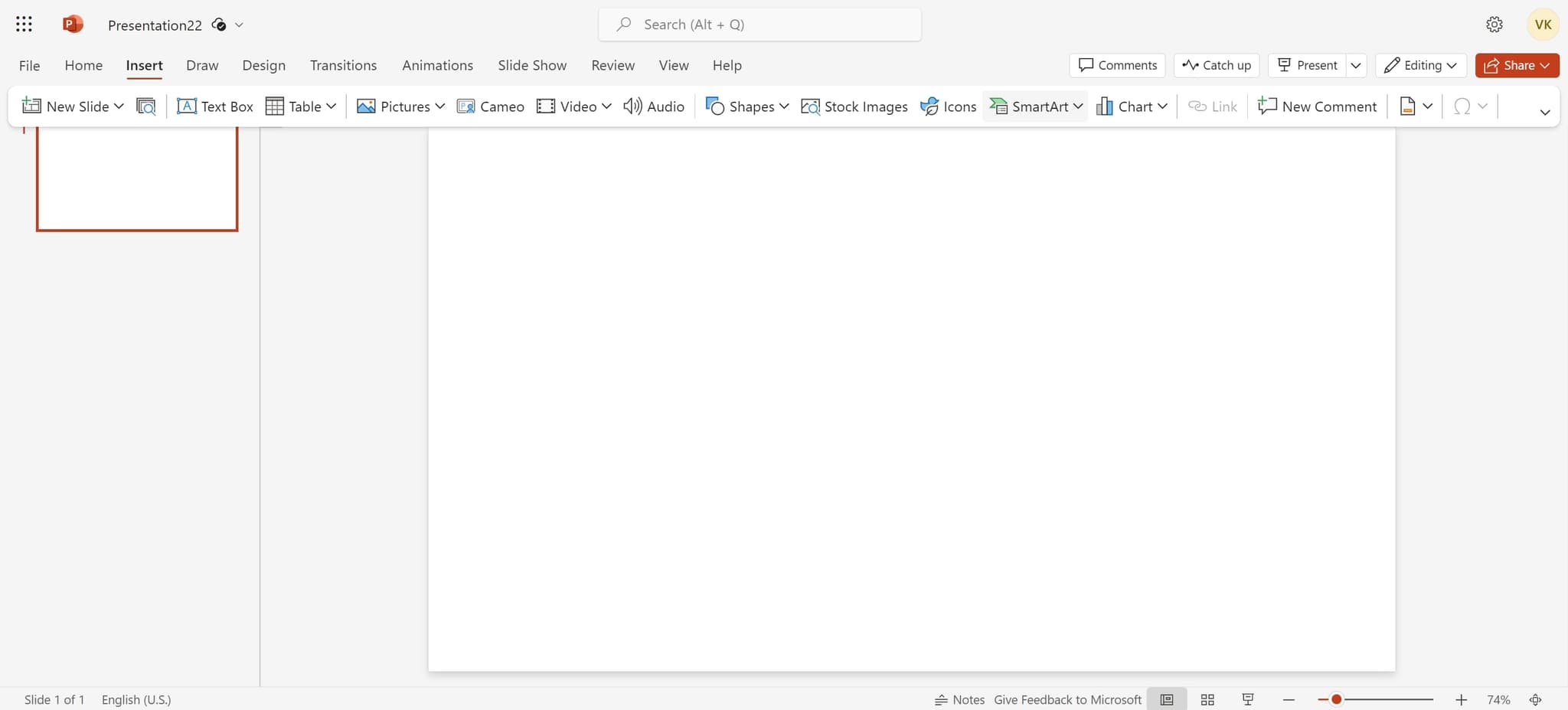
Select SmartArt
In the Insert tab, locate and click on the SmartArt option. A SmartArt graphic gallery will open, displaying various layout categories including those designed for timelines and processes.
- 4
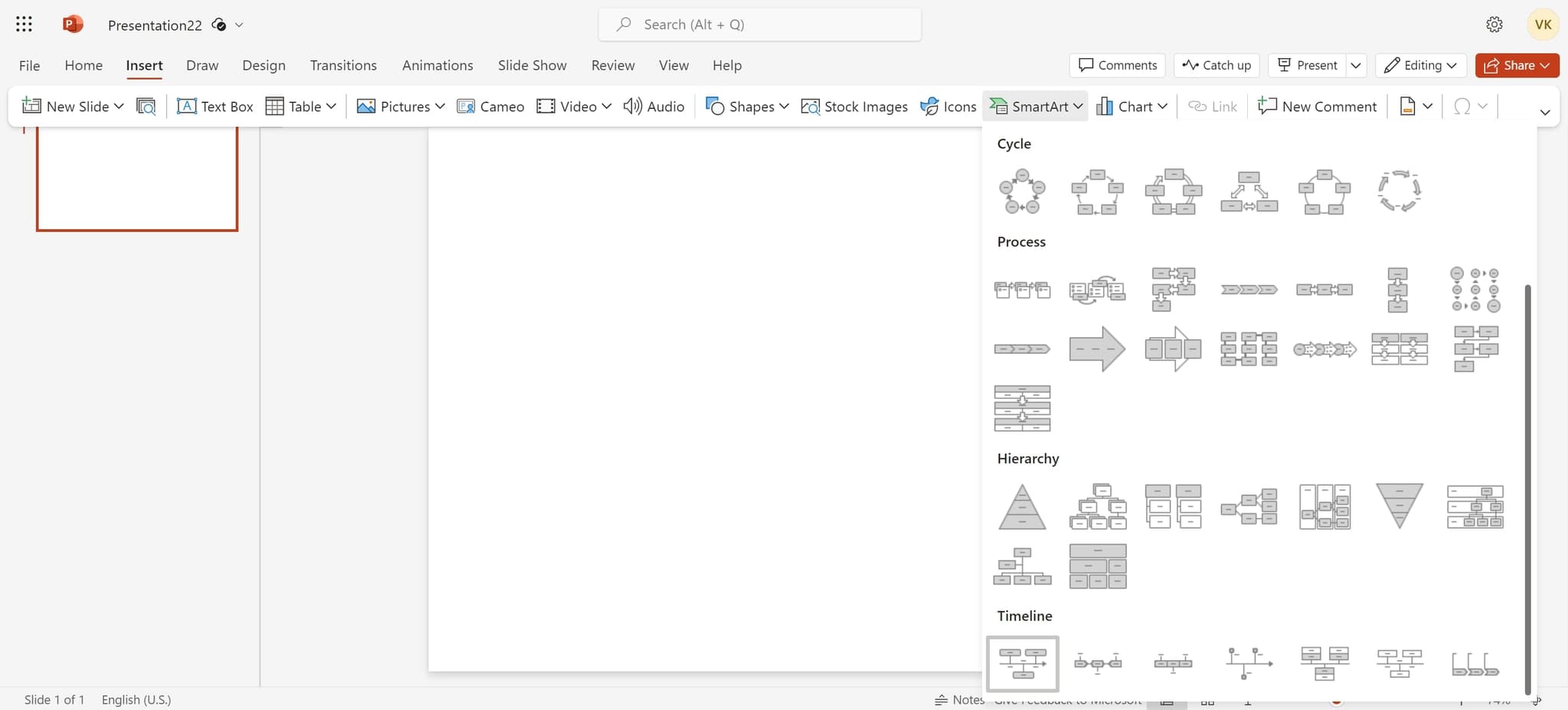
Choose timeline layout
Browse the available SmartArt layouts and select one that suits your timeline needs, such as a process timeline or horizontal timeline layout. Once selected, click OK to insert it into your slide.
- 5
Add timeline text content
Click on the SmartArt elements and begin typing your timeline data, such as dates, milestones, or event descriptions. You can modify the number of timeline points by adding or removing shapes as needed.
- 6
Customize timeline elements
Select individual elements in your timeline to change their colors, styles, or formatting. Use the SmartArt Design and Format tabs to adjust the overall appearance of your timeline.
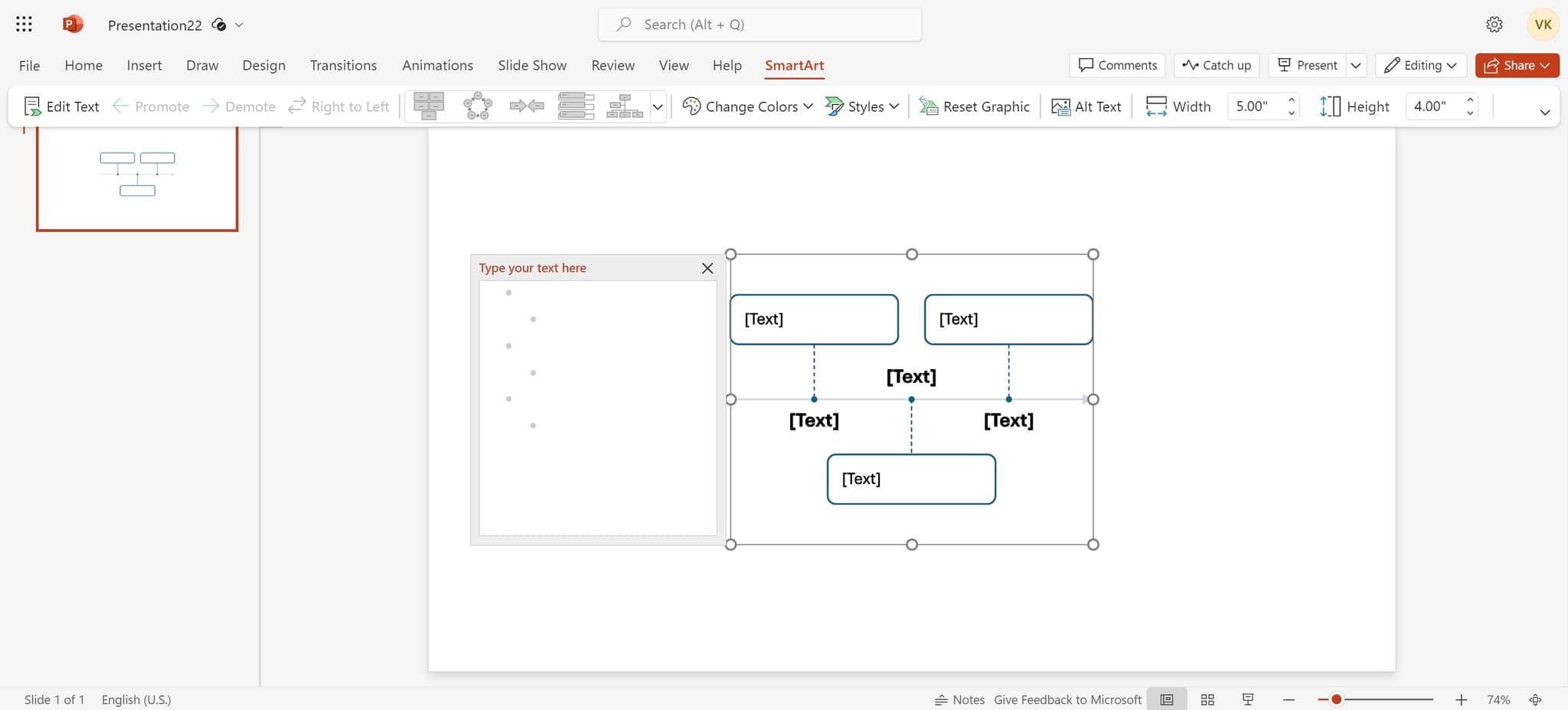
- 7
Add images or additional details
Enhance your timeline by inserting images, icons, or additional text boxes to provide more context for each timeline point. This helps create a more engaging and informative visual presentation.
Frequently asked questions
Common questions about how to create a timeline in powerpoint.
Yes, PowerPoint offers multiple timeline layouts within the SmartArt gallery. When selecting your SmartArt graphic, choose a vertical timeline layout if you prefer that orientation. You can also manually rearrange elements after insertion if needed.
Right-click on your SmartArt graphic and select Edit Data or use the SmartArt Tools Design tab to add additional shapes. You can insert new points before or after existing ones to expand your timeline as needed.
Yes, you can apply animations to individual timeline elements or the entire SmartArt graphic. Go to the Animations tab and select your desired animation effect to make your timeline appear sequentially during your slideshow.
PowerPoint supports common image formats including JPG, PNG, GIF, BMP, and TIFF. You can insert these images directly into timeline elements by clicking Insert Picture within the SmartArt editing options.
You can copy your completed timeline slide and paste it into other presentations, or save your timeline as a template. To create a template, design your timeline, then save the file as a PowerPoint template using File > Save As > PowerPoint Template.