How to Delete a Slide in PowerPoint

Deleting slides in PowerPoint is a fundamental skill for managing your presentations efficiently. Whether you're removing outdated content, correcting mistakes, or streamlining your deck, knowing how to delete slides quickly will save you time during presentation preparation.
Quick summary
In this tutorial, you'll learn how to delete a slide from your PowerPoint presentation in just a few clicks. By following these straightforward steps, you'll be able to remove unwanted slides and keep your presentation focused and concise.
Why this matters
Slide management is critical for creating polished, professional presentations. Removing unnecessary or duplicate slides reduces confusion for your audience and ensures your message stays clear and impactful. A well-organized presentation reflects better on you and your content.
Step-by-step guide
- 1
Access the slide selection area
Begin by locating and clicking on the slide panel where your slides are displayed. This is typically found on the left side of your PowerPoint window and shows thumbnail previews of all slides in your presentation.

- 2
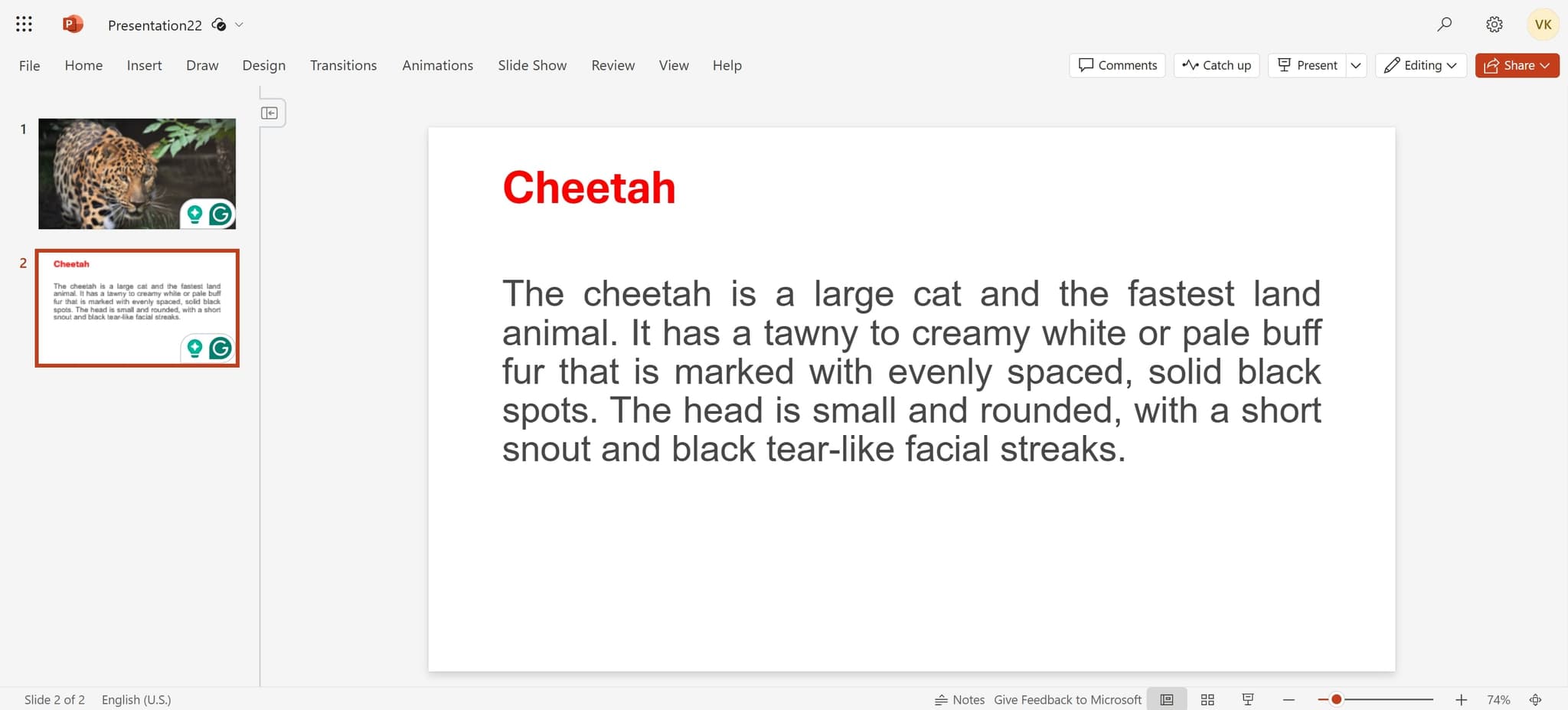
Select the slide to remove
Click on the specific slide you want to delete in the slide panel. The selected slide will be highlighted, indicating it's ready for the next action.
- 3
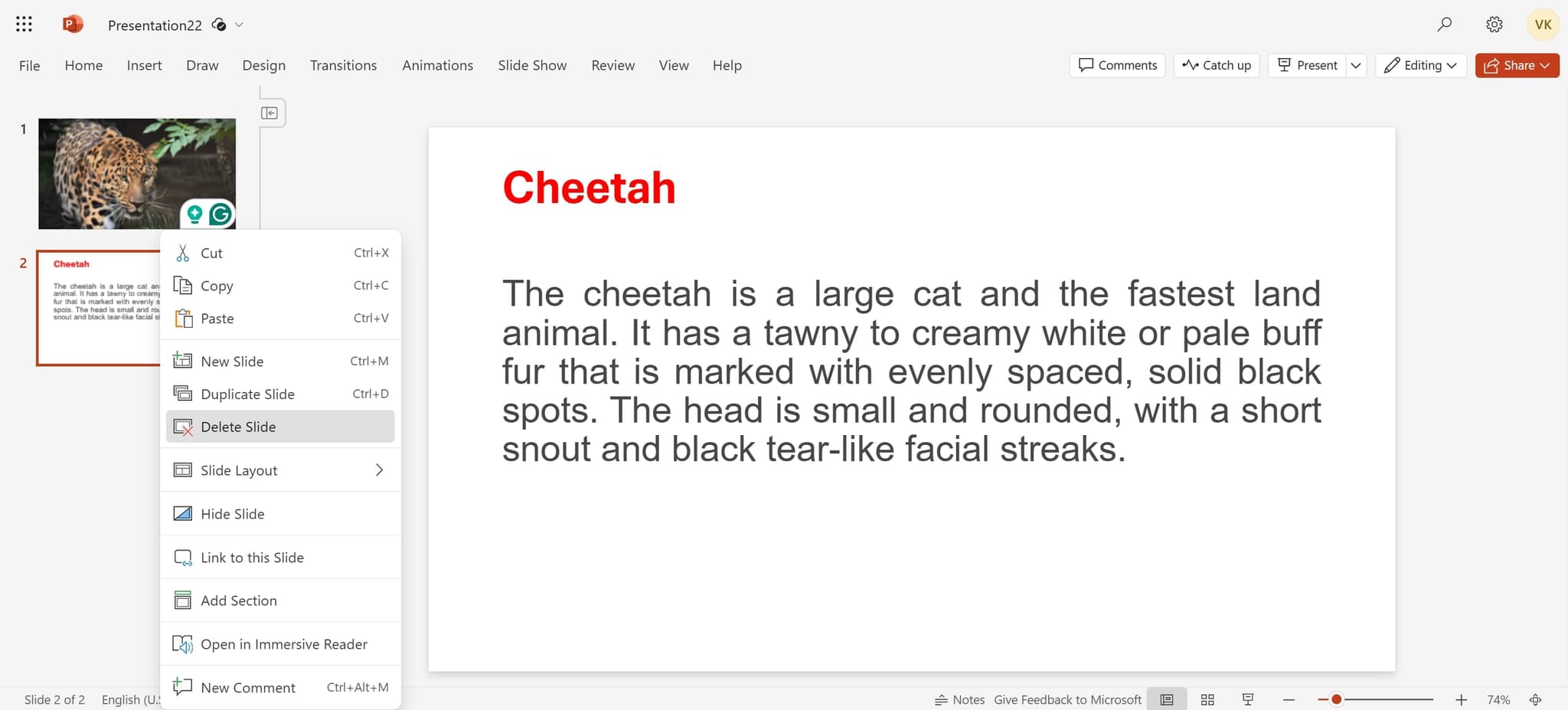
Delete the selected slide
Click on the 'Delete Slide' option to remove the selected slide from your presentation. The slide will be immediately removed, and all remaining slides will shift to fill the gap in your presentation order.
Frequently asked questions
Common questions about how to delete a slide in powerpoint.
Yes, you can undo a deletion immediately by pressing Ctrl+Z (Windows) or Command+Z (Mac) right after deleting the slide. If you've made other changes since the deletion, use the Undo button in the Quick Access Toolbar to navigate back through your actions.
PowerPoint automatically renumbers all slides after the deleted one. For example, if you delete slide 5 from a 10-slide presentation, the former slide 6 becomes slide 5, and so on. This ensures your slide numbering remains sequential.
Yes, you can select multiple slides by holding Ctrl (Windows) or Command (Mac) and clicking each slide you want to delete. Alternatively, you can click and drag to select a range of consecutive slides, then right-click and choose 'Delete Slide' or press the Delete key.
After selecting a slide in the slide panel, you can press the Delete key on your keyboard to remove it immediately. This is faster than navigating through menus, especially when deleting multiple slides in succession.
No, deleting a slide will not affect the animations or transitions applied to the remaining slides. Each slide's formatting, animations, and transitions are independent, so removing one slide won't alter the others.