How to Embed a YouTube Video in PowerPoint

Embedding a YouTube video directly into your PowerPoint presentation enhances engagement and keeps your audience focused on your content without leaving the slide. This guide walks you through the process of inserting online videos into your slides using PowerPoint's built-in video insertion tools.
Quick summary
In this tutorial, you'll learn how to embed a YouTube video into PowerPoint by accessing the Insert menu, selecting the Online Video option, and uploading or linking your chosen video. By following these straightforward steps, you'll be able to enrich your presentations with multimedia content seamlessly.
Why this matters
Embedding videos directly into PowerPoint presentations eliminates the need for manual linking or switching between applications during your presentation. This approach ensures a smoother, more professional delivery and keeps your audience engaged with dynamic multimedia content without technical interruptions.
Step-by-step guide
- 1
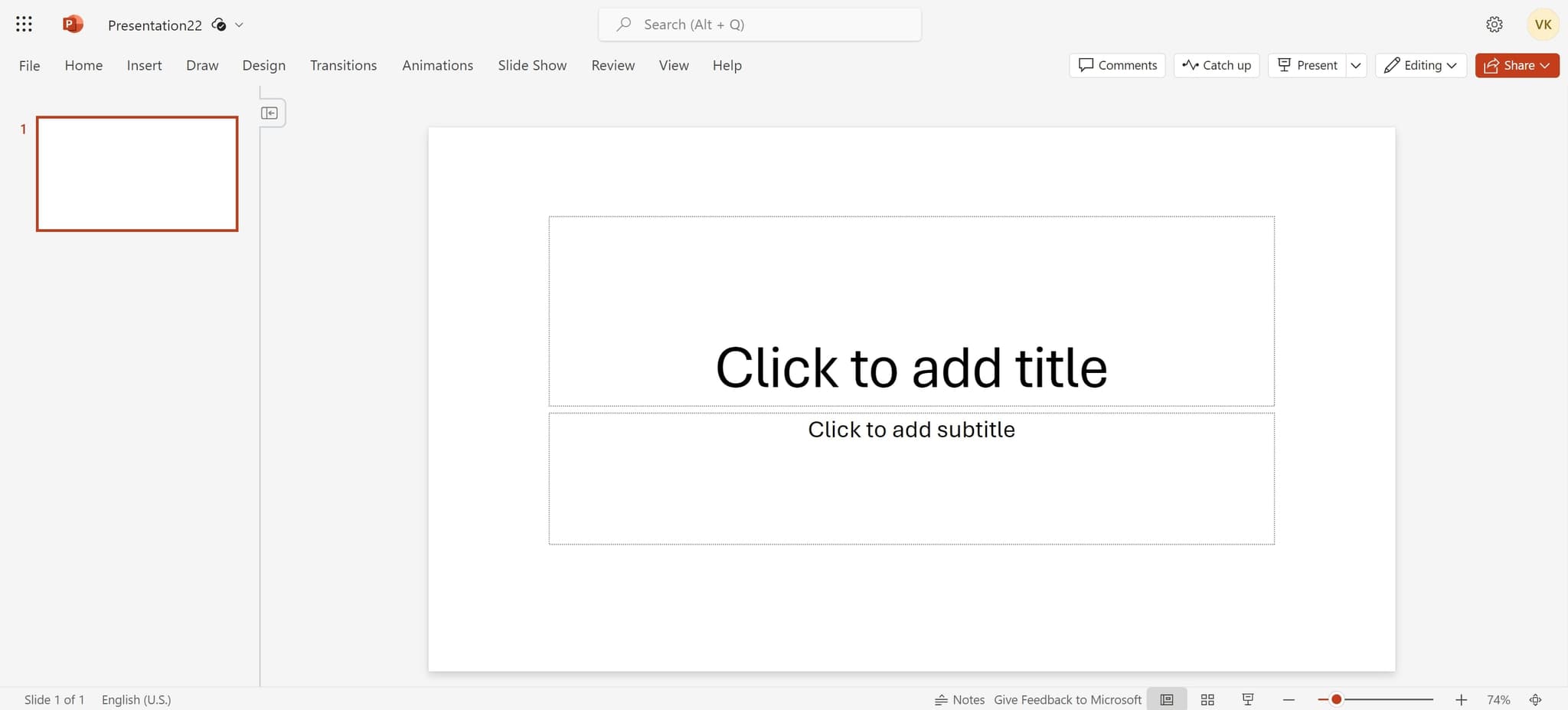
Open the Insert menu
Click on the Insert tab in the PowerPoint ribbon at the top of your screen. This will reveal all the options available for adding content to your slide.
- 2
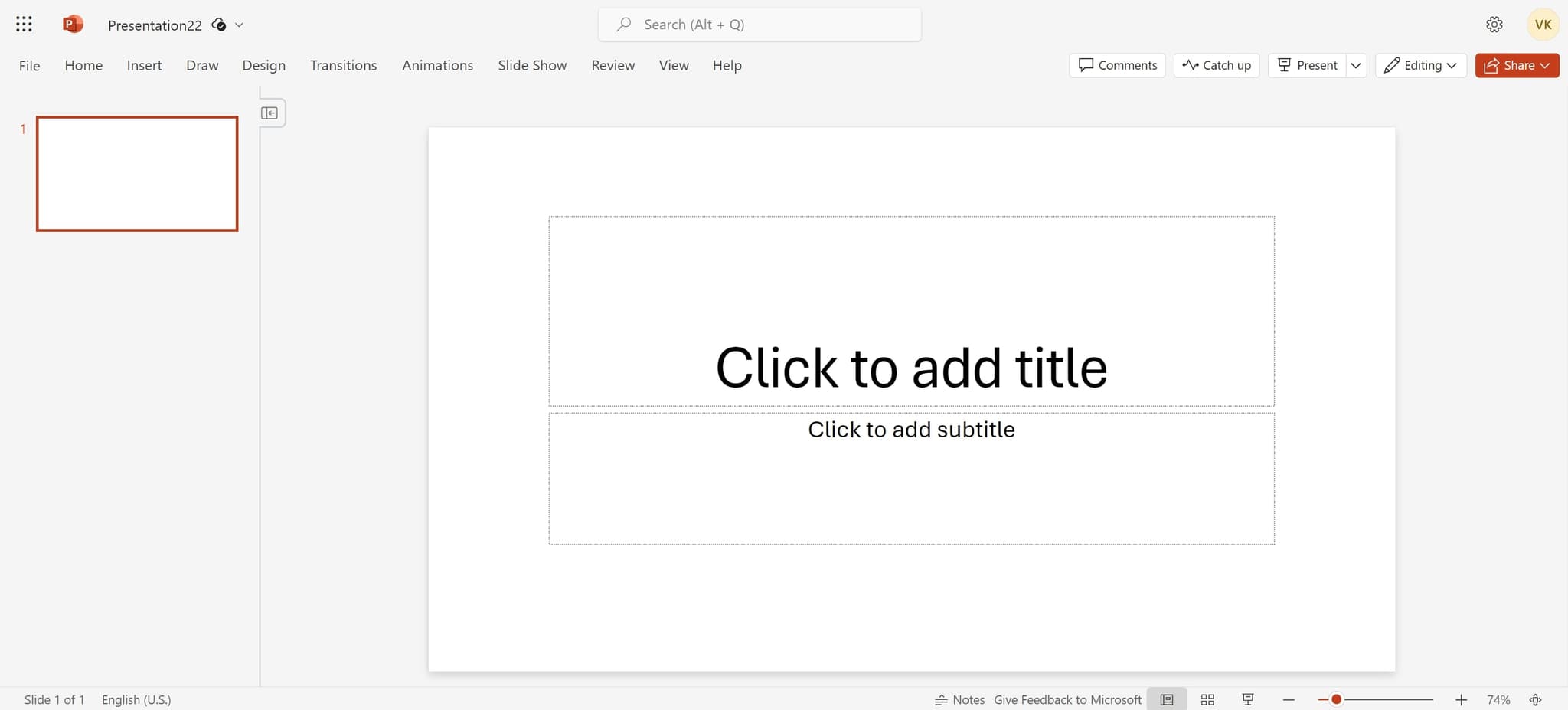
Locate the media options
Within the Insert menu, look for the media or video-related options. You should see several choices for inserting different types of content.
- 3
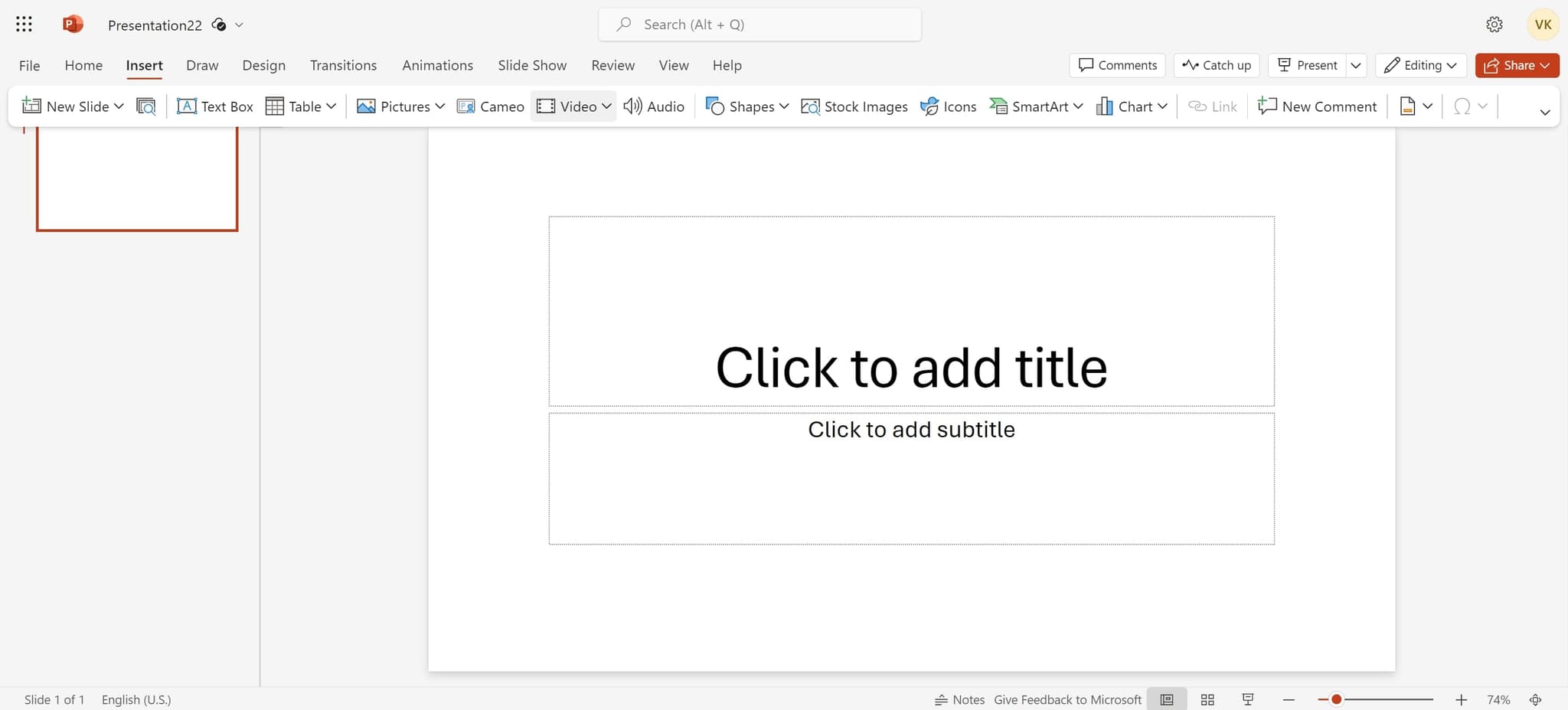
Select Video option
Click on the Video button to access video insertion options. This will expand a submenu showing different video sources you can use.
- 4
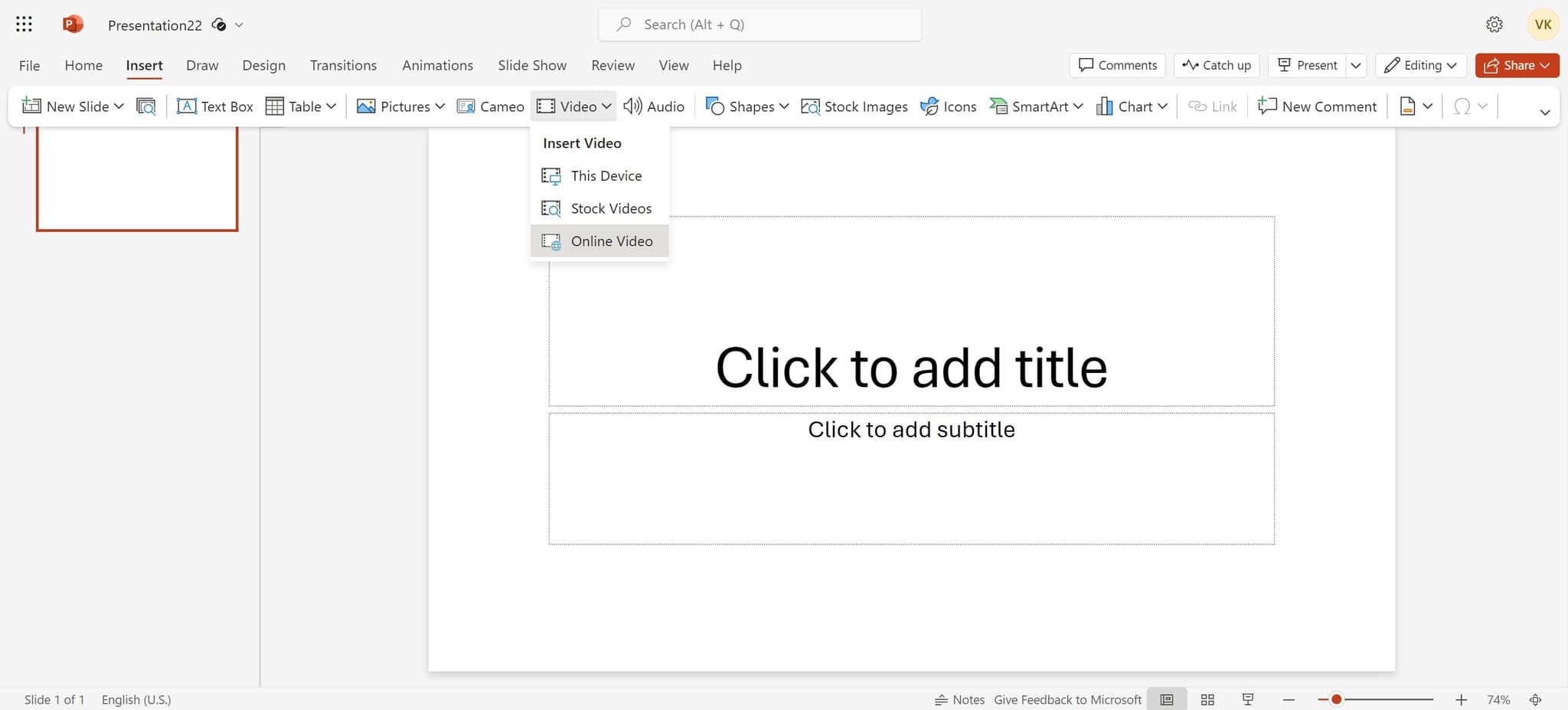
Choose Online Video
Click on Online Video from the submenu. This allows you to search for and embed videos from online sources like YouTube directly into your slide.
- 5
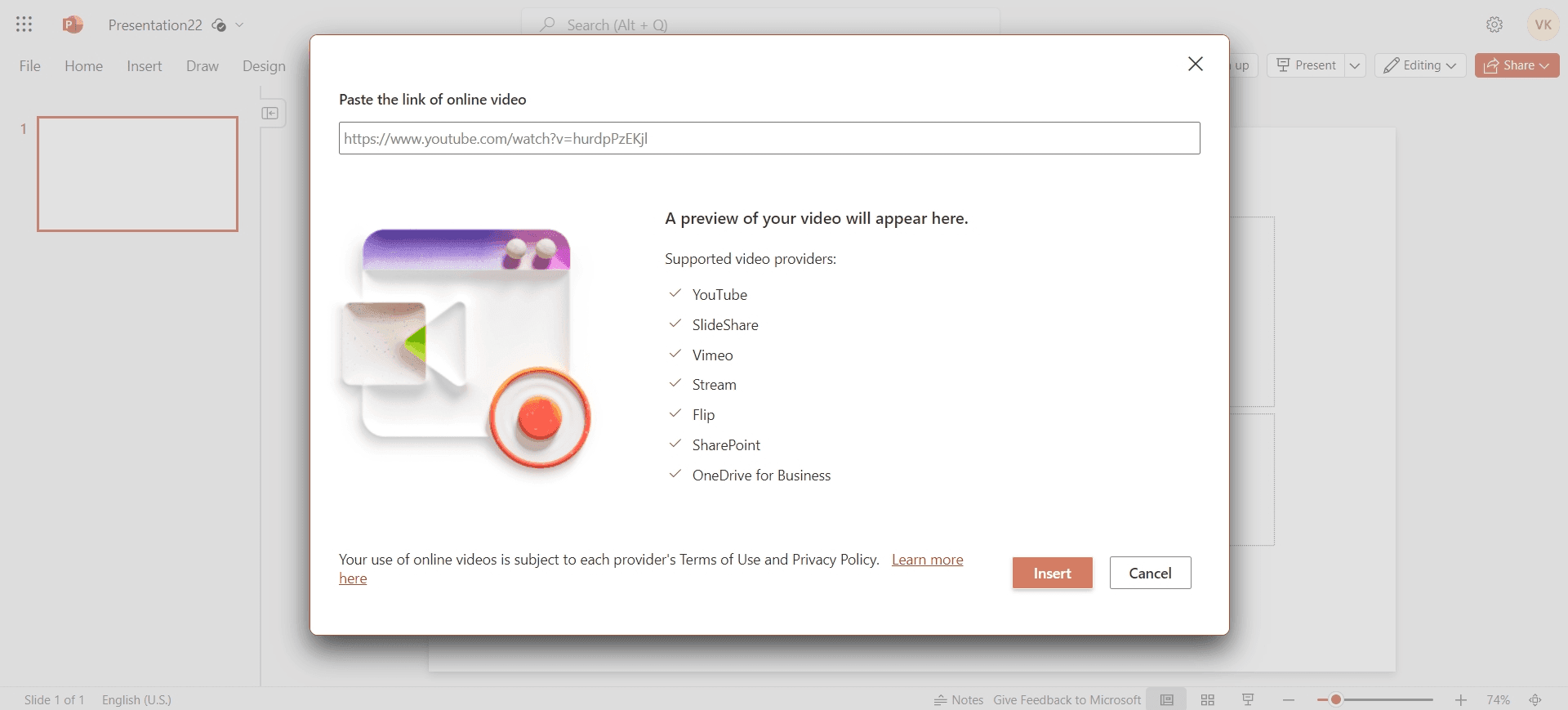
Search for your video
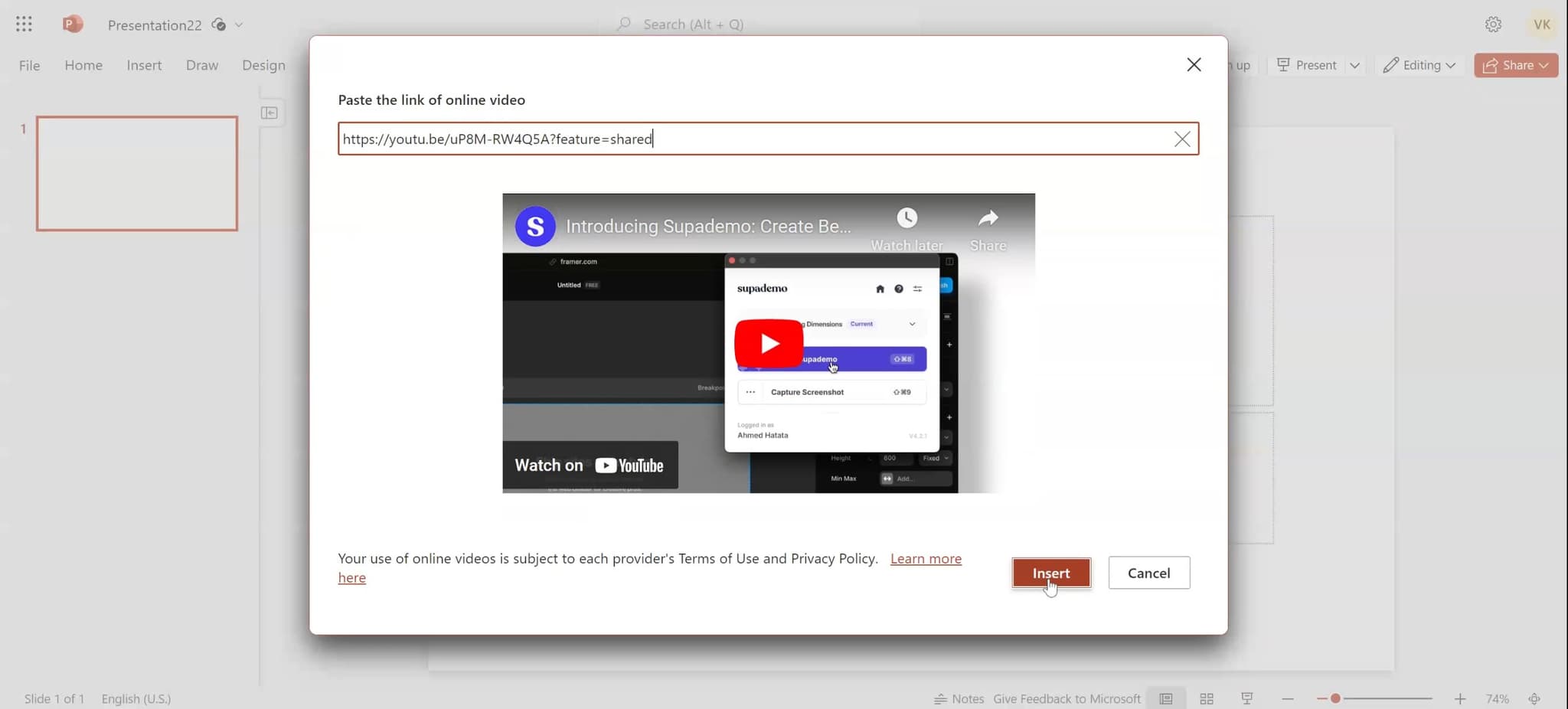
Enter the YouTube video URL or search terms in the provided field. PowerPoint will search for matching videos that you can preview before inserting.
- 6
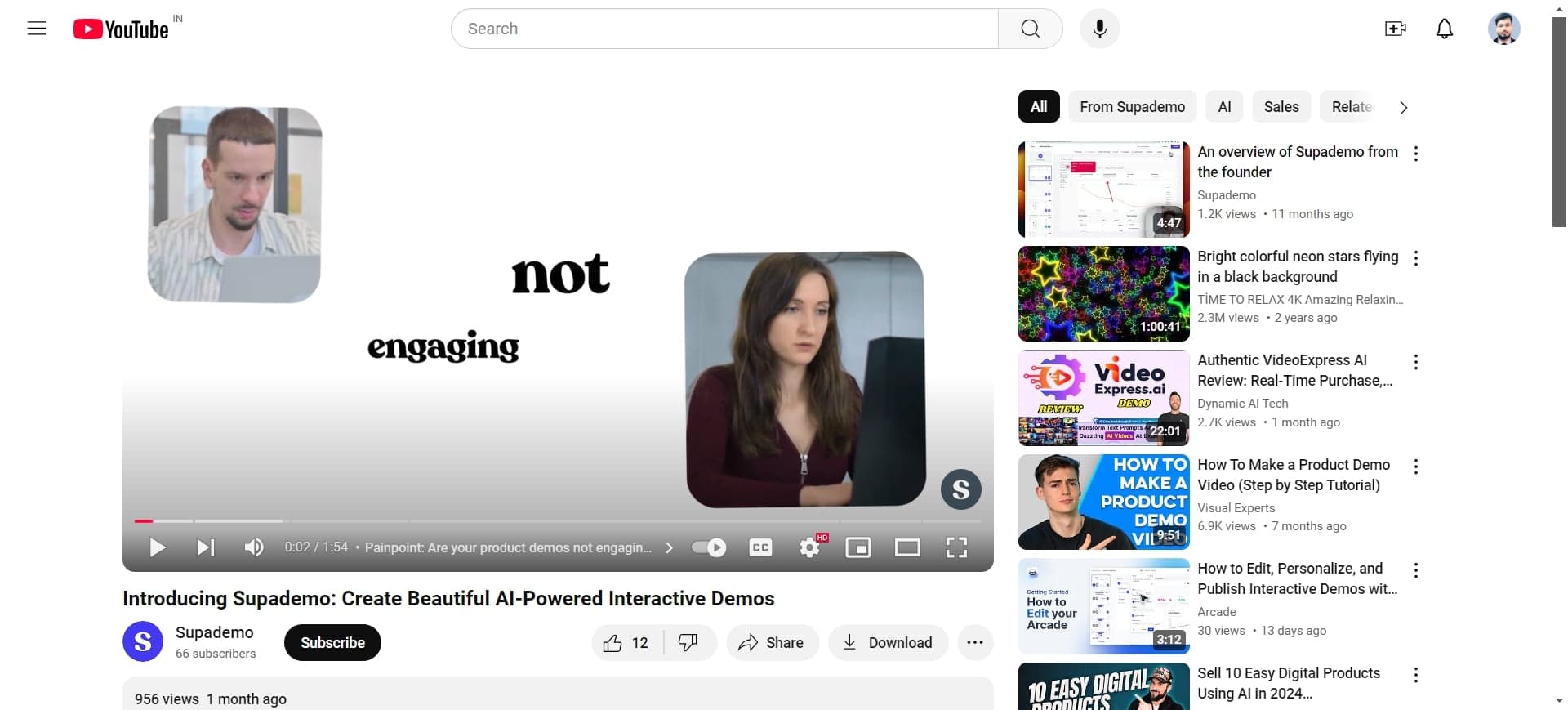
Select the target video
Click on the video you want to embed from the search results. This will highlight your selection and prepare it for insertion.
- 7
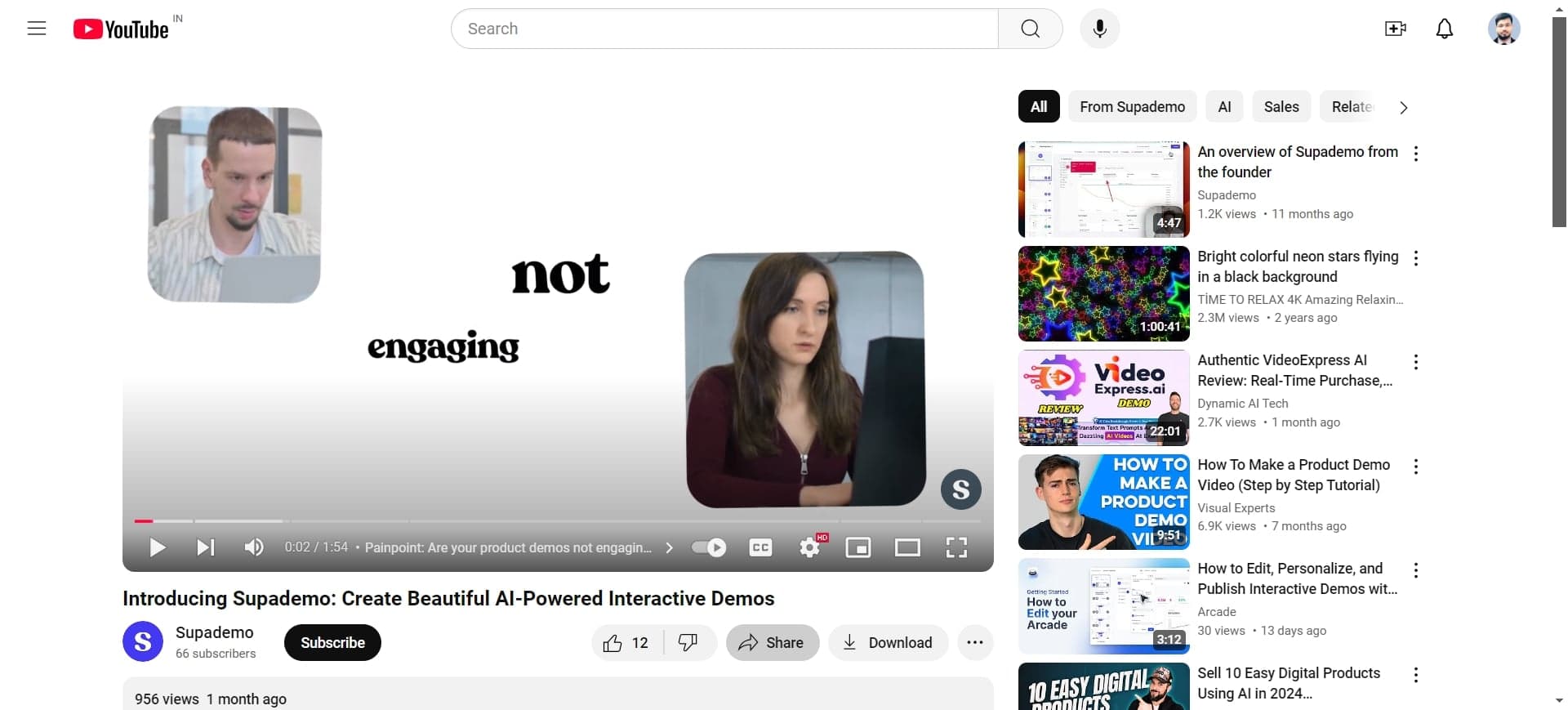
Preview the video details
Review the video information displayed on screen to ensure you've selected the correct video. Check the title and duration to confirm your choice.
- 8
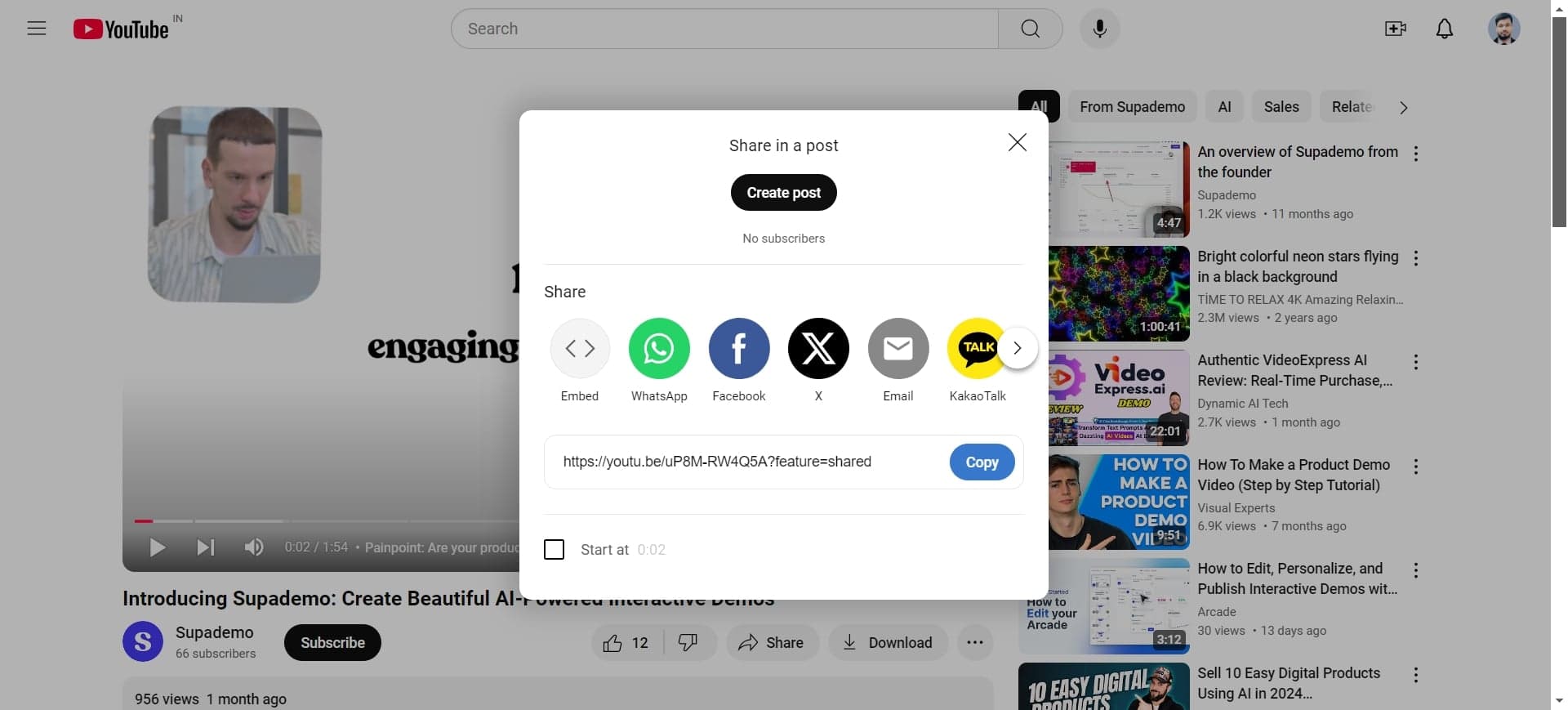
Confirm your selection
Click on the video preview or details to finalize your choice. PowerPoint will load the video information and prepare it for embedding.
- 9
Complete the upload process
Follow any remaining prompts to finalize the video upload. PowerPoint will process the video and prepare it for insertion into your slide.
- 10
Insert the video into your slide
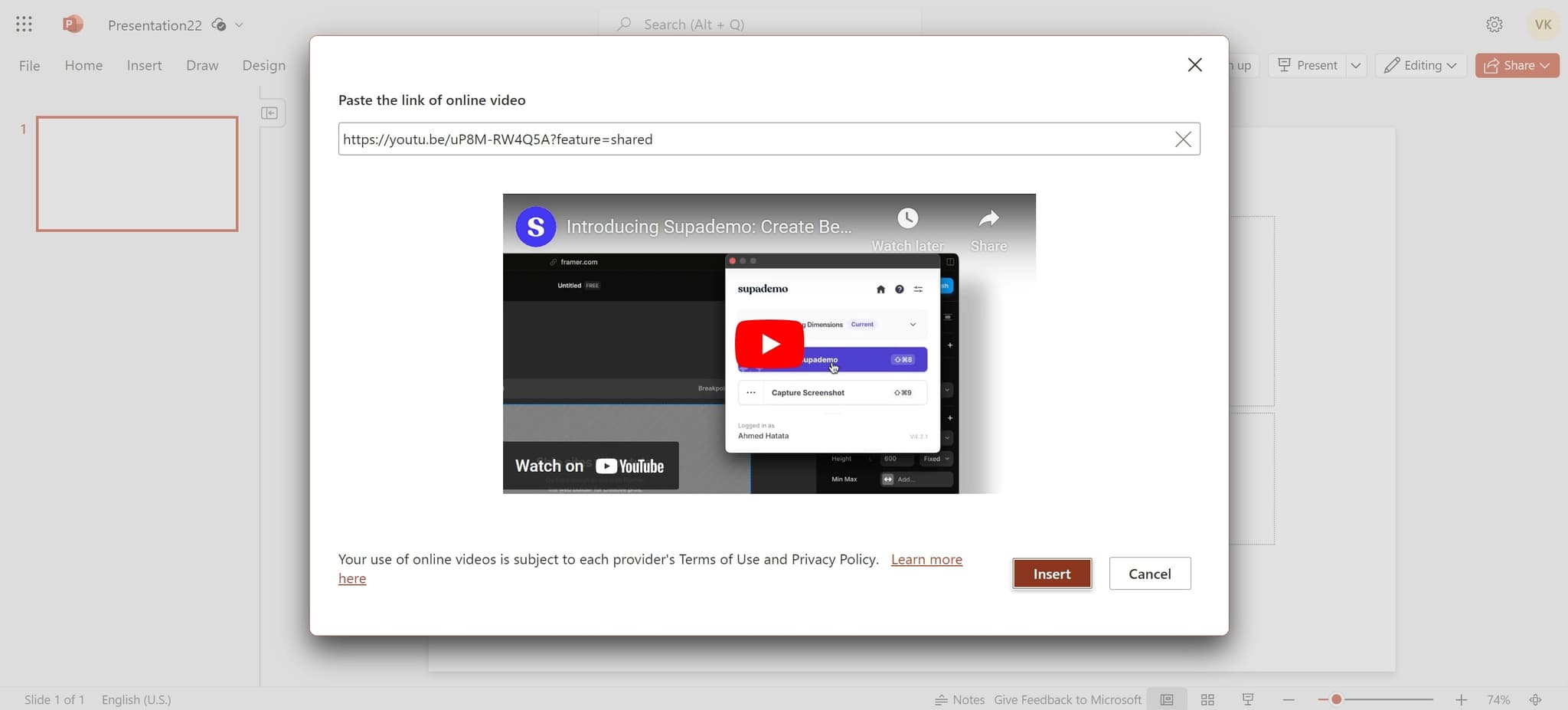
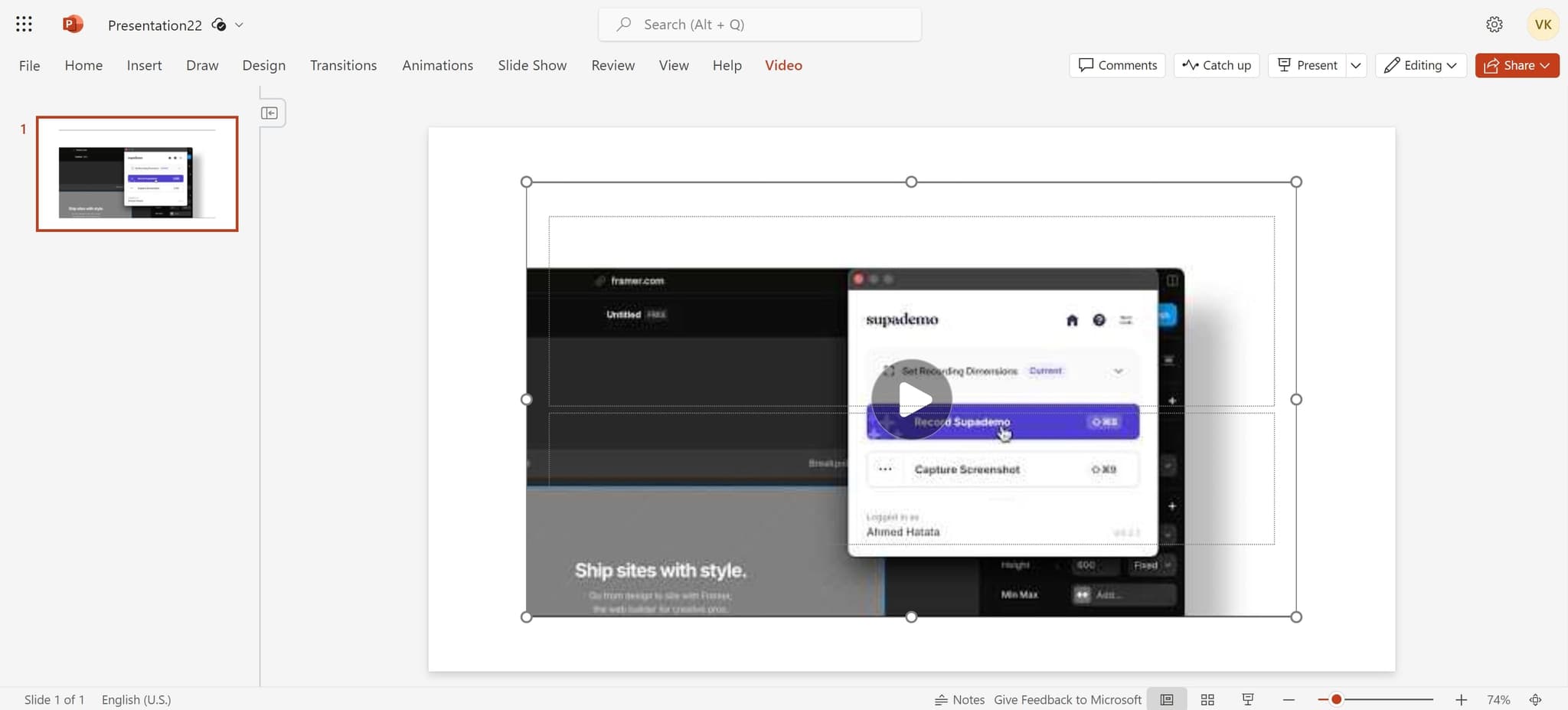
Click the Insert button to embed the video into your currently active slide. The video will appear as an embedded player that you can resize and position as needed.
- 11
Adjust video placement and size
Click and drag the video element to reposition it on your slide, or use the corner handles to resize it to your preferred dimensions. You can now play the video directly from your presentation.
Frequently asked questions
Common questions about how to embed a youtube video in powerpoint.
Most YouTube videos can be embedded, but some videos may have restrictions set by the uploader that prevent embedding. If you encounter an error, check the video's privacy settings or try a different video. Videos marked as private or with embedding disabled cannot be embedded in PowerPoint.
No, embedded YouTube videos require an active internet connection to play during your presentation. Make sure you have reliable Wi-Fi or data access when presenting, or consider downloading the video separately and inserting it as a local file if offline playback is needed.
Yes, the embedded video player includes standard playback controls like play, pause, and volume adjustment. You can click the video during your presentation to control playback, or set it to autoplay in the video properties if you prefer it to start automatically.
Check your internet connection first, as embedded videos require online access. If the connection is stable, verify that the video hasn't been removed or made private on YouTube. You can also try re-inserting the video or restarting PowerPoint to resolve temporary issues.
Yes, once the video is inserted, you can click and drag it to reposition it anywhere on your slide. Use the corner handles to resize the video while maintaining its aspect ratio, or drag the edges to resize freely. The video will remain embedded and playable at any size or position you choose.