How to Make PowerPoint Slides Vertical

PowerPoint presentations are typically designed in landscape orientation, but sometimes you need a vertical or portrait layout for specific projects. Changing your slide orientation from horizontal to vertical is a straightforward process that takes just a few clicks in the Design menu.
Quick summary
In this tutorial, you'll learn how to convert your PowerPoint slides from landscape to portrait orientation using the Custom Slide Size feature. By the end, your entire presentation will be formatted vertically to match your project requirements.
Why this matters
Vertical slides are essential for certain use cases like mobile presentations, digital signage, social media content, and kiosk displays. Changing orientation early in your presentation process ensures consistent formatting across all slides and saves time compared to adjusting individual elements later.
Step-by-step guide
- 1
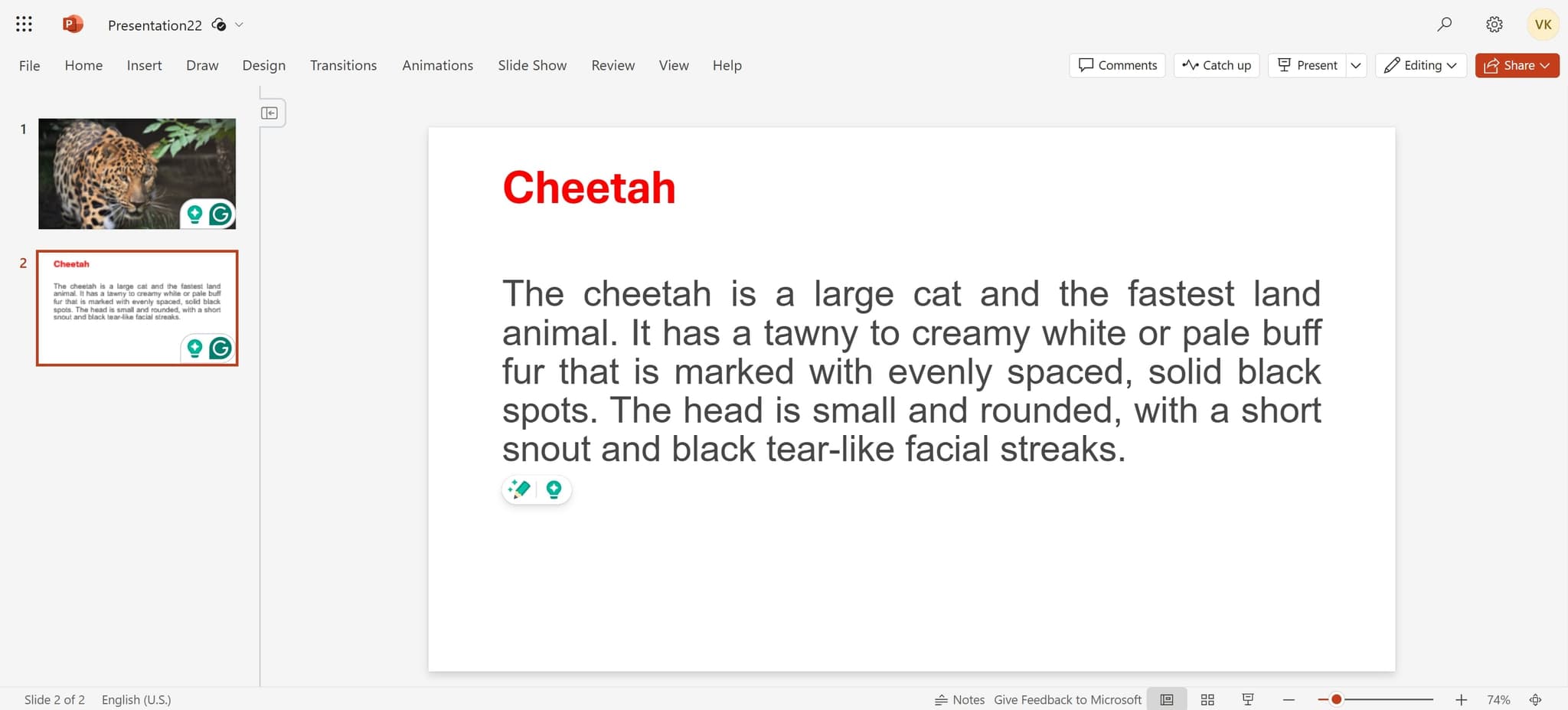
Access the File menu
Open Microsoft PowerPoint and ensure your presentation is active. Look for the main menu area at the top of the window.
- 2
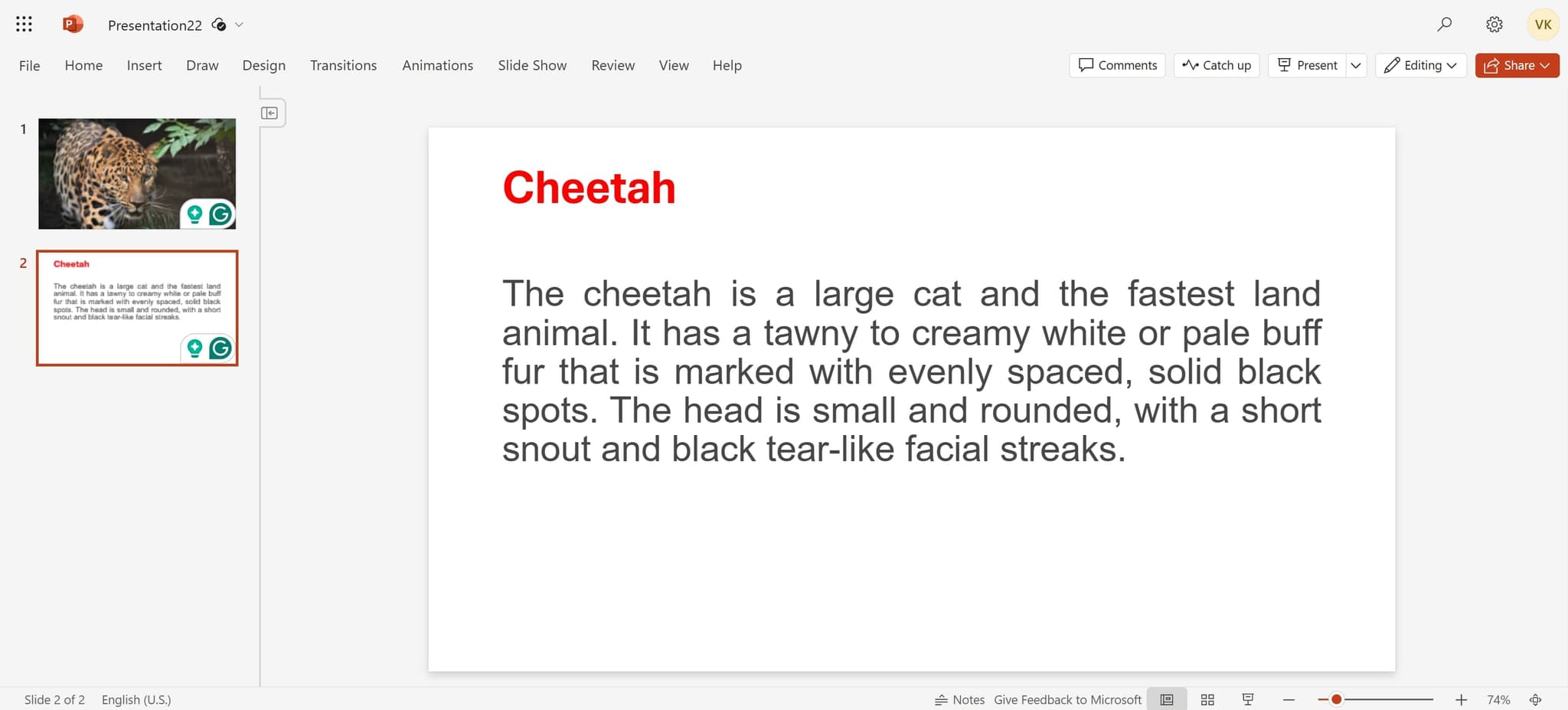
Navigate to additional options
Find and click the appropriate menu option to access presentation-wide settings. This prepares you to access design and layout controls.
- 3
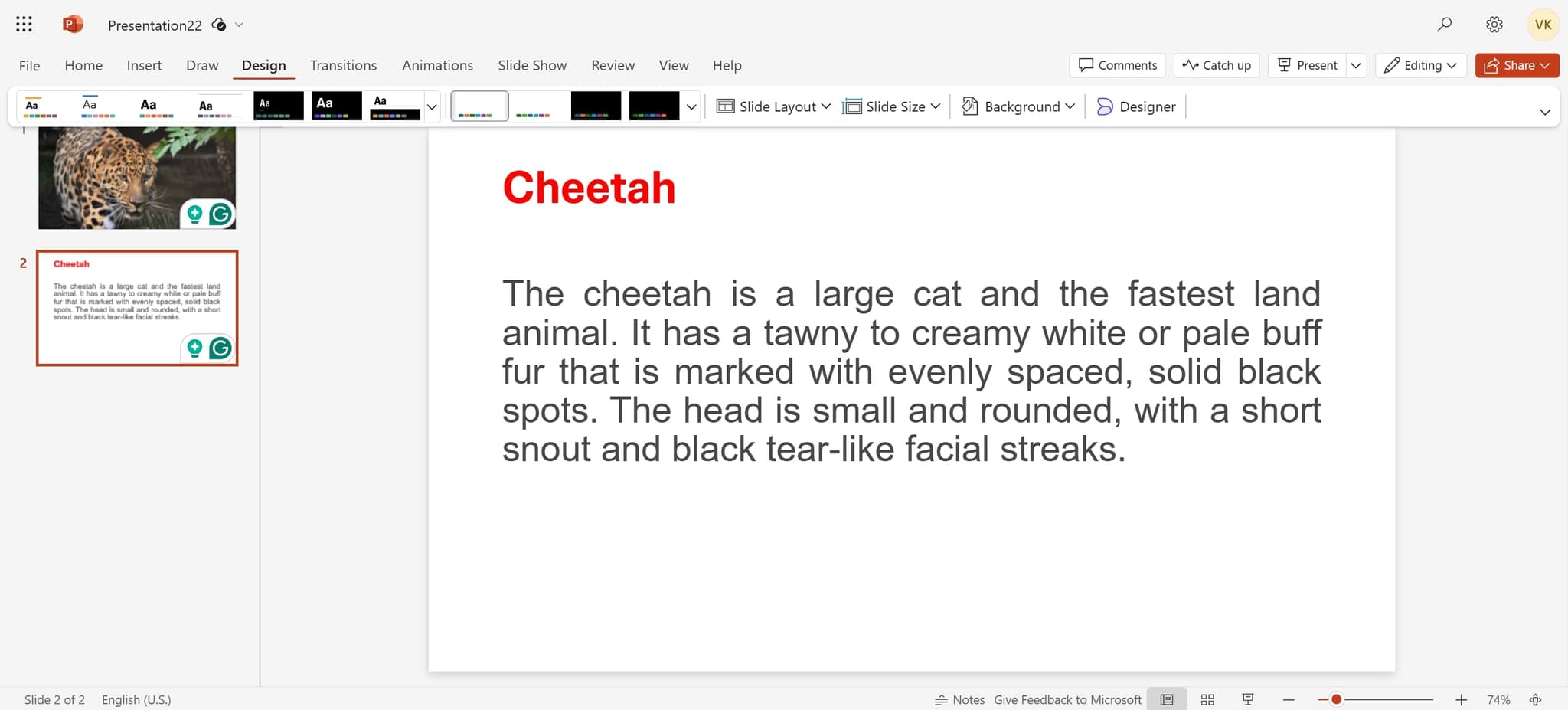
Click on Design
Select the Design tab from the ribbon menu. This gives you access to slide formatting options including size and orientation settings.
- 4
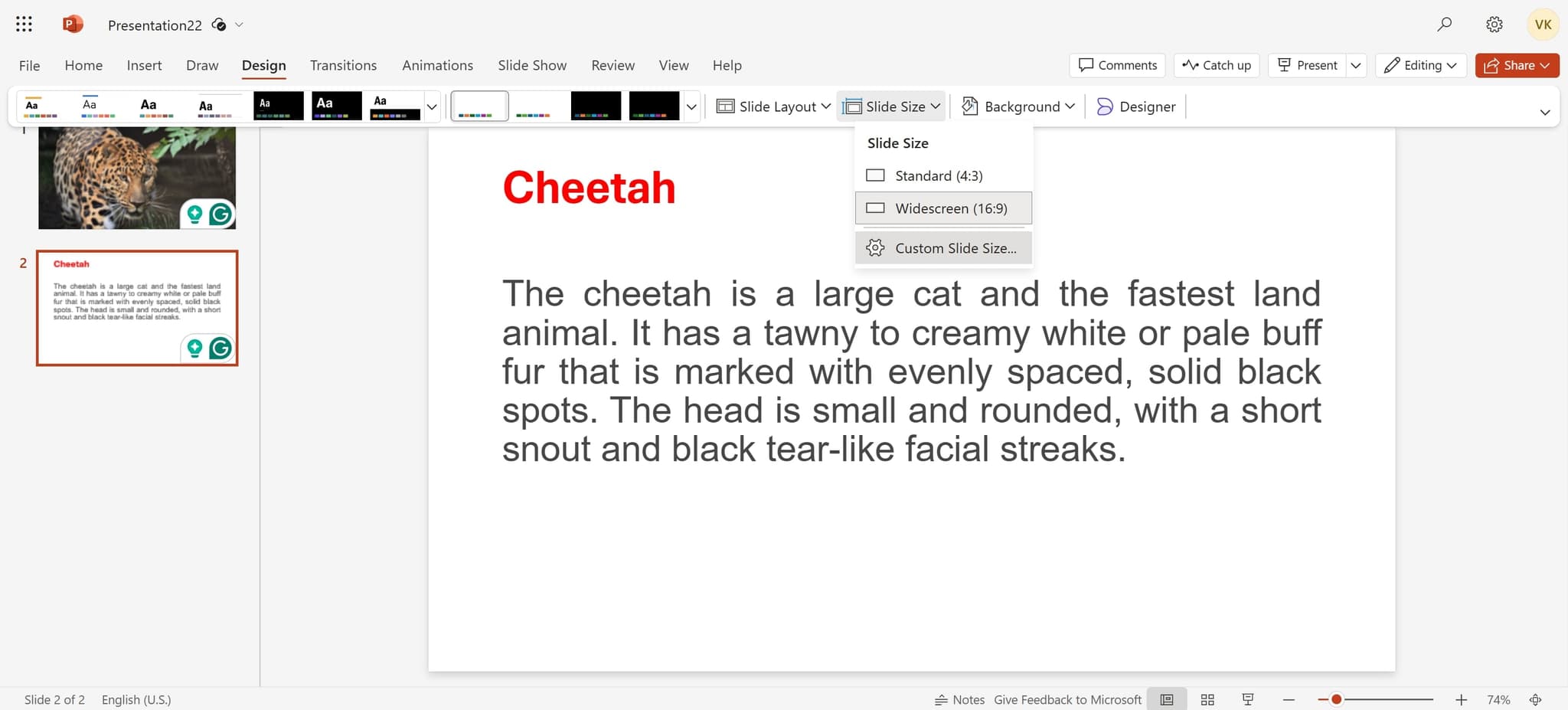
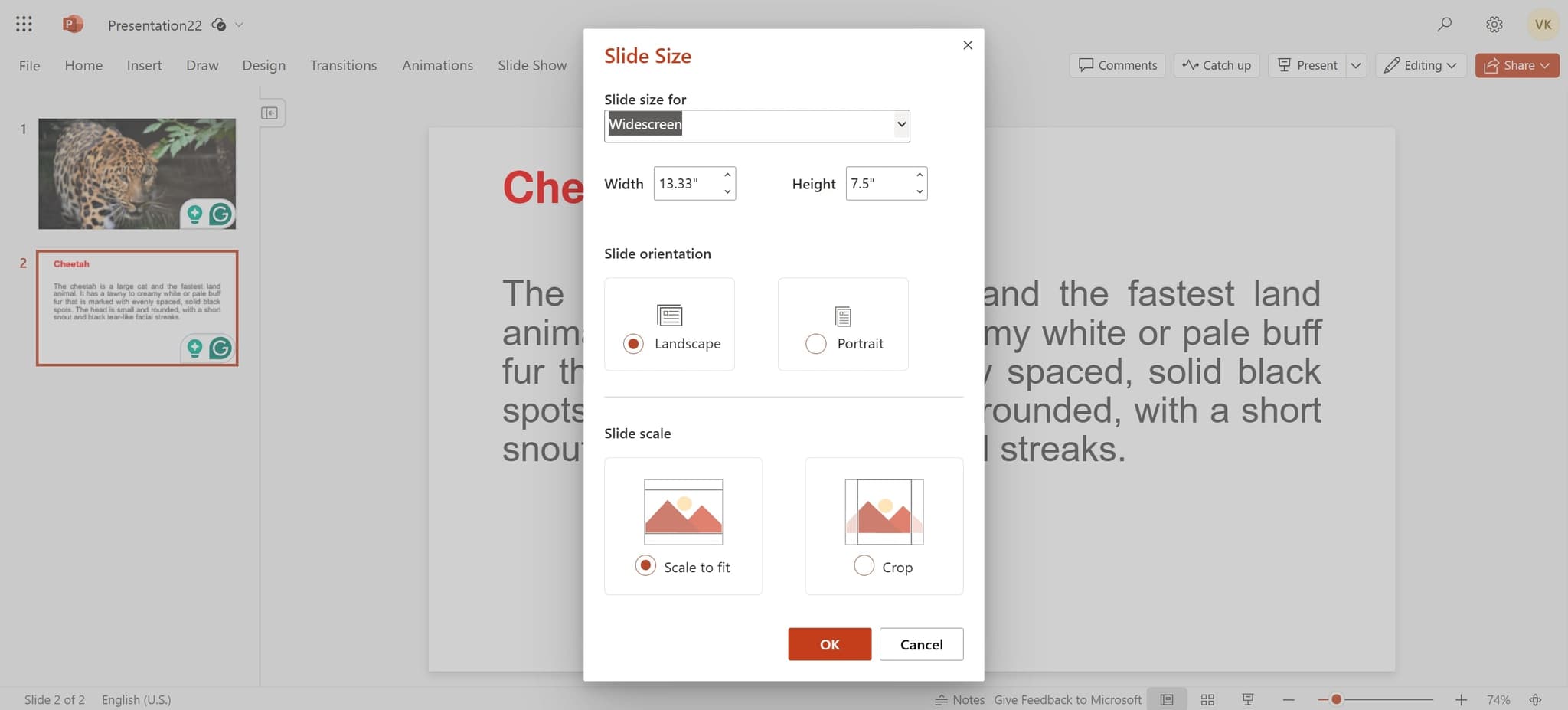
Select Custom Slide Size
Click on Custom Slide Size option within the Design menu. A dialog box will appear with dimension and orientation controls.
- 5
Choose portrait orientation
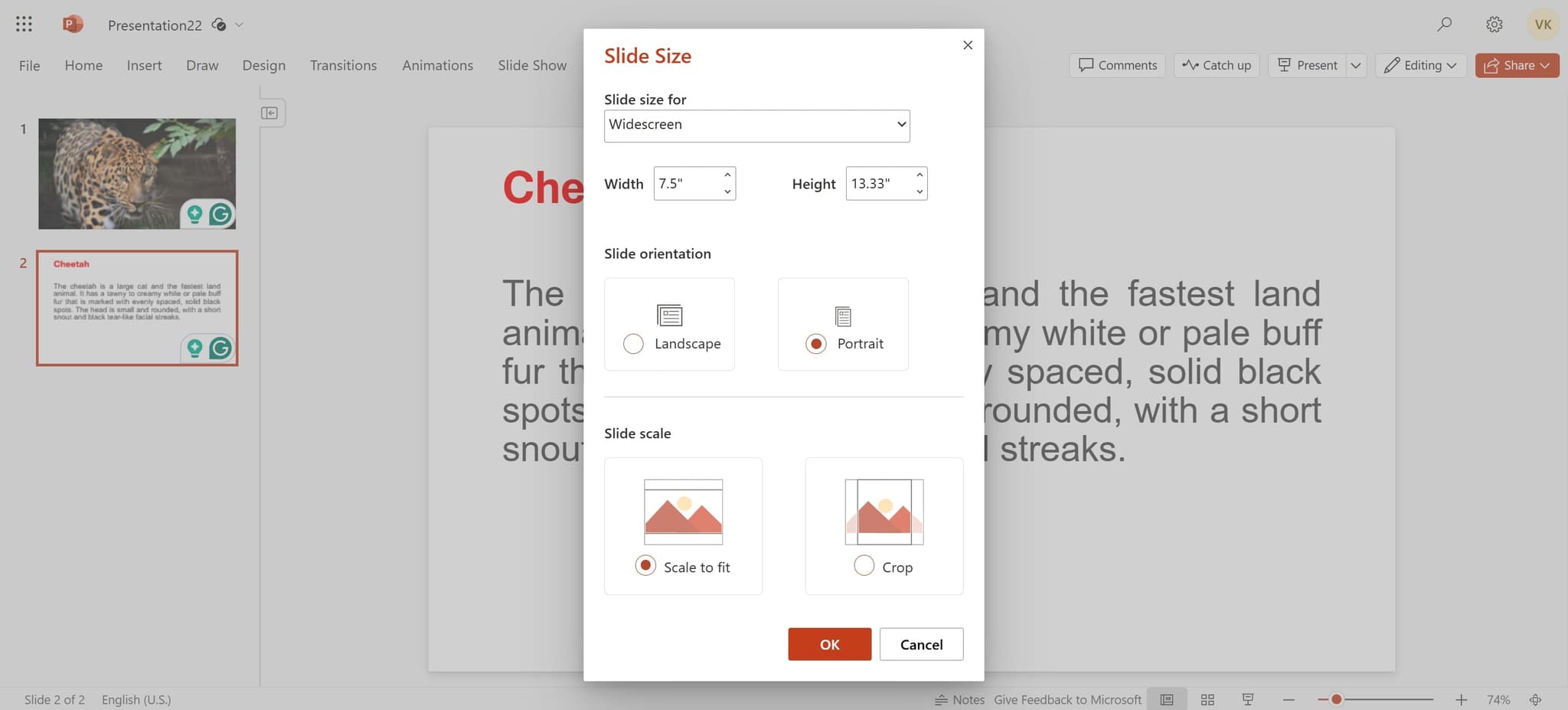
In the dialog box, select the portrait orientation option. You'll see the slide dimensions update to reflect the vertical layout you've chosen.
- 6
Apply the changes
Click OK to apply the new vertical orientation to all slides in your presentation. PowerPoint will reformat your entire presentation to portrait mode.
Frequently asked questions
Common questions about how to make powerpoint slides vertical.
Yes, PowerPoint will reformat your slides to the new dimensions. Some content may shift or need adjustment to fit the portrait layout properly. It's best to change orientation early in your design process rather than after adding extensive content.
No, PowerPoint applies the same orientation to all slides in a presentation. If you need mixed orientations, you would need to create separate presentations or use workarounds like inserting images or using placeholder techniques.
The default portrait slide size in PowerPoint is typically 7.5 inches wide by 10 inches tall. You can customize these dimensions further in the Custom Slide Size dialog if needed for specific requirements.
Follow the same steps: go to Design, click Custom Slide Size, and select landscape orientation instead. This will revert all your slides back to horizontal format.
PowerPoint offers several preset sizes in the Design menu, though you may need to check the available options for portrait presets. The Custom Slide Size feature allows you to either select a preset or manually enter specific dimensions for complete control.