How to Print PowerPoint with Notes

Printing PowerPoint presentations with speaker notes is essential for presenters who want reference material during live talks or for creating detailed handouts. This guide walks you through the process of accessing PowerPoint's print settings and selecting the notes layout option.
Quick summary
In this tutorial, you'll learn how to print your PowerPoint presentation with speaker notes included. By following these steps, you'll be able to configure your print settings and produce professional handouts that combine slides with your presentation notes on a single page.
Why this matters
Having printed slides with notes ensures you have a backup reference during presentations and helps audience members follow along with your key talking points. This workflow is particularly valuable for training sessions, lectures, and detailed presentations where speaker notes provide important context.
Step-by-step guide
- 1
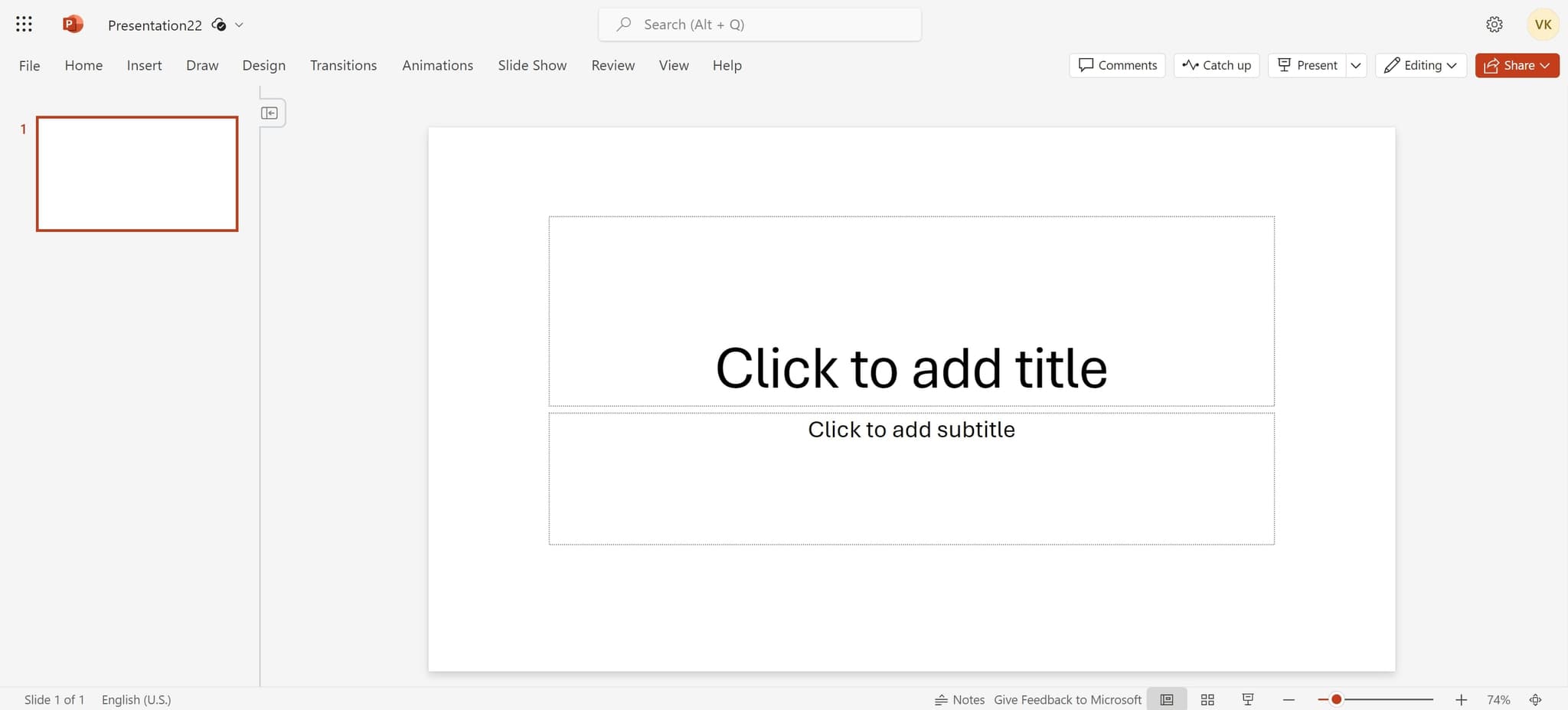
Open PowerPoint presentation
Start by opening your PowerPoint presentation in Microsoft PowerPoint. Ensure the presentation is fully loaded and you can see all your slides in the editor.
- 2
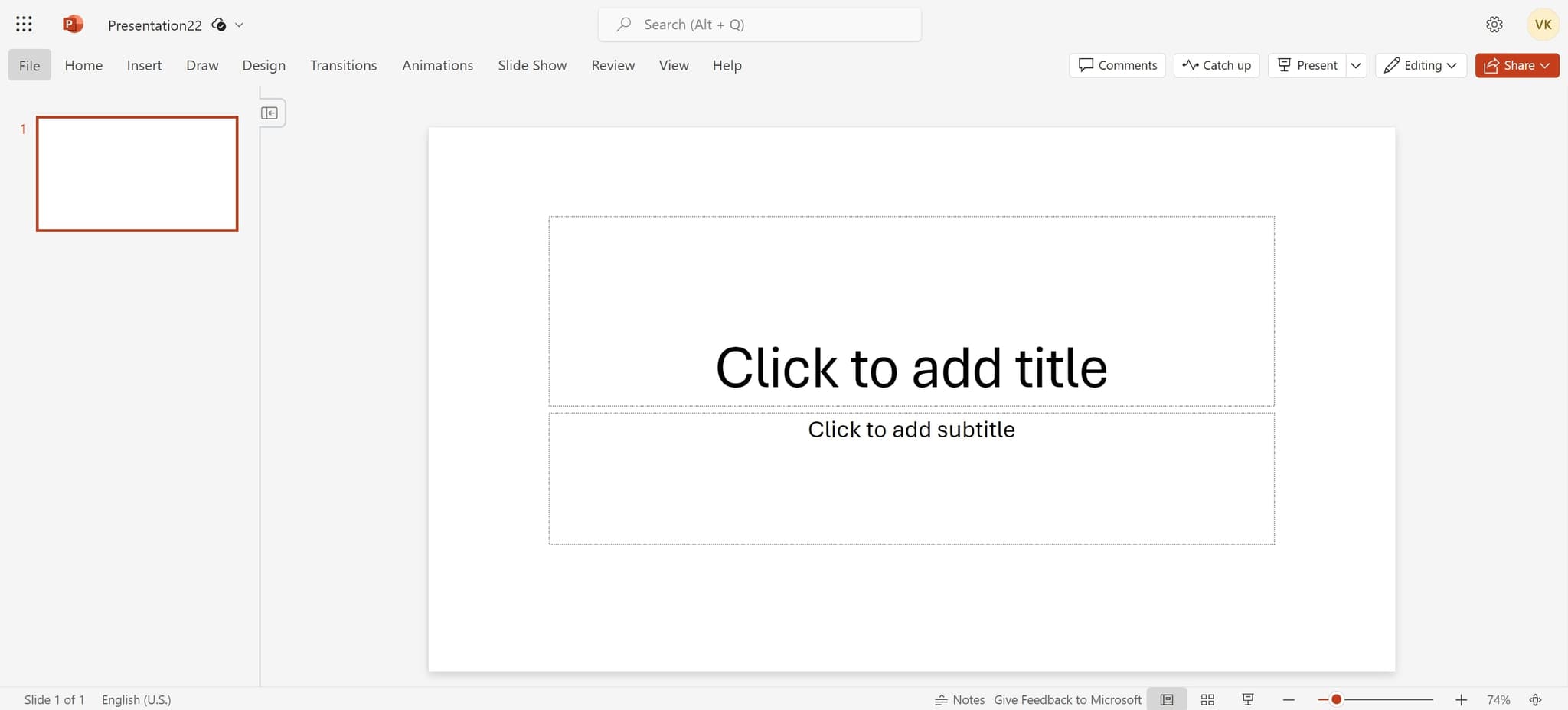
Click on File menu
Navigate to the File menu at the top of the PowerPoint window. This opens the backstage view where you'll find printing options and other file management tools.
- 3
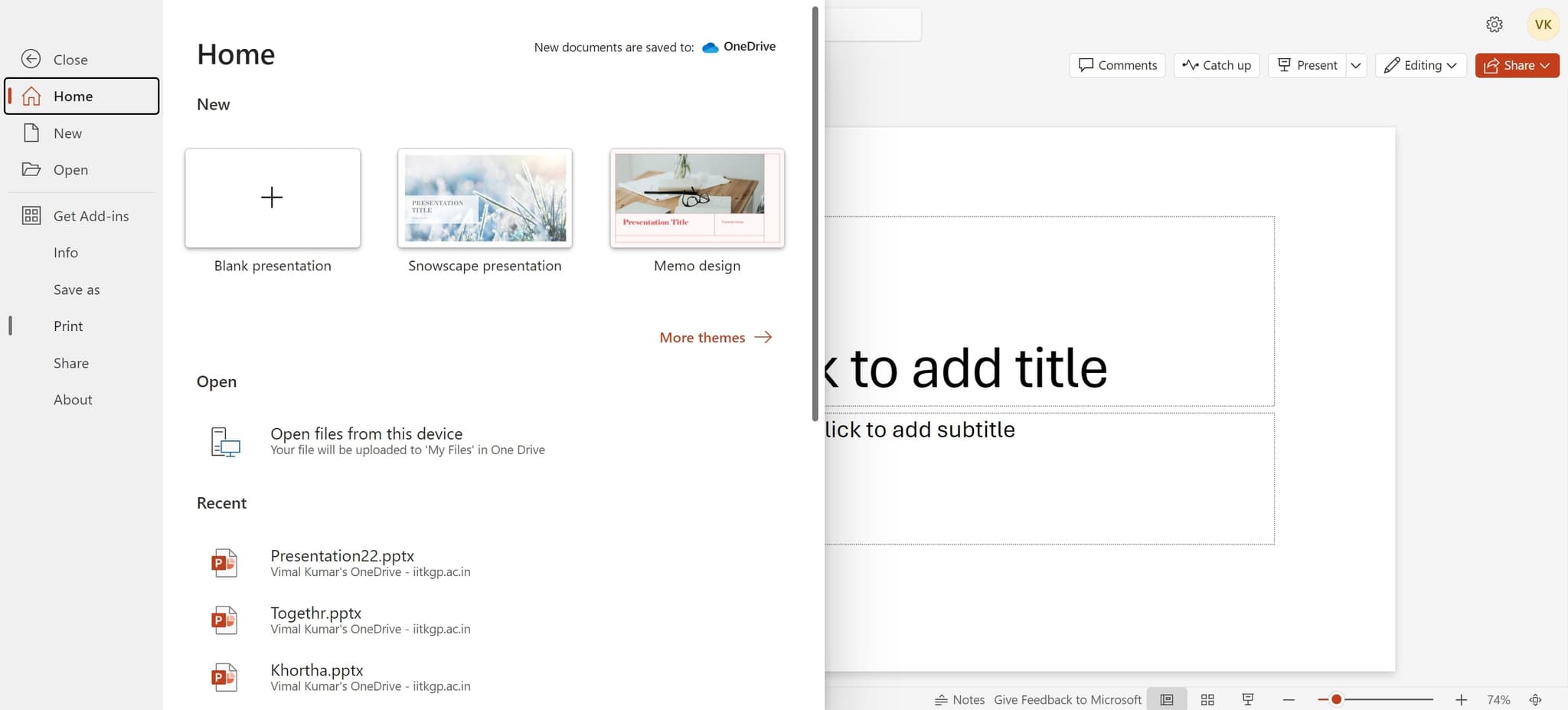
Select Print option
Click on Print from the File menu options. This opens the print dialog where you can configure your printing preferences and preview your output.
- 4
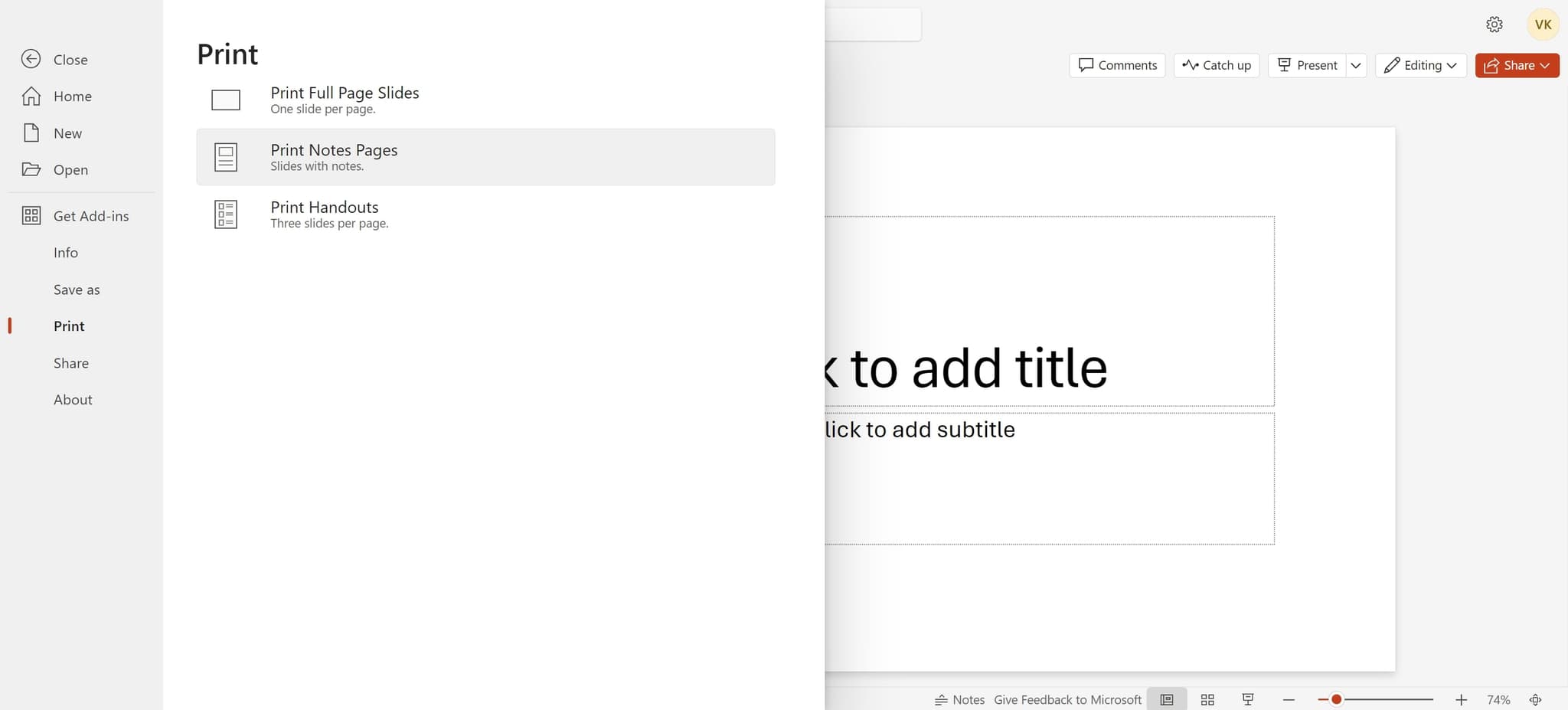
Choose Slides with notes layout
In the print settings, locate the layout options and select Slides with notes. This setting ensures that each printed page will display one slide with its corresponding speaker notes below it.
Frequently asked questions
Common questions about how to print powerpoint with notes.
Yes, in the Print dialog you can specify a custom range of slides to print. Enter the slide numbers you want to print in the Slides field before selecting the Slides with notes layout. This allows you to print only the slides you need without wasting paper on the entire presentation.
PowerPoint will automatically adjust the text size to fit the notes on the page, or you can reduce the font size in your notes before printing. If your notes are particularly lengthy, consider abbreviating them or printing to a larger page size like tabloid format.
The Slides with notes layout prints one slide per page with notes below it. If you want multiple slides per page, you would need to use the Handouts layout instead, but this removes the speaker notes. The Slides with notes format is specifically designed for one slide per page.
The Print dialog in PowerPoint displays a preview pane on the right side showing how your slides and notes will appear when printed. Review this preview before clicking Print to ensure the layout and formatting meet your needs.
Yes, the process is nearly identical on Mac PowerPoint. Open File, select Print, and choose Slides with notes from the print layout options. The interface and available options are consistent across Windows and Mac versions of PowerPoint.