How to embed Supademo into Coda

Embedding interactive product demos into Coda documents enables your team to learn workflows without leaving their workspace. This tutorial walks you through the process of integrating a demo into a Coda doc, making it easy to share knowledge and onboard team members directly within your documentation.
Quick summary
In this tutorial, you'll learn how to create a new Coda document, upload or select a demo, and embed it using Coda's embed functionality. By the end, you'll have a fully integrated demo accessible to anyone with access to your Coda workspace.
Why this matters
Embedding demos into Coda streamlines knowledge sharing by keeping instructional content alongside your existing documentation and processes. This reduces friction in onboarding and helps team members learn at their own pace without switching between multiple tools or platforms.
Step-by-step guide
- 1
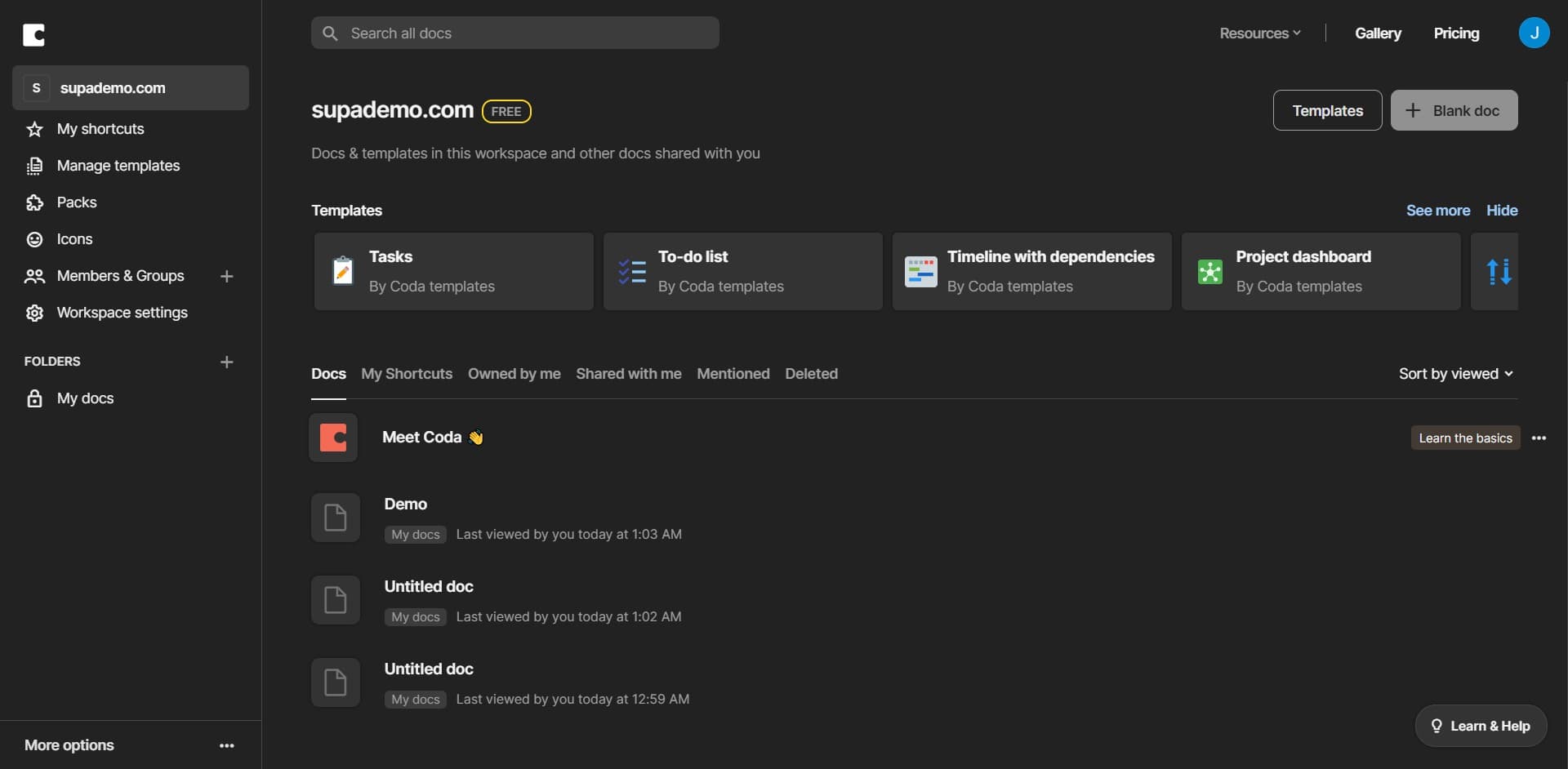
Create a new blank document
Open Coda and click on 'Blank doc' to start a fresh document. This creates a new workspace where you'll embed your demo.
- 2
Upload your demo or content
Use the Upload function to add your demo file or select an existing demo you want to embed. This prepares the content for integration into your Coda doc.
- 3
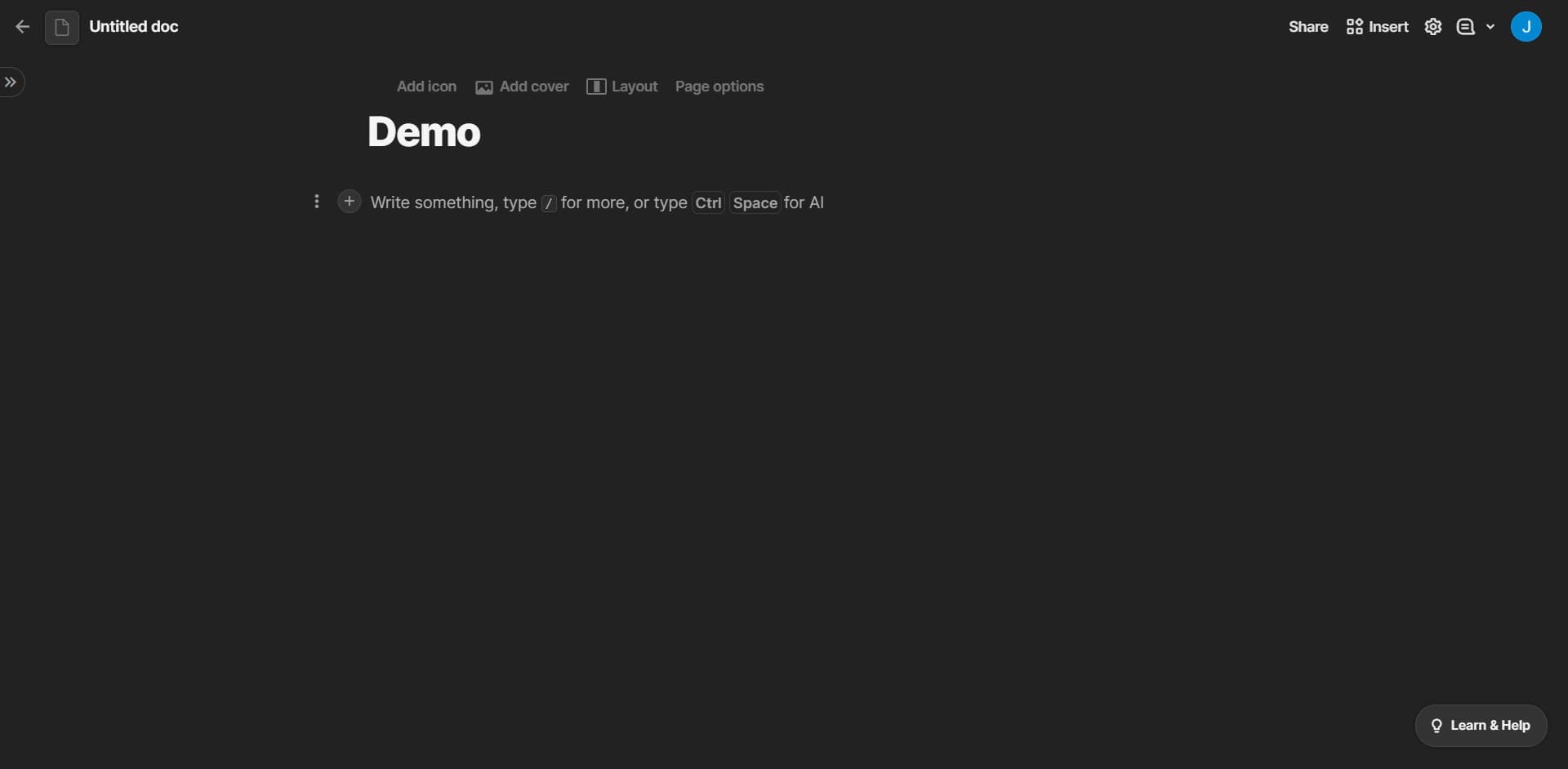
Select the embed option
Locate and click on the embed button in your content selection interface. This opens the embedding tools available within Coda.
- 4
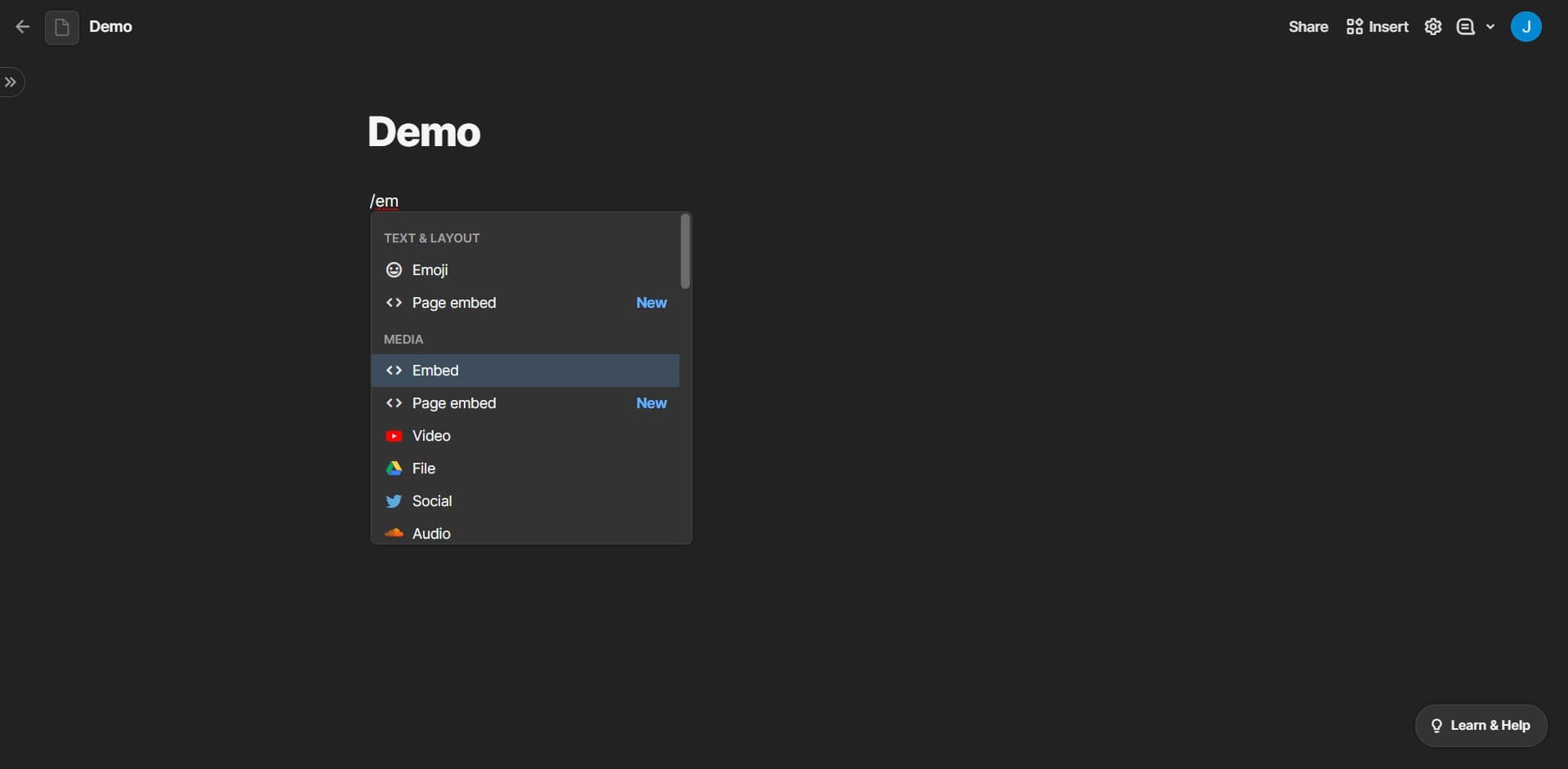
Click the Embed button
Click on 'Embed' to activate the embedding process. This allows you to configure how your demo will appear in the Coda document.
- 5
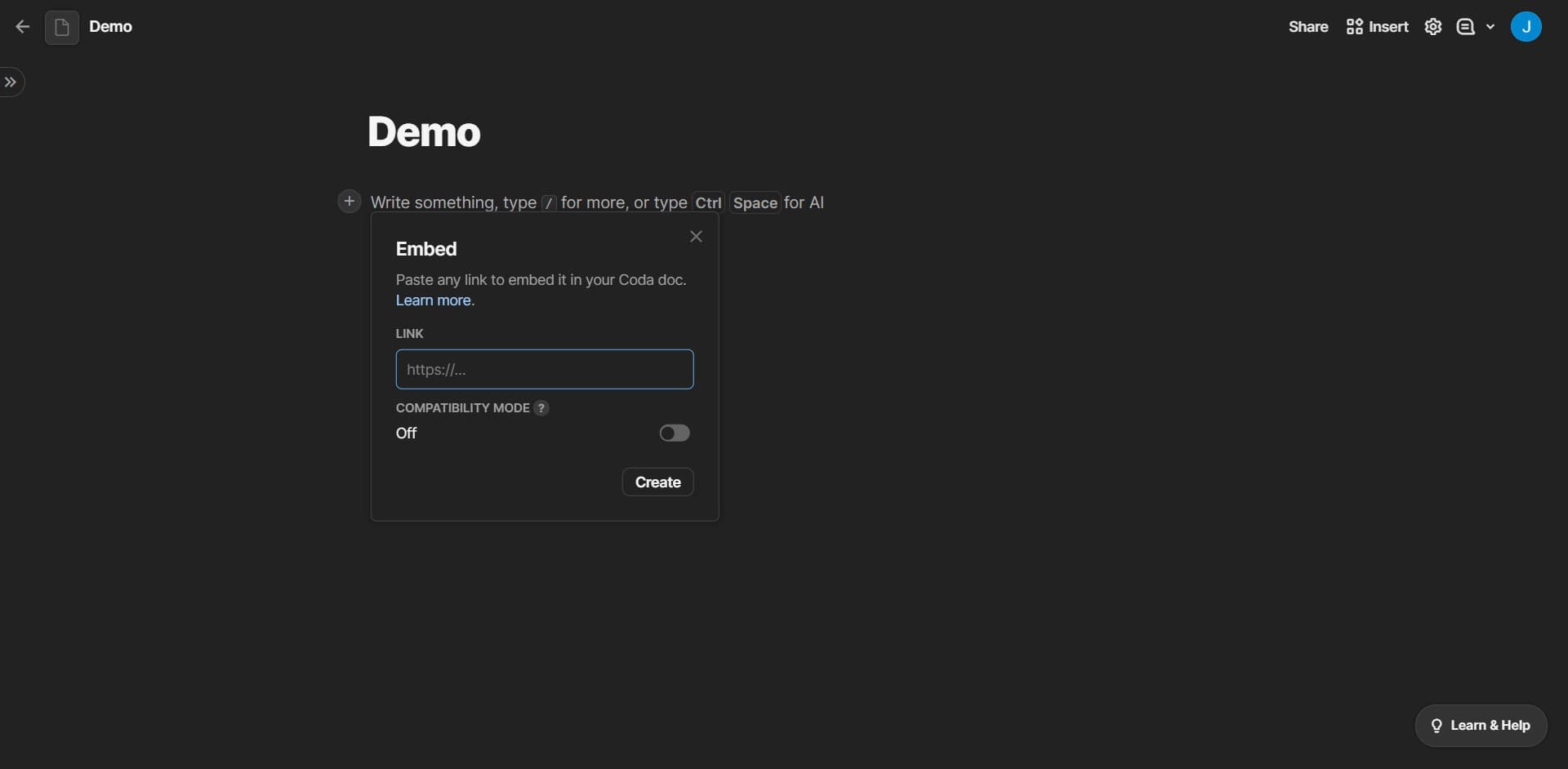
Complete the embed configuration
Follow the prompts to finalize your embed settings. You'll confirm the demo placement and any display preferences.
- 6
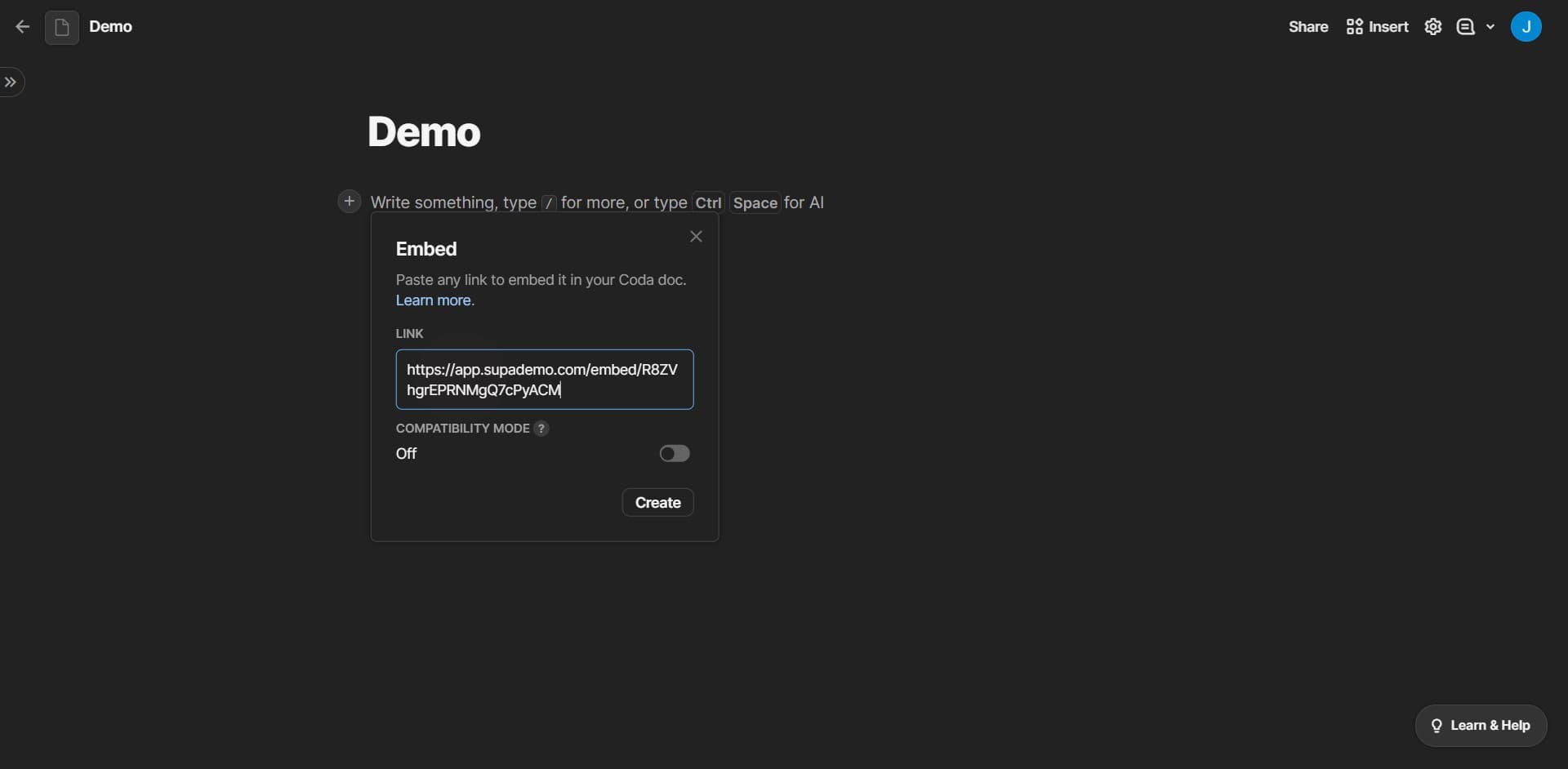
Confirm your embed selection
Click the confirmation button to proceed with embedding your demo into the document. This ensures your selection is locked in.
- 7
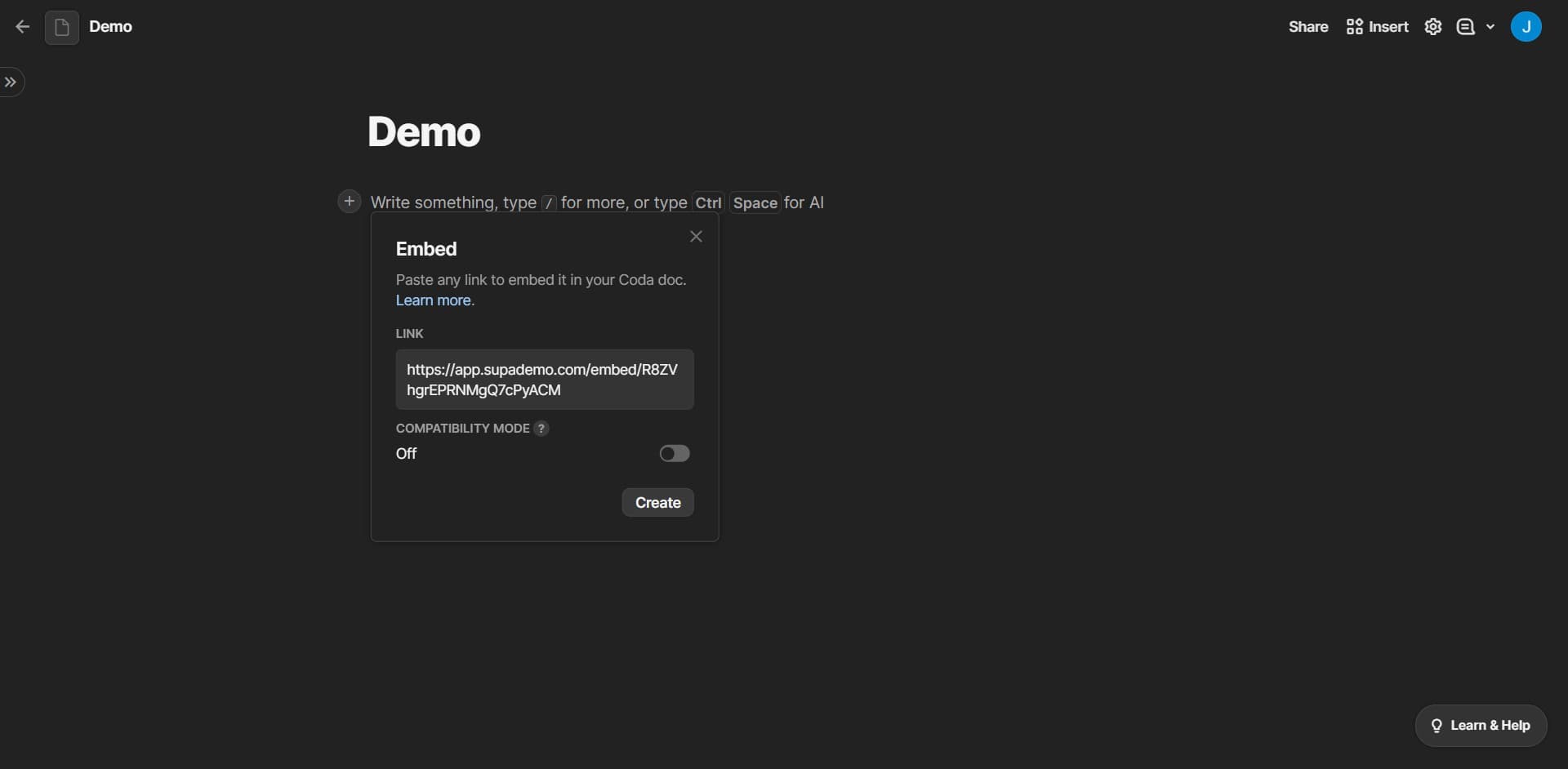
Create the embedded demo
Click on 'Create' to finalize the embedding process. Your demo is now integrated into the Coda document and ready to view.
- 8
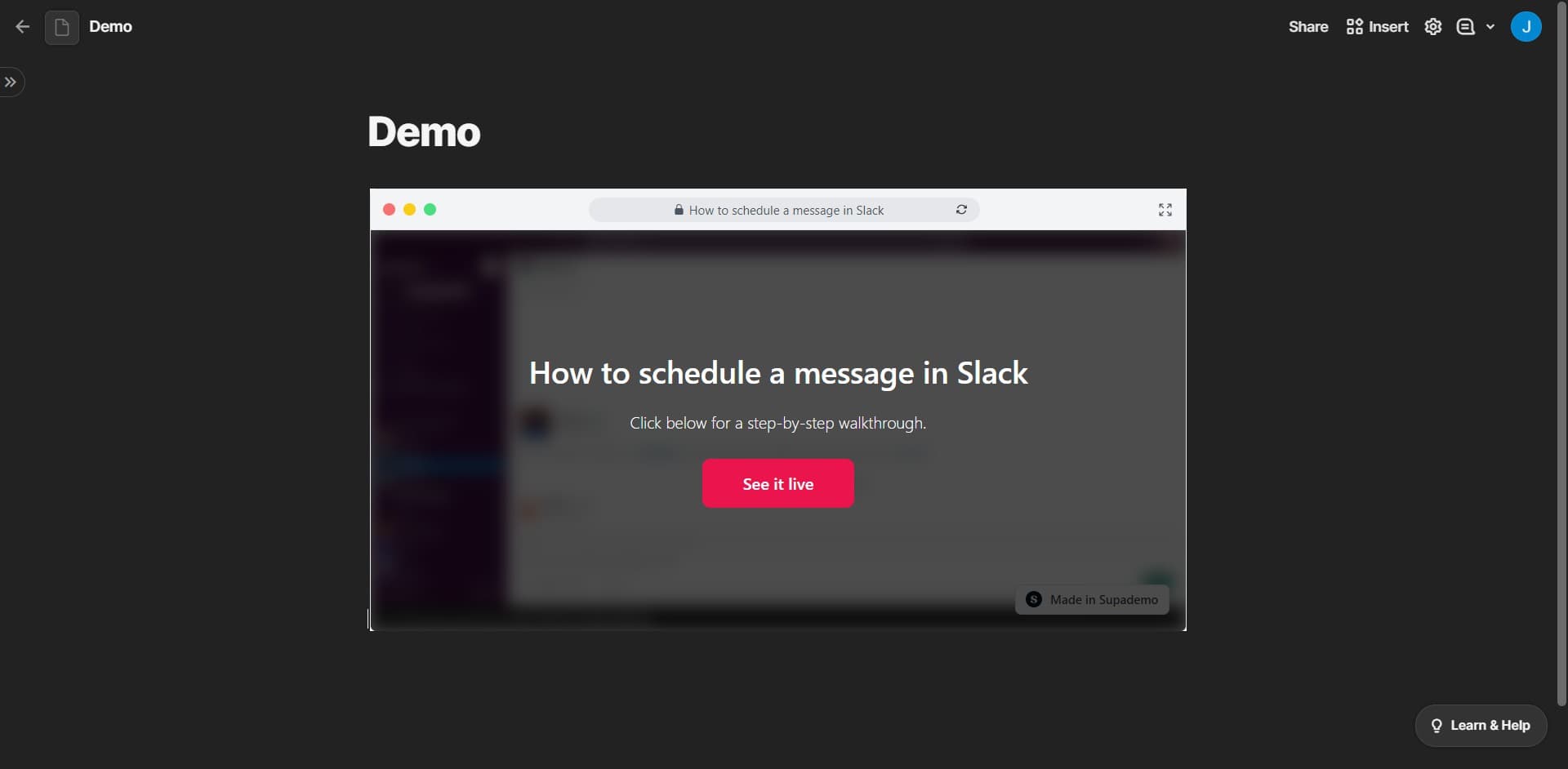
Save and publish your document
Click the save or publish button to preserve your changes and make the document accessible to your team. Your embedded demo is now live in Coda.
Frequently asked questions
Common questions about how to embed supademo into coda.
Yes, you can embed multiple demos in one document by repeating the upload and embed process for each demo. This is useful for creating comprehensive documentation or training materials that cover multiple workflows in one location.
Coda supports embedding various content types, including interactive demos, videos, and web content. Check Coda's embed documentation or the specific demo platform's integration guide to confirm compatibility with your content format.
Yes, you can manage visibility through Coda's sharing and permission settings. Set document access to 'Private,' 'Shared with specific people,' or 'Public' depending on who should view the embedded demo.
This depends on how the embed is configured. Some embedded demos pull live updates from the source, while others are static snapshots. Check the embed settings or your demo platform's documentation for details on how updates are handled.
Most embedding options allow you to adjust the size and display settings of the embedded content within Coda. After embedding, you can typically click on the demo and use Coda's formatting tools to resize or reposition it as needed.