How to embed Supademo on Document360

Embedding interactive product demonstrations directly into your knowledge base enhances user learning and reduces support inquiries. This guide walks you through the process of embedding a Supademo on Document360, enabling your audience to access hands-on demos alongside your documentation.
Quick summary
In this tutorial, you'll learn how to extract and embed a Supademo into your Document360 knowledge base. You'll discover how to access the embed code and integrate it seamlessly into your help articles for maximum user engagement.
Why this matters
Embedding demos directly in documentation creates a seamless learning experience where users can see product features in action without leaving your help center. This approach significantly improves comprehension, reduces onboarding time, and decreases support ticket volume by providing contextual, visual guidance.
Step-by-step guide
- 1
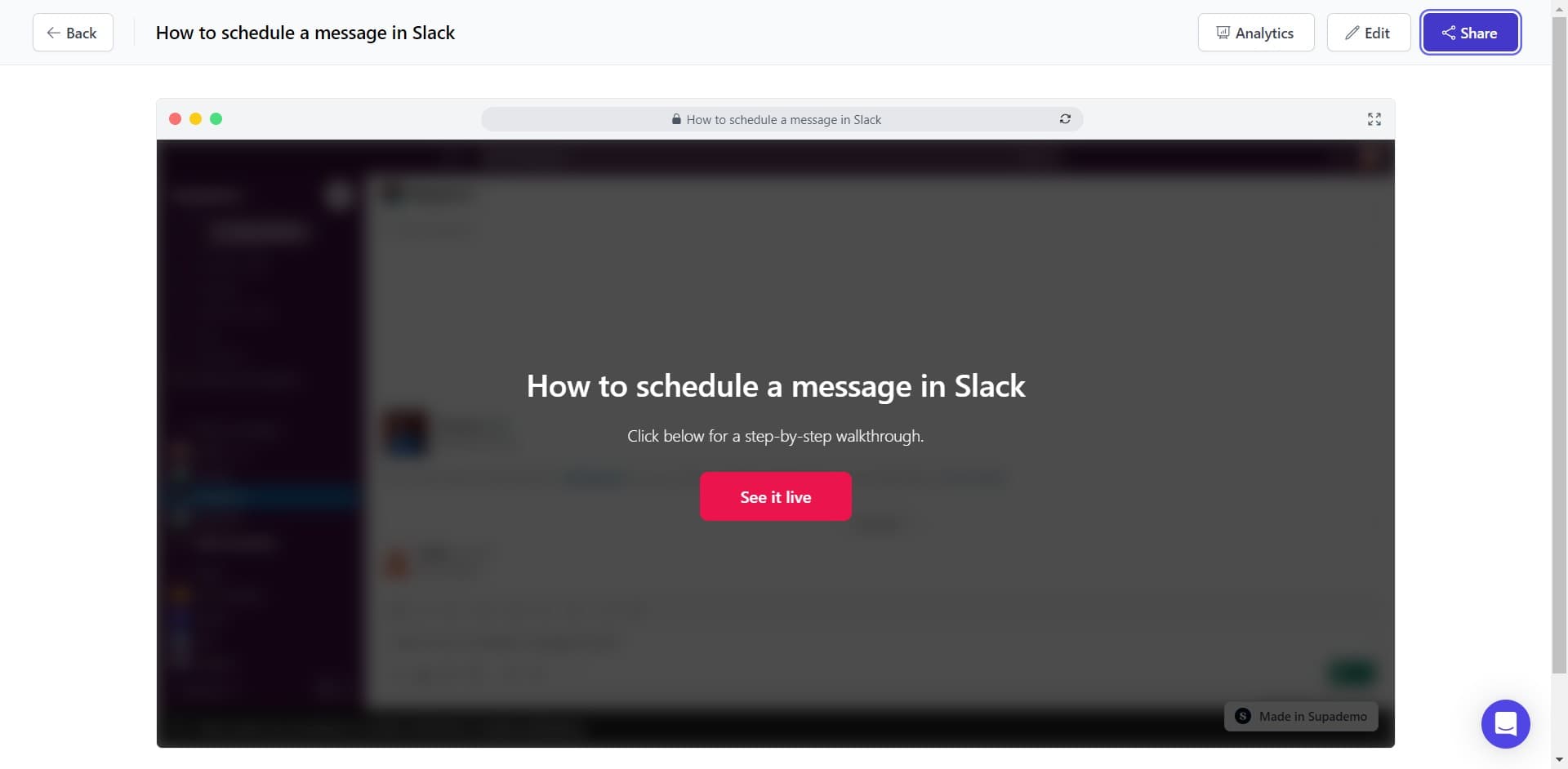
Click on Share
Navigate to your demo and locate the Share button in the interface. This opens the sharing options for your demo.
- 2
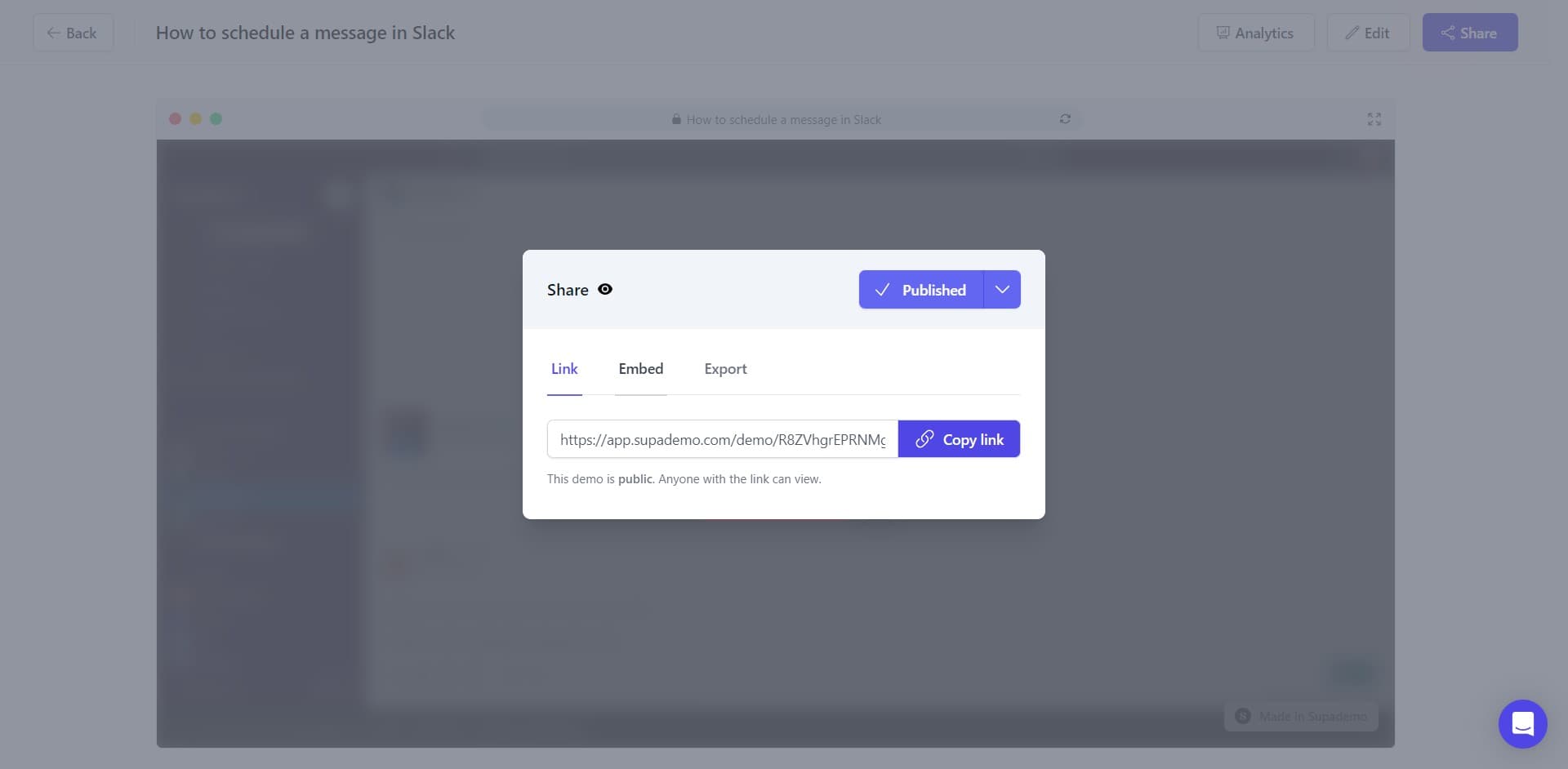
Click on Embed
From the sharing menu, select the Embed option to access embedding capabilities. This reveals the embed configuration options for your demo.
- 3
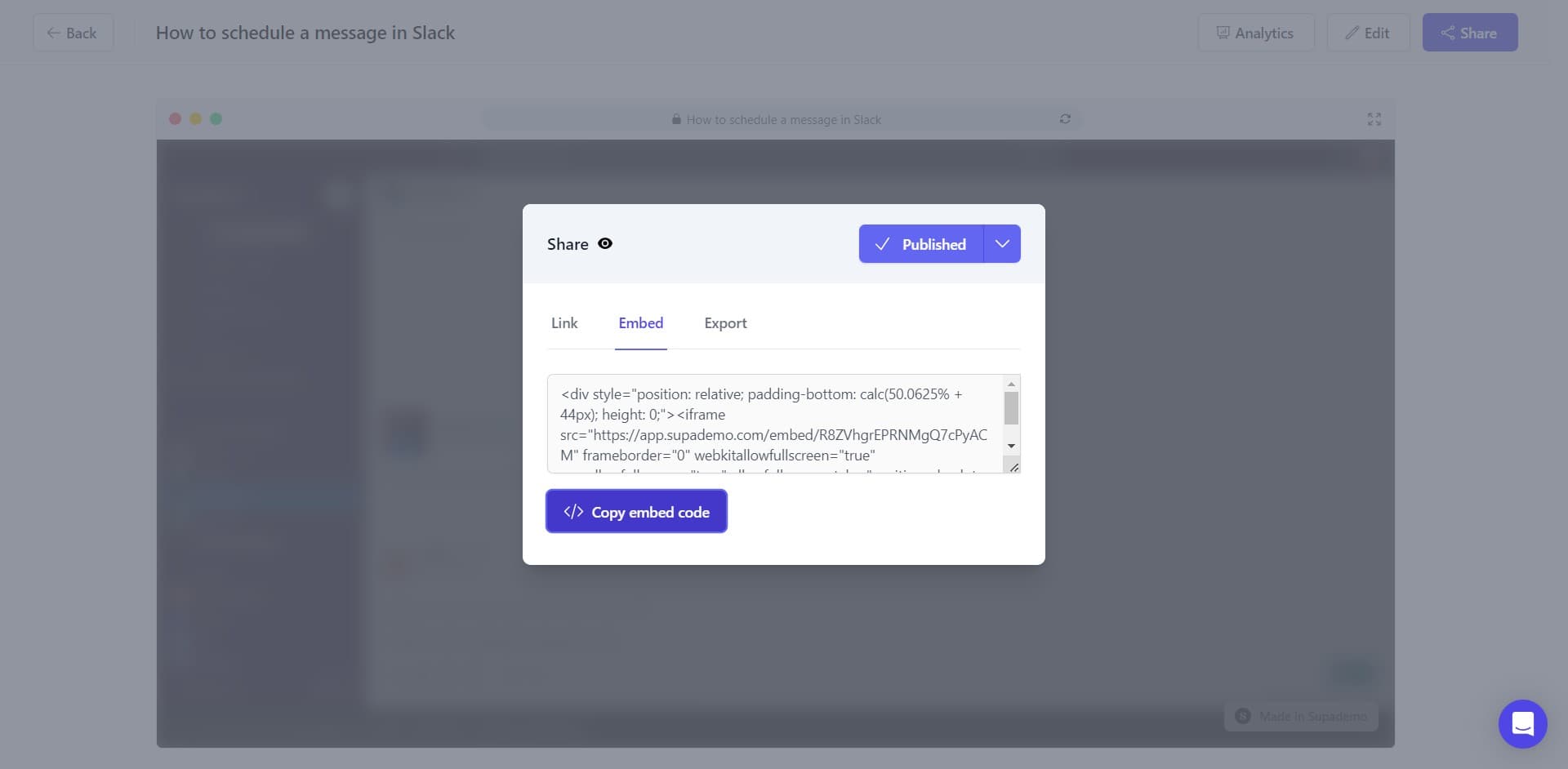
Copy the embed code
Click the Copy embed code button to copy the code to your clipboard. This code is what you'll paste into Document360.
- 4
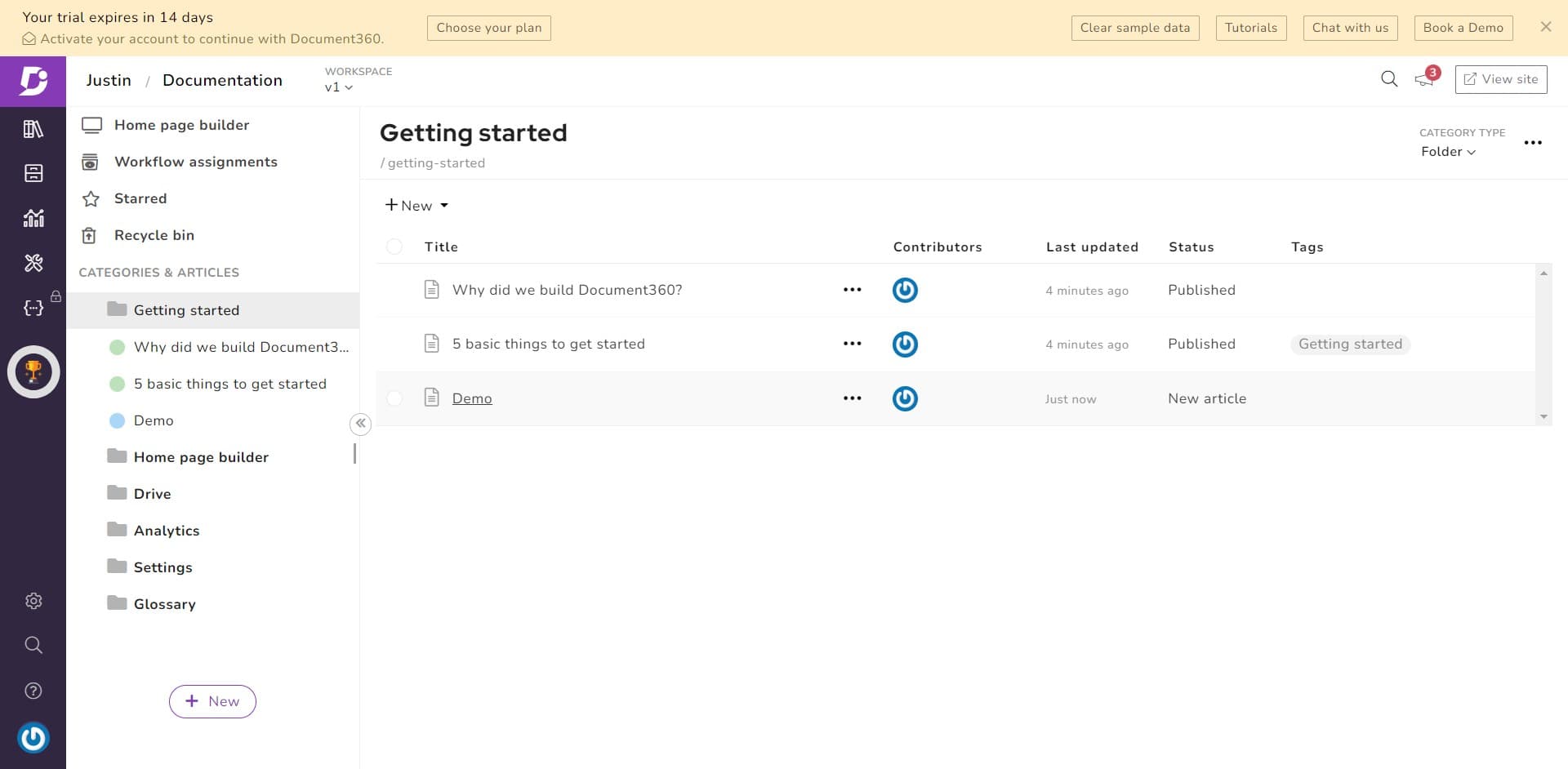
Navigate to your demo
Open the Document360 article or page where you want to embed the demo. Ensure you're in edit mode so you can add the embed code.
- 5
Locate the HTML insertion area
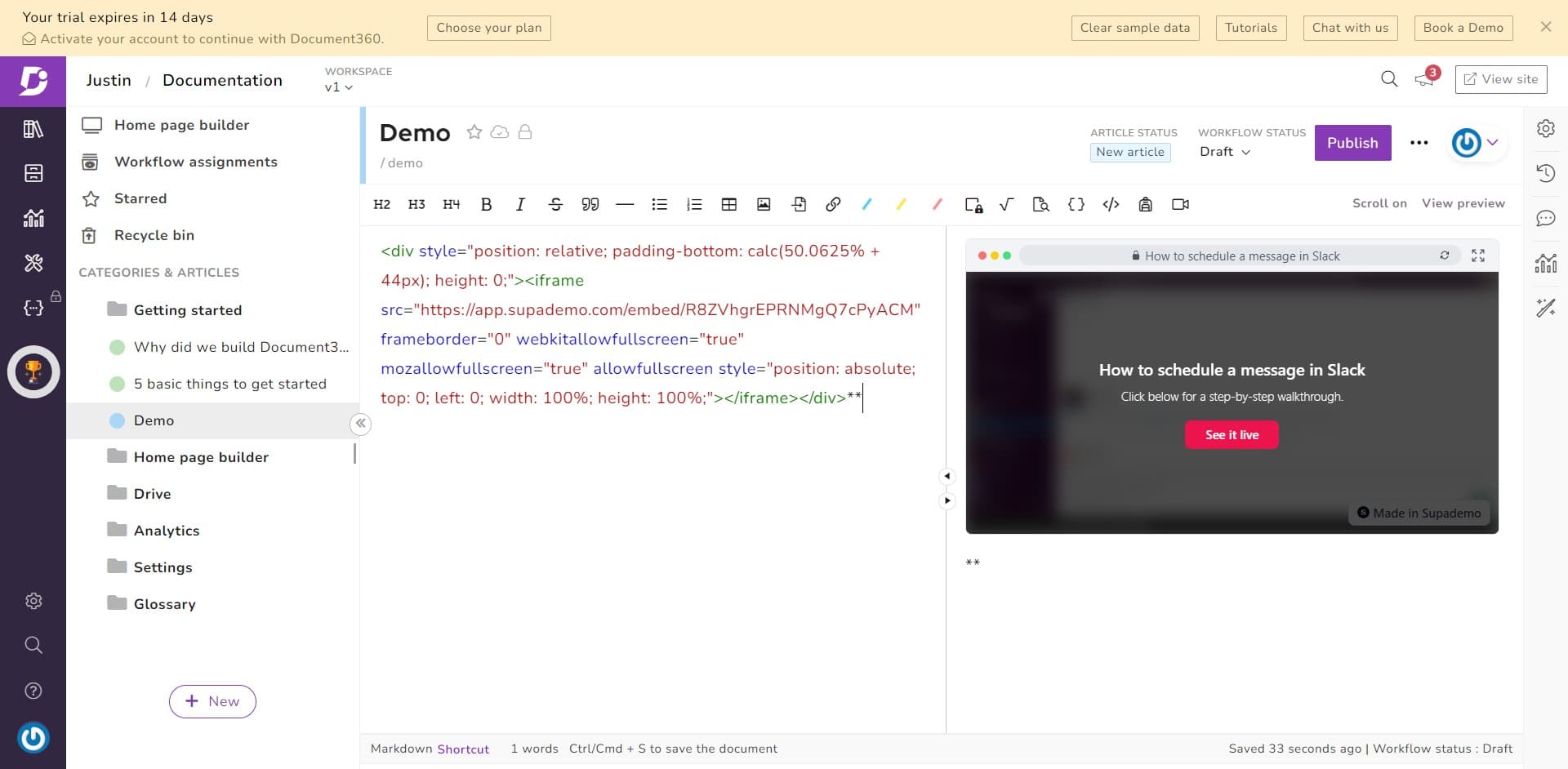
Find the section of your Document360 editor that allows you to insert custom HTML or code. This is typically available in the advanced or code editing mode.
- 6
Paste the embed code
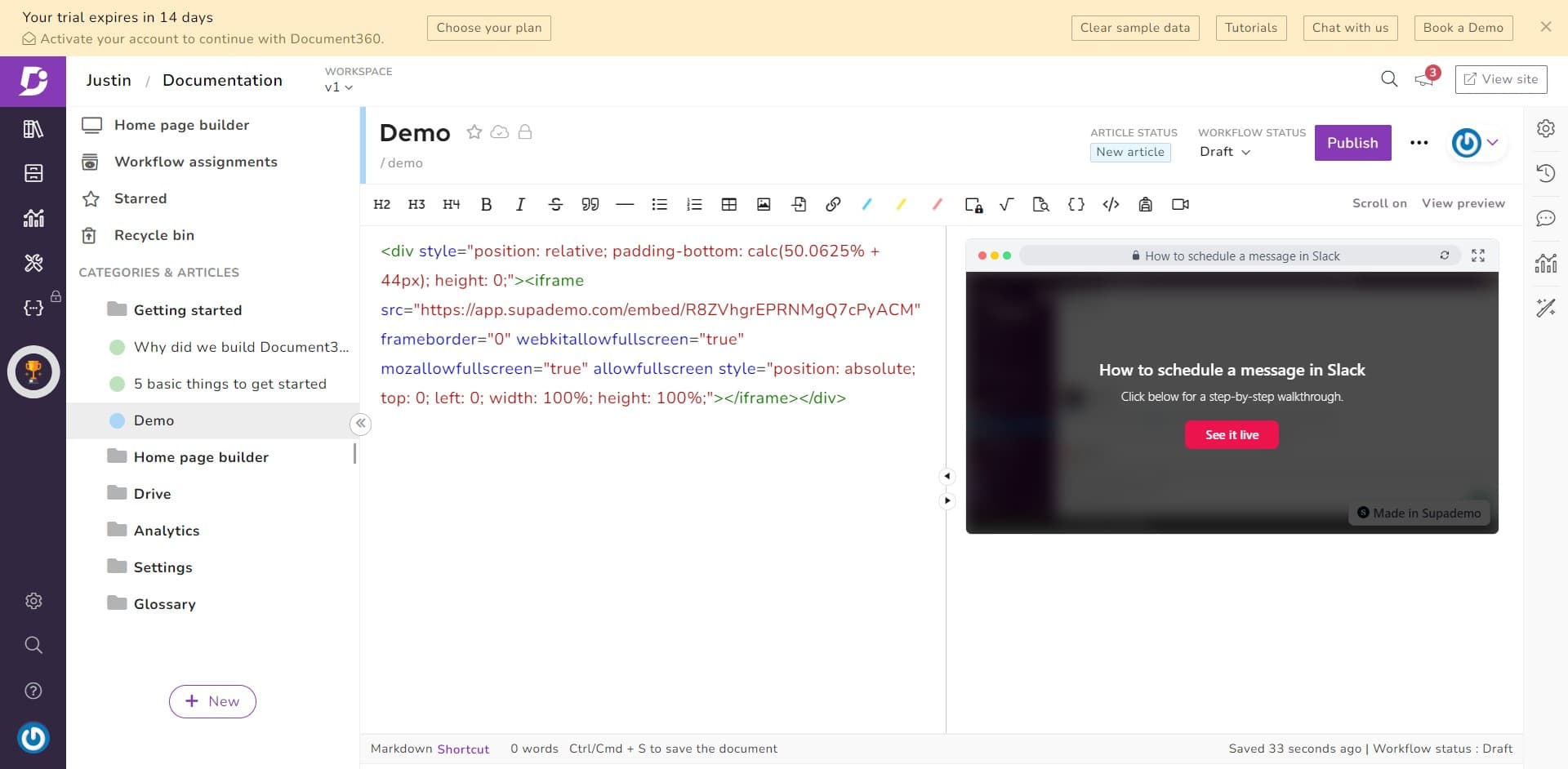
Insert the copied embed code into the HTML field and save your changes. Your demo will now appear embedded within the Document360 article.
Frequently asked questions
Common questions about how to embed supademo on document360.
Yes, most embed codes include width and height parameters that you can modify to match your Document360 layout. Check the embed code for style attributes and adjust the dimensions as needed to fit your article's design.
Yes, the embedded demo will reflect any updates made to the original demo in real time. Since you're embedding a live reference, changes to the source demo appear immediately in Document360.
Check your Document360 subscription plan and permissions settings, as some plans restrict custom HTML. You may need to upgrade your plan or contact Document360 support to enable HTML embedding capabilities.
Yes, embedded demos remain fully interactive, allowing readers to click through steps, explore features, and engage with the demo without leaving your documentation. This creates a comprehensive learning experience within your help center.
Use your Supademo analytics dashboard to monitor views, completion rates, and user interactions with embedded demos. Document360 may also provide page analytics that capture engagement metrics for articles containing embedded content.