How to embed Supademo on Freshdesk

Embedding interactive product demos directly into Freshdesk knowledge base articles helps your support team provide faster, more visual guidance to customers. This integration reduces support tickets by enabling users to see exactly how to perform tasks within your product. Learn how to seamlessly add demos to Freshdesk articles in just a few steps.
Quick summary
In this tutorial, you'll learn how to create a new Freshdesk article, upload supporting content, and embed an interactive demo that guides users through your product workflows. You'll navigate the Freshdesk editor, configure your content hierarchy, and publish your article with embedded demo functionality.
Why this matters
Embedding demos in Freshdesk articles transforms static documentation into actionable guides that reduce customer frustration and support load. Visual, step-by-step walkthroughs help users resolve issues independently, improving satisfaction and freeing your support team to handle complex inquiries. This integration creates a cohesive self-service experience that benefits both customers and your organization.
Step-by-step guide
- 1
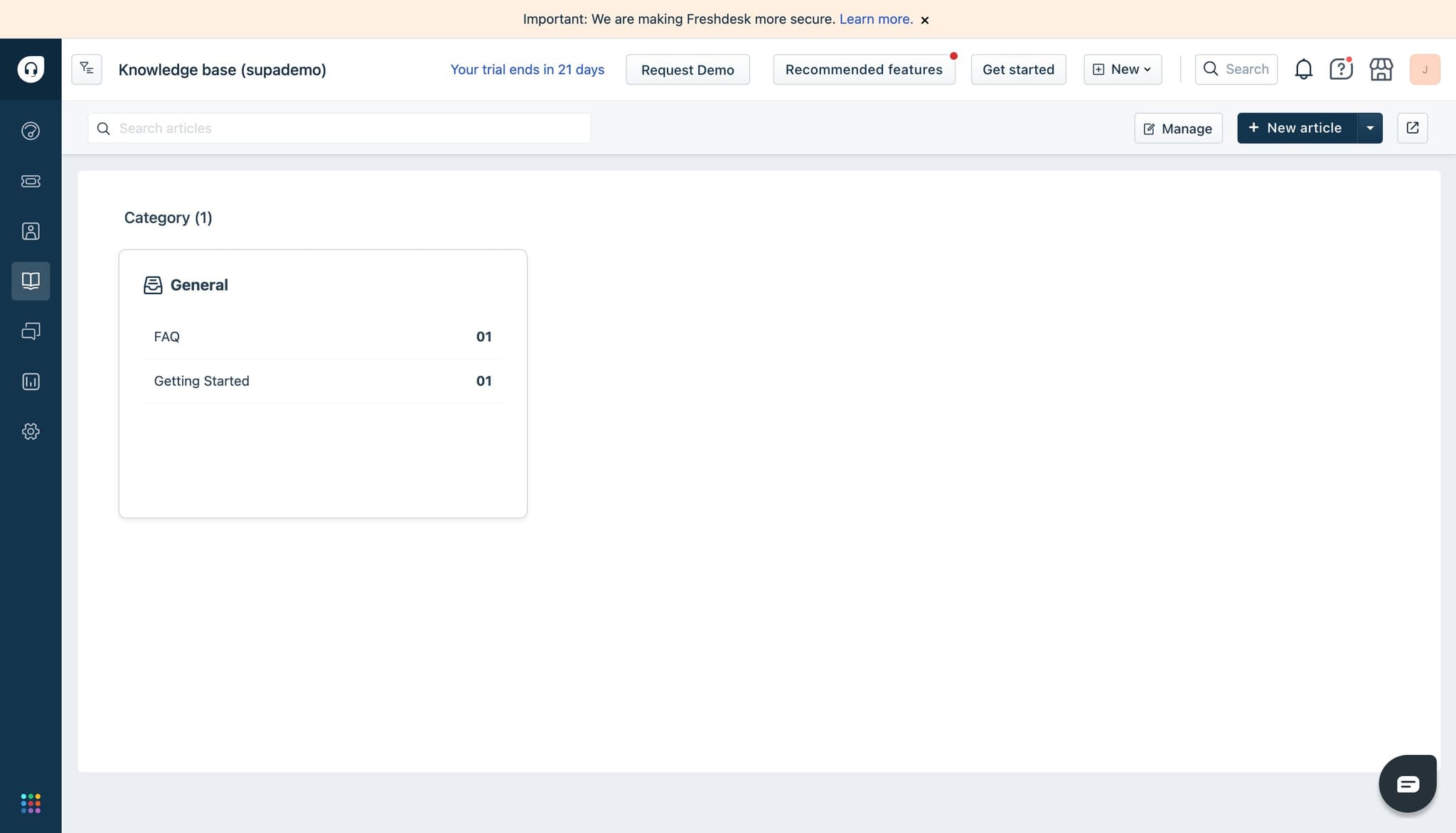
Click on "New article"
Start by navigating to your Freshdesk knowledge base and click the "New article" button to create a fresh support document. This opens the article creation interface where you'll add your content and embed your demo.
- 2
Upload your content files
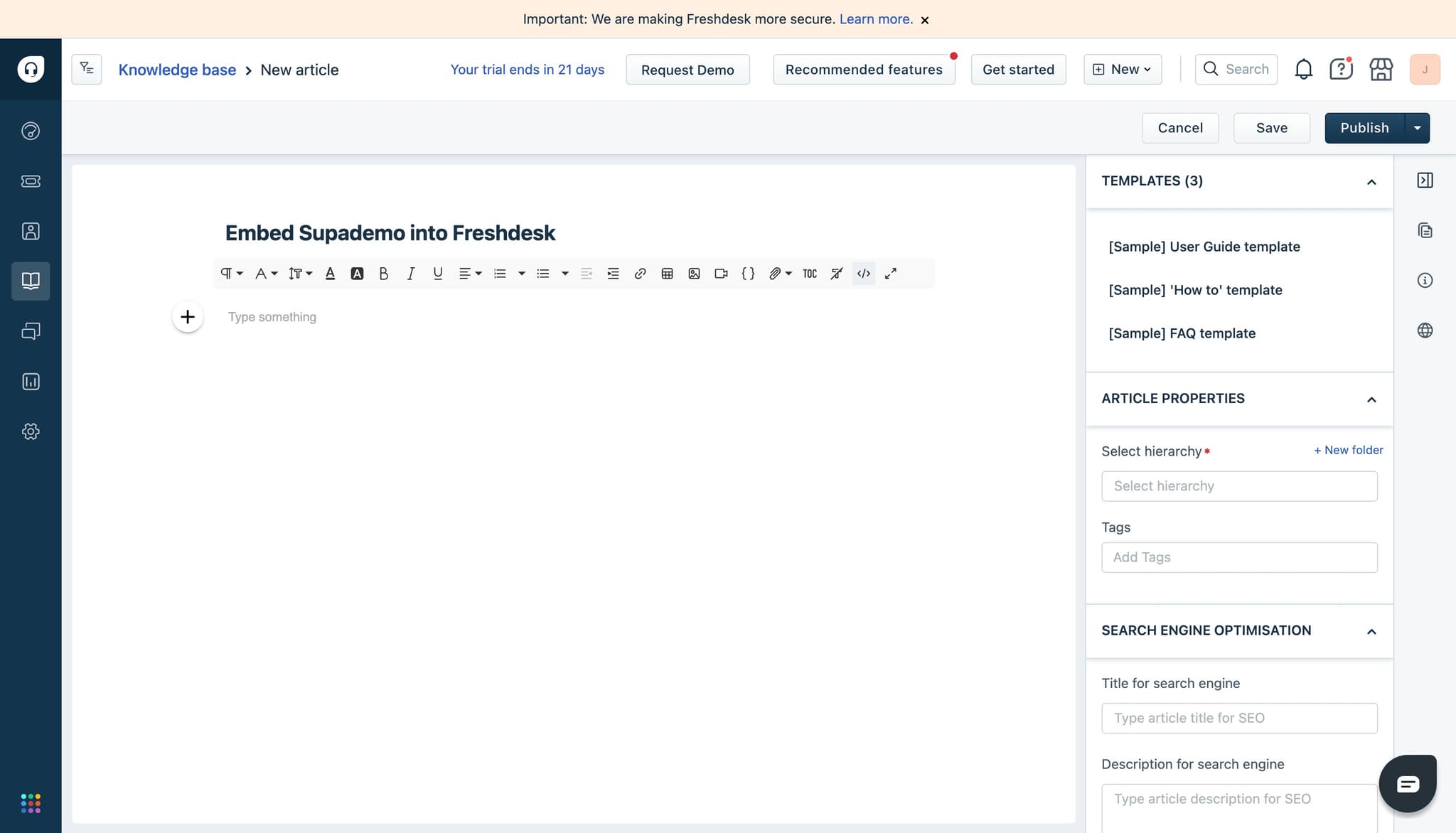
Select and upload any supporting files, images, or resources that will complement your article and demo. These assets help provide additional context for users following your guidance.
- 3
Click to proceed
Click the designated button or link to move forward in the article creation workflow. This confirms your uploads and prepares the editor for the next phase.
- 4
Upload additional assets
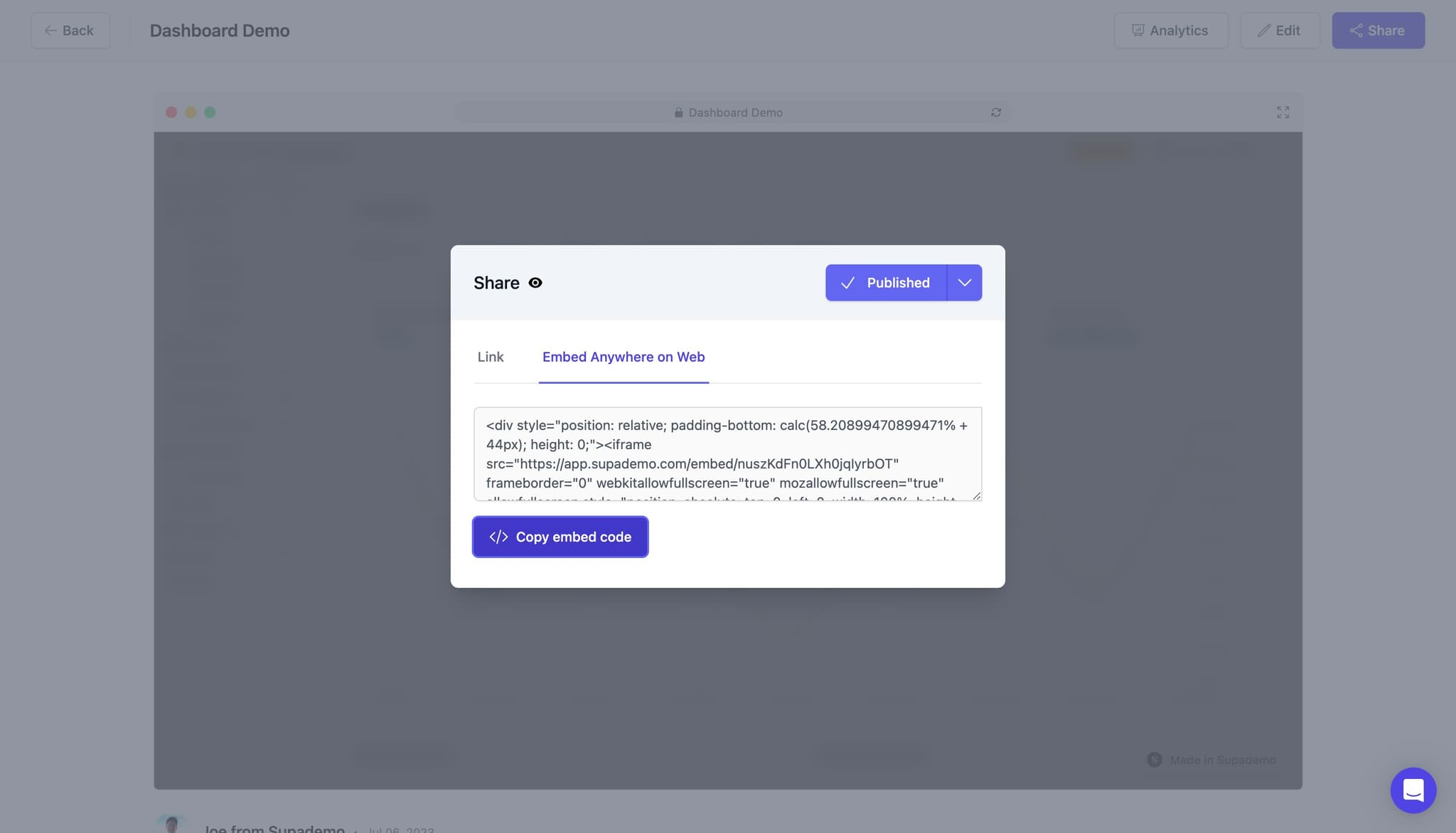
If needed, upload any additional files or media that will enhance your article's instructional value. This might include screenshots, supplementary documents, or other reference materials.
- 5
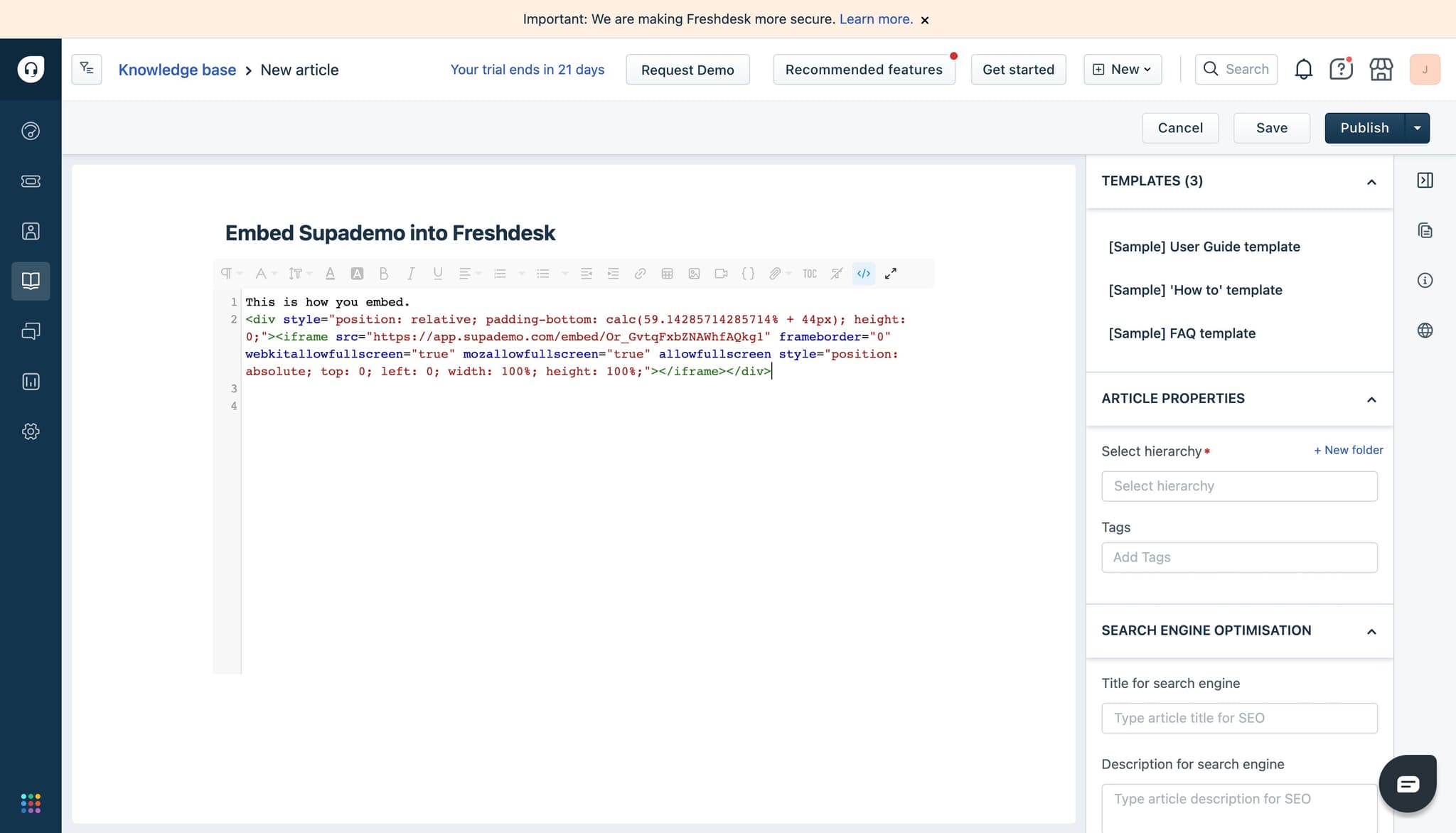
Click on the HTML editor section
Access the article's HTML editor by clicking on the designated code or editor area. This allows you to insert the embed code for your demo directly into the article.
- 6
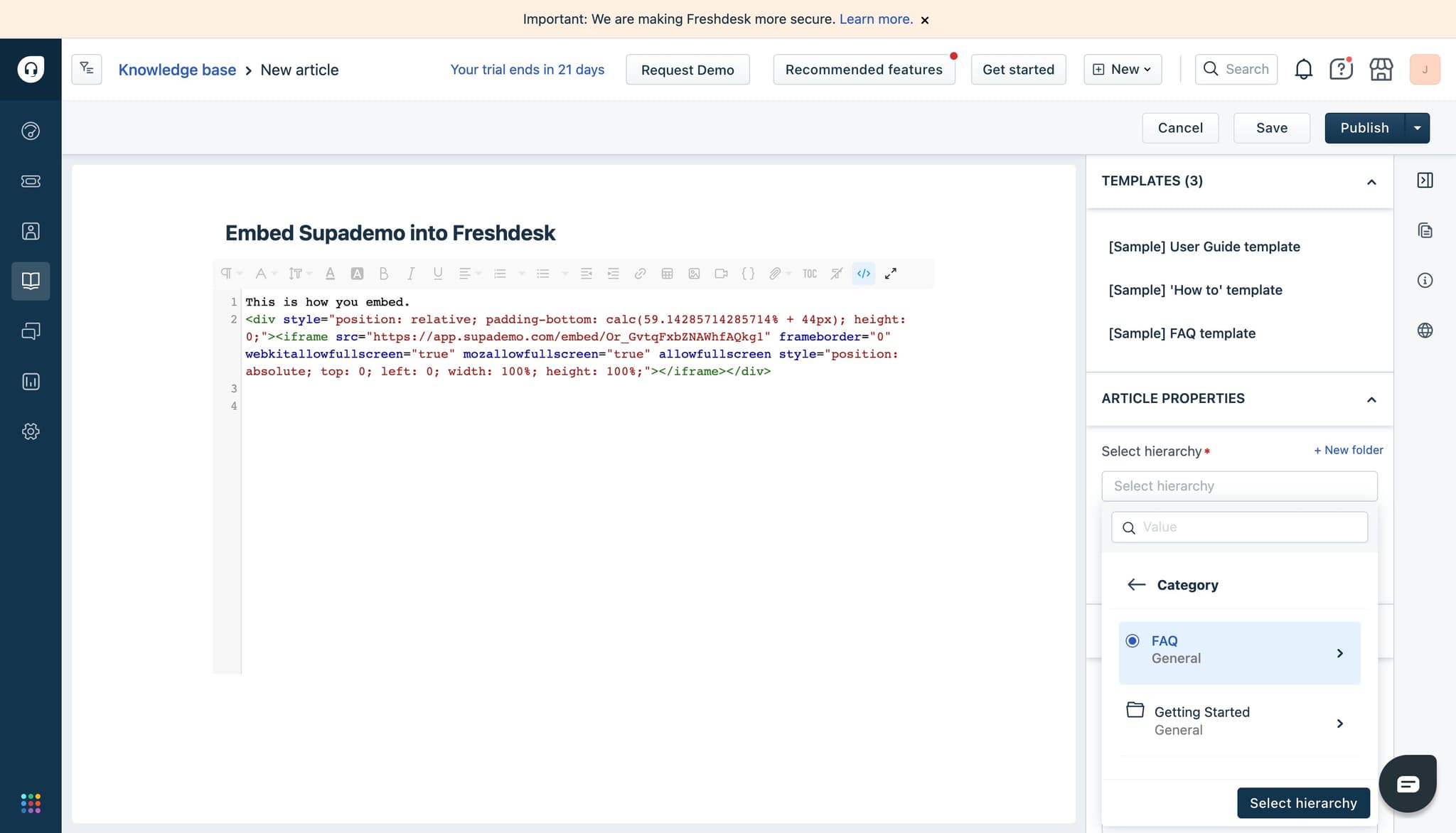
Click on "Select hierarchy"
Choose the appropriate category, section, or folder structure for your article within your Freshdesk knowledge base. This ensures your article is properly organized and discoverable by users.
- 7
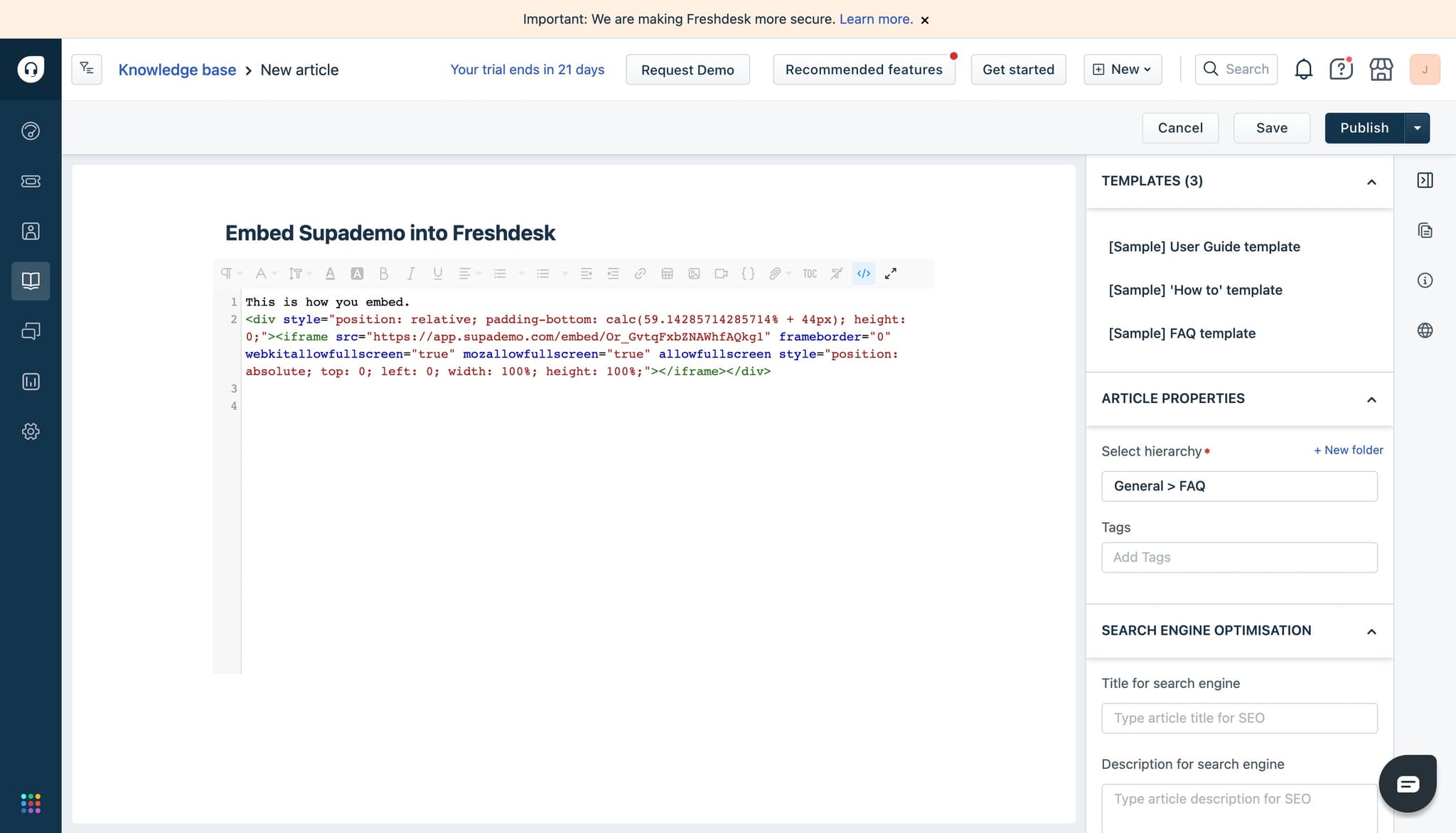
Click on "Publish"
Publish your article to make it live in your Freshdesk knowledge base. Your article and embedded demo will now be available to customers and support staff.
- 8
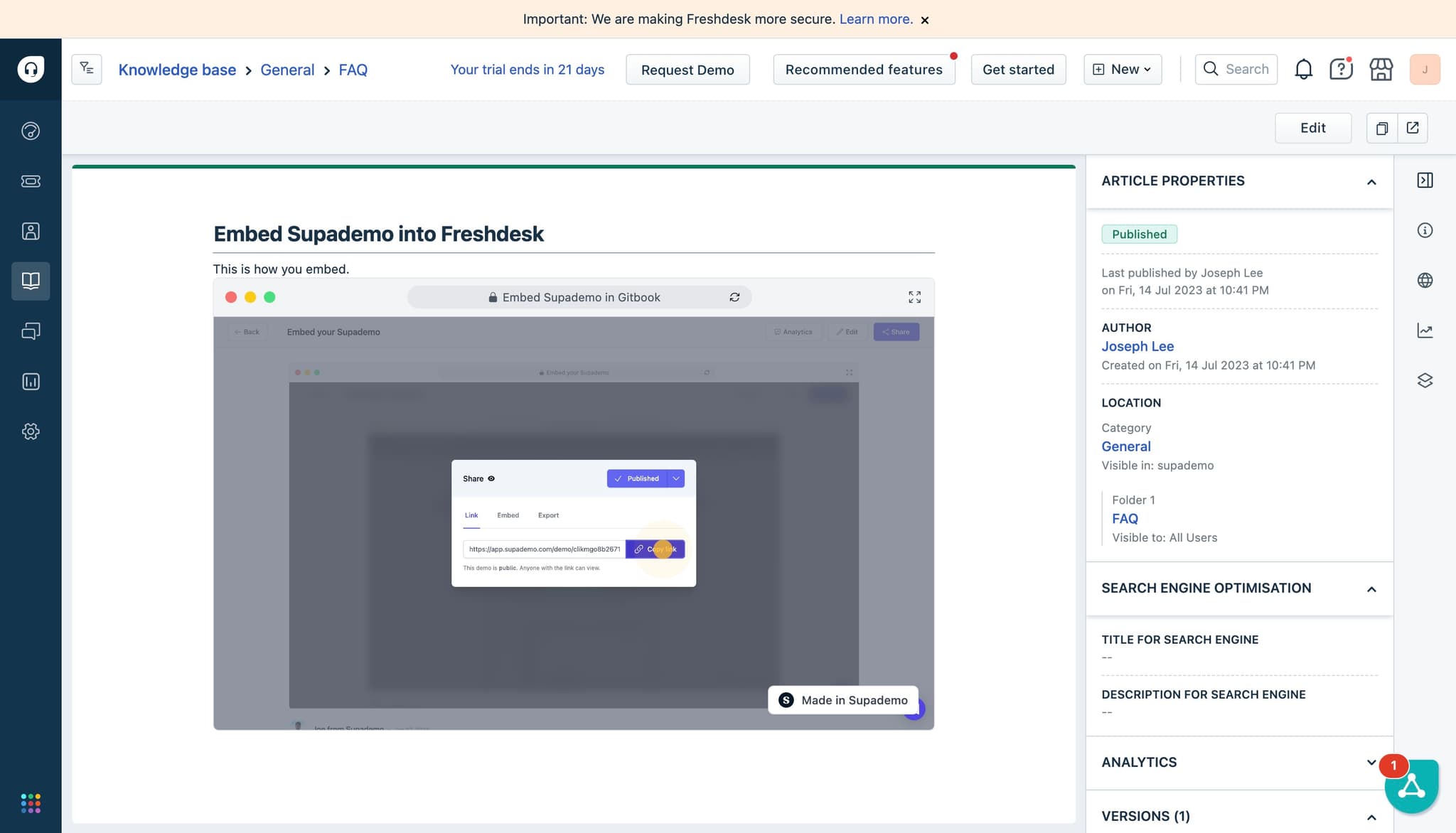
Click on "Embed Supademo" option
Select the embed option to insert your interactive demo into the published article. This final step connects your demo to the knowledge base, providing users with an interactive, guided experience.
Frequently asked questions
Common questions about how to embed supademo on freshdesk.
Yes, you can embed multiple demos in one article to cover different workflows or features. Simply repeat the embedding process for each demo you want to include, placing them logically throughout your article content.
Freshdesk supports common file formats including PDF, images (JPG, PNG, GIF), and documents (DOC, DOCX). Check your Freshdesk documentation for the complete list of supported formats and file size limits.
After creating your demo, look for the share or embed option in your demo settings. Copy the provided embed code and paste it into the Freshdesk article HTML editor where you want the demo to appear.
In most cases, embedded demos update dynamically when you modify the source demo, provided you're using the embed link rather than a static copy. Verify with your demo platform to confirm update behavior.
Yes, customers can interact with the embedded demo directly within the article. They can follow steps, click through the interface, and experience the product workflow without leaving the support article.