How to embed Supademo on Ghost

Embedding interactive product demos on your Ghost blog can significantly enhance reader engagement and reduce support inquiries. This guide walks you through the process of extracting embed code from Supademo and integrating it into your Ghost site.
Quick summary
In this tutorial, you'll learn how to generate embed code from Supademo, access Ghost's HTML editor, and successfully embed your demo on a published page. By following these steps, you'll be able to display interactive walkthroughs directly within your Ghost content.
Why this matters
Embedding demos directly on your blog keeps visitors engaged without requiring them to navigate away from your content. This approach improves user experience, increases demo completion rates, and provides immediate context for product features within your written articles.
Step-by-step guide
- 1
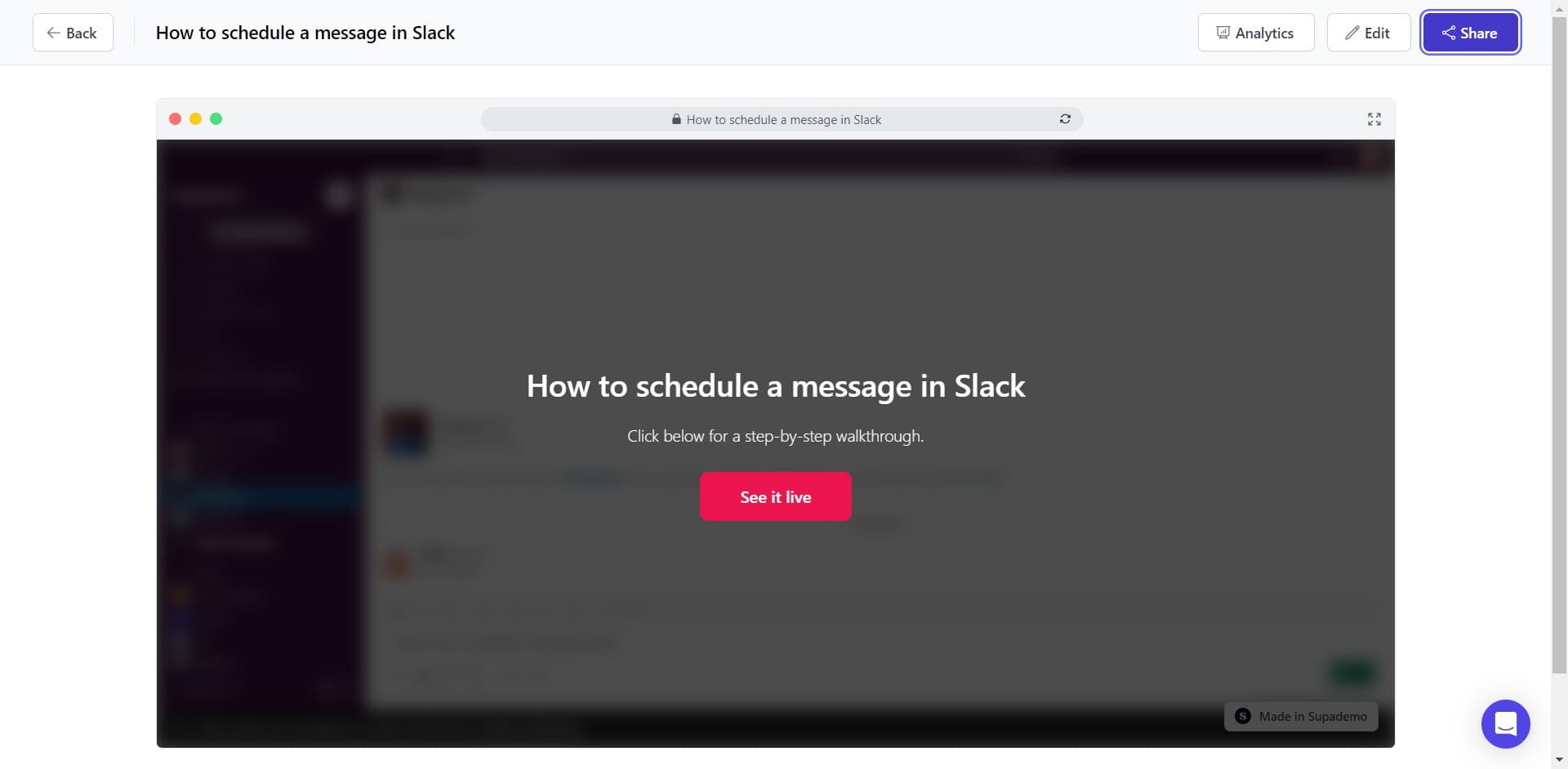
Click on Share
Open your Supademo and locate the Share button. This button provides access to sharing and embedding options for your demo.
- 2
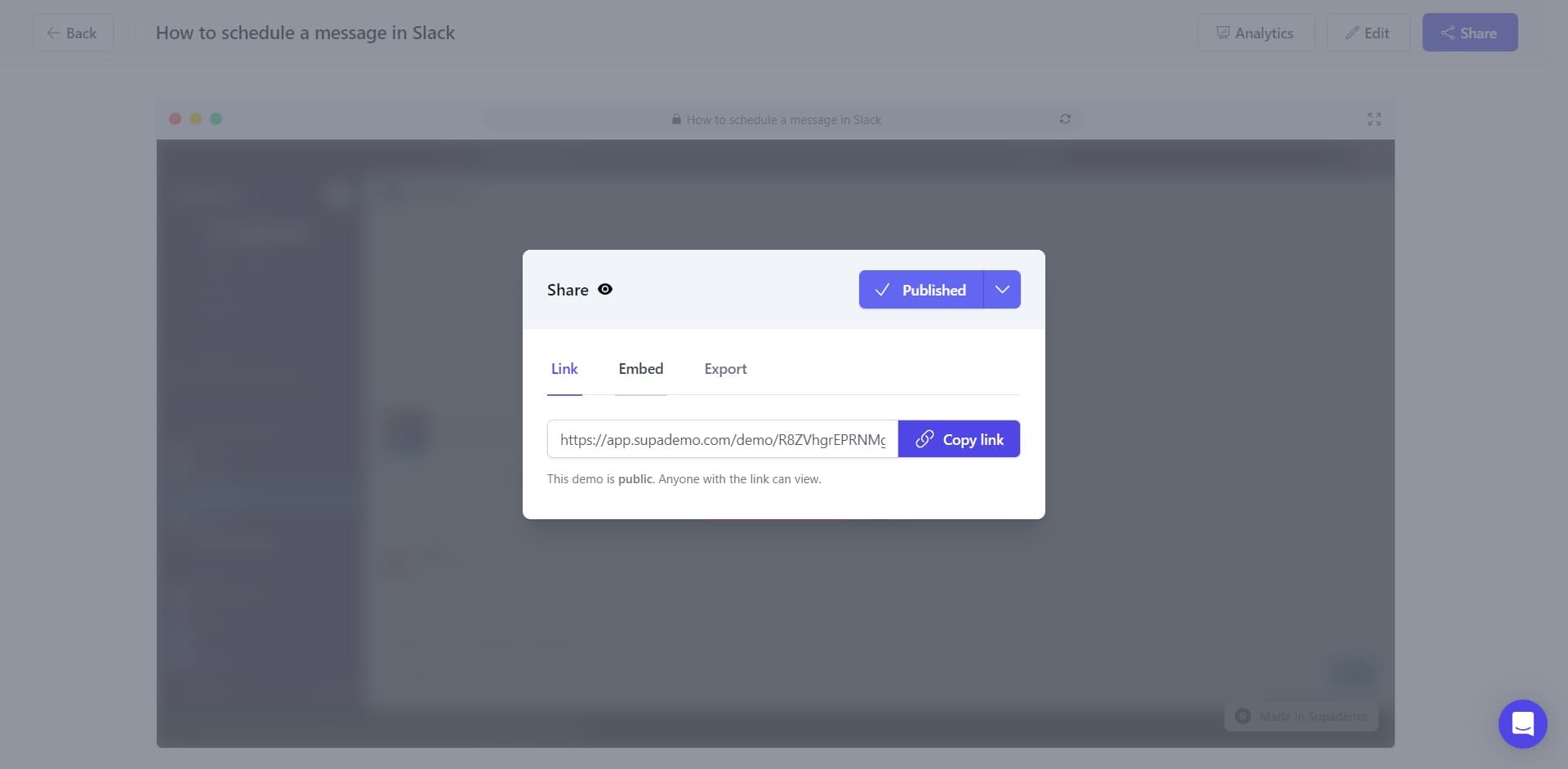
Click on Embed
From the Share menu, select the Embed option. This will display embedding configuration settings and code snippets.
- 3
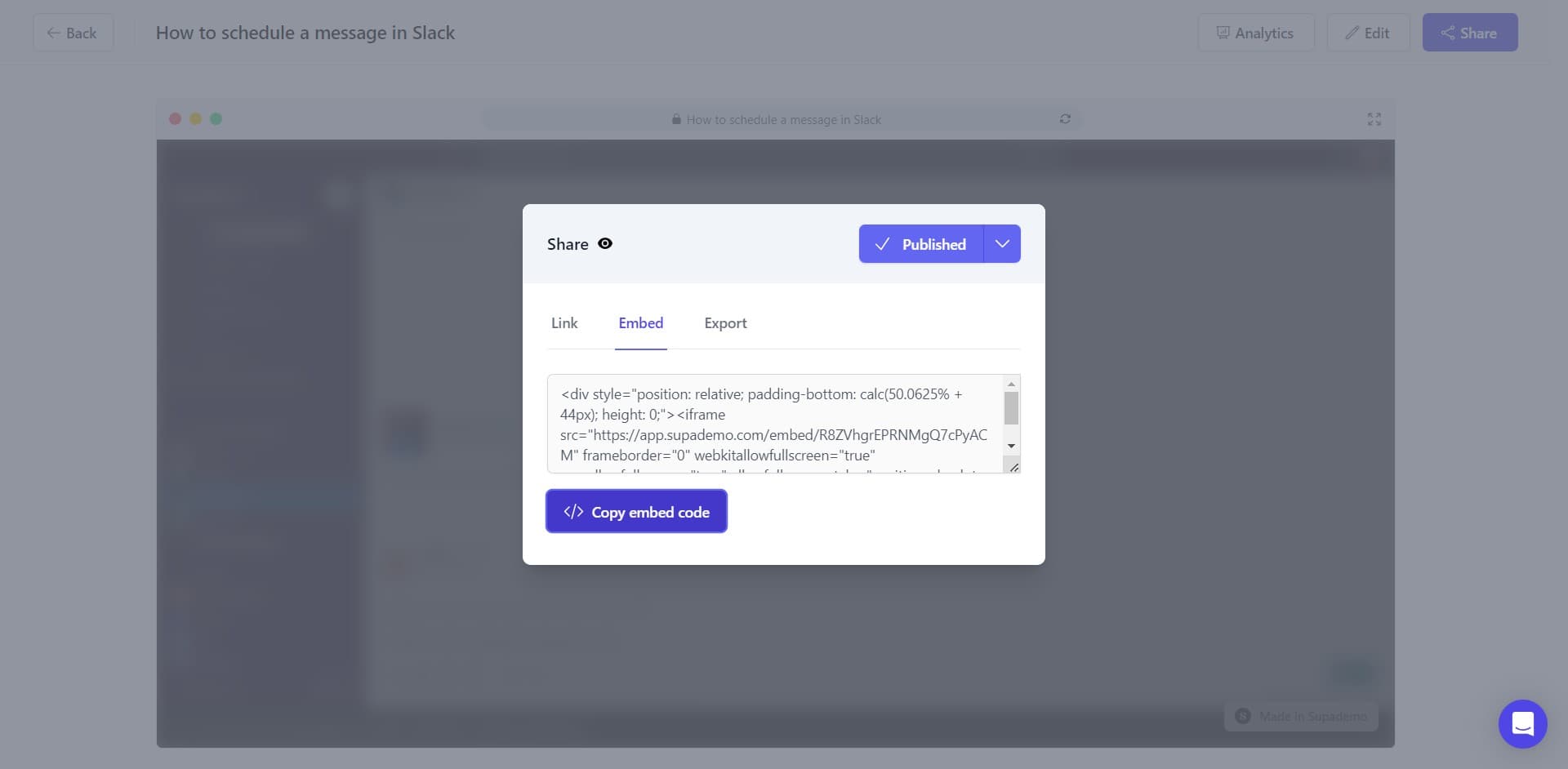
Copy embed code
Click the Copy embed code button to copy the complete embed code to your clipboard. The code is now ready to be pasted into your Ghost blog.
- 4
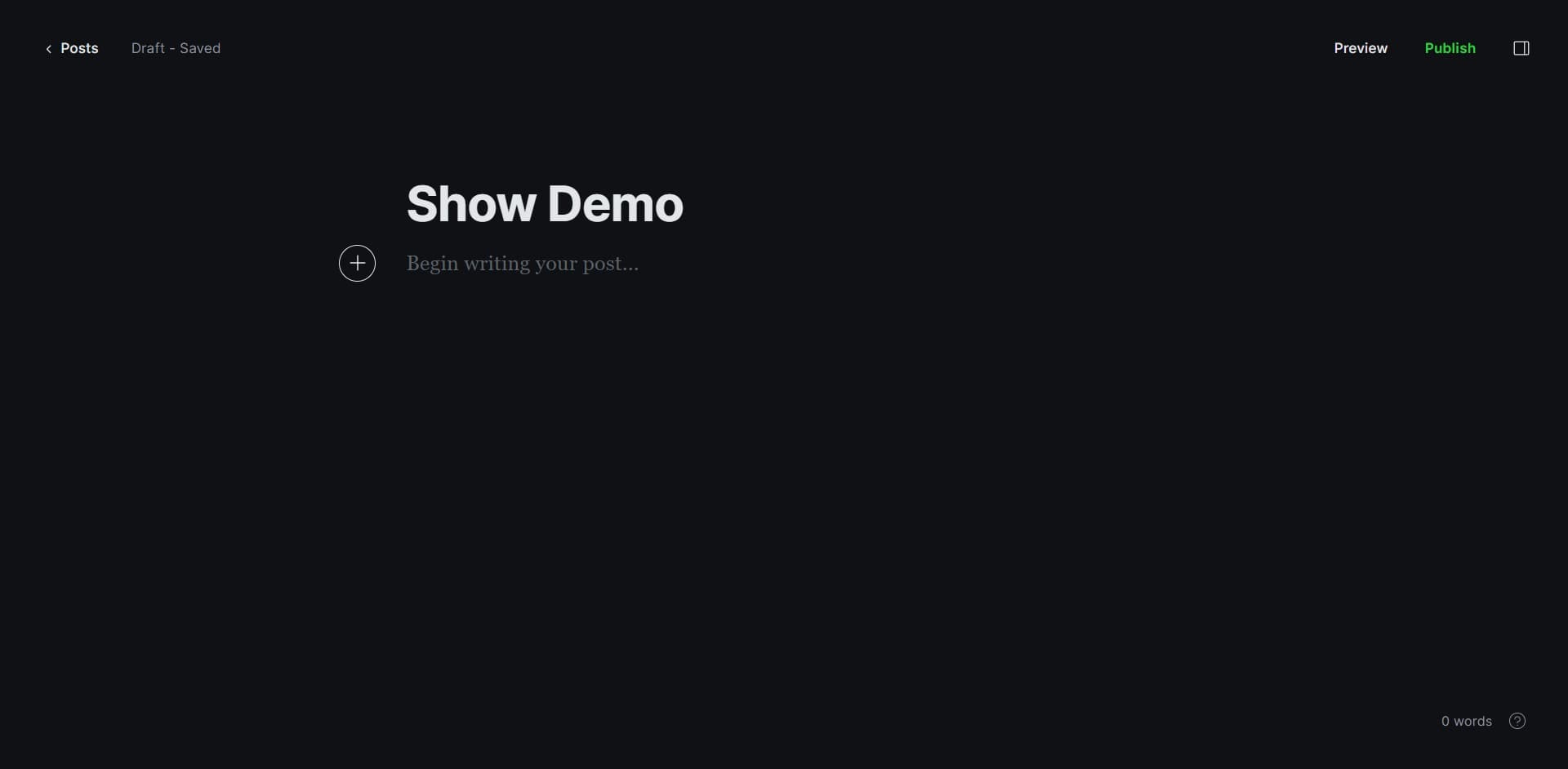
Navigate to Ghost editor
Open the Ghost post or page where you want to embed the demo. Ensure you have the page open and ready for editing.
- 5
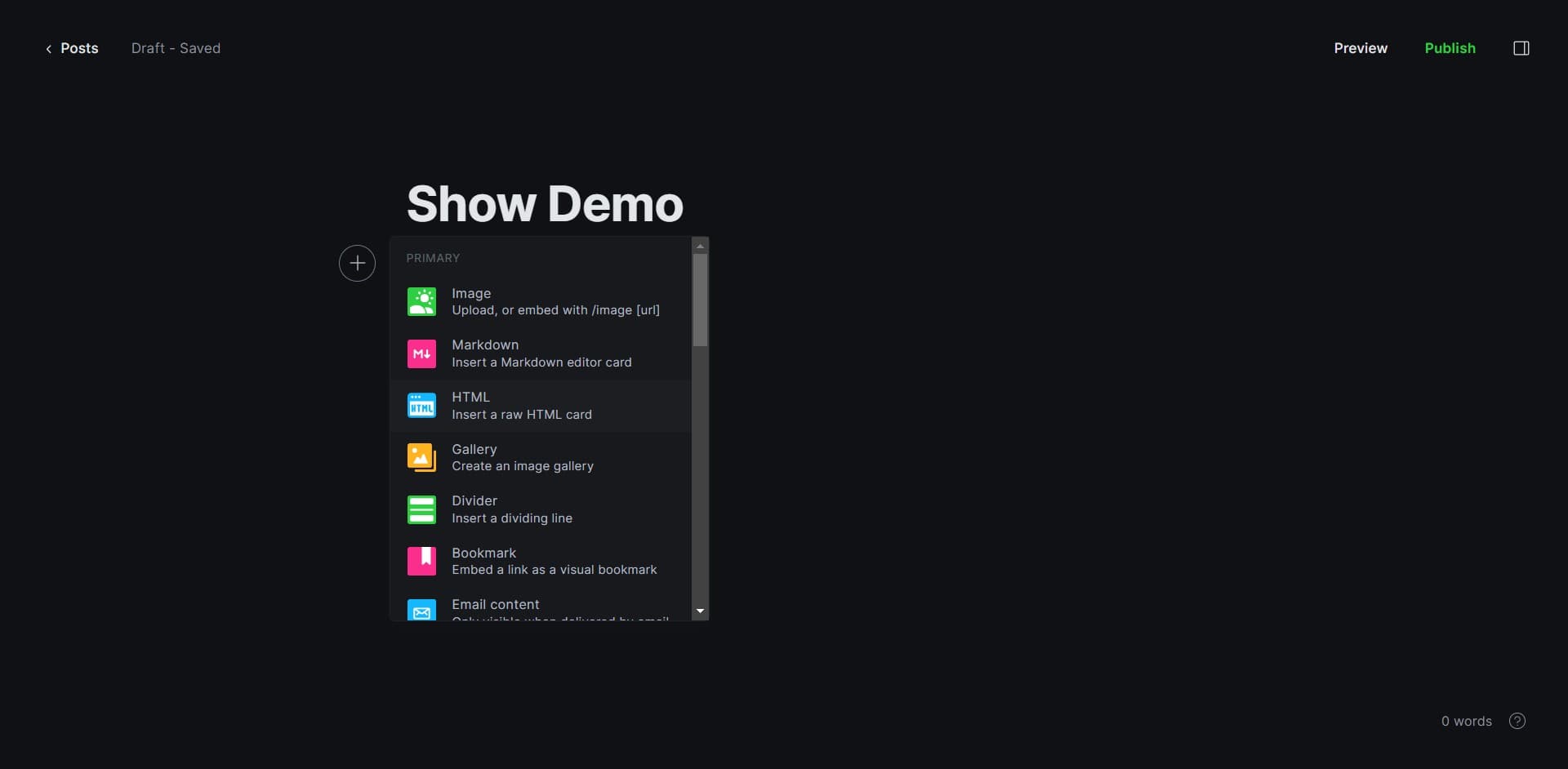
Switch to HTML mode
Click on the HTML button in the Ghost editor toolbar to access the raw HTML editing interface. This allows you to insert custom embed code.
- 6
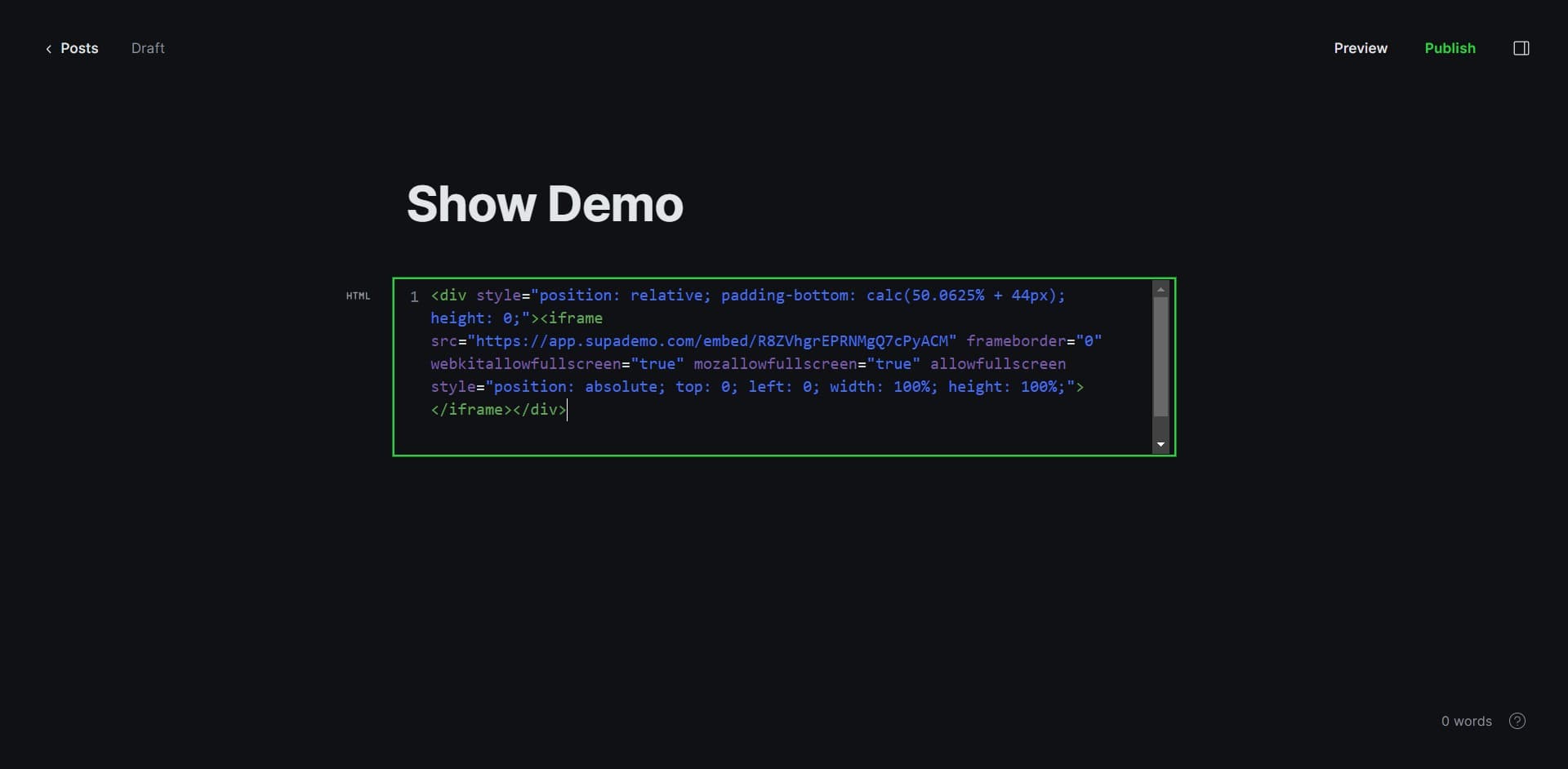
Paste embed code in HTML
Locate the position in the HTML where you want the demo to appear. Paste the copied embed code at that location within the HTML structure.
- 7
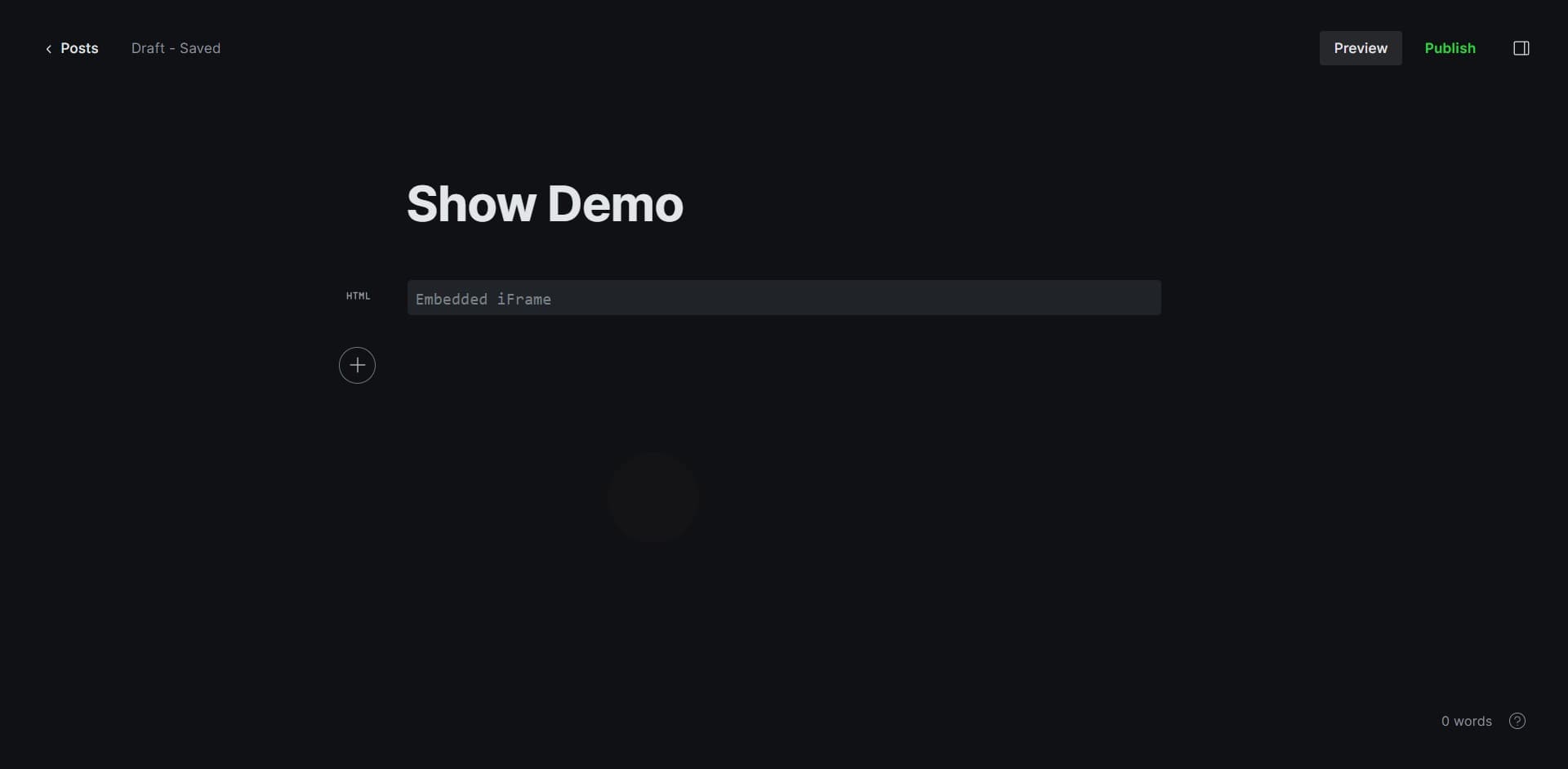
Preview the embed
Click the Preview button to see how your demo will appear on the published page. Verify that the demo displays correctly and is fully interactive.
- 8
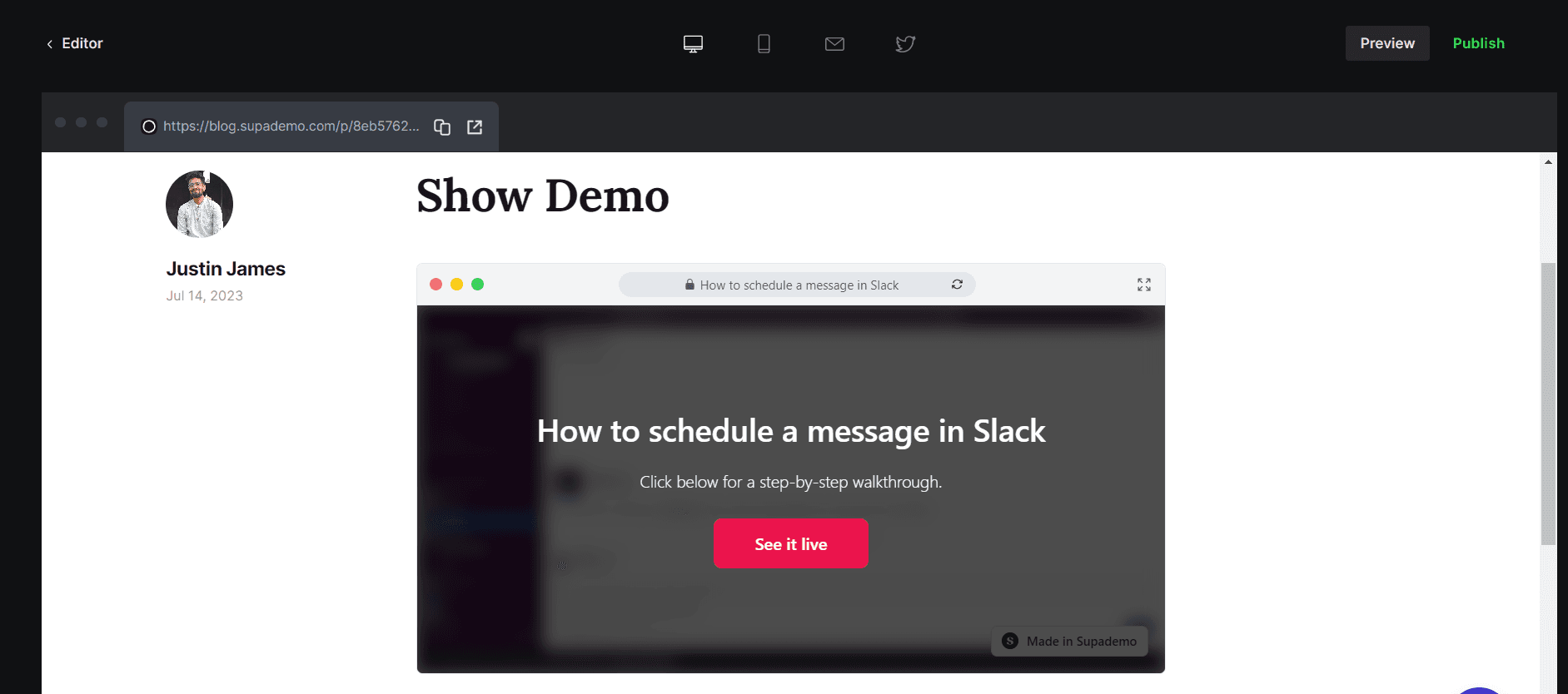
Publish your post
Once you're satisfied with the preview, click Publish to make your post live with the embedded demo. Your readers will now see the interactive demo on your Ghost blog.
Frequently asked questions
Common questions about how to embed supademo on ghost.
Yes, you can embed multiple demos on one page by following the same process for each demo. Simply copy the embed code for each demo and paste them at different locations within the HTML editor. Ensure there is adequate spacing between embeds for a clean layout.
First, verify that you copied the entire embed code correctly and pasted it in the HTML section of Ghost. Check that your Ghost theme supports embedded iframes and that there are no conflicting CSS styles. If issues persist, test the embed code in a preview or staging environment before publishing.
Embed functionality depends on your Ghost hosting and theme configuration rather than the pricing plan. Most Ghost themes support iframe embeds, but self-hosted Ghost instances have more flexibility. Contact your Ghost hosting provider or theme developer if you encounter compatibility issues.
Yes, the embedded demo is fully interactive. Readers can click through the demo, explore product features, and complete the walkthrough directly on your Ghost page without leaving your site.
Updates to the original demo are automatically reflected in the embedded version since the embed code points to the live demo file. You don't need to manually update the embed code in Ghost unless you regenerate the embed code itself.