How to embed Supademo on Gitbook

Embedding interactive product demonstrations directly into your Gitbook documentation enhances user understanding and reduces support requests. This guide walks you through the process of integrating Supademo into your Gitbook pages using a simple embed workflow.
Quick summary
In this tutorial, you'll learn how to locate your demo link, copy it for embedding, and upload it into Gitbook. By following these steps, you'll be able to seamlessly integrate interactive demos into your documentation.
Why this matters
Embedding demos directly in your documentation keeps users engaged without requiring them to leave your knowledge base. This approach improves learning outcomes, reduces friction in onboarding, and provides visual context that text alone cannot convey.
Step-by-step guide
- 1
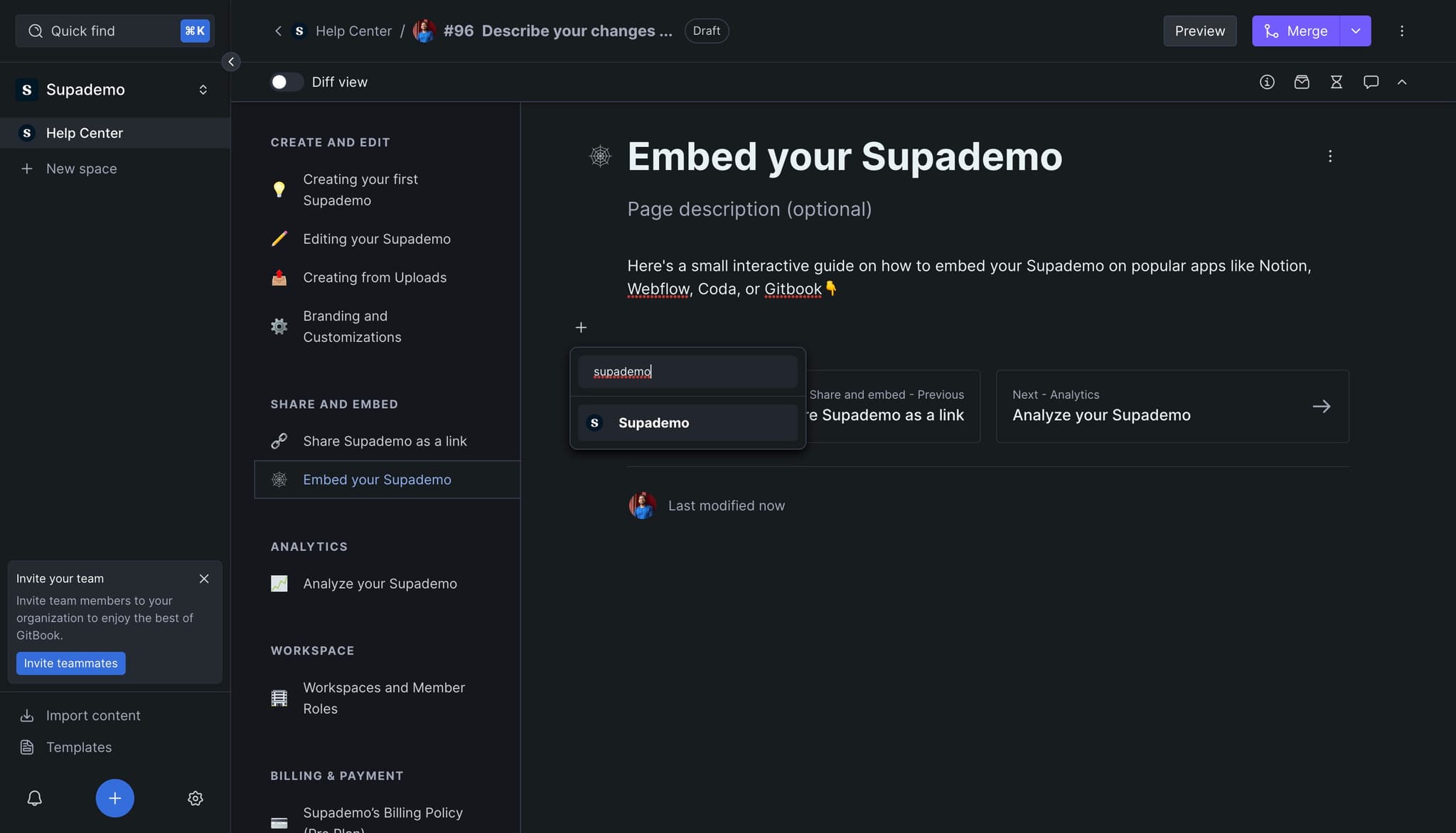
Access your Supademo library
Log into your Supademo account and locate the demo you want to embed. Click on the demo to open it and access the sharing options.
- 2
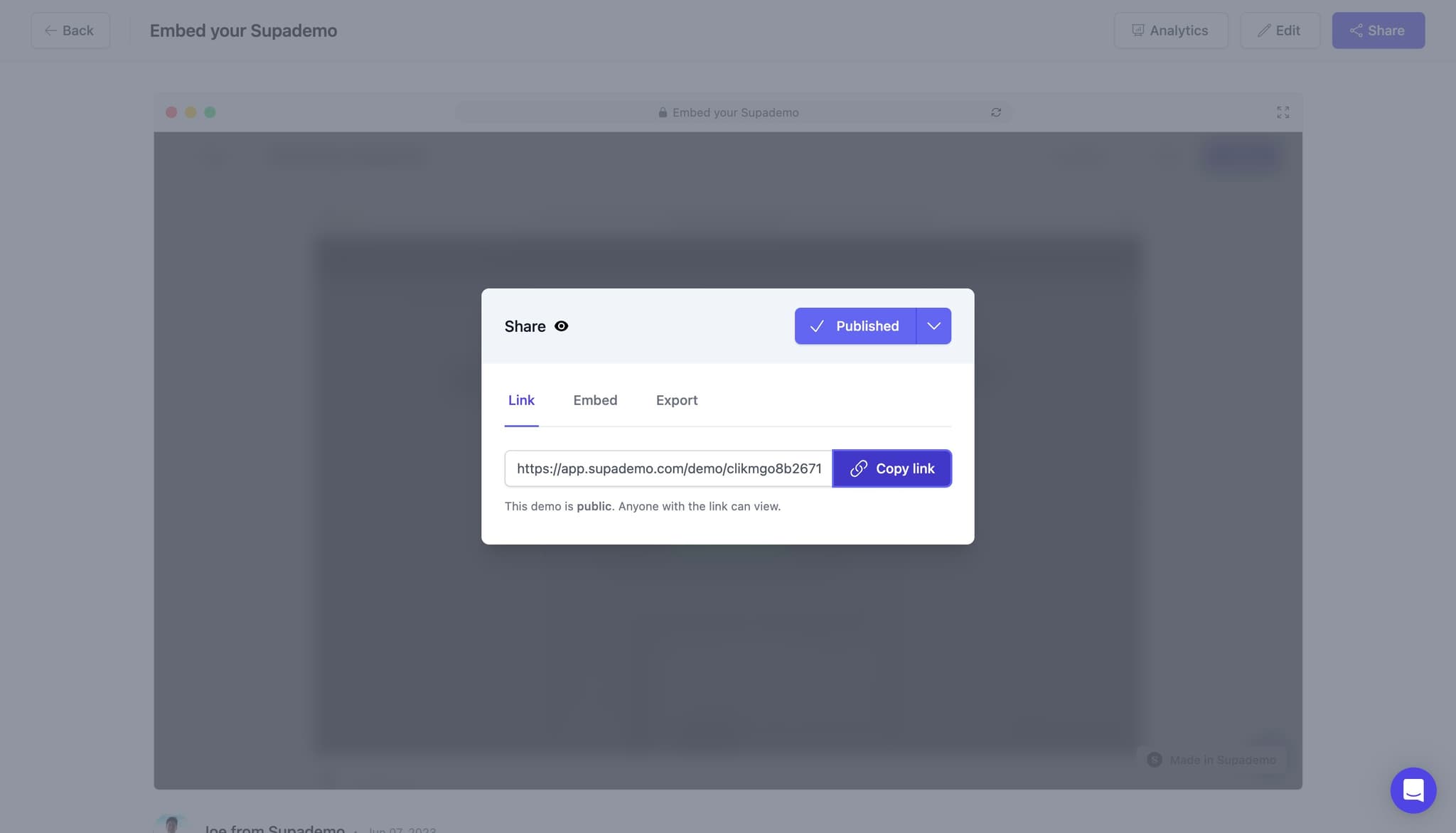
Copy the embed link
Once your demo is open, click on 'Copy link' to copy the shareable URL to your clipboard. This link is what you'll use to embed the demo in Gitbook.
- 3
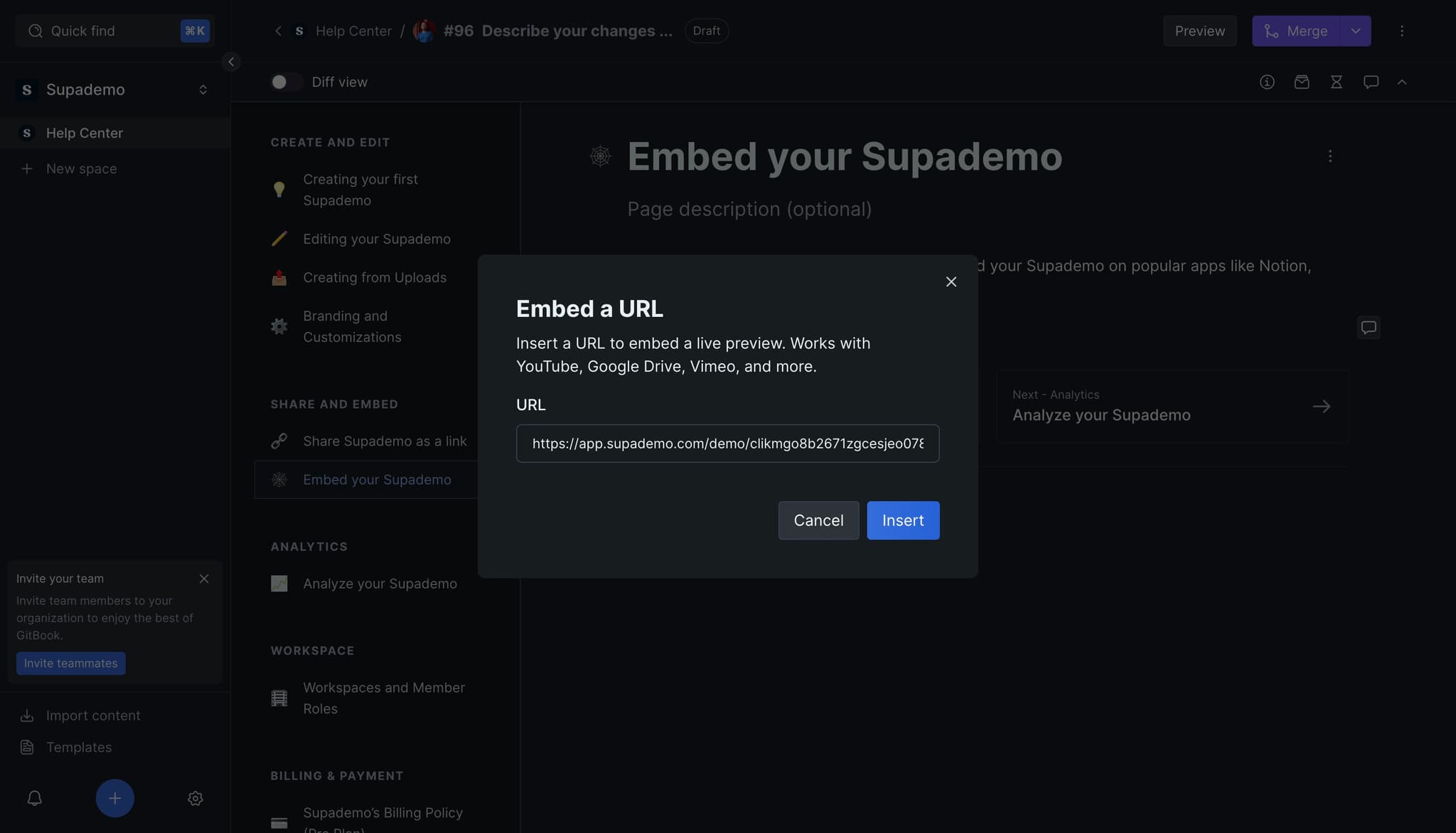
Navigate to insert option
Open your Gitbook page where you want to add the demo. Click on 'Insert' to access the content insertion menu and prepare to add your embedded demo.
- 4
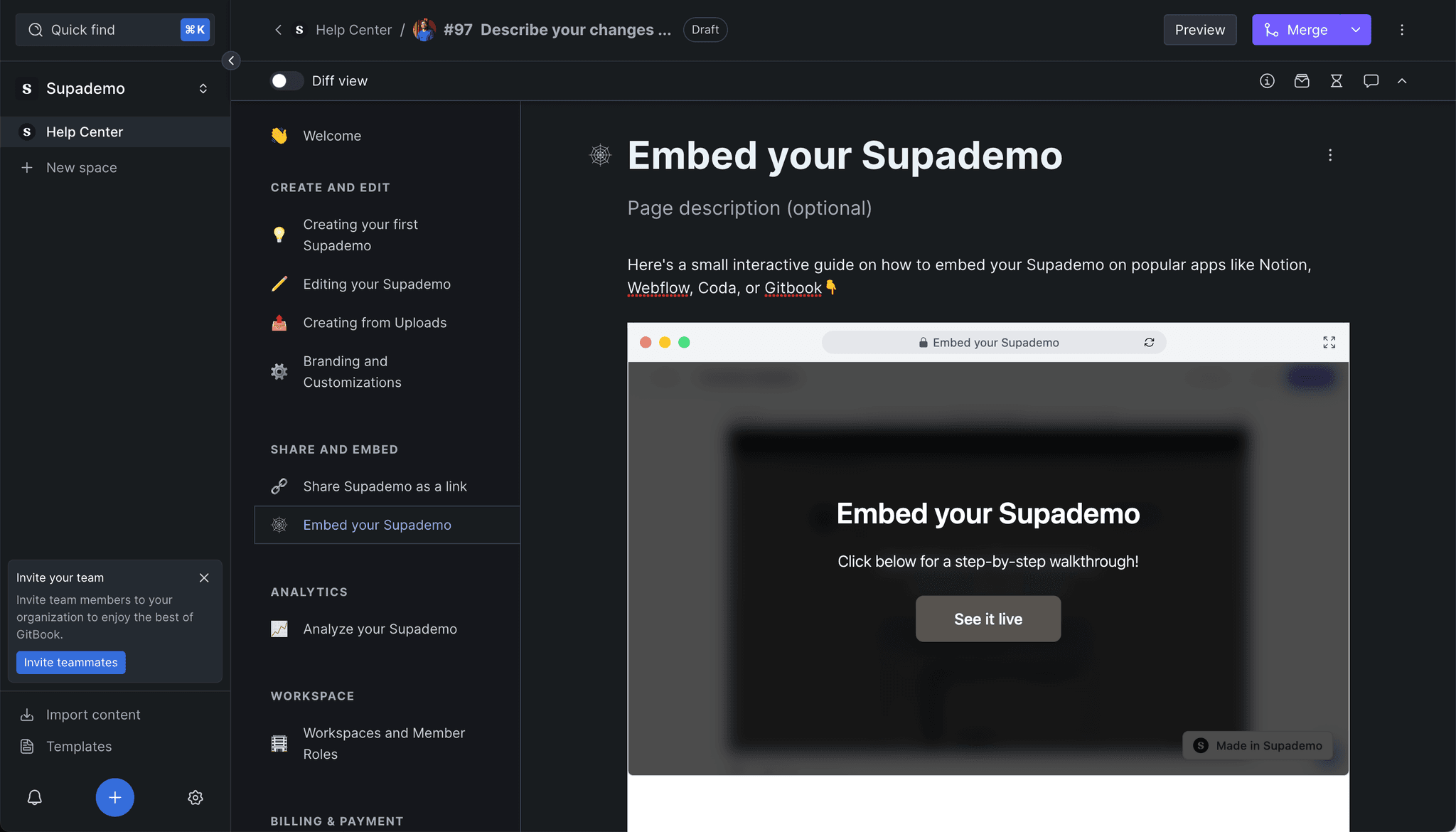
Upload demo to Gitbook
Select the upload option and paste the copied demo link into the designated field. This action will prepare your demo for embedding.
- 5
Finalize the embed
Complete the upload process by confirming the embedding. Your demo will now be visible and interactive within your Gitbook documentation.
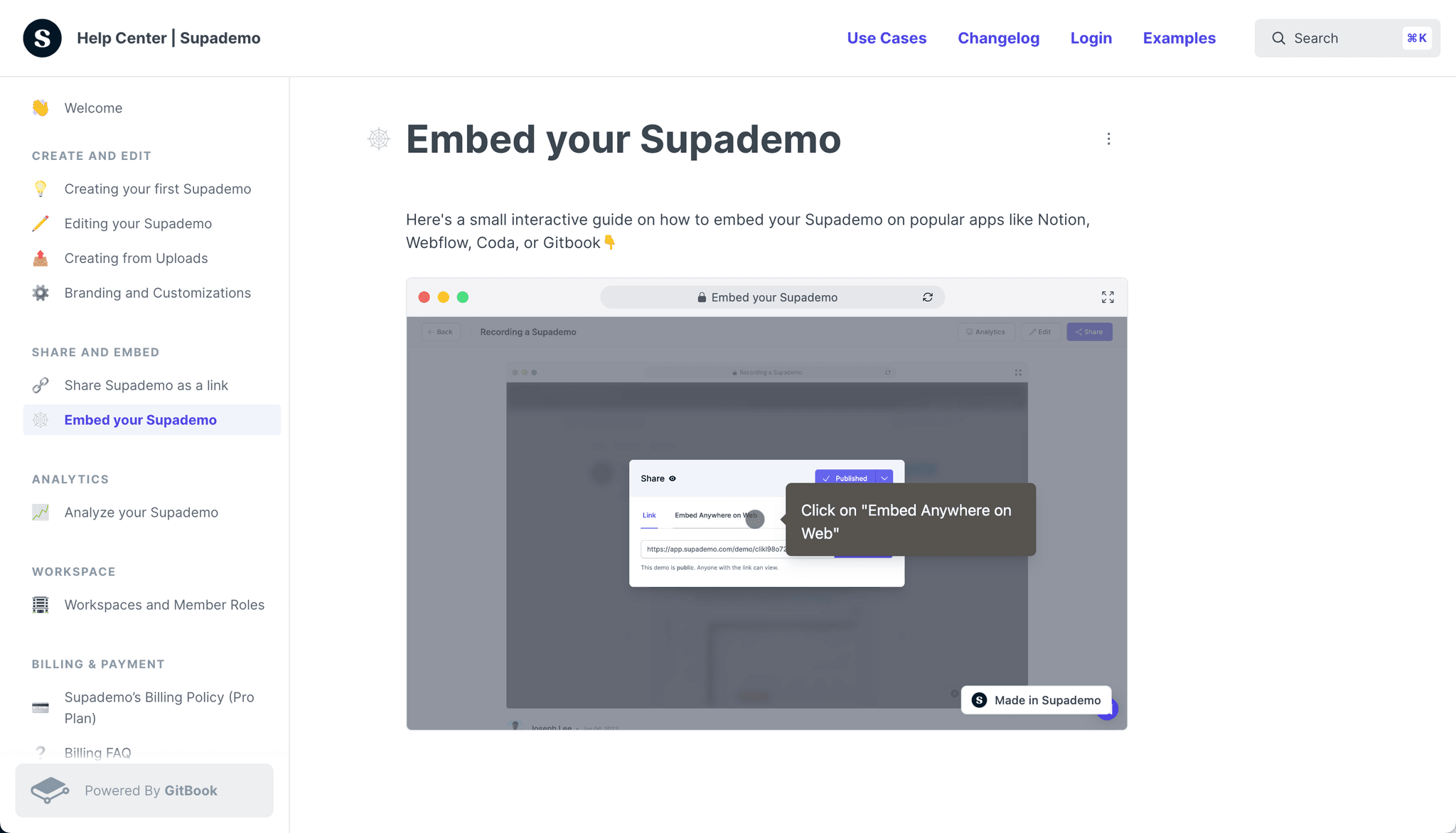
Frequently asked questions
Common questions about how to embed supademo on gitbook.
Yes, you can embed multiple demos on one page by repeating the copy and insert process for each demo. This allows you to create comprehensive documentation with multiple interactive examples.
Updates to your original demo will automatically reflect in the embedded version since the embed uses a live link. You don't need to re-embed or manually update anything in Gitbook.
The embed should work across most modern browsers and devices that Gitbook supports. If you experience compatibility issues, check that your Gitbook page supports embedded content and that your demo link is correctly pasted.
Yes, the embedded demo is fully interactive within Gitbook, allowing readers to follow along with the demo steps without navigating away from your documentation.
Open your demo in Supademo and look for the sharing or link options in the menu. The 'Copy link' button will generate a shareable URL that you can use for embedding anywhere.