How to embed Supademo on Guru

Embedding interactive product demos on Guru allows you to provide rich, hands-on learning content directly within your knowledge base. This workflow walks you through the process of exporting your demo and integrating it into a Guru Card for seamless team access.
Quick summary
In this tutorial, you'll learn how to generate embed code from your demo and create a new Guru Card to host it. By the end, your interactive content will be live and accessible to your team within Guru's knowledge management platform.
Why this matters
Embedding demos on Guru bridges the gap between documentation and practical learning, reducing support tickets and onboarding time. Teams can reference step-by-step walkthroughs directly in their workflow without switching between tools, improving knowledge retention and adoption rates.
Step-by-step guide
- 1
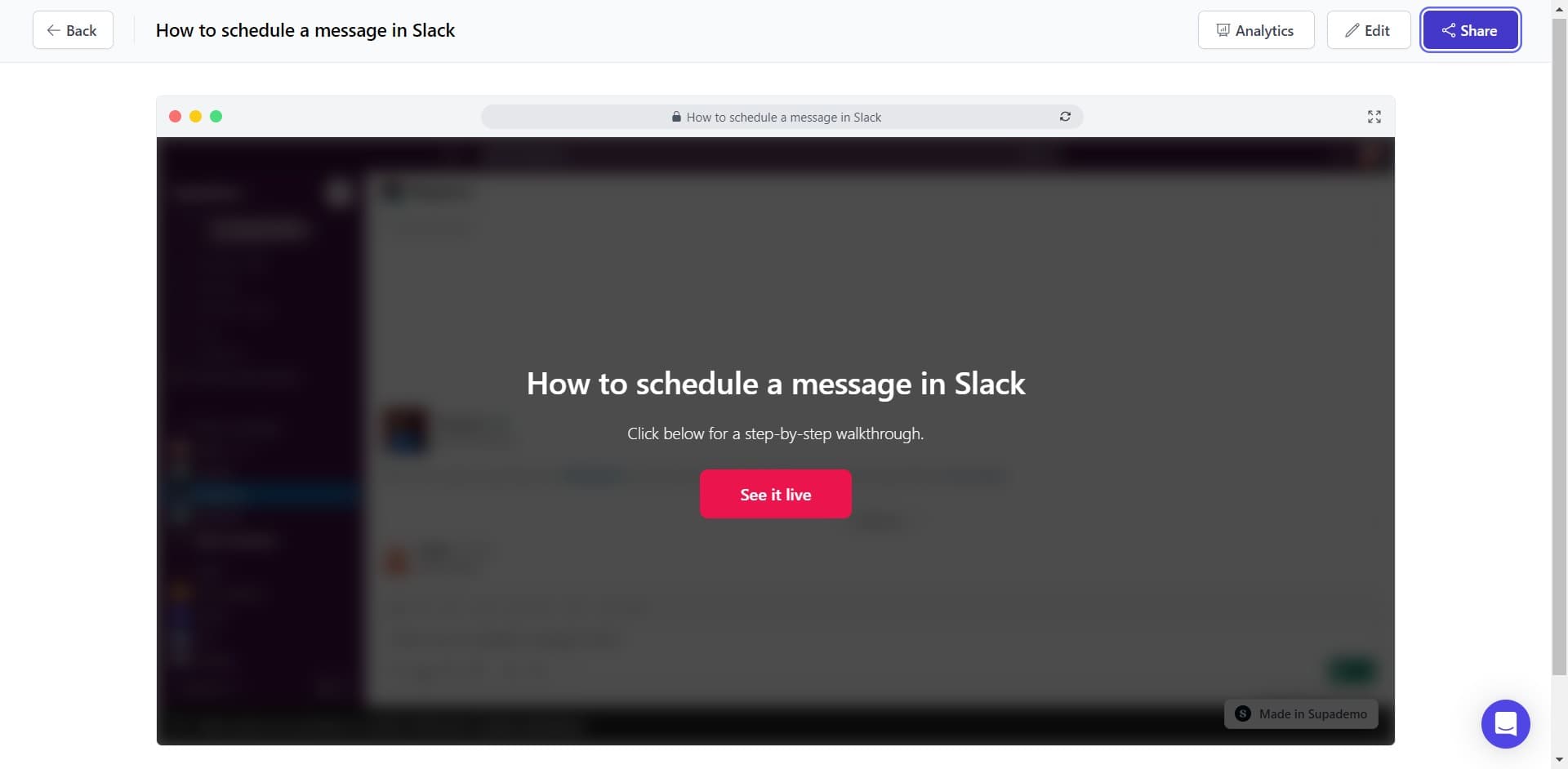
Click on Share
Locate and click the Share button in your demo interface. This opens the sharing and distribution options for your demo.
- 2
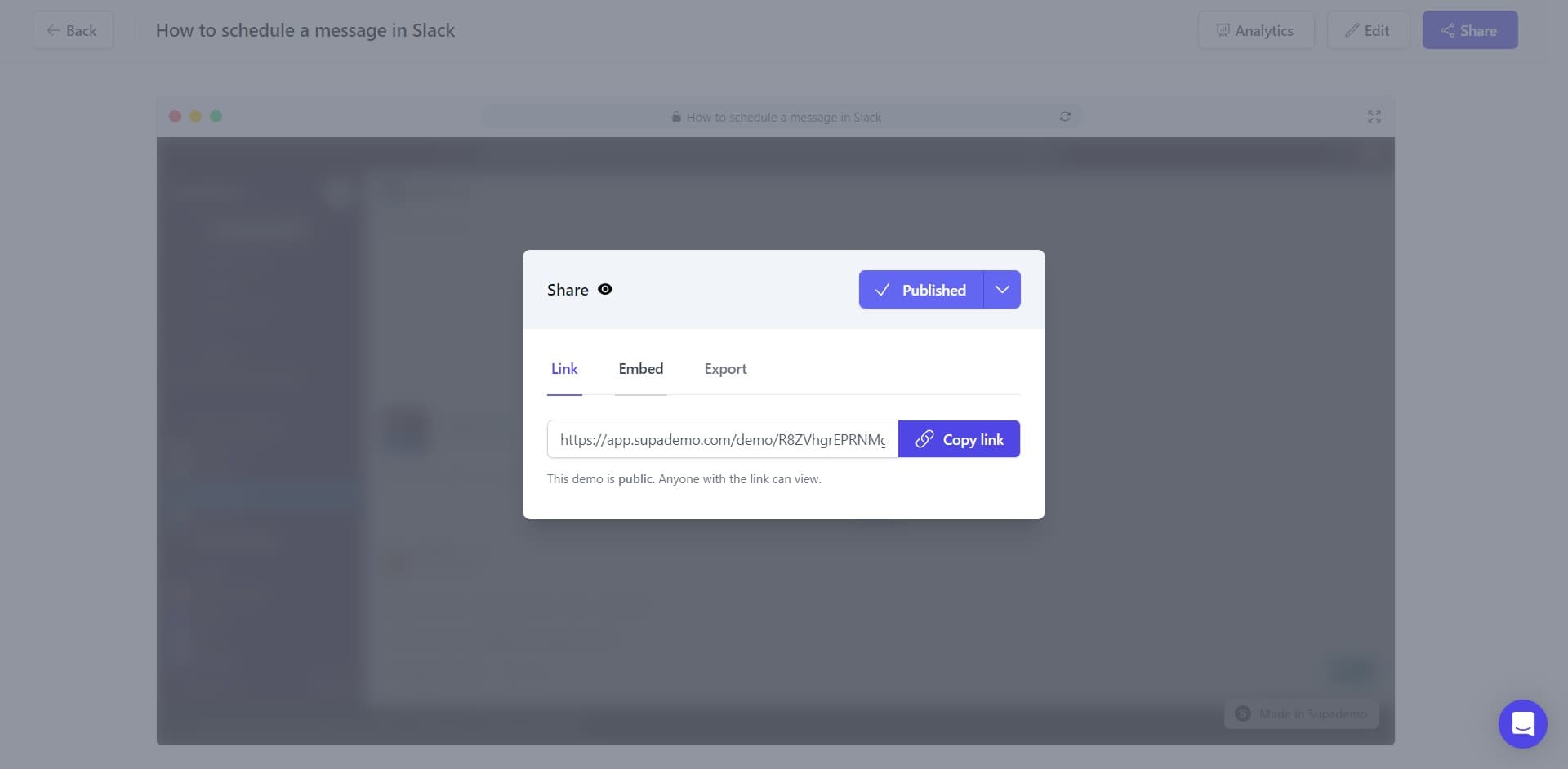
Click on Embed
From the sharing menu, select the Embed option. This reveals the embedding tools and code generation features.
- 3
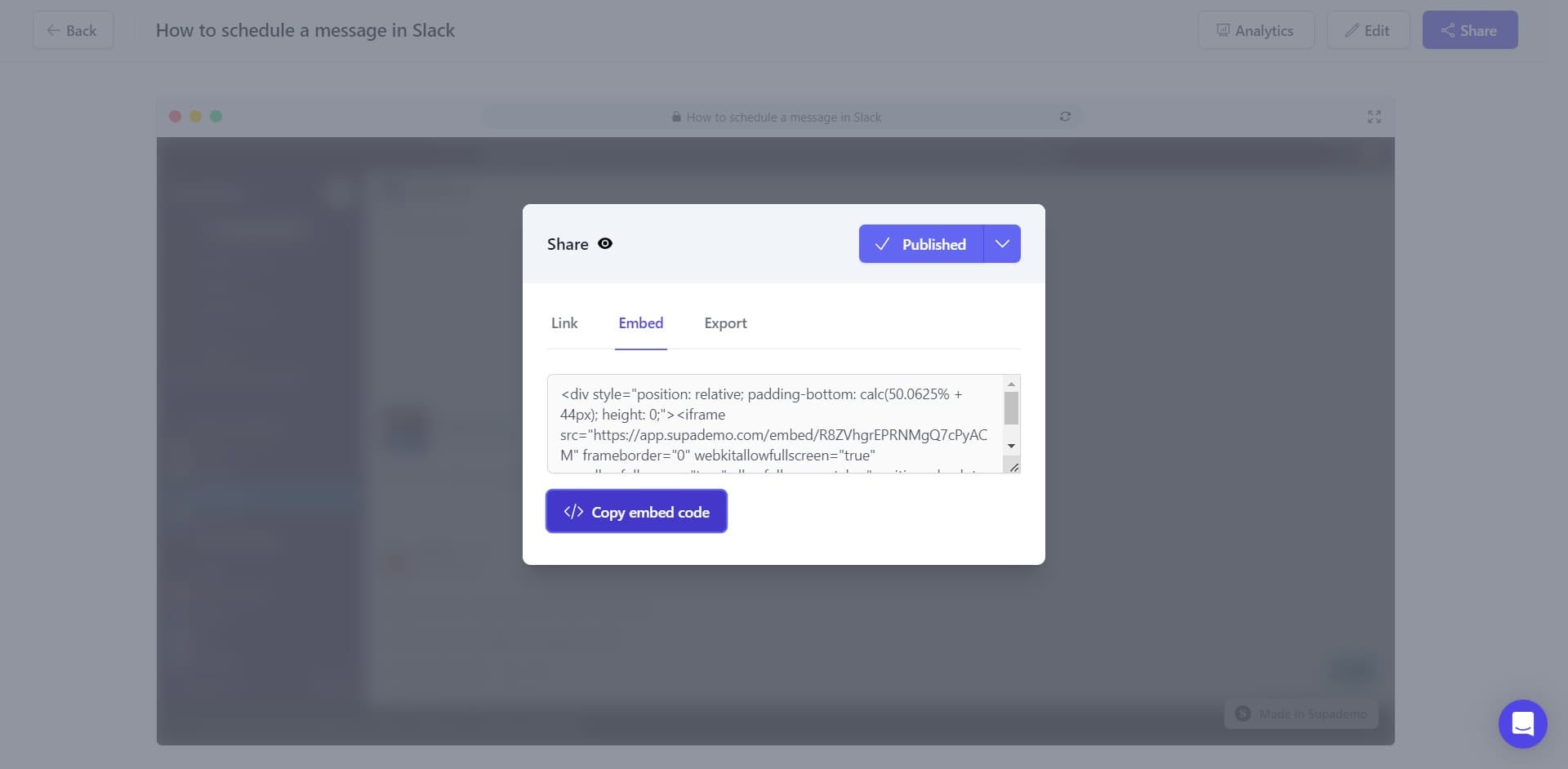
Copy embed code
Click the Copy embed code button to generate and copy the code to your clipboard. This code is what you'll paste into Guru to display your demo.
- 4
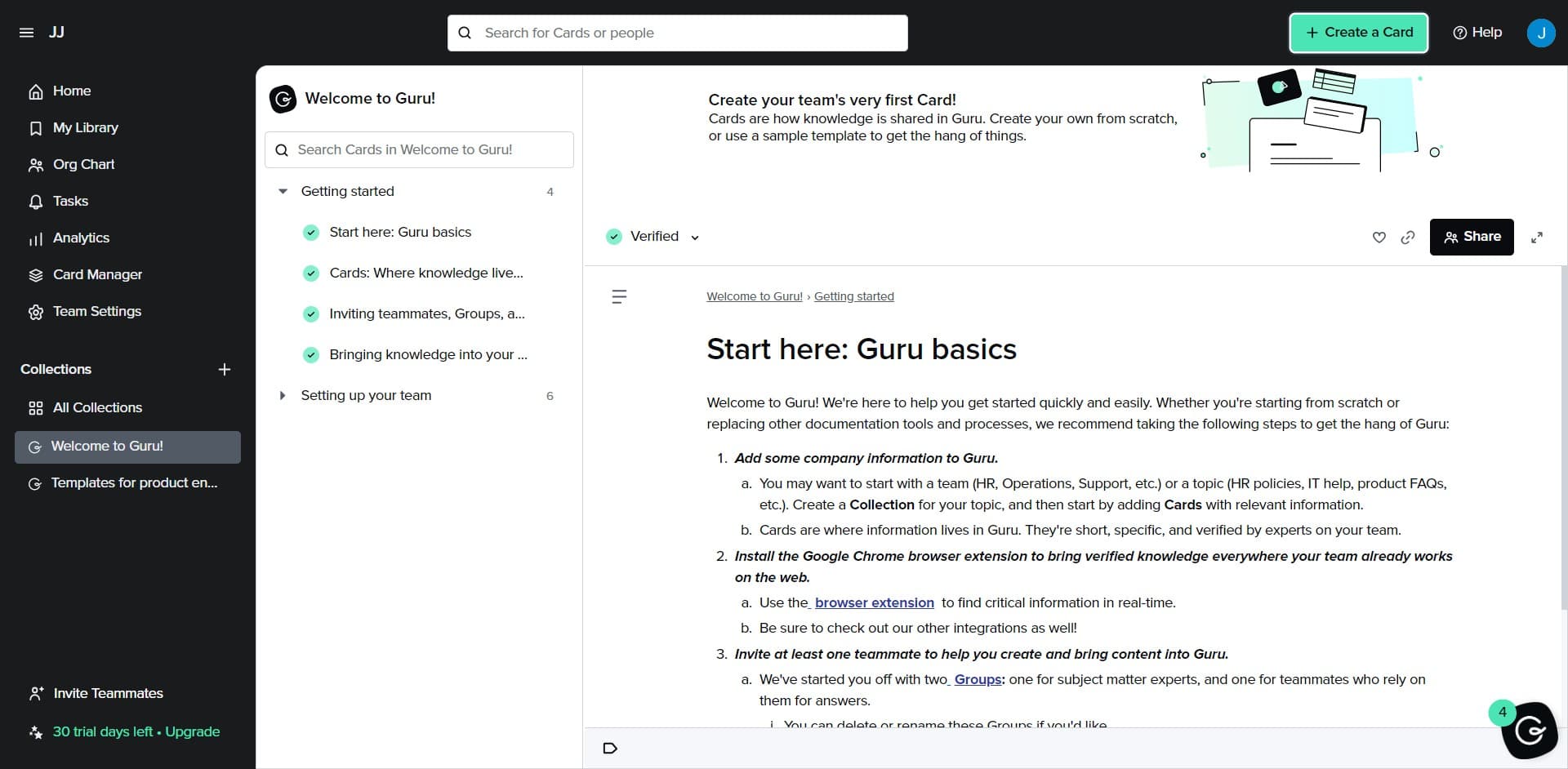
Click on Create a Card
Open Guru and navigate to the Create a Card option. This initiates the process of creating a new card in your Guru board or collection.
- 5
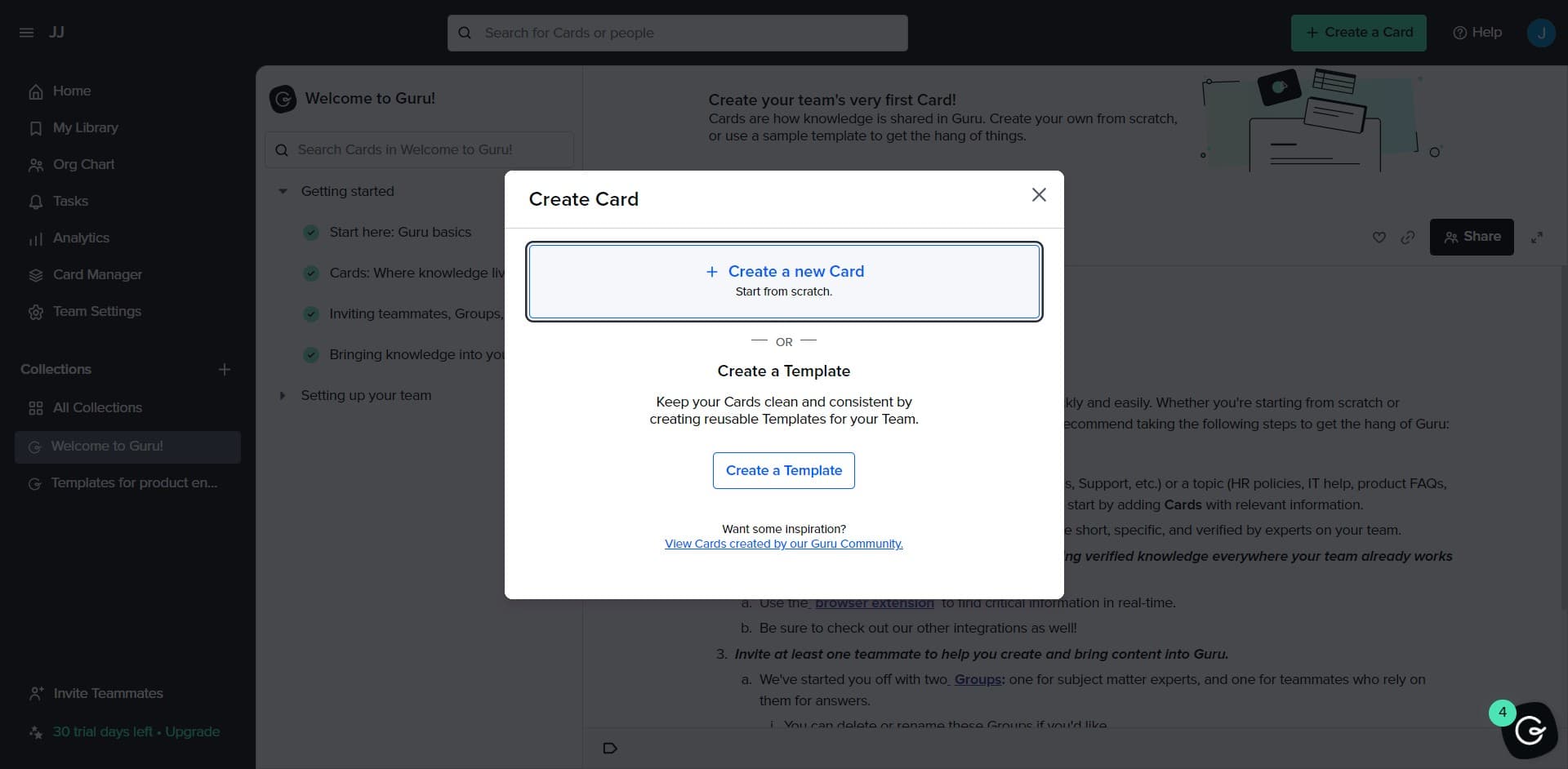
Click on Create a new Ca...
Select the option to create a new card. You'll be prompted to enter details and content for your new Guru Card.
- 6
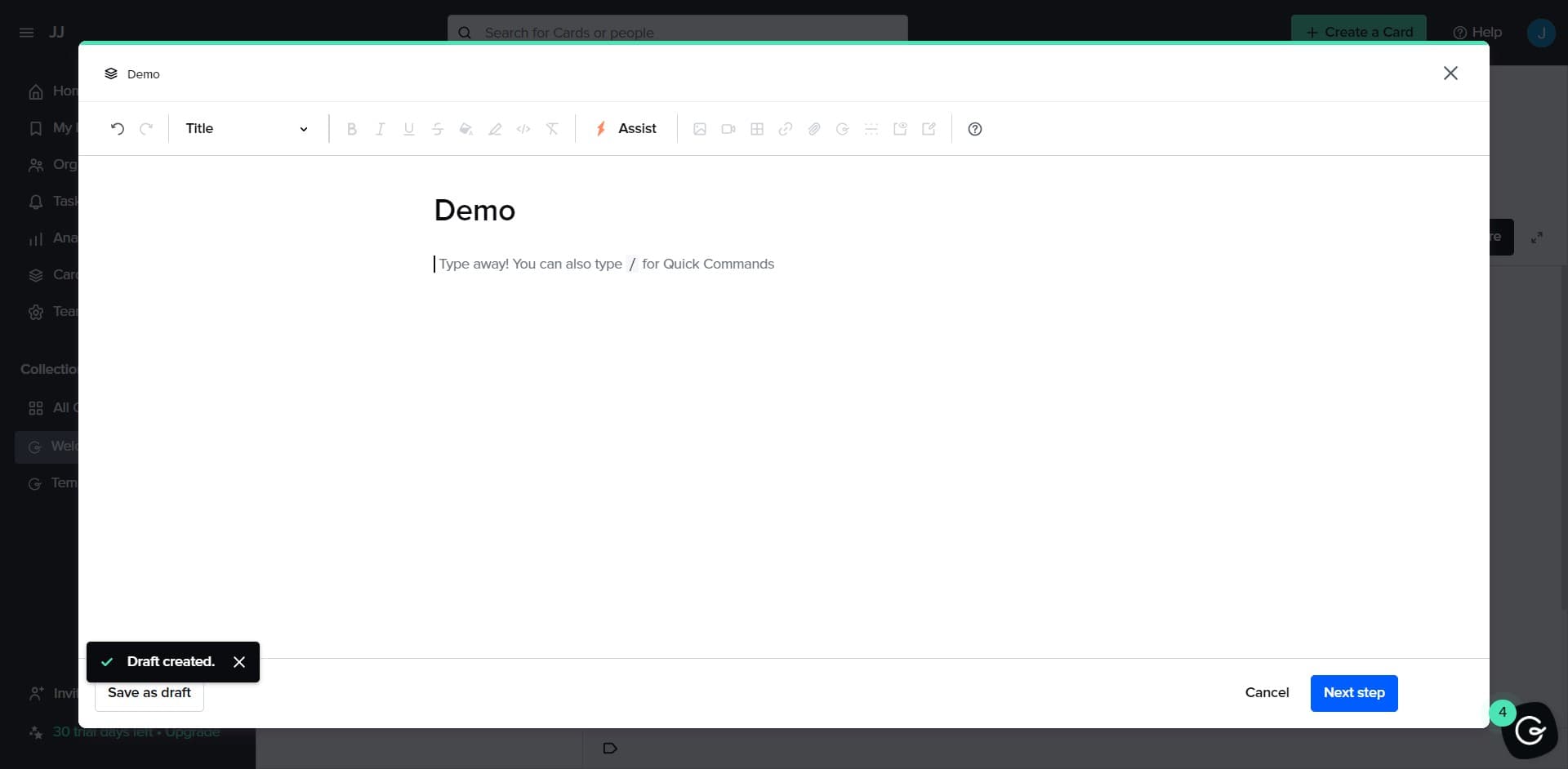
Paste the embed code
In the card content area, paste the embed code you copied earlier. Ensure the code is properly formatted and placed in the appropriate content field.
- 7
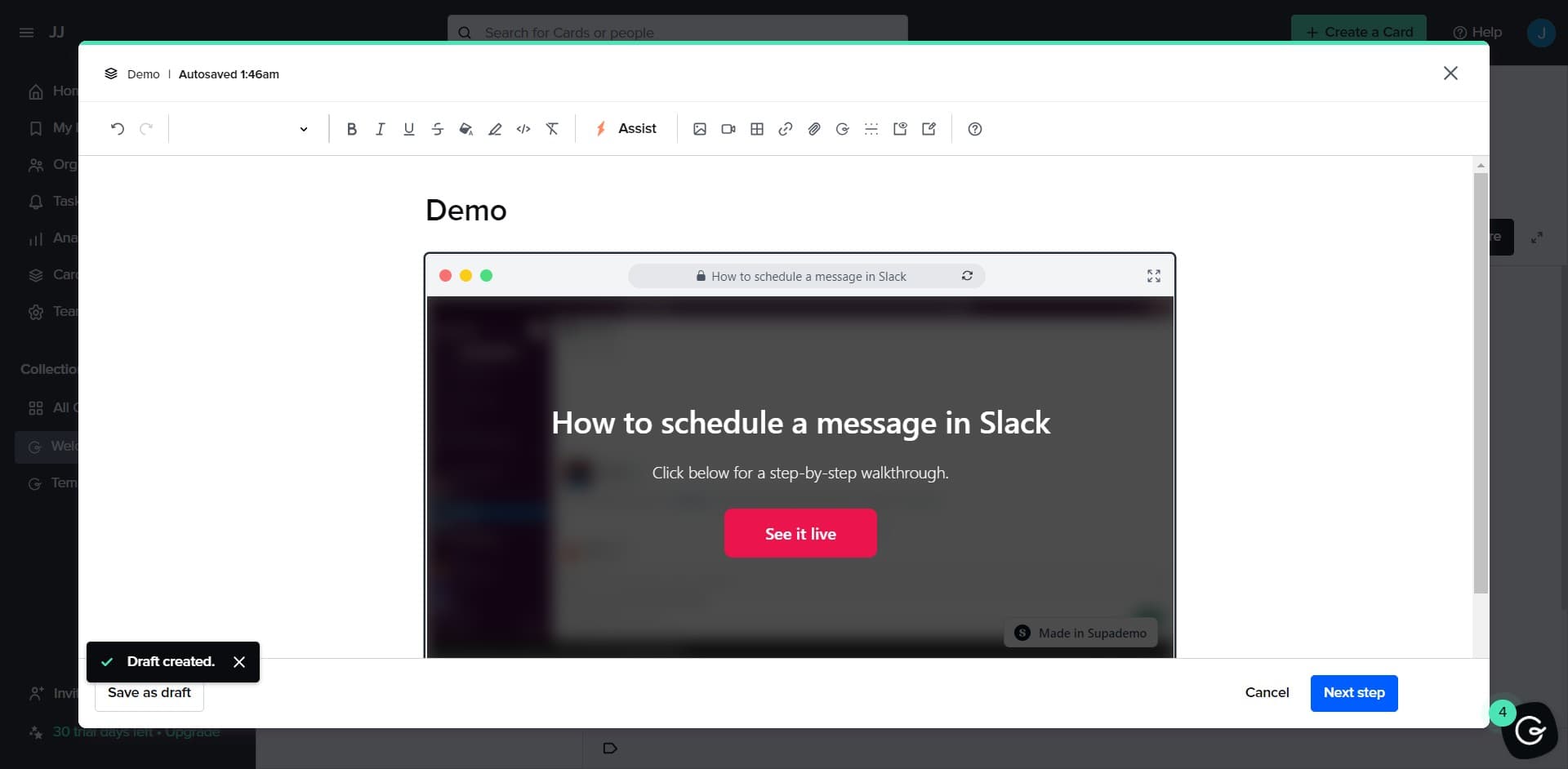
Select Demo content type
Choose Demo as the content type for your card if prompted. This helps Guru properly render and display your embedded content.
Frequently asked questions
Common questions about how to embed supademo on guru.
Yes, you can embed multiple demos on one card by pasting multiple embed codes into the content area. However, for better user experience and performance, it's recommended to keep related demos together and organize complex content across multiple cards for clarity.
The embedded demo updates automatically when you make changes to the original. Your Guru Card will always display the latest version of your demo without requiring you to re-embed the code.
Yes, team members can fully interact with the embedded demo directly within the Guru Card. They can click through steps, navigate the demo, and learn without leaving Guru.
No, there's no limit to the number of cards you can create with embedded demos. You can organize as many embedded demos as needed across different boards and collections to match your knowledge structure.
Yes, you can embed demos in both public and private Guru Cards. The visibility of your embedded demo follows the same permission settings as the card itself, allowing you to control who has access.