How to embed Supademo on Notion

Embedding interactive product demos directly into Notion pages enhances your documentation and onboarding materials. This guide walks you through the process of embedding a Supademo link into your Notion workspace, making demos accessible alongside your other content.
Quick summary
In this tutorial, you'll learn how to access the embed feature in Supademo, copy your demo link, and embed it into a Notion page using Notion's embed functionality. By the end, your demo will be live and interactive within your Notion workspace.
Why this matters
Embedding demos directly in Notion keeps your team and users in a familiar environment without requiring navigation to external links. This seamless integration improves user engagement and reduces friction when learning about your product features.
Step-by-step guide
- 1
Access the embed command
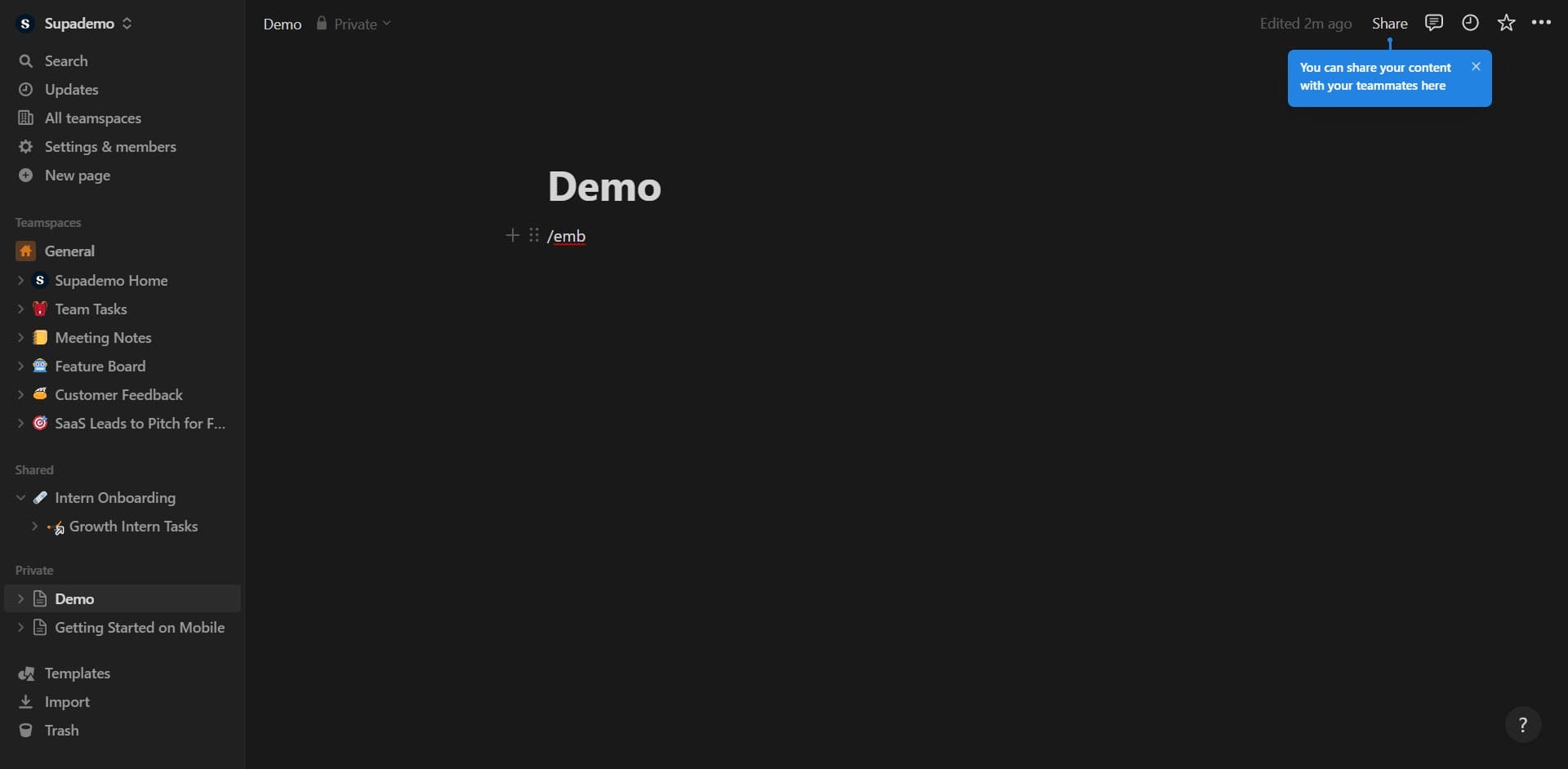
Type "/emb" in your Supademo interface to bring up the embed menu. This shortcut provides quick access to sharing and embedding options.
- 2
Select the embed option again
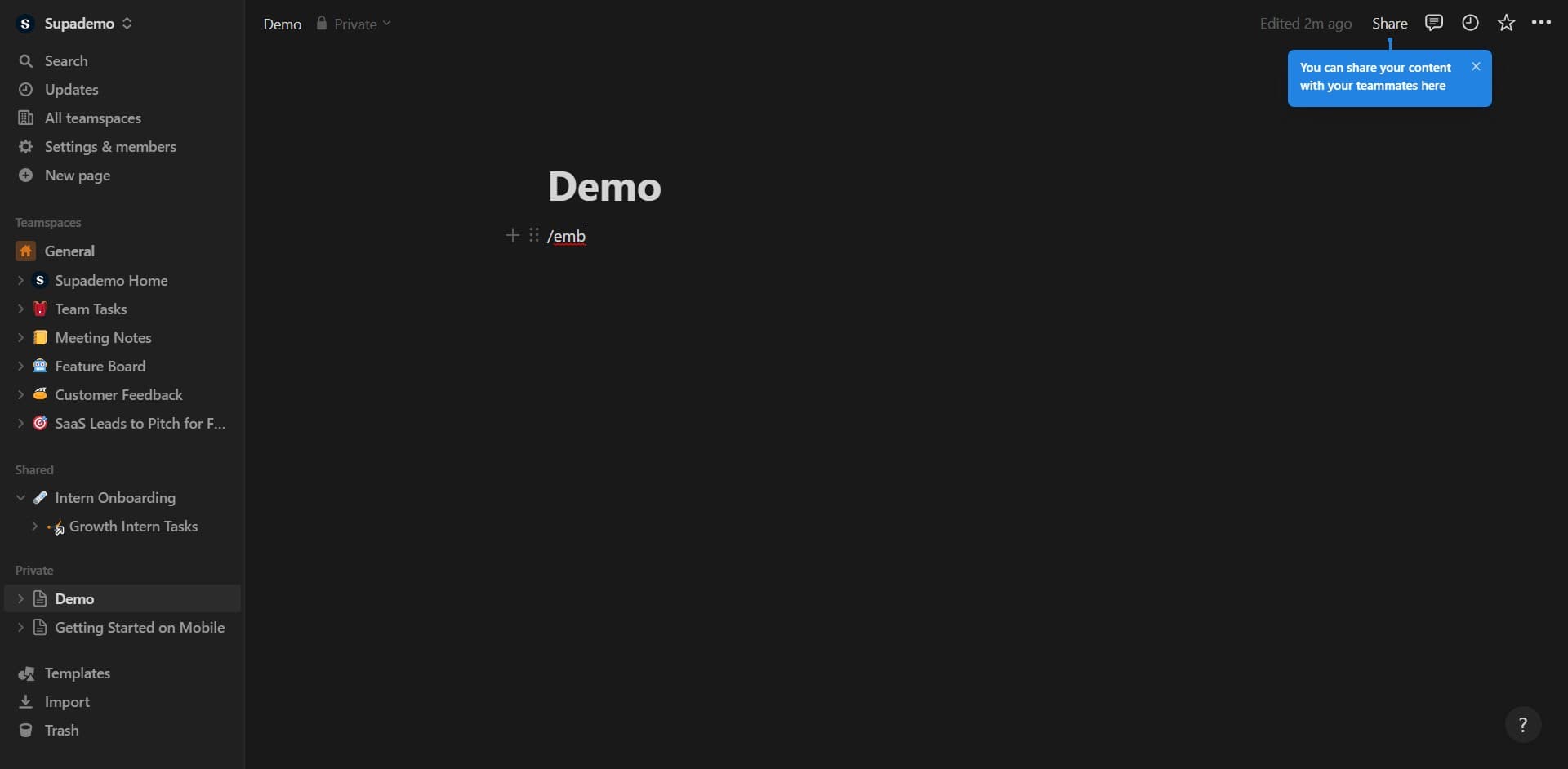
Click on "/emb" a second time to proceed through the embed workflow. This confirms your selection and moves you to the next stage of the embedding process.
- 3
Choose the embed type
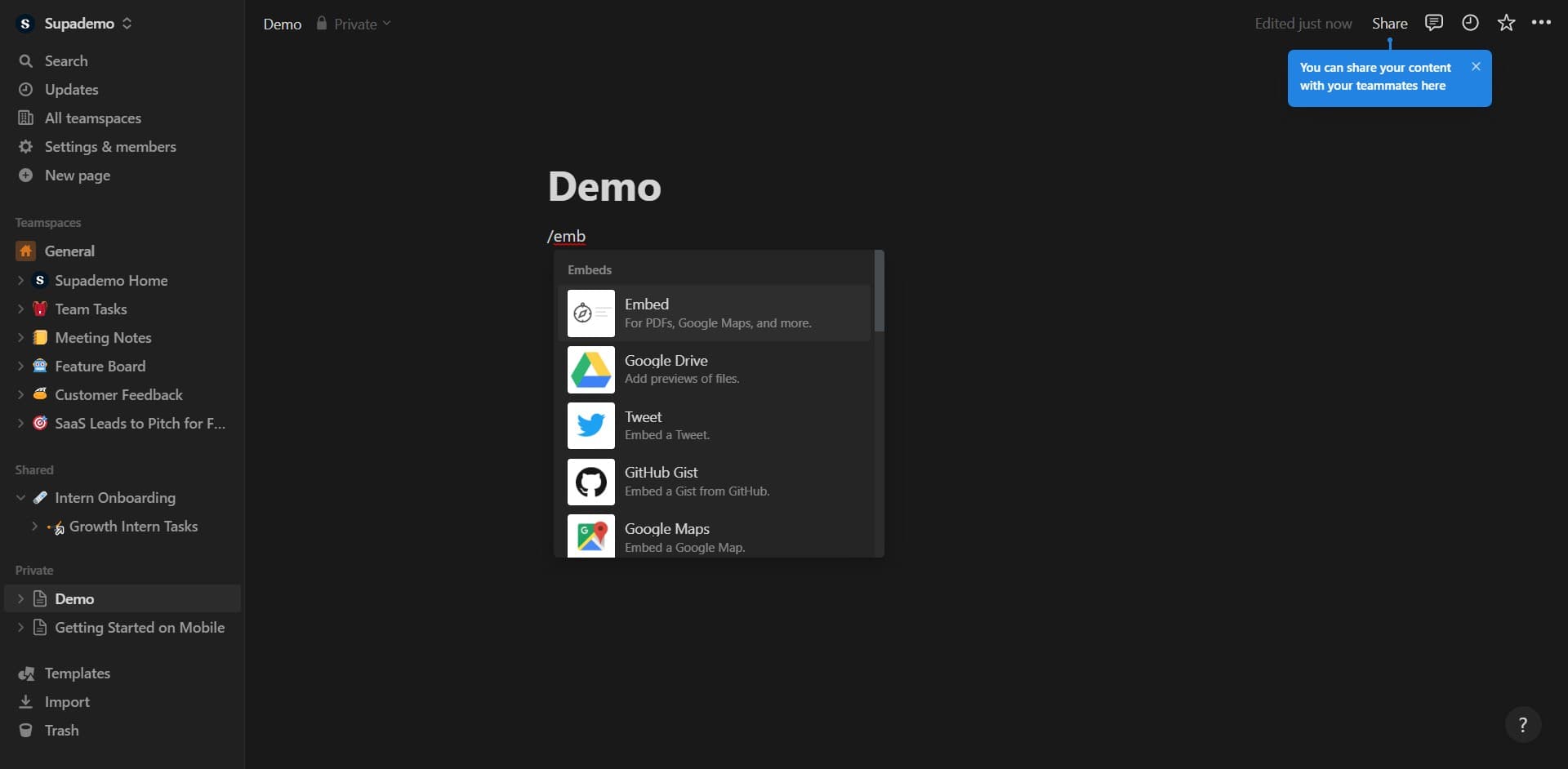
Click on "For PDFs, Google Maps, and more." to access Notion's general embed options. This option allows you to embed content from external sources into your Notion page.
- 4
Proceed to the next step
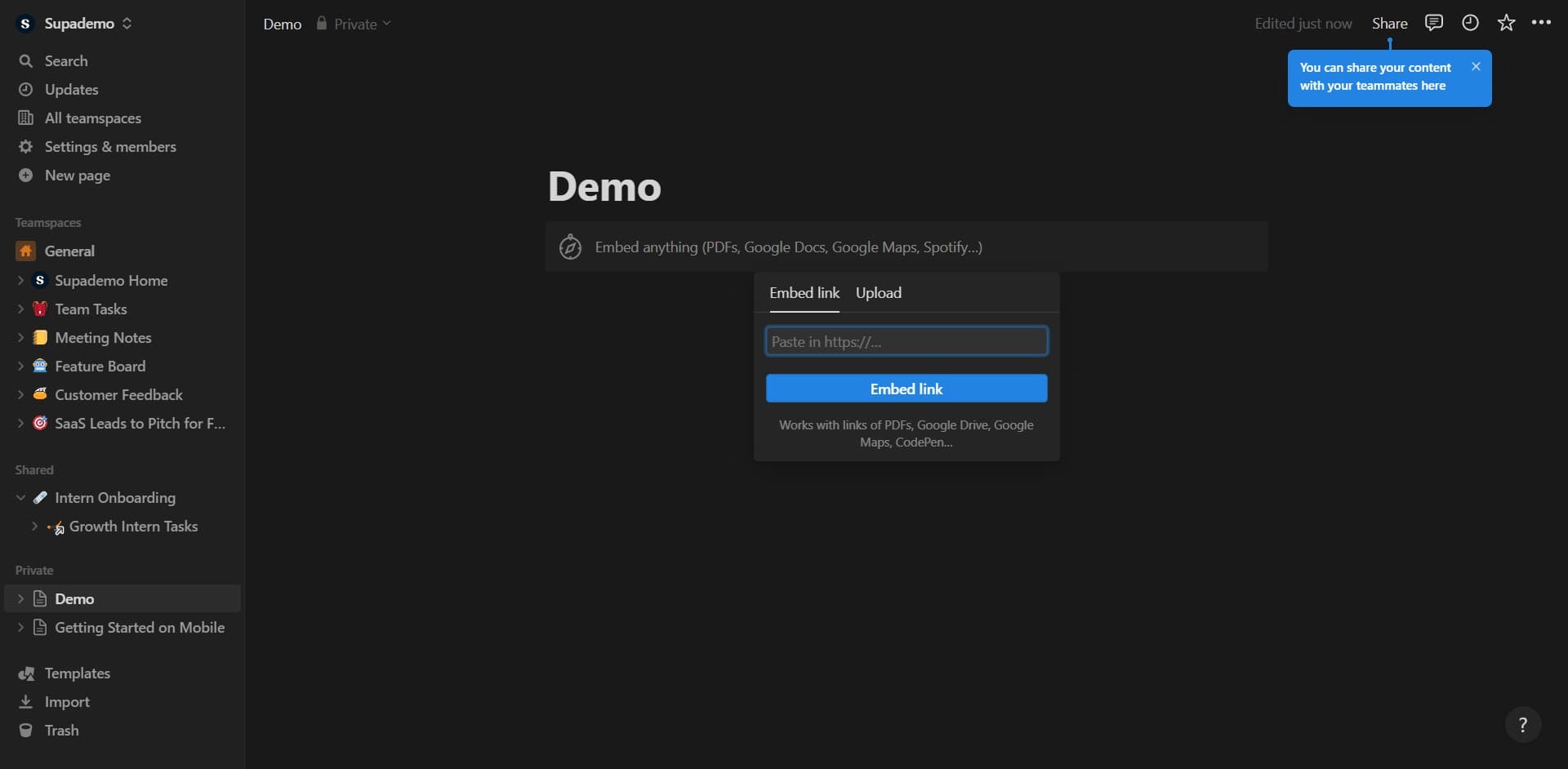
Click the designated button to continue. You'll be guided toward copying your demo link for use in Notion.
- 5
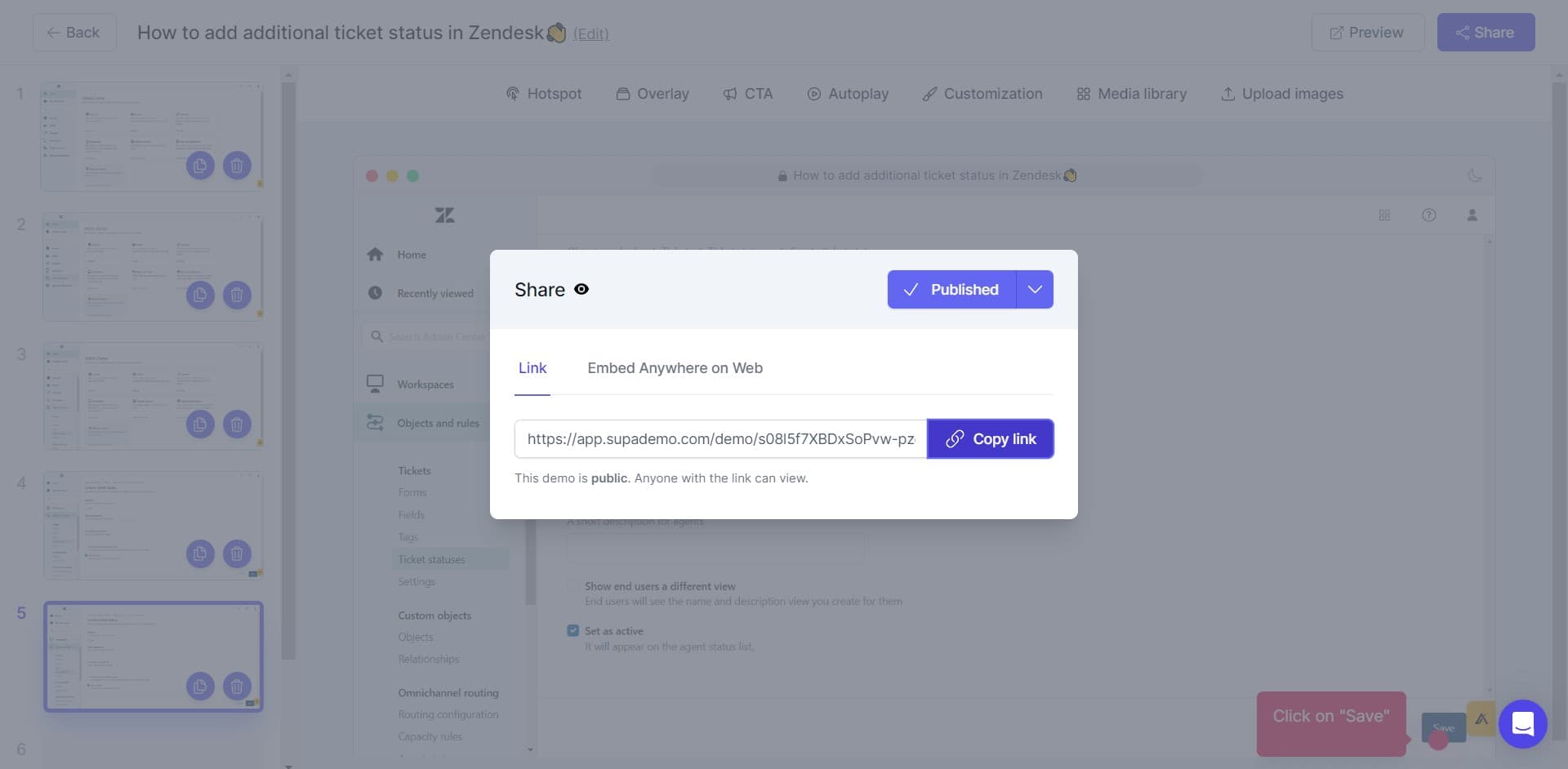
Copy your demo link
Click on "Copy link" to copy your Supademo embed URL to your clipboard. This link is what you'll paste into Notion to display your interactive demo.
- 6
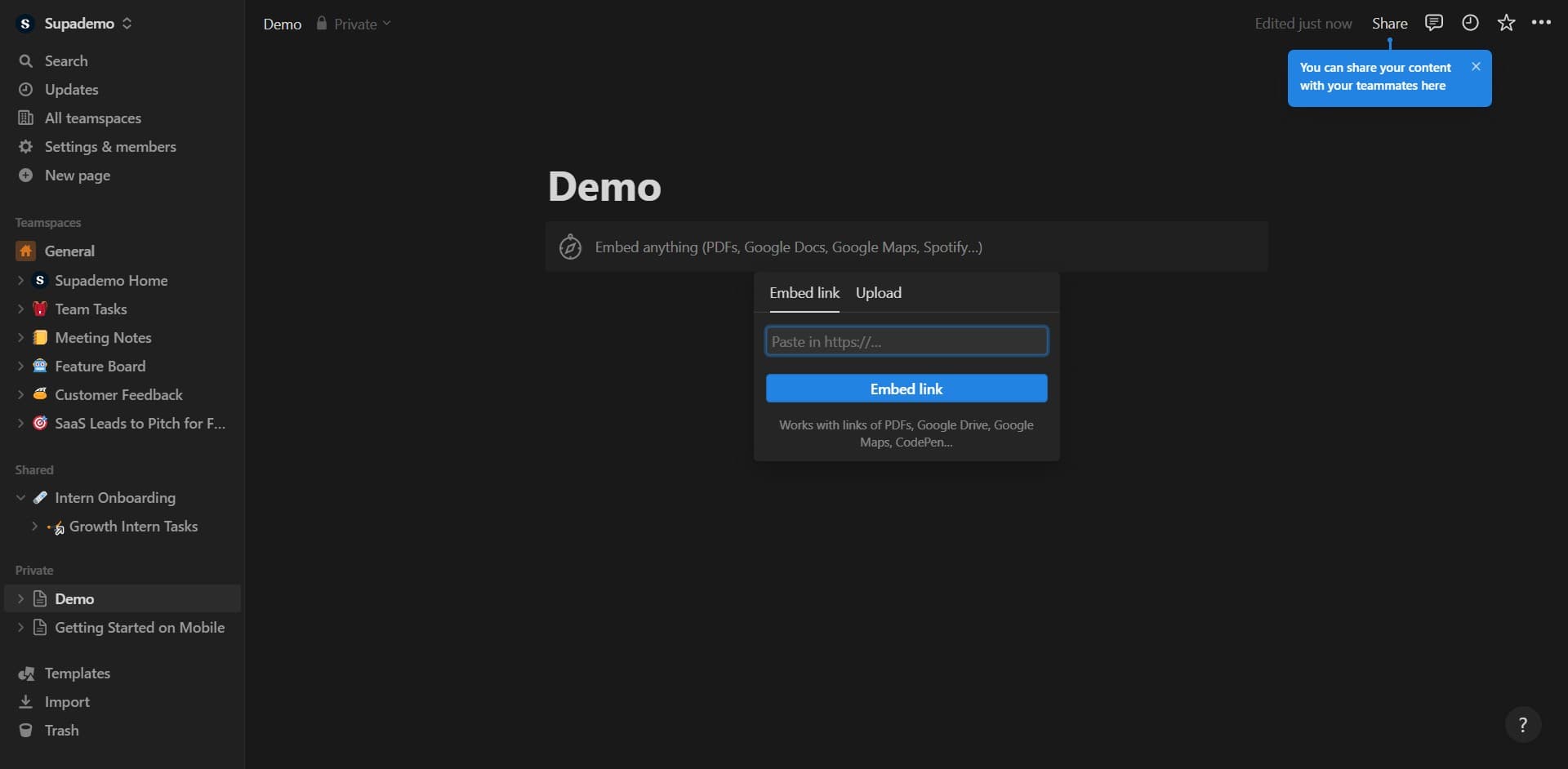
Return to Notion
Click here to switch back to your Notion page or environment. You're now ready to paste your embed link into the appropriate field.
- 7
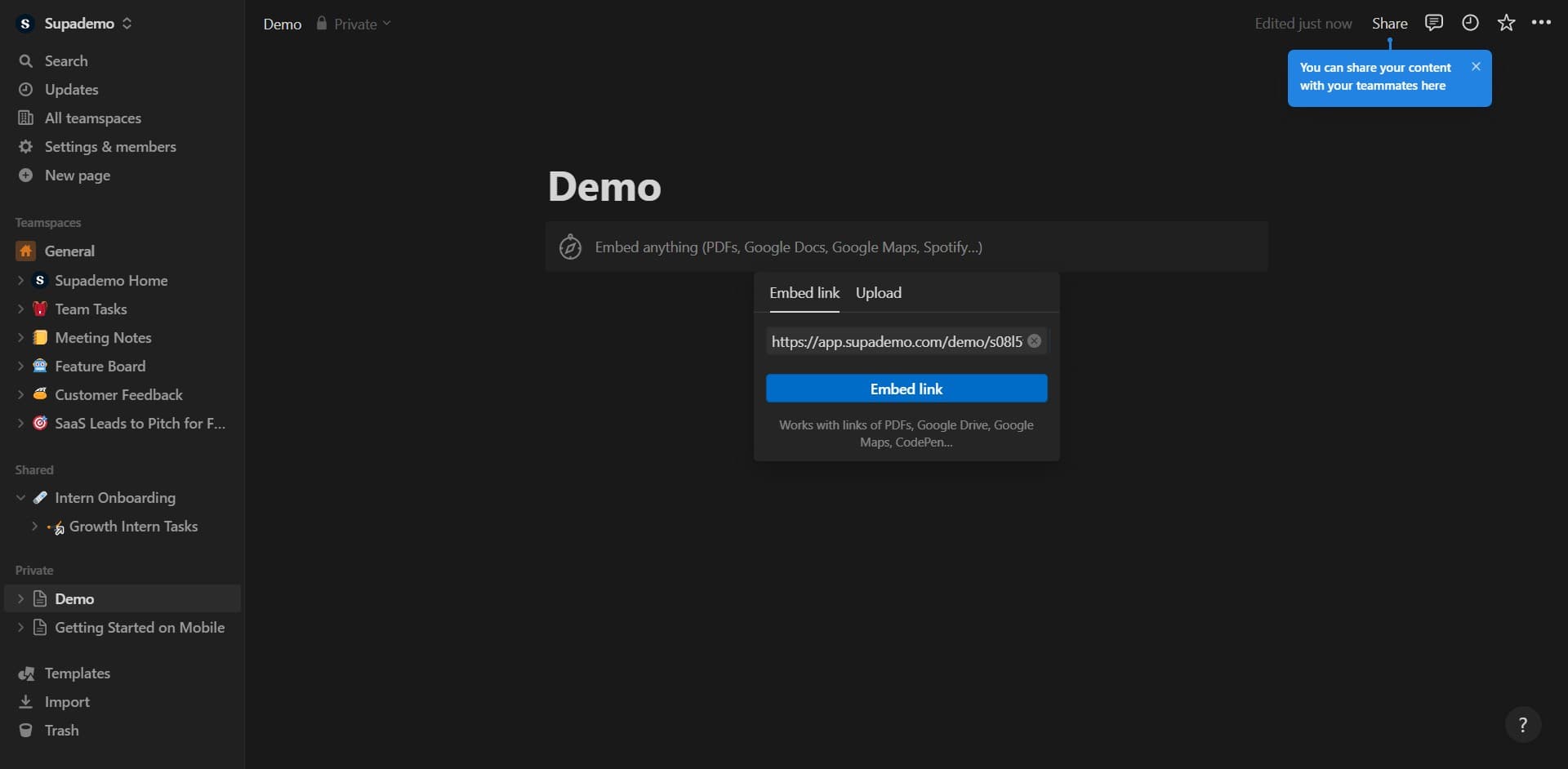
Embed the link in Notion
Click on "Embed link" within Notion's embed dialog box. Paste your copied Supademo link here to complete the embedding process.
- 8
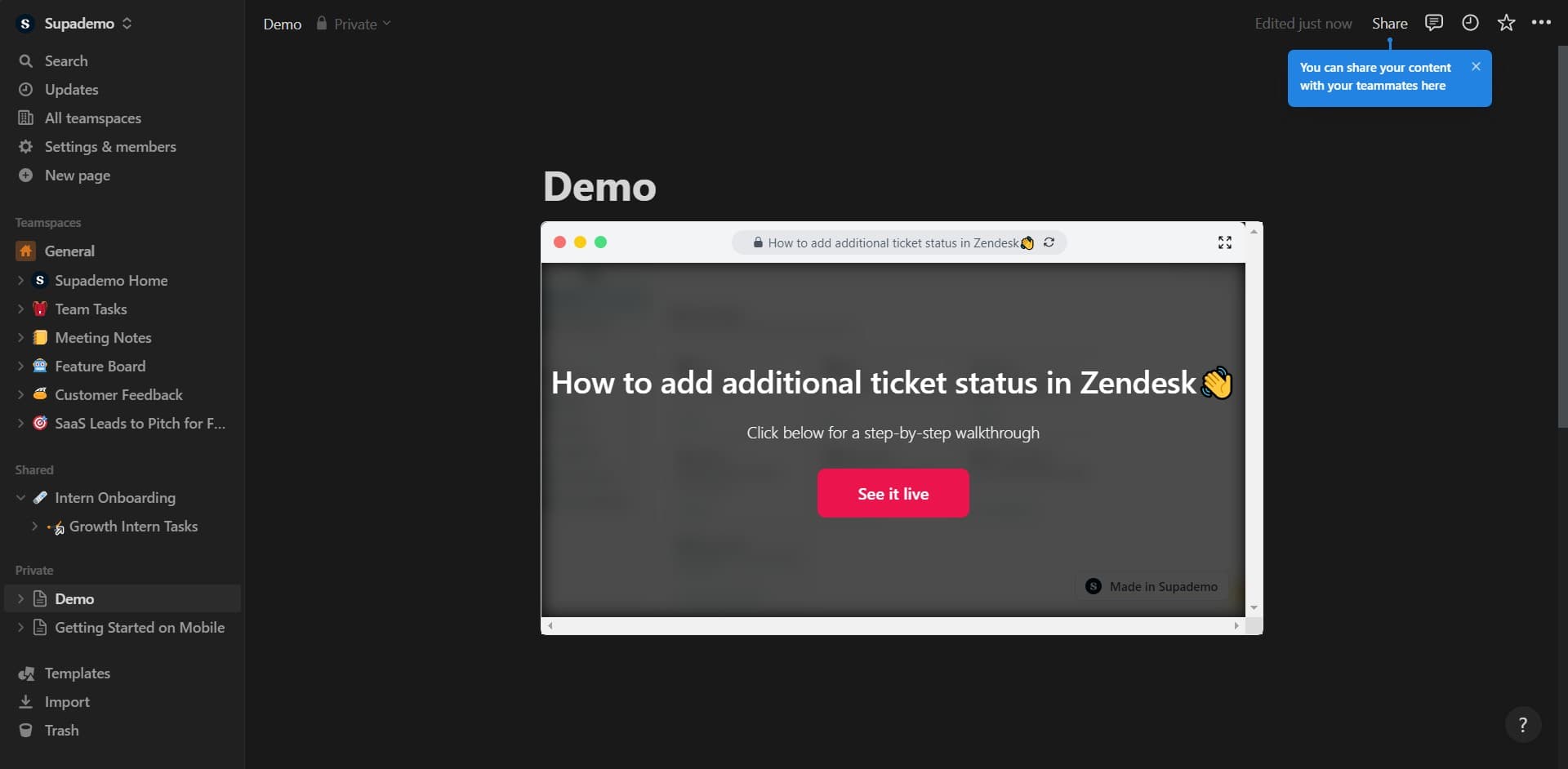
Finalize the embed
Click here to confirm and display your embedded demo on the Notion page. Your interactive demo is now live and ready for users to interact with.
Frequently asked questions
Common questions about how to embed supademo on notion.
Yes, you can embed as many demos as needed on a single Notion page. Simply repeat the embedding process for each demo link you want to include. This allows you to organize related demos together in one location.
Changes you make to your demo in Supademo will automatically reflect in the embedded version on your Notion page. You don't need to re-embed the link; the connection updates dynamically.
Yes, the embedded demo is fully interactive. Viewers can click through steps, explore features, and engage with the demo directly within the Notion page without leaving your workspace.
You need edit access to the Notion page where you want to embed the demo. If you're editing a shared workspace, ensure you have the appropriate permissions from the page owner or workspace admin.
Check that your Supademo link is correct and that you're using the embed link, not a regular share link. Refresh the Notion page, clear your browser cache, or try embedding the demo in a new Notion page to troubleshoot the issue.