How to embed Supademo on Squarespace

Embedding interactive product demos on your Squarespace site enhances user engagement and reduces support inquiries. This guide walks you through the complete process of integrating a demo embed code into your Squarespace pages using the platform's native embedding tools.
Quick summary
In this tutorial, you'll learn how to export your demo as embed code and seamlessly add it to your Squarespace site using code blocks. By the end, your demo will be fully functional and visible to your website visitors.
Why this matters
Embedding demos directly on your website allows potential customers to interact with your product without leaving your site, increasing conversion rates and product understanding. This approach keeps visitors engaged on your domain while showcasing key product features in context.
Step-by-step guide
- 1
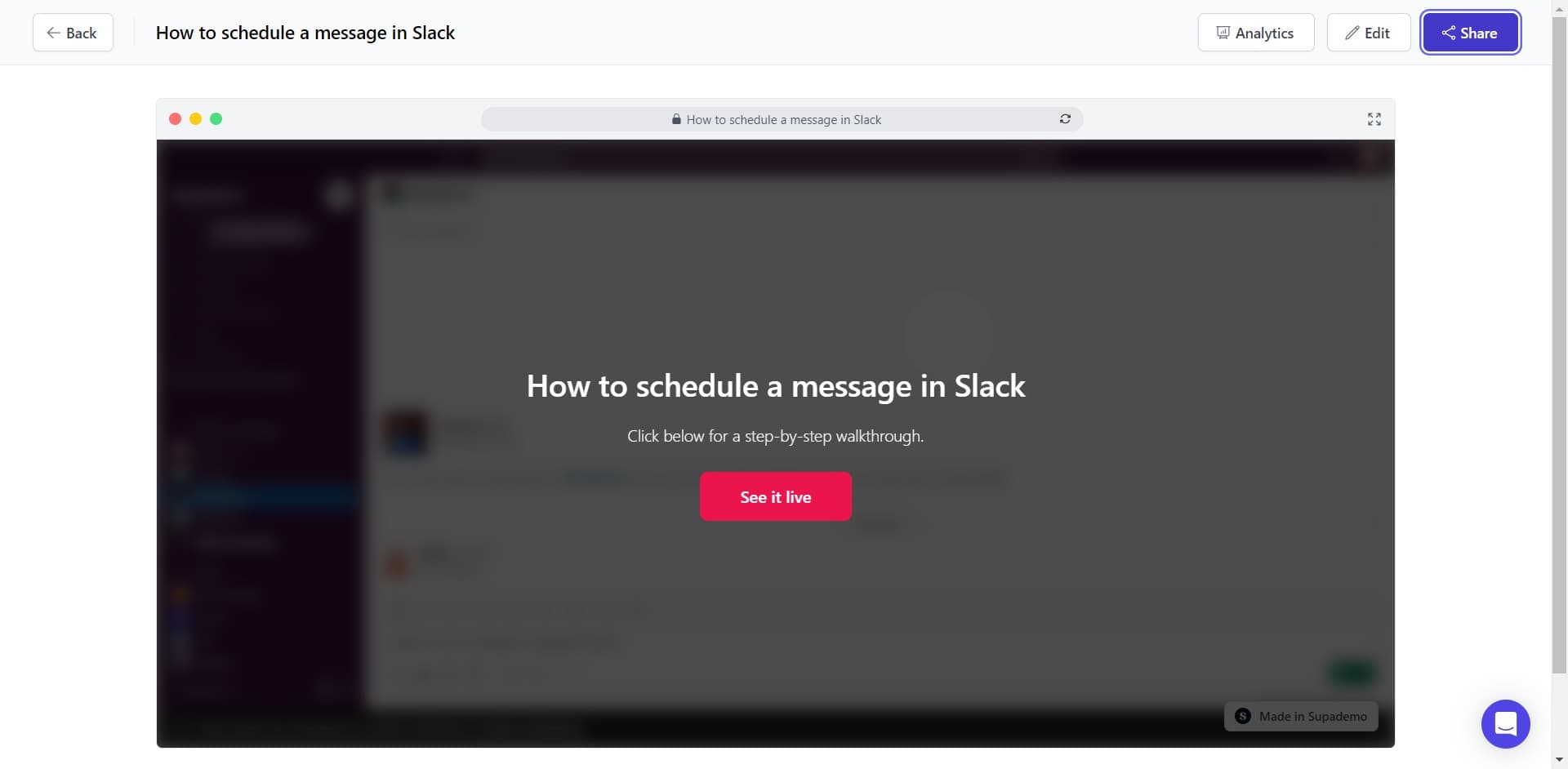
Click on Share
Start by locating and clicking the Share button in your demo interface. This opens the sharing options where you can access embed code and other distribution methods.
- 2
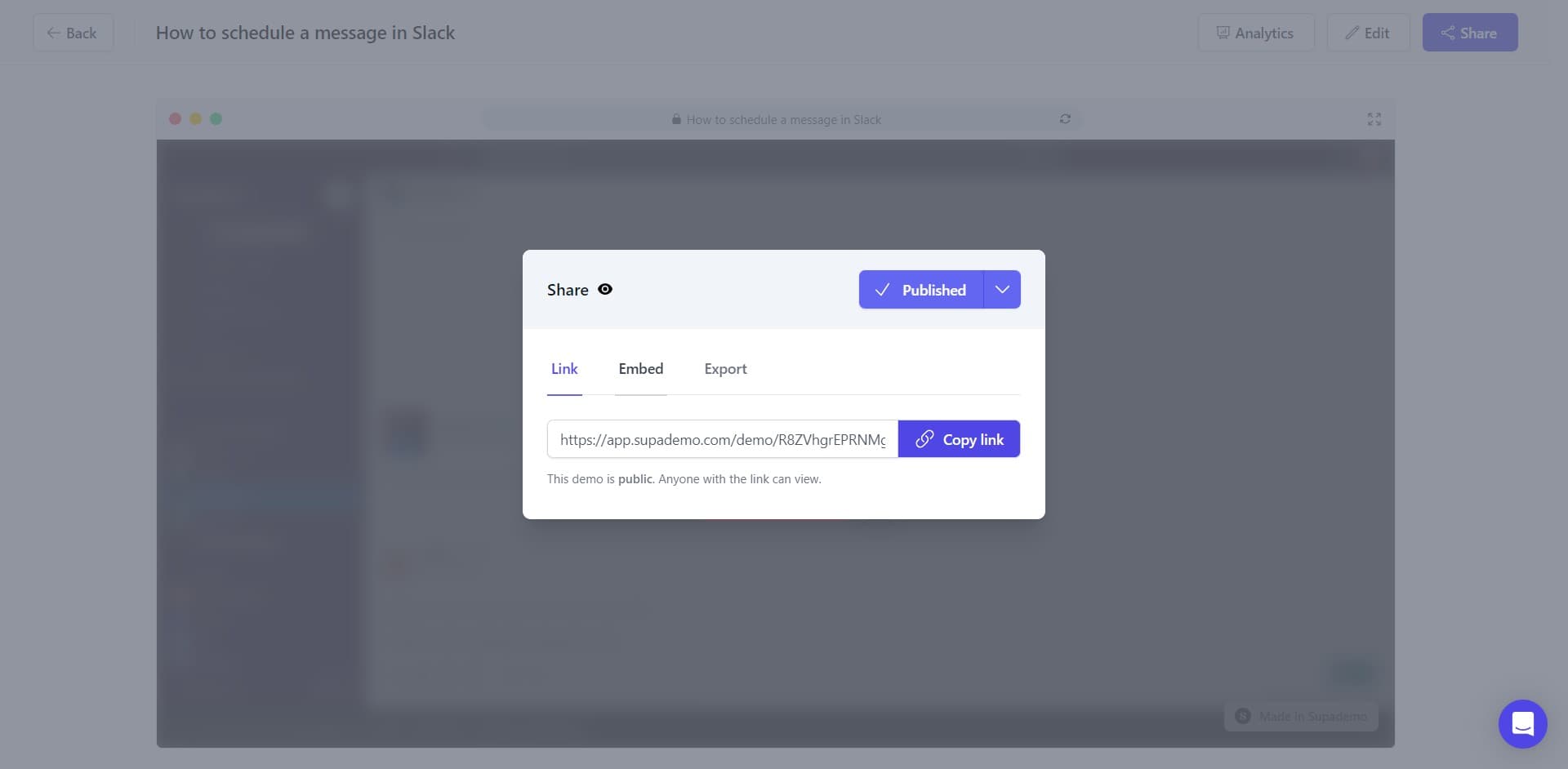
Click on Embed
From the Share menu, select the Embed option. This reveals the embed code generation tools specific to your demo.
- 3
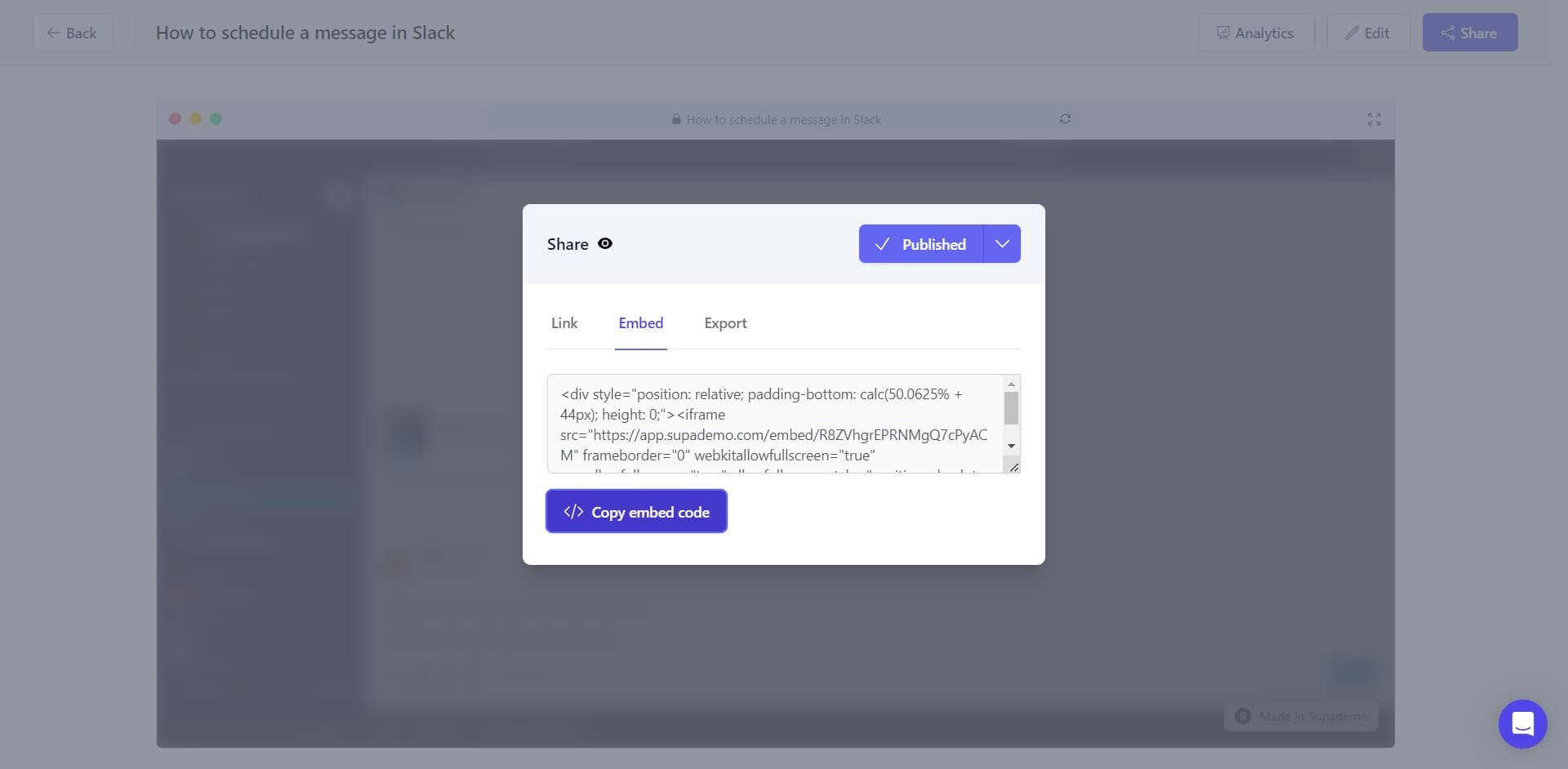
Copy embed code
Click the Copy embed code button to copy the HTML code to your clipboard. You'll paste this code into Squarespace in the following steps.
- 4
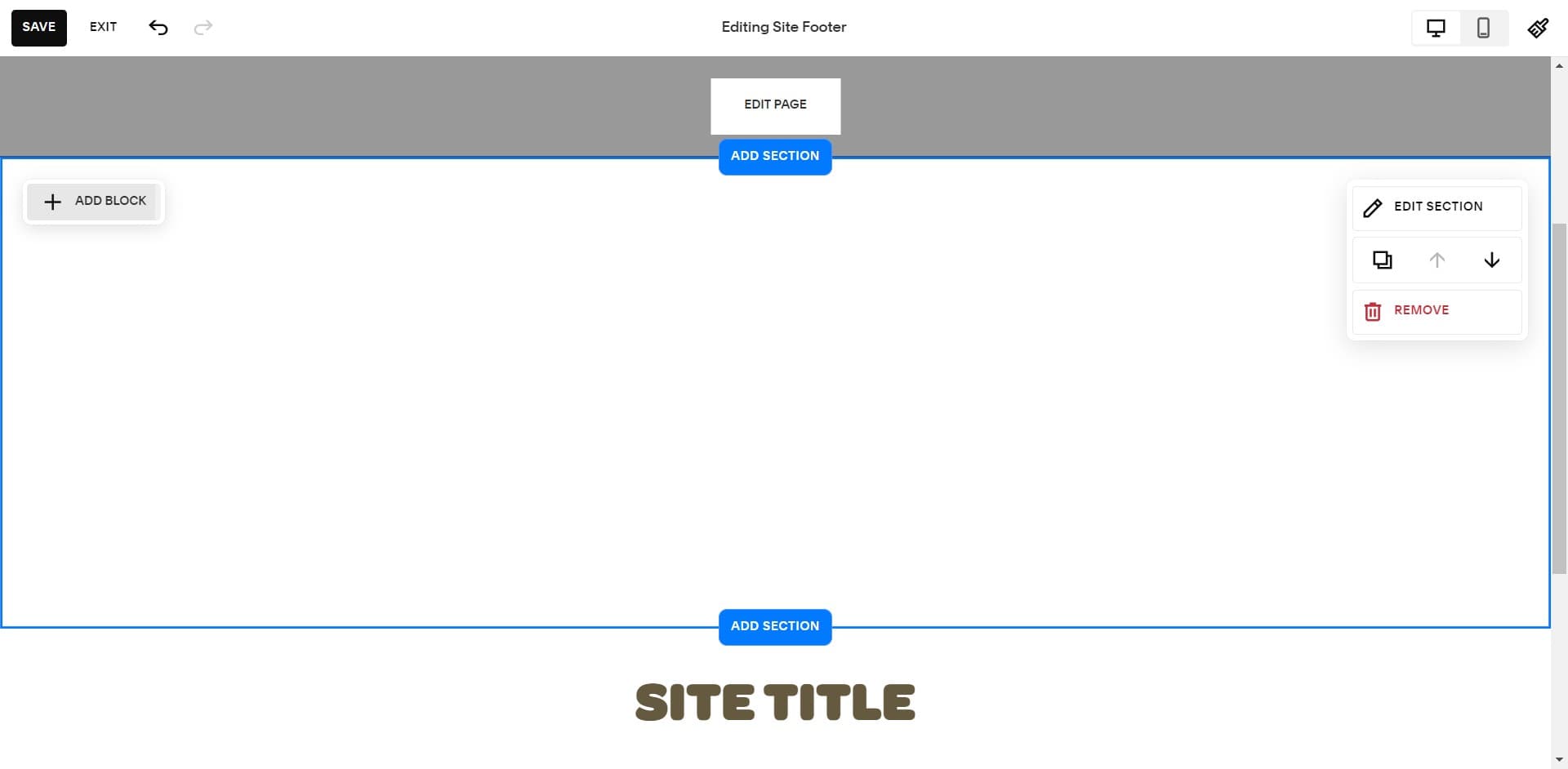
Add a new block in Squarespace
In your Squarespace page editor, click ADD BLOCK to create a new content area. This is where your embed code will be inserted.
- 5
Upload or configure the block
Choose the appropriate block type or upload settings as prompted by Squarespace. The platform may guide you through initial configuration options.
- 6
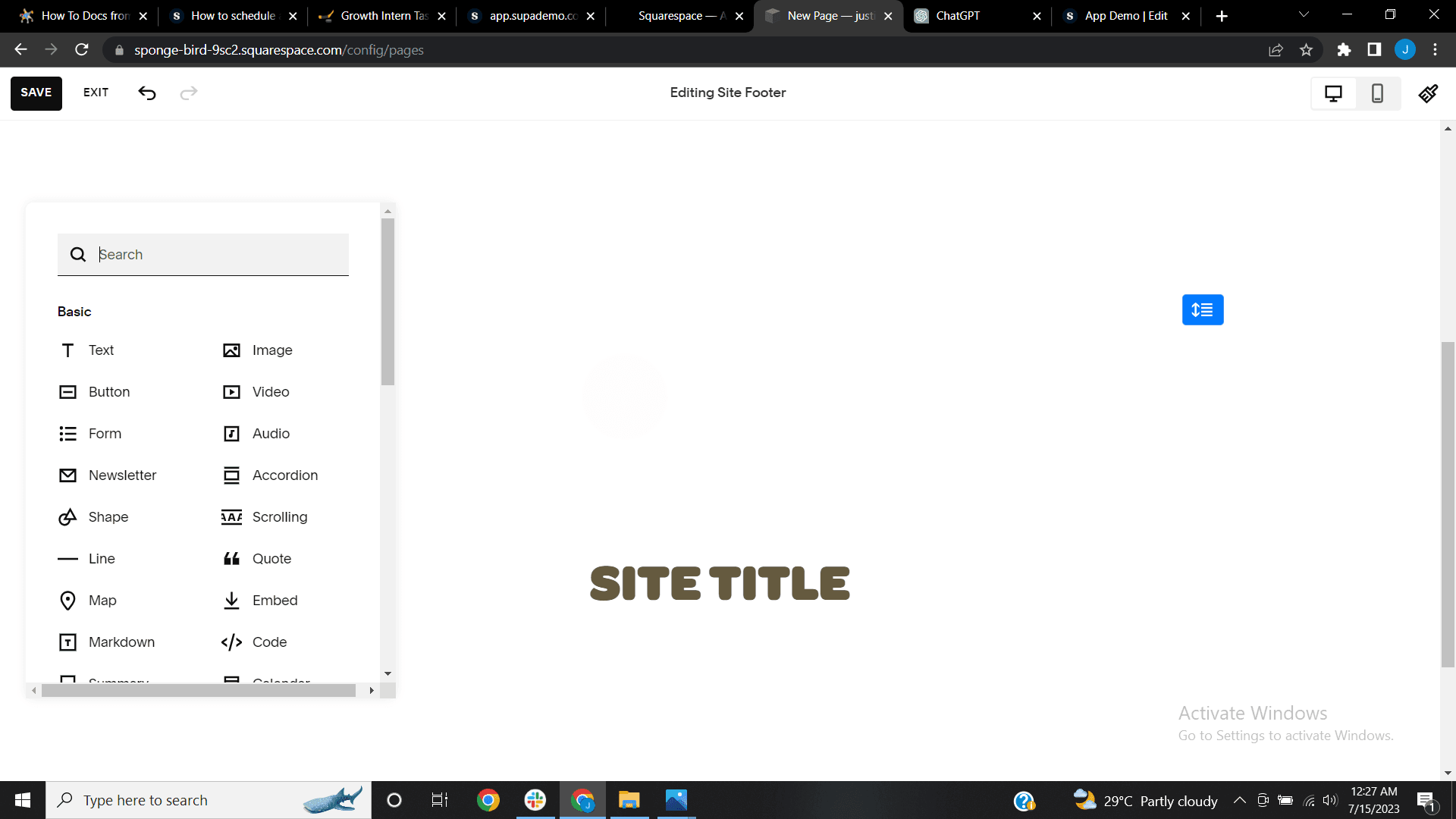
Select the code block option
Navigate to and click the designated area or menu that allows you to add custom code. This prepares Squarespace to receive your embed code.
- 7
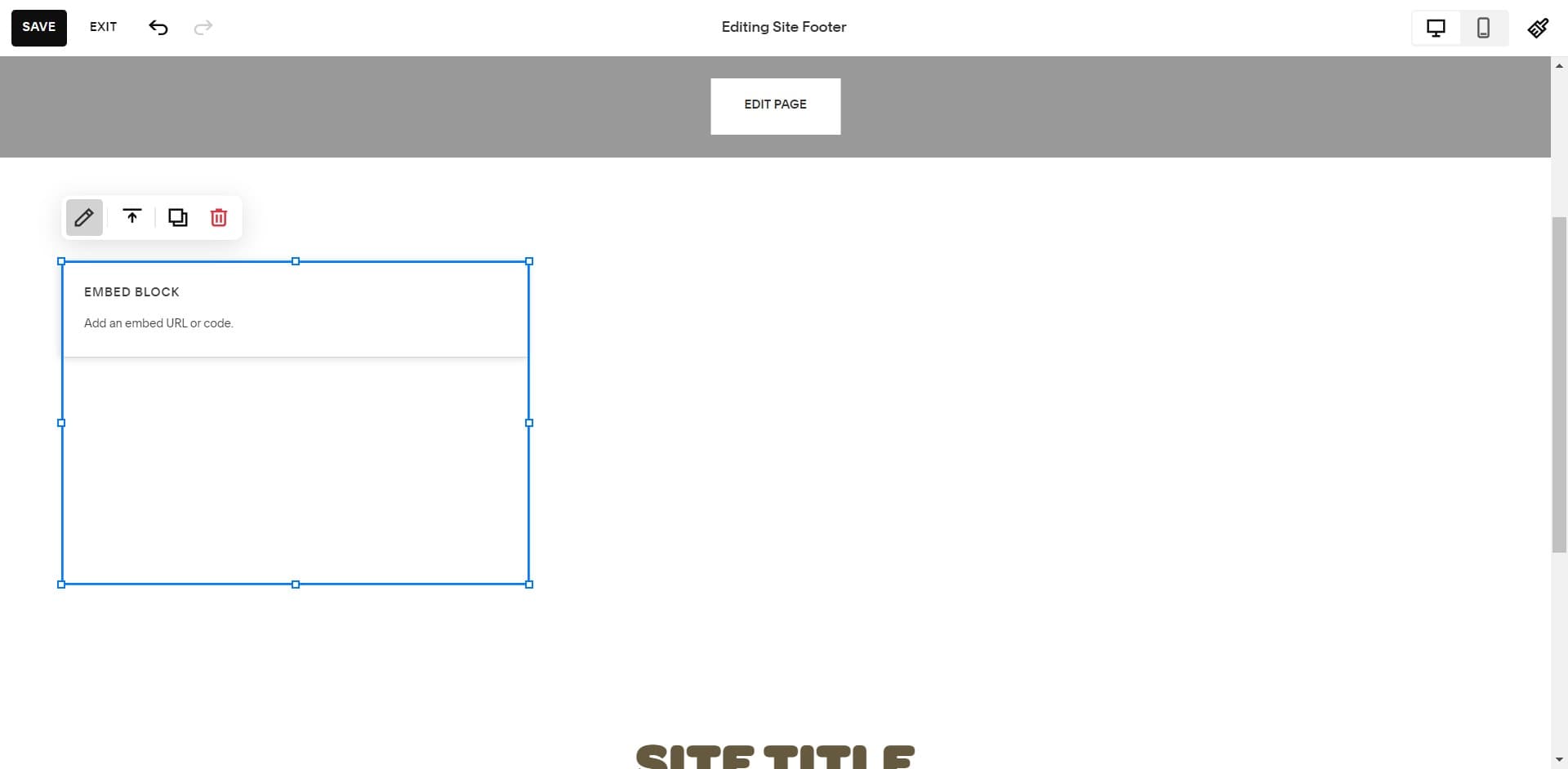
Select Code Snippet block
Click on Code Snippet from the available block options. This block type is specifically designed to handle custom HTML and embed codes.
- 8
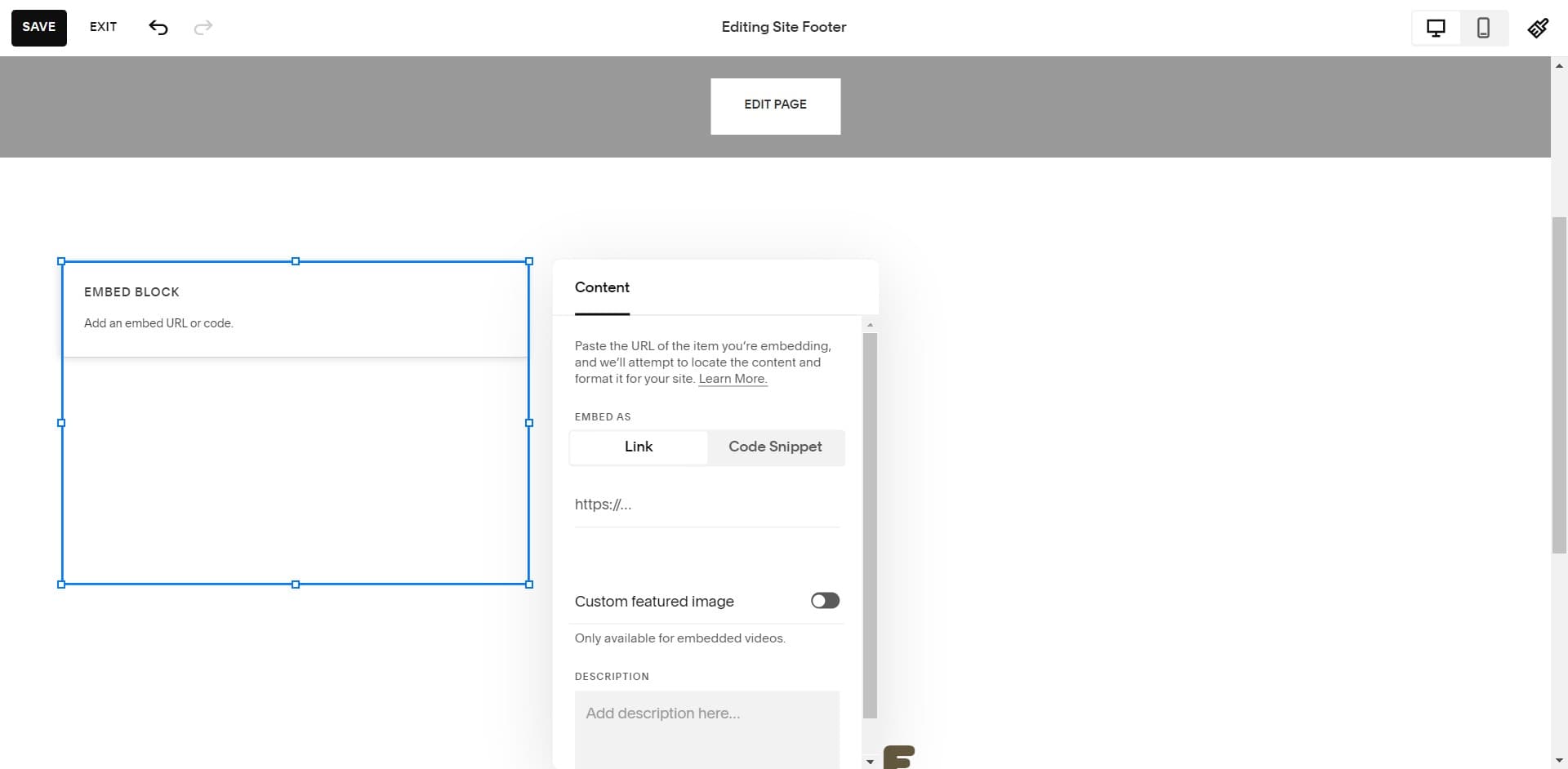
Confirm Code Snippet selection
Click Code Snippet again if prompted to confirm your selection. Squarespace will now display an input field ready for your code.
- 9
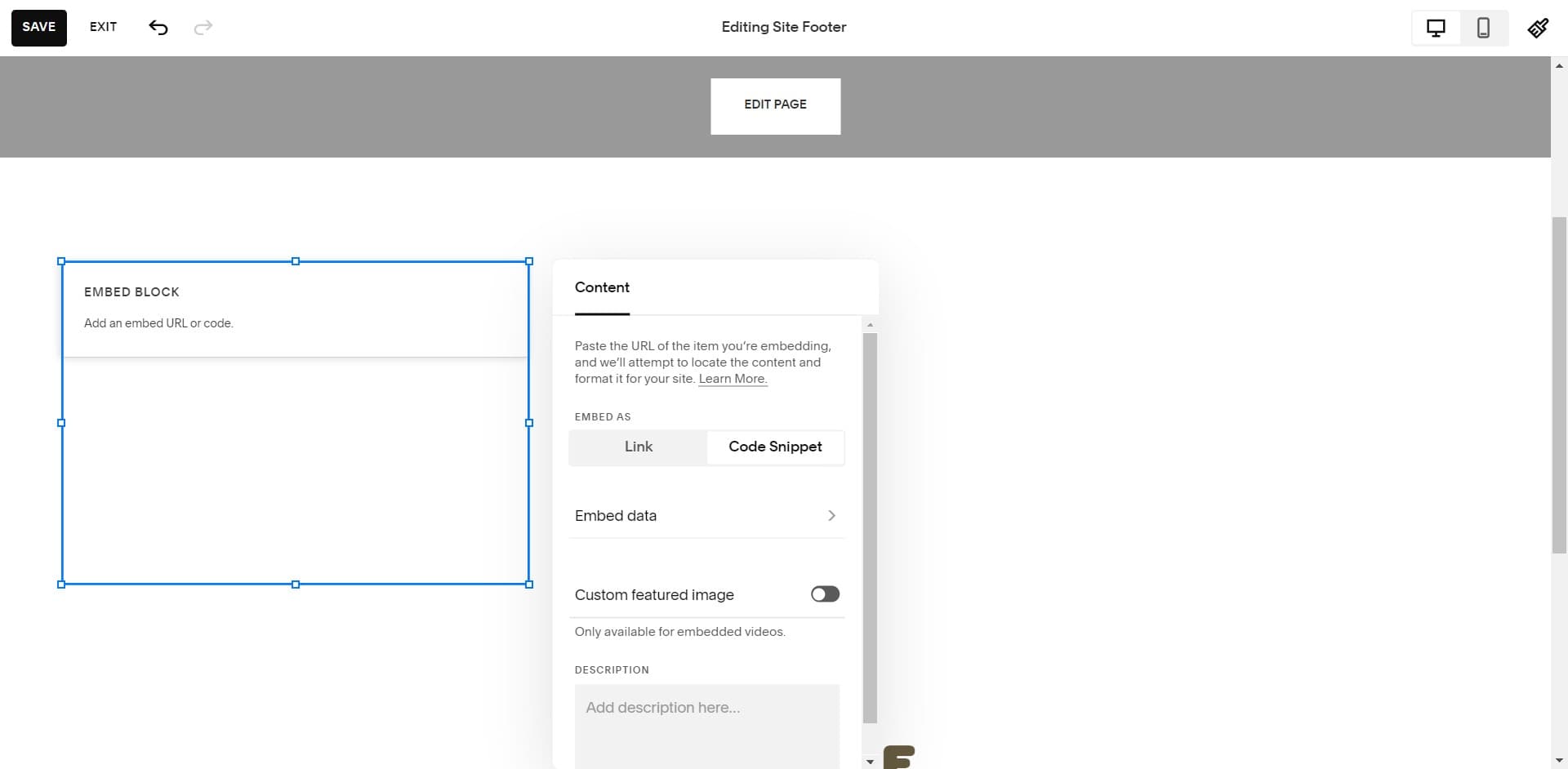
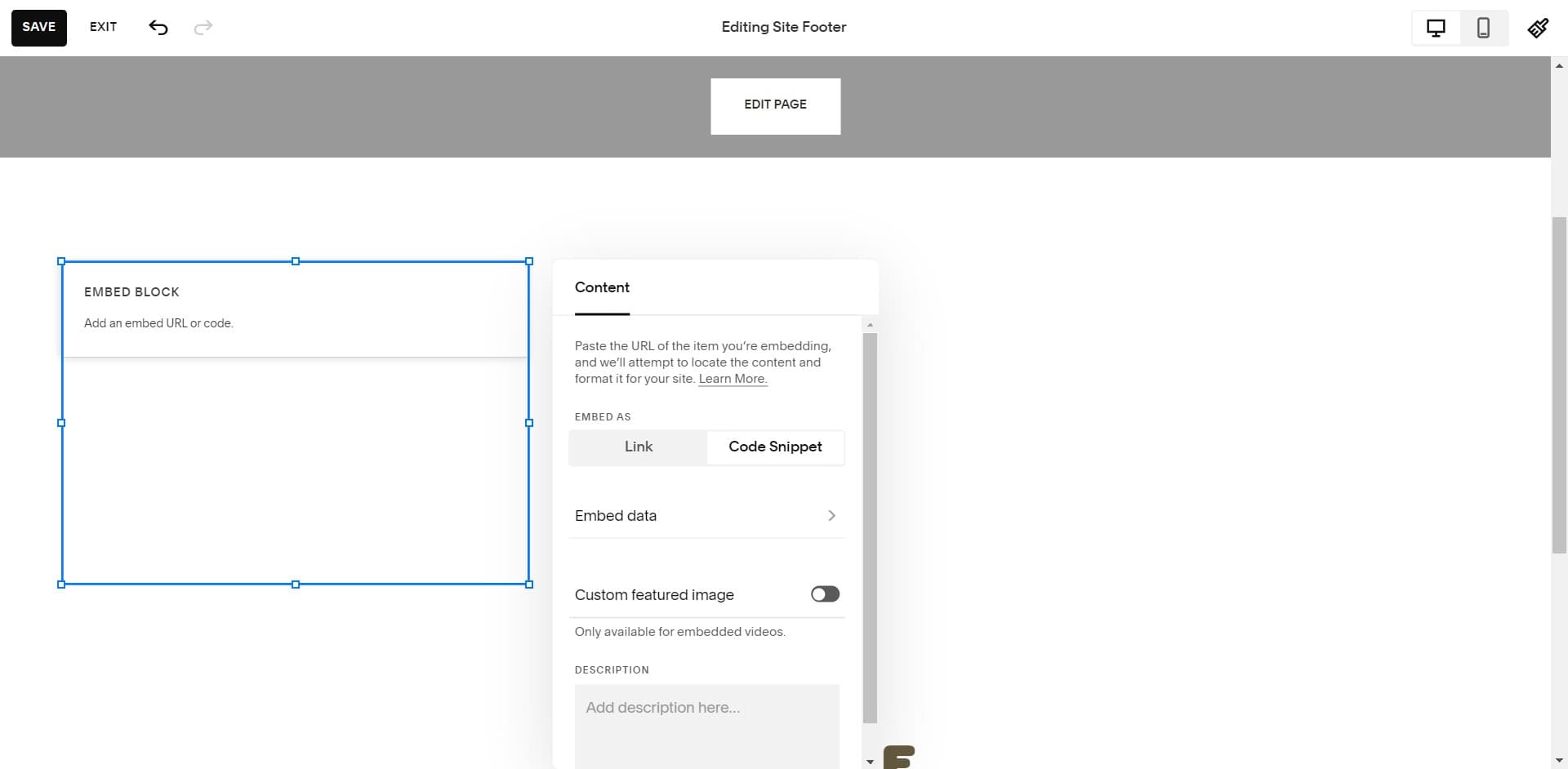
Click on Embed data field
Click into the Embed data input area where you'll paste your code. This field is where the HTML embed code should be inserted.
- 10
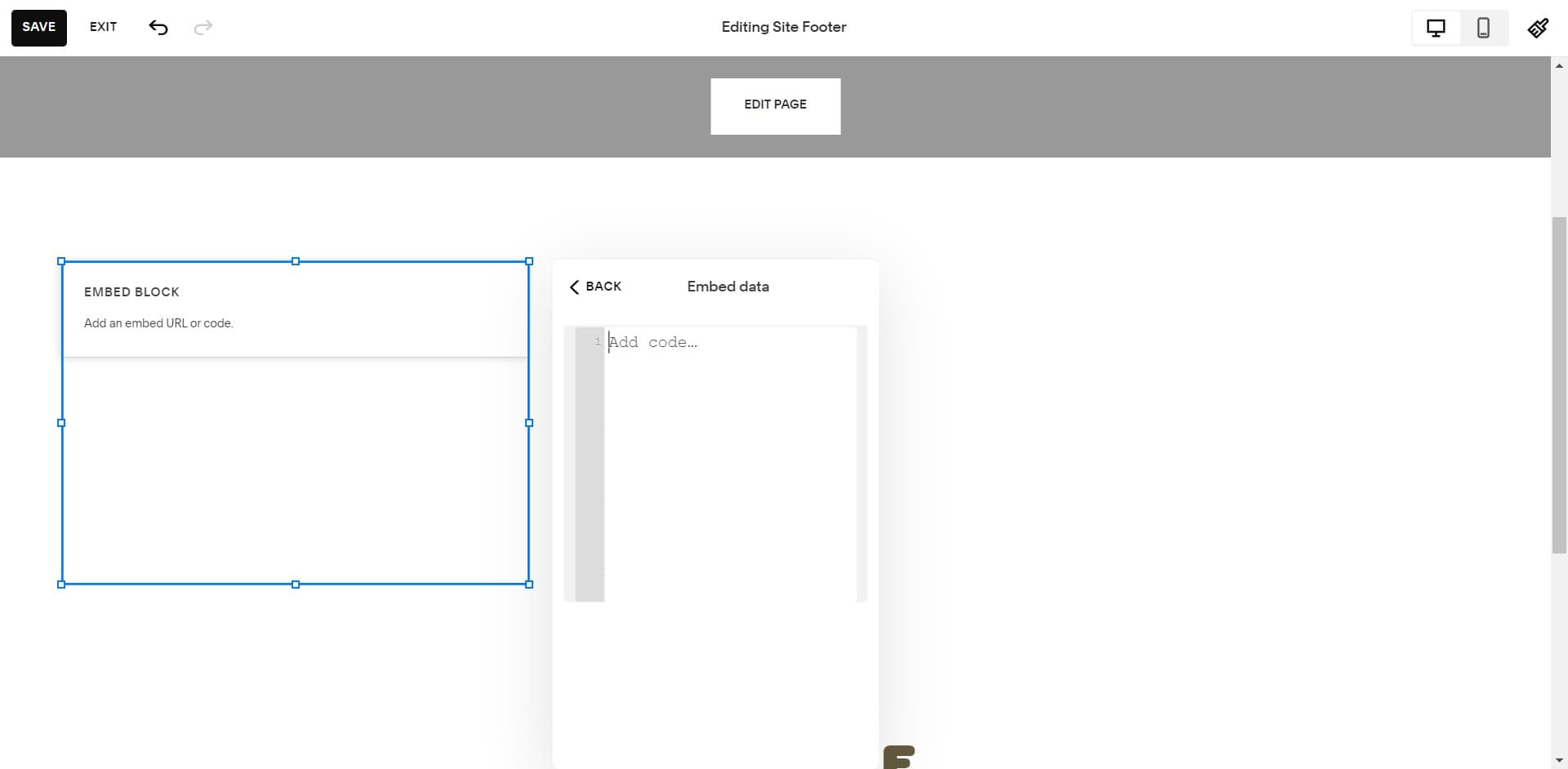
Paste the embed code
Click Add code and paste the embed code you copied earlier into the text field. Ensure the entire code block is pasted correctly without any missing characters.
- 11
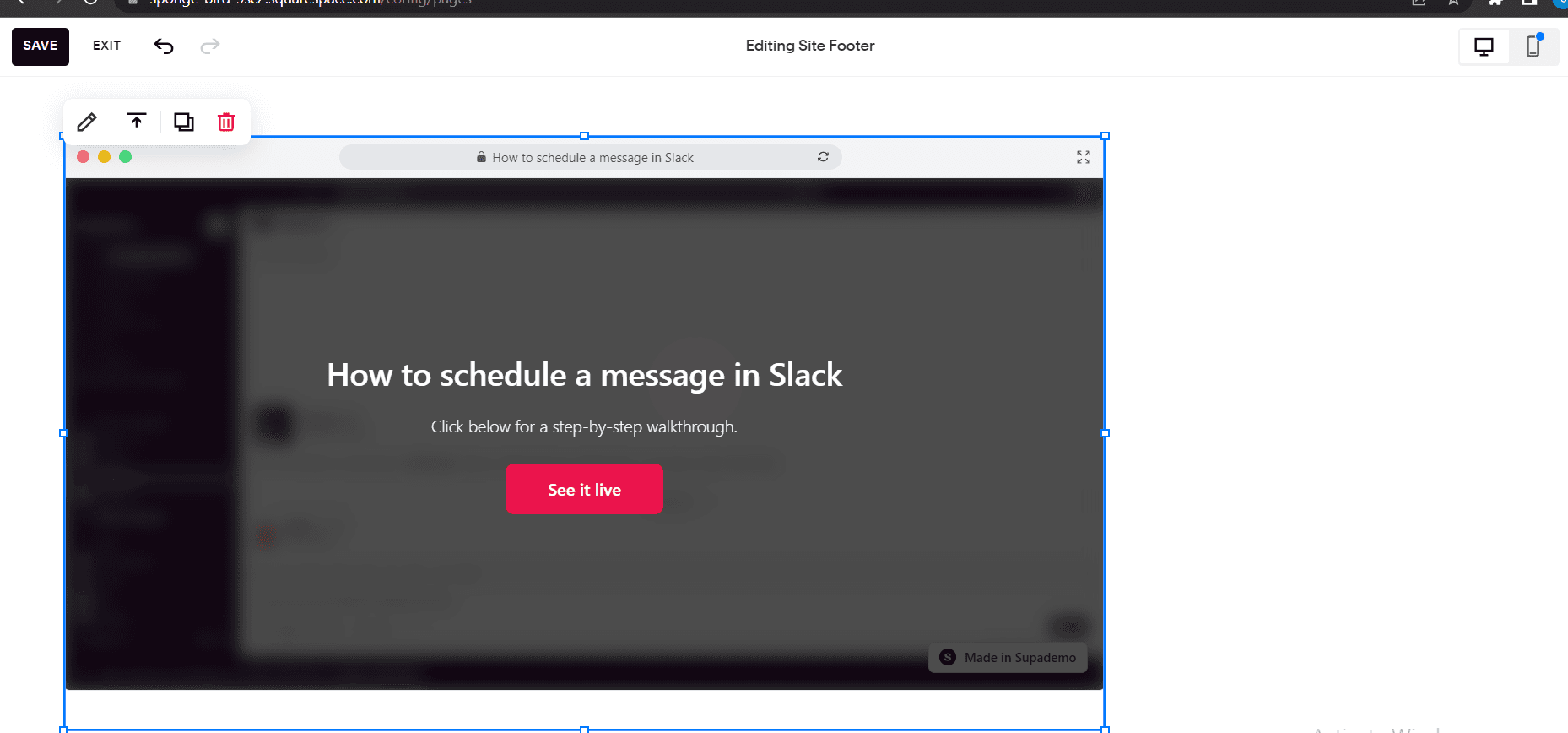
Save and publish changes
Upload or save your changes to finalize the embedding process. Your demo should now appear on your Squarespace page and be accessible to visitors.
Frequently asked questions
Common questions about how to embed supademo on squarespace.
The Share button is typically located in the top toolbar or menu of your demo interface. Click it to access all sharing and embedding options for your specific demo.
Customization options depend on your specific embed code and Squarespace plan. You may be able to adjust sizing or positioning through Squarespace's block settings or by modifying the embed code directly.
First, verify that you pasted the entire code block without missing any characters. Check your Squarespace plan compatibility with custom code blocks, and ensure you've published your changes. If issues persist, review your browser's console for error messages.
Code Snippet blocks are available on most Squarespace plans, but functionality may vary. Check your specific plan's features or contact Squarespace support to confirm code embedding capabilities for your account tier.
Yes, properly formatted embed codes are typically responsive and will adapt to different screen sizes. However, test your page on mobile devices to ensure the demo displays correctly for all visitors.