How to embed Supademo on Zendesk

Embedding interactive product demos directly into your Zendesk knowledge base makes it easier for customers to understand your product without leaving the support portal. This guide walks you through the process of integrating Supademo into Zendesk articles, enabling your support team to provide richer, more engaging customer education.
Quick summary
In this tutorial, you'll learn how to embed Supademo demos into Zendesk articles by accessing guide settings, managing articles, copying embed code, and applying the necessary configurations. By the end, your Zendesk articles will feature interactive demos that help customers resolve issues faster and reduce support tickets.
Why this matters
Embedding demos directly in Zendesk reduces customer friction by providing visual, hands-on guidance without requiring them to switch between tools or platforms. This approach improves first-contact resolution rates and decreases support volume by giving customers the exact steps they need to succeed within their familiar help environment.
Step-by-step guide
- 1
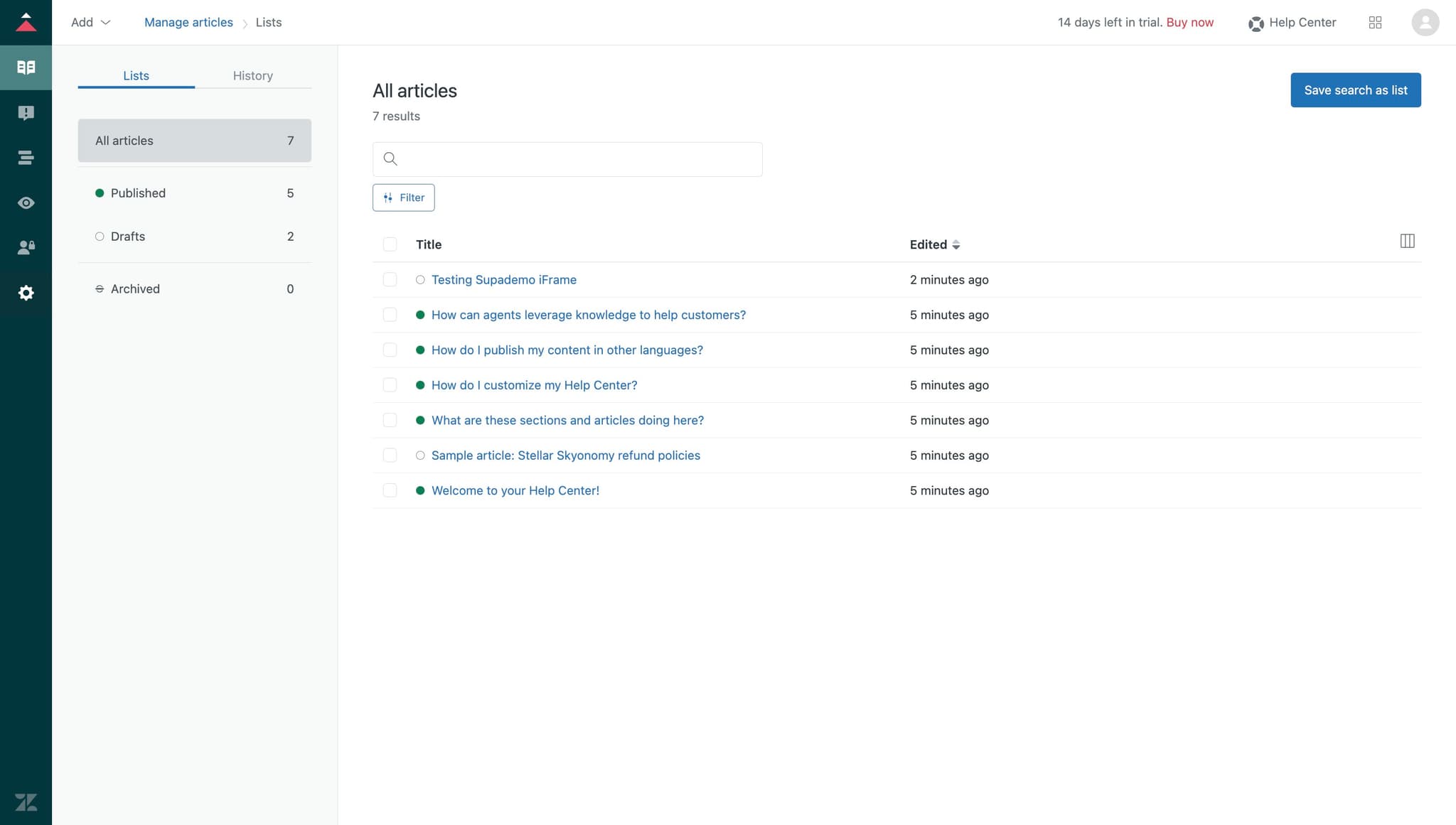
Access the initial settings area
Begin by locating and clicking the designated settings entry point in your Zendesk interface. This action opens the configuration menu where you can manage article and guide settings.
- 2
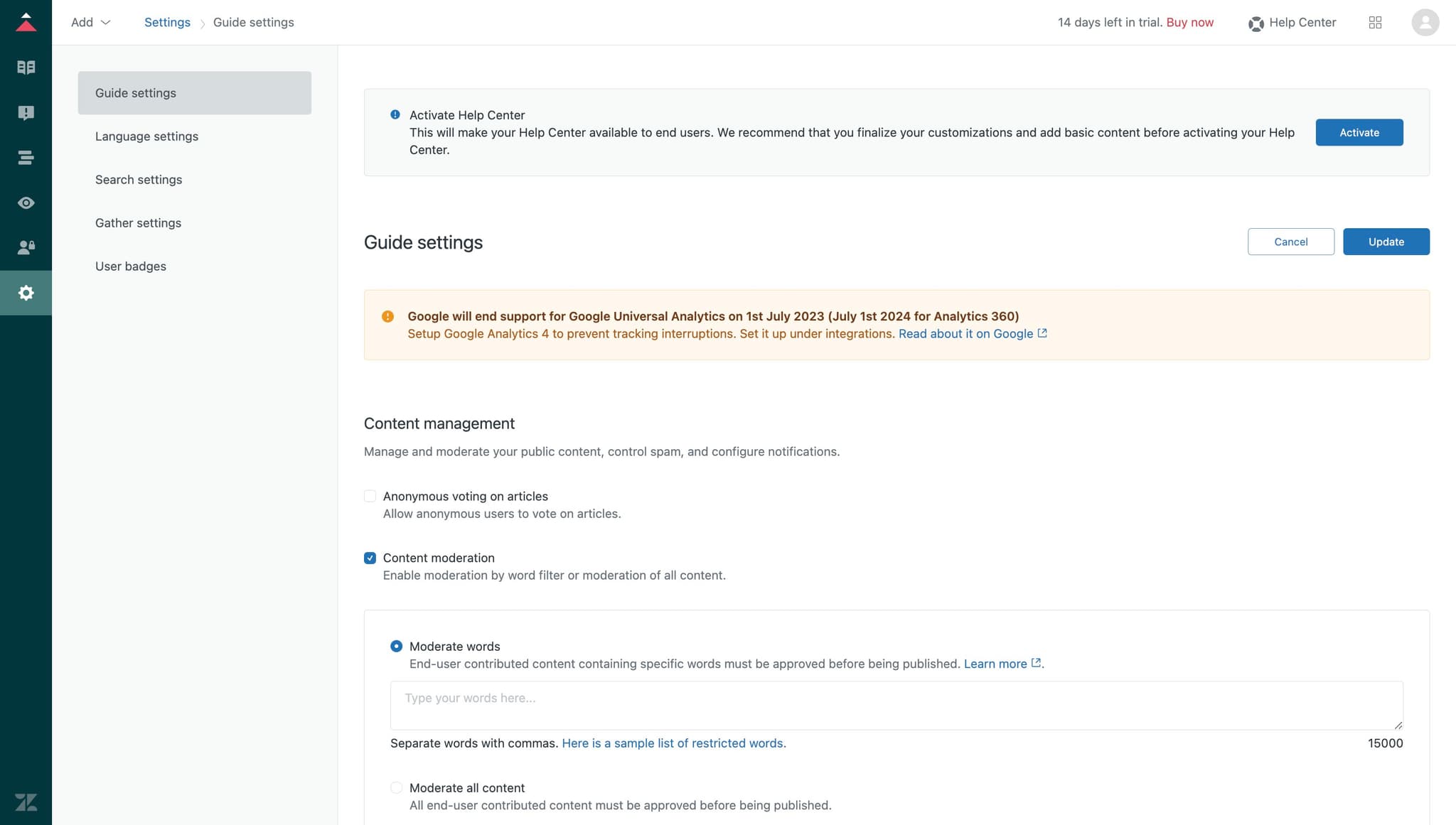
Click on Guide settings
Navigate to the Guide settings option to access the broader configuration panel for your knowledge base. This menu houses all the controls you need to customize how content is displayed and managed.
- 3
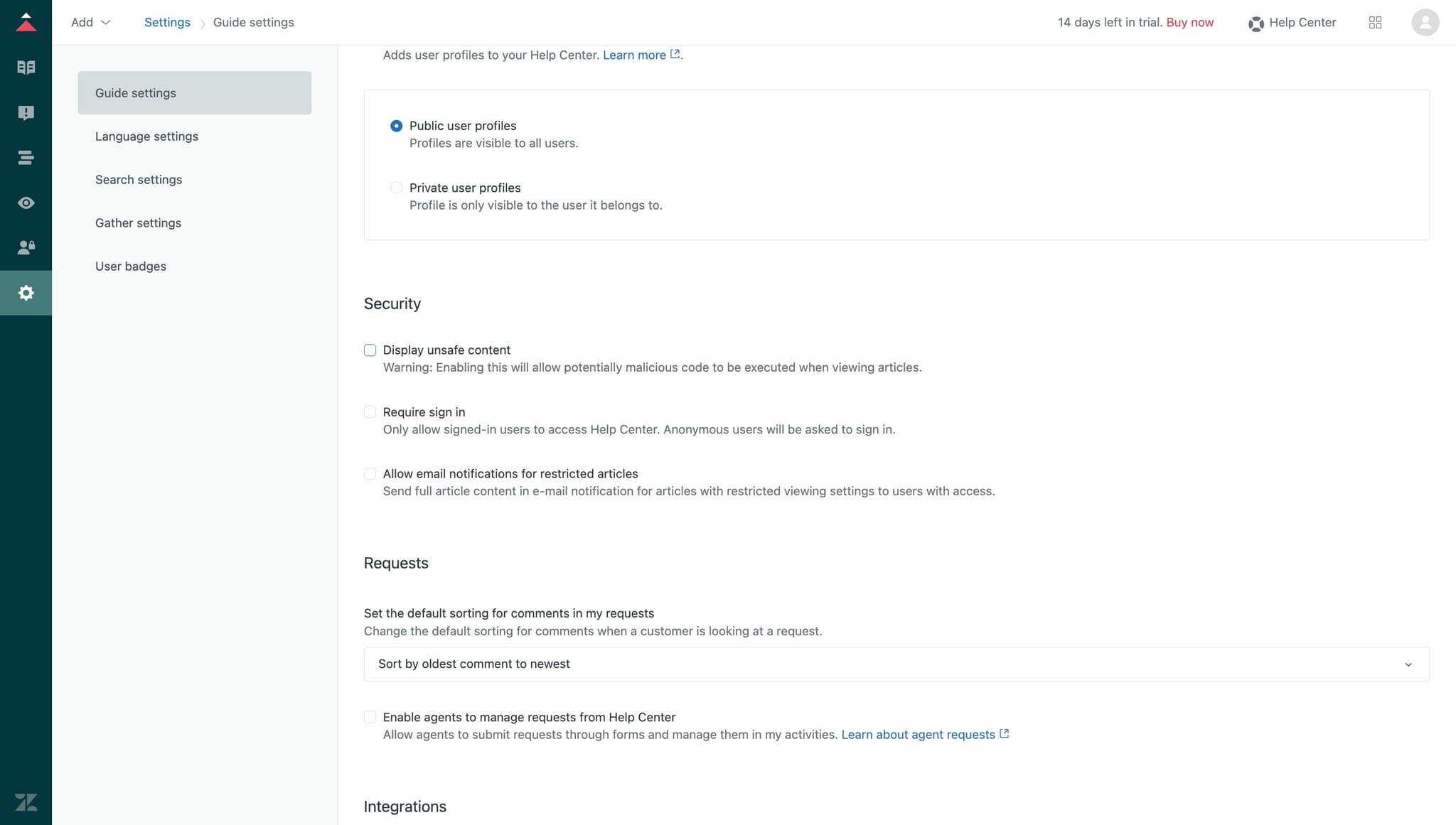
Enable unsafe content display
Select the Display unsafe content option to allow embedded code (such as Supademo embeds) to render properly in your articles. This setting is necessary for interactive elements to function without being blocked by security filters.
- 4
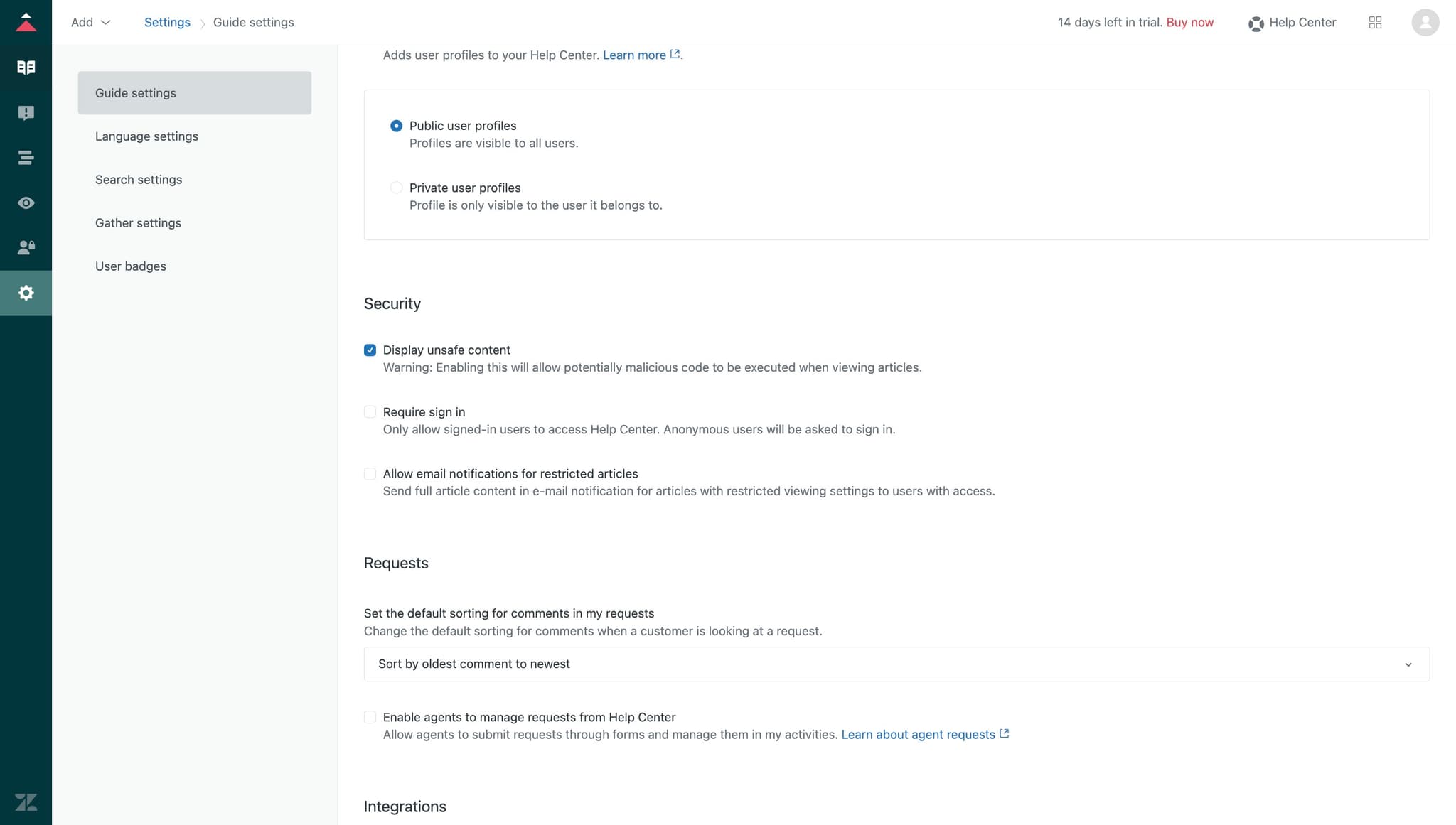
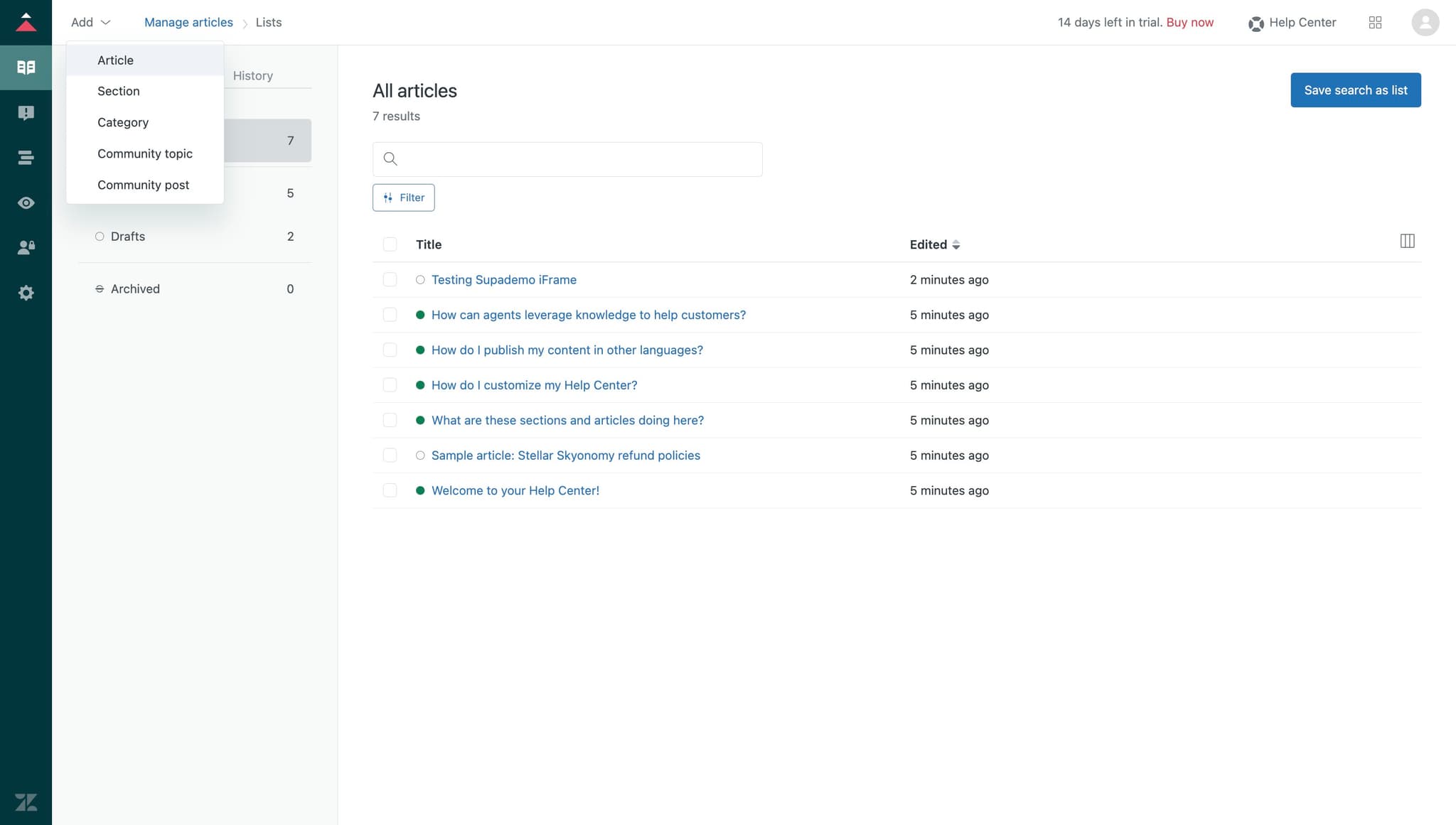
Access the article management section
Click on Manage articles to open the interface where you can view, edit, and configure individual knowledge base articles. This is where you'll select the specific article where you want to embed your demo.
- 5
Select the target article
Click on the Article option to choose which knowledge base article will contain your embedded demo. Ensure you select the article that best matches the topic of your Supademo content.
- 6
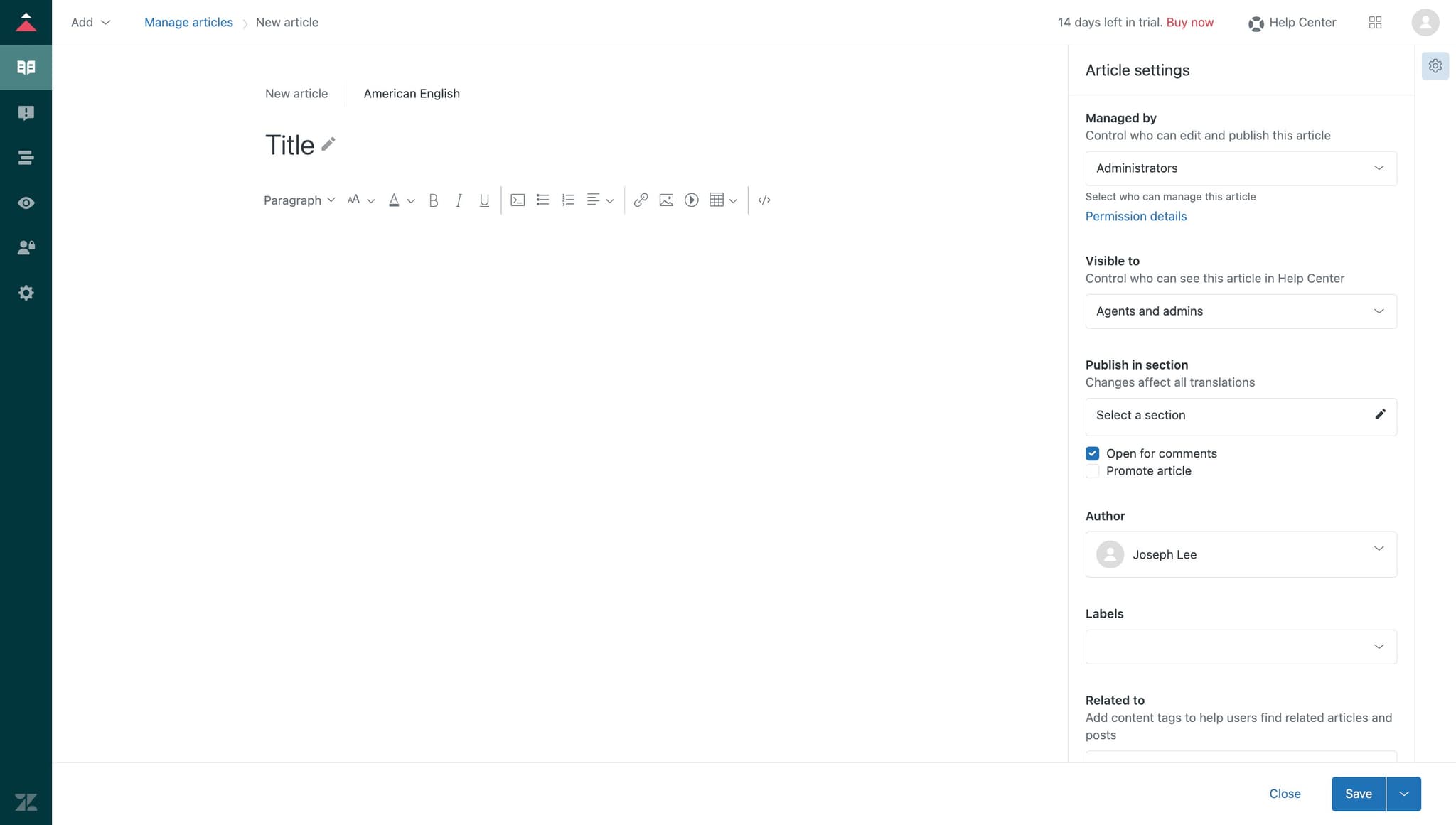
Open the next configuration step
Click the designated area to proceed to the content embedding section. This step prepares the interface for you to input the embed code.
- 7
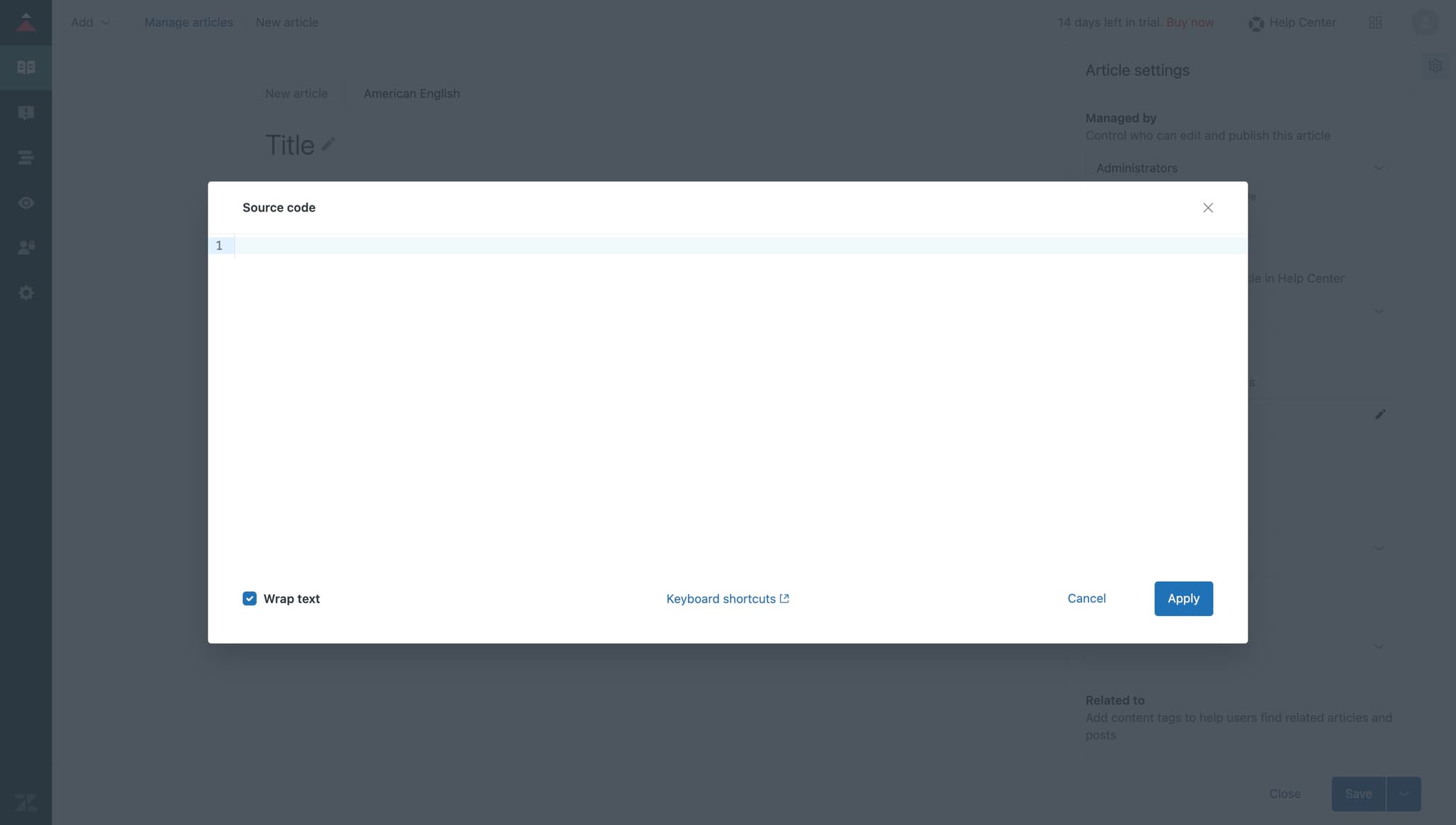
Access the content field
Click on the content input field where you'll paste your embed code. This field is where the actual demo content will be inserted into the article.
- 8
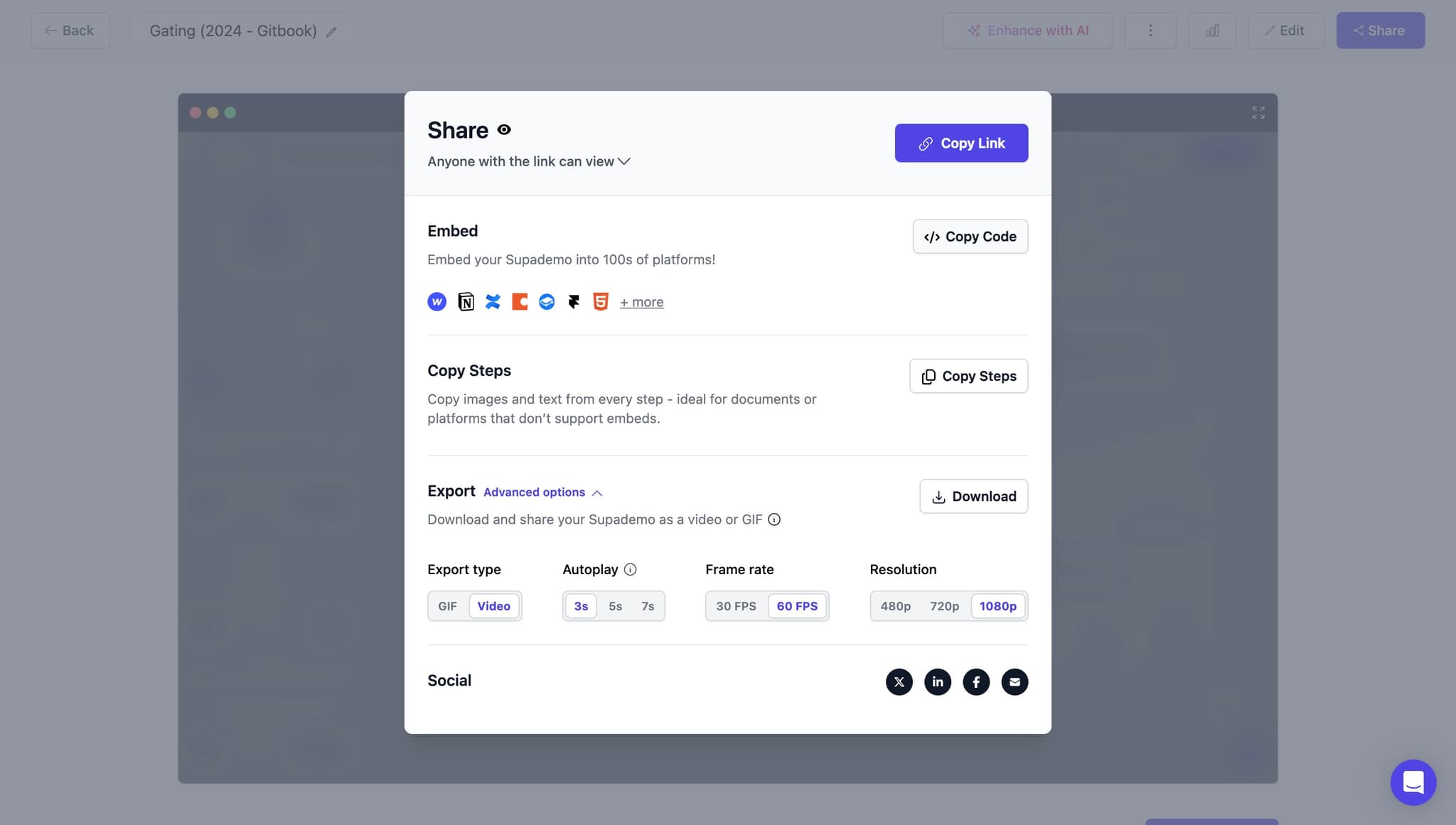
Copy the embed code
Click Copy Code to capture the Supademo embed code to your clipboard. Keep this code ready to paste into your article content field in the next steps.
- 9
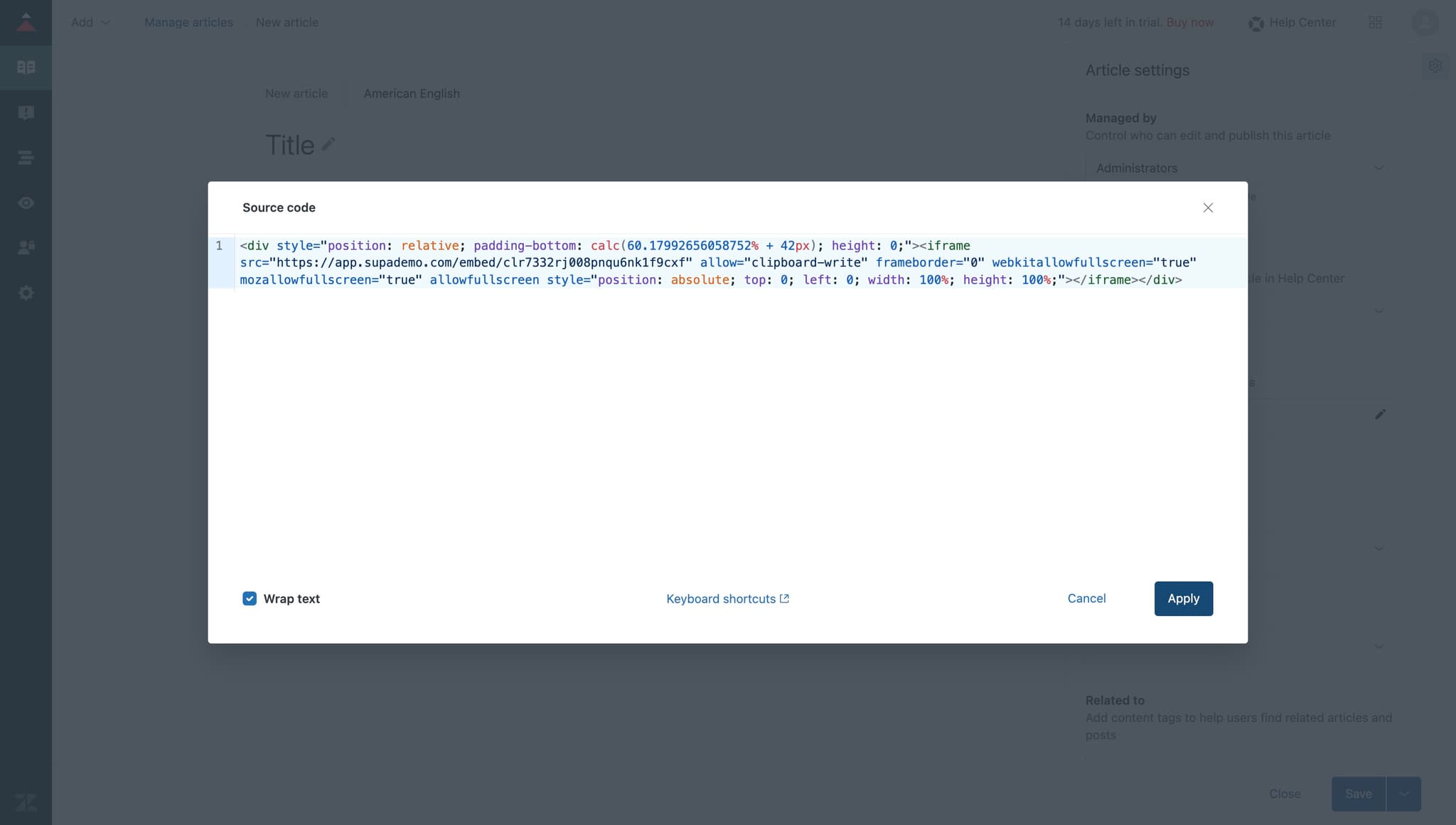
Apply the first code insertion
Click Apply to confirm the code insertion and register it in the system. This action saves your first embed configuration.
- 10
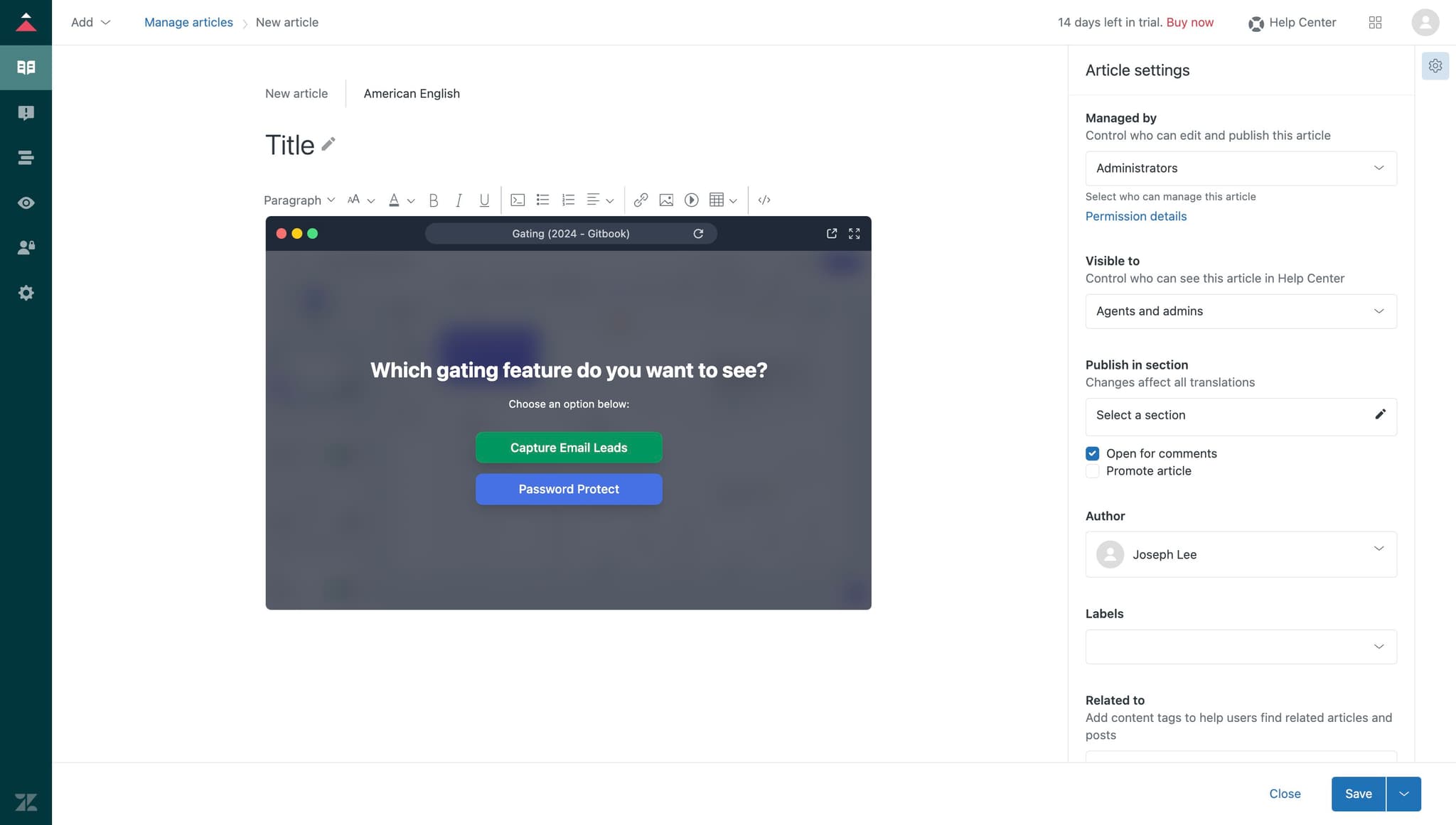
Open the HTML conversion step
Click the designated area to access the option for converting content to HTML format. This prepares your embed for proper rendering in the article.
- 11
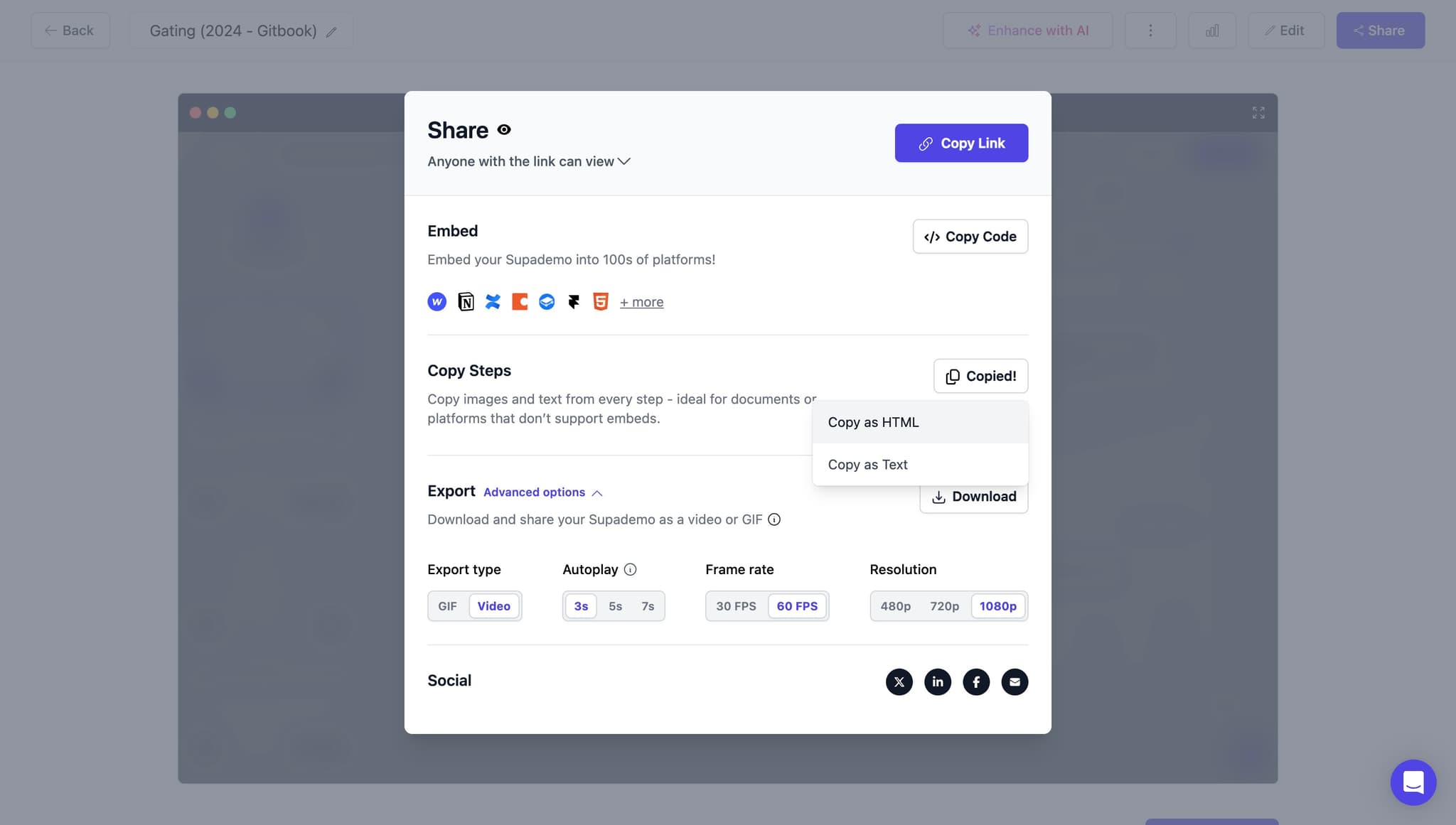
Copy as HTML
Click Copy as HTML to transform your embed code into the appropriate HTML format for Zendesk. This ensures the code will display correctly when published.
- 12
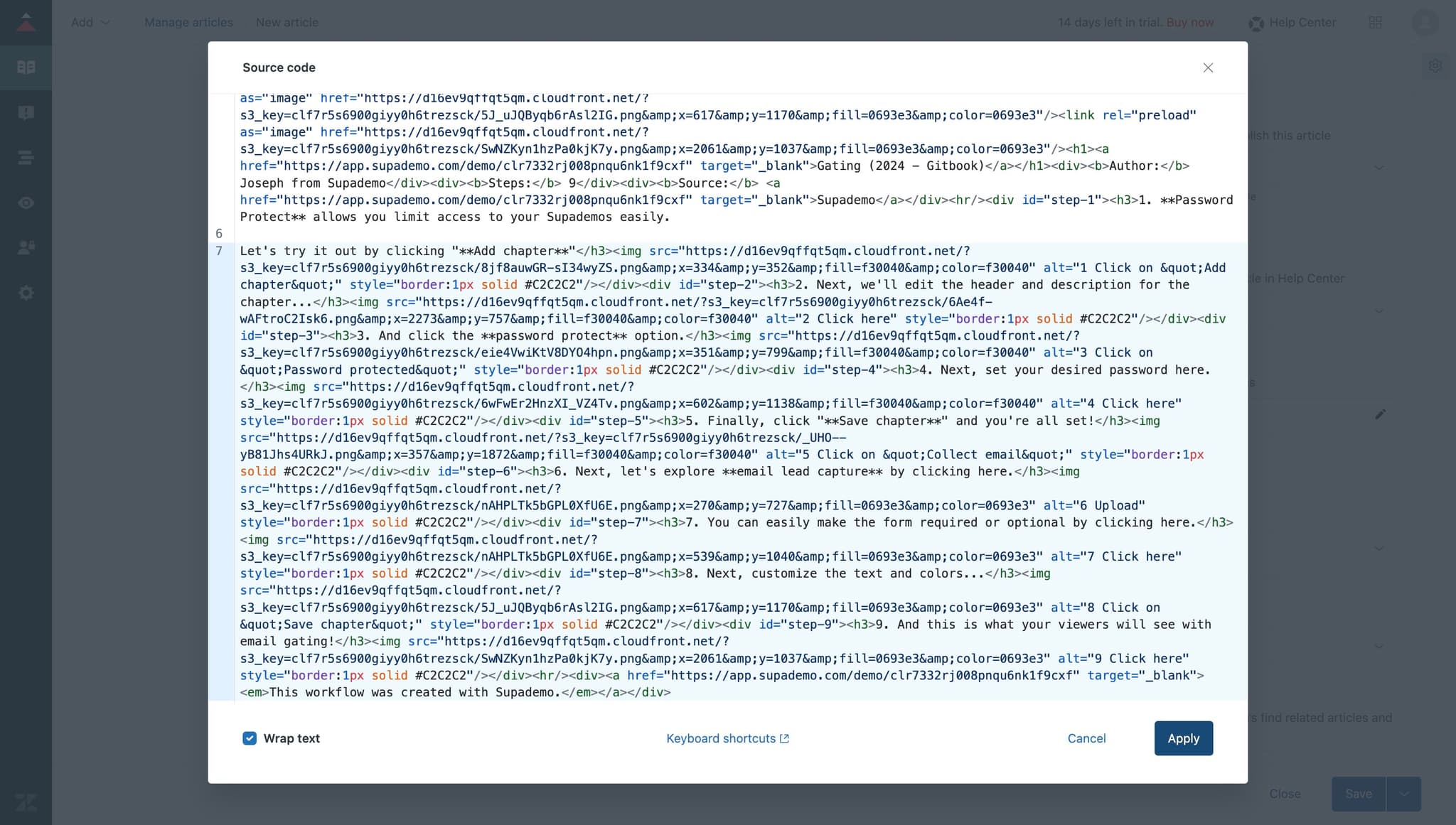
Apply the HTML formatting
Click Apply to confirm the HTML conversion and finalize the code format. Your embed is now properly configured for the Zendesk environment.
- 13
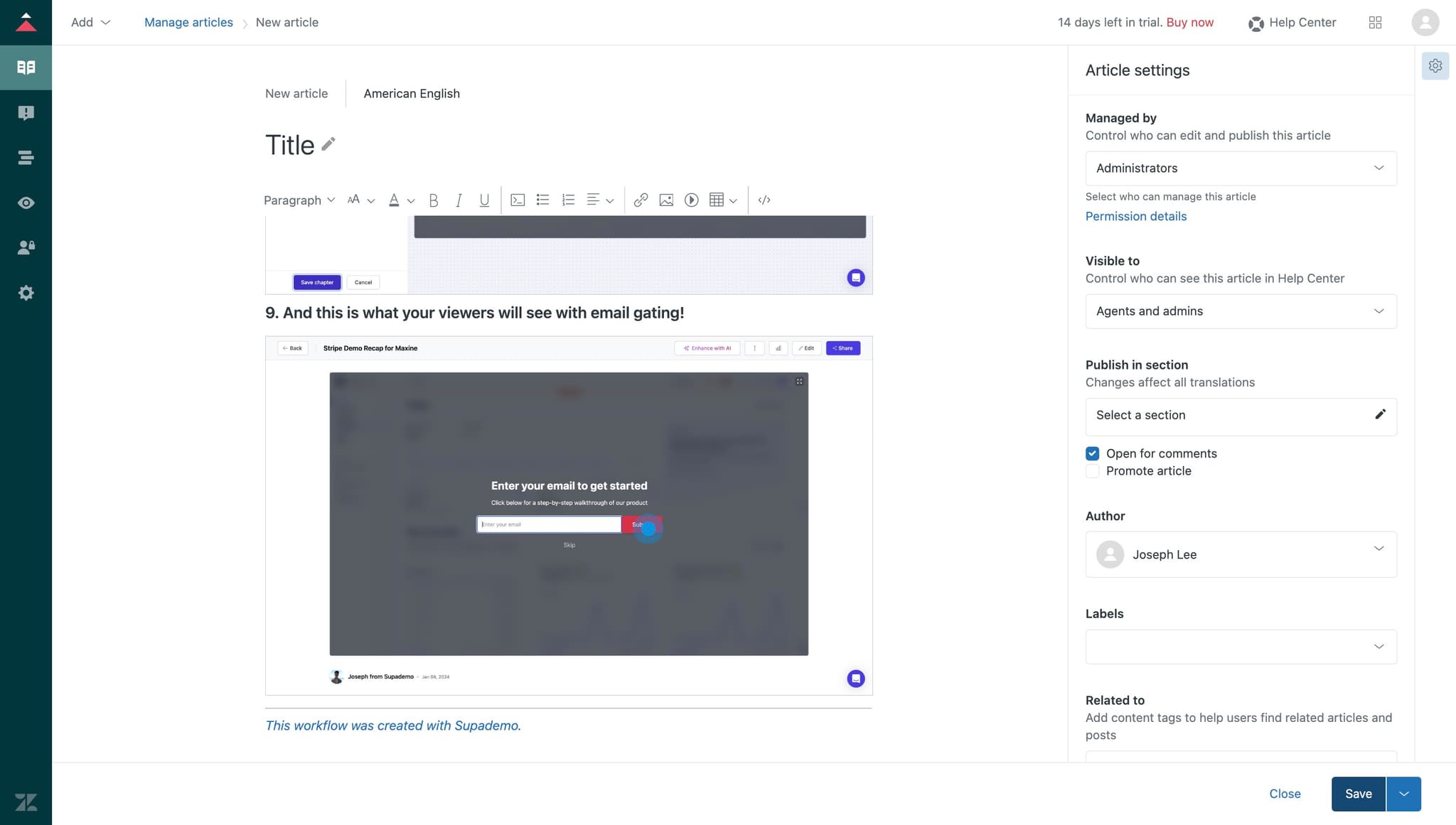
Save the article
Click Save to publish all changes and embed your demo into the article. Your Zendesk article now contains the interactive demo and is live for customer access.
Frequently asked questions
Common questions about how to embed supademo on zendesk.
Zendesk blocks certain types of embedded code by default for security reasons. Enabling Display unsafe content allows embedded demos and interactive elements to render properly without being filtered out. This setting only affects your knowledge base environment and doesn't compromise security when used with trusted sources.
Yes, you can embed multiple demos in one article by repeating the copy and paste process for each demo. Simply add additional embed codes in different sections of the article content to provide multiple interactive guides on related topics.
First, verify that Display unsafe content is enabled in your Guide settings. If the issue persists, check that you copied the code as HTML and pasted it in the correct format. Contact Supademo support if the embed code itself appears corrupted or if Zendesk continues to block the content.
Embedded demos will display for all users with access to the article in their browser. However, the demo quality and performance may vary depending on the user's internet speed and device capabilities. We recommend testing the demo on different devices to ensure a good customer experience.
Yes, you can edit the article at any time to update or replace the embed code. Simply follow the same process to copy the new code and paste it into the article, then save. The changes will be reflected immediately for all users accessing that article.