How to embed Supademo in Canva

Embedding interactive product demos directly into Canva designs enhances your presentations and marketing materials with engaging, clickable content. This guide walks you through the process of integrating a Supademo into your Canva projects in just a few clicks.
Quick summary
In this tutorial, you'll learn how to embed a Supademo into Canva by accessing the embed options, copying the embed code, and adding it to your design. By the end, your Canva project will feature a fully functional, interactive demo that your audience can explore.
Why this matters
Embedding interactive demos in Canva allows you to create richer, more engaging marketing materials and presentations without leaving the design platform. This approach saves time on manual integration and helps you showcase product features directly within your visual content, improving audience engagement and understanding.
Step-by-step guide
- 1
Click the first element
Begin by locating and clicking the initial element in your Supademo interface. This action starts the process of preparing your demo for export.
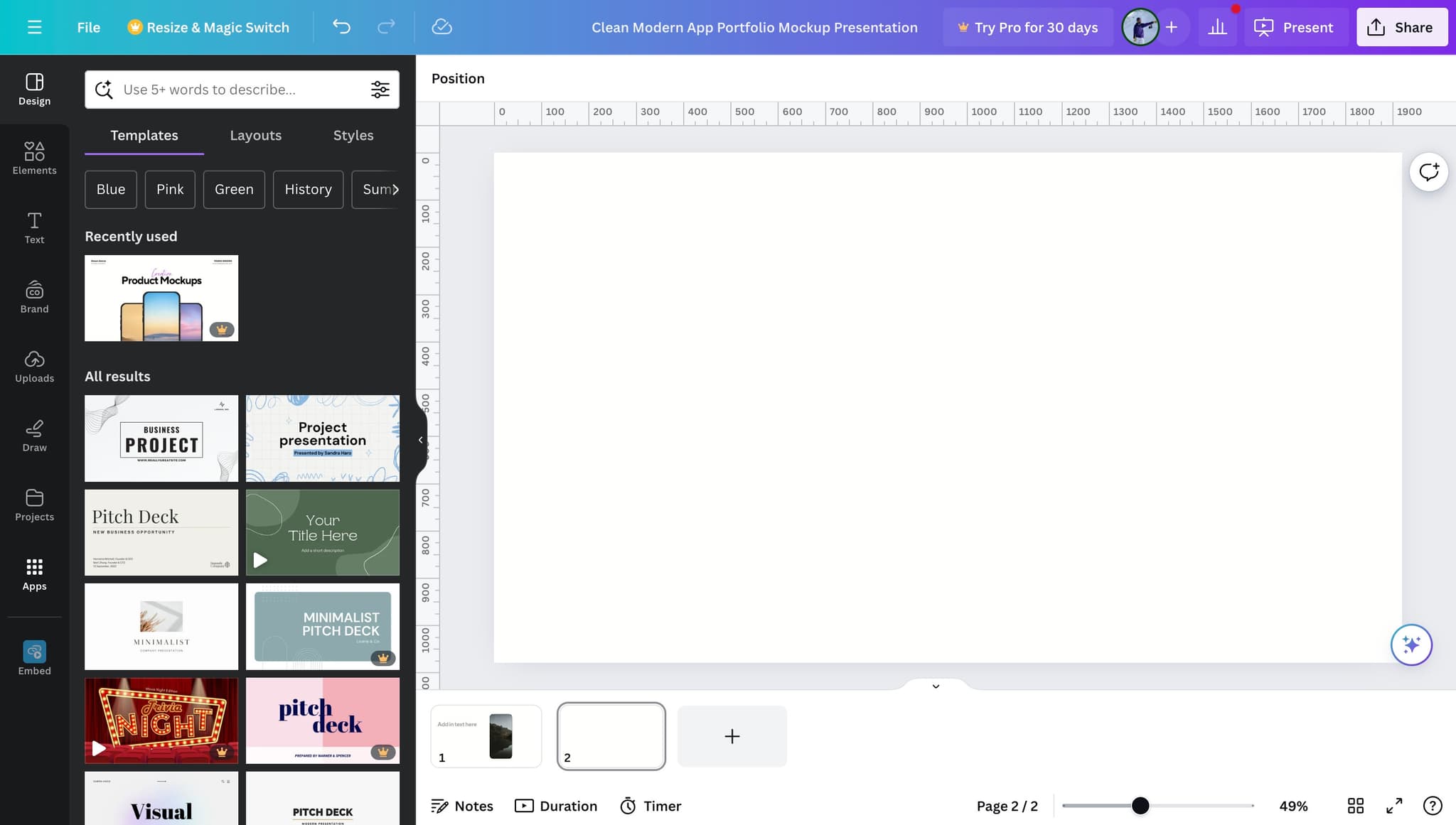
- 2
Click the second element
Click on the next element to continue navigating through the demo configuration options. This step ensures all settings are properly selected.
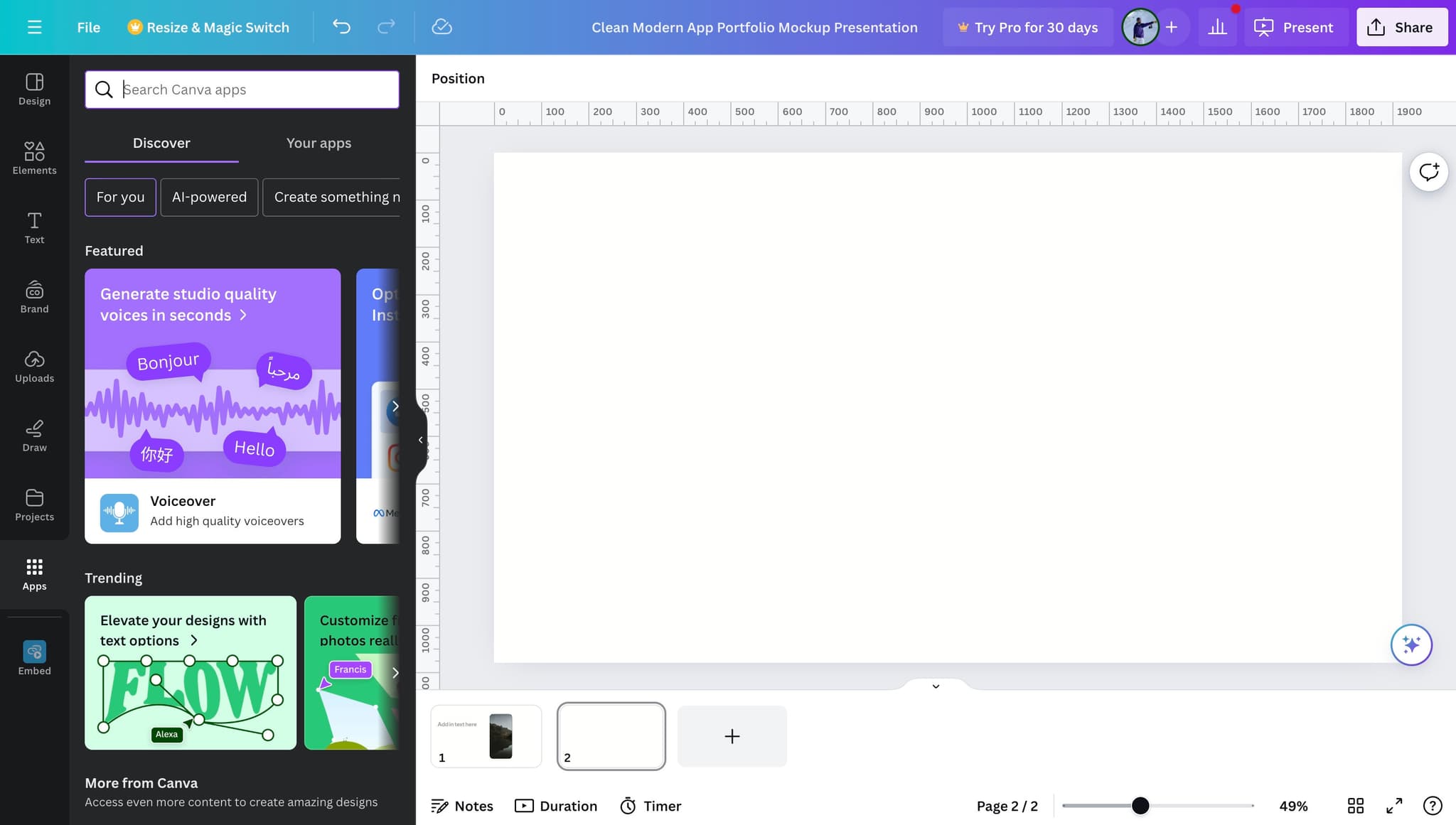
- 3
Click on Embed
Look for and click the 'Embed' button to access the embedding options. This will generate the embed code needed to integrate your demo into Canva.
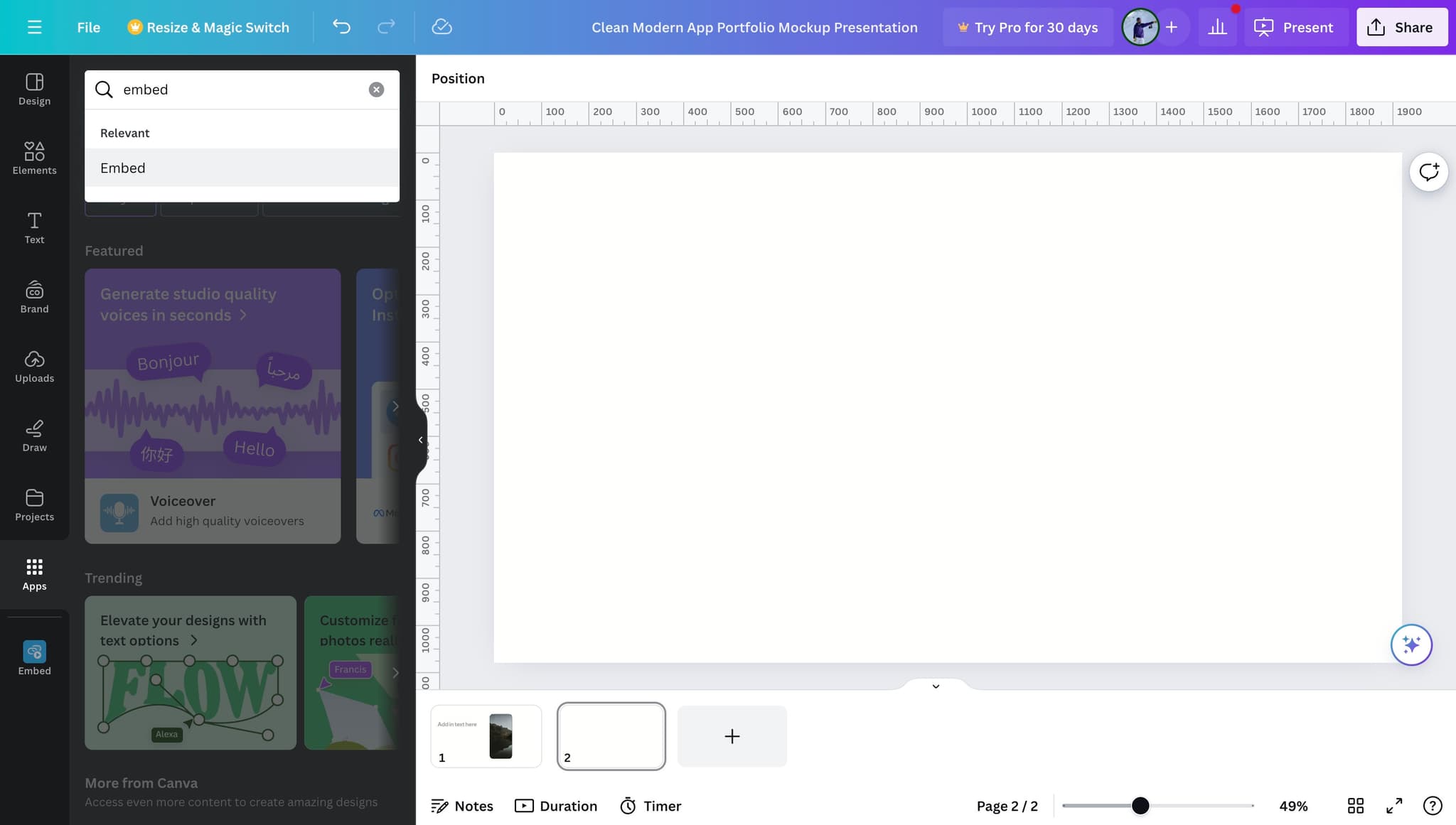
- 4
Copy the embed code
Click the designated area to copy your embed code to the clipboard. Make sure the code is fully copied before proceeding to Canva.
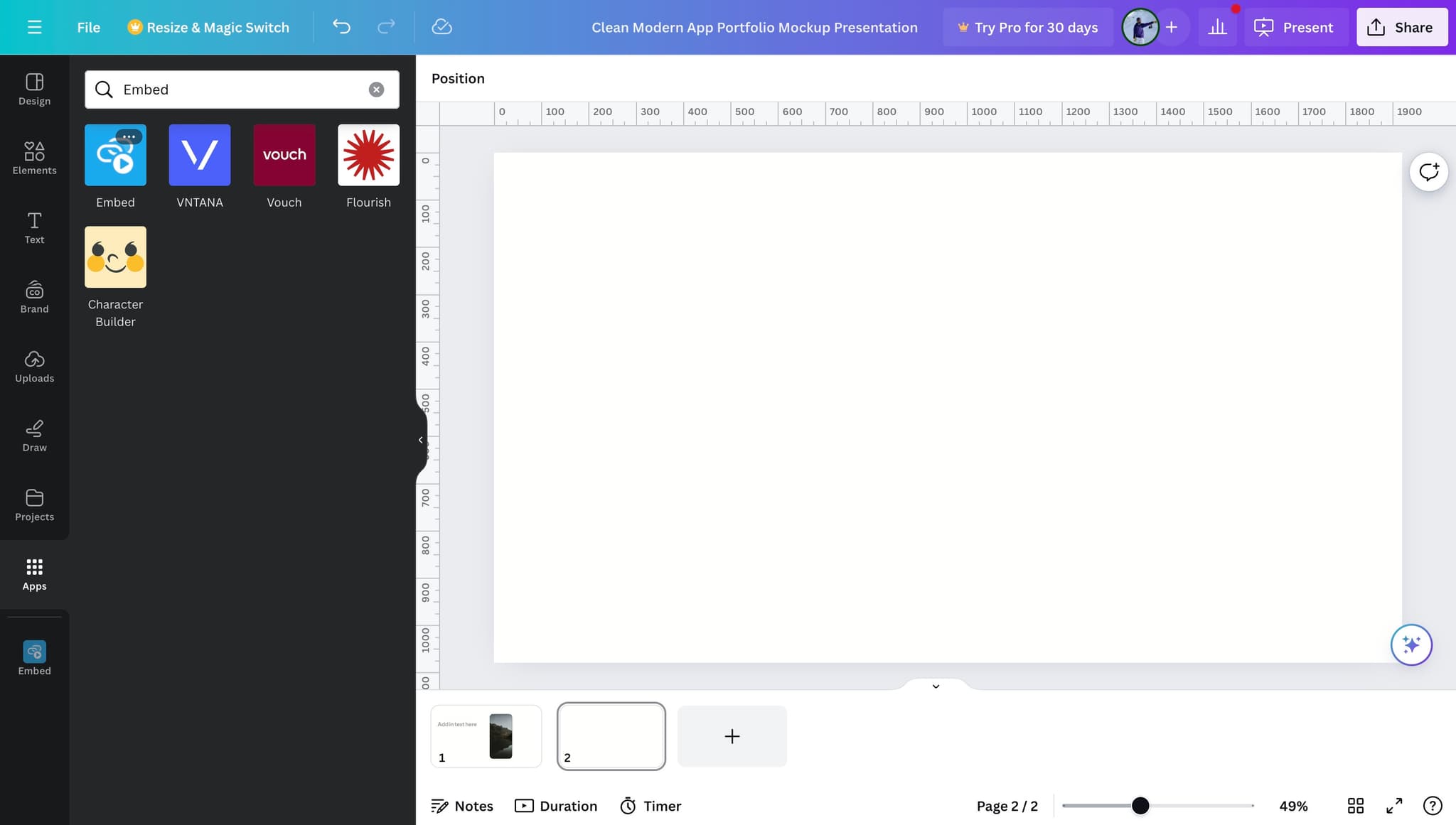
- 5
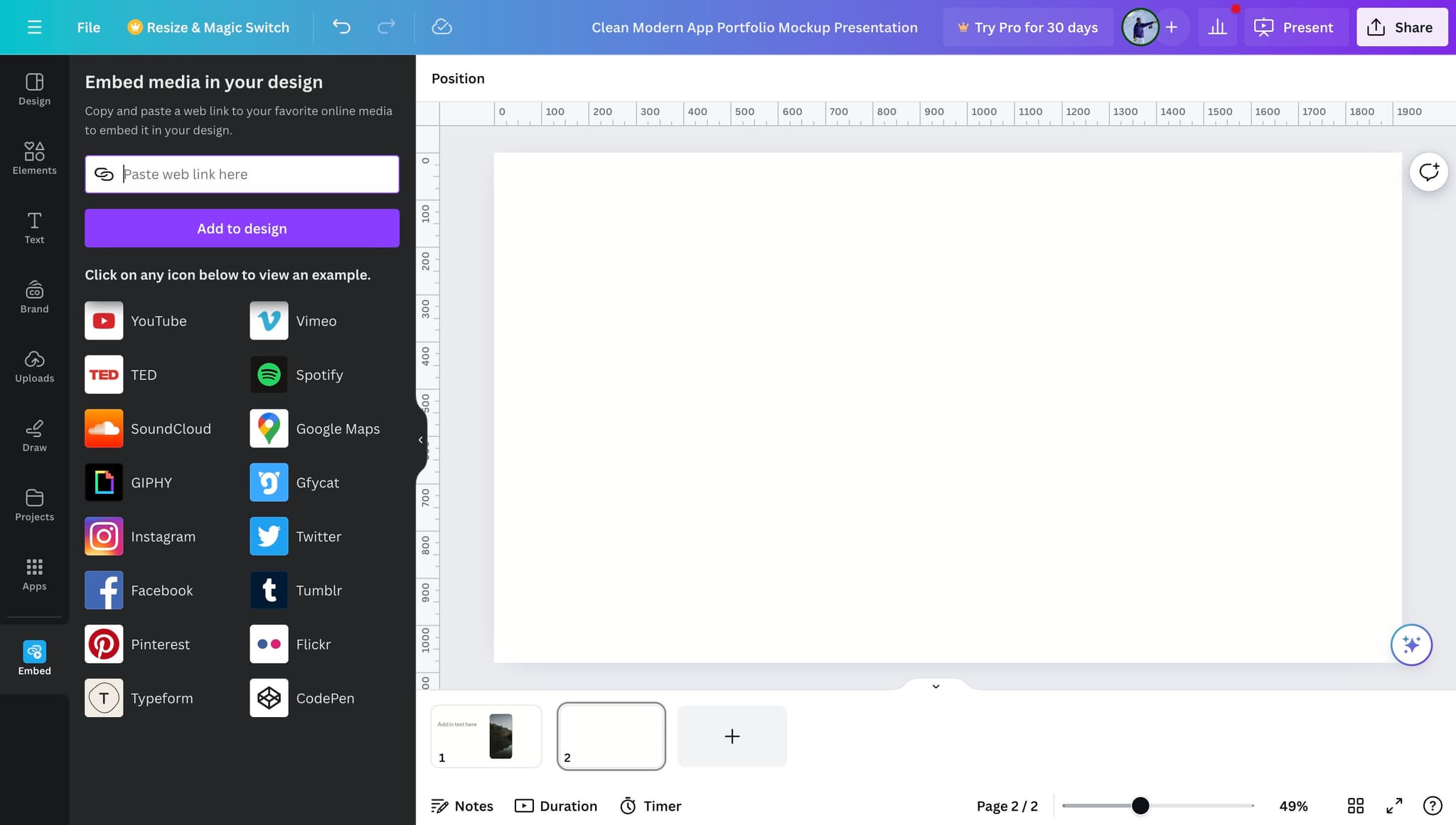
Select your Canva destination
Click to specify where in your Canva design you want to place the embedded demo. This ensures proper positioning and layout.
- 6
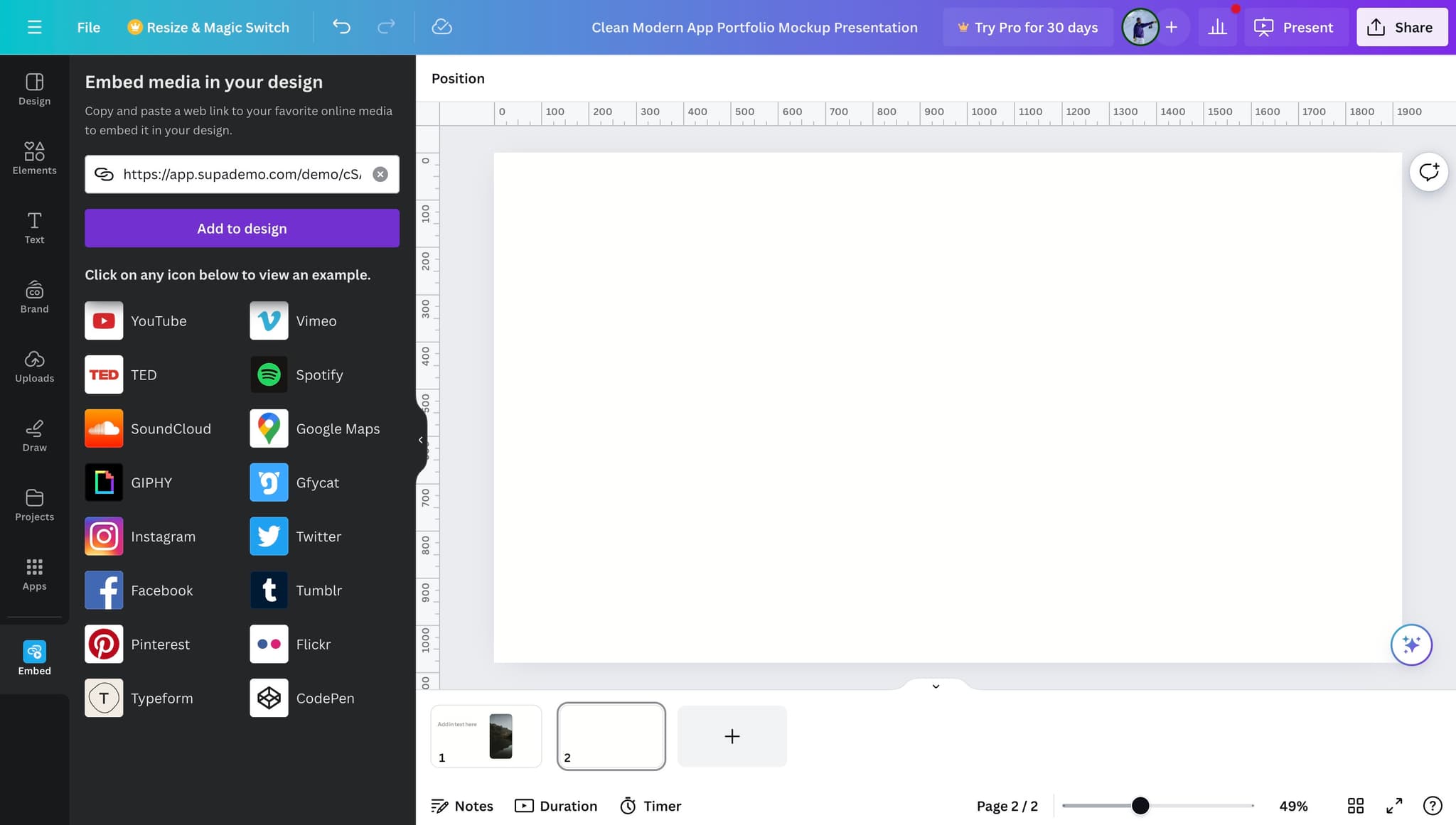
Click Add to design
Click the 'Add to design' button to insert the demo into your Canva project. The embed will now be integrated into your design.
- 7
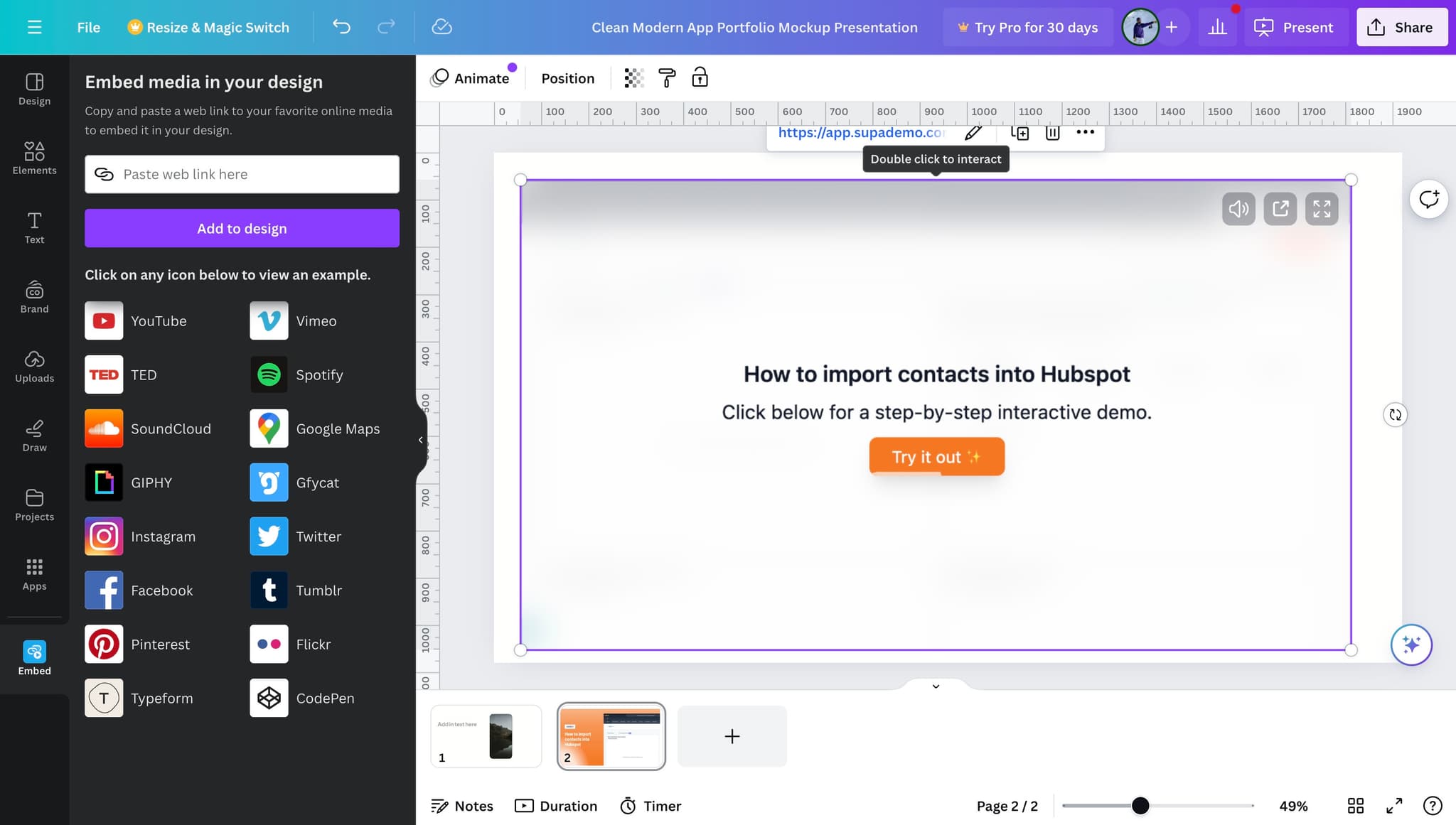
Finalize the embedding
Click to complete the embedding process and confirm that your demo has been successfully added to your Canva design. Your interactive demo is now ready for use.
Frequently asked questions
Common questions about how to embed supademo in canva.
Yes, you can embed multiple Supademos in one Canva design. Simply repeat the embedding process for each demo you want to add, ensuring they're positioned appropriately on your canvas to avoid overlap.
If the code doesn't paste correctly, ensure you've fully copied it from Supademo before switching to Canva. Try copying again, then clear any previously pasted content and paste fresh. If issues persist, check that your browser allows clipboard operations.
Interactivity depends on how Canva exports or shares the final design. For best results, share your Canva design as a link or interactive format rather than a static image to preserve the interactive functionality of your embedded demo.
Once embedded in Canva, you'll need to update the demo in Supademo first, then re-embed the updated version in your Canva design. This ensures your audience always sees the latest version of your product walkthrough.
While Canva generally supports embedded content, very large demos may affect load times or design performance. Test your design before sharing to ensure smooth playback and user experience across different devices and internet speeds.