How to embed Supademo in Medium

Embedding interactive product demos directly into Medium articles increases reader engagement and helps your audience understand complex features without leaving the page. This guide walks you through the process of embedding a Supademo into your Medium post, making your content more interactive and valuable.
Quick summary
In this tutorial, you'll learn how to extract your demo link from Supademo and embed it seamlessly into a Medium article. By following these steps, you'll enhance your technical documentation with embedded interactive content that keeps readers engaged.
Why this matters
Embedding demos directly in Medium articles eliminates friction in the reader experience and increases the likelihood that your audience will understand your product's capabilities. Interactive content embedded within articles typically generates higher engagement rates and provides clearer value compared to external links.
Step-by-step guide
- 1
Copy your demo link
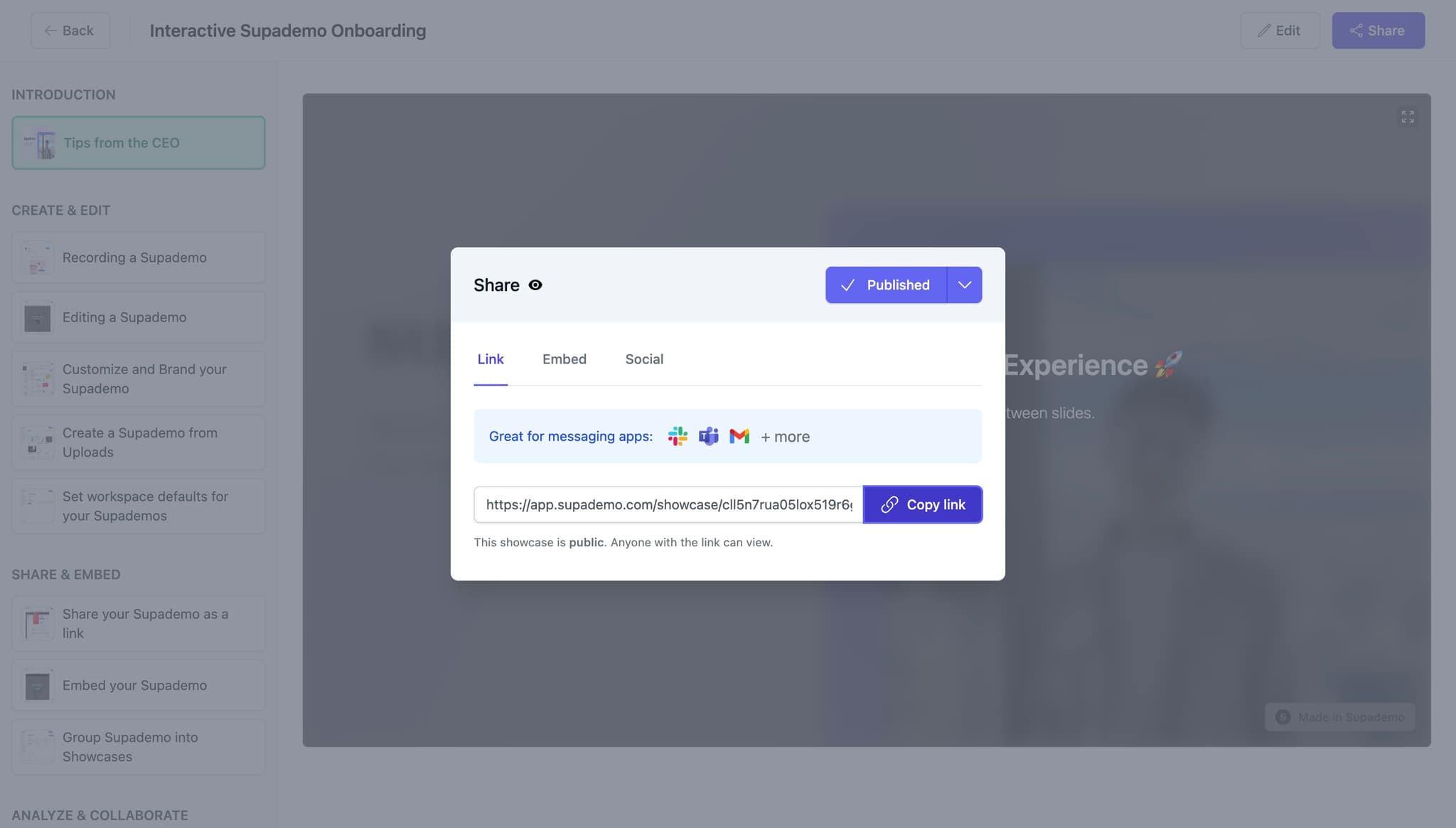
In your Supademo account, locate the demo you want to embed and click the 'Copy link' button. This action copies the shareable URL to your clipboard, which you'll need for the embedding process.
- 2
Navigate to your Medium article
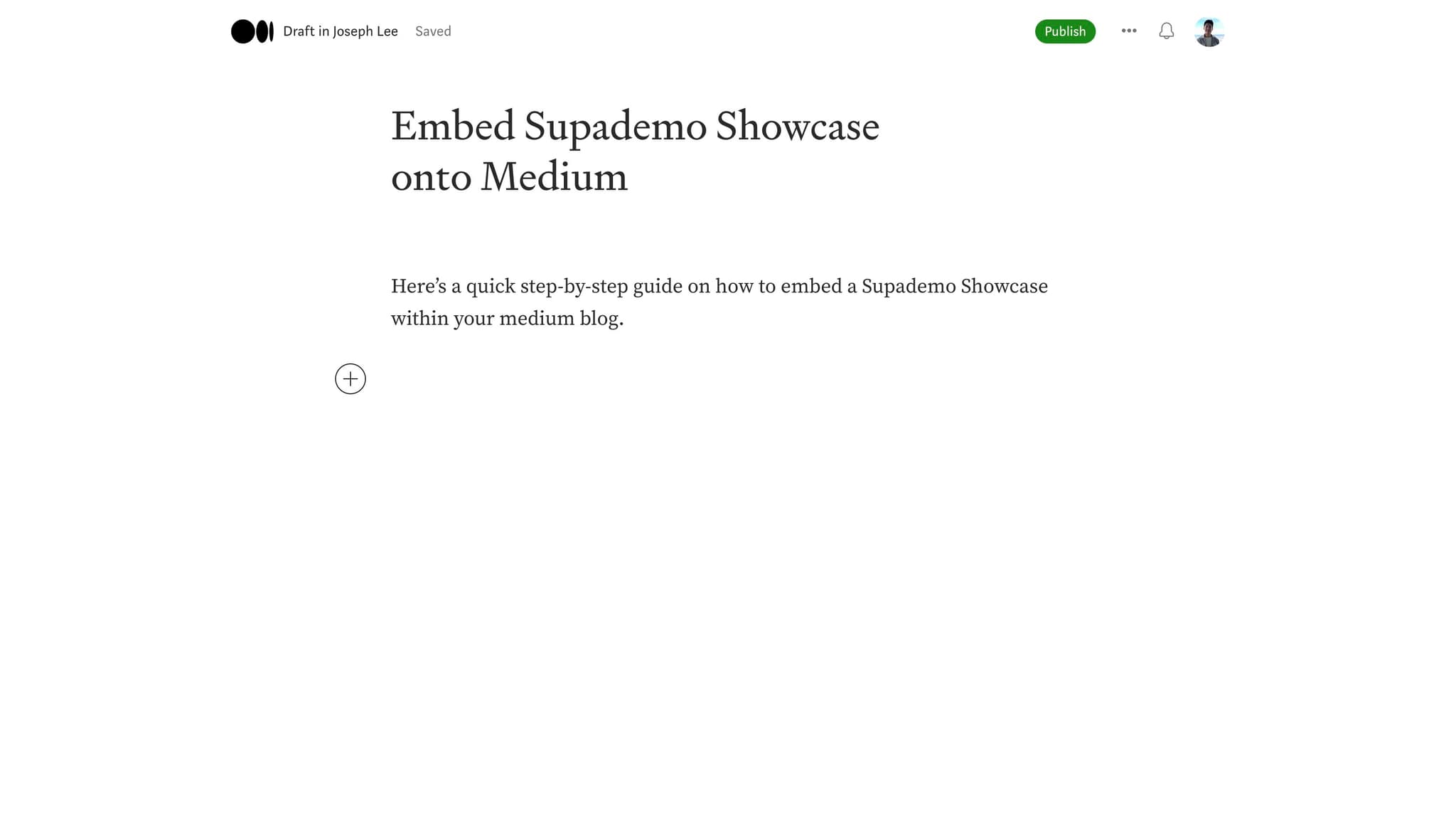
Open or create the Medium article where you want to embed the demo. Position your cursor at the location in the article where the embedded demo should appear.
- 3
Access the embed menu
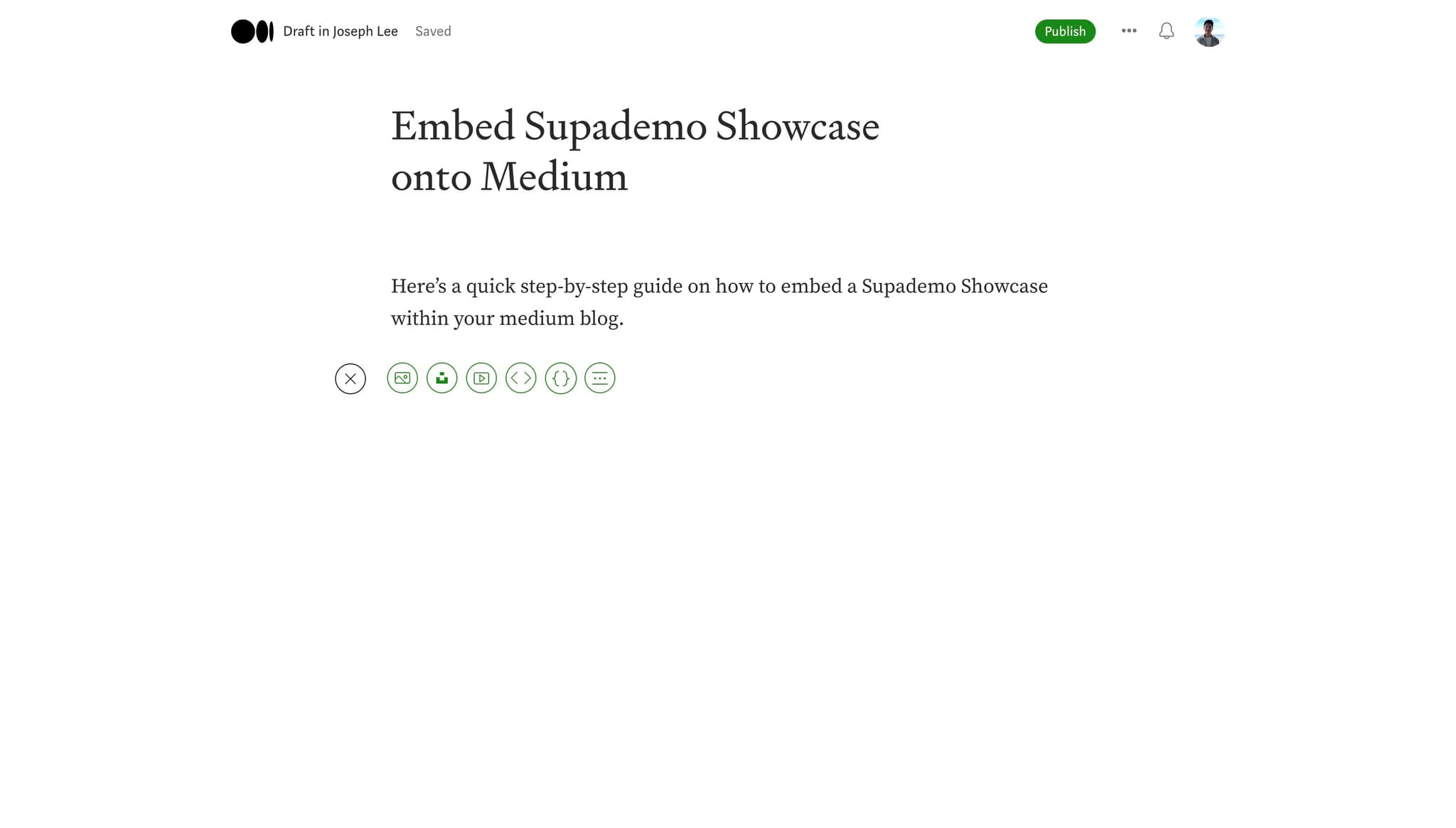
Click the appropriate button or menu option in Medium's editor to add an embed. This typically opens a dialog or field where you can input external content.
- 4
Paste the demo URL
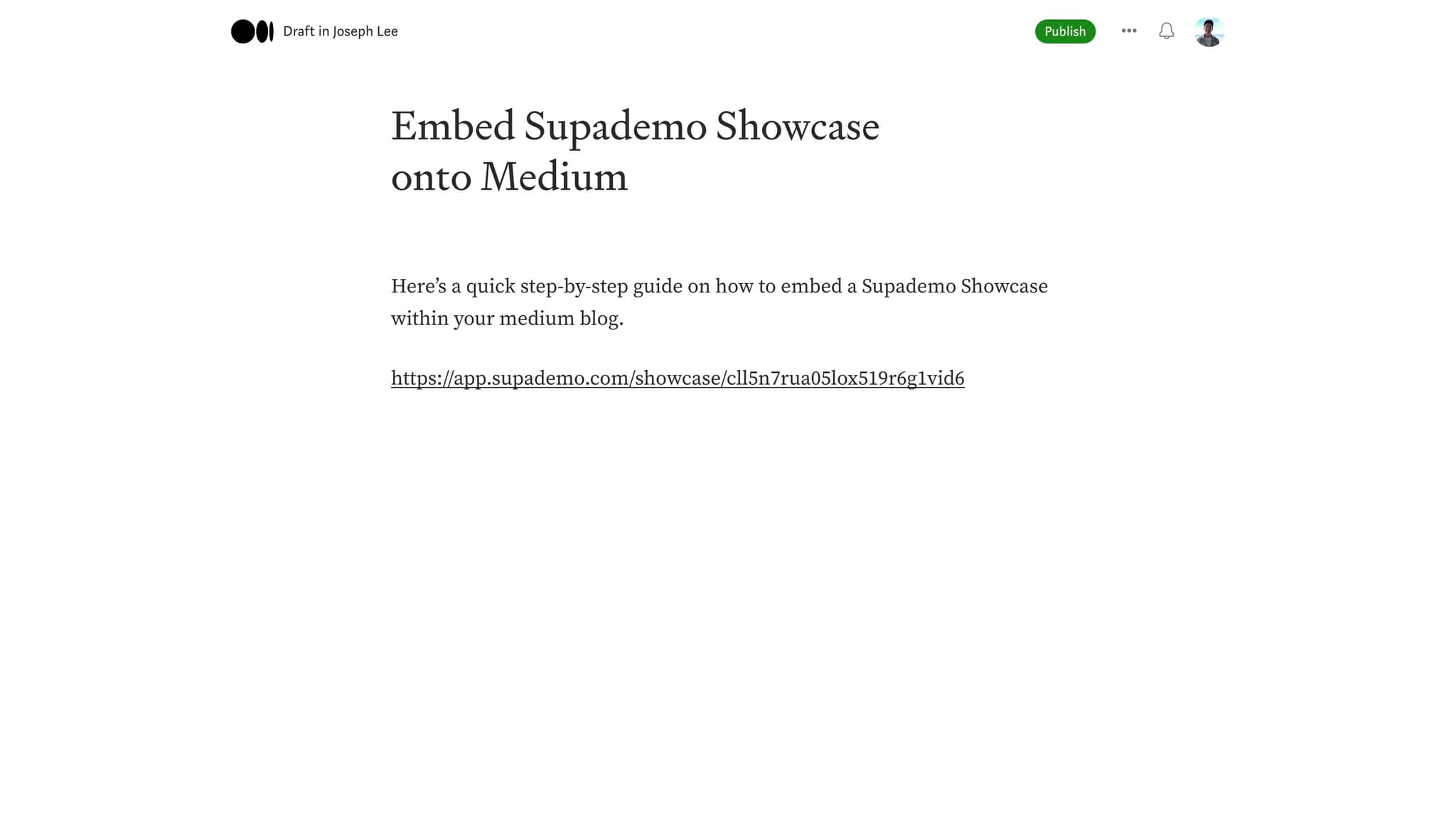
Paste the Supademo link you copied earlier into the embed field. Make sure the full URL starting with 'https://app.sup...' is properly entered without any extra characters.
- 5
Confirm the embed
Press Enter or click the confirmation button to embed the demo into your article. Medium will process the link and generate an embedded player.
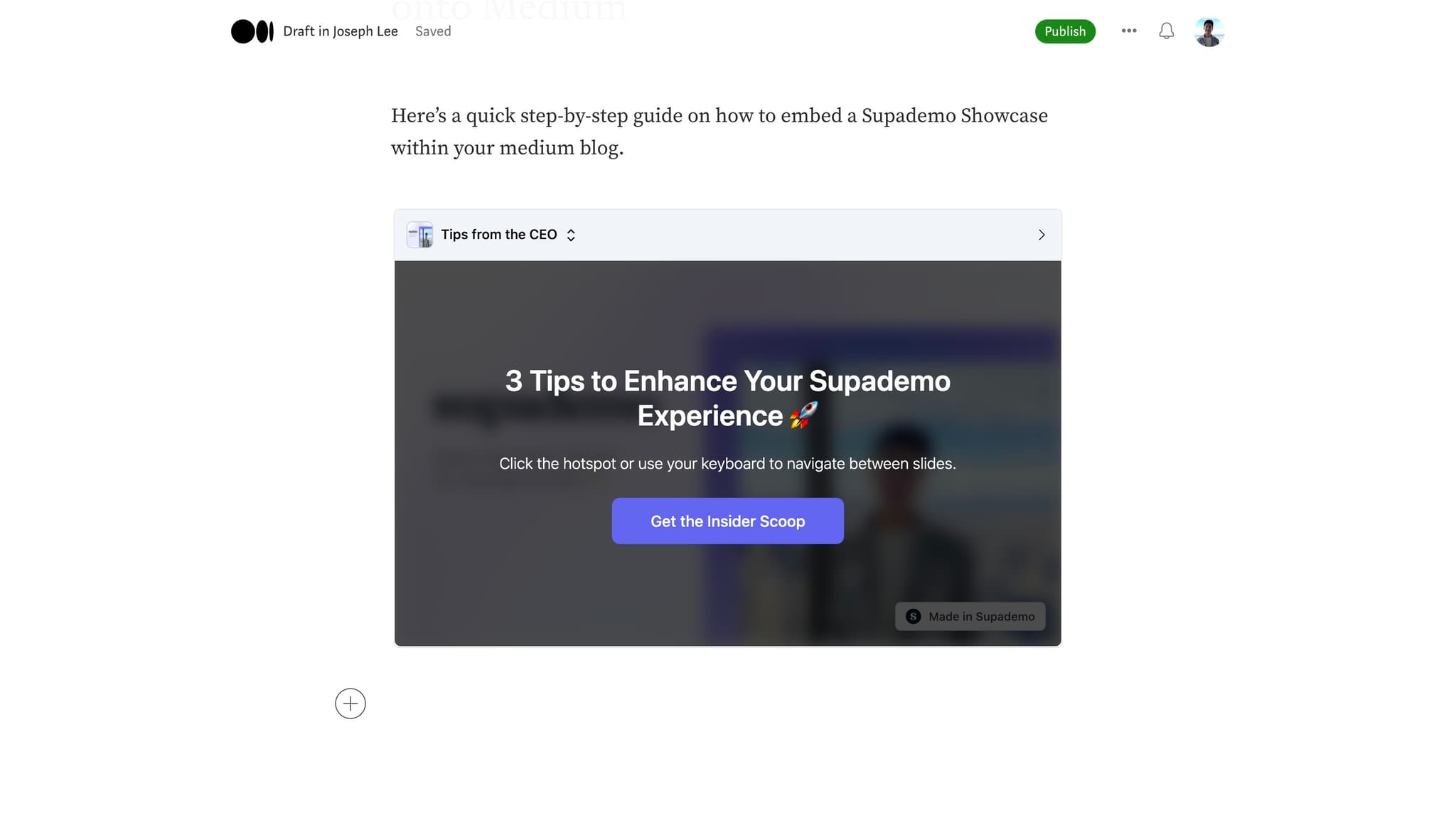
- 6
Preview the embedded demo
Review how the embedded demo appears in your article preview mode. Verify that the demo player displays correctly and is positioned as intended.
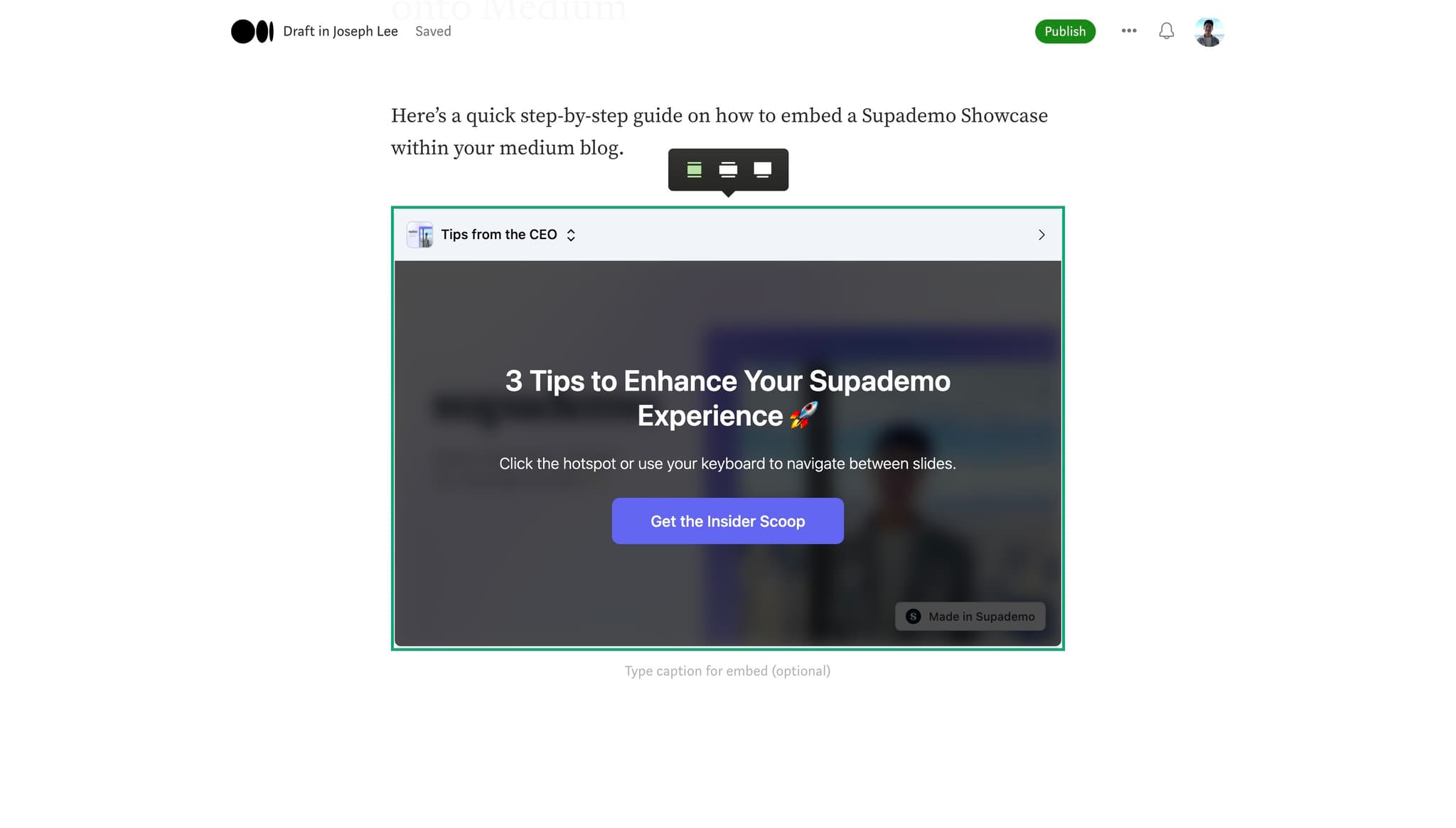
- 7
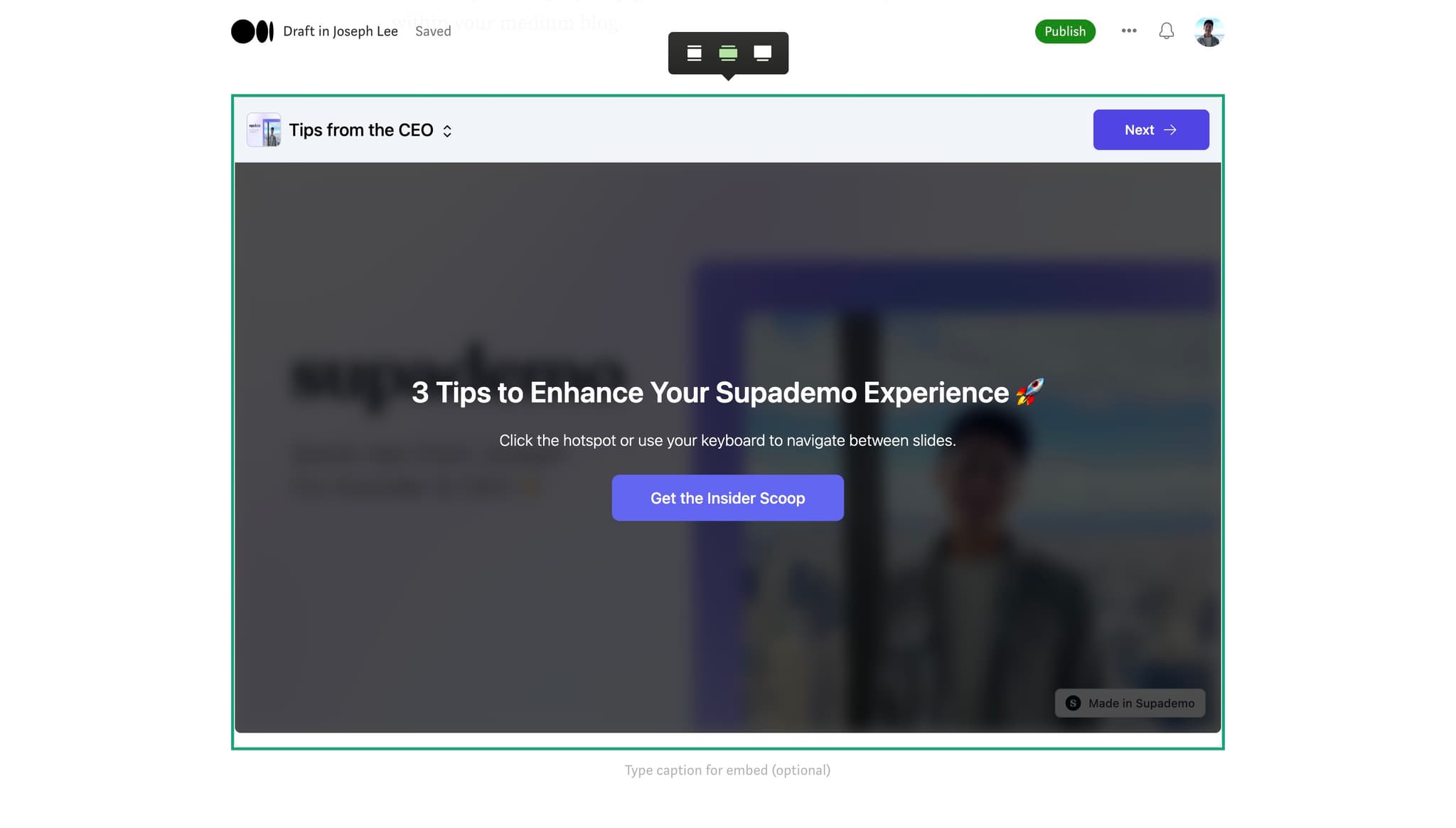
Adjust sizing and placement
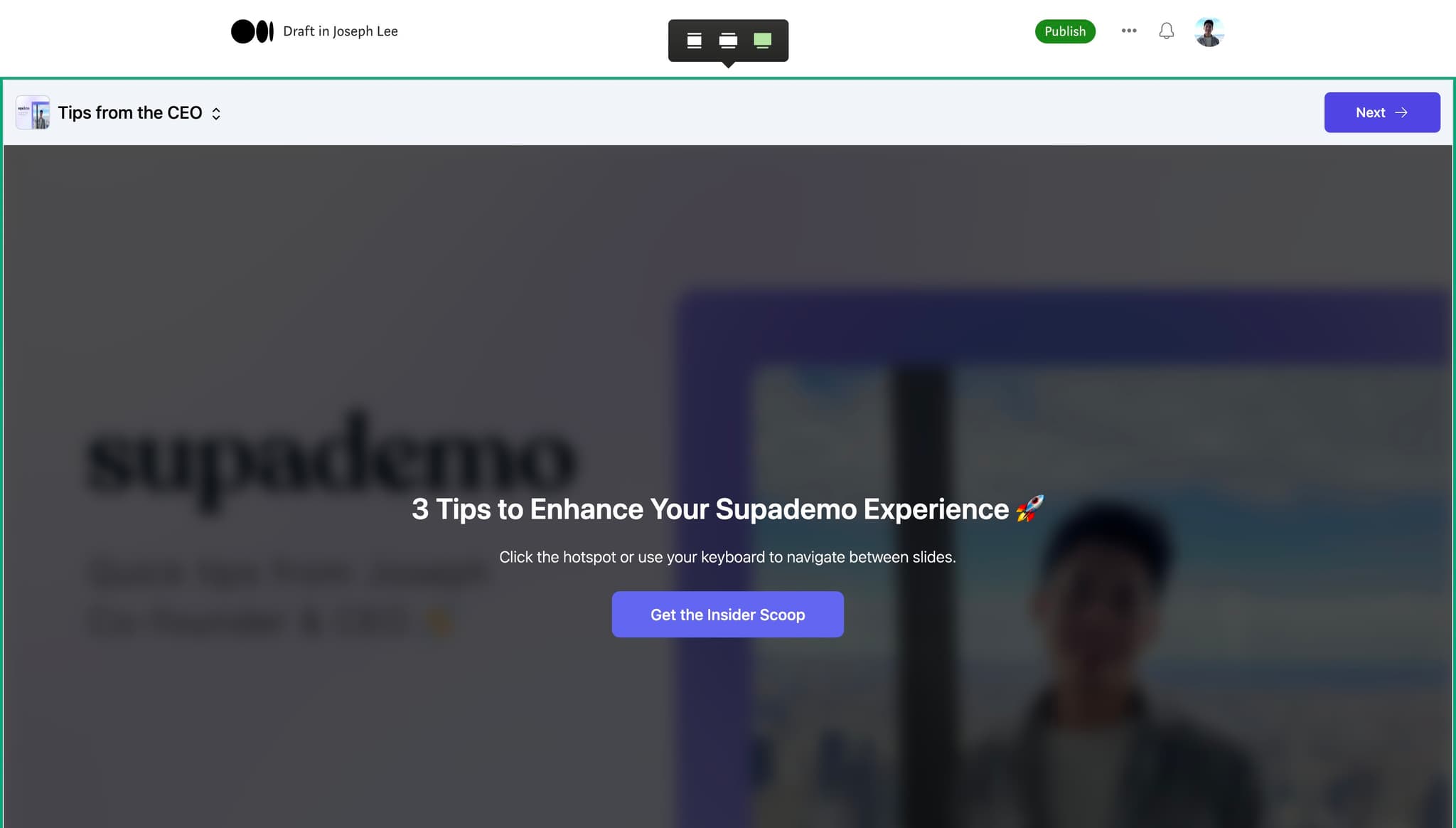
If necessary, use Medium's editing tools to resize or reposition the embedded demo within your article. Ensure it integrates smoothly with surrounding text and images.
- 8
Publish your article
Once you're satisfied with the embedded demo and overall article content, click the publish button to share your article with your Medium audience.
Frequently asked questions
Common questions about how to embed supademo in medium.
Yes, you can embed multiple Supademo links throughout your Medium article. Simply repeat the embedding process for each demo you want to include. This approach works well for articles covering multiple features or use cases.
Yes, readers will be able to interact with the embedded demo directly within your Medium article without navigating to an external site. They can click through the demo steps and explore features as intended.
Updates to your Supademo will automatically reflect in the embedded player on your Medium article. Readers will always see the most current version of your demo without requiring any changes to the embed.
No, Supademo links are designed to work within Medium's embedding system without character restrictions. The full URL will paste correctly and function as expected.
Supademo provides analytics that track interactions with your demos. Check your Supademo dashboard to view metrics about how readers engaged with your embedded content, including view counts and step completion rates.