How to embed Supademo into Notion

Embedding Supademo into Notion allows you to showcase interactive product demonstrations directly within your workspace, making it easy for team members to access guidance without leaving the platform. This integration streamlines onboarding, documentation, and knowledge sharing by combining Notion's organizational power with Supademo's interactive capabilities.
Quick summary
In this tutorial, you'll learn how to embed a Supademo demo into a Notion page by sharing the demo link and creating an embed block. You'll navigate through sharing options, copy the appropriate link, and configure the embed settings to display your demo seamlessly within Notion.
Why this matters
Embedding demos directly into Notion keeps your team's knowledge base centralized and reduces friction in the learning process. Rather than directing users to external links, an embedded demo provides immediate context and interactivity right where your documentation lives, improving engagement and retention.
Step-by-step guide
- 1
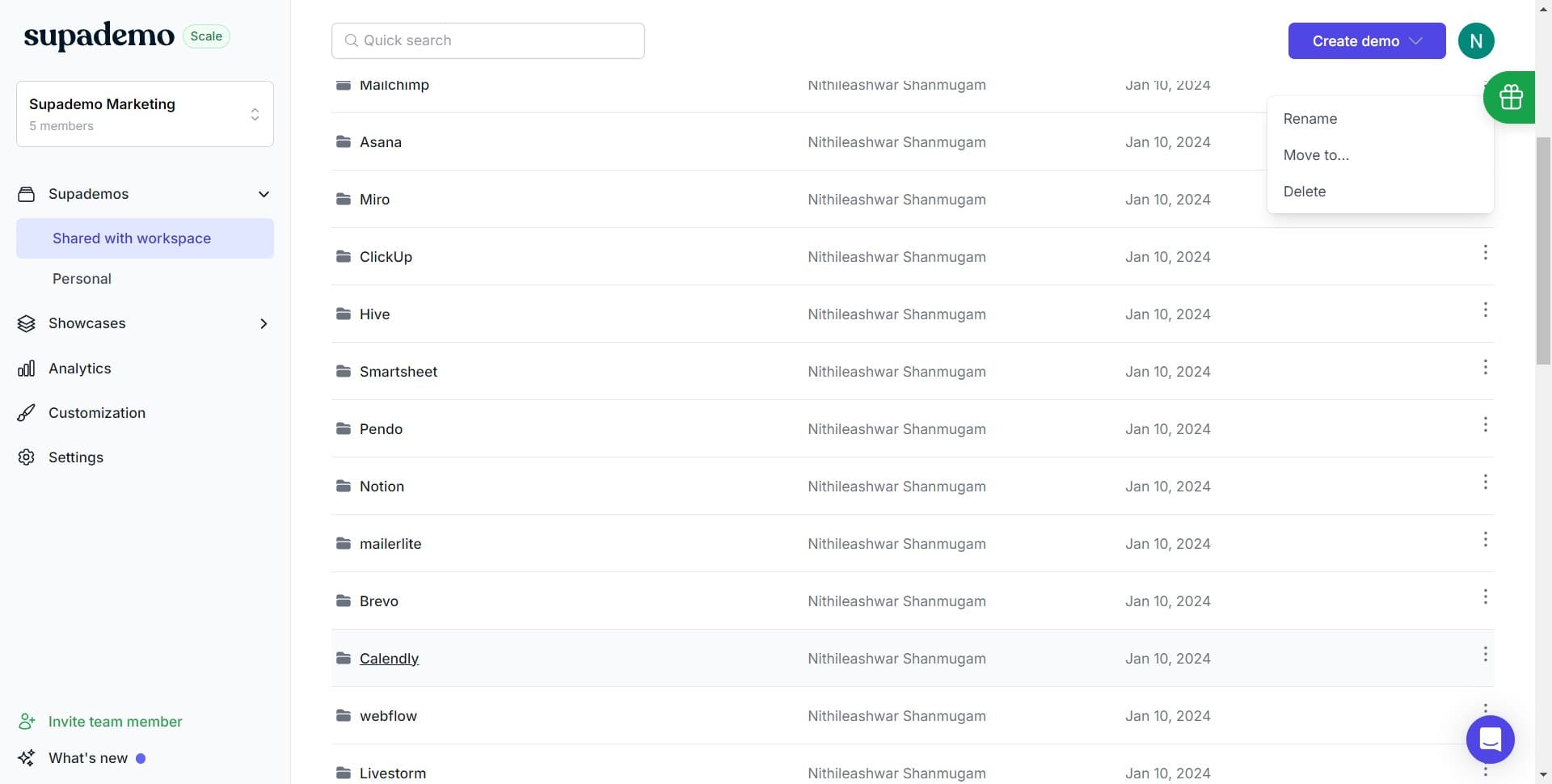
Click on Calendly
Locate and click the Calendly option to access the sharing settings for your demo. This is your entry point to the demo sharing and embedding workflow.
- 2
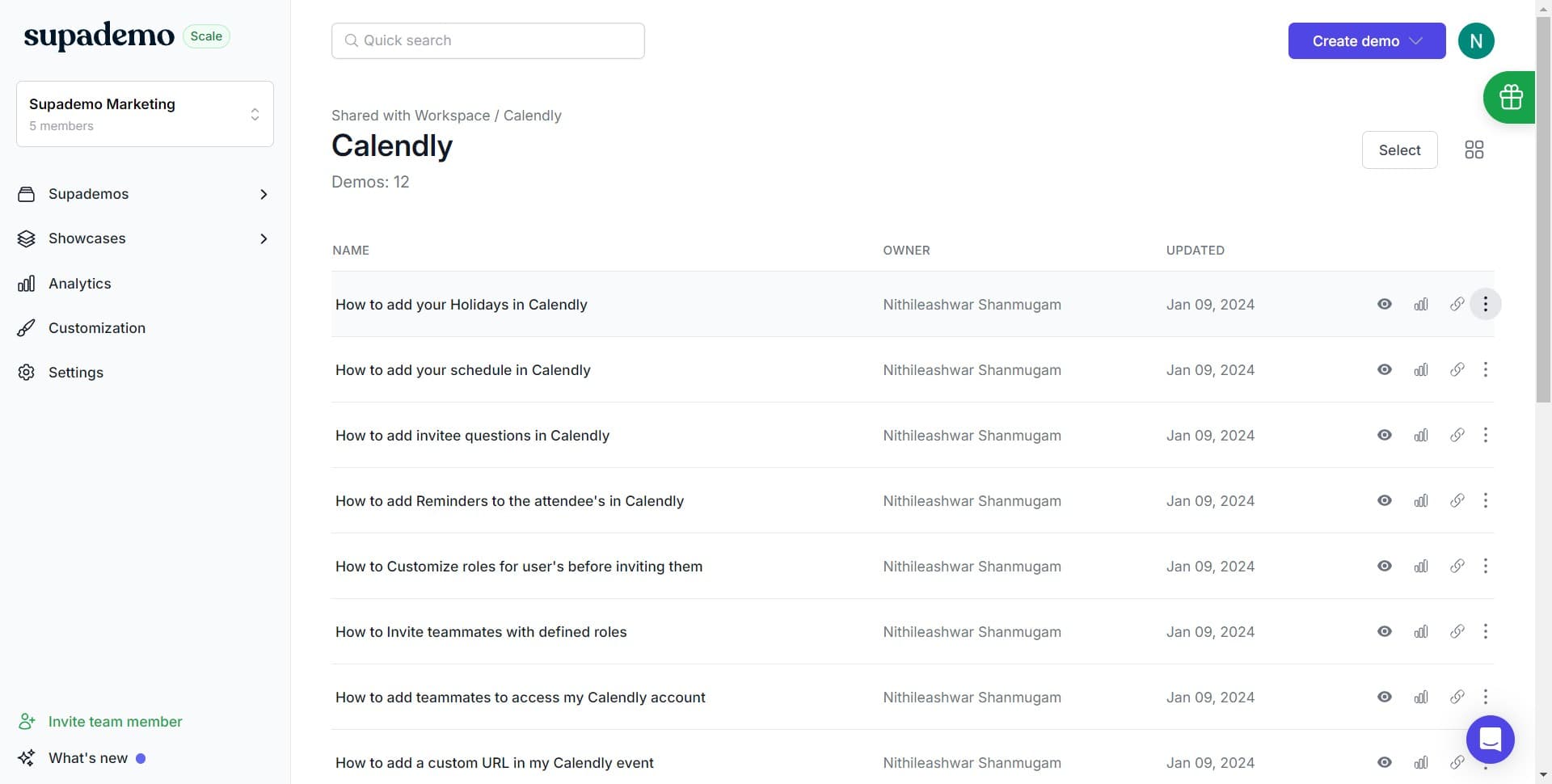
Click to proceed to next section
Click the designated area to move forward in the sharing process. This advances you to the options available for distributing and embedding your demo.
- 3
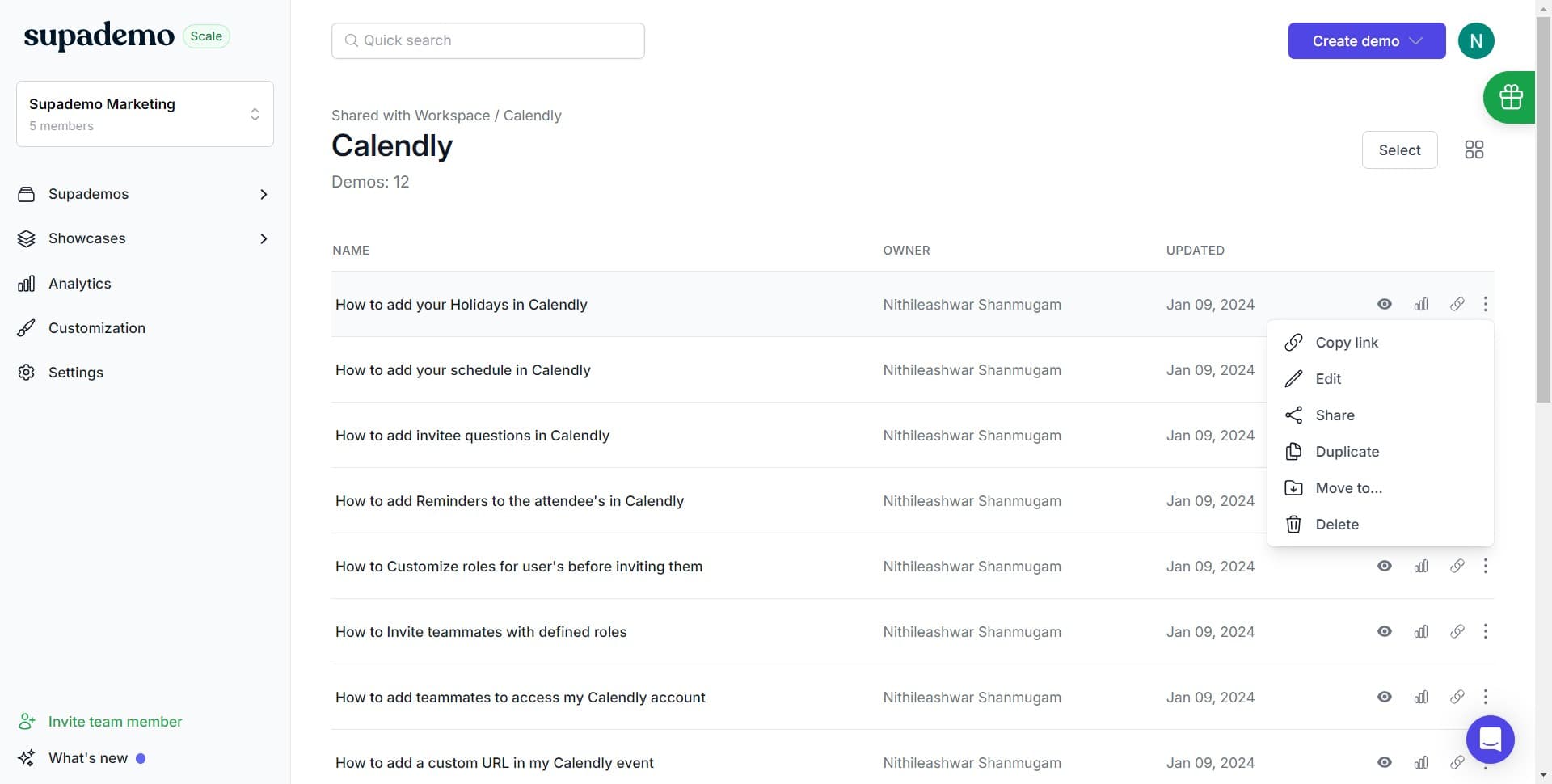
Click on Share
Select the Share button to reveal sharing and embedding options. This opens a menu containing various ways to distribute your demo, including link copying and embed code generation.
- 4
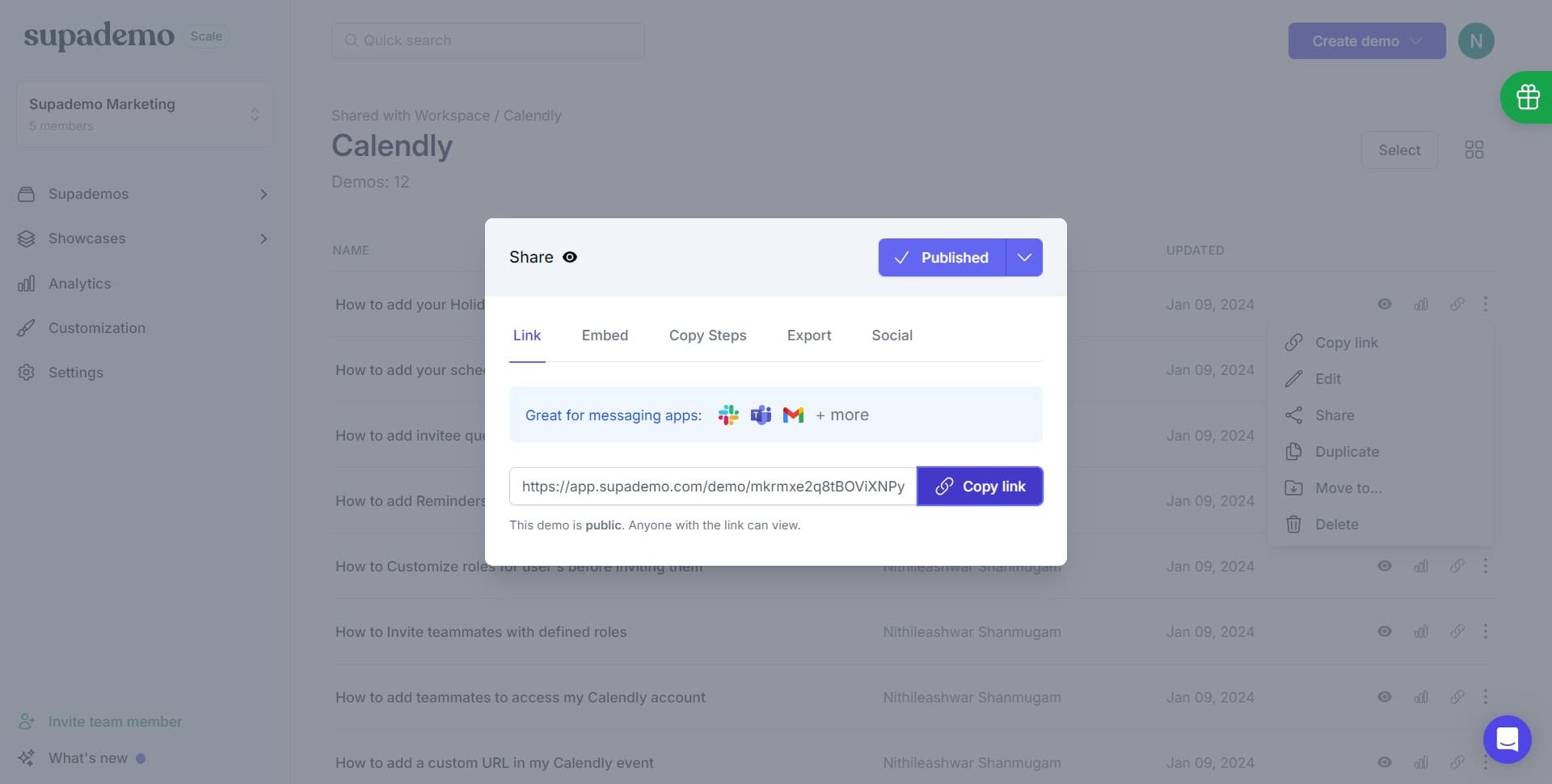
Click on Copy link
Select Copy link to obtain the shareable URL for your demo. This link can be used directly in Notion or combined with other sharing methods.
- 5
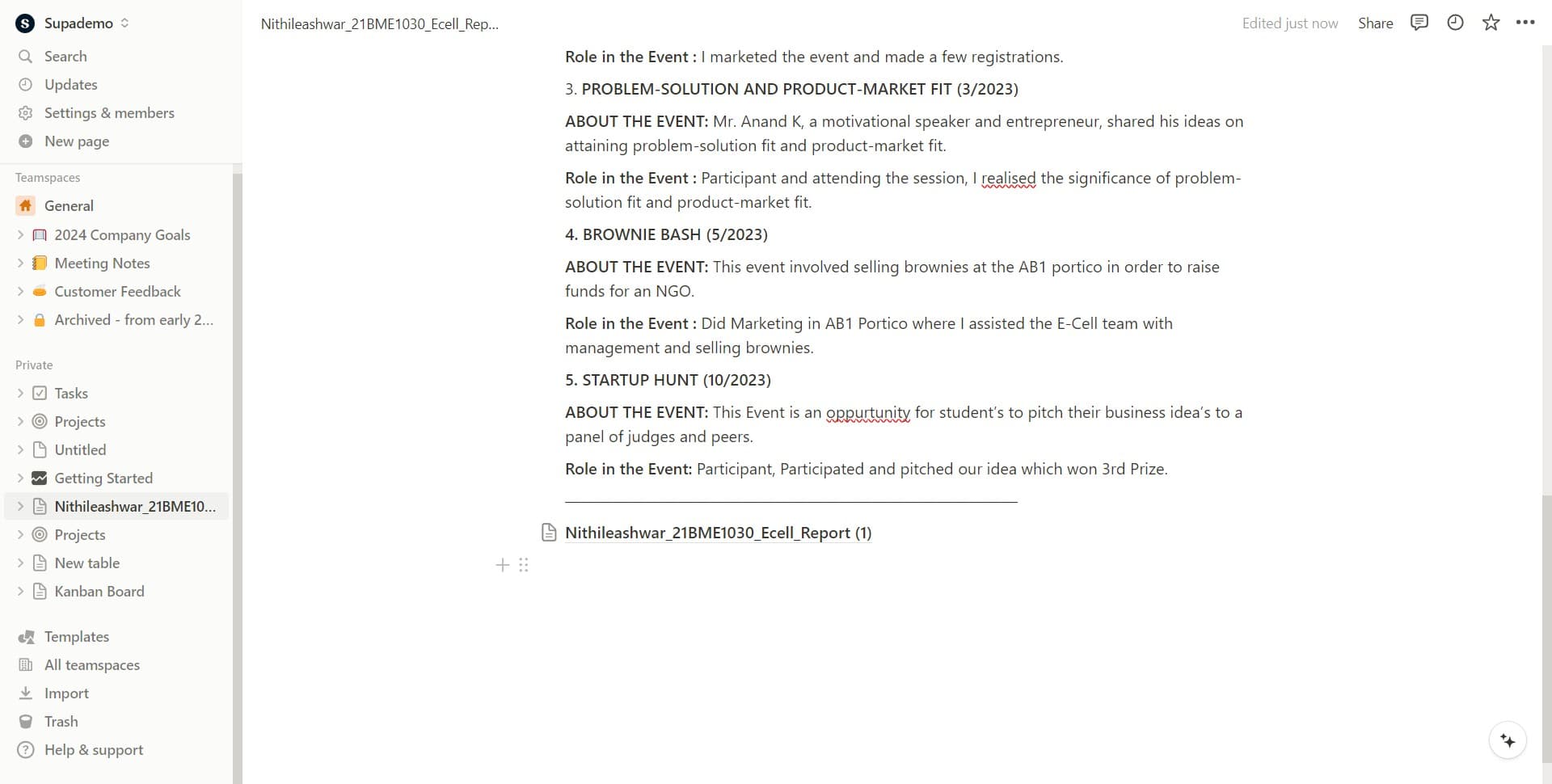
Add icon and configure embed
Click on the Add icon option to customize the appearance of your embed block in Notion. This allows you to personalize how the demo will display within your workspace.
- 6
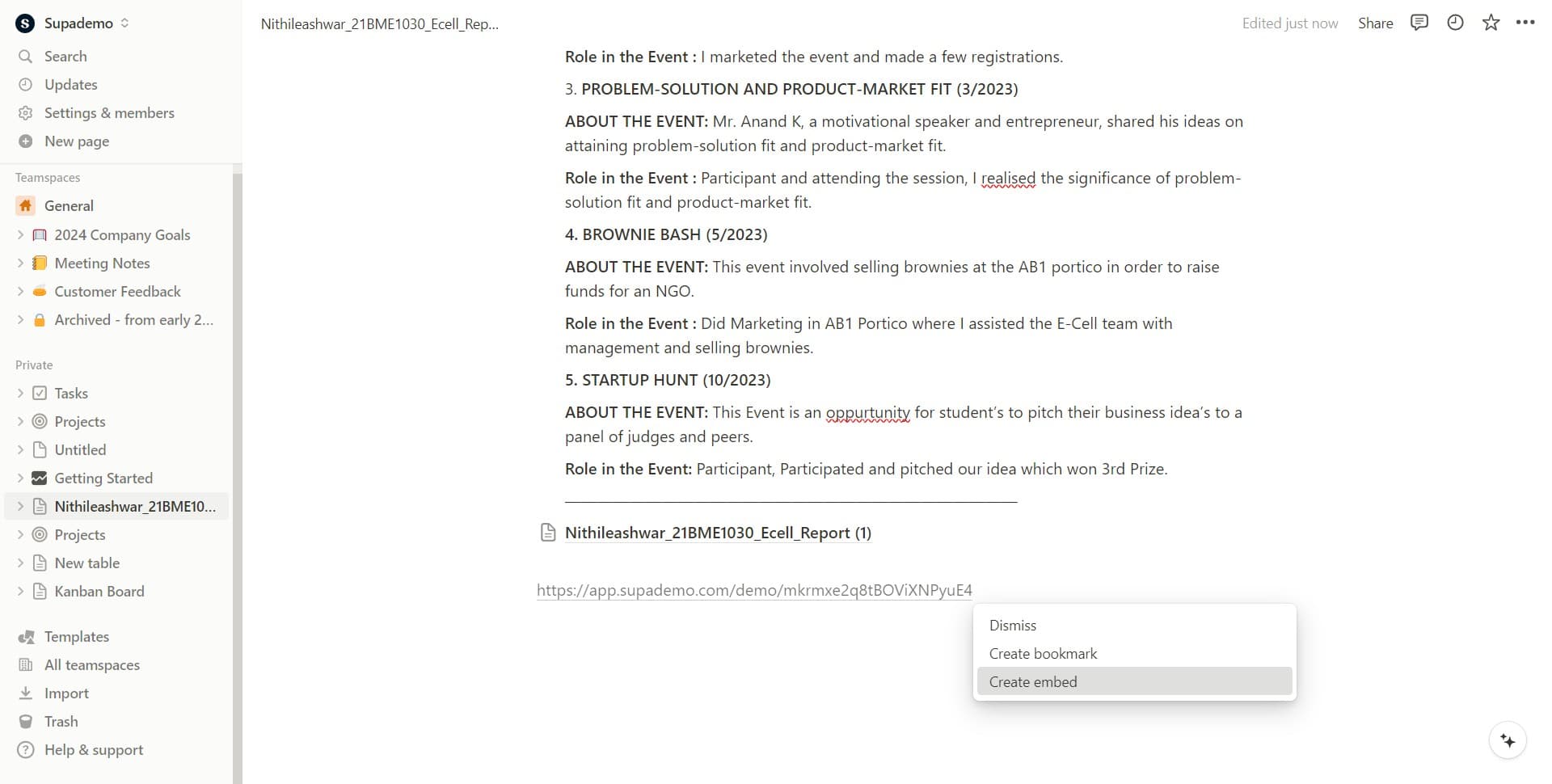
Click on Create embed
Select Create embed to generate the embed code or finalize the embedding process. This step completes the setup and prepares your demo for insertion into your Notion page.
Frequently asked questions
Common questions about how to embed supademo into notion.
Yes, you can embed multiple Supademo demos in the same Notion page by repeating the sharing and embedding process for each demo. Each demo will appear as a separate embed block that you can arrange and organize as needed within your page layout.
Supademo embeds are designed to be responsive and adapt to different screen sizes, including mobile devices. Users accessing your Notion page from phones or tablets will still be able to interact with the embedded demo, though the experience may be optimized for larger screens.
Updates to your Supademo will automatically reflect in the embedded version within Notion, so you don't need to re-embed or update links manually. This ensures your team always sees the most current version of the demo.
No, viewers do not need a Supademo account to interact with an embedded demo in Notion. The embed is publicly accessible through your Notion page, making it easy to share with team members, stakeholders, or external users.
Notion allows you to resize embed blocks by dragging the corners or using the resize options in the embed settings. You can adjust the width and height of your Supademo embed to fit your page layout and design preferences.