How to enable a Webflow share link

Enabling a share link in Webflow allows you to publish and distribute your site to collaborators and stakeholders without making it fully live. This feature is essential for getting feedback during development and testing before your site goes public.
Quick summary
In this tutorial, you'll learn how to enable a Webflow share link by navigating to your site settings and generating a shareable URL. By the end, you'll be able to distribute your project to team members and clients for review and collaboration.
Why this matters
Share links streamline the feedback process by allowing non-Webflow users to view your project in a live environment without needing account access. This workflow is critical for client reviews, team collaboration, and quality assurance before publishing your site to the public.
Step-by-step guide
- 1
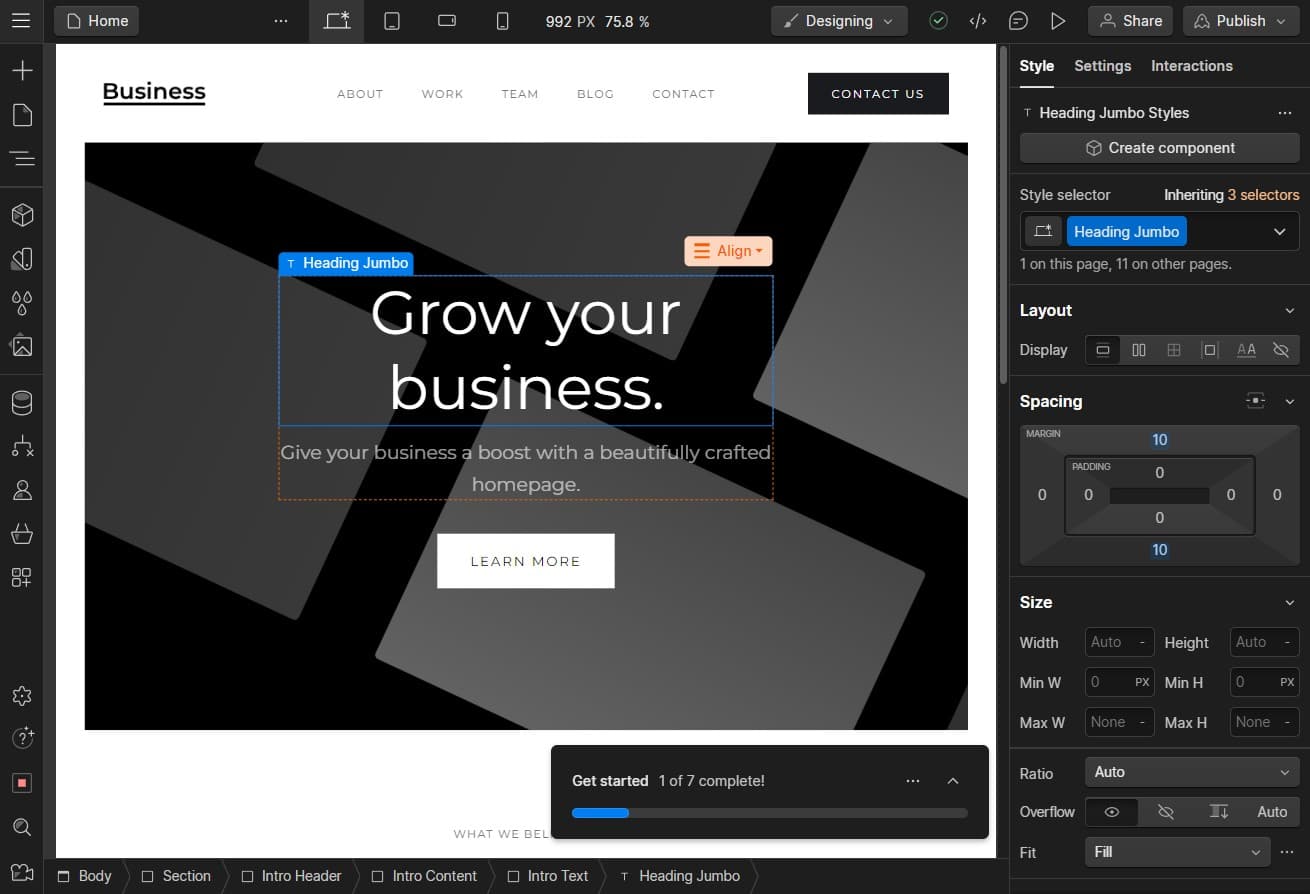
Open your site dashboard
Start by clicking on the primary navigation area to access your site's main options. This will bring you to the core settings interface where you can manage your project.
- 2
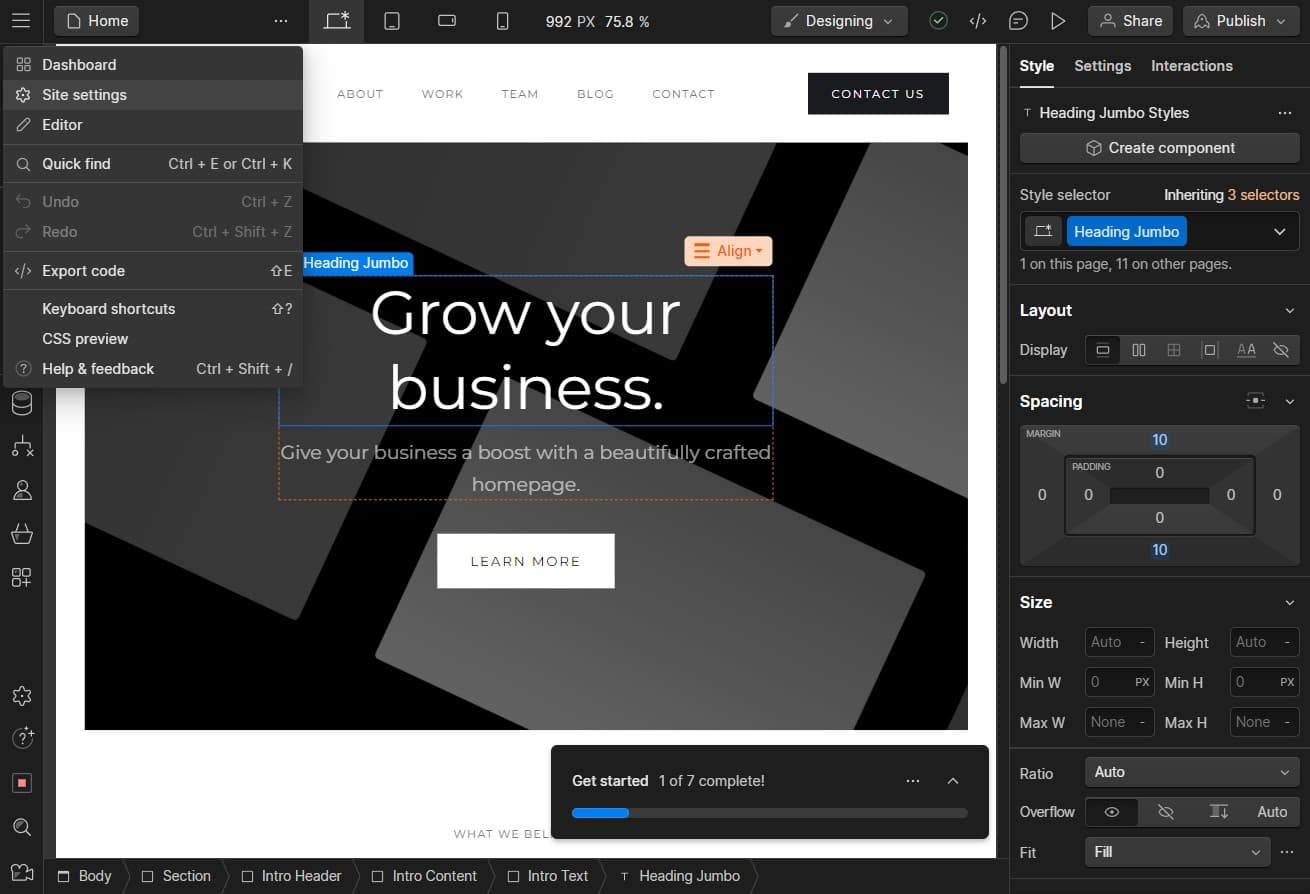
Click on Site settings
Select 'Site settings' from the menu to access your site's configuration options. This section contains all the controls you need to manage sharing and publishing features.
- 3
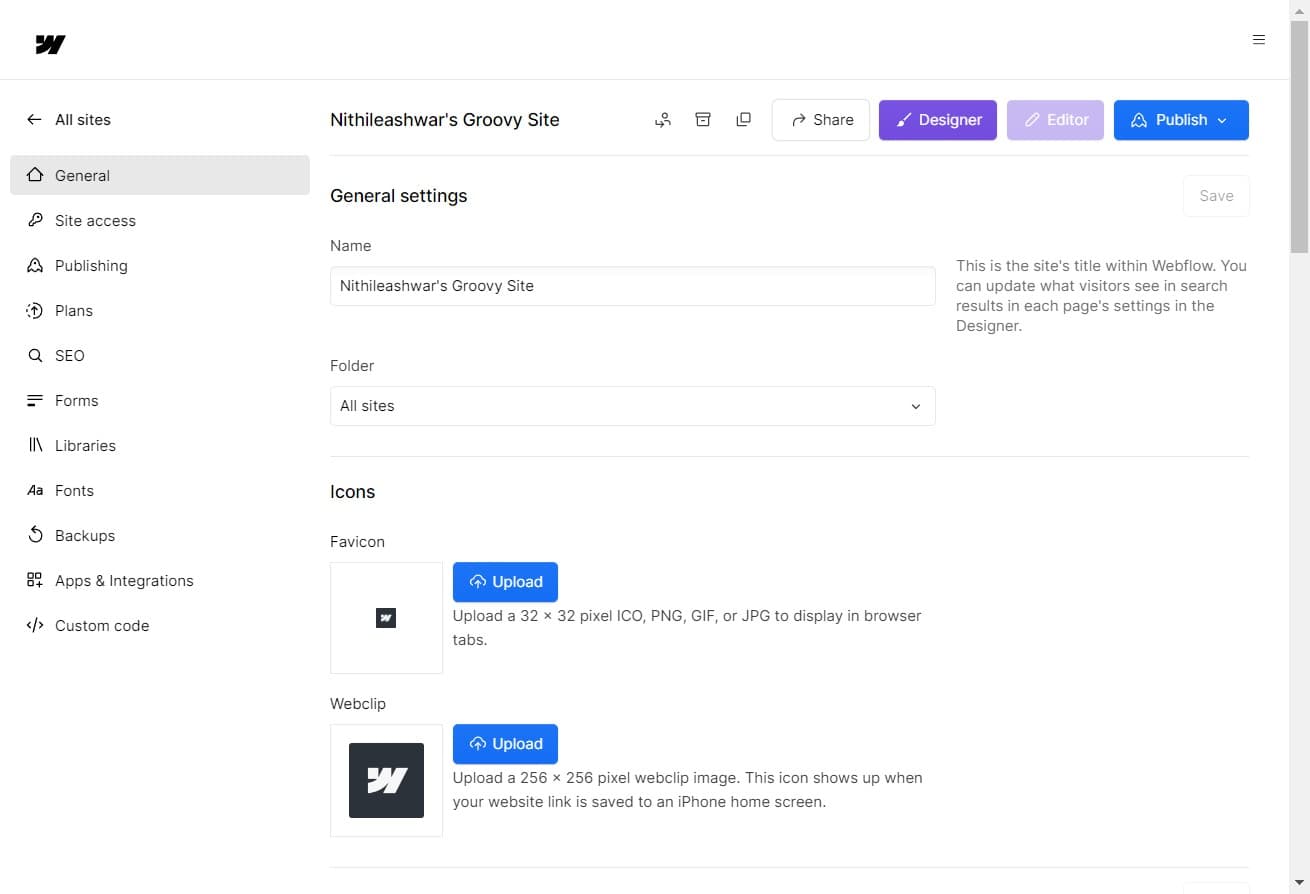
Navigate to sharing options
Click on the appropriate section within site settings to reveal sharing and link generation options. You'll see controls for managing who can view and access your site.
- 4
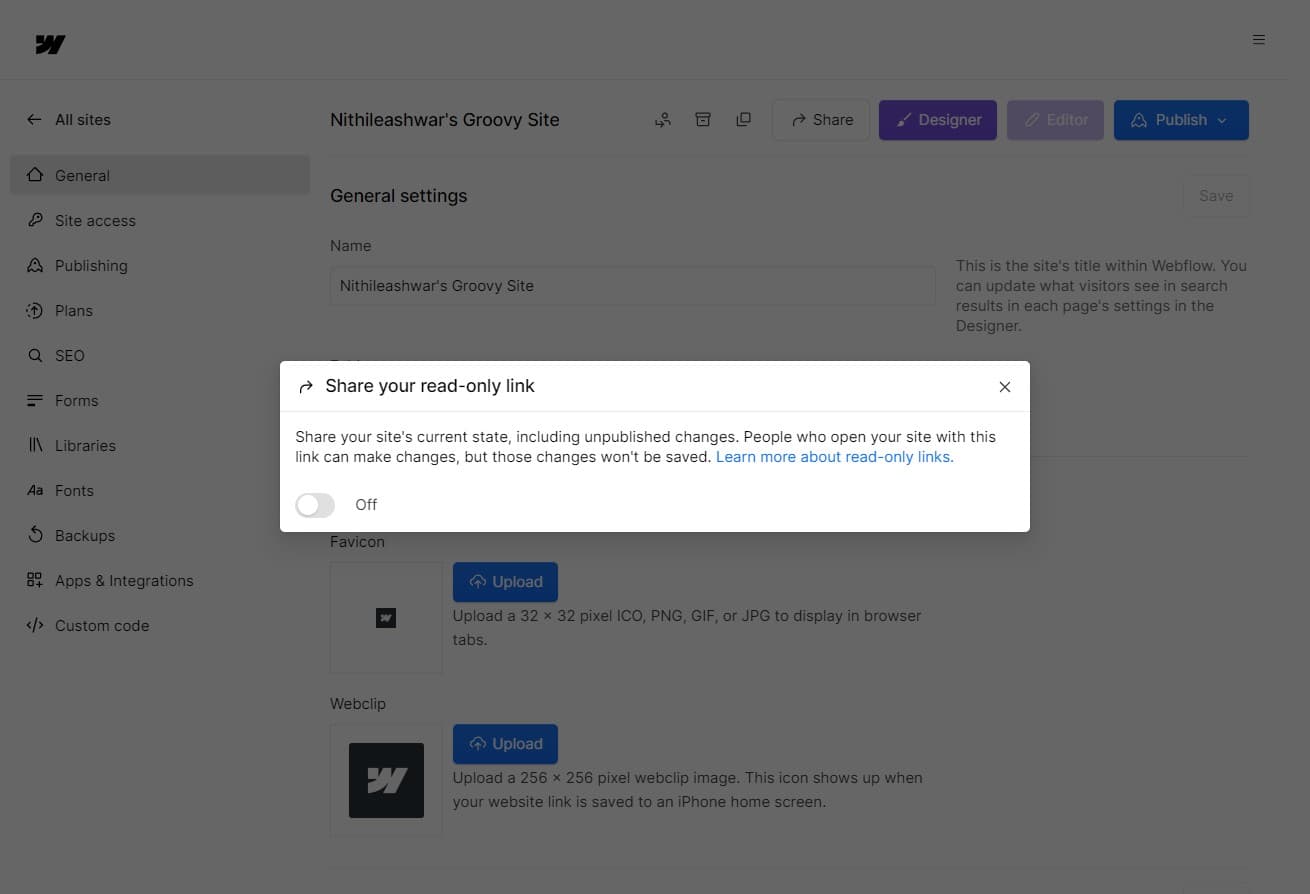
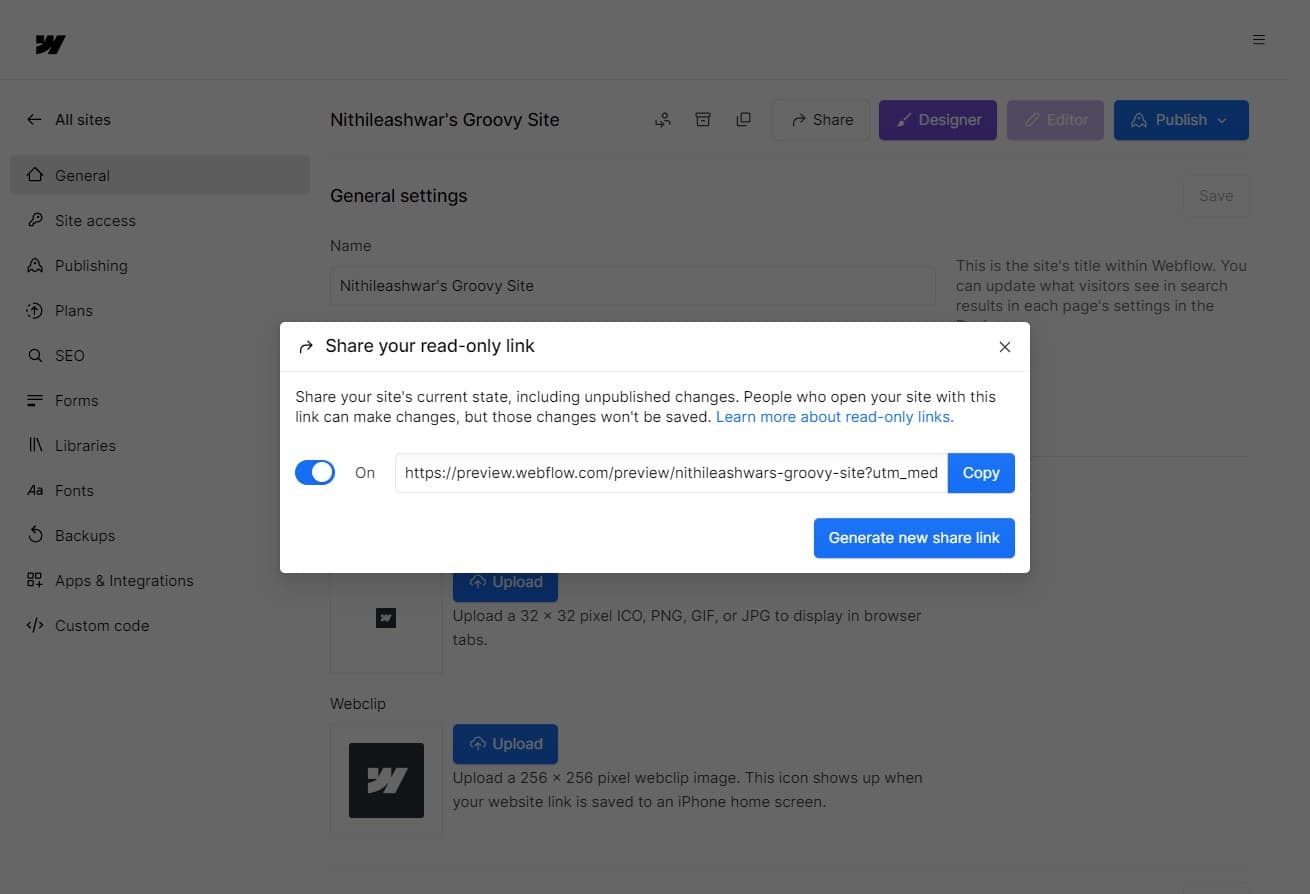
Enable the share link
Click to activate the share link feature for your site. Once enabled, Webflow will generate a unique URL that you can distribute to collaborators.
- 5
Copy the share link
Click on 'Copy' to copy the generated share link to your clipboard. You can now paste this link in emails, messages, or any communication channel to share with your team or clients.
Frequently asked questions
Common questions about how to enable a webflow share link.
Yes, Webflow share links can be managed through your site settings. You can enable or disable the link at any time, and some plans allow you to set password protection or expiration dates for additional security and control over access.
Yes, Webflow share links are fully responsive and work on all devices including smartphones and tablets. Recipients can view your site exactly as it appears across different screen sizes.
No, you can enable a share link without publishing your site to a custom domain. The share link provides access to a preview version of your site that's separate from your public publication.
Yes, a single share link can be distributed to multiple people and accessed simultaneously by different users. Each person viewing the link sees the same version of your site.
Changes you make to your site are reflected immediately in the shared preview. Anyone viewing your share link will see the most current version of your project without needing a new link.