How to integrate apps in Webflow

Integrating third-party apps with Webflow expands your site's functionality and connects your design to external tools and services. This guide walks you through the complete process of discovering, installing, and authorizing apps directly within Webflow's integration marketplace.
Quick summary
In this tutorial, you'll learn how to navigate Webflow's Apps & Integrations section, search for compatible apps, install them, and authorize access to connect external services seamlessly. By the end, you'll understand how to extend your Webflow site's capabilities with integrated tools and workflows.
Why this matters
App integrations allow you to automate workflows, connect your Webflow site to CRMs, email platforms, analytics tools, and other business applications without custom code. This saves development time and ensures your site works cohesively with your existing tech stack.
Step-by-step guide
- 1
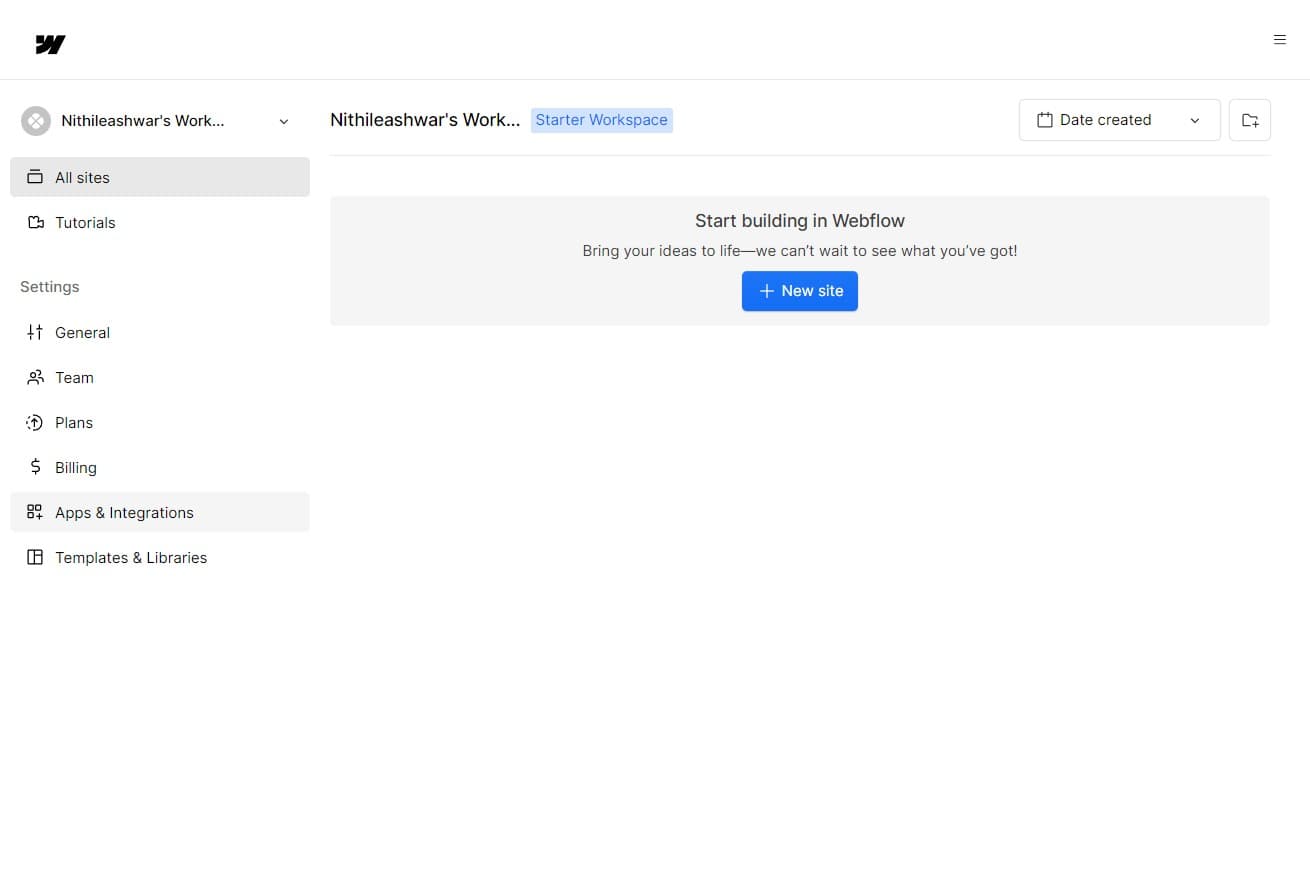
Access the Apps & Integrations menu
In your Webflow dashboard, locate and click on "Apps & Integrations" in the main navigation. This opens the integration management center where you can browse and manage all available apps.
- 2
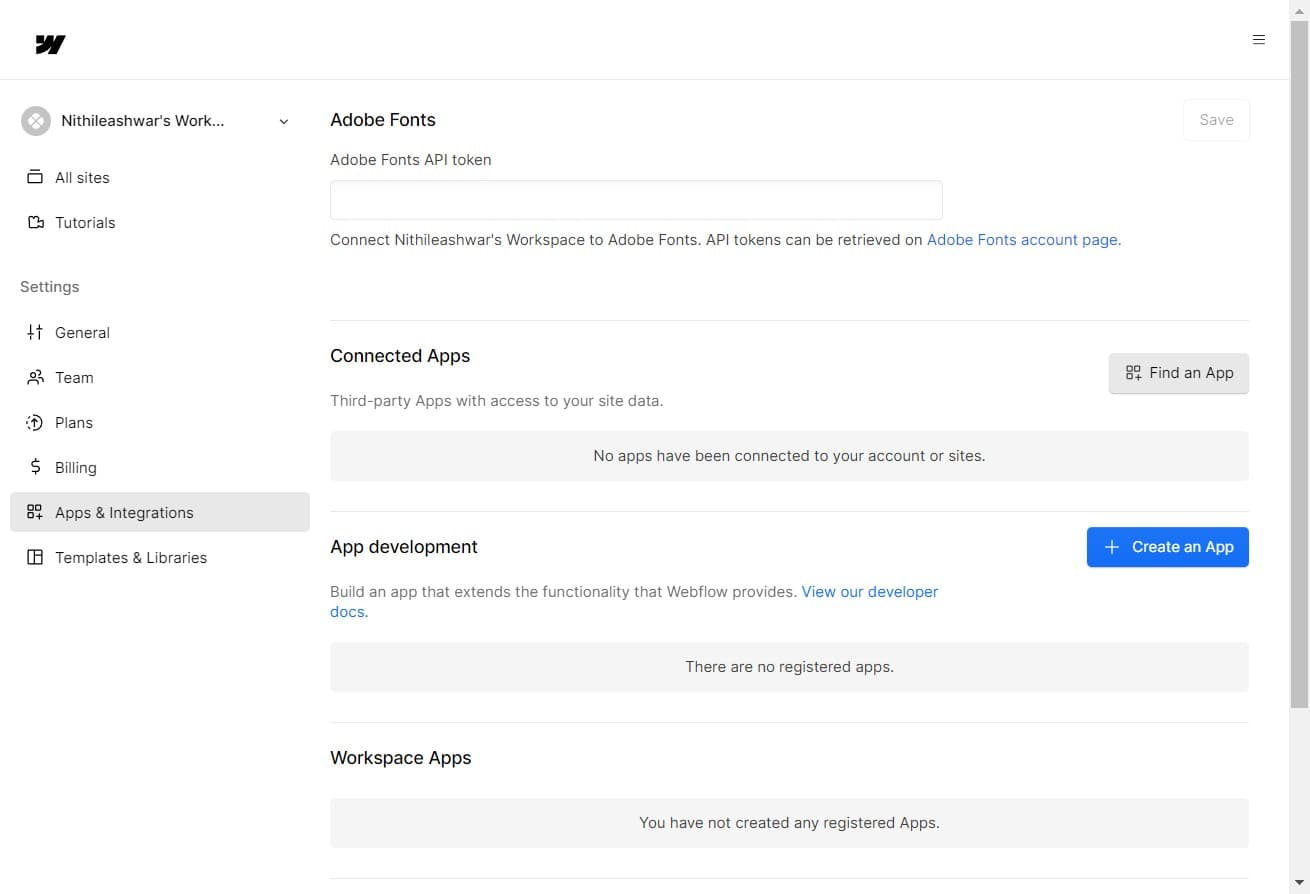
Click on Find an App
Select the "Find an App" option to access the marketplace of available integrations. This displays a searchable catalog of pre-built apps and integrations compatible with Webflow.
- 3
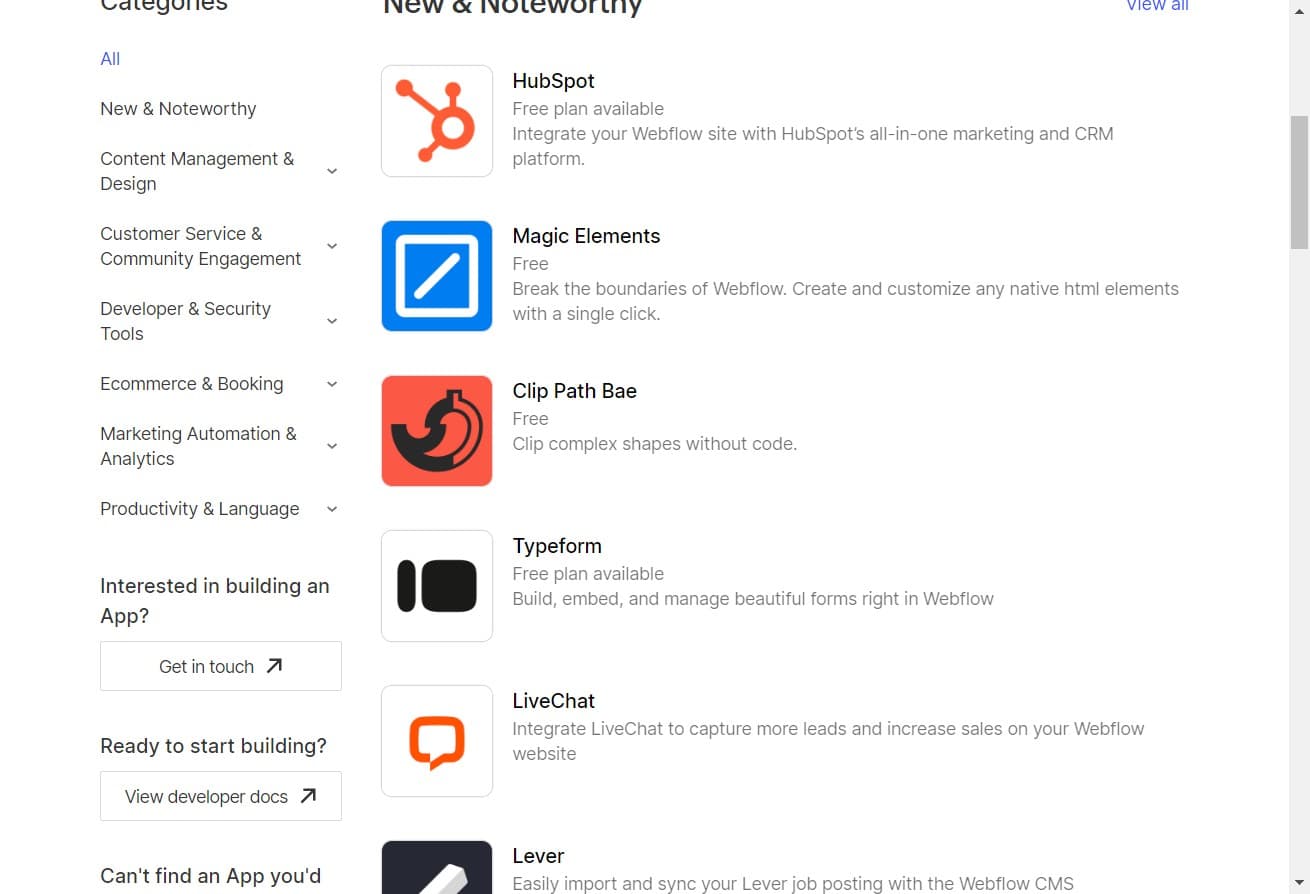
Select your desired app
Browse the app catalog and click on the app you want to integrate with your Webflow site. Review the app's description and features to ensure it meets your needs.
- 4
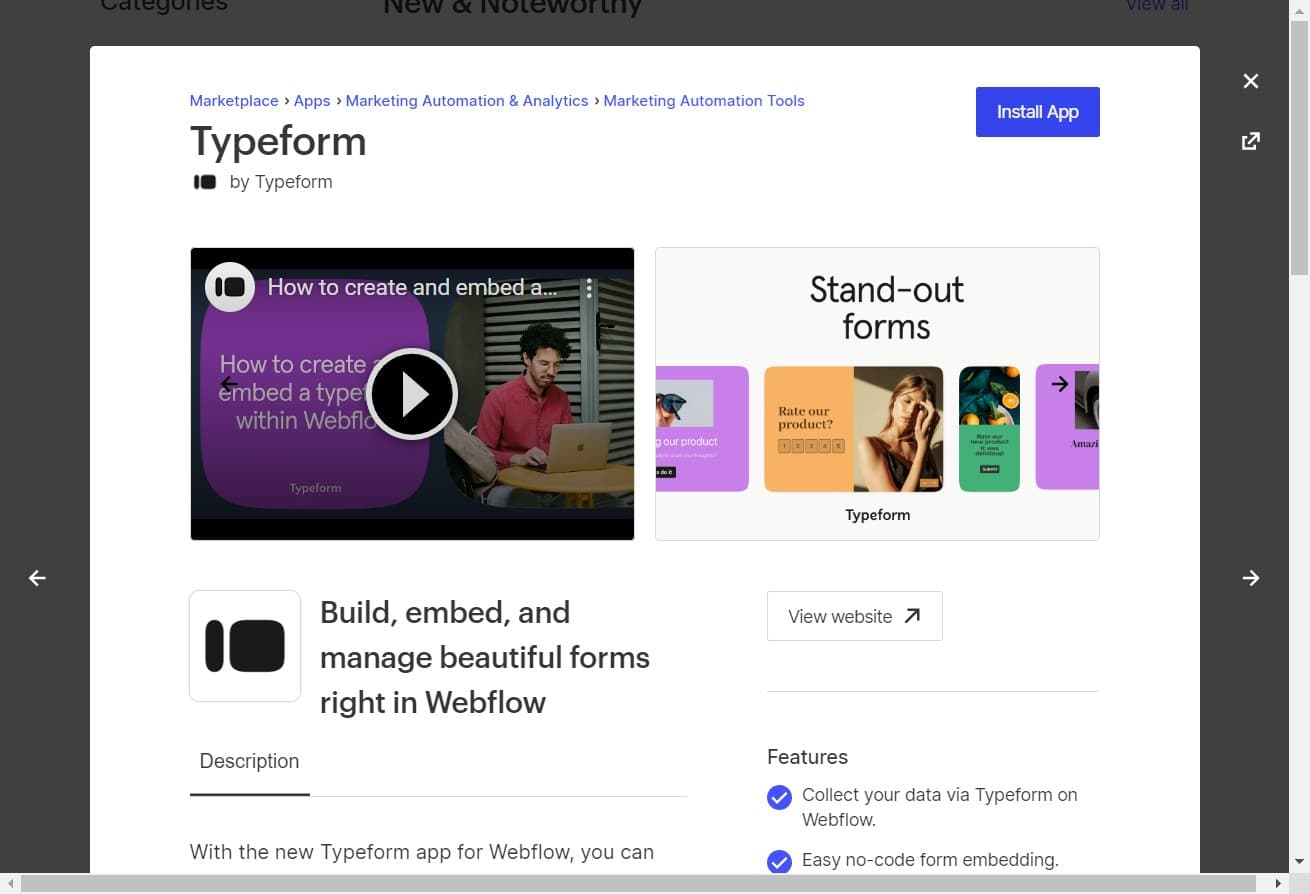
Click Install App
Click the "Install App" button to begin the installation process. Webflow will prepare the app for connection to your site.
- 5
Configure app settings
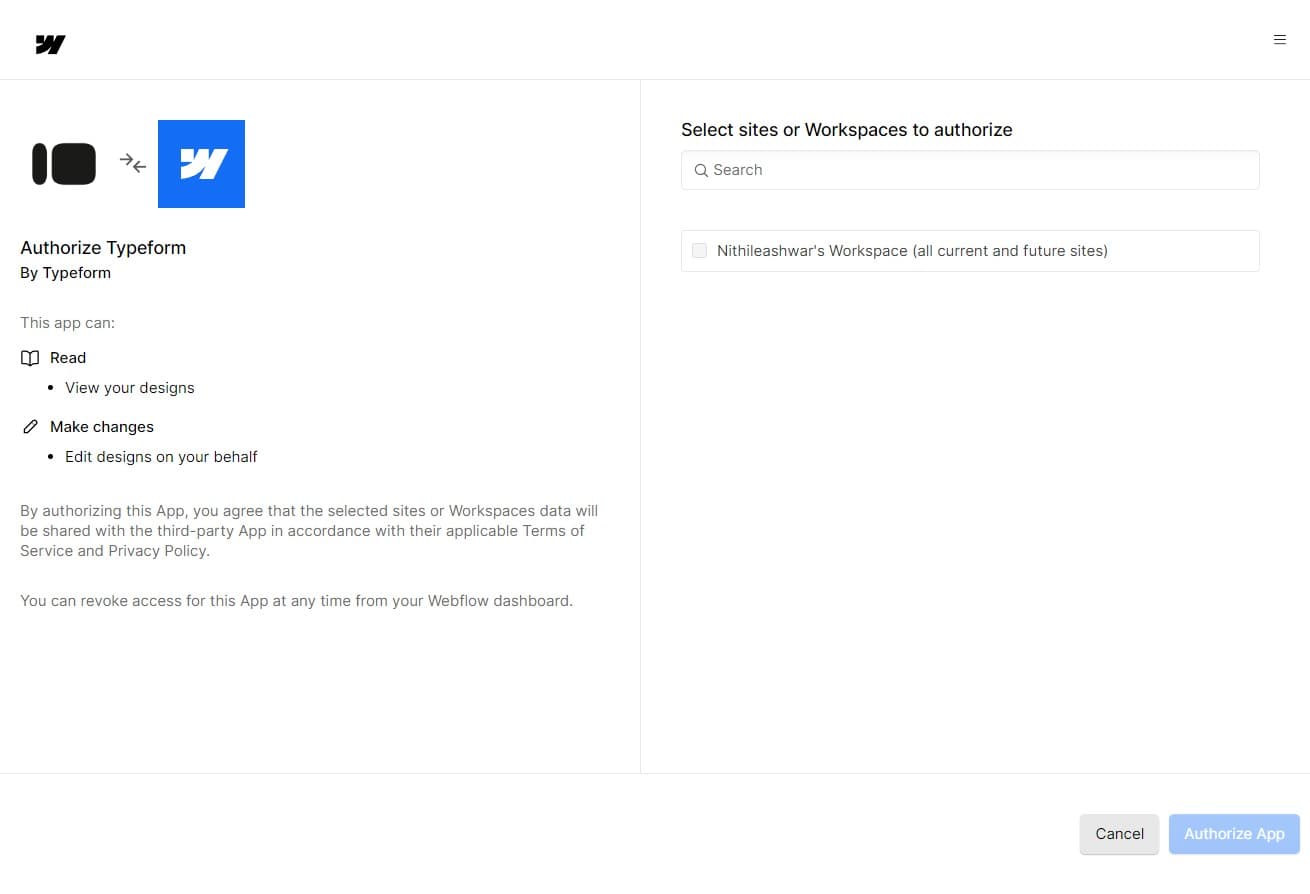
Complete any required configuration steps for the app. This may include setting parameters or preferences specific to how you want the app to function with your Webflow site.
- 6
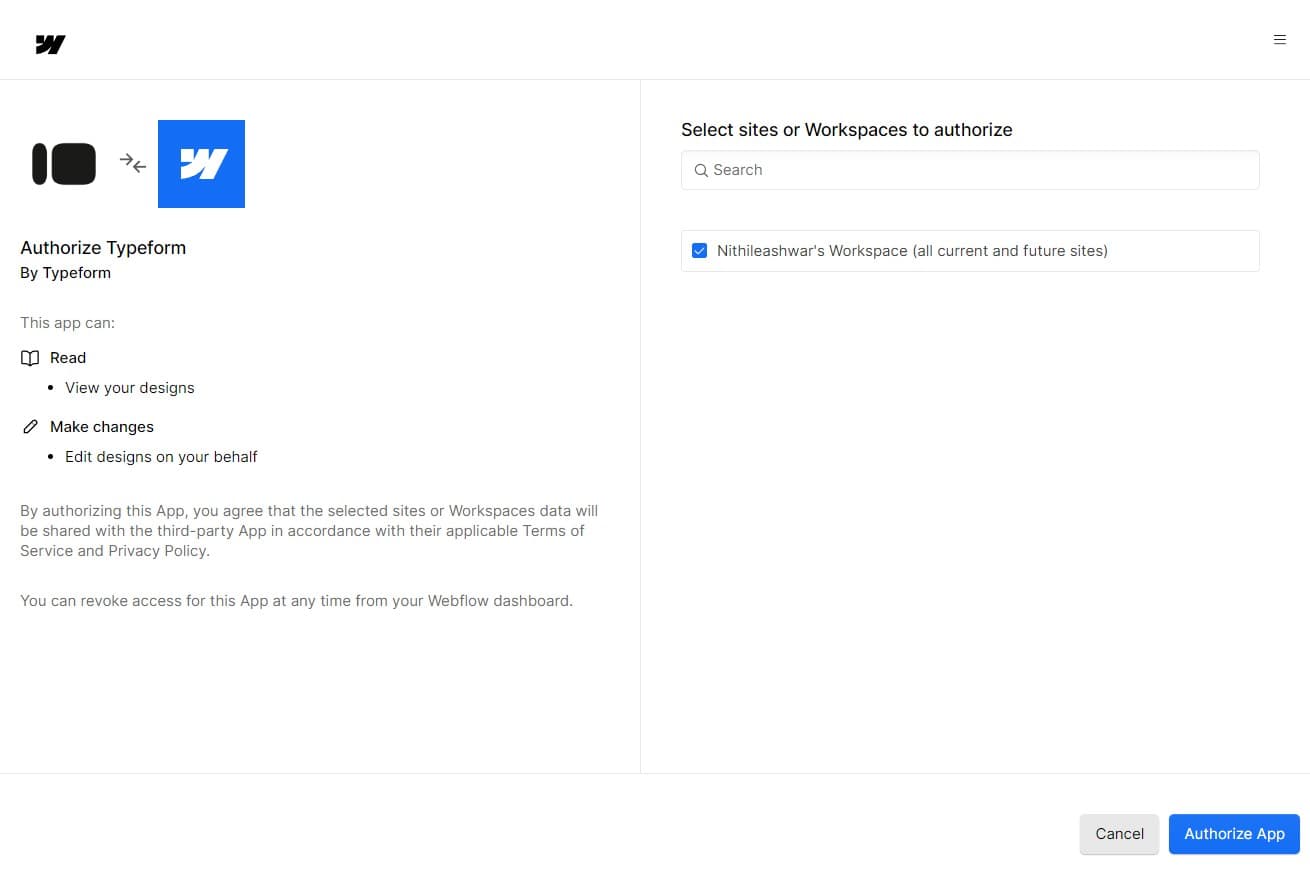
Click Authorize App
Click "Authorize App" to grant Webflow permission to access and communicate with the external service. You may be redirected to the third-party app's login page to verify your account.
- 7
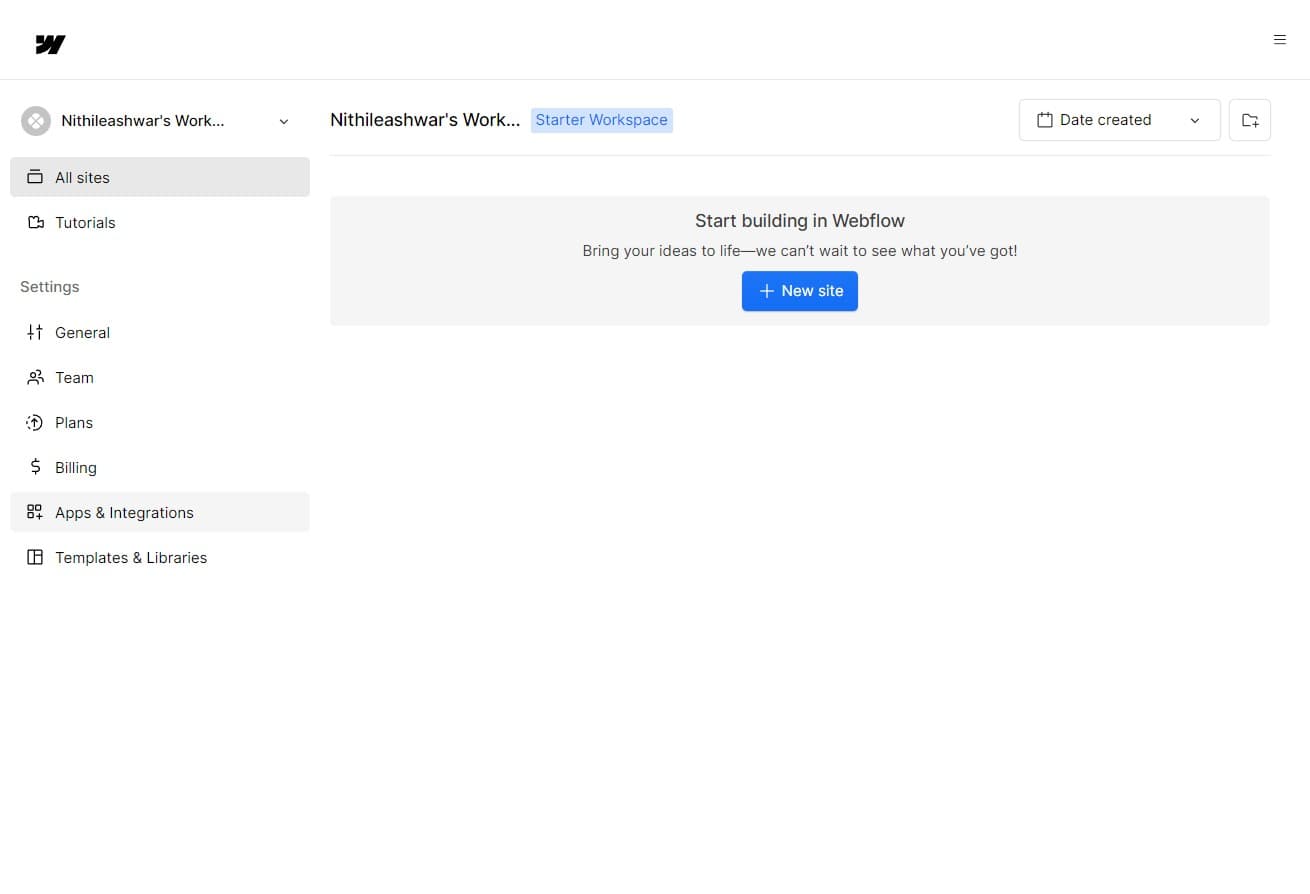
Return to Apps & Integrations
After authorization is complete, you'll be returned to the Apps & Integrations section. Your newly installed app will now appear in your active integrations list.
- 8
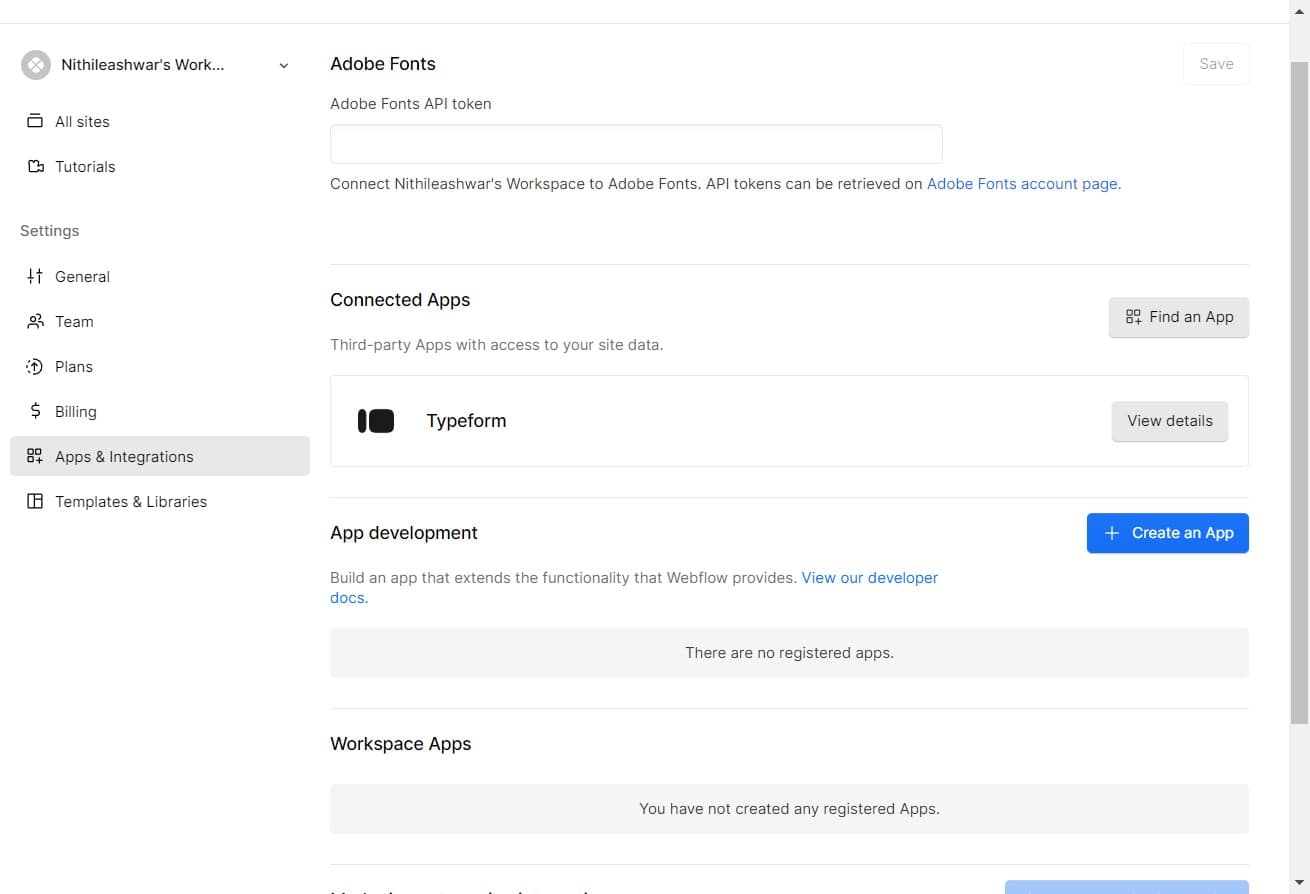
View integration details
Click "View details" on your installed app to access settings, manage permissions, and monitor the integration's status. Here you can adjust configuration options or disconnect the app if needed.
Frequently asked questions
Common questions about how to integrate apps in webflow.
Yes, Webflow supports multiple app integrations simultaneously. You can install and authorize as many compatible apps as your workflow requires. Each app operates independently, so you can manage them individually from your Apps & Integrations dashboard.
During the authorization step, Webflow will clearly display what permissions the app needs to function. You'll have the opportunity to review these permissions before proceeding. You can only install the app if you're willing to grant the requested access level.
Absolutely. You can disconnect or uninstall any app at any time from the Apps & Integrations section. Simply access the app's details and select the disconnect or uninstall option. This will revoke the app's access to your Webflow site.
Not all apps are available on every Webflow plan. Some integrations may require a specific plan level or higher. Check the app's requirements before installation, and you'll see a notice if the app isn't compatible with your current plan.
If authorization fails, verify that you're using the correct credentials for the external service and that your account has the necessary permissions. Check your internet connection, clear your browser cache, and try again. If the issue persists, contact Webflow support or the app provider's help team.