How to transfer sites across Webflow accounts

Transferring sites between Webflow accounts is essential when managing multiple workspaces or consolidating your projects. This guide walks you through the process of moving a site from one account to another, ensuring your work remains organized and accessible.
Quick summary
In this tutorial, you'll learn how to transfer a Webflow site to a different workspace or account. By following these steps, you'll be able to move your sites seamlessly without losing any project data or settings.
Why this matters
Site transfers are crucial when restructuring your Webflow organization, collaborating with different teams, or consolidating accounts. This workflow ensures you maintain control over your sites while keeping your workspace clean and properly organized.
Step-by-step guide
- 1
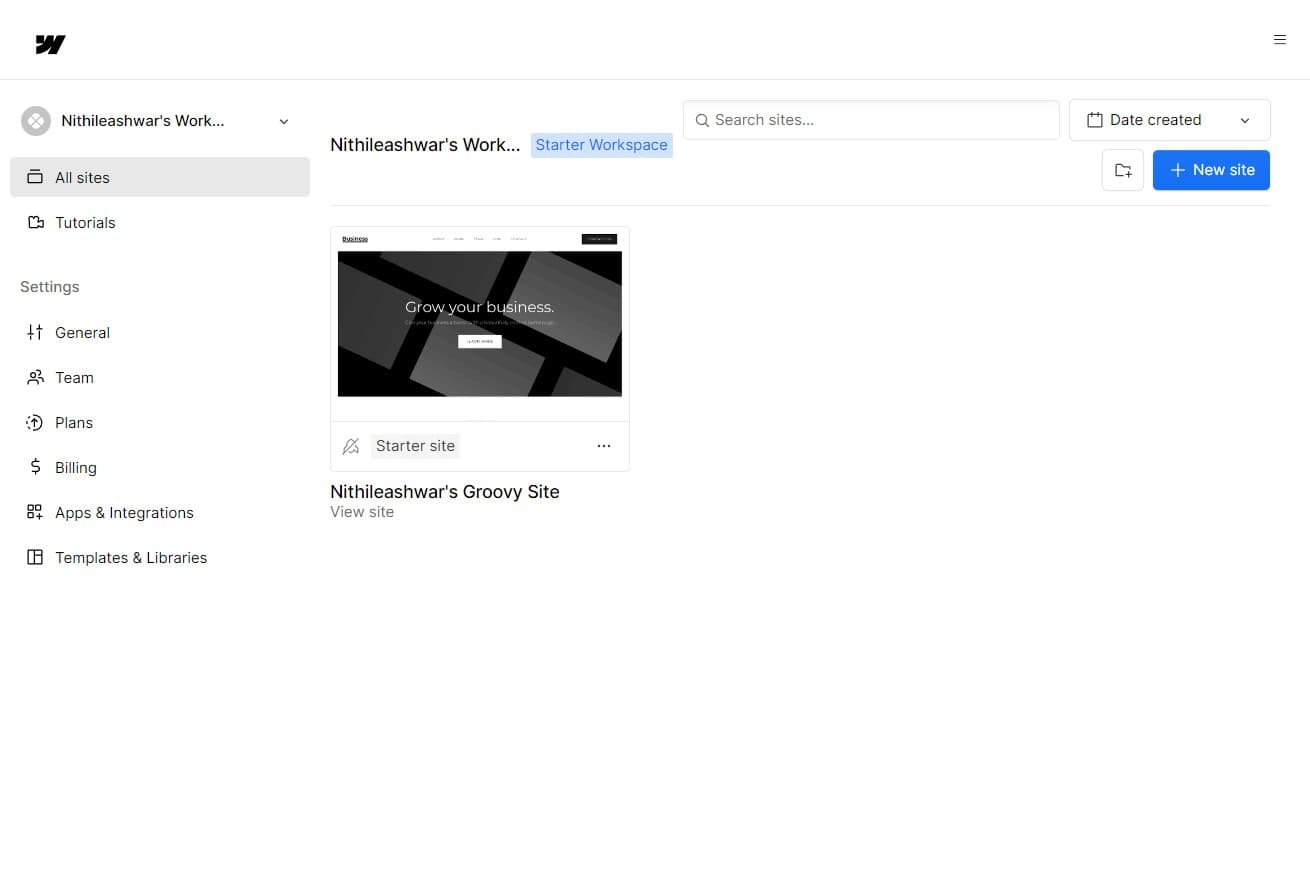
Navigate to All Sites
Start by clicking on the "All sites" option in your Webflow dashboard. This displays a complete list of all projects associated with your current account.
- 2
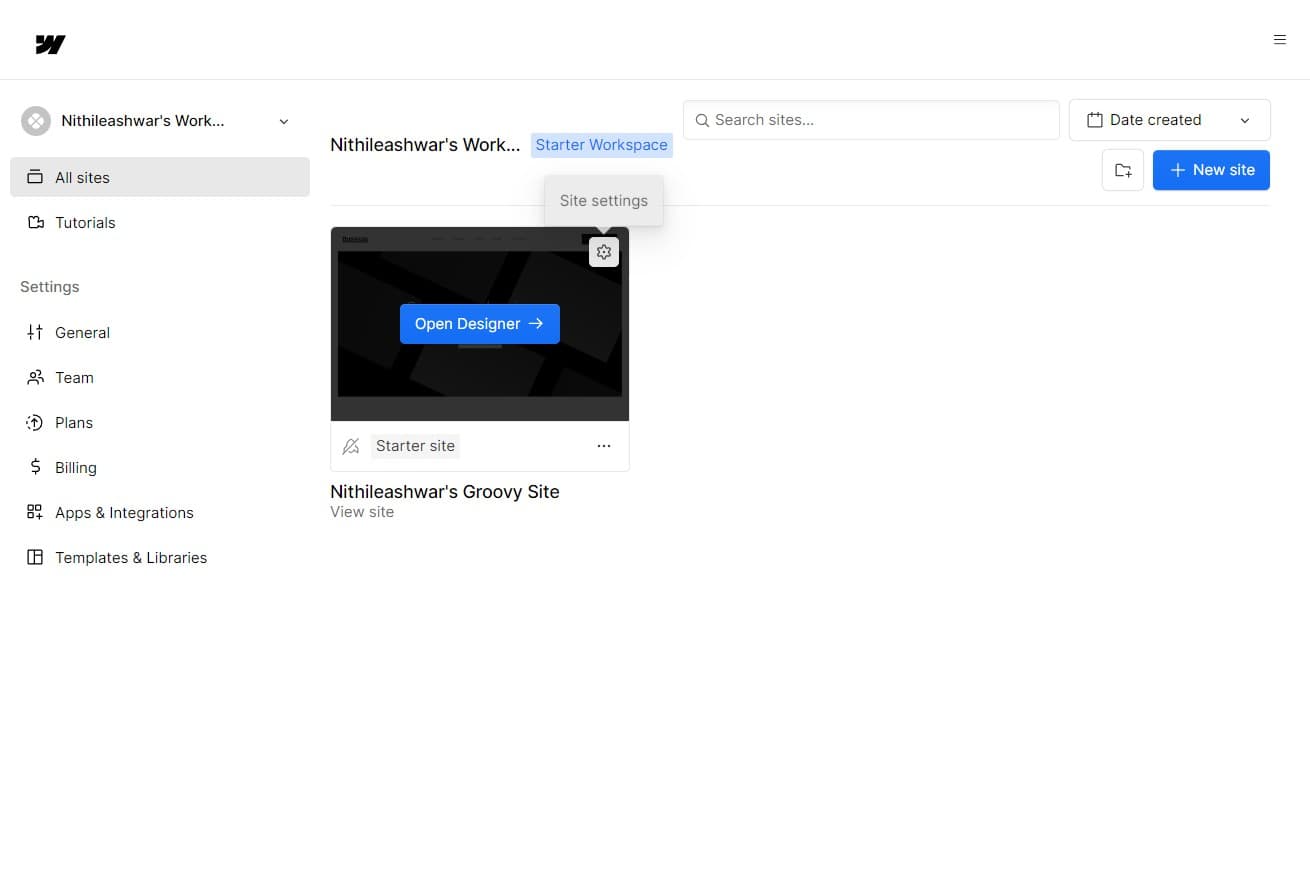
Select Your Site
Click on the site you want to transfer from your list of projects. This action opens the site's options and management panel.
- 3
Access Site Settings
Click on the settings or options menu for your selected site. This reveals additional actions you can perform on the site.
- 4
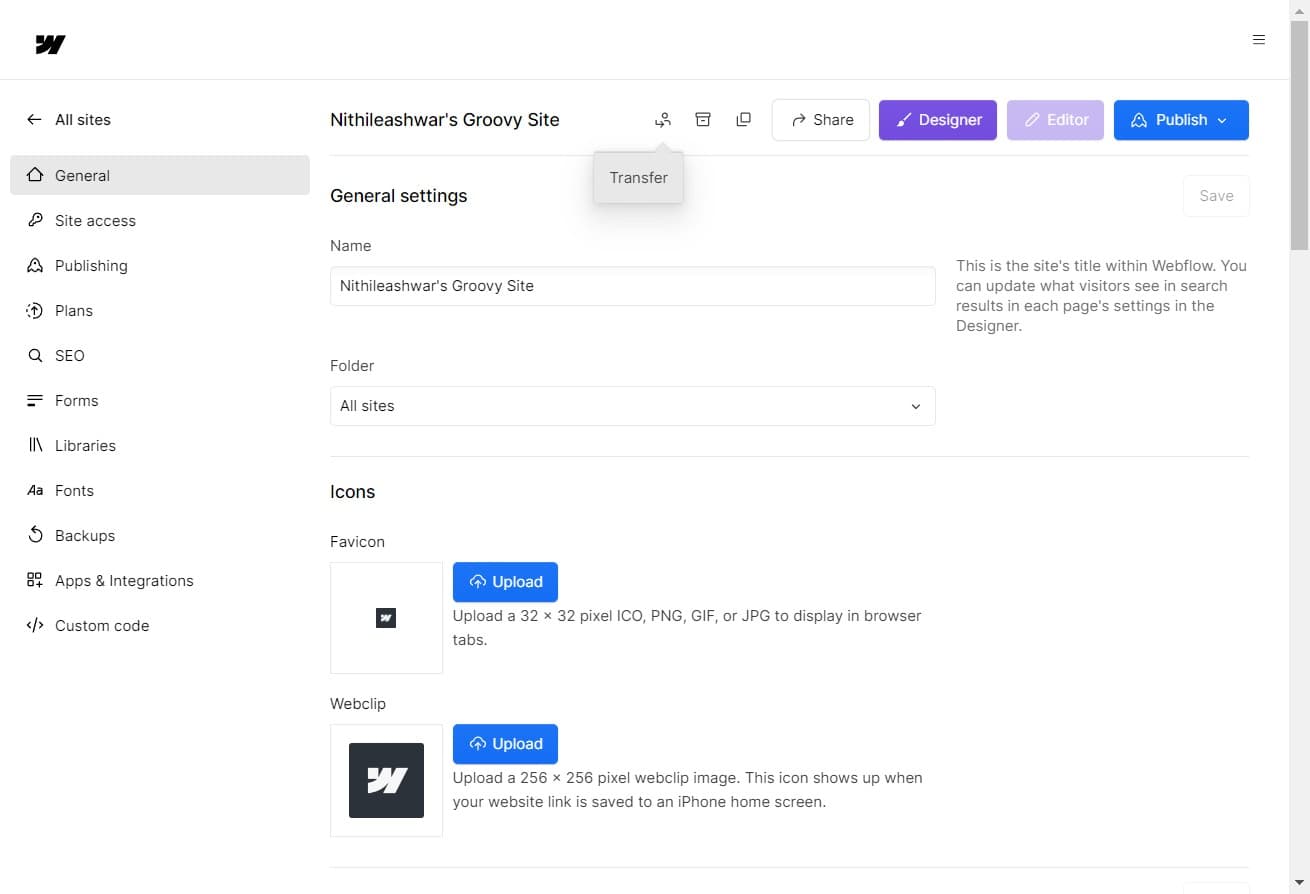
Open Transfer Options
Click to access the transfer functionality within the site settings. This prepares the site for moving to a different workspace or account.
- 5
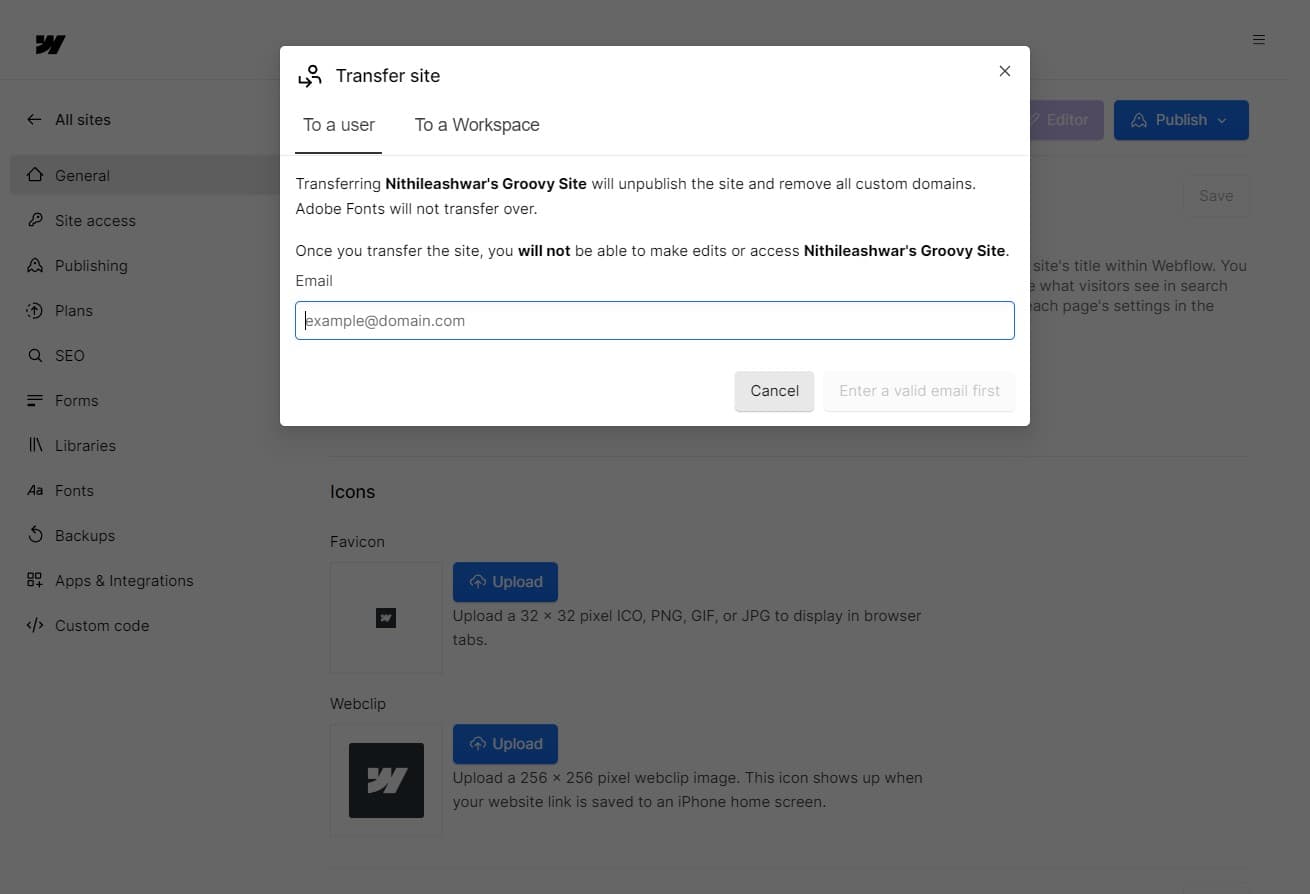
Select Transfer Option
Click on "Transfer to nit..." or the relevant transfer option that appears. This initiates the site transfer process.
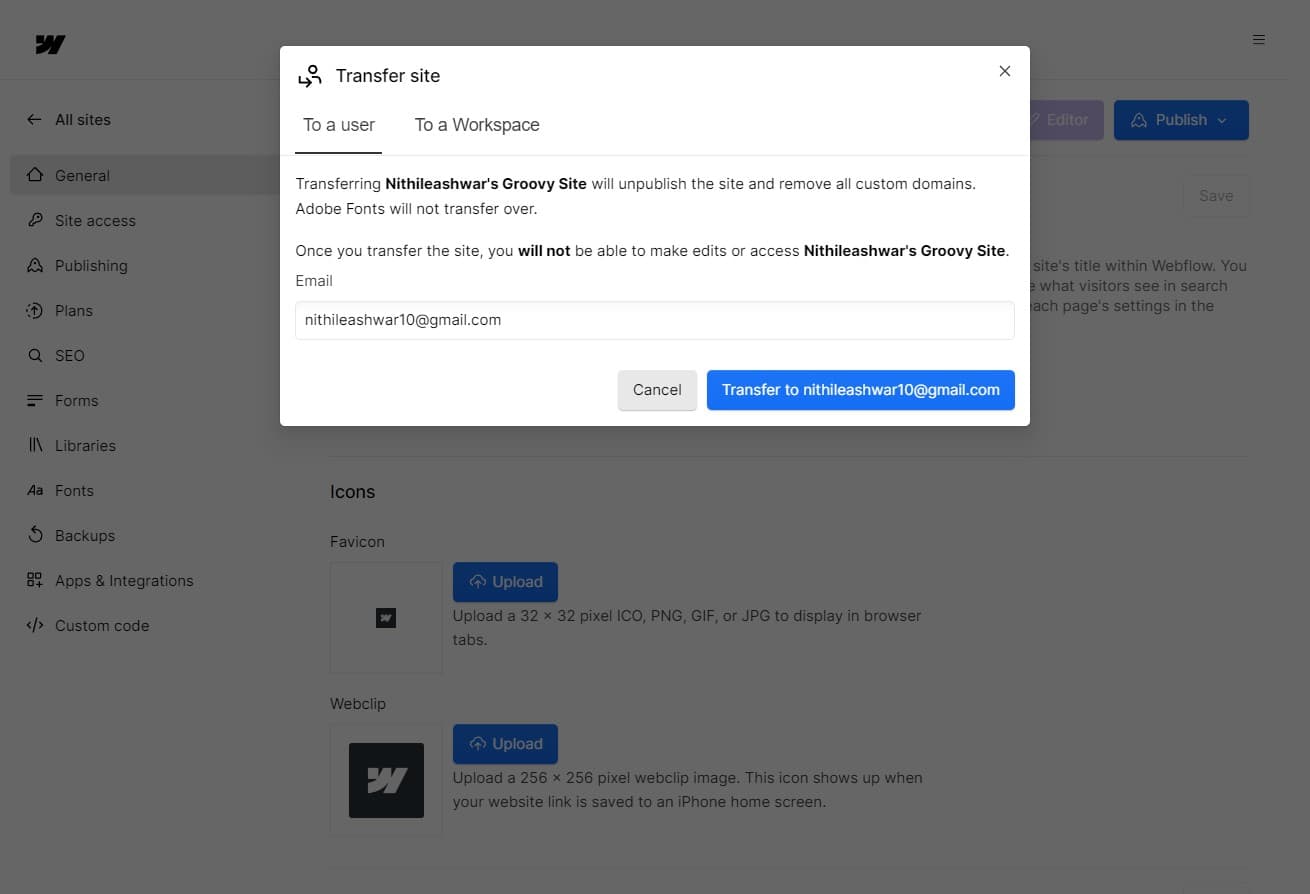
- 6
Confirm Transfer Action
Click to proceed with the transfer settings. This step validates your transfer request and prepares the next phase of the process.
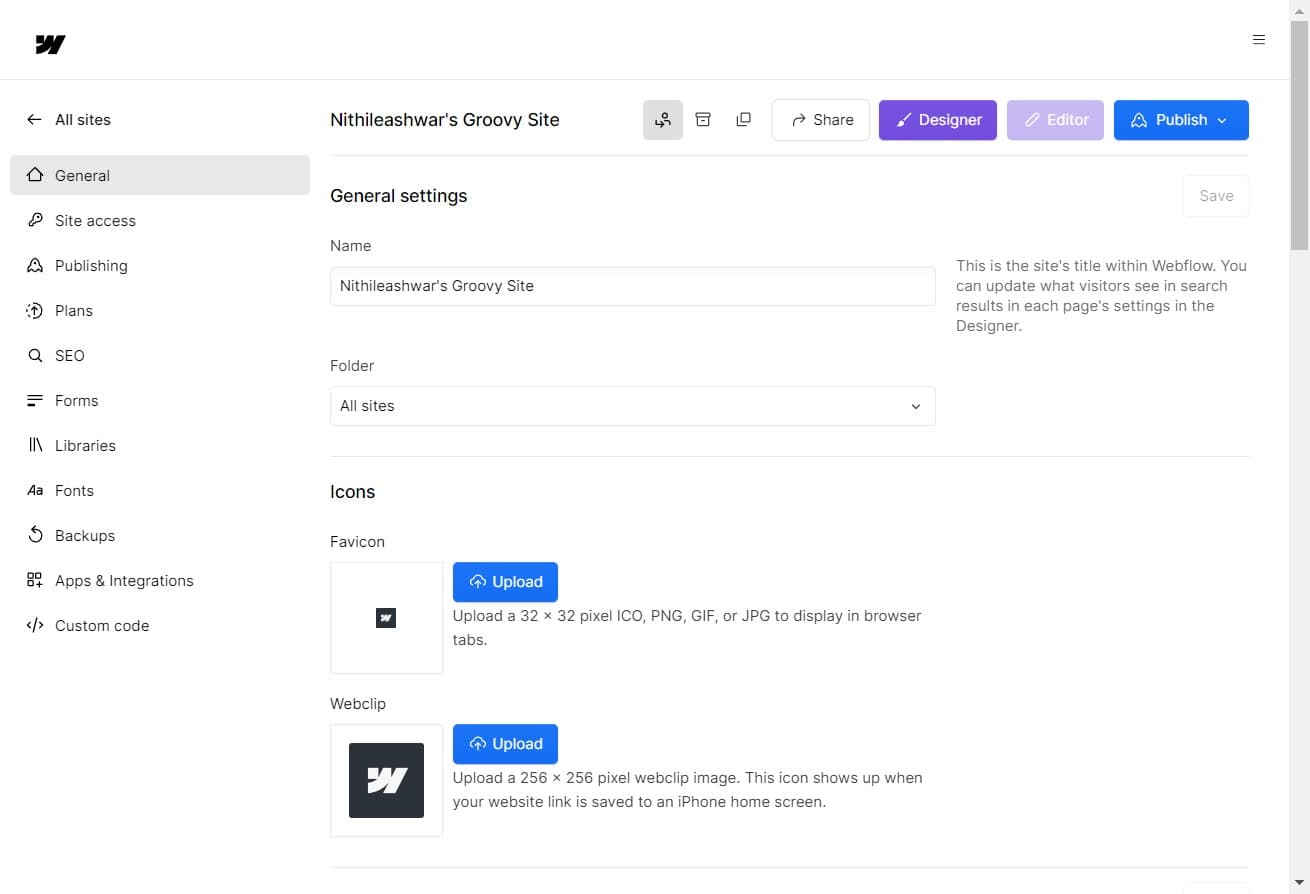
- 7
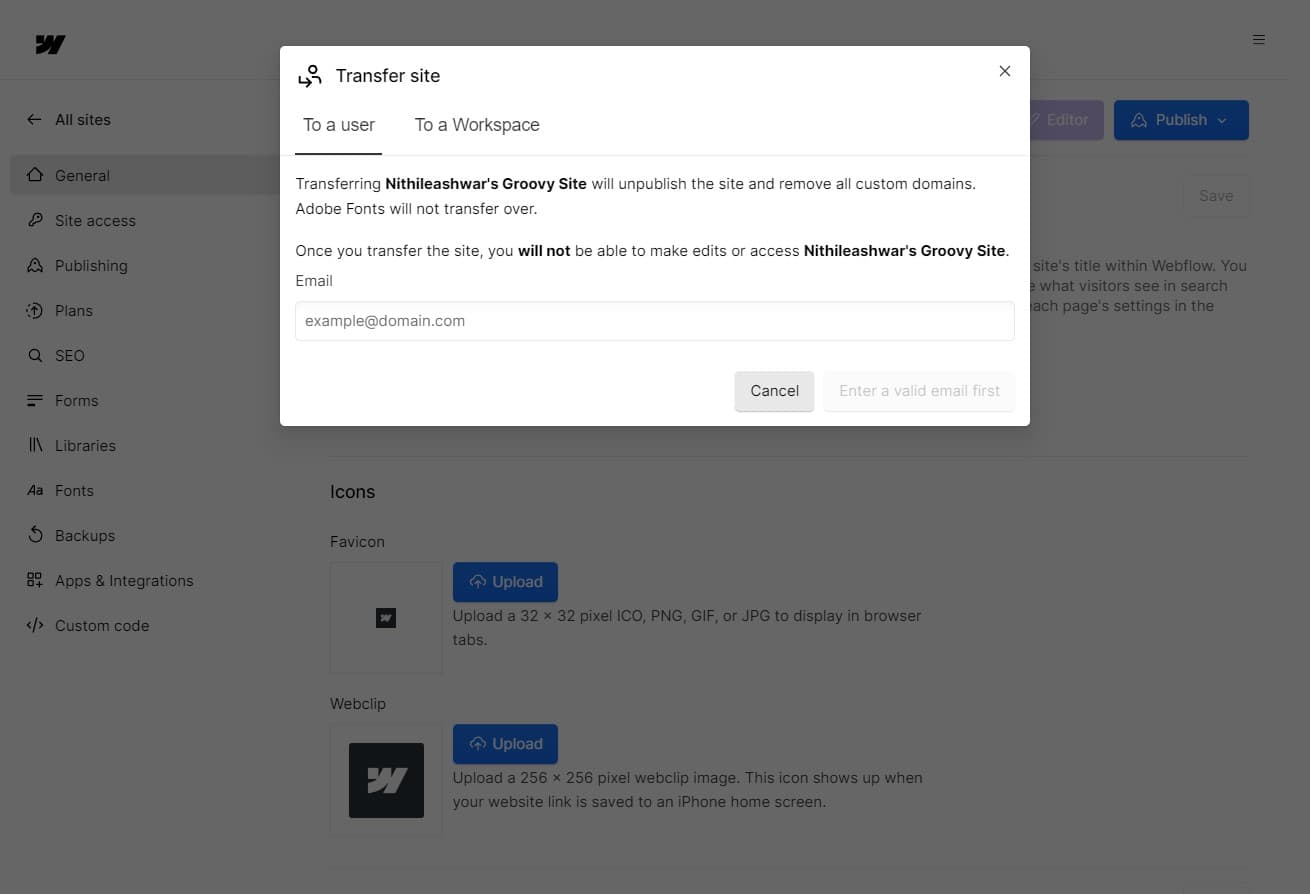
Choose Destination Workspace
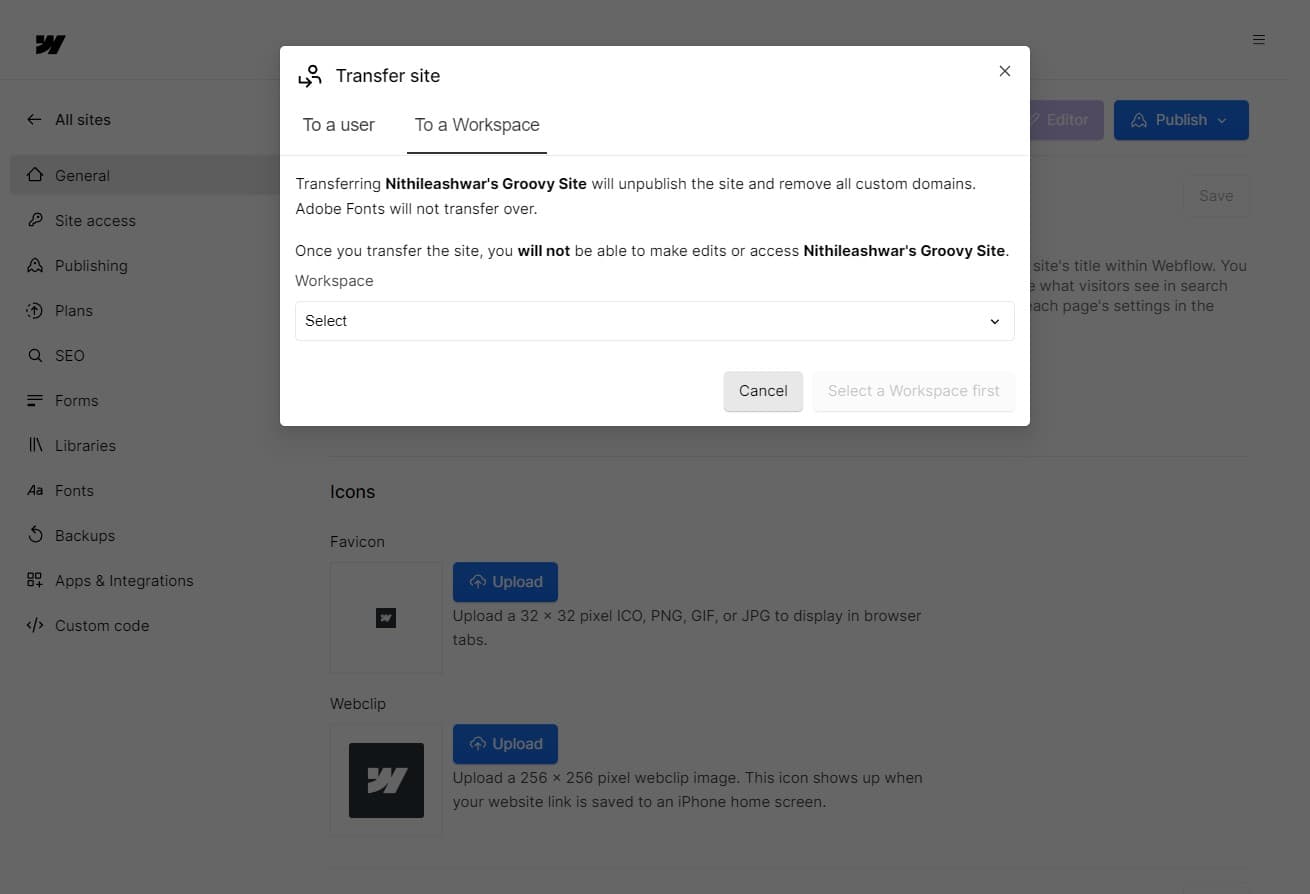
Click on "To a Workspace" to specify that you're transferring the site to another workspace within Webflow. This ensures the site moves to the correct destination.
- 8
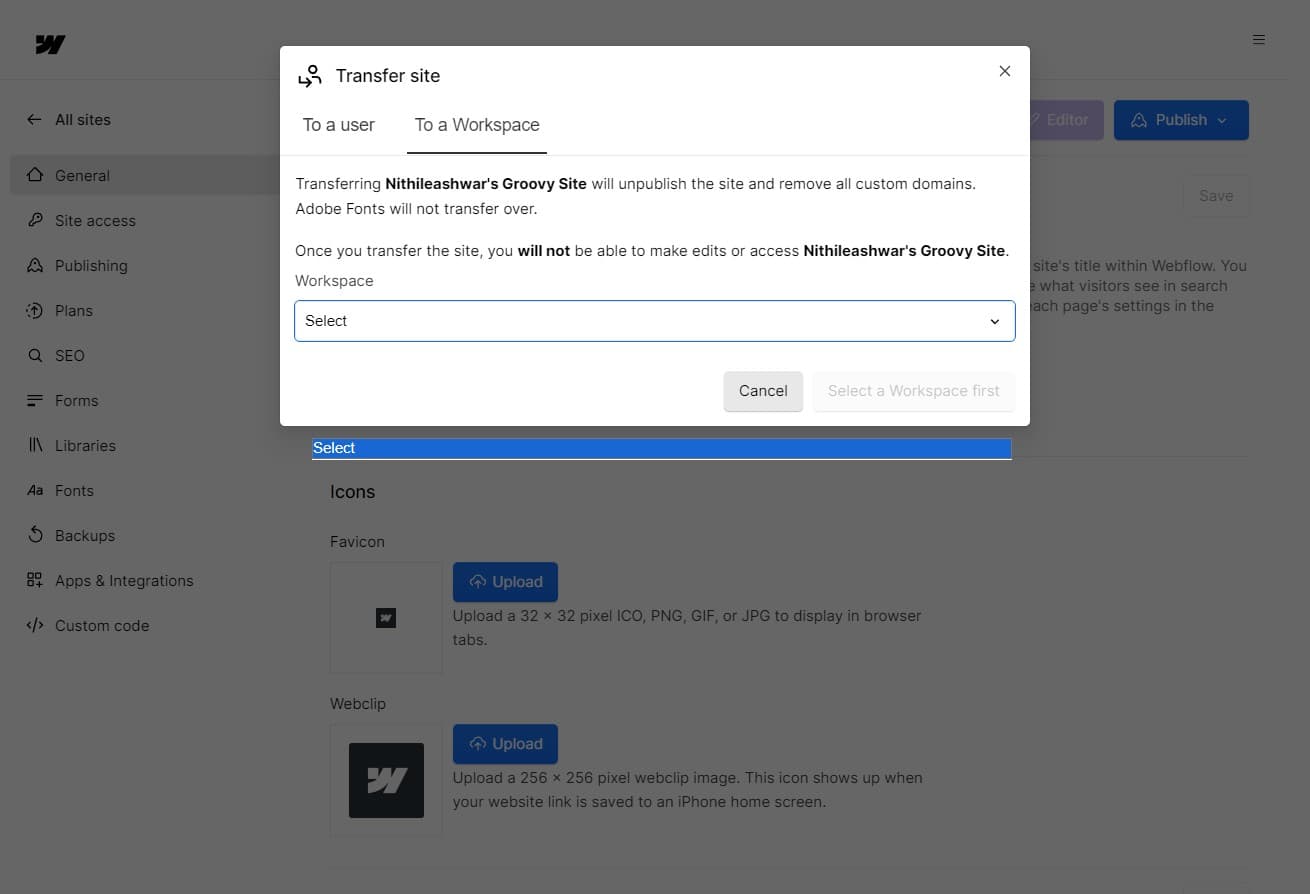
Select Target Workspace
Click on "Select" to choose which workspace will receive the transferred site. A dropdown or list will appear showing available workspace options.
- 9
Finalize or Cancel Transfer
Click on "Cancel" if you need to revise your transfer settings, or confirm the final step to complete the transfer. This ensures you can verify all details before finalizing the action.
Frequently asked questions
Common questions about how to transfer sites across webflow accounts.
Yes, you can transfer a site to another workspace as long as you have the appropriate permissions and the destination workspace is available in your transfer options. However, the receiving workspace owner must have invited you or granted you access to manage sites within their workspace.
Yes, transferring a site between workspaces preserves all content, design elements, and settings. Your site will maintain its functionality and data exactly as it was before the transfer.
Yes, you can transfer a site back to your original workspace or to a different workspace after the initial transfer is complete. Simply repeat the transfer process with the new destination workspace.
Yes, you typically need to be the site owner or have admin-level permissions within your workspace to transfer sites. Additionally, you must have access to the destination workspace to complete the transfer.
Site transfers in Webflow are usually completed instantly or within a few moments. Your site will be accessible in the destination workspace immediately after the transfer is confirmed, though you may want to verify all settings and content are correct.