
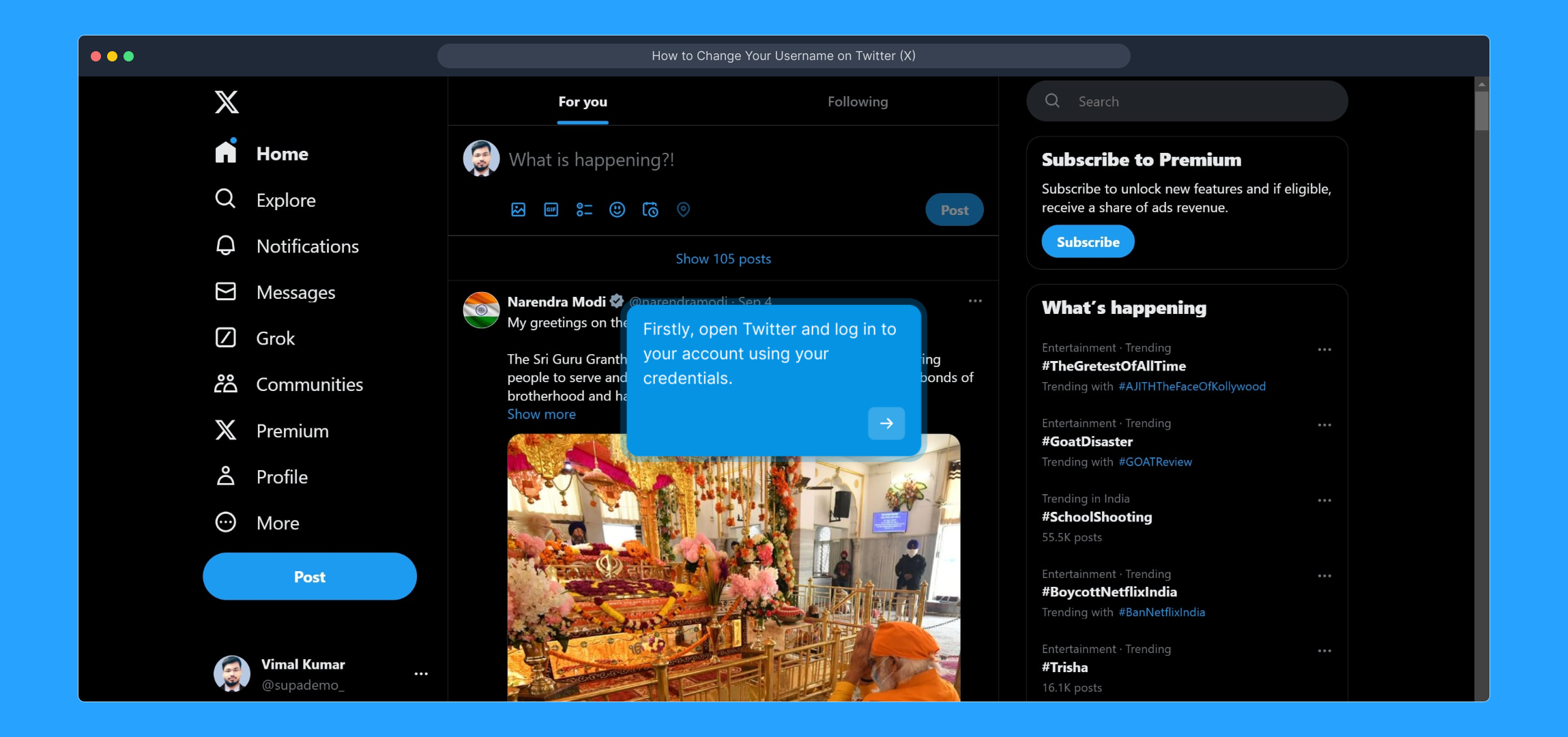
1. Firstly, open Twitter and log in to your account using your credentials.
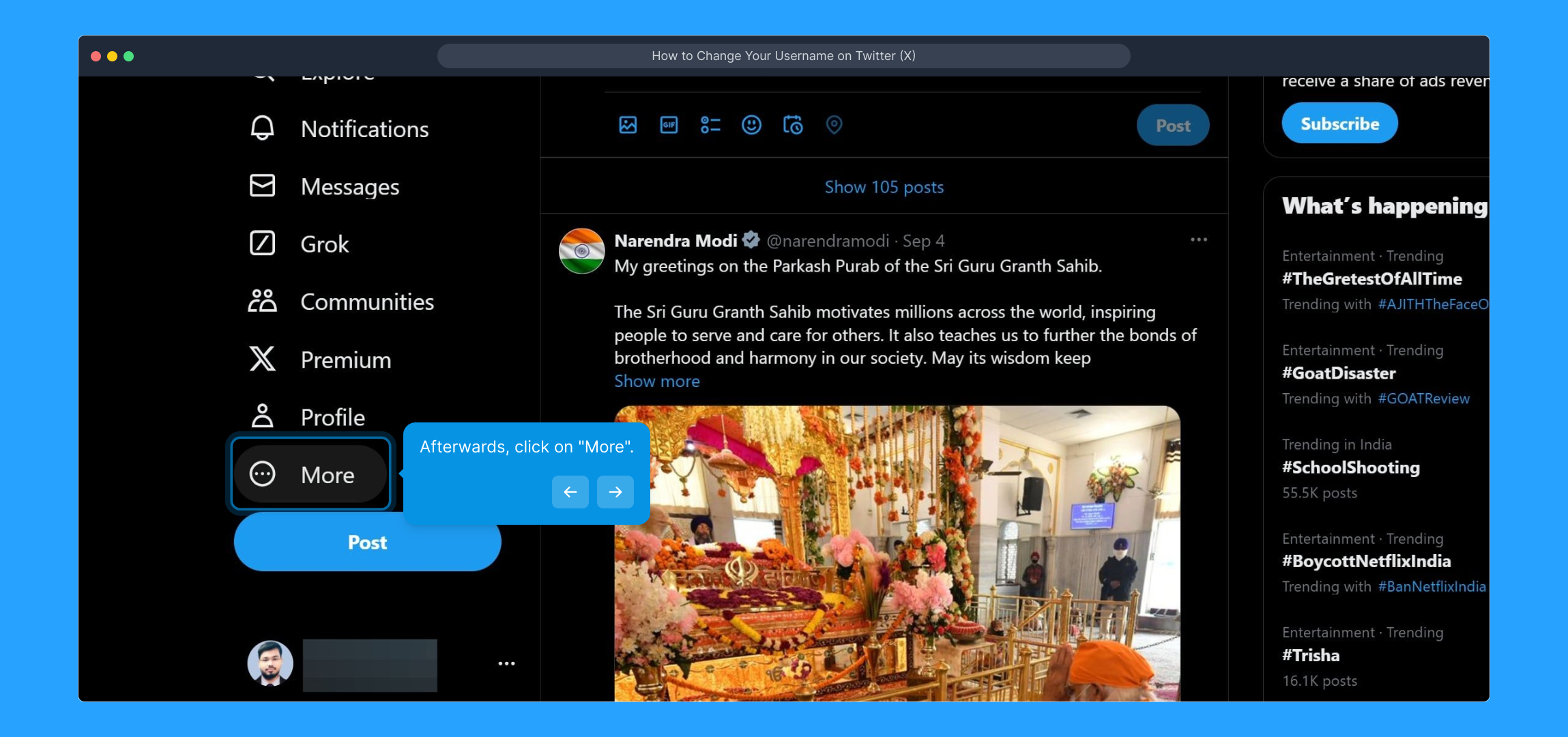
2. Afterwards, click on "More".
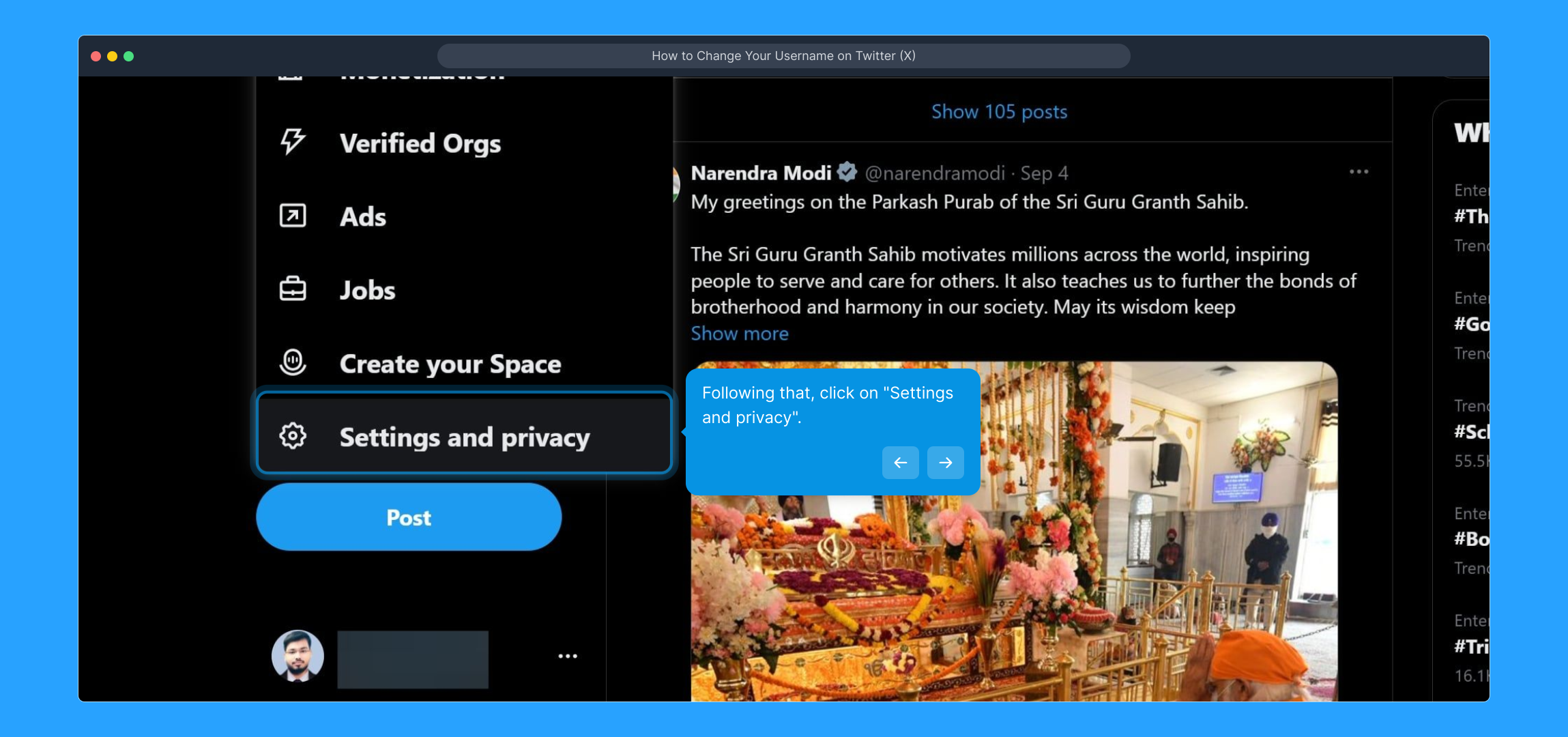
3. Following that, click on "Settings and privacy".
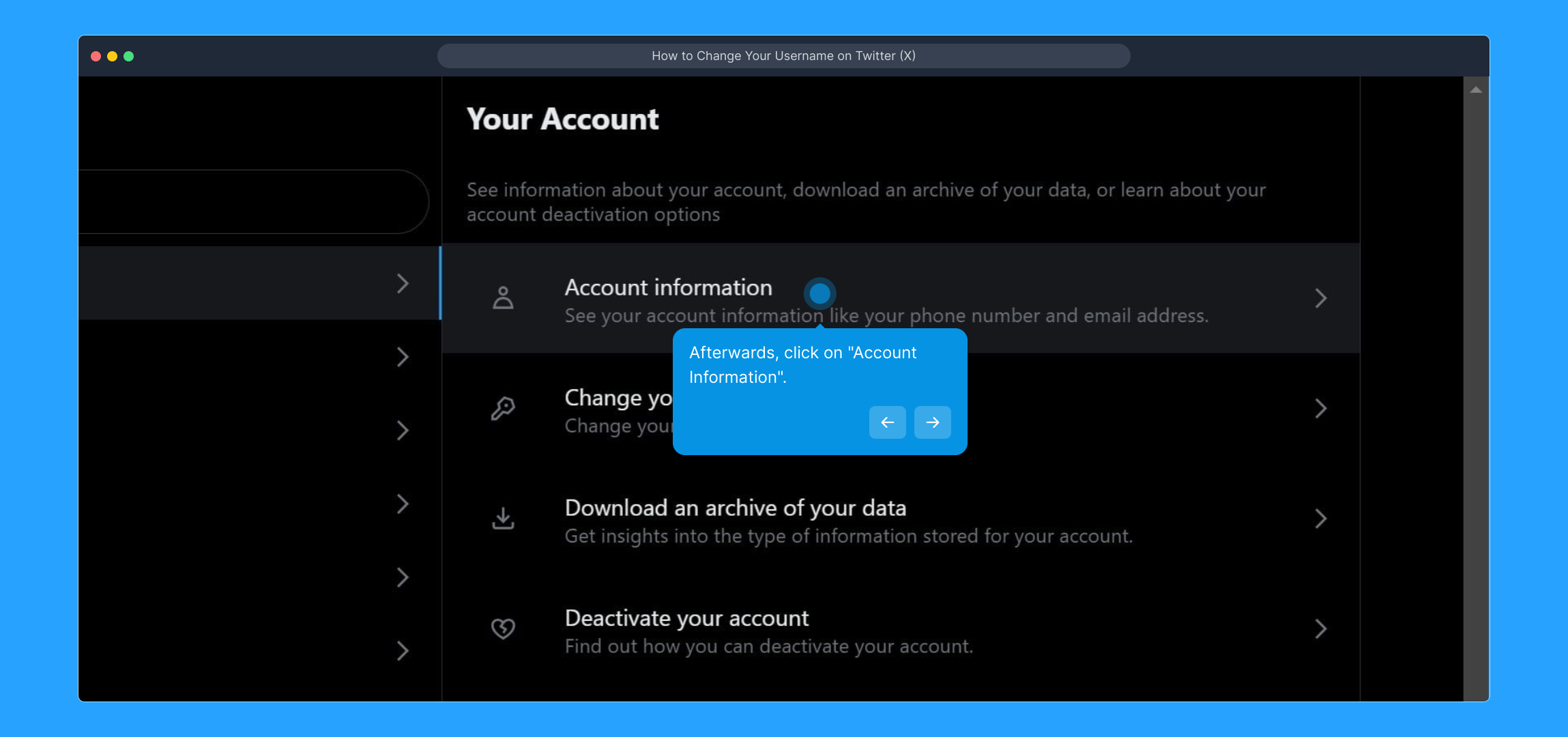
4. Afterwards, click on "Account Information".
5. Then, enter your Twitter login password.
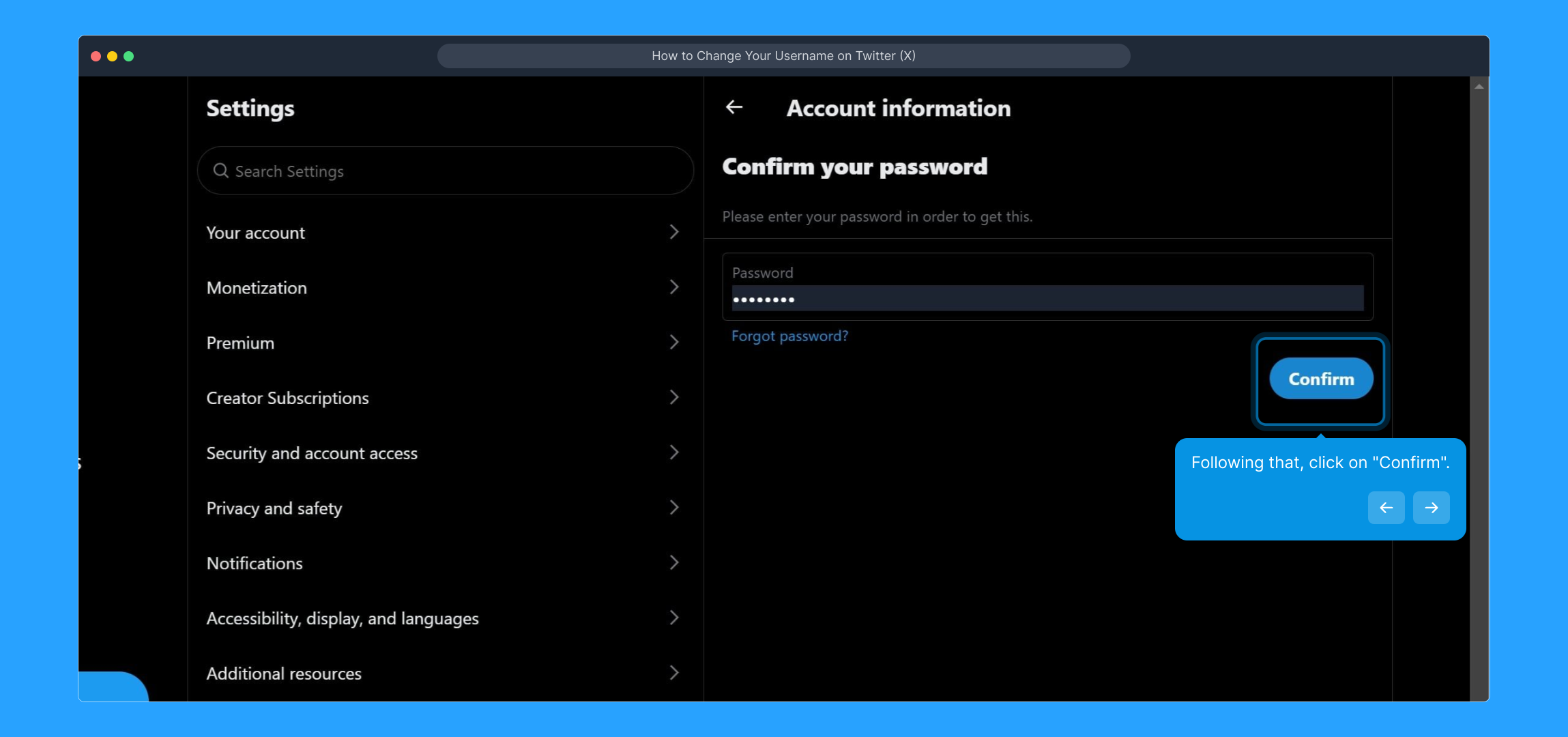
6. Following that, click on "Confirm".
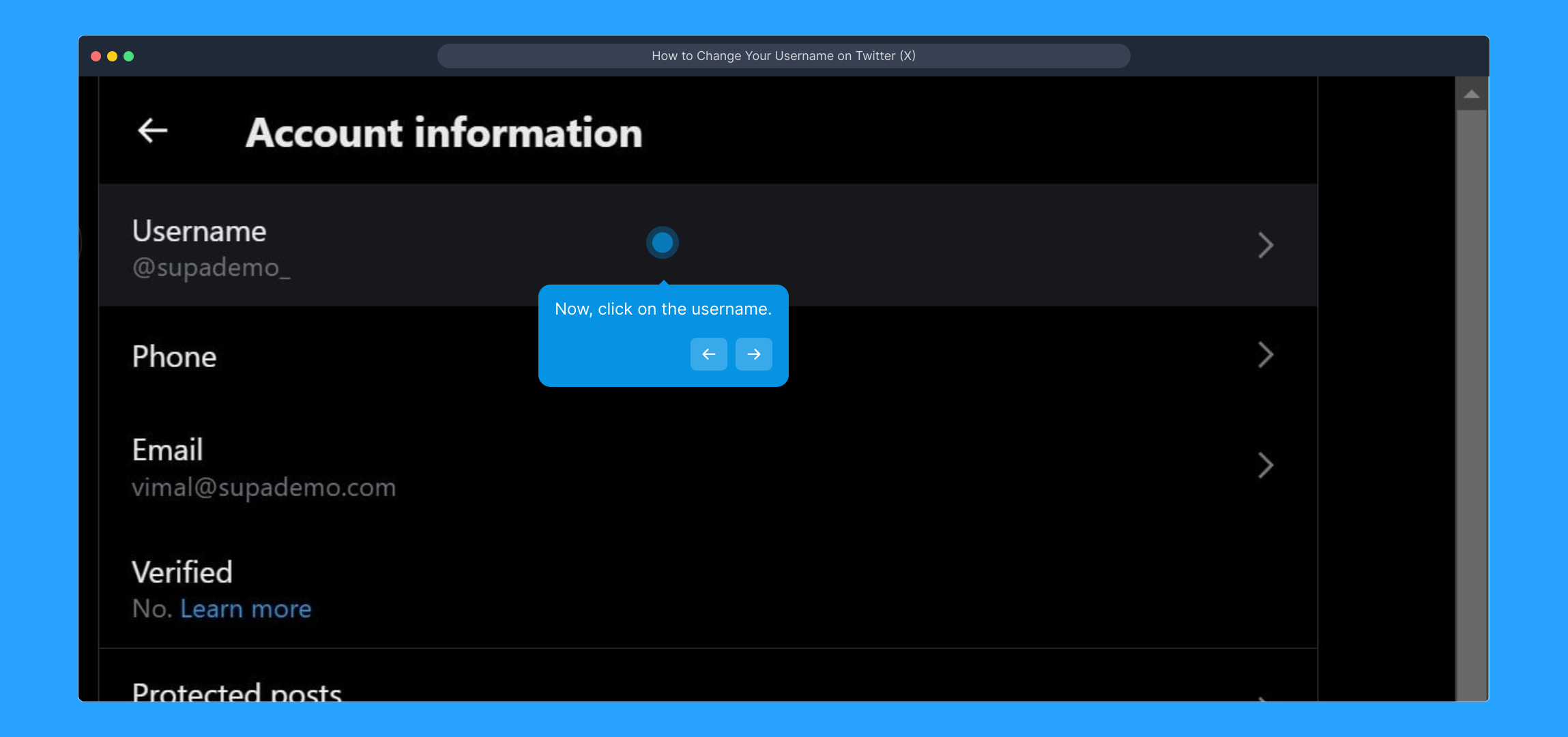
7. Now, click on the username.
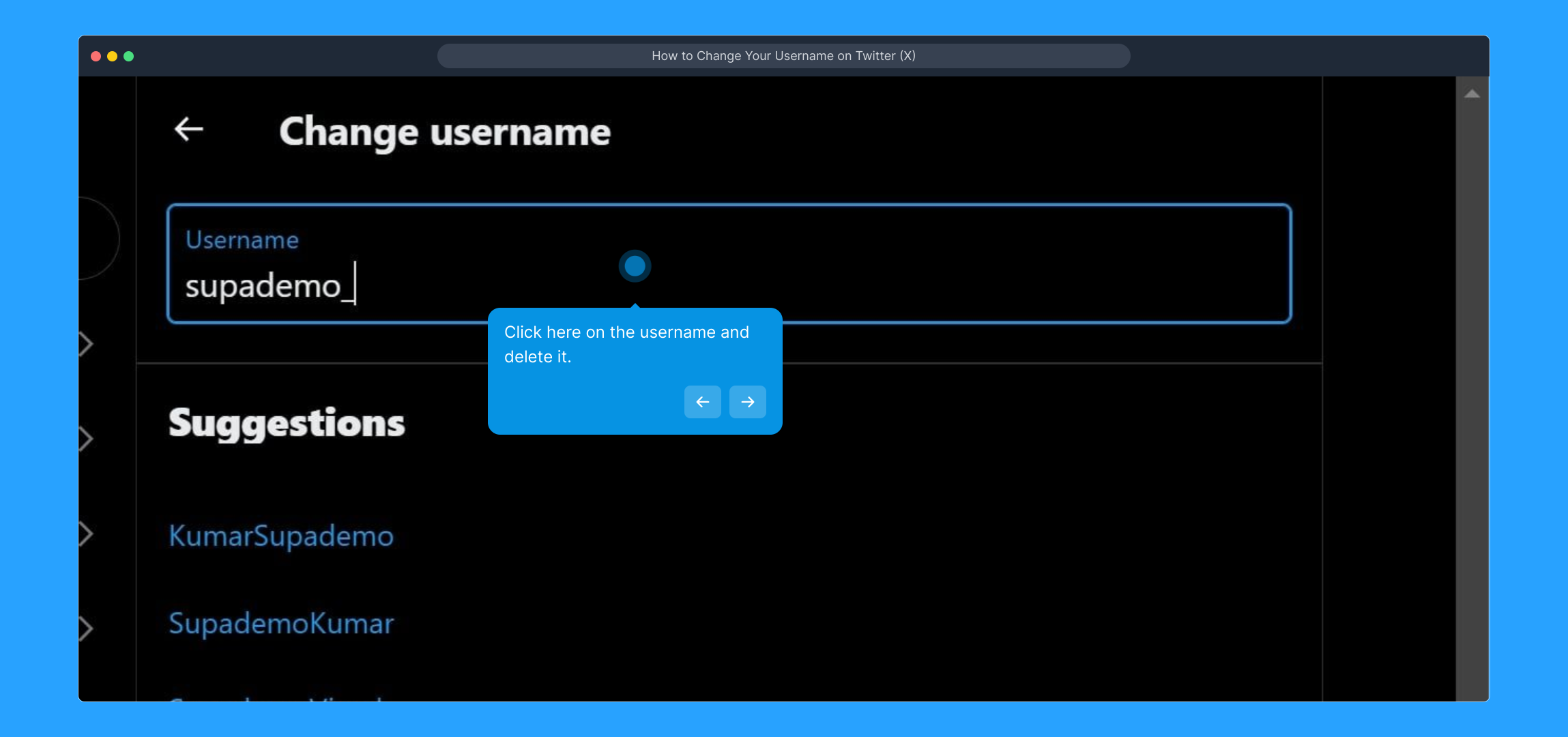
8. Click here on the username and delete it.
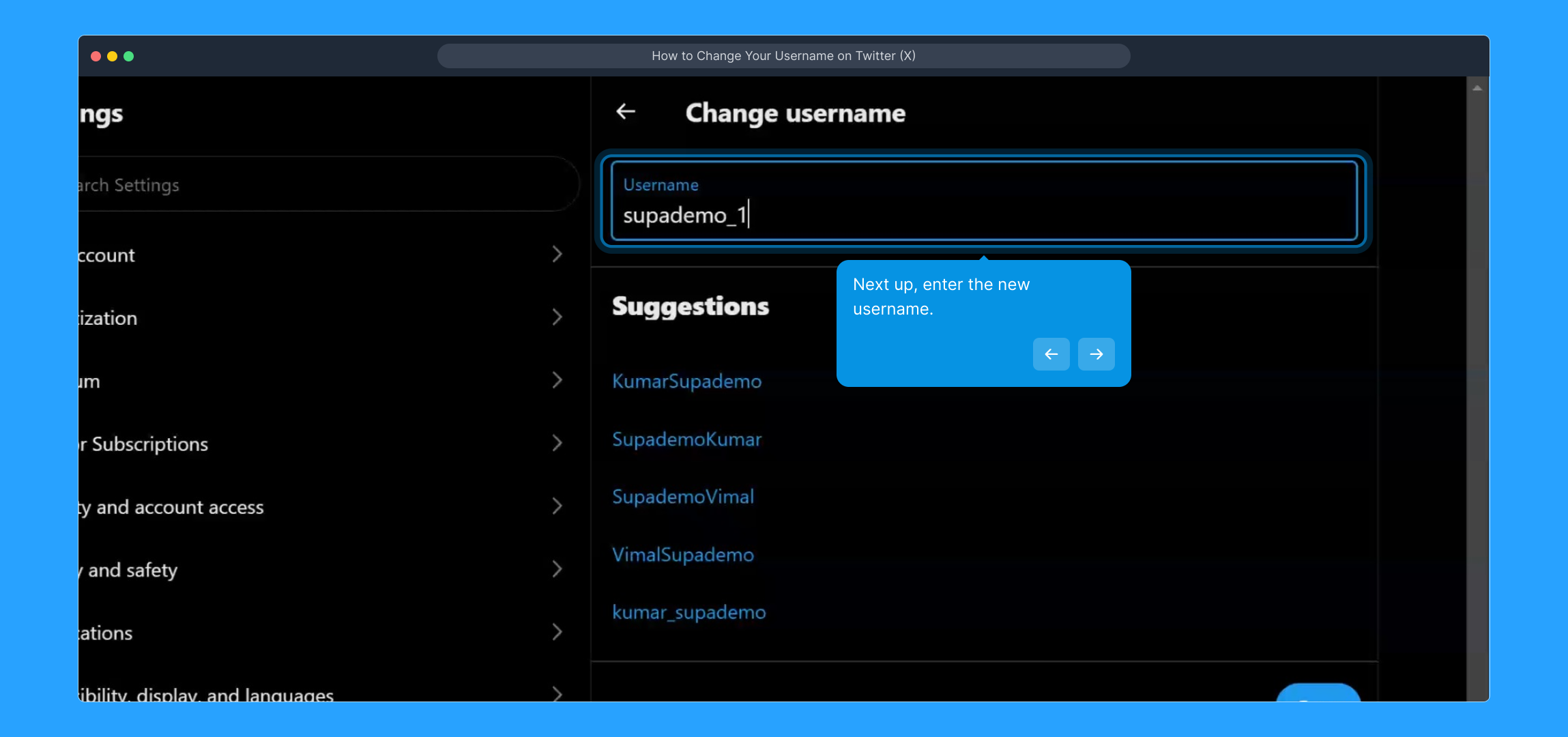
9. Next up, enter the new username.
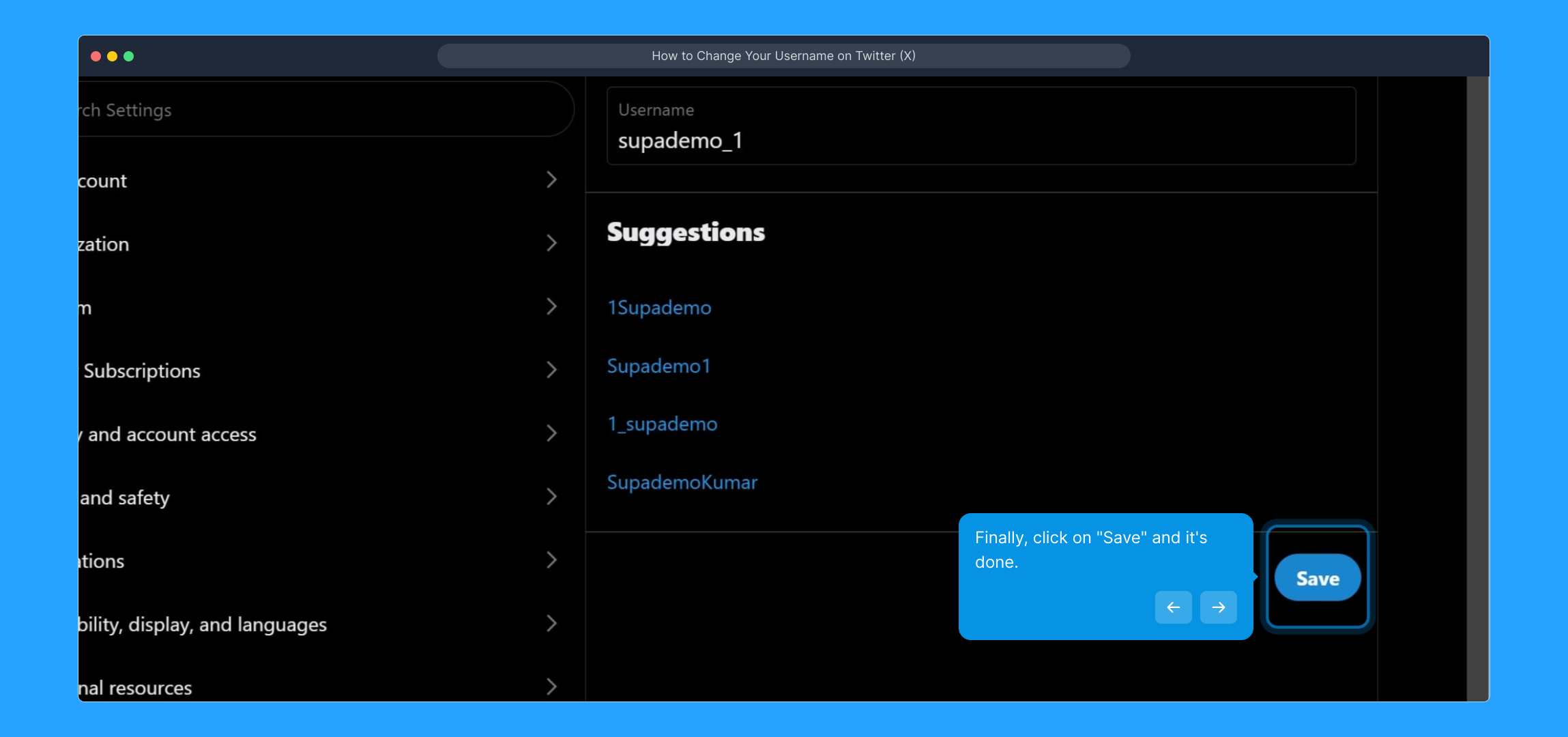
10. Finally, click on "Save" and it's done.
11. Create a Supademo in seconds
This interactive demo/guided walkthrough on How to Change Your Username on Twitter (X) was created using Supademo.
How to Change Your Username on Twitter (X) : Step-by-Step Guide
To begin, open Twitter on your device and sign in with your username and password to access your account dashboard.
Once logged in, locate the menu on the left side and select the "More" option to reveal additional settings and features.
From the expanded menu, choose "Settings and privacy" to access your account’s configuration options.
In the settings area, find and click on "Account Information" where you manage your basic account details like your username and email.
For security purposes, you will be asked to enter your current Twitter password to confirm your identity before making changes.
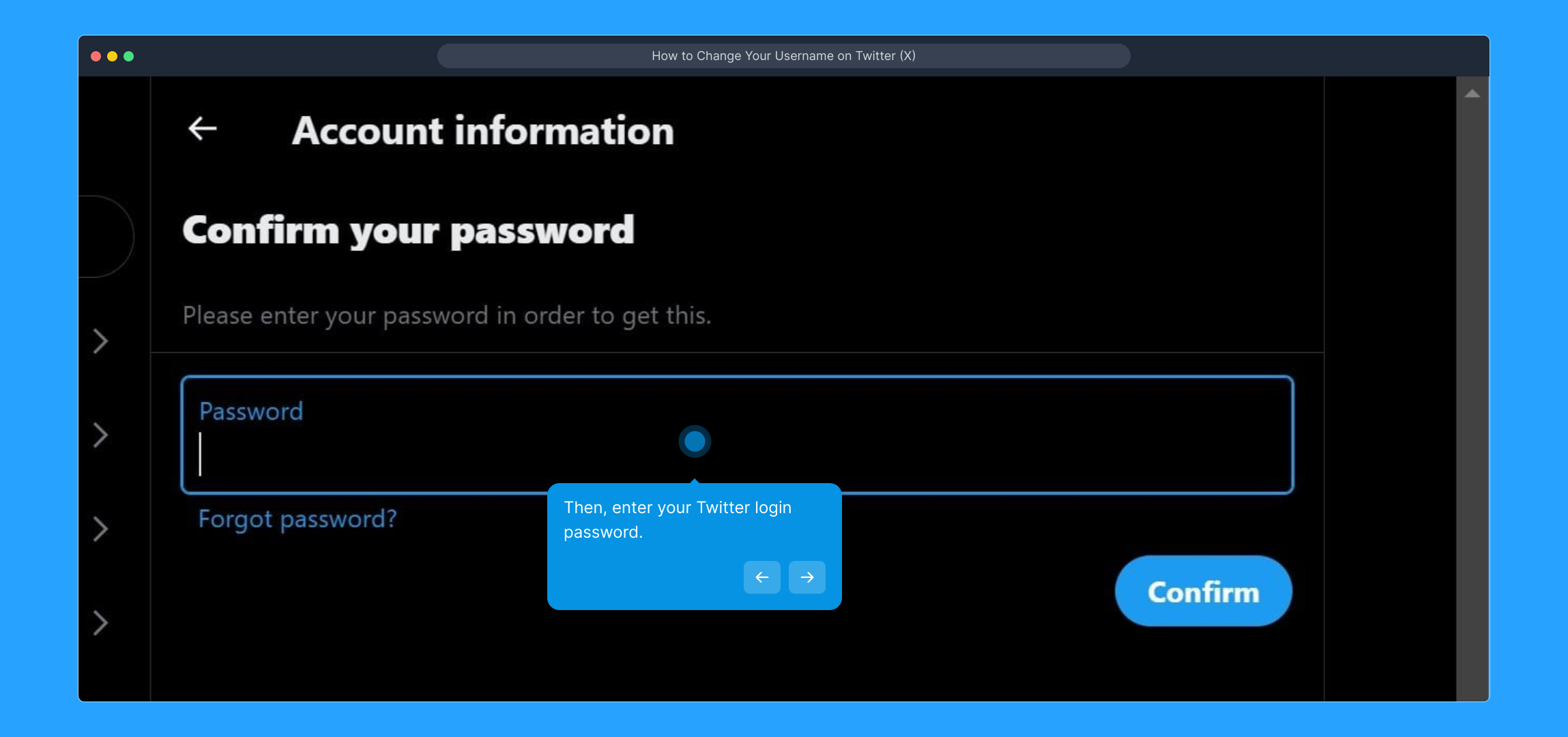
After typing your password, click the "Confirm" button to proceed to the next part of your account settings.
Now, you’ll see your current username displayed—click on it to open the editing field.
Highlight the existing username and delete it to clear the field for your new desired username.
Enter the new username you would like to use, making sure it meets Twitter’s guidelines and is available.
To save your changes and update your profile, click the "Save" button—your username will now be changed.
With your username updated, you’re all set to enjoy your refreshed Twitter profile. It’s quick and easy to customize your account this way!
Create your own interactive demos in < 5 mins with Supademo
You can create your own interactive product demo in minutes using Supademo. Drive growth, scale enablement, and supercharge product-led onboarding with Supademo. Sign up for free here with no credit card required.
FAQs
Commonly asked questions about this topic.
How do I change my Twitter (X) username?
Is there a limit to how often I can change my Twitter username?
What happens to my old username after I change it?
Can I use special characters or spaces in my new Twitter username?
Will changing my username affect my followers or direct messages?
What should I do if my desired username is already taken?
Can I revert back to my old username after changing it?
Do I need to notify my followers after changing my username?
Can I change my Twitter username on the mobile app?
What if I forget my password when trying to change my username?

Product Operations Associate
Vimal Kumar helps build and grow Supademo’s team and GTM efforts, with a focus on figuring out growth levers and improving product traction.





