How to Delete Your ChatGPT Account

Vimal Kumar
Vimal Kumar·
How to Delete Your ChatGPT Account
Interactive demo powered by Supademo

1. Firstly, log in to your ChatGPT account.

2. Click on your profile icon in the top right corner.

3. After that, click on "Settings".

4. Next, click on "Data controls".

5. Now, click on "Delete".

6. Lastly, click on "Refresh Login" and it's done.

7. Create a Supademo in seconds

This interactive demo/guided walkthrough on How to Delete Your ChatGPT Account was created using Supademo.


How to Delete Your ChatGPT Account : Step-by-Step Guide

To begin, open your browser and sign into your ChatGPT account with your usual credentials. This will give you access to all the features you need to manage your data.
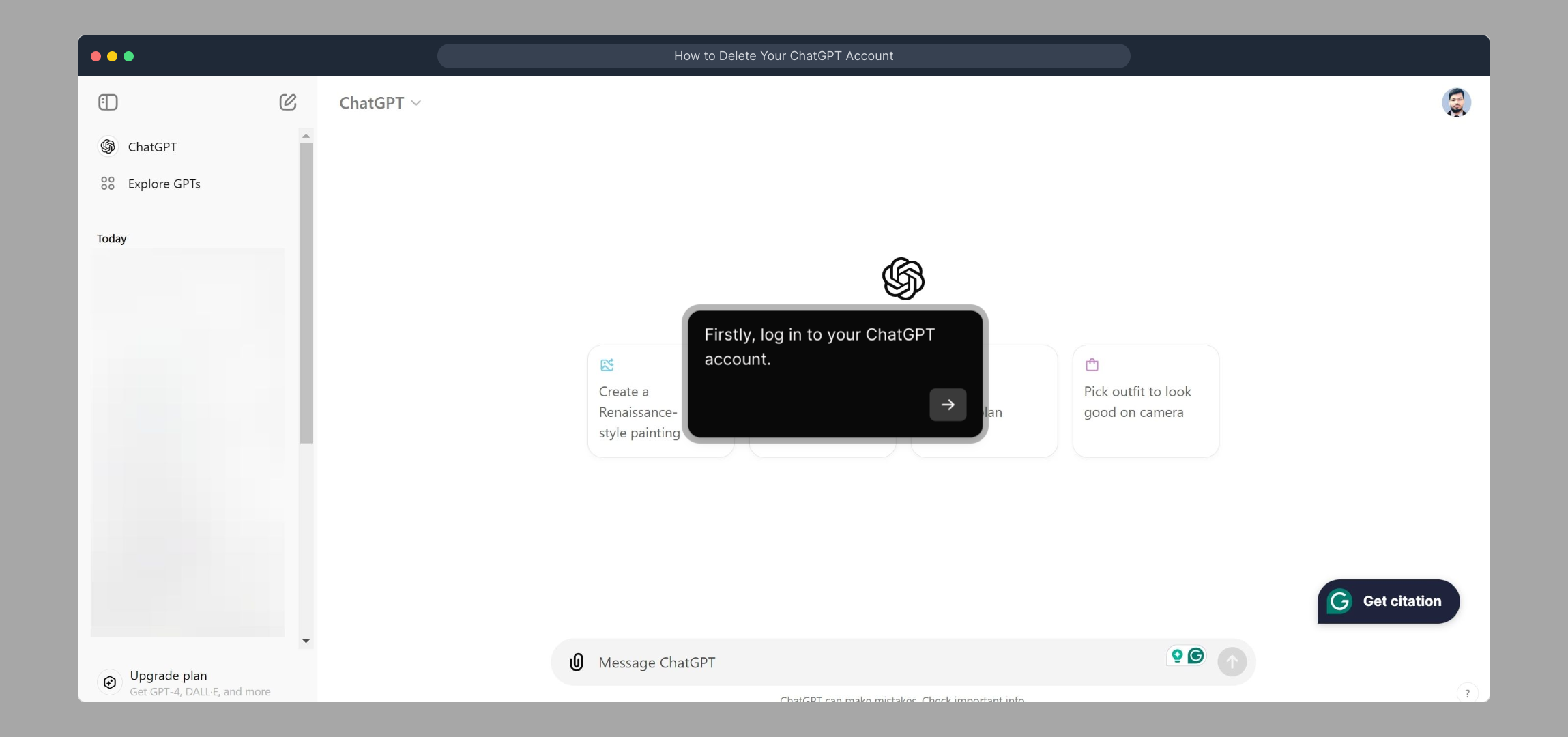
1

Once you're logged in, locate your profile icon at the top right corner of the page. Clicking this will open a menu where you can access various account options.

2

From the profile dropdown, select the "Settings" option. This area lets you customize your account preferences and review important controls.
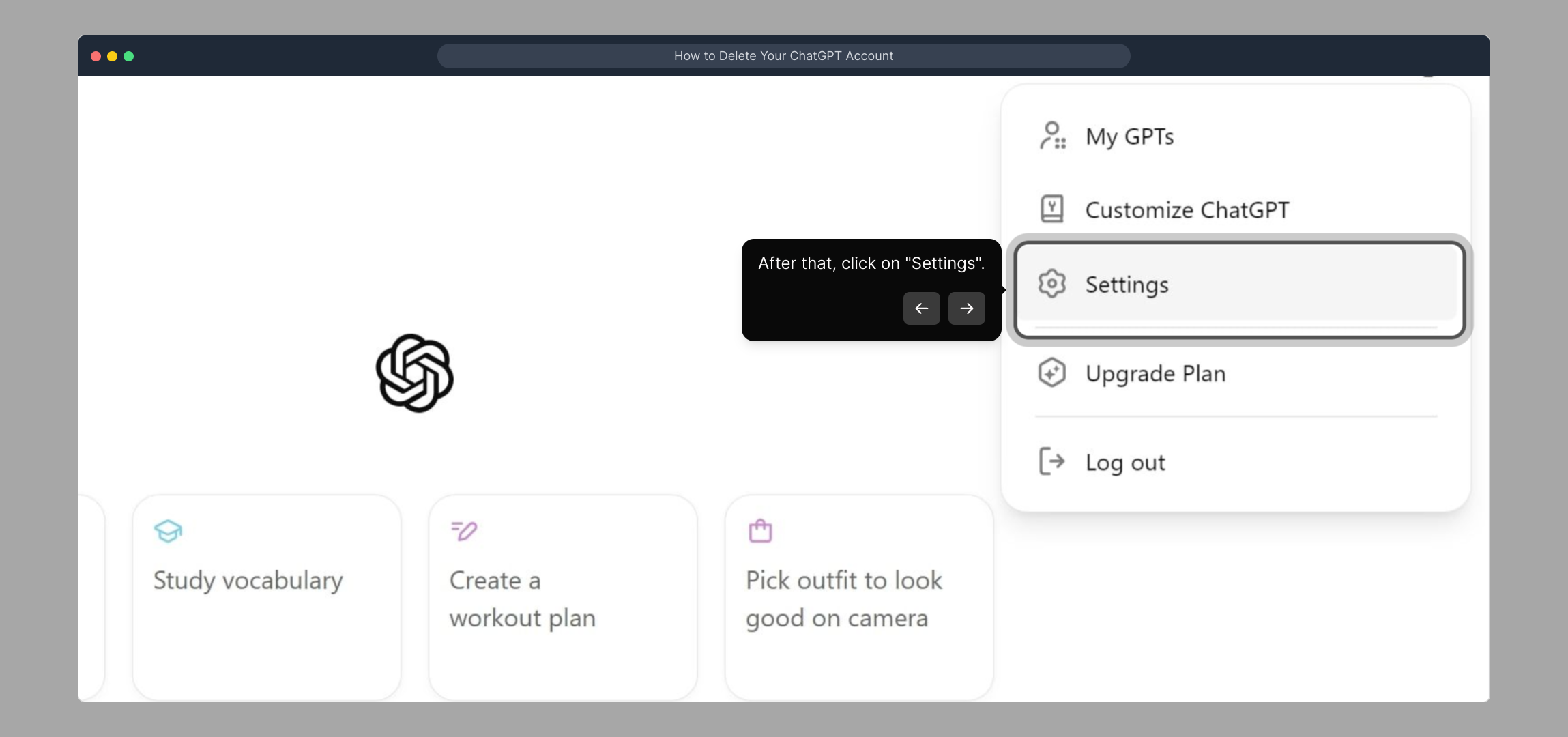
3

Inside the settings menu, find and click on "Data controls." This section is where you can manage your personal data and privacy settings.
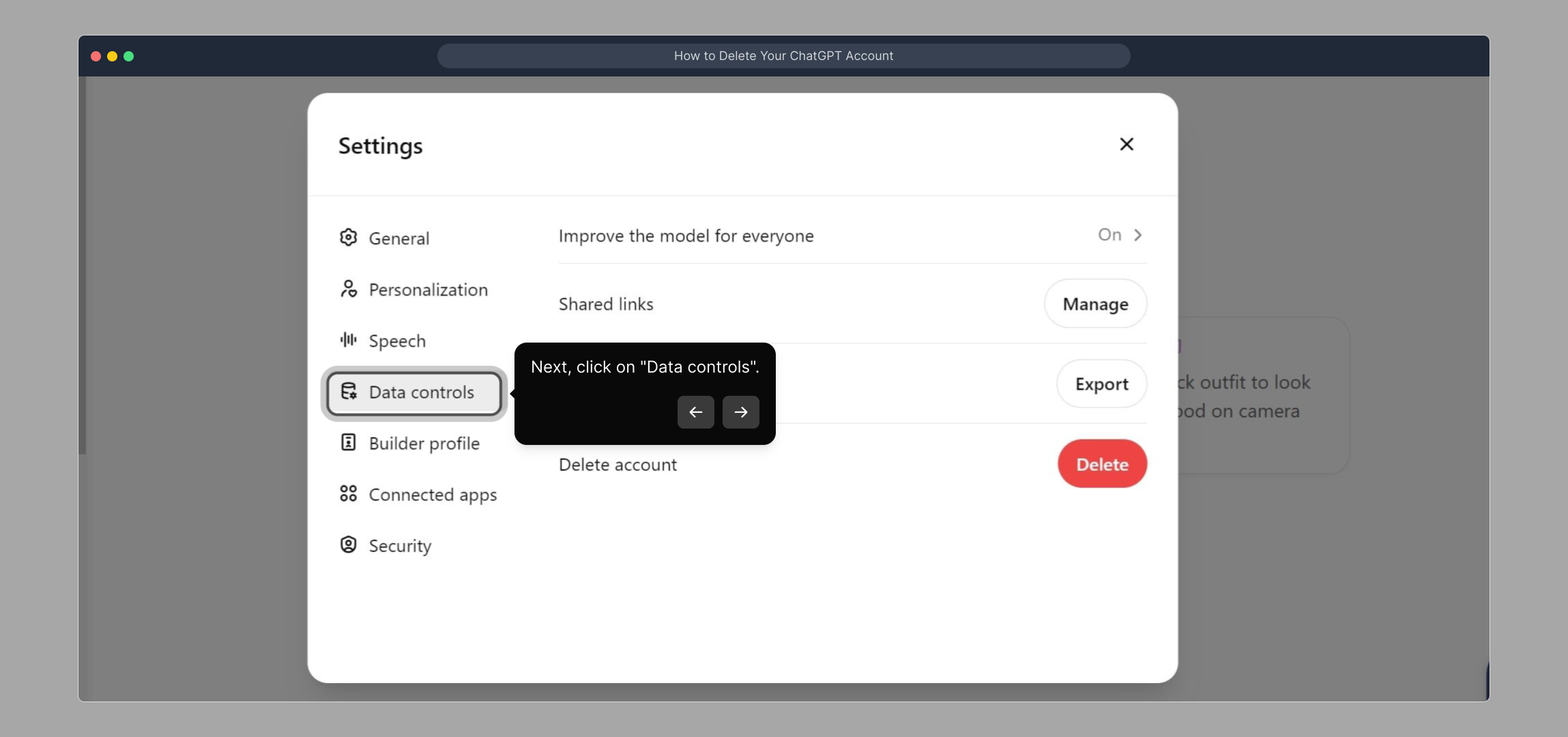
4

Next, look for the "Delete" option within data controls to initiate the removal of any saved data that you no longer wish to keep. This is an important step for managing your privacy.
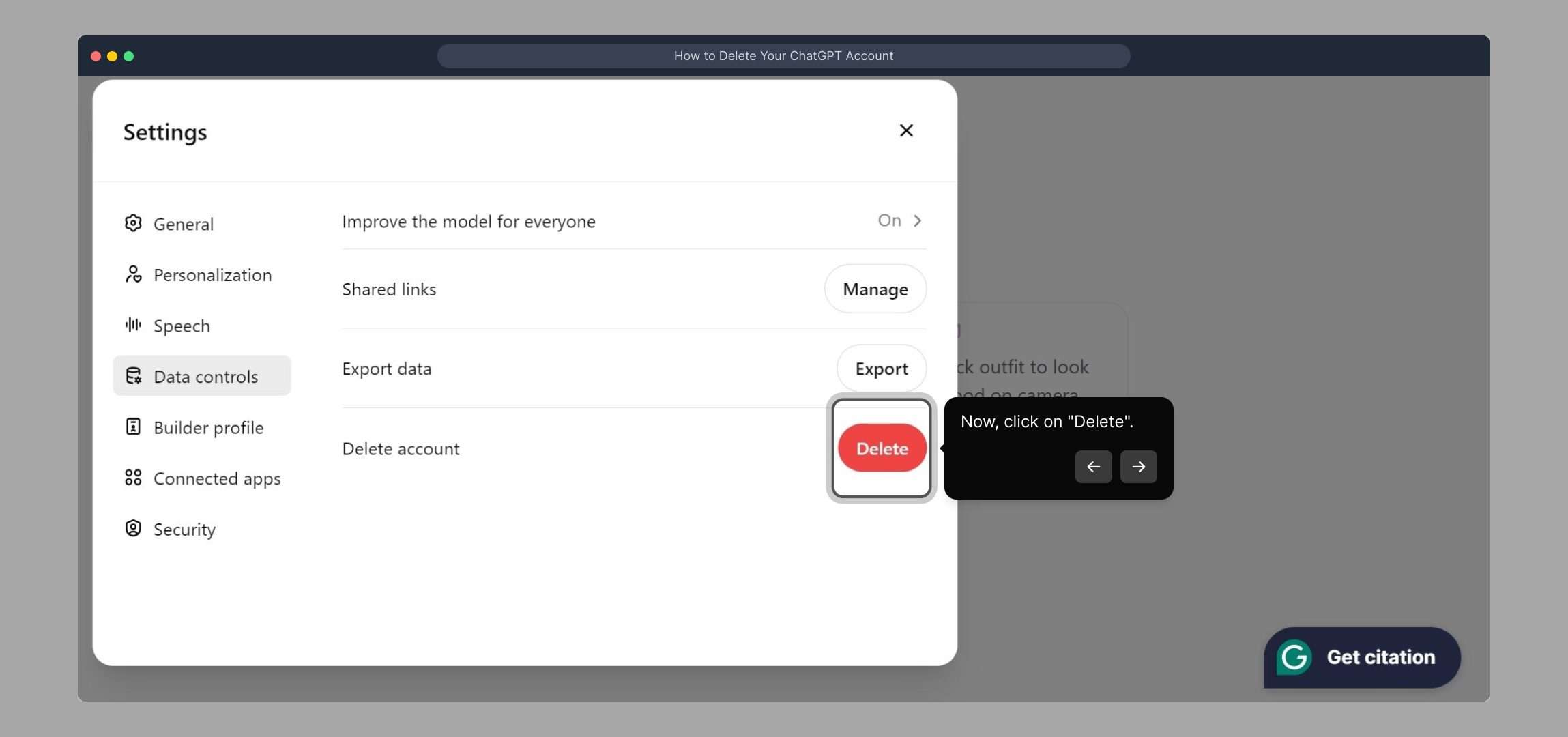
5

Finally, confirm your changes by clicking "Refresh Login." This will update your session and ensure all settings have been applied correctly. Once done, you’re all set!

6

With those steps complete, you’re ready to create a Supademo quickly and effortlessly, showcasing your setup in just a few seconds.
7

Create your own interactive demos in < 5 mins with Supademo

You can create your own interactive product demo in minutes using Supademo. Drive growth, scale enablement, and supercharge product-led onboarding with Supademo. Sign up for free here with no credit card required.


FAQs

Commonly asked questions about this topic.

How do I delete my ChatGPT account?

To delete your ChatGPT account, log in, click your profile icon, go to Settings, select Data controls, then click Delete, and finally hit Refresh Login to complete the process.

Will deleting my ChatGPT account remove all my data?

Deleting your account removes your personal data and chat history stored by OpenAI. However, copies of some data might remain for security or legal purposes as outlined in OpenAI’s privacy policy.

Can I reactivate my ChatGPT account after deletion?

Once you delete your ChatGPT account, it cannot be reactivated. You would need to create a new account if you want to use ChatGPT again.

Is there a waiting period before my ChatGPT account is fully deleted?

ChatGPT account deletion is usually immediate after you complete the process, but some data might take additional time to be fully removed from all servers.

What happens to my subscription if I delete my ChatGPT account?

Deleting your account does not automatically cancel any active subscriptions. You should cancel subscriptions separately through your payment provider to avoid further charges.

Are there alternative options to deleting my ChatGPT account?

If you want to stop using ChatGPT without deleting your account, you can log out, revoke app permissions, or clear your chat history instead.

Will deleting my ChatGPT account affect linked services?

If your ChatGPT account is linked to other apps or services, deleting it may disrupt access or functionality for those linked accounts.

Do I lose access to shared conversations if I delete my account?

Yes, deleting your account means you lose access to all saved conversations, including any shared ones associated with your profile.

Can I download my chat history before deleting my ChatGPT account?

Currently, ChatGPT does not provide a direct option to export chat history. It’s advisable to save any important chats manually before deleting your account.

How long does it take for my ChatGPT account to be permanently deleted?

Permanent deletion may take a few days as servers sync data removal. Be patient and avoid logging back in after initiating deletion to ensure full removal.

Vimal Kumar

Vimal Kumar

Product Operations Associate

Vimal Kumar helps build and grow Supademo’s team and GTM efforts, with a focus on figuring out growth levers and improving product traction.

More from the blog

How to Add Products to Shopify

How to Add Products to Shopify

Learn step-by-step how to add products to your Shopify store effortlessly, including tips on product details, images, pricing, and inventory management to boost your online sales.

Vimal Kumar
Vimal KumarDec 17, 2025
How to Deactivate Your Shopify Store

How to Deactivate Your Shopify Store

Learn step-by-step how to deactivate your Shopify store easily, including important considerations and tips to pause or close your shop without losing data.

Vimal Kumar
Vimal KumarDec 17, 2025
How to Remove 'Powered by Shopify'

How to Remove 'Powered by Shopify'

Learn how to easily remove the 'Powered by Shopify' text from your online store with step-by-step instructions and tips to customize your Shopify storefront.

Vimal Kumar
Vimal KumarDec 17, 2025
How to Create a Shopify Account

How to Create a Shopify Account

Learn step-by-step how to create a Shopify account quickly and easily, set up your online store, and start selling your products in no time.

Vimal Kumar
Vimal KumarDec 17, 2025
How to Create a Stripe Account

How to Create a Stripe Account

Learn how to create a Stripe account quickly and easily with our step-by-step guide, perfect for beginners looking to start accepting online payments.

Vimal Kumar
Vimal KumarDec 17, 2025
How to Contact Stripe Support

How to Contact Stripe Support

Learn the easiest ways to contact Stripe support for quick assistance with your payment processing, account issues, and technical questions.

Vimal Kumar
Vimal KumarDec 16, 2025