How to Check If You Have ChatGPT Plus Subscription

Vimal Kumar
Vimal Kumar·
How to Check If You Have ChatGPT Plus Subscription
Interactive demo powered by Supademo

1. To kick off, click on "Click to edit the hotspot".

2. To kick off, click on "Click to edit the hotspot".

3. You can see the ChatGPT Plus model with a tick mark if you have ChatGPT Plus. In other cases, you will see the Upgrade button here.

4. Create a Supademo in seconds

This interactive demo/guided walkthrough on How to Check If You Have ChatGPT Plus Subscription was created using Supademo.


How to Check If You Have ChatGPT Plus Subscription : Step-by-Step Guide

Begin by locating the area labeled "Click to edit the hotspot" on your screen. Selecting this will allow you to customize your hotspot settings and start tailoring your experience.
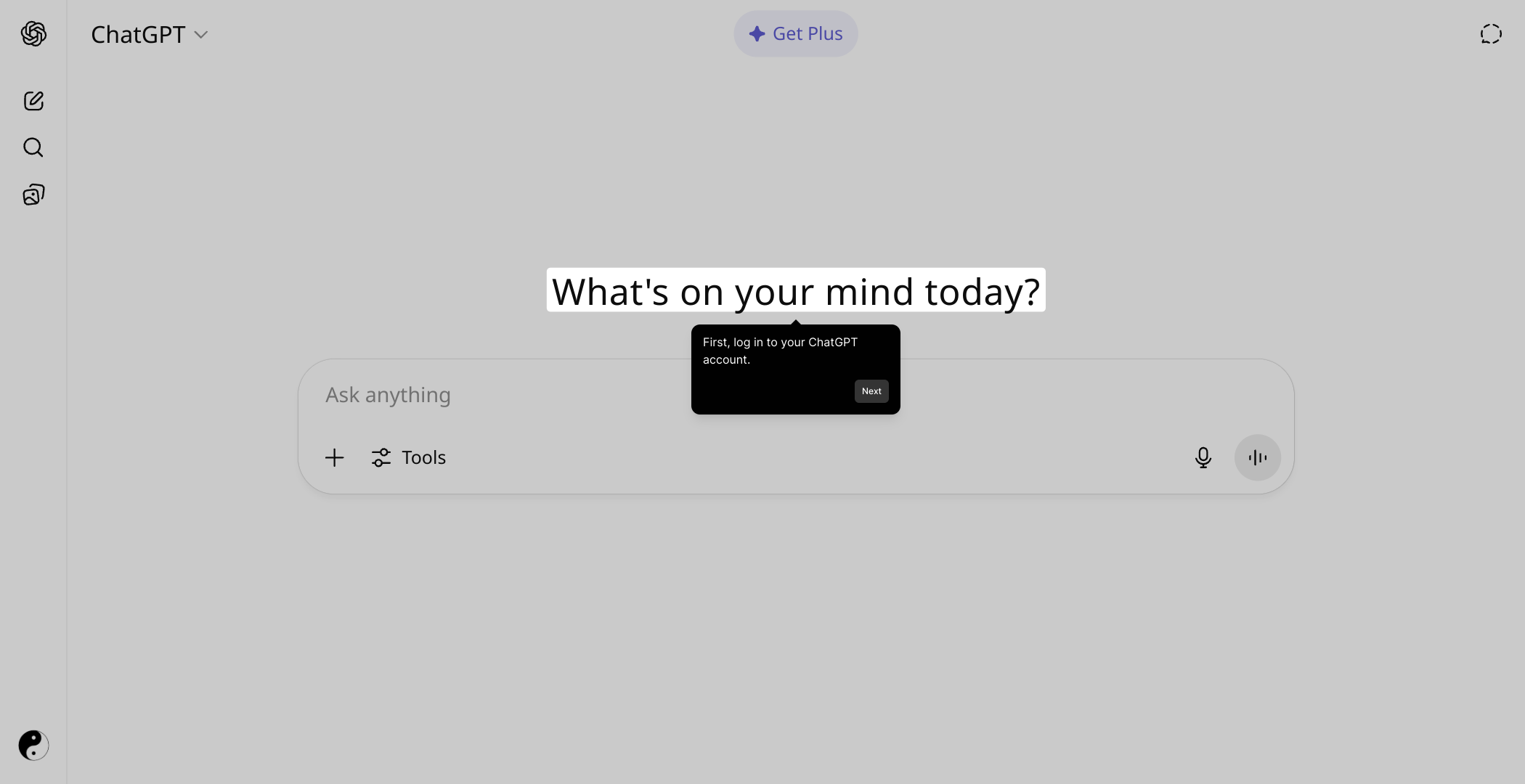
1

Next, go ahead and click on the "Click to edit the hotspot" link again to proceed with refining your hotspot details. This step guides you further into personalizing your setup effectively.
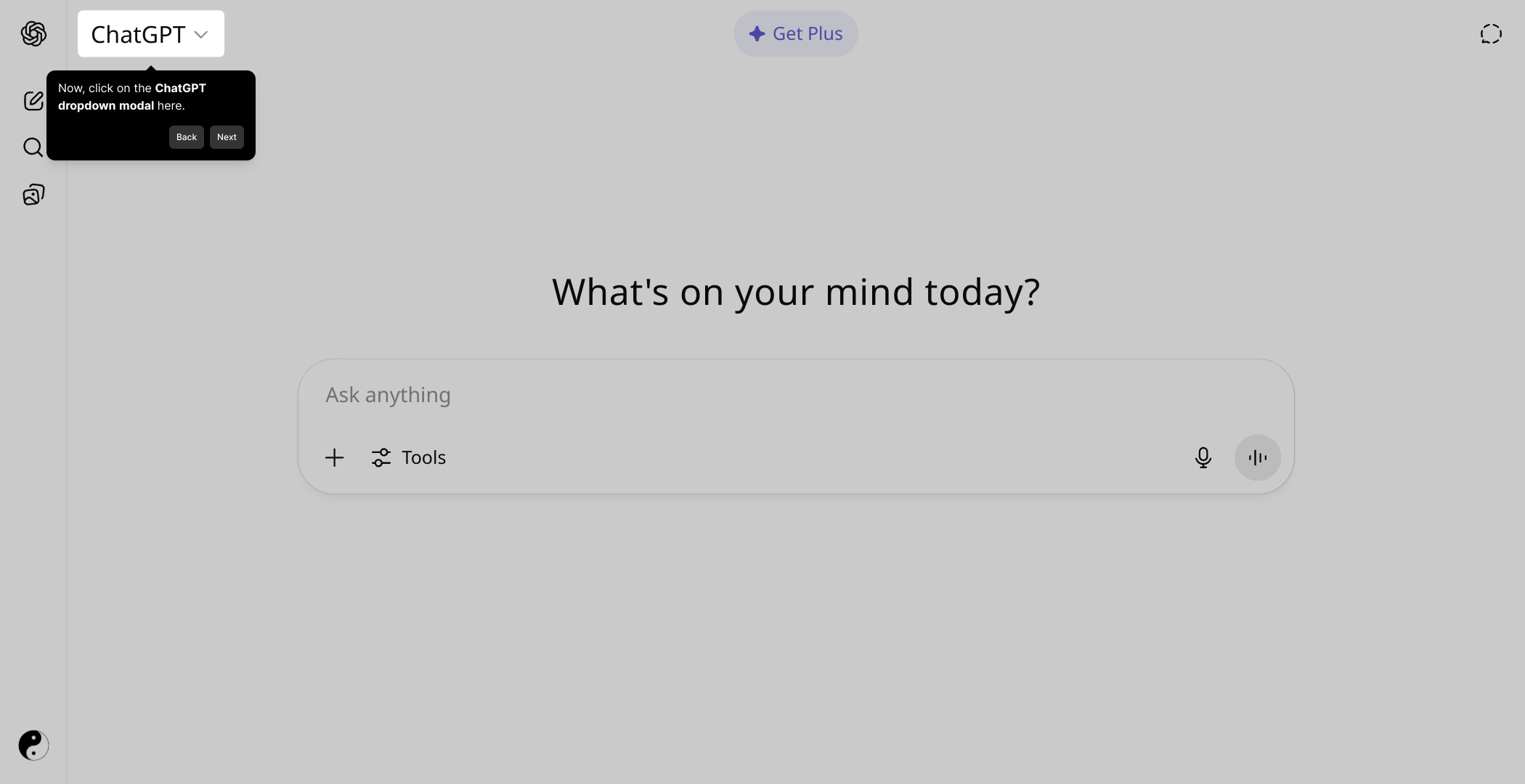
2

Here, you’ll see an option indicating the ChatGPT Plus model with a checkmark if your account includes this subscription. If not, an Upgrade button will appear, offering you the chance to enhance your plan for additional features.
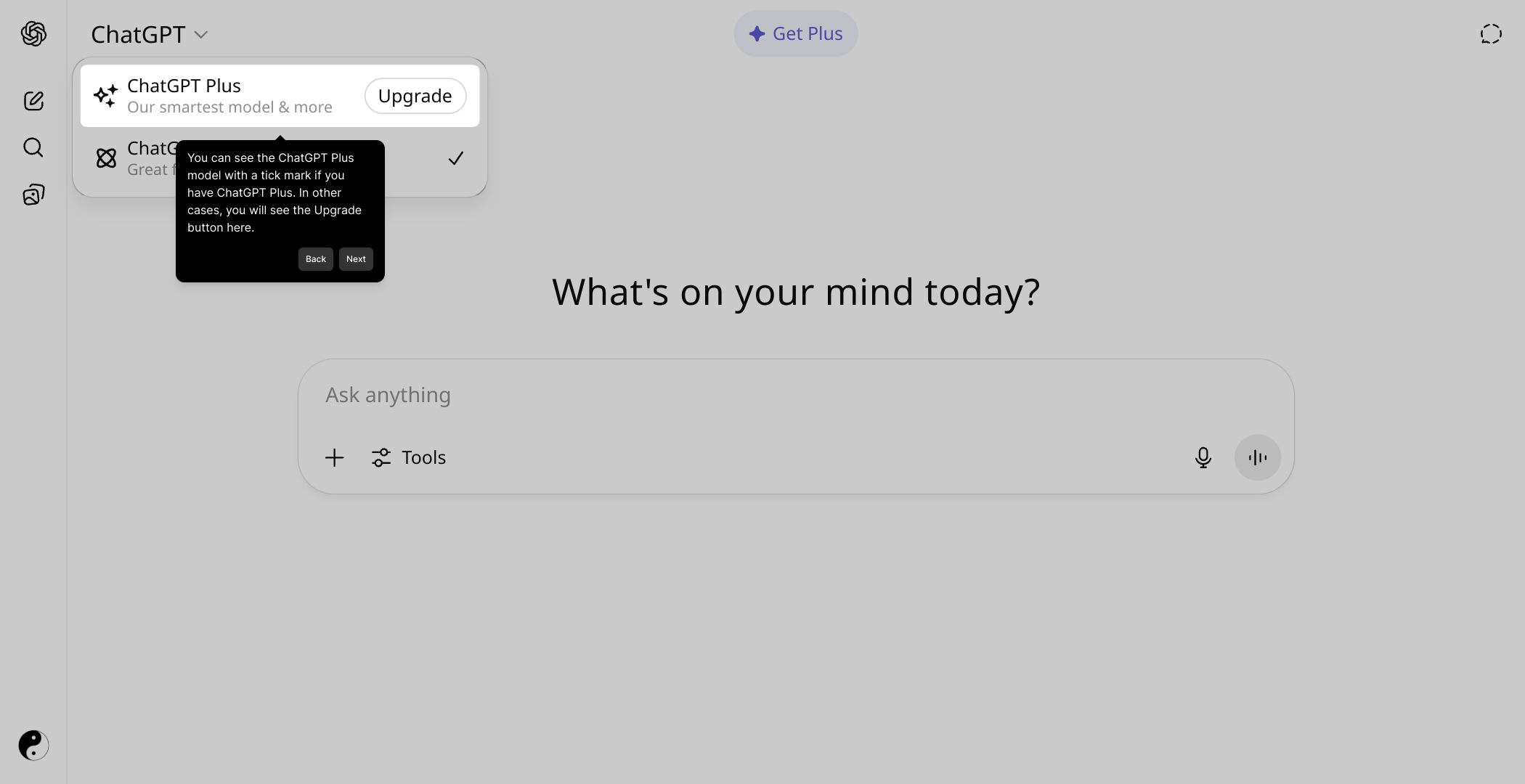
3

Finally, you’re all set to create your Supademo quickly and effortlessly. This streamlined process helps you launch your demo in just a few seconds, empowering you to showcase your product confidently.
4

Create your own interactive demos in < 5 mins with Supademo

You can create your own interactive product demo in minutes using Supademo. Drive growth, scale enablement, and supercharge product-led onboarding with Supademo. Sign up for free here with no credit card required.


FAQs

Commonly asked questions about this topic.

How do I know if I have a ChatGPT Plus subscription?

If you have ChatGPT Plus, you will see a checkmark indicating the Plus model in your account's subscription area. Otherwise, an Upgrade button will appear inviting you to subscribe to the paid plan.

Where can I find the subscription status in ChatGPT?

Your subscription status is displayed near the model selection area or in your account settings. Look for the presence of a Plus badge or an Upgrade button to determine your subscription level.

What does the tick mark next to ChatGPT Plus mean?

The tick mark signifies that your account is currently subscribed to ChatGPT Plus, granting you access to enhanced features like faster response times and priority usage during peak hours.

What if I see an Upgrade button instead of the Plus mark?

If you see the Upgrade button, it means you are currently on the free tier. You can click this button to subscribe to ChatGPT Plus and unlock premium features.

Can I check my subscription via the billing or account settings?

Yes, your billing or account settings section will list your current plan, payment method, and subscription status for ChatGPT Plus if active.

Is ChatGPT Plus subscription billed monthly?

Yes, ChatGPT Plus is typically billed on a monthly basis, giving you access to premium features until you cancel your subscription.

Does ChatGPT notify me before subscription renewal?

OpenAI usually sends email reminders about upcoming payments and subscription renewals for ChatGPT Plus to keep you informed.

Can I switch between free and Plus subscription anytime?

Yes, you can upgrade to ChatGPT Plus or cancel your subscription anytime via account settings. Downgrading usually transitions you back to the free tier immediately.

How do I troubleshoot if I believe I subscribed but see no Plus benefits?

Check your billing history and account page to verify your subscription. Logging out and back in or contacting OpenAI support can help resolve any discrepancies.

Are there any visible differences in the UI indicating ChatGPT Plus?

Yes, besides the checkmark next to the Plus model, users with ChatGPT Plus often see faster response times and priority access during peak demand reflected in their experience.
Vimal Kumar

Vimal Kumar

Product Operations Associate

Vimal Kumar helps build and grow Supademo’s team and GTM efforts, with a focus on figuring out growth levers and improving product traction.

More from the blog

How to Remove 'Powered by Shopify'

How to Remove 'Powered by Shopify'

Learn how to easily remove the 'Powered by Shopify' text from your online store with step-by-step instructions and tips to customize your Shopify storefront.

Vimal Kumar
Vimal KumarJan 3, 2026
How to Add Products to Shopify

How to Add Products to Shopify

Learn step-by-step how to add products to your Shopify store effortlessly, including tips on product details, images, pricing, and inventory management to boost your online sales.

Vimal Kumar
Vimal KumarDec 17, 2025
How to Deactivate Your Shopify Store

How to Deactivate Your Shopify Store

Learn step-by-step how to deactivate your Shopify store easily, including important considerations and tips to pause or close your shop without losing data.

Vimal Kumar
Vimal KumarDec 17, 2025
How to Remove 'Powered by Shopify'

How to Remove 'Powered by Shopify'

Learn how to easily remove the 'Powered by Shopify' text from your online store with step-by-step instructions and tips to customize your Shopify storefront.

Vimal Kumar
Vimal KumarDec 17, 2025
How to Create a Shopify Account

How to Create a Shopify Account

Learn step-by-step how to create a Shopify account quickly and easily, set up your online store, and start selling your products in no time.

Vimal Kumar
Vimal KumarDec 17, 2025
How to Create a Stripe Account

How to Create a Stripe Account

Learn how to create a Stripe account quickly and easily with our step-by-step guide, perfect for beginners looking to start accepting online payments.

Vimal Kumar
Vimal KumarDec 17, 2025