How to Shuffle Question Order in Google Forms

Vimal Kumar
Vimal Kumar·
How to Shuffle Question Order in Google Forms
Interactive demo powered by Supademo

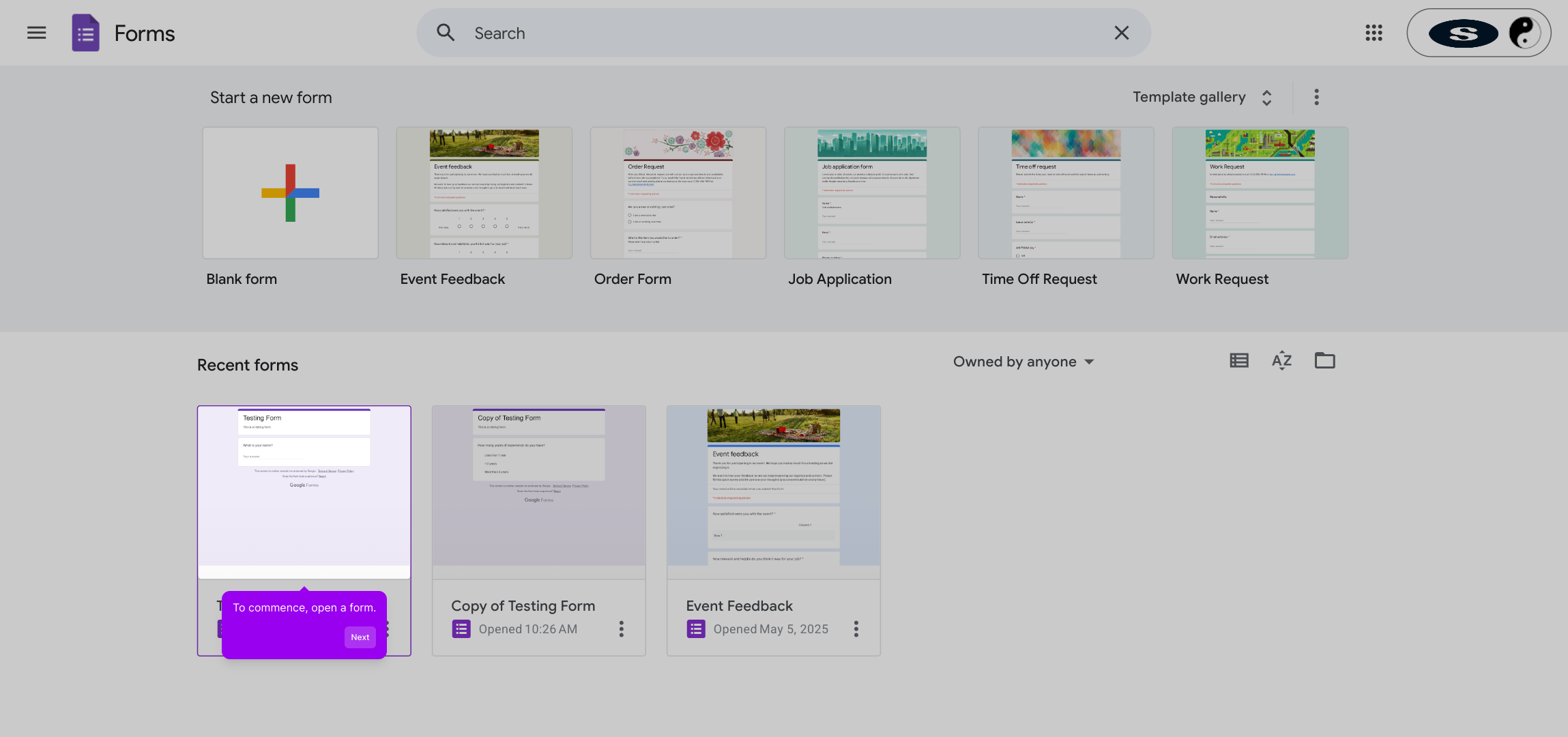
1. To commence, open a form.

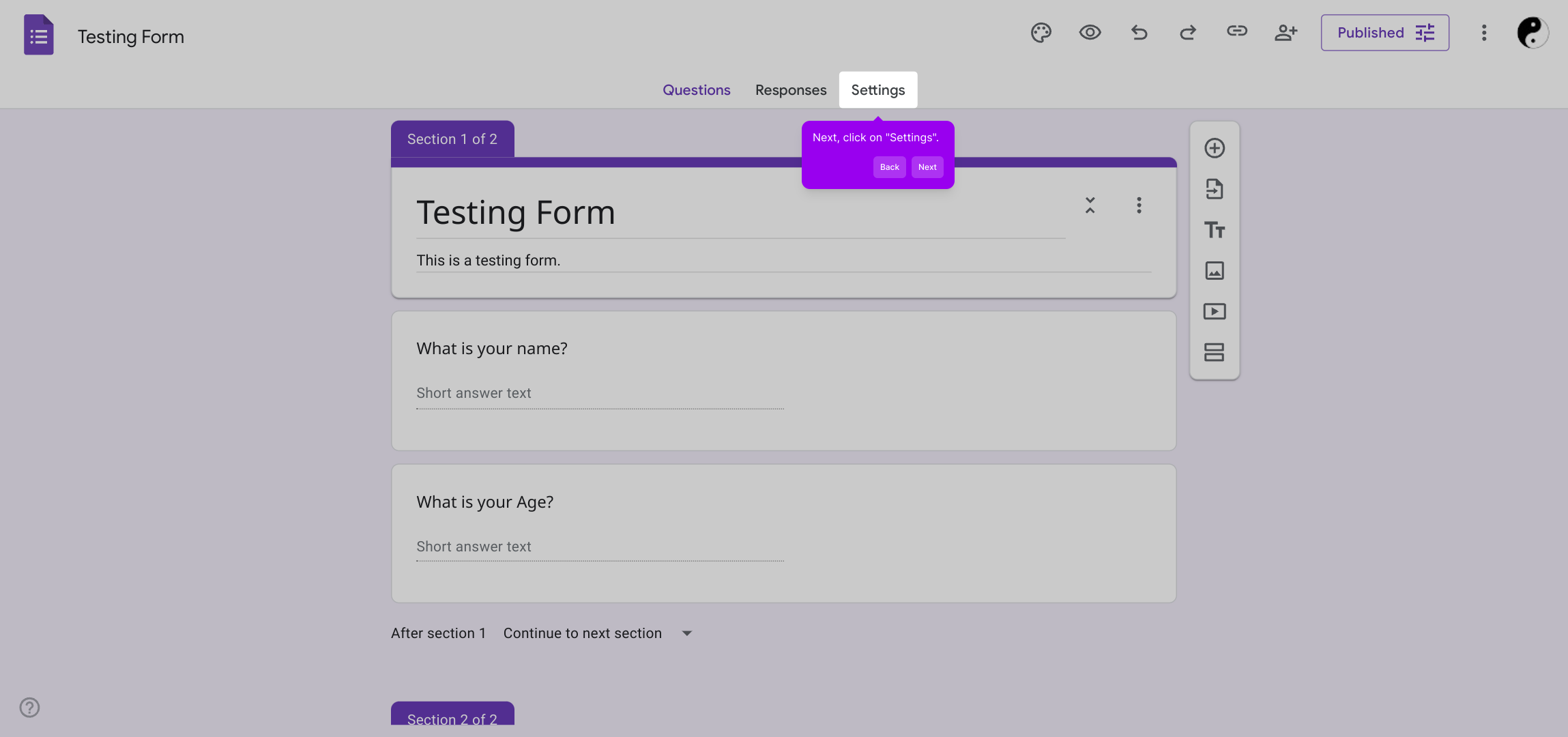
2. Next, click on "Settings".

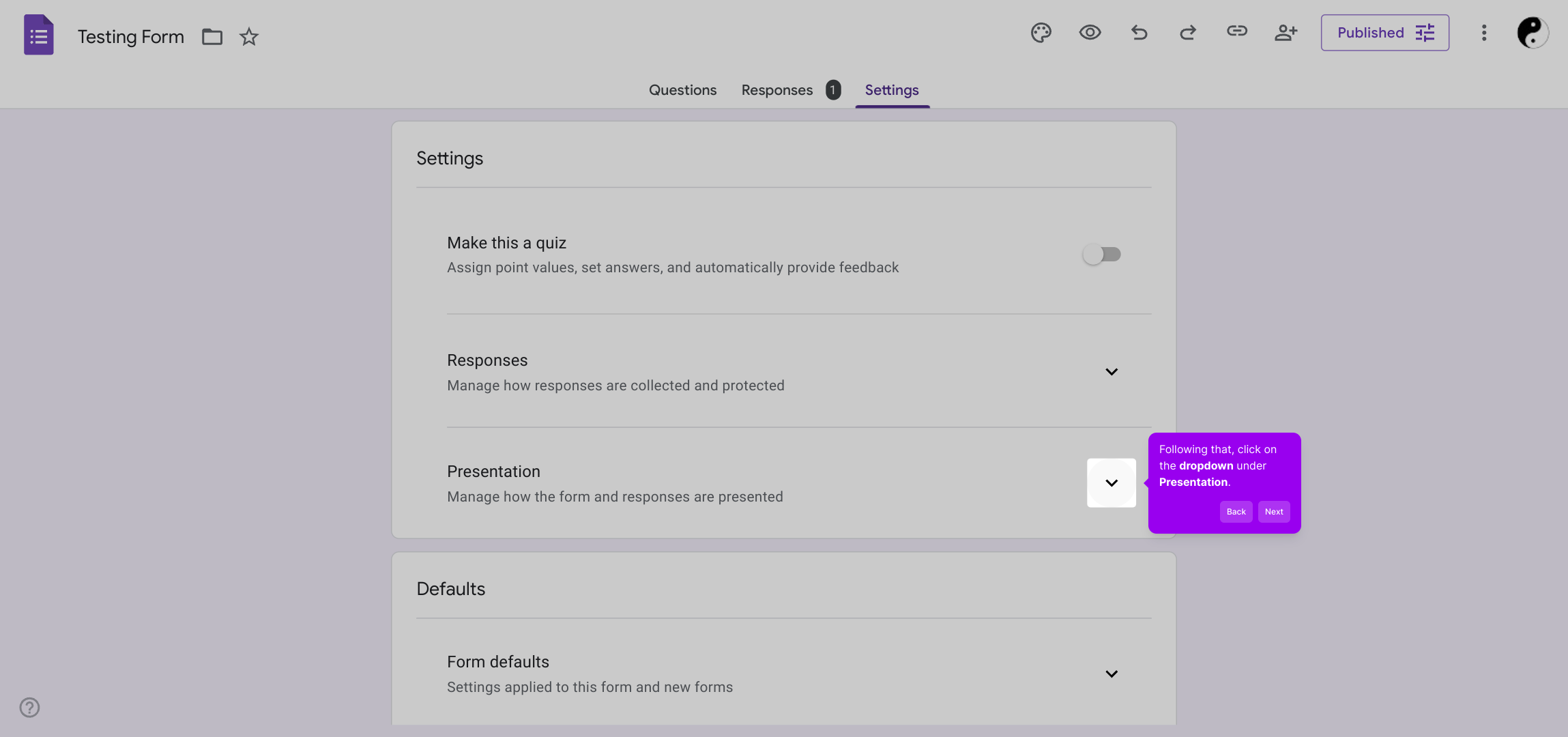
3. Following that, click on the dropdown under Presentation.

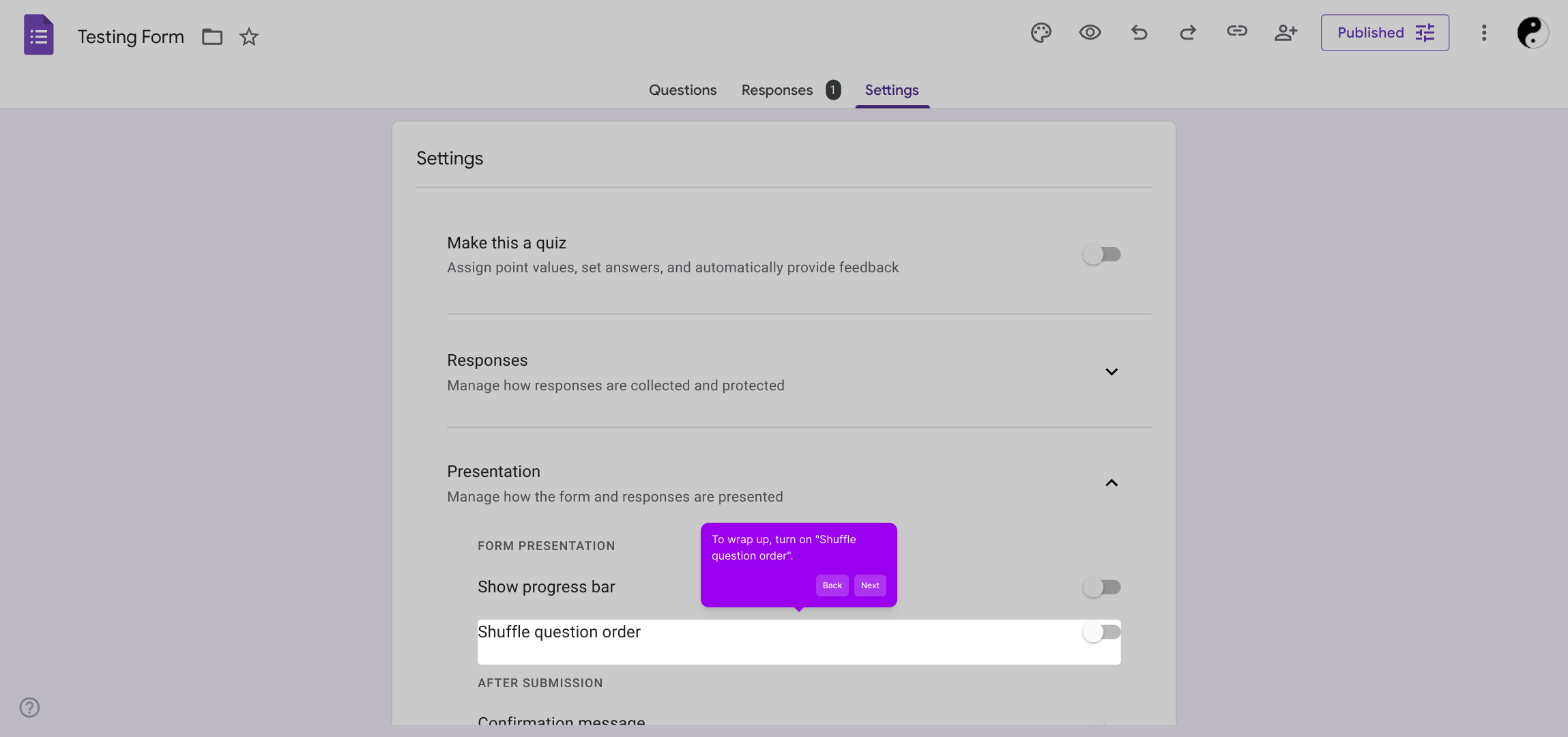
4. To wrap up, turn on "Shuffle question order".

5. Create a Supademo in seconds

This interactive demo/guided walkthrough on How to Shuffle Question Order in Google Forms was created using Supademo.


How to Shuffle Question Order in Google Forms : Step-by-Step Guide

Begin by opening the form you want to customize. This is where you’ll start setting up your questions and configurations to suit your needs.
1

Once your form is open, locate and select the “Settings” option. This menu allows you to adjust various preferences that control how your form behaves and looks.
2

Within the Settings panel, find the Presentation section and click on its dropdown menu. Here, you can change how the questions will be displayed to your users.
3

To enhance the experience, enable the option labeled “Shuffle question order.” This feature randomizes the sequence of questions, helping to keep respondents engaged.
4

With these settings applied, your form is ready to go. Now, you’ve successfully created a Supademo quickly and easily, ready for sharing or testing.
5

Create your own interactive demos in < 5 mins with Supademo

You can create your own interactive product demo in minutes using Supademo. Drive growth, scale enablement, and supercharge product-led onboarding with Supademo. Sign up for free here with no credit card required.


FAQs

Commonly asked questions about this topic.

What does "Shuffle question order" do in Google Forms?

The "Shuffle question order" feature randomizes the sequence in which questions appear to each respondent. This helps reduce bias or cheating, especially in quizzes or surveys, by presenting questions in different orders every time the form is accessed or submitted.

Where can I find the option to shuffle question order in Google Forms?

You can find the shuffle question order setting under the "Settings" gear icon in your form. Inside the Settings panel, select the "Presentation" tab, and then toggle the "Shuffle question order" option on or off.

Can I shuffle question order for specific sections only?

Google Forms currently allows shuffling the order of all questions in the form, but it does not support shuffling questions only within specific sections. All questions appear randomized unless you manually organize sections without shuffling.

Does shuffling questions affect the form responses?

Shuffling question order doesn’t affect the data collection or the accuracy of your responses. The answers are saved correctly regardless of question order, ensuring consistent data that’s easy to analyze.

Can I shuffle questions if my form includes images or videos?

Yes, Google Forms shuffles the questions along with any embedded images, videos, or other content associated with those questions. The entire question block, including multimedia, will be randomized accordingly.

Is it possible to disable question shuffling after enabling it?

Absolutely. You can toggle off the shuffle question order feature anytime by revisiting the Settings > Presentation tab and turning off the option. Your questions will then display in their original fixed order.

Does shuffling questions impact quizzes with point scoring?

No, question shuffling does not interfere with quiz scoring in Google Forms. Points assigned to each question remain intact, and results are calculated correctly regardless of the order questions appear.

Can respondents see the question order as it was shuffled after submission?

Respondents only see the shuffled question order while taking the form. After submission, they cannot review the question order unless you enable a specific review feature. Admins view collected data without any order bias.

Does shuffling questions help reduce cheating in online tests?

Yes, shuffling questions reduces the chances of cheating by altering the order each respondent sees. This makes it harder for participants to share answers and promotes more individual effort in online quizzes or exams.

Are there alternatives to shuffle question order in Google Forms?

Besides shuffling the entire question order, you can use sections and branching logic in Google Forms to create randomized pathways or personalized question flows, providing a custom experience without full question shuffling.

Vimal Kumar

Vimal Kumar

Product Operations Associate

Vimal Kumar helps build and grow Supademo’s team and GTM efforts, with a focus on figuring out growth levers and improving product traction.

More from the blog

How to Add Products to Shopify

How to Add Products to Shopify

Learn step-by-step how to add products to your Shopify store effortlessly, including tips on product details, images, pricing, and inventory management to boost your online sales.

Vimal Kumar
Vimal KumarDec 17, 2025
How to Deactivate Your Shopify Store

How to Deactivate Your Shopify Store

Learn step-by-step how to deactivate your Shopify store easily, including important considerations and tips to pause or close your shop without losing data.

Vimal Kumar
Vimal KumarDec 17, 2025
How to Remove 'Powered by Shopify'

How to Remove 'Powered by Shopify'

Learn how to easily remove the 'Powered by Shopify' text from your online store with step-by-step instructions and tips to customize your Shopify storefront.

Vimal Kumar
Vimal KumarDec 17, 2025
How to Create a Shopify Account

How to Create a Shopify Account

Learn step-by-step how to create a Shopify account quickly and easily, set up your online store, and start selling your products in no time.

Vimal Kumar
Vimal KumarDec 17, 2025
How to Create a Stripe Account

How to Create a Stripe Account

Learn how to create a Stripe account quickly and easily with our step-by-step guide, perfect for beginners looking to start accepting online payments.

Vimal Kumar
Vimal KumarDec 17, 2025
How to Contact Stripe Support

How to Contact Stripe Support

Learn the easiest ways to contact Stripe support for quick assistance with your payment processing, account issues, and technical questions.

Vimal Kumar
Vimal KumarDec 16, 2025