Interactive ClickUp Demo
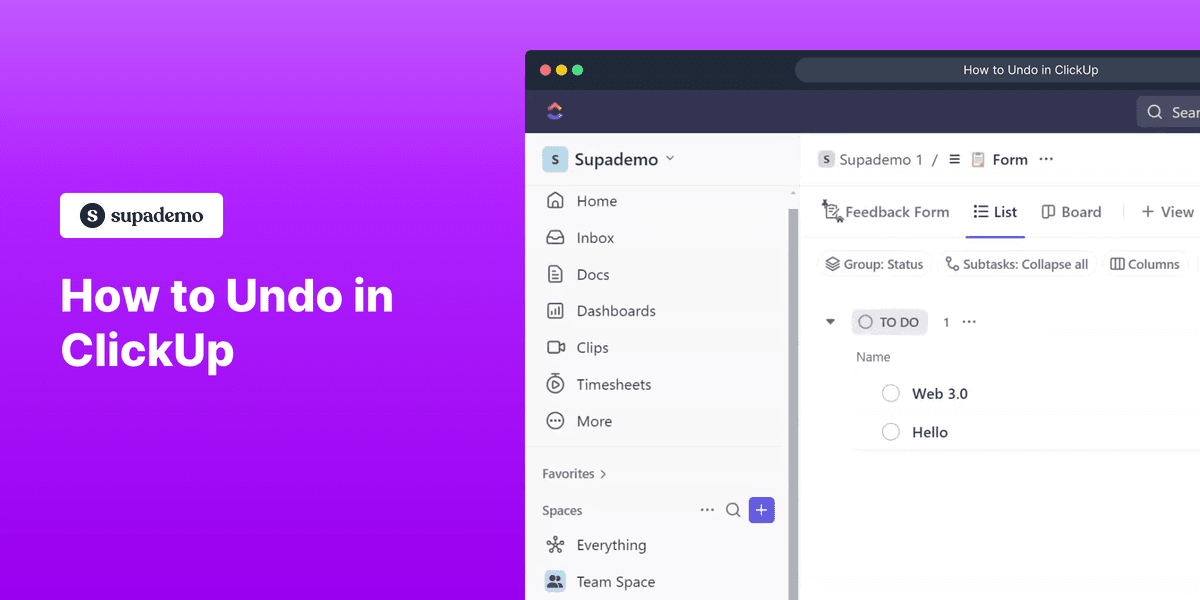
Explore a demo of ClickUp, a comprehensive project management and productivity tool designed to help teams plan, organize, and collaborate on projects of all sizes.
What is ClickUp?
ClickUp is an all-in-one productivity platform that combines project management, docs, goals, time tracking, and dashboards in a single application. Founded in 2017 by Zeb Evans, ClickUp has grown rapidly to serve over 10 million users at companies ranging from startups to enterprise.
Unlike single-purpose tools, ClickUp is designed to replace multiple separate apps. Teams can manage tasks in List, Board, Gantt, Calendar, or Timeline views. Docs lets teams write documentation alongside tasks. Goals tracks OKRs. Time tracking is built in. Dashboards aggregate everything into a single overview.
ClickUp's extreme flexibility — with custom statuses, fields, workflows, and permissions at every level — makes it adaptable to virtually any team's process. The trade-off is a steeper learning curve than simpler tools like Trello or Asana.
How to get started with ClickUp
- 1
Set up your Workspace
Sign up at clickup.com — the free plan is generous with unlimited tasks and members. Create your Workspace (your company) and configure your first Space (a high-level container like 'Engineering' or 'Marketing').
- 2
Create your Space and List structure
Inside Spaces, create Folders for departments or projects, and Lists for specific workflows. For example: Space = Marketing, Folder = Q1 Campaigns, List = SEO Content.
- 3
Choose your views
ClickUp offers 15+ view types. Start with List view for task management, Board view for kanban, and Calendar for deadline tracking. Add a Gantt view for project timelines or Table view for spreadsheet-style data.
- 4
Customize your workflow
Add custom statuses (e.g. Blocked, In Review, Ready to Deploy) that match your team's process. Add custom fields like Priority, Estimated Hours, or Client Name. Create templates for recurring projects.
- 5
Set up automations
Use ClickUp Automations to reduce manual work: auto-assign tasks when status changes, send Slack notifications when tasks are overdue, or create recurring tasks on a schedule. 100+ automation templates are available.
Explore more ClickUp guides
Step-by-step interactive demos and tutorials for ClickUp.
Who is ClickUp most useful for?
Operations and project management teams who want to consolidate multiple tools into one platform. Use Supademo to create interactive walkthroughs of how your ClickUp workspace is set up — showing team members how to navigate Spaces, Folders, and Lists and find the work that matters to them.
Product and engineering teams running agile workflows who want sprint planning, roadmaps, and bug tracking in one place. Pair Supademo with ClickUp by embedding interactive demos of new product features in ClickUp tasks, giving engineers direct product context alongside their work.
Agency and consulting teams managing multiple client projects simultaneously. Create Supademo onboarding walkthroughs of your ClickUp templates so new clients or team members can get up to speed without a live training session.
Managers and team leads who need visibility across all active work in one place. Build Supademo guides for your most common ClickUp workflows so the team follows consistent processes.
Looking for alternatives to ClickUp?
Here are four tools worth evaluating depending on your needs.
More polished and easier to adopt than ClickUp. Better for teams that want simplicity over maximum flexibility. ClickUp has more features; Asana has better UX consistency.
View demo →
More visual and approachable for non-technical teams. Better for cross-company stakeholder management. ClickUp has more depth for technical and development teams.
View demo →
Better for teams that prioritize documentation alongside lightweight project management. ClickUp is more powerful as a dedicated project management tool with time tracking and reporting.
View demo →
Much faster and more opinionated for software engineering teams. Linear is purpose-built for product development; ClickUp covers more use cases across the whole company.
FAQs on ClickUp
Commonly asked questions about ClickUp. Have more? Reach out and our team will be happy to help.
Yes. ClickUp's free plan includes unlimited tasks, unlimited members, 100MB storage, and many core features. Paid plans (Unlimited at $7/member/month) add unlimited storage, integrations, dashboards, and advanced permissions.
Spaces are top-level containers, typically for departments (e.g. Engineering, Marketing). Folders group related Lists within a Space. Lists are where actual tasks live. Think of it as Company > Department > Project > Tasks.
Yes. ClickUp's Slack integration lets you create tasks from messages, get notified of task updates in Slack channels, and preview task details without leaving Slack. You can also use the /clickup slash command.
Yes. ClickUp has a dedicated Sprint feature with sprint folders, velocity tracking, and burndown charts. Teams can plan sprints by dragging tasks into sprint lists and use ClickUp's reporting to analyze team capacity and output.
Yes. ClickUp's Business Plus and Enterprise plans support advanced permissions, SSO, custom roles, and dedicated success managers. Many organizations with 500+ users run ClickUp across multiple departments.
Yes. ClickUp has built-in time tracking with manual entry, timers, and time estimates per task. Reports show time tracked by task, person, or project. It also integrates with Toggl, Harvest, and other dedicated time tracking tools.