Annotations
Add arrows, shapes, and text to highlight key actions and guide viewers through an interactive demo.
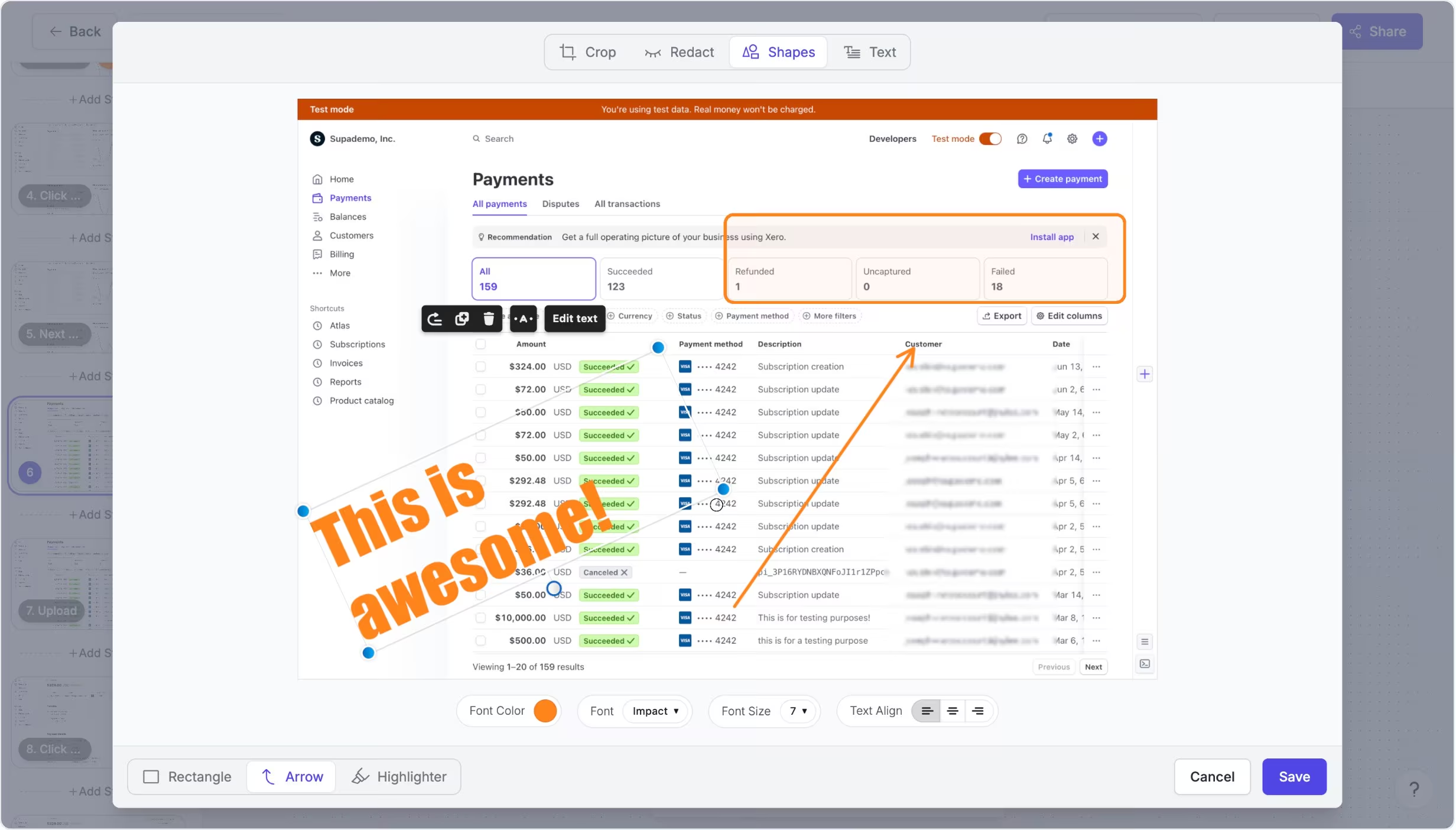
Highlight what matters on each step
Annotations let you add visual guidance directly onto screenshot-based steps using arrows, shapes, and text.
You can position, resize, and adjust annotations to draw attention to key buttons, fields, or areas of the interface, making the flow easier to understand at a glance.
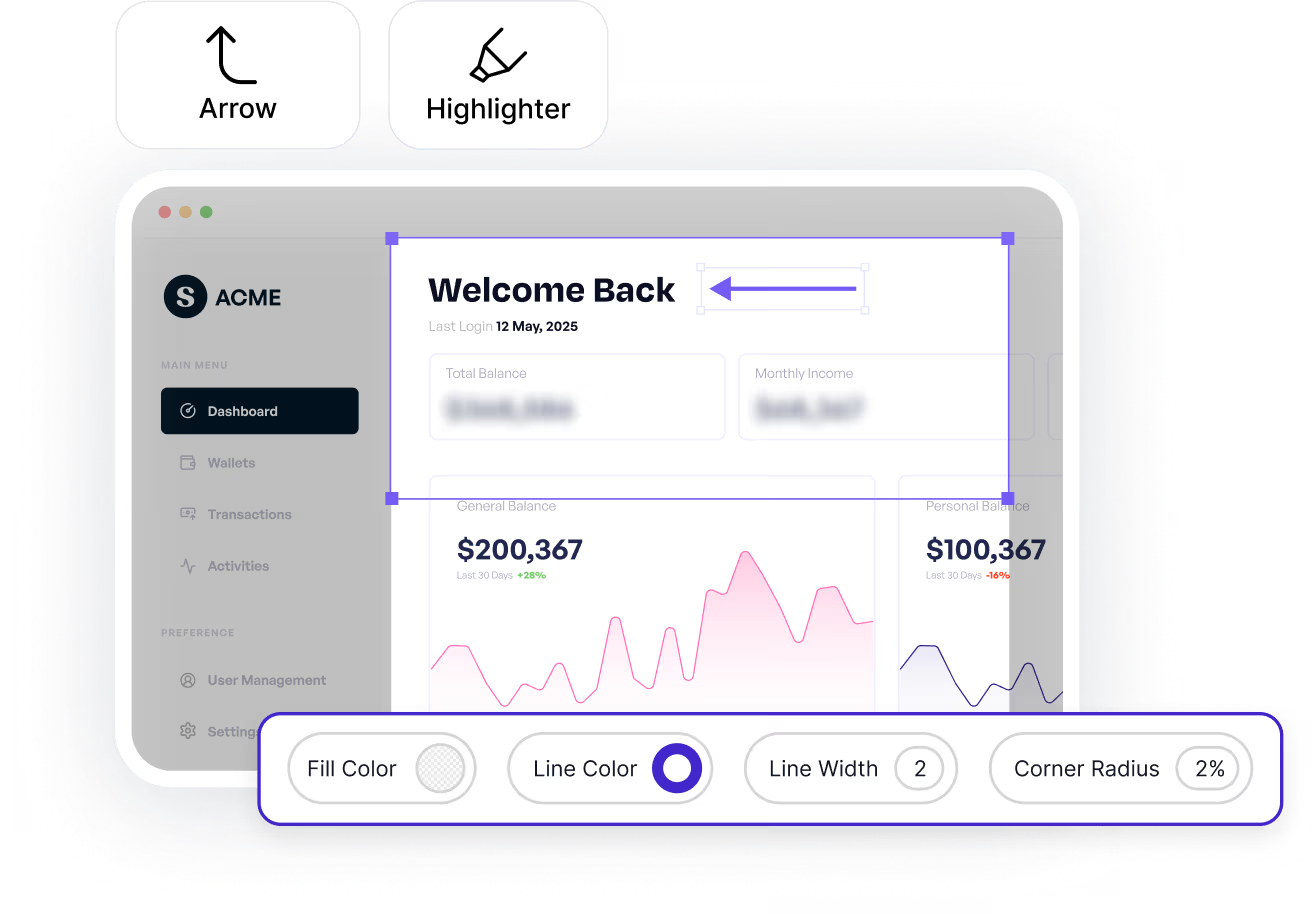
Make walkthroughs clearer without extra steps
Teams use annotations to explain complex interfaces and reduce confusion during onboarding, training, and support walkthroughs.
They're especially useful when a viewer should notice a specific detail on screen, such as where to click next or what to look for, without adding more hotspots or breaking the flow.

Experience instantly, interactively
Discover how you can add any annotations to an interactive demo.
Explore More Features
FAQs
Commonly asked questions about annotations. Have other questions? Reach out and our team will be happy to help.

You can add arrows, shapes, and text annotations to screenshot-based steps.
Yes. Annotations can be repositioned, resized, and edited at any time.
Annotations are designed for screenshot-based steps, where precise visual guidance is most effective.