Blur
Hide sensitive on-screen data in interactive demos using automatic and manual blur.
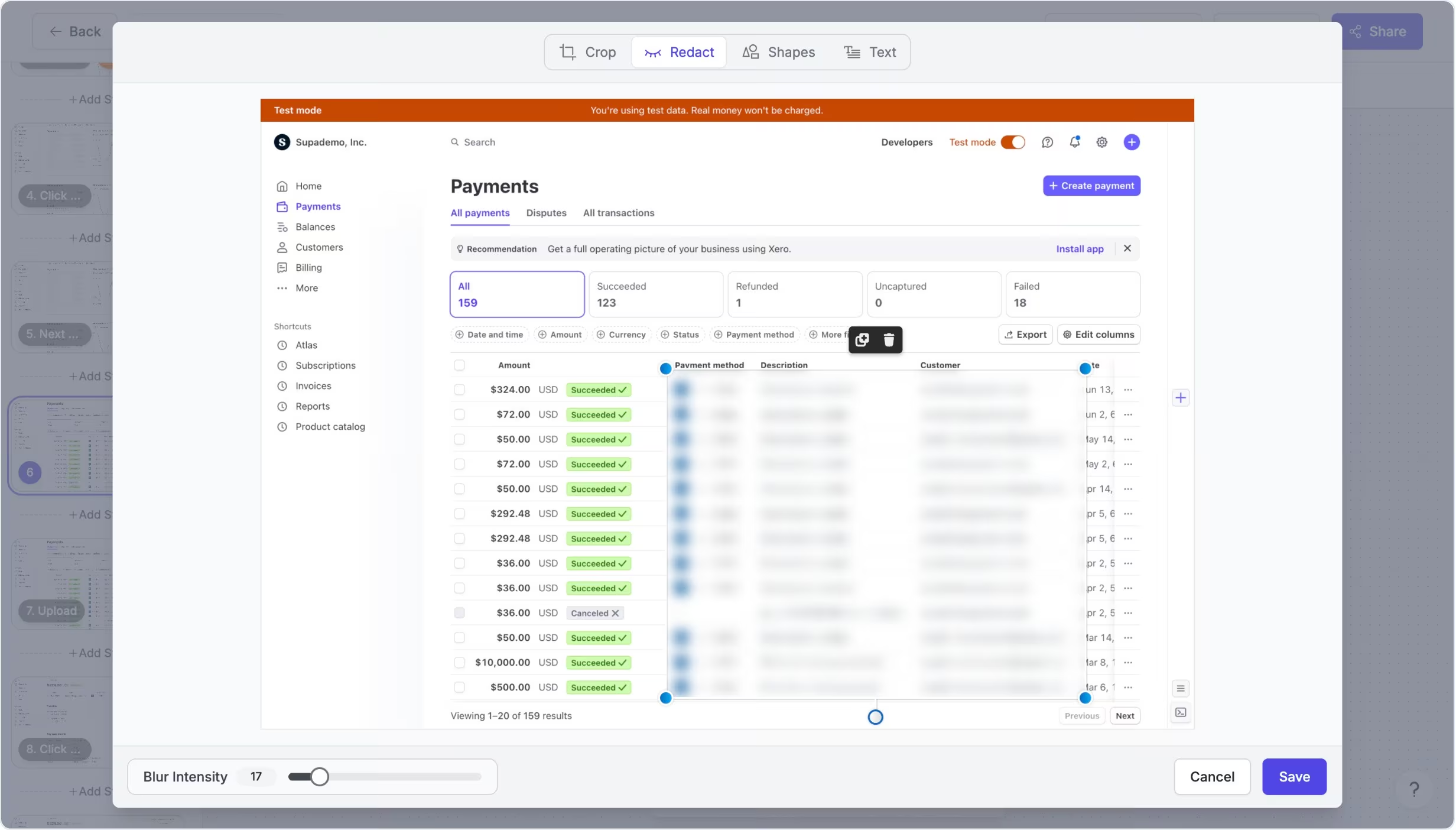
Blur and redact sensitive on-screen data
Blur lets you hide sensitive information in screenshot slides by drawing blur areas directly on the screen. You can resize blur regions and adjust intensity so emails, names, phone numbers, or internal data stay hidden while the rest of the interface remains clear.
Supademo also supports Smart Blur, which automatically detects and blurs sensitive information during recording, reducing the need for manual redaction afterward.
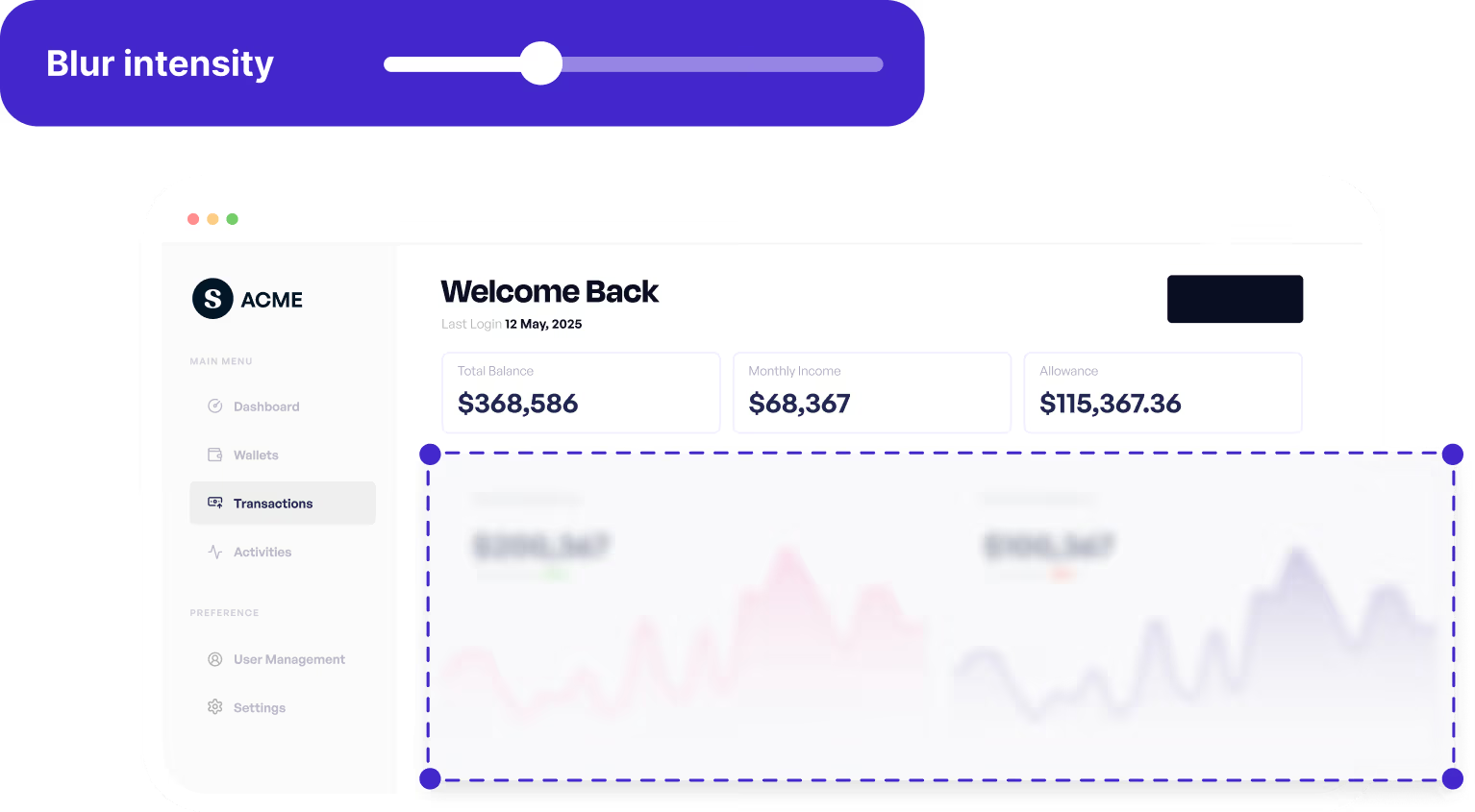
Share real product screens without exposing sensitive data
Teams use blur when recording real customer accounts, internal tools, or production environments that contain private or confidential data.
It's commonly used in sales demos, onboarding walkthroughs, support guides, and training content where realism matters but data exposure does not.
Experience instantly, interactively
Discover how easy it is to enable Smart Blur before recording an interactive demo.
Explore More Features
FAQs
Commonly asked questions about blur. Have other questions? Reach out and our team will be happy to help.
No. Blur is currently supported on screenshot-based steps only.
Yes. You can adjust blur intensity using the blur editor controls.
Smart Blur automatically detects and blurs sensitive information while you record a demo. Manual blur lets you fine-tune or add additional redactions after recording. Both can work together to keep interactive demos realistic without exposing sensitive data.